Create an audio library
Upload audio, add categories and artwork, and check the player.
Step-by-step guide
Follow these steps, then download the PDF to keep.
- 1
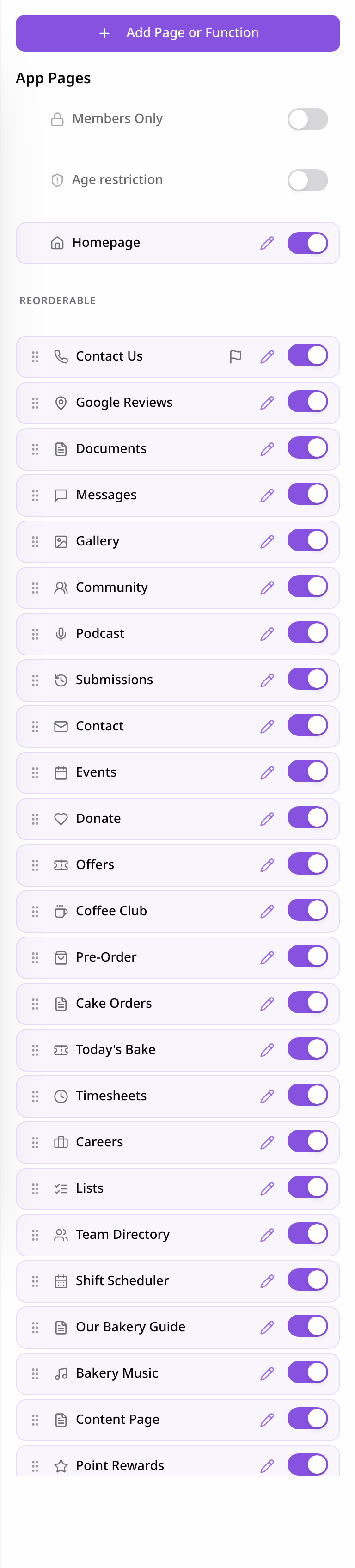
Open Pages
Open your app editor, select Pages, then Add Page or Function.
- 2
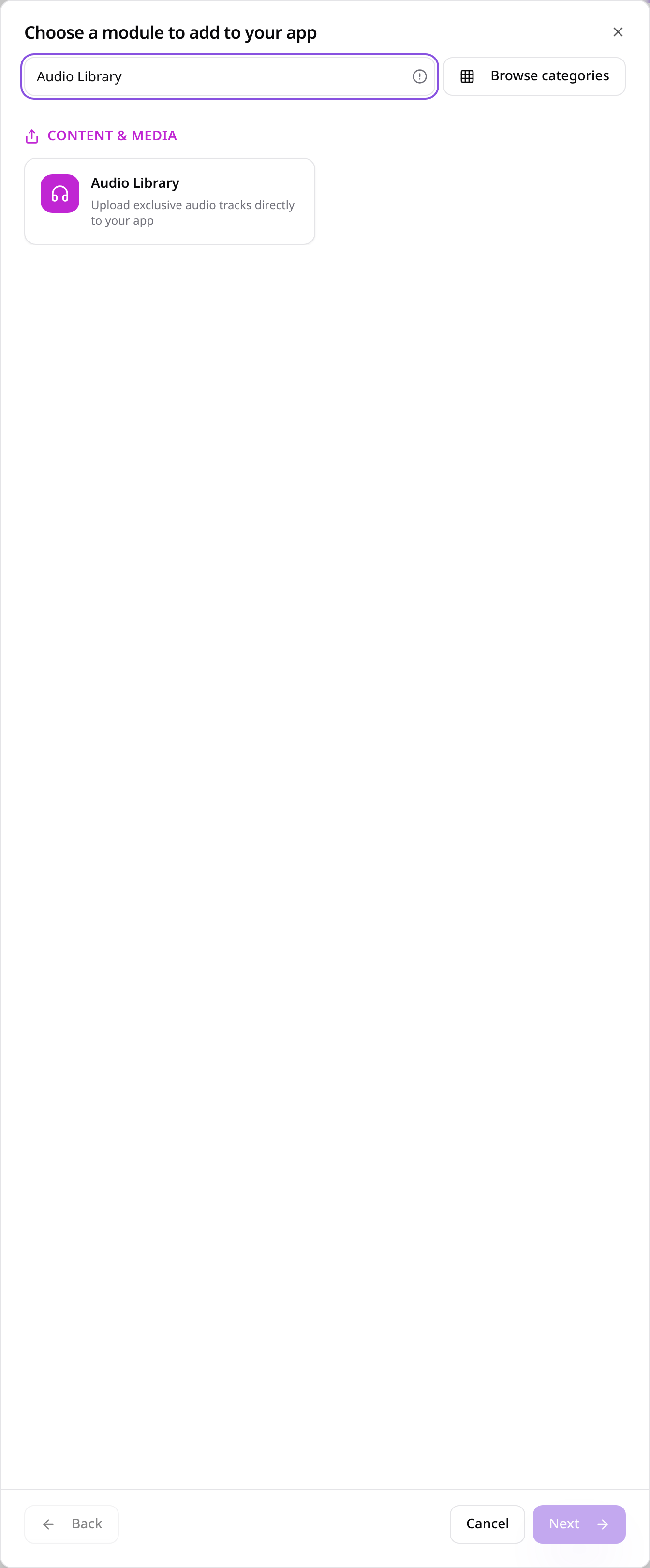
Choose Audio Library
Search for Audio Library and select it.
- 3
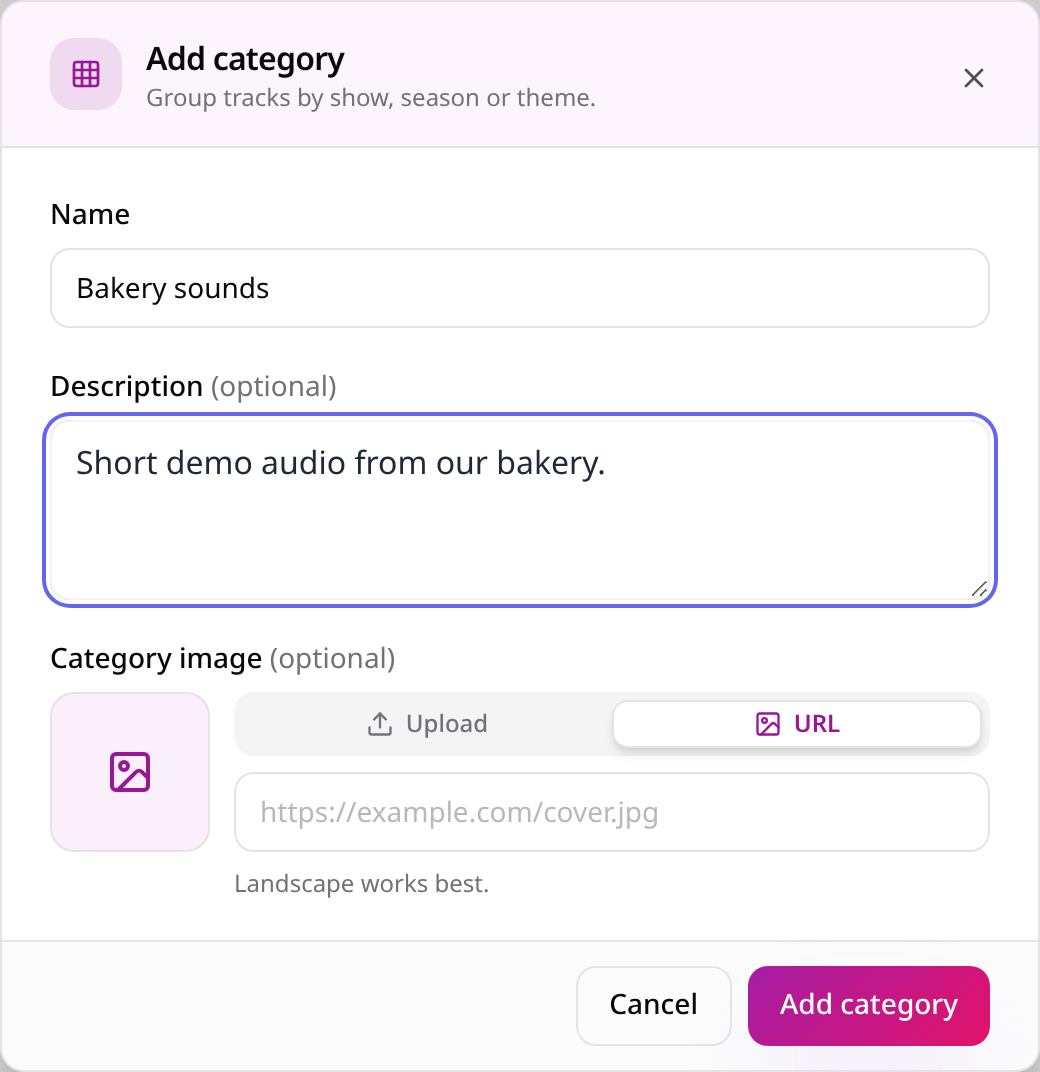
Create an audio category
Open Categories, choose Add category and enter a name, optional description and artwork.
- 4
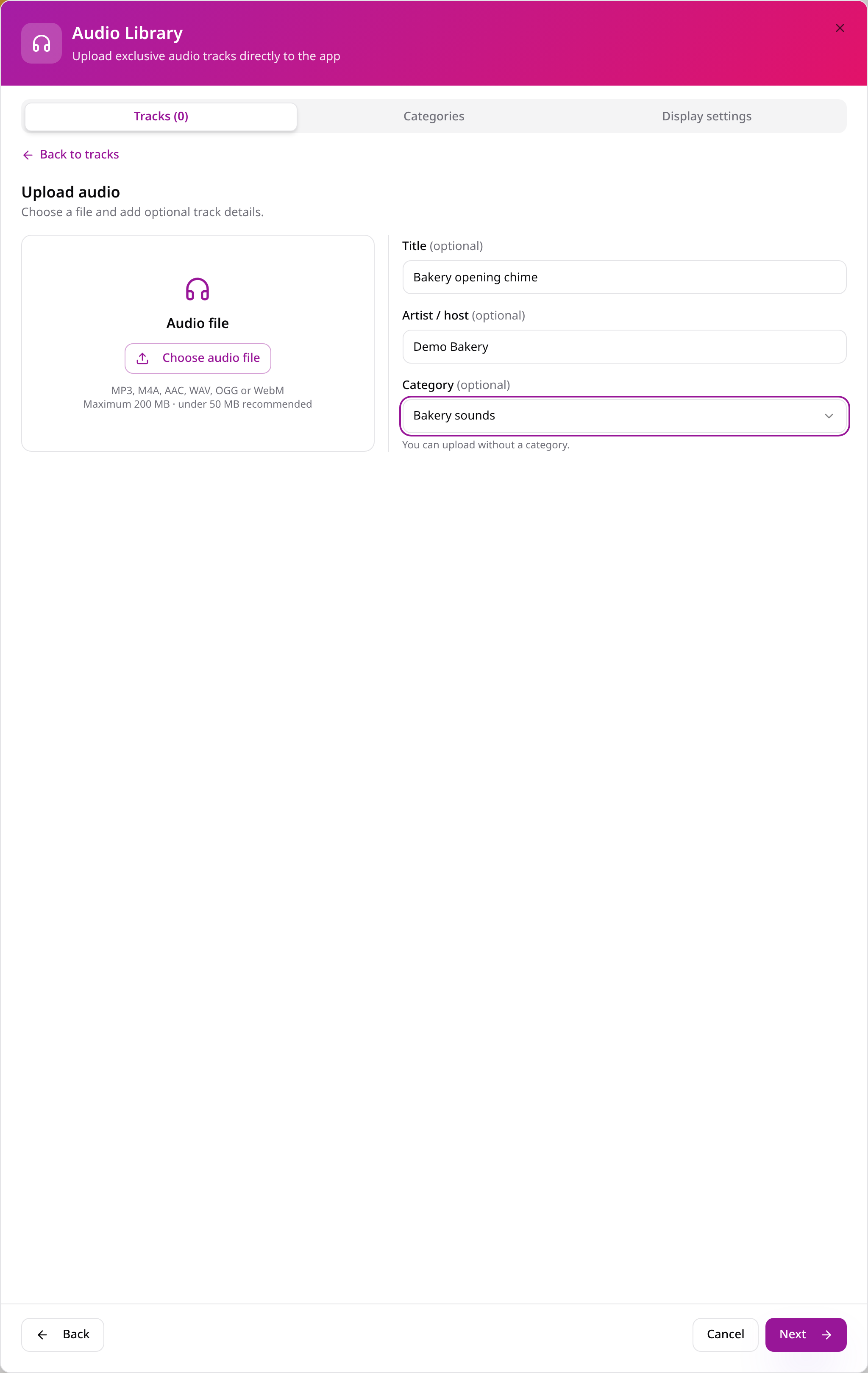
Choose a file and track details
Add a title and artist or host, select a category, then choose an audio file to upload.
- 5
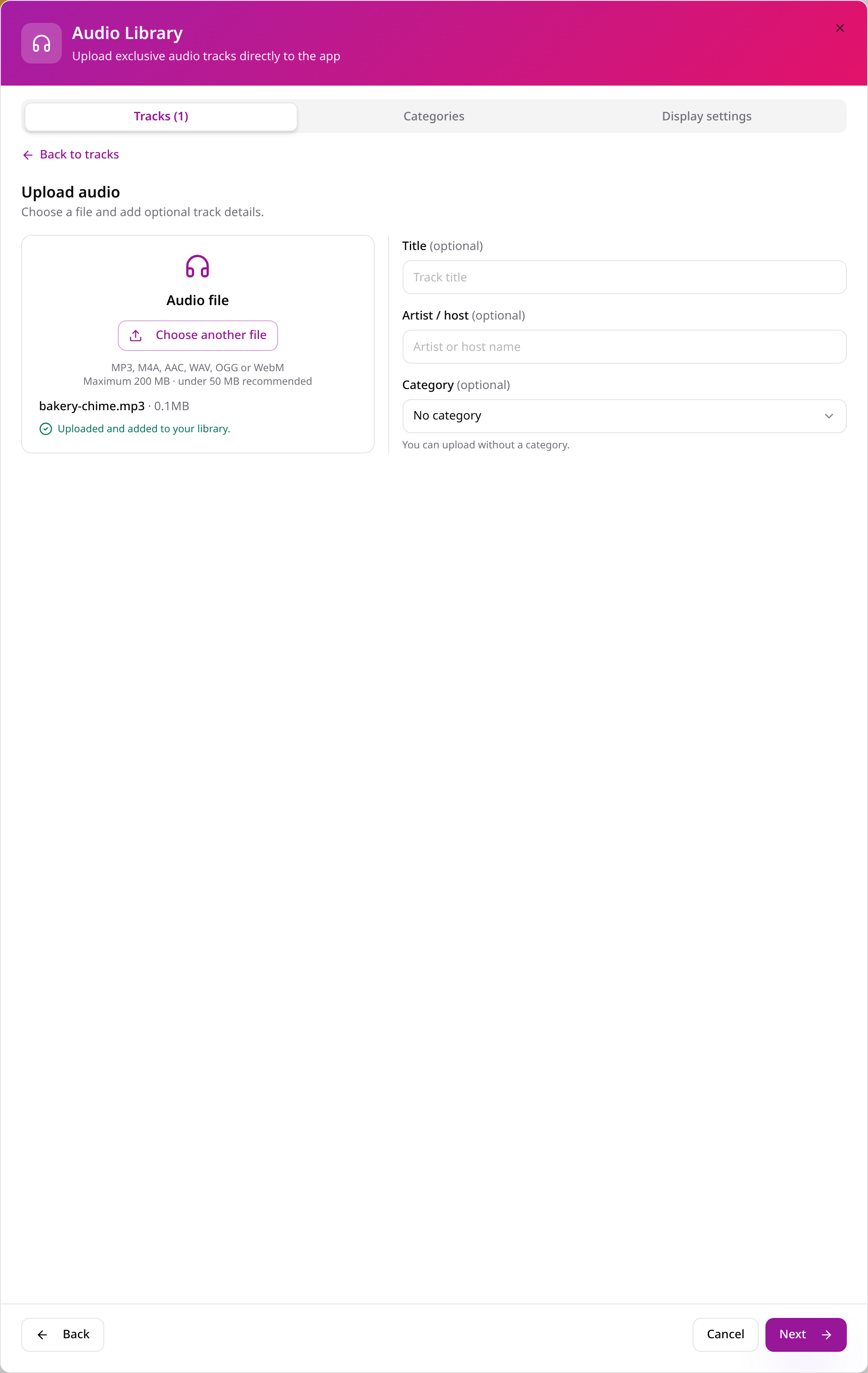
Wait for upload confirmation
Wait until the file is uploaded and added to the library before continuing.
- 6
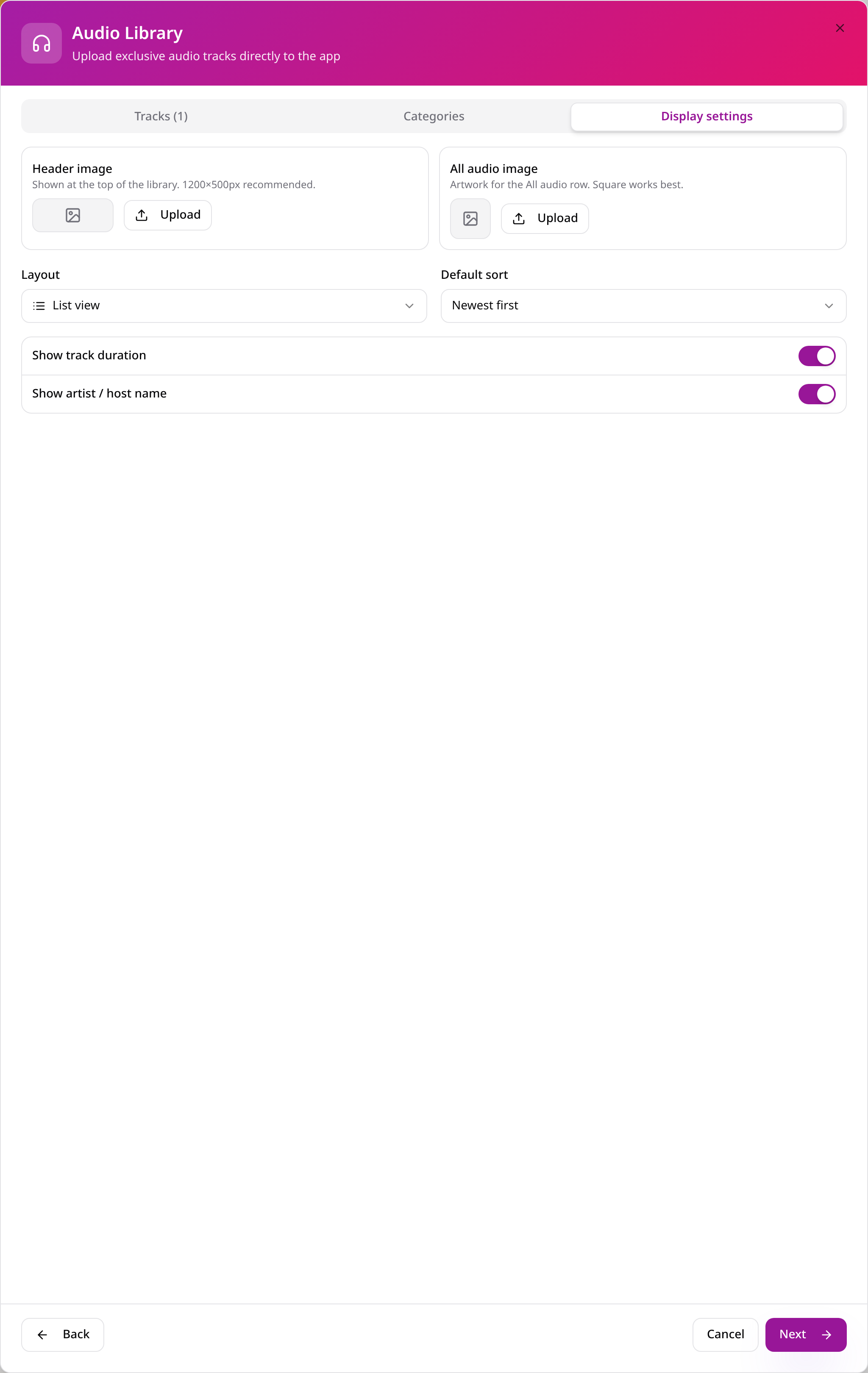
Set the library appearance
Add optional Header and All audio images, choose a layout and sort order, and set duration and artist visibility.
- 7
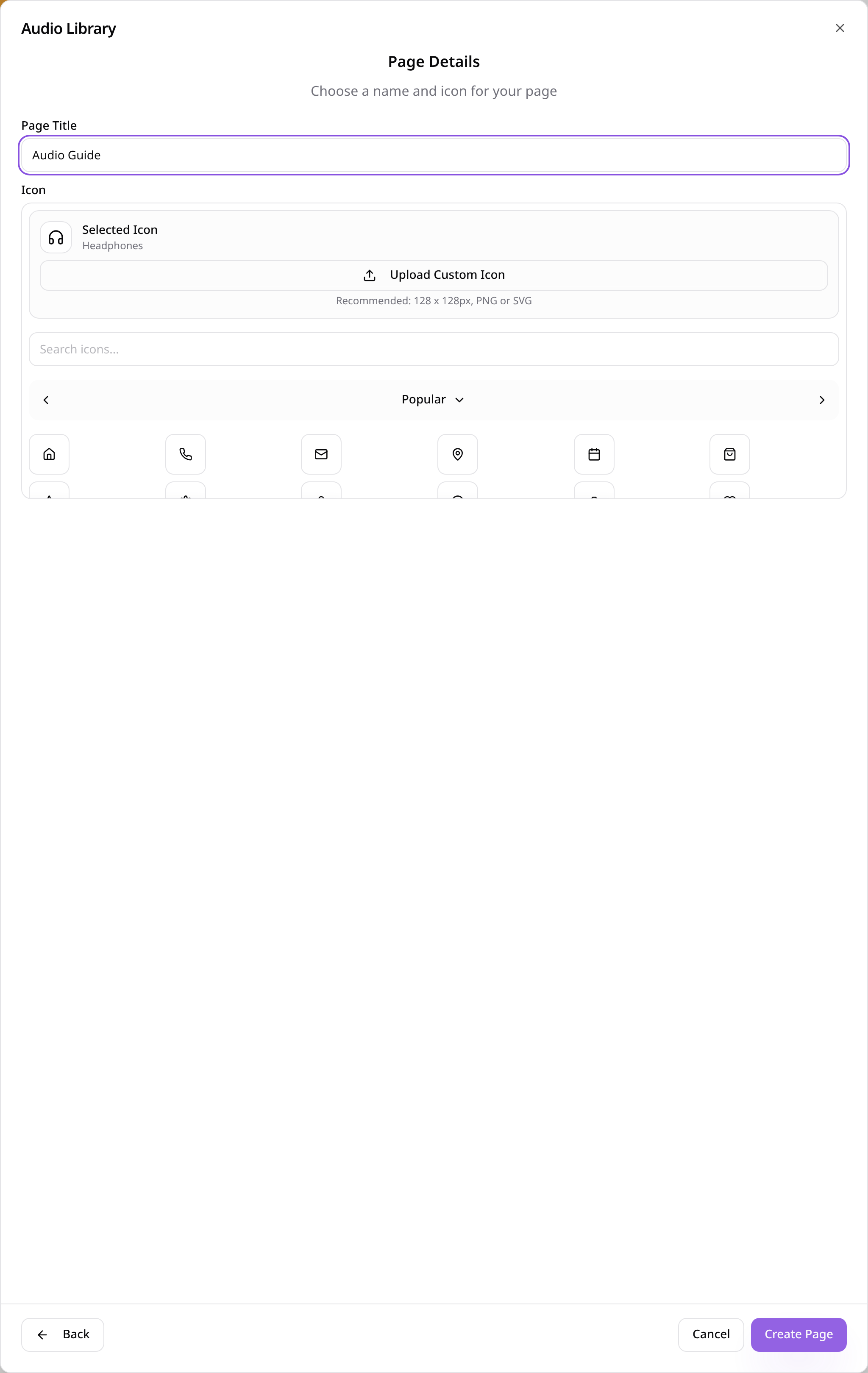
Name the page and choose an icon
Give the page a short, clear title, choose an icon, then select Create Page.
- 8
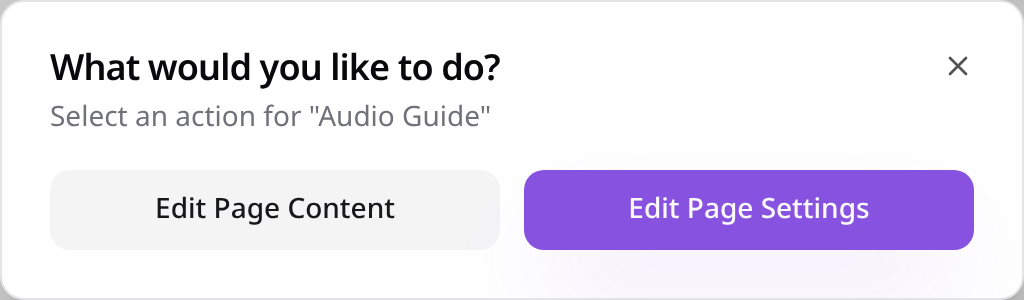
Change it later
Select the page in Pages, then choose Edit Page Content to update its settings.
- 9
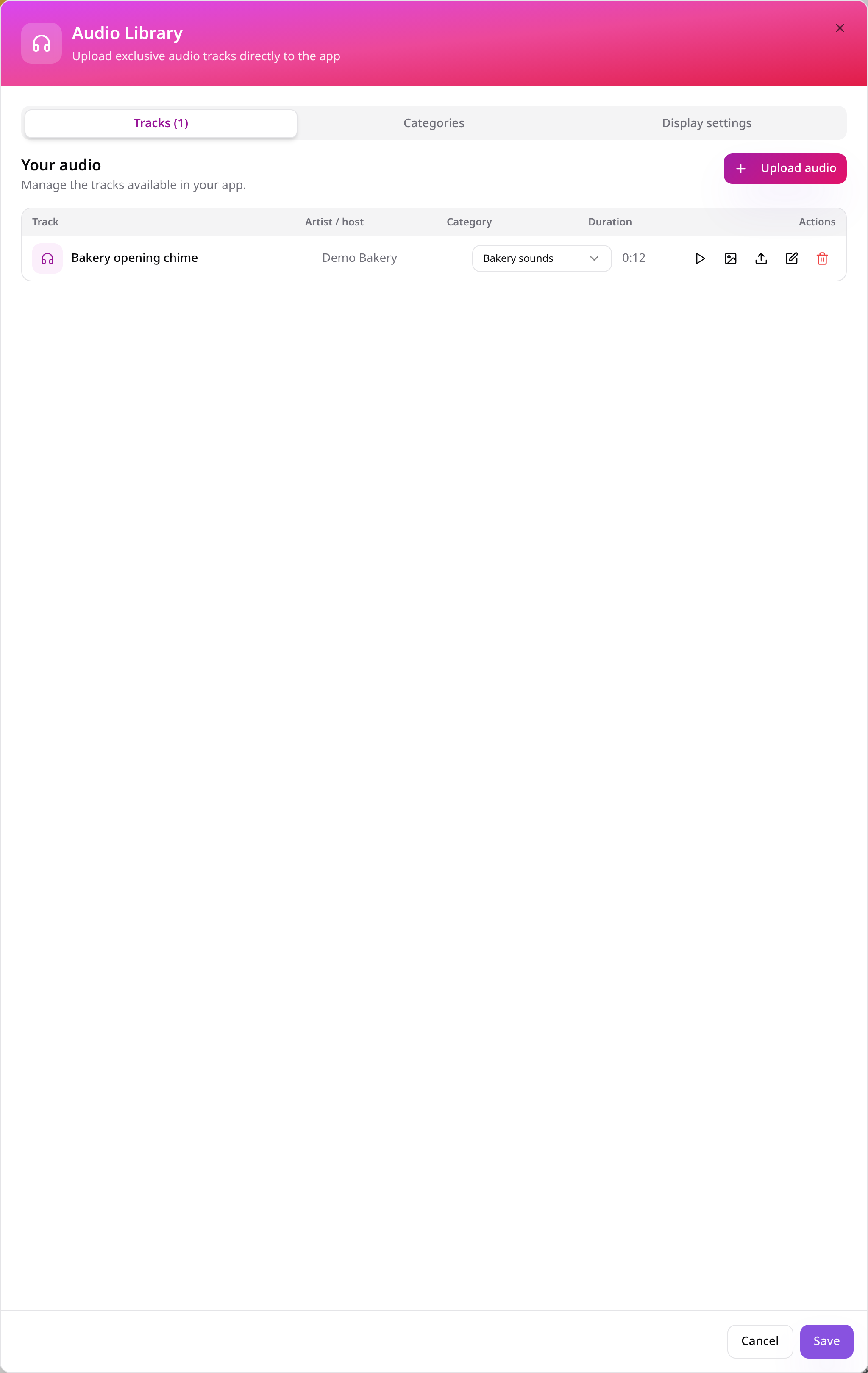
Check your saved settings
The saved content reopens here; make changes and select Save when ready.
- 10
Check the page in your app
Open the page from your app menu and check the customer view before publishing.
- 11
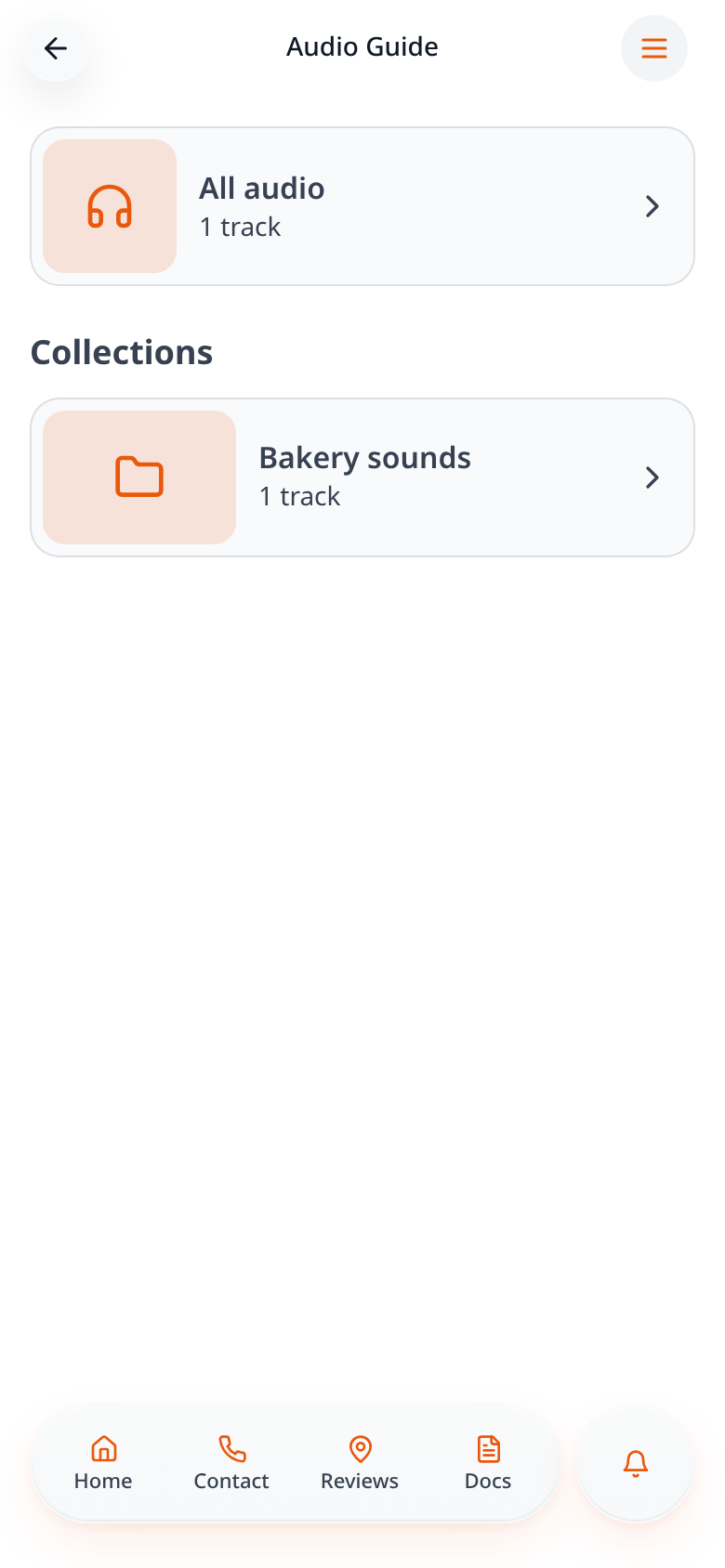
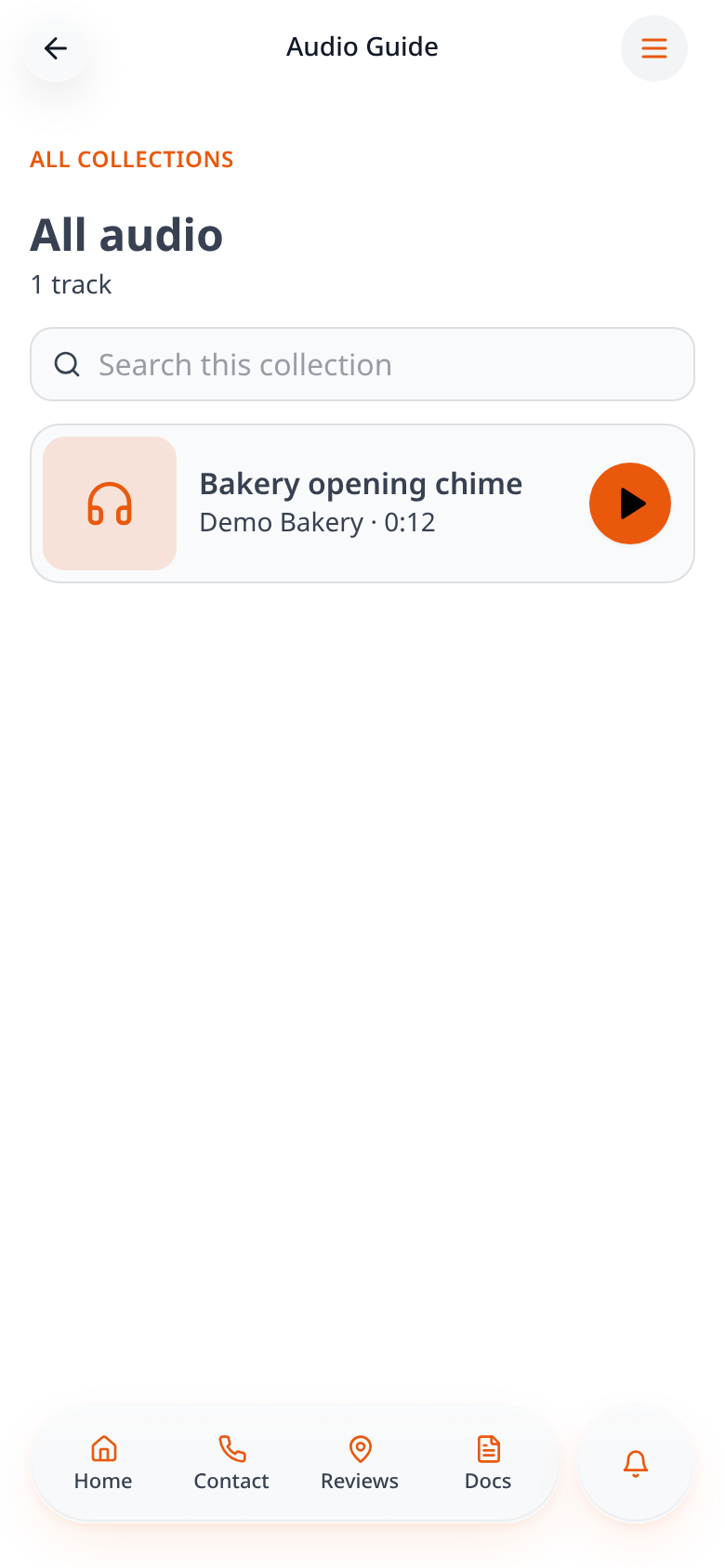
Browse a collection
Select All audio or a category to browse its tracks.
- 12
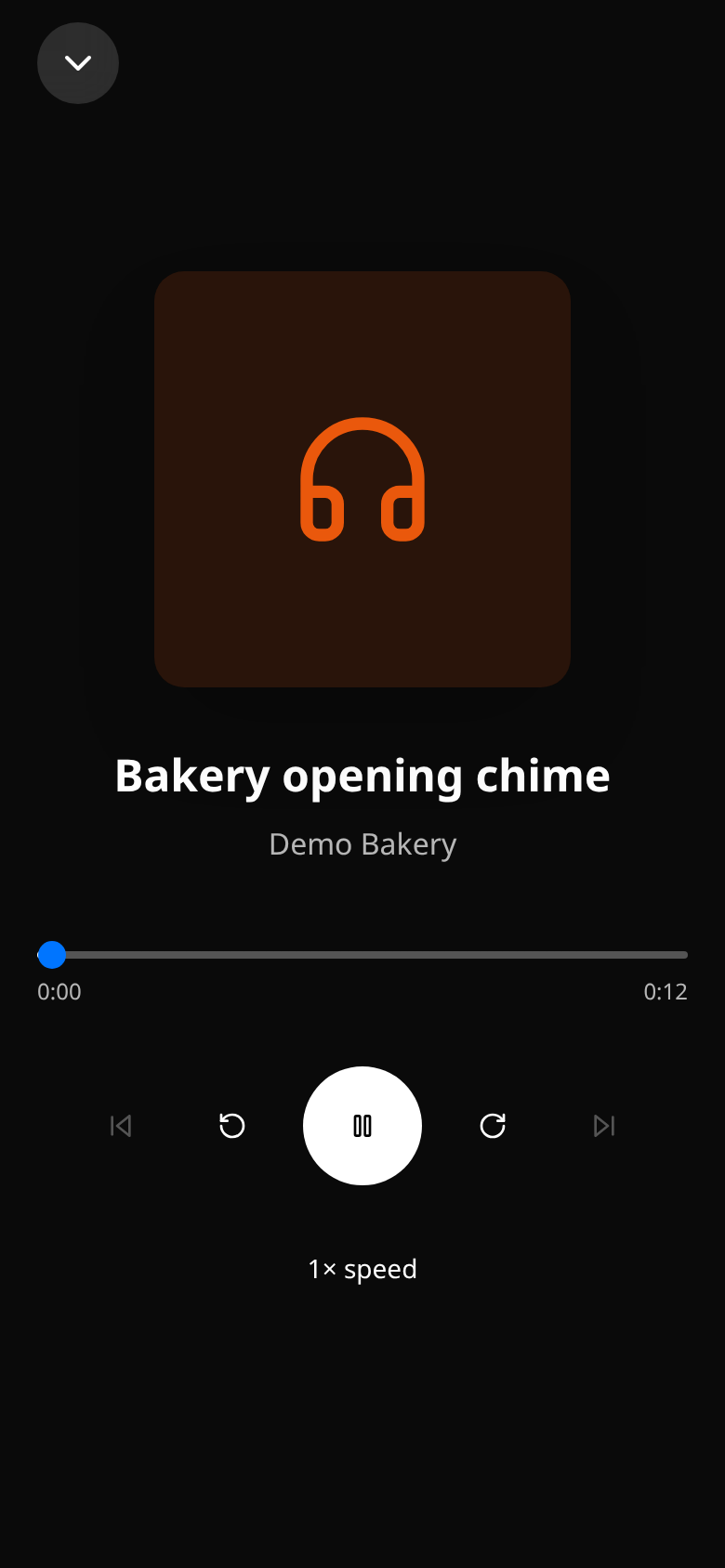
Play a track and close the player
Select a track to play it, tap the bottom player bar to expand it, then use Close to return to the collection.
Check the page on your phone, then publish your app when you are ready. Provider content and availability are controlled by the provider.