Take bookings in your app
Add your services, staff and opening hours so customers can book appointments in your app.
Step-by-step guide
Follow these steps, then download the PDF to keep.
- 1
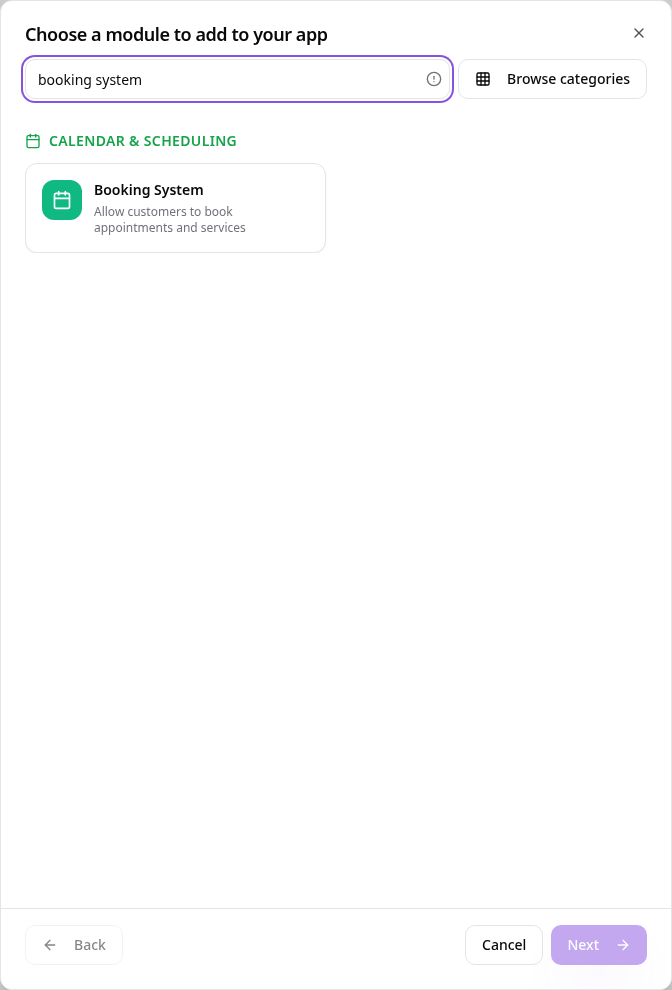
Choose Booking System
In Pages, tap Add Page or Function, search “booking system” and tap Booking System.
- 2
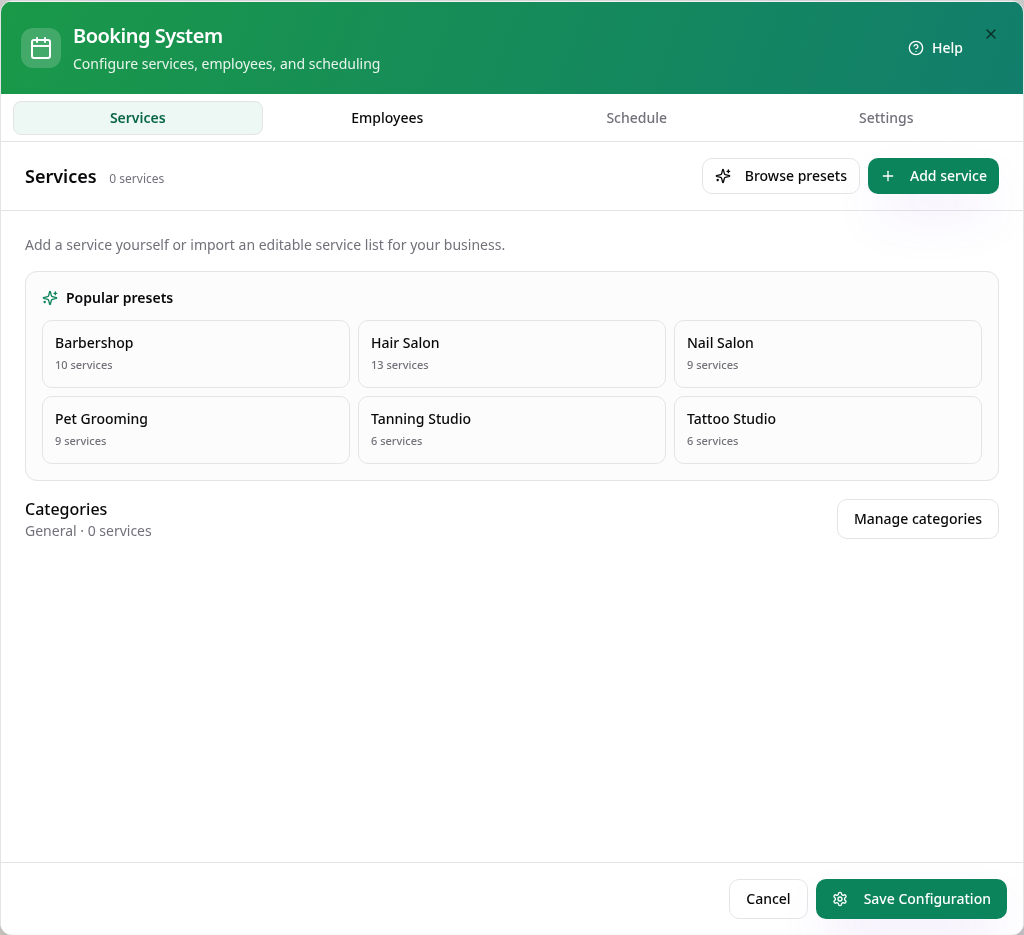
Start with your services
Tap a popular preset to import a ready-made list, or tap Add service to create your own.
- 3
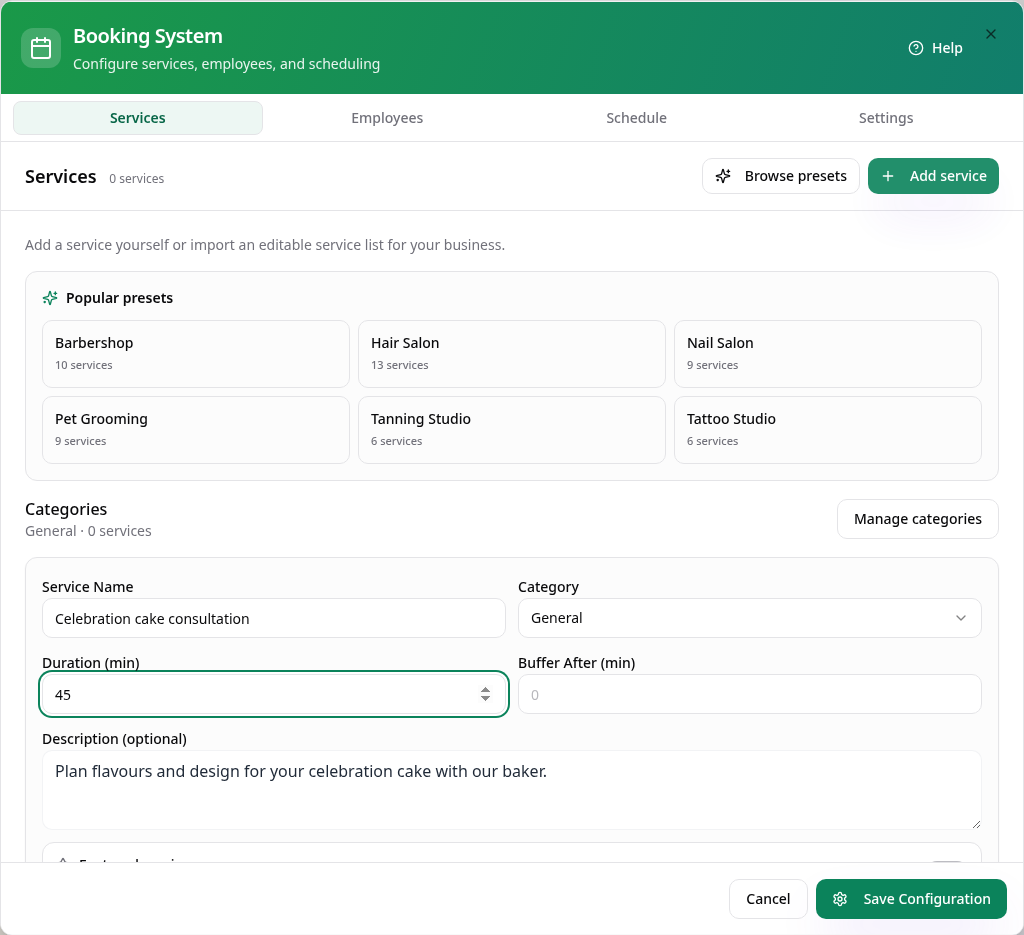
Add a service
Enter the name, length and an optional description, then tap Add Service.
- 4
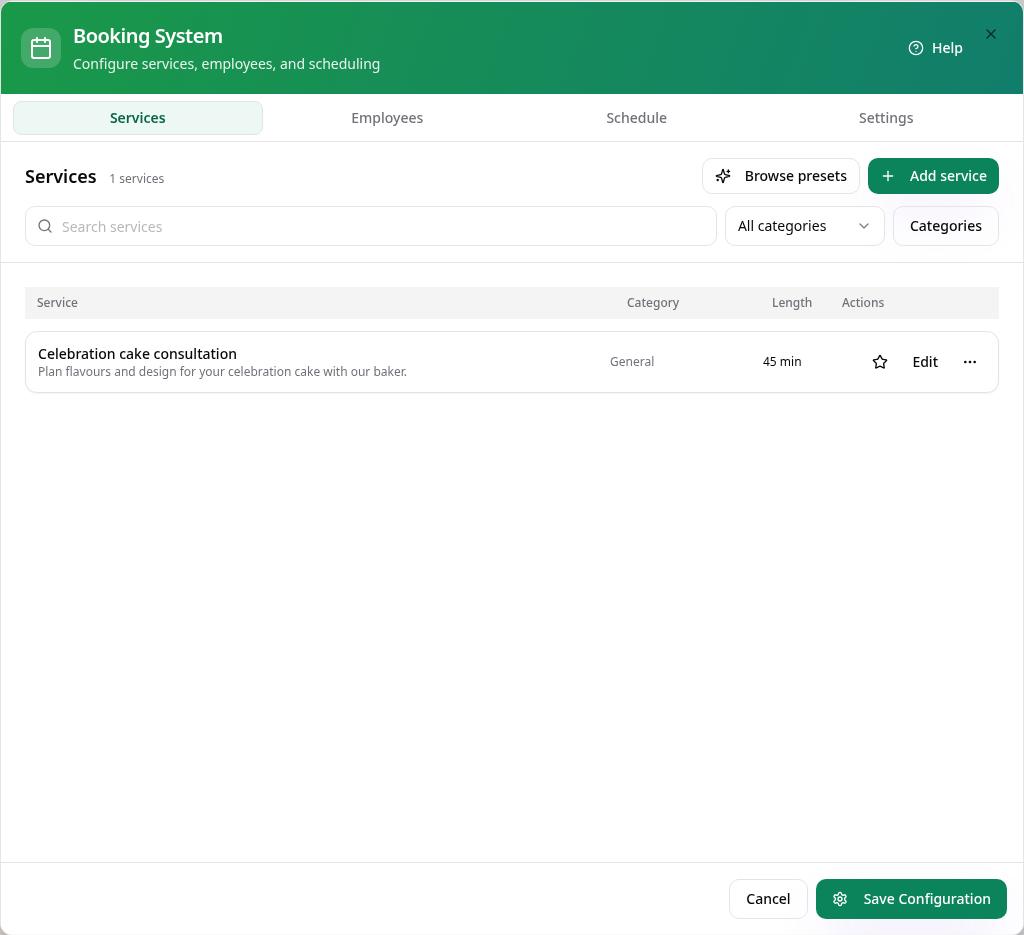
Your services
Services are listed with their category and length. Search, filter, edit or star a service to feature it.
- 5
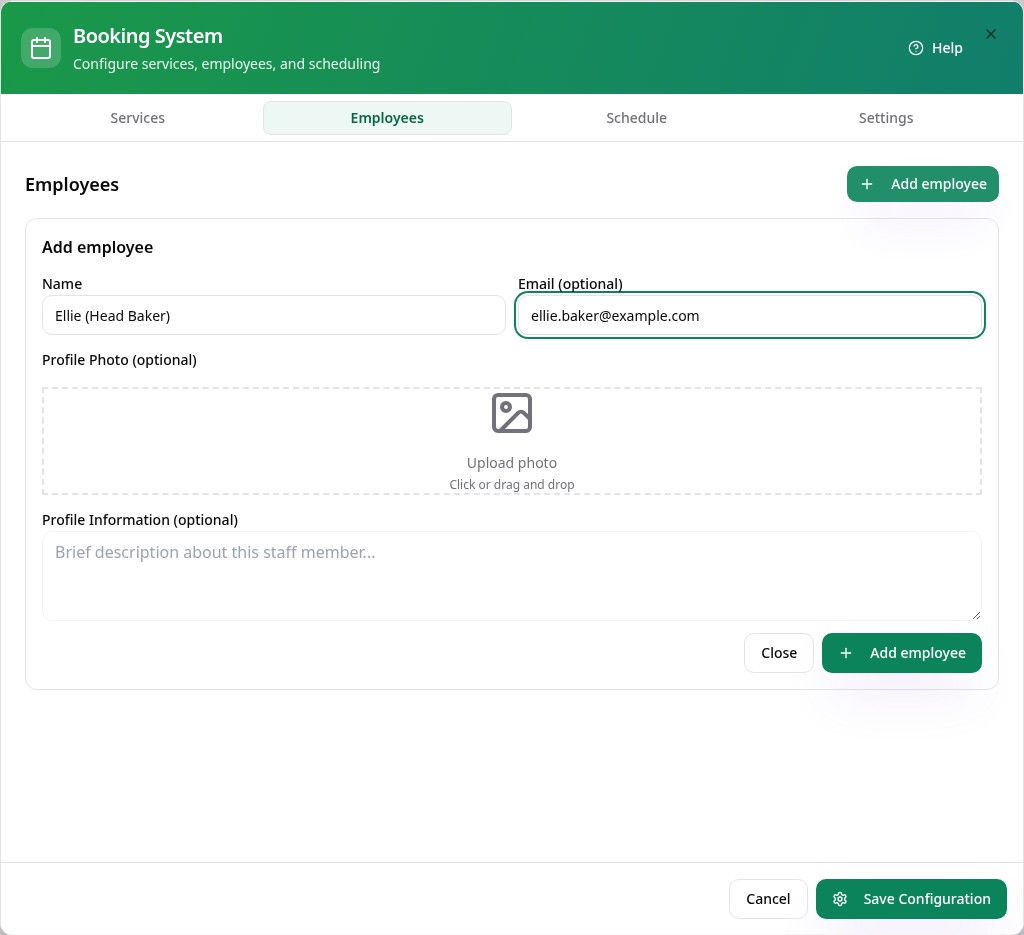
Add staff
On Employees, tap Add employee and enter their name. Email, photo and profile are optional.
- 6
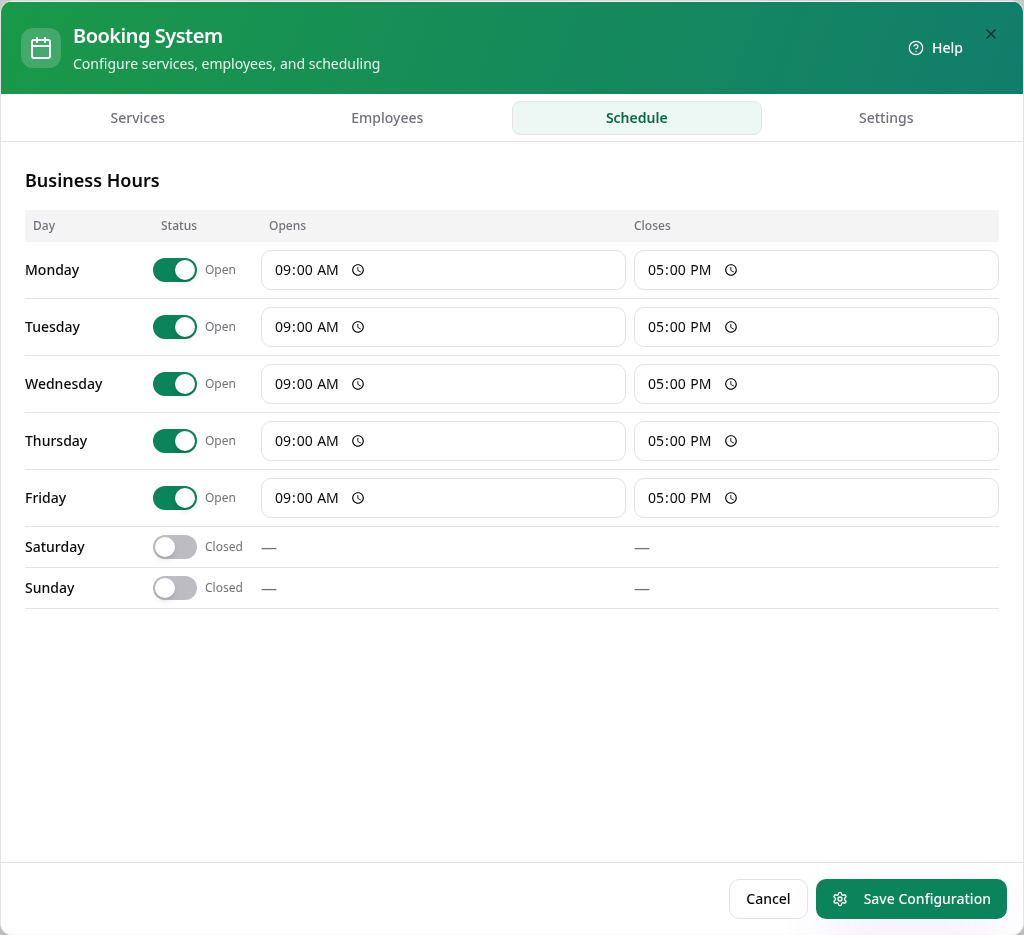
Set opening hours
On Schedule, switch each day open or closed and set the opening and closing times.
- 7
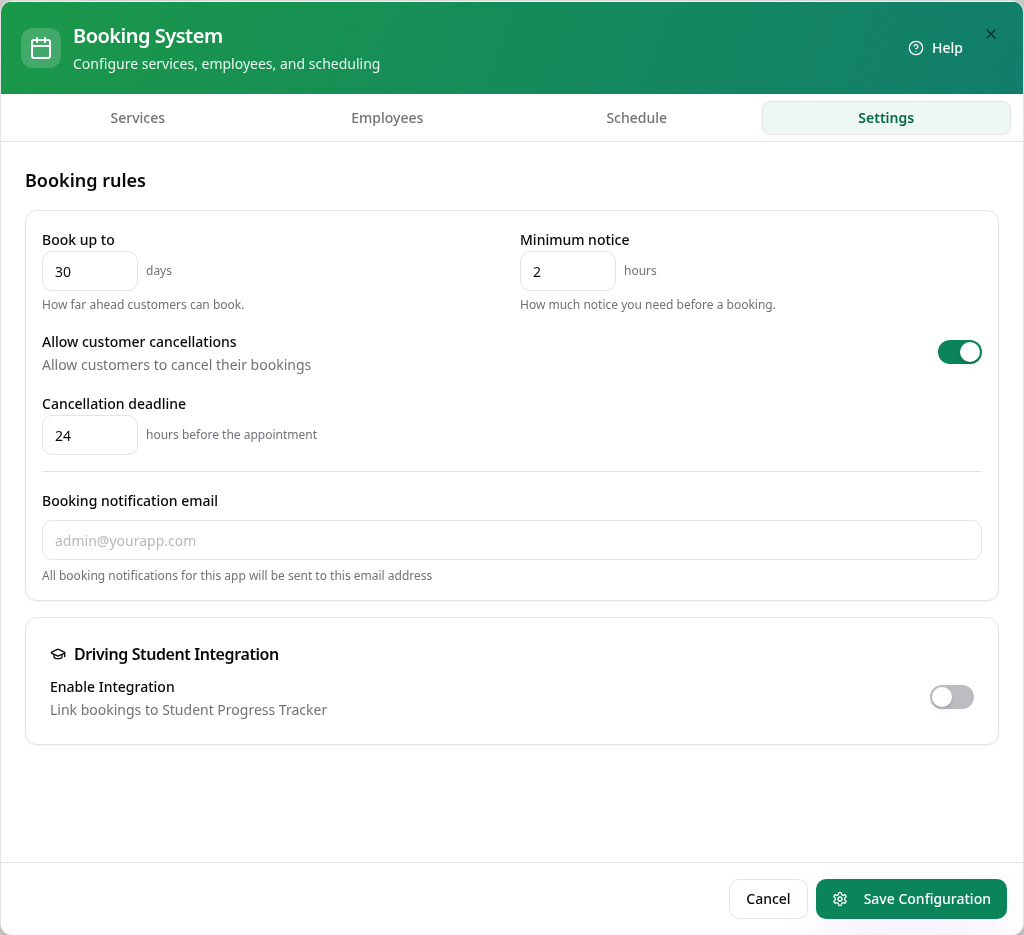
Set booking rules
On Settings, choose how far ahead people can book, the notice you need and whether customers can cancel.
- 8
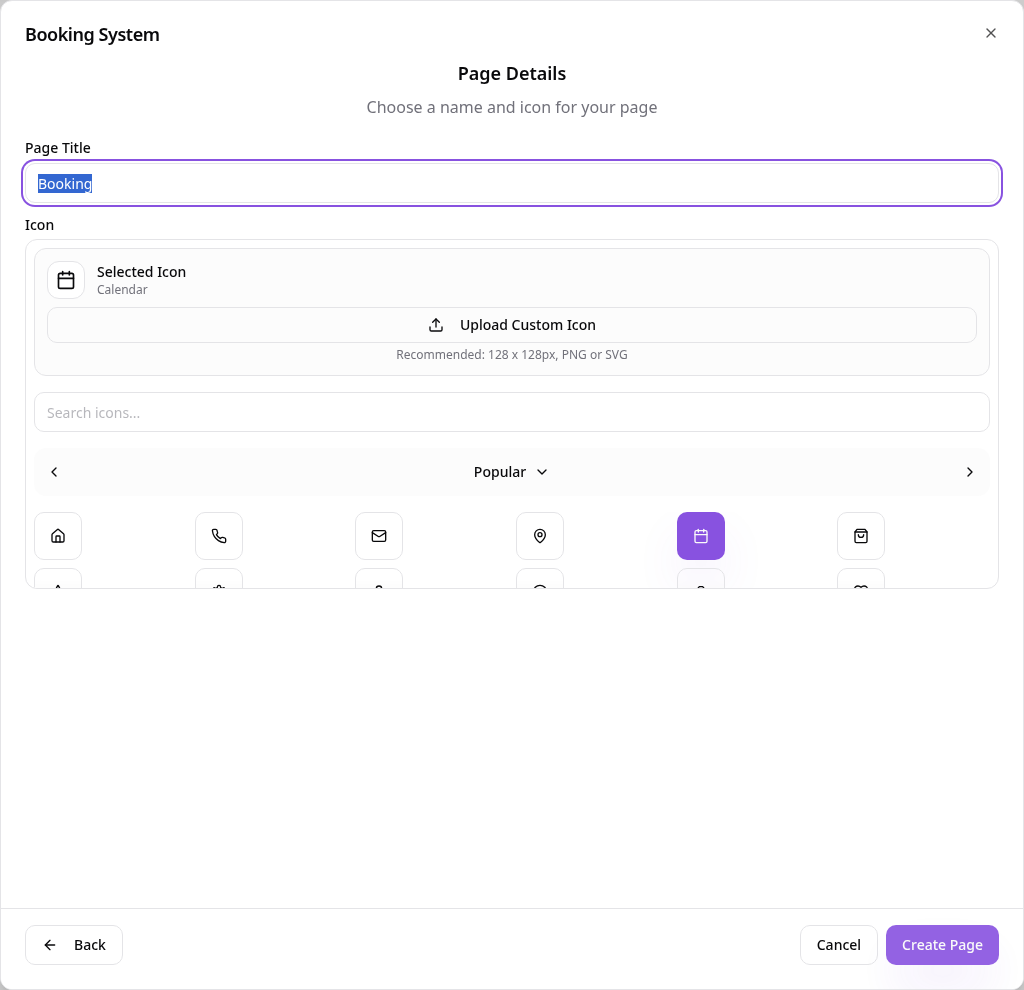
Name the page
Tap Save Configuration, choose a page title and icon, then tap Create Page.
- 9
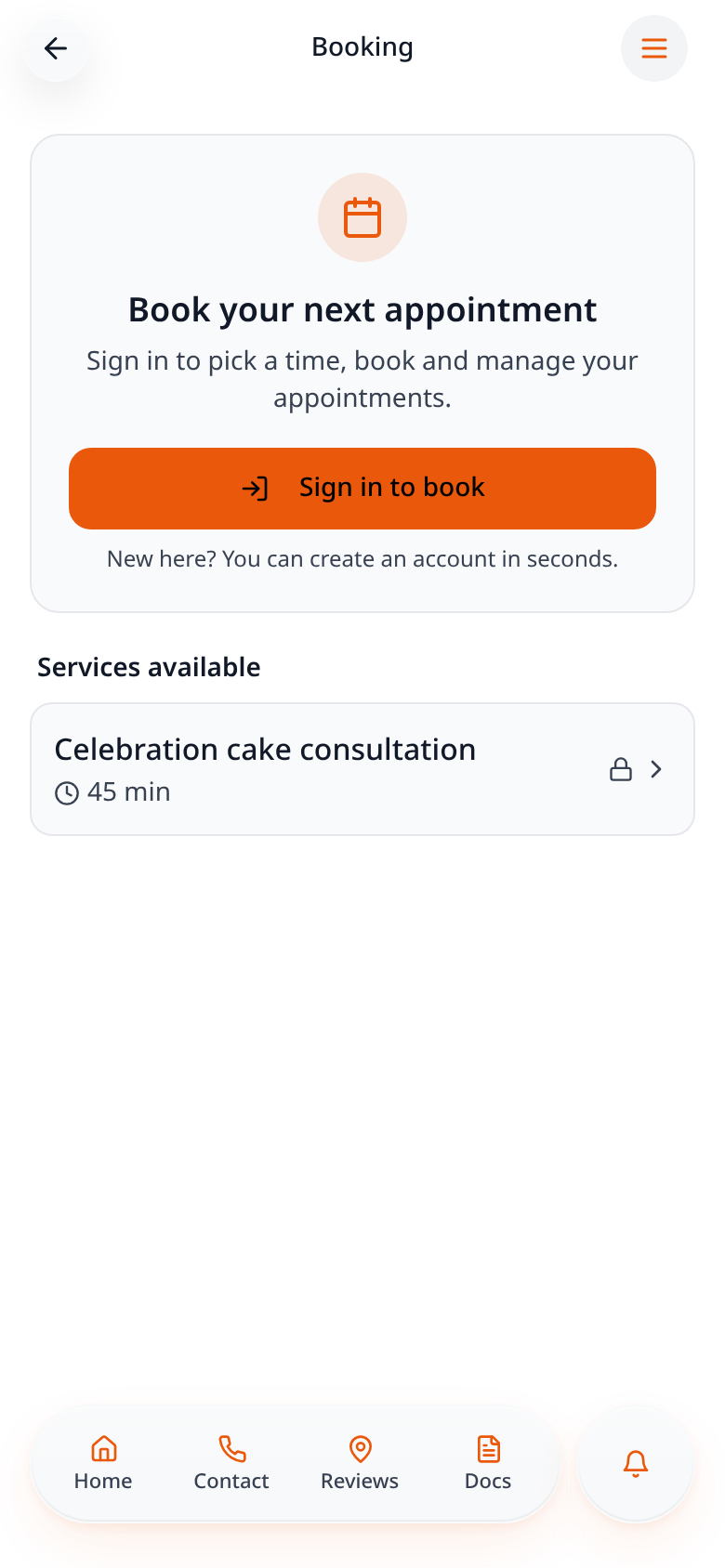
Customers see your services
Visitors can see what you offer straight away, then tap Sign in to book.
- 10
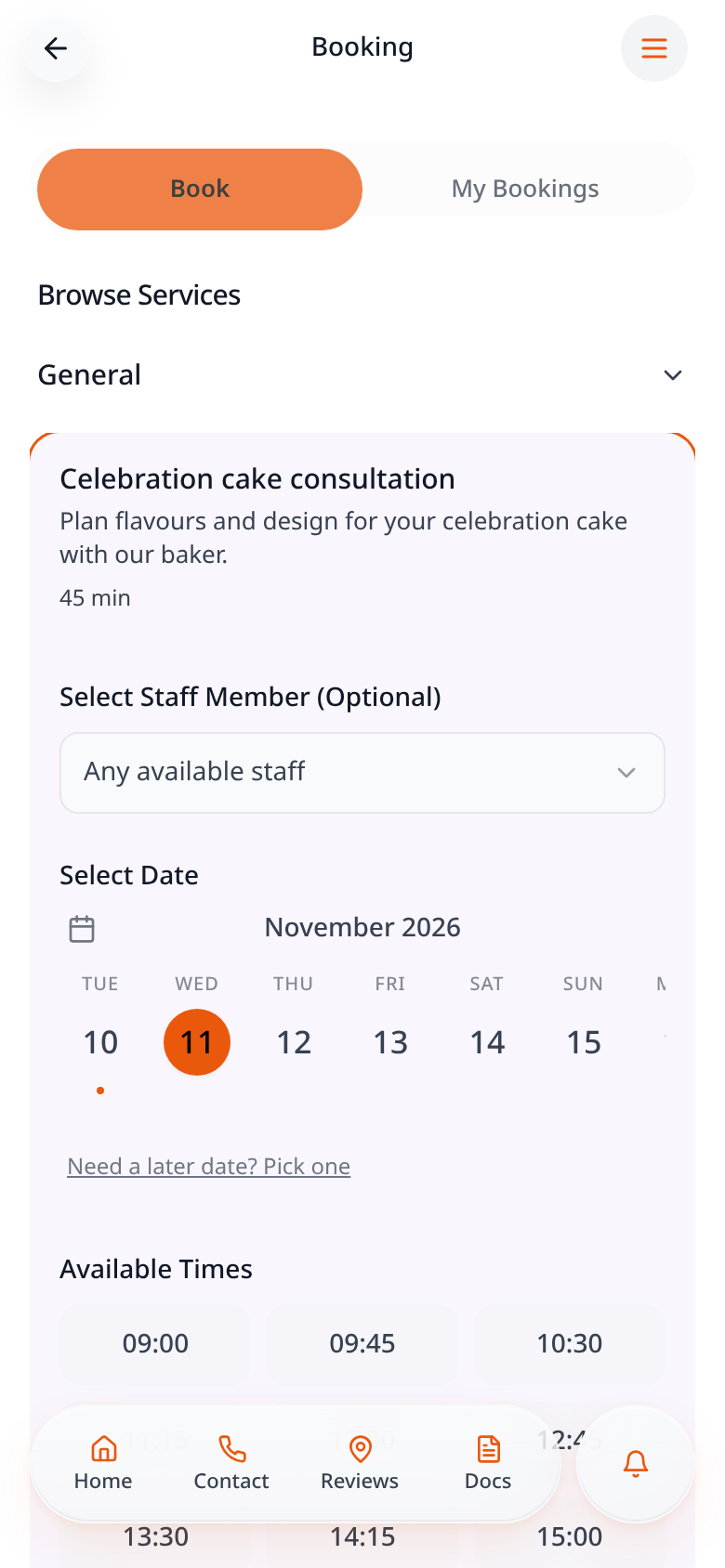
Choose a date and time
Signed-in customers open a service, choose a staff member if they like, then pick a date and time.
- 11
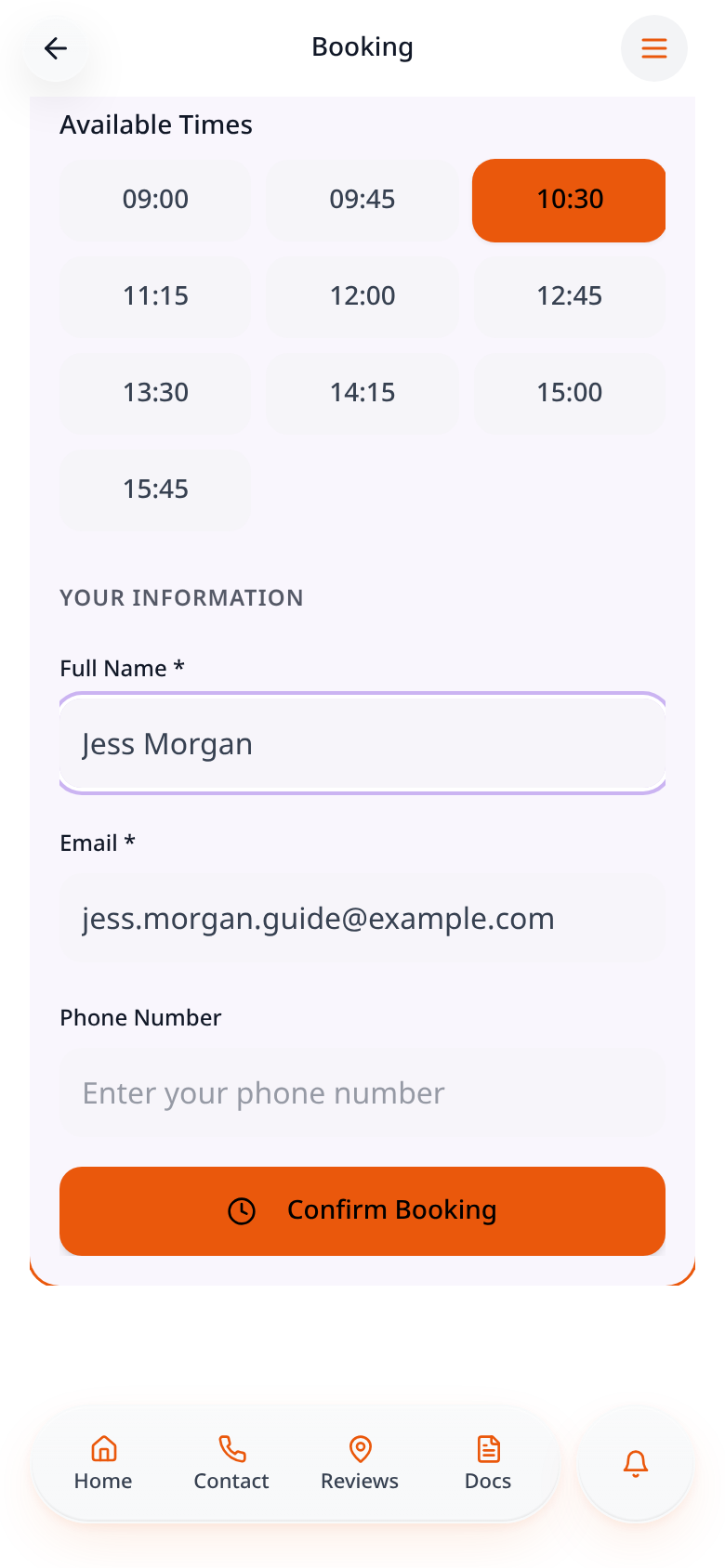
Confirm the booking
Their name and email are filled in. They add a phone number if needed and tap Confirm Booking.
- 12
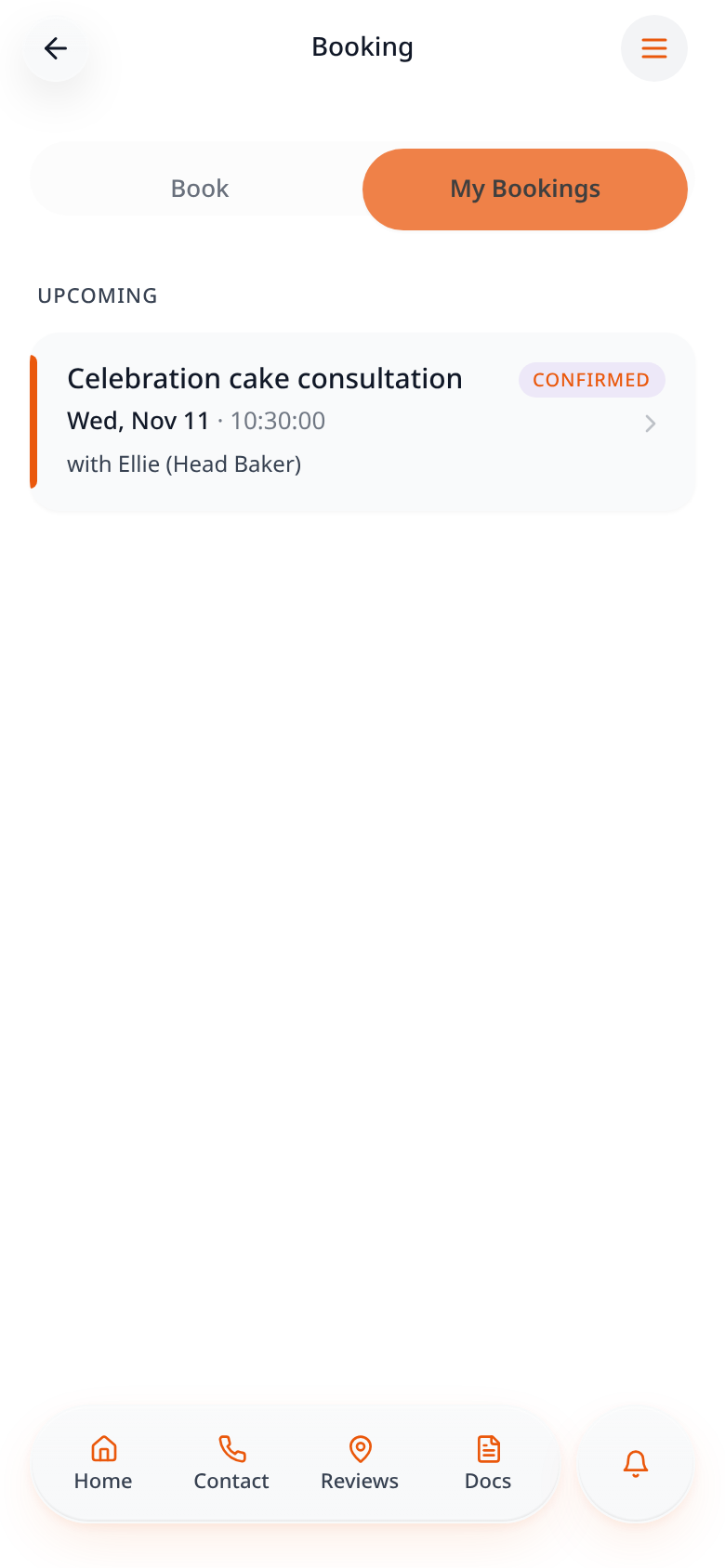
See it in My Bookings
The confirmed booking appears under My Bookings with the date, time and staff member.
Change services, staff, hours or rules any time from Edit Page Content. New bookings also appear in your Data Manager.