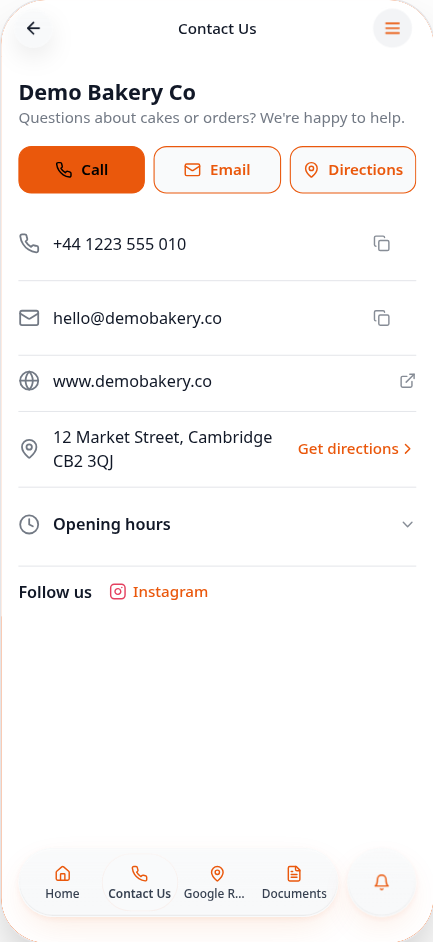
Add a Contact Us page
Show your phone, email, address, opening hours and social links, with one-tap buttons for customers.
Step-by-step guide
Follow these steps, then download the PDF to keep.
- 1
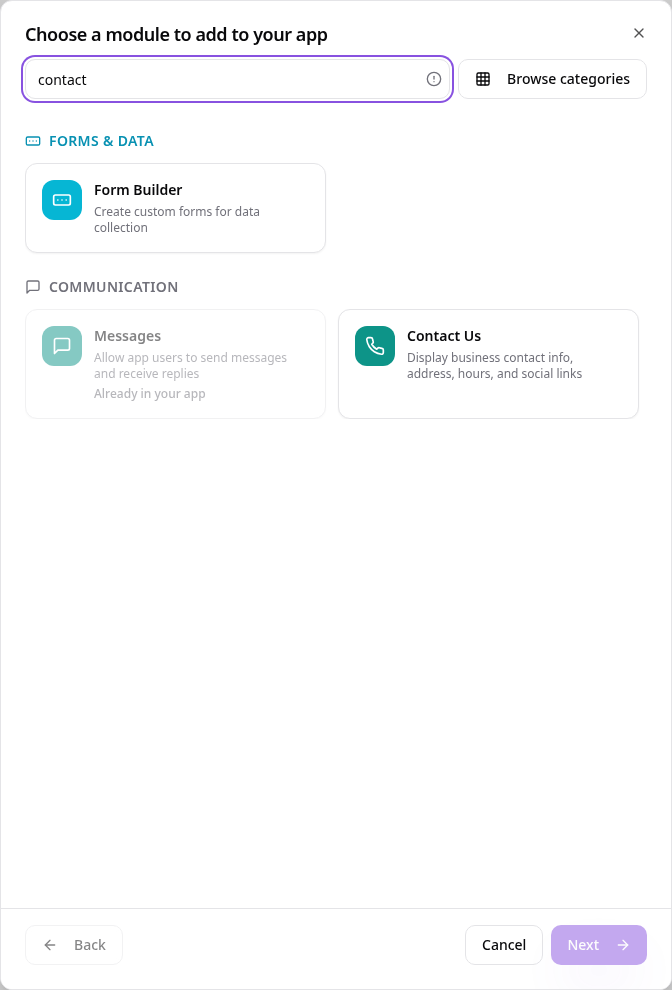
Choose Contact Us
In Pages, tap Add Page or Function, search “contact” and tap Contact Us.
- 2
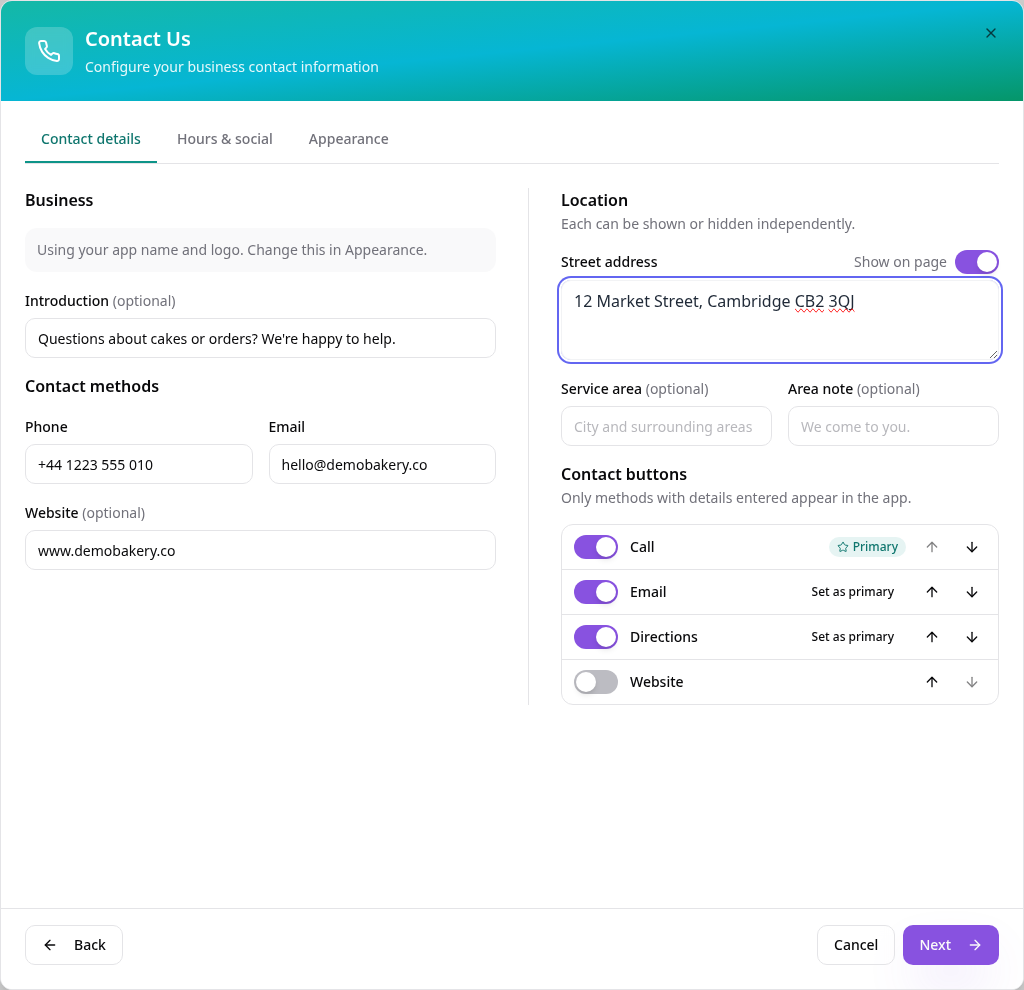
Add your contact details
Add a short introduction, phone, email, website and address. A contact button can only be switched on once its detail is filled in. Use the arrows to reorder them and Set as primary for the main one.
- 3
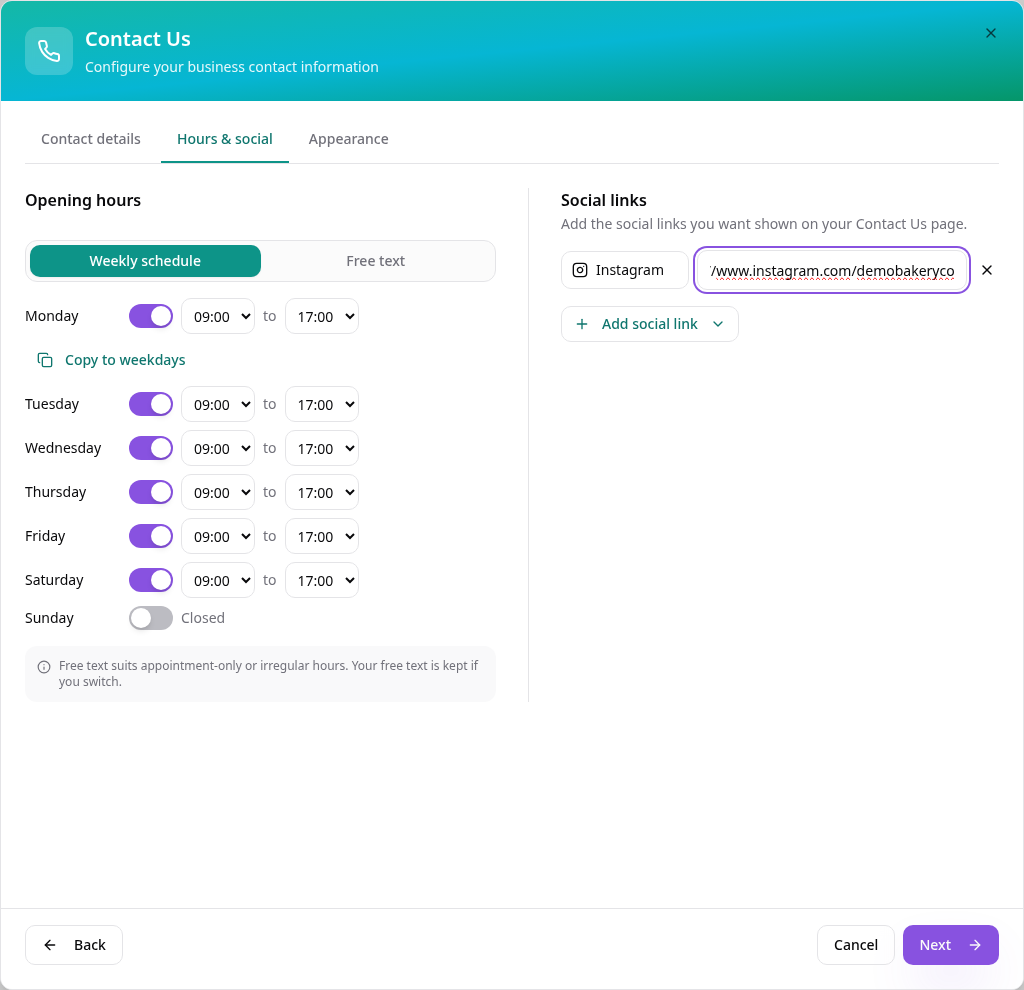
Set hours and social links
On Hours & social, choose Weekly schedule or Free text. Switch days on or off, use Copy to weekdays, then Add social link for each profile.
- 4
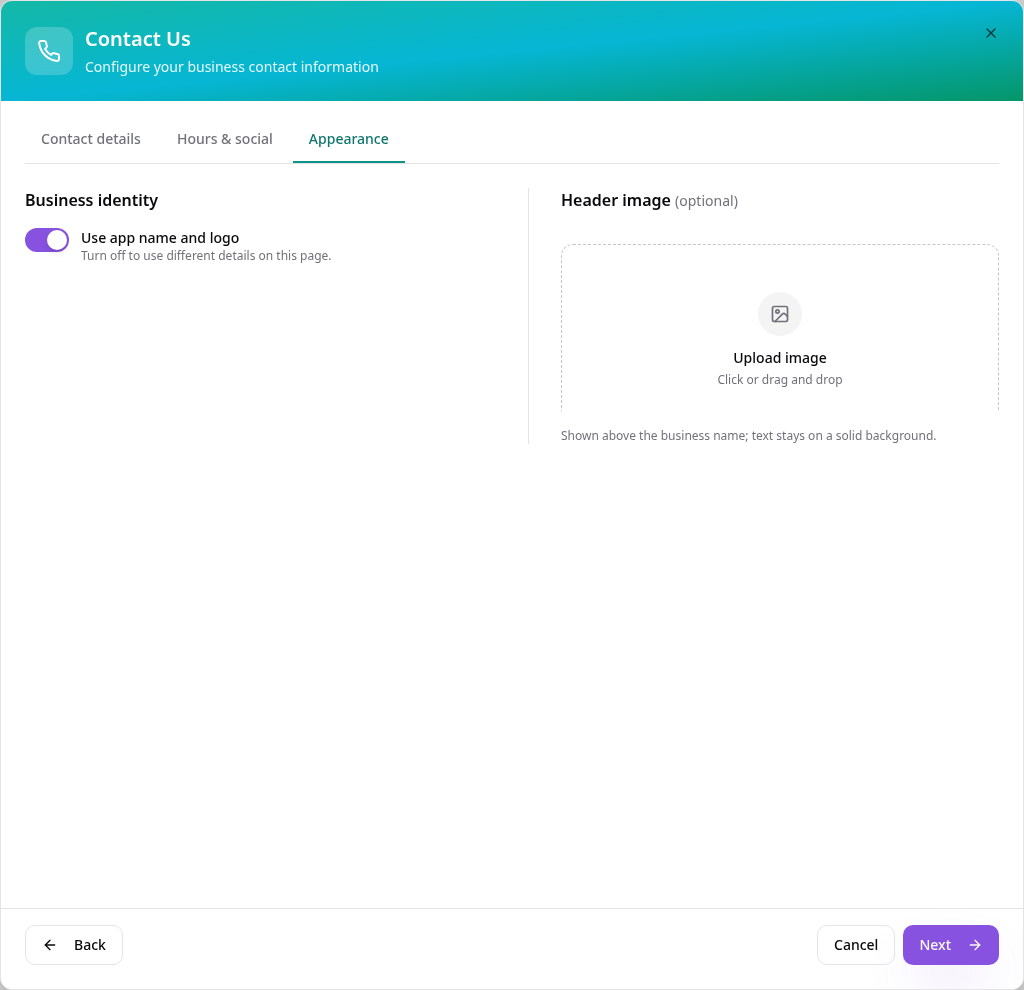
Choose the look
On Appearance, keep your app name and logo or turn it off to use different details. You can add an optional header image.
- 5
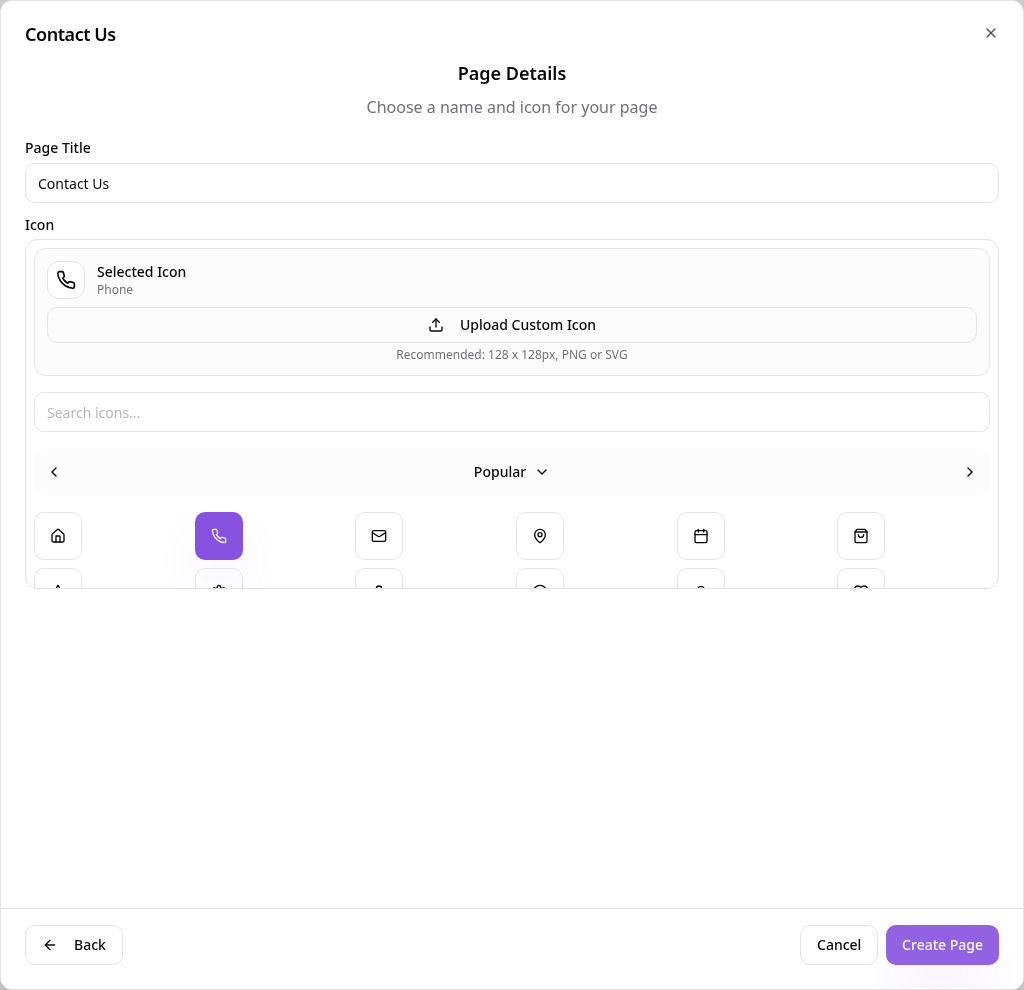
Name your page
Tap Next, choose a page title and icon, then tap Create Page.
- 6
See it in your app
Customers tap Call, Email or Directions, copy your details, and open your opening hours and social links.
Update your details, hours or buttons any time from Edit Page Content.