Create a coupon offer
Give customers a member-only offer with a code and a QR coupon.
- 1
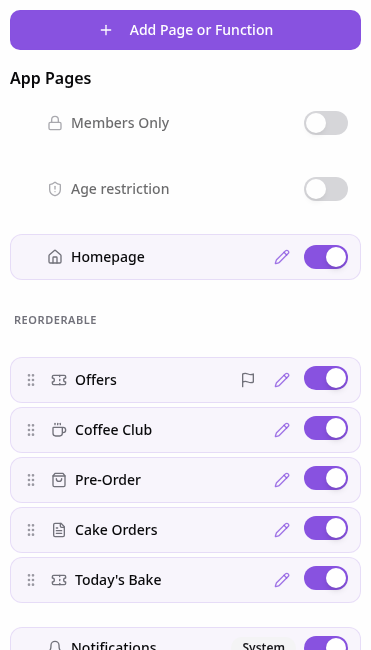
Open Pages
In your app editor, open Pages and tap Add Page or Function.
- 2
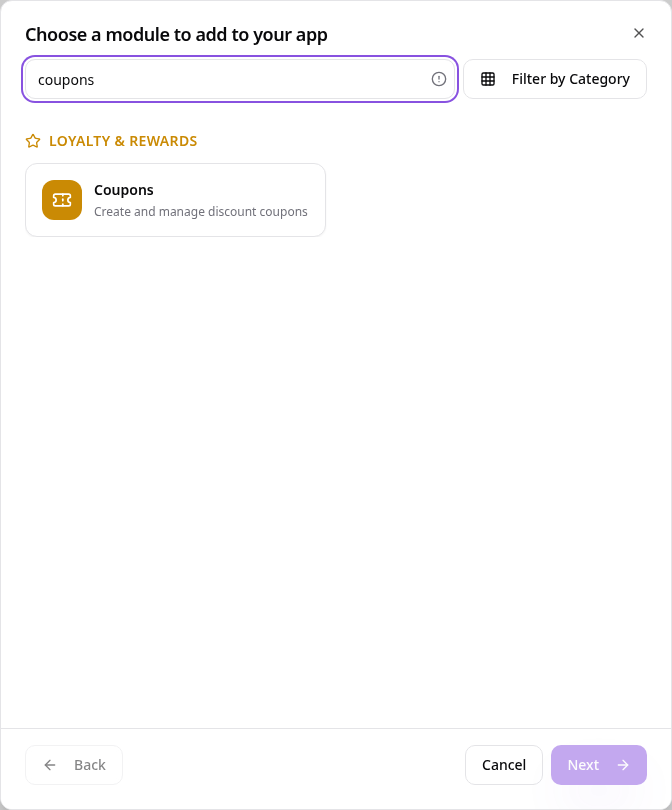
Choose Coupons
Search “coupons” and tap Coupons.
- 3
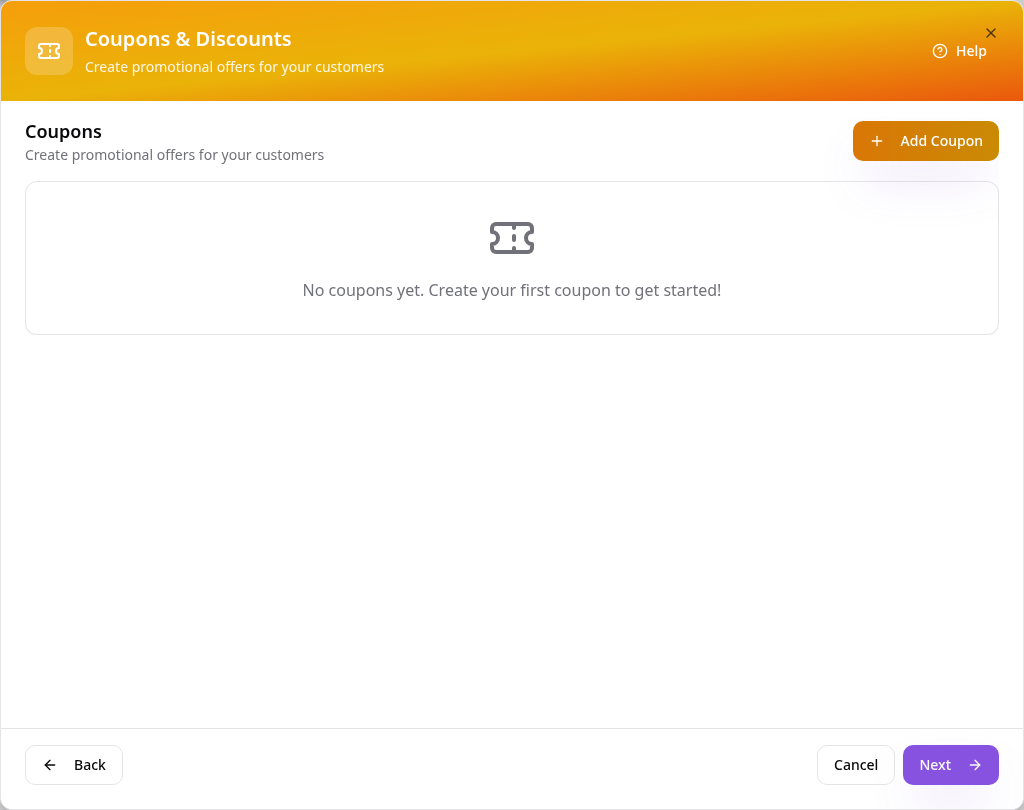
Add your first coupon
Tap Add Coupon.
- 4
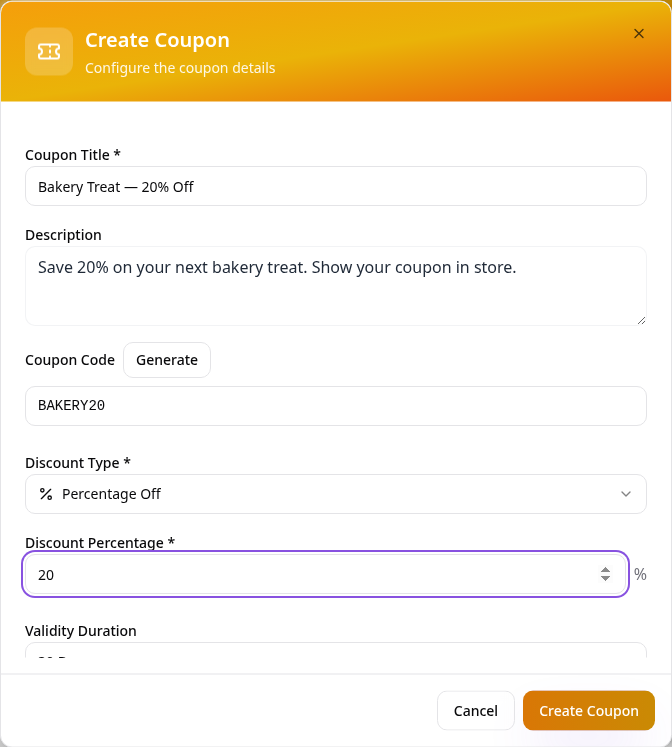
Describe the offer
Add a title, description and code, then choose the discount type and value.
- 5
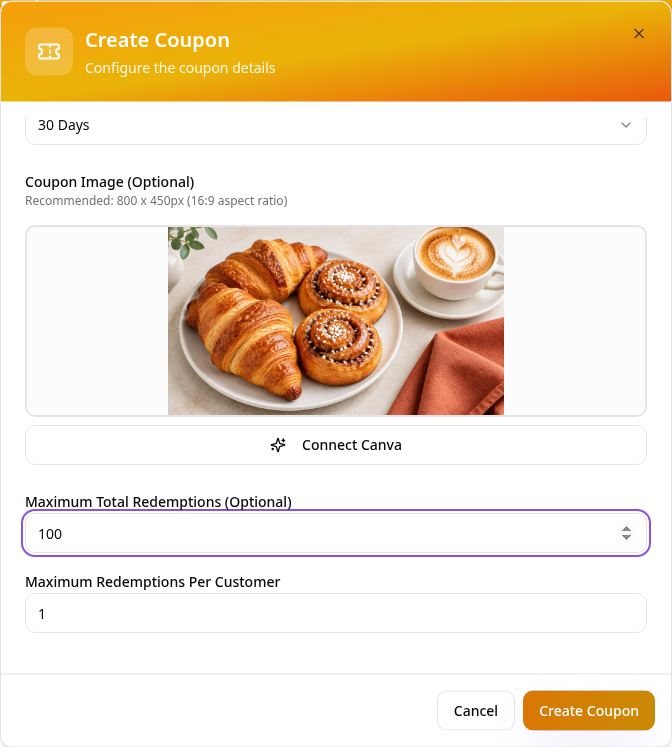
Set validity and limits
Choose how long it lasts, add an optional image and set redemption limits. Tap Create Coupon.
- 6
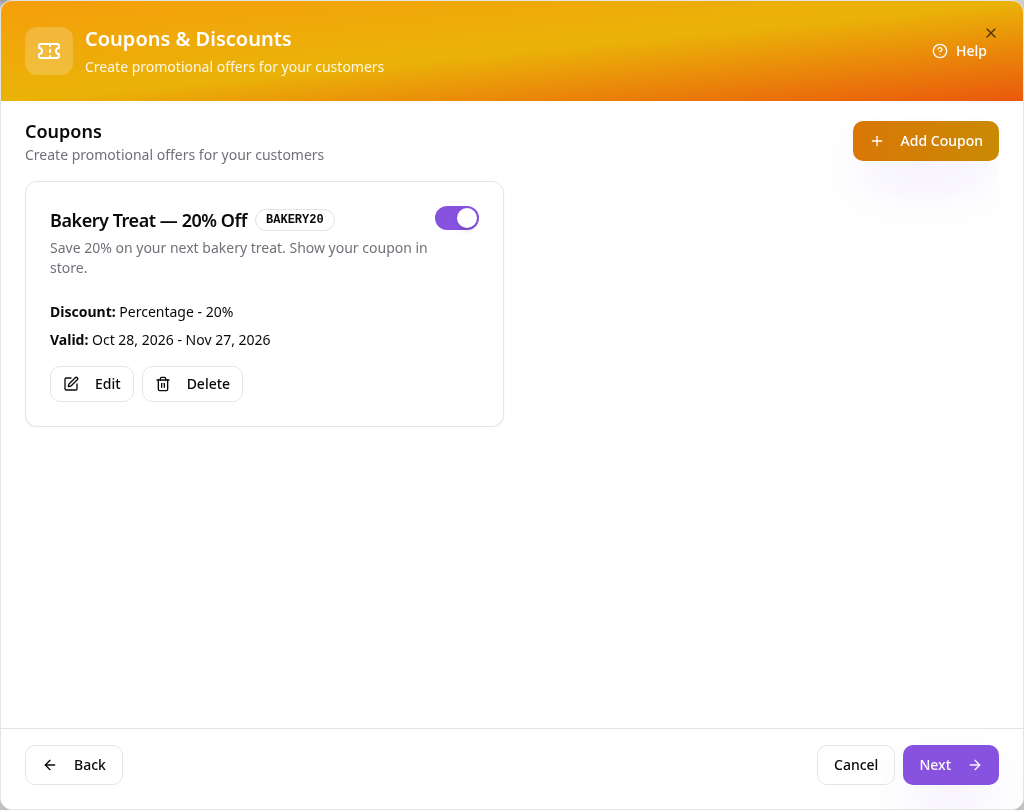
Check your saved coupon
Keep the offer switched on. Tap Edit for changes, or Next to continue.
- 7
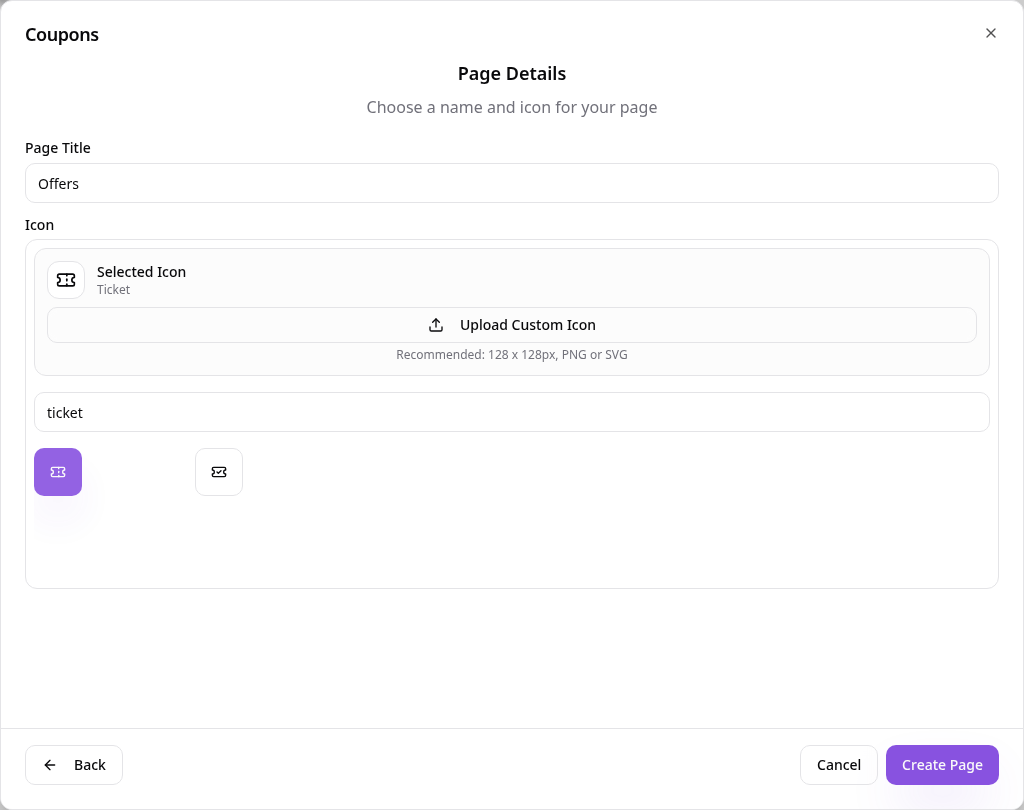
Name the page
Use a short name such as Offers, choose an icon and tap Create Page.
- 8
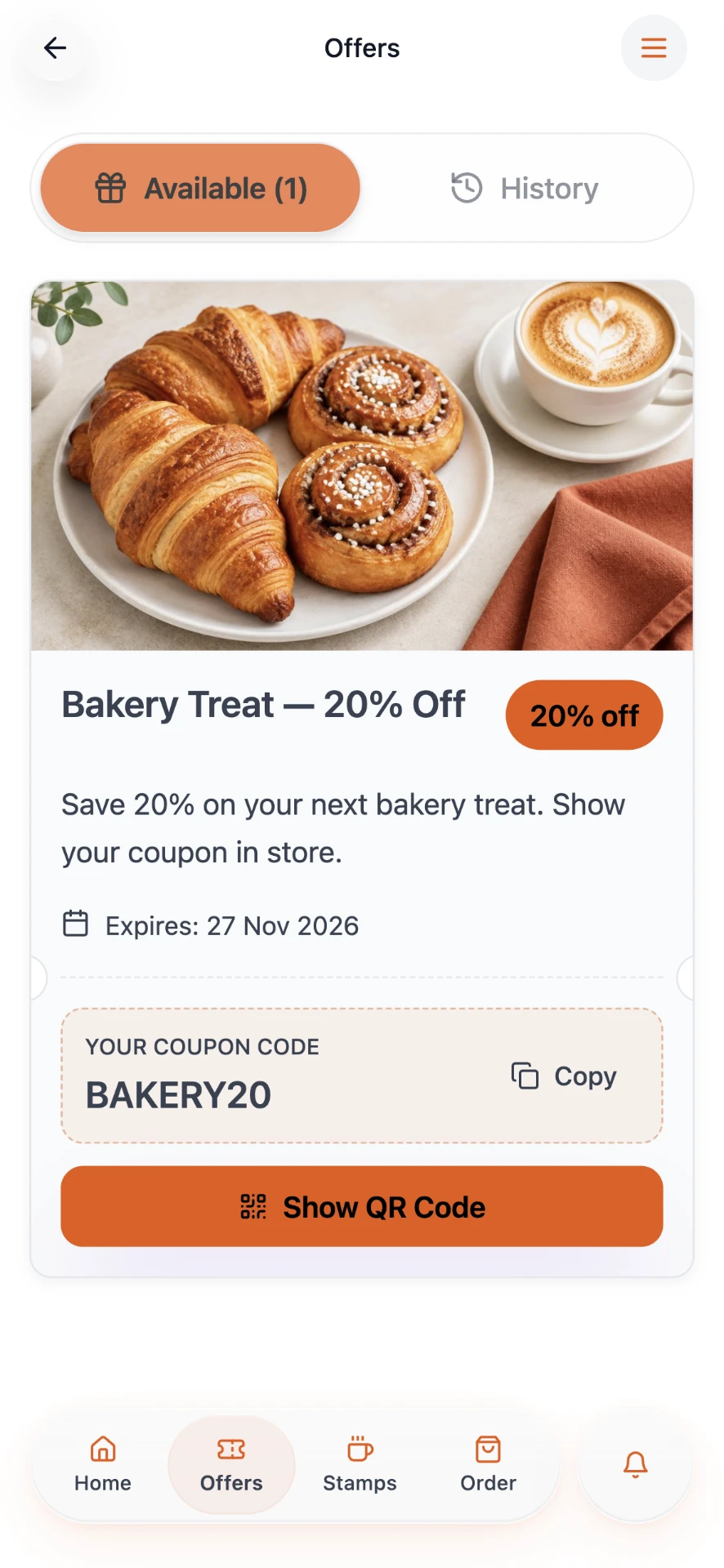
See it in your app
Members see your offer with its code, ready to copy or redeem in store.
- 9
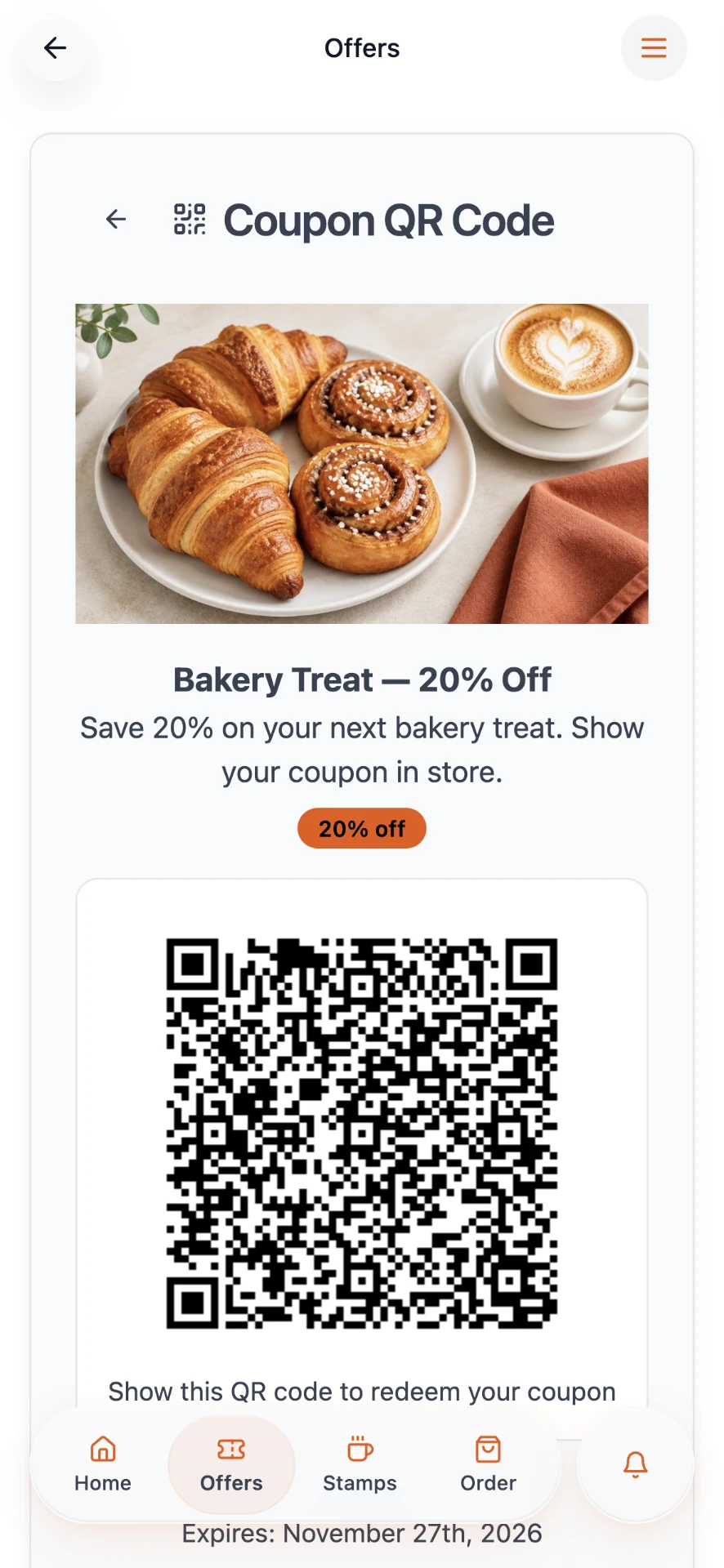
Redeem with a QR code
Tapping Show QR Code gives customers a code your team can scan to redeem the offer.
To change an offer later, open its page in Pages, choose Edit Page Content and tap Edit. Coupon redemption activity is in Data Manager.