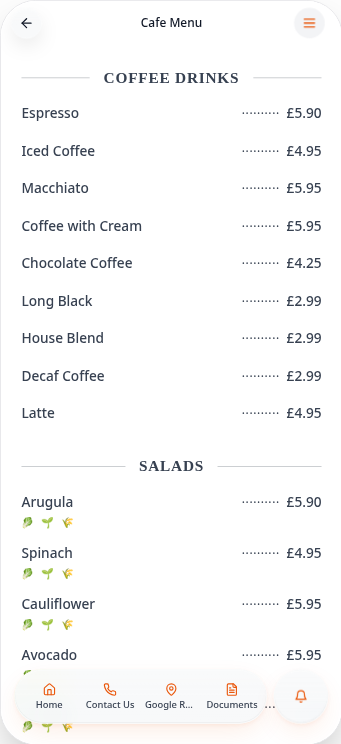
Add a digital menu
Show your menu as it is, or turn it into a tidy, readable menu automatically.
Step-by-step guide
Follow these steps, then download the PDF to keep.
- 1
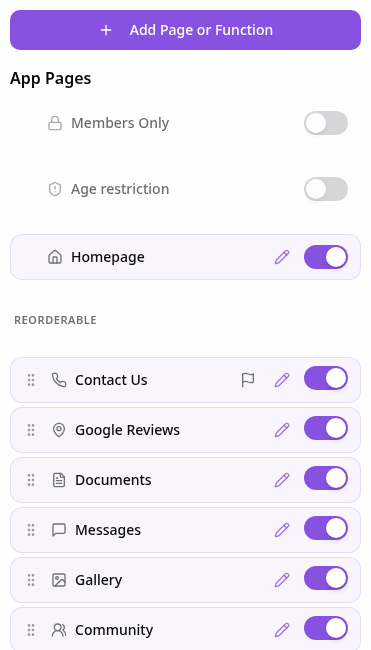
Open Pages
In your app editor, open Pages and tap Add Page or Function.
- 2
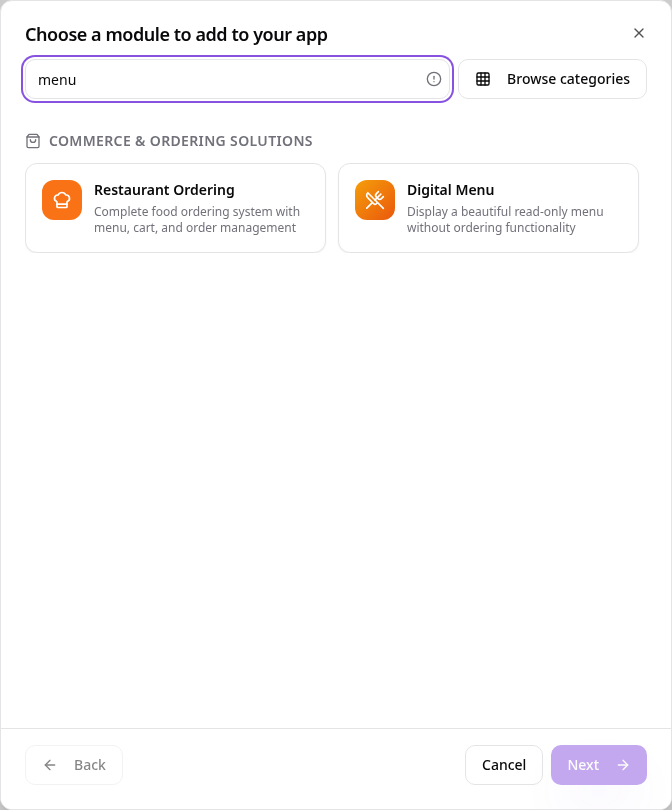
Choose Digital Menu
Search “menu” and tap Digital Menu.
- 3
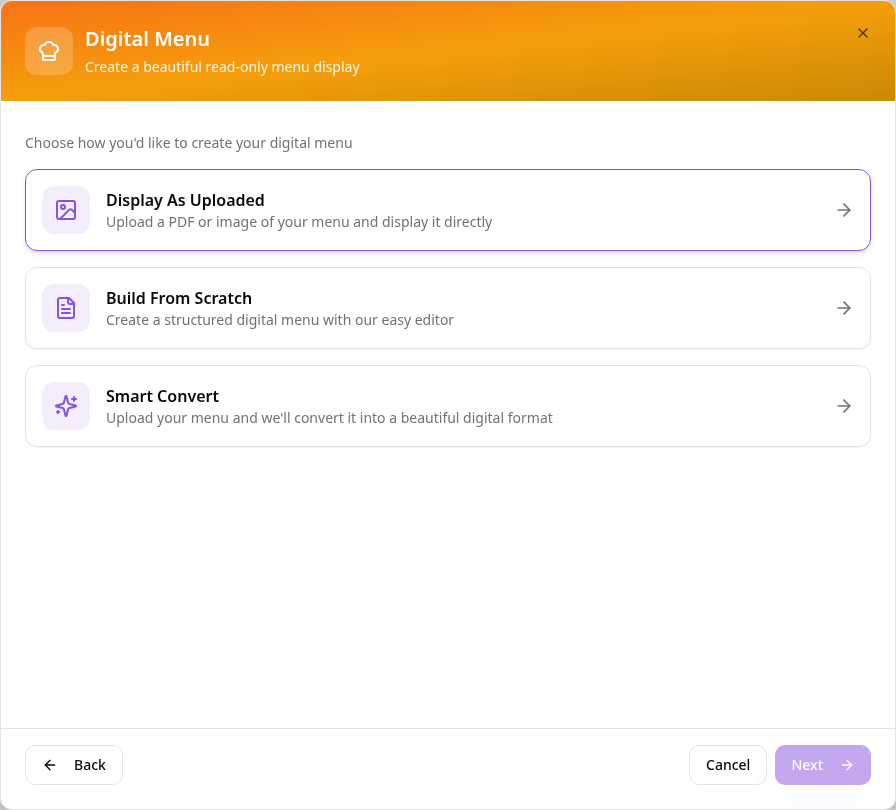
Choose how to create it
Display As Uploaded shows your file as it is. Smart Convert reads it for you. Build From Scratch lets you type it in.
- 4
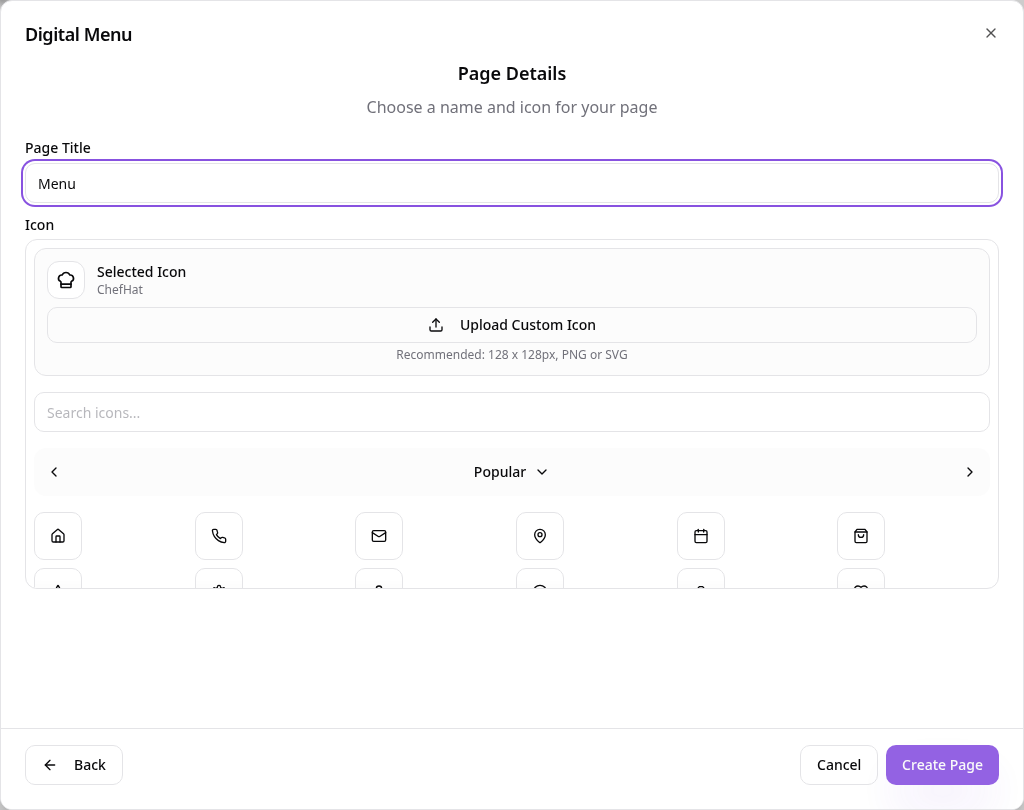
Upload and name the page
Tap Display As Uploaded, choose your PDF or photo, tap Next and name the page.
- 5
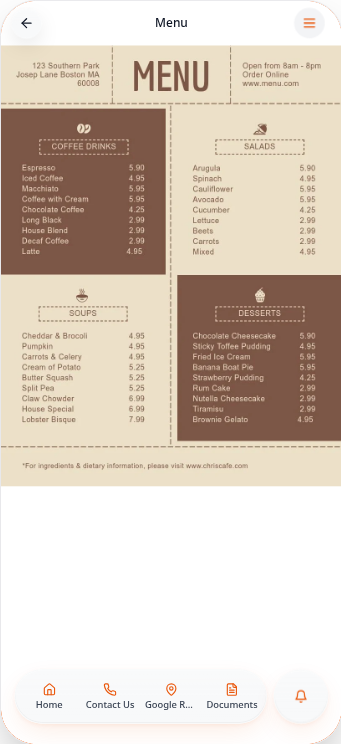
Your menu, as uploaded
Customers see your menu exactly as designed and can zoom in.
- 6
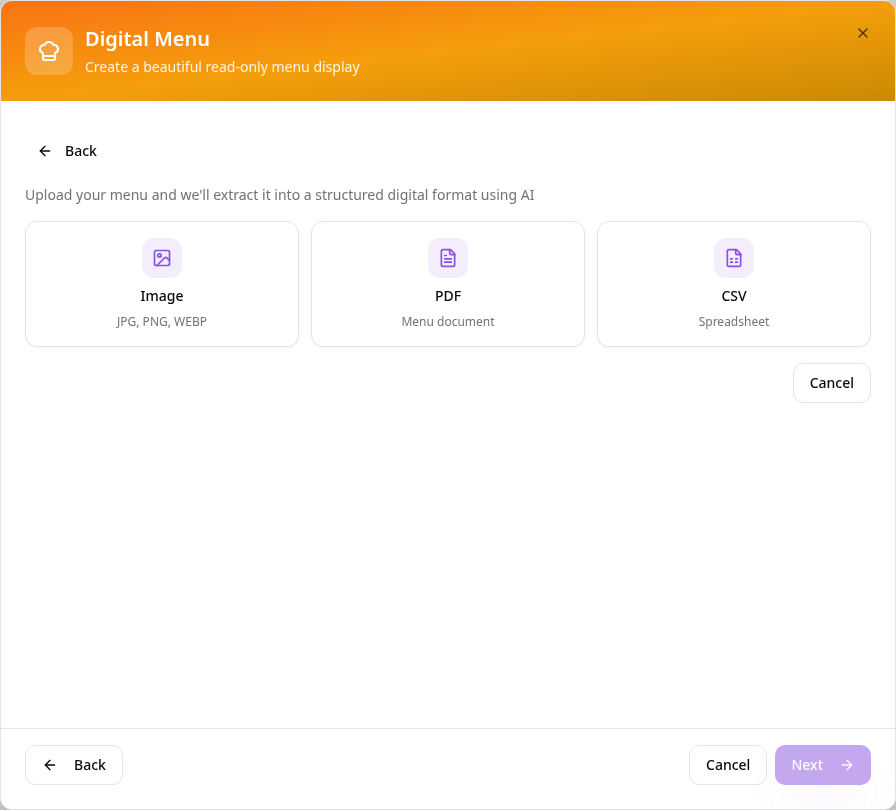
Or try Smart Convert
Add another Digital Menu, tap Smart Convert and upload an image, PDF or spreadsheet.
- 7
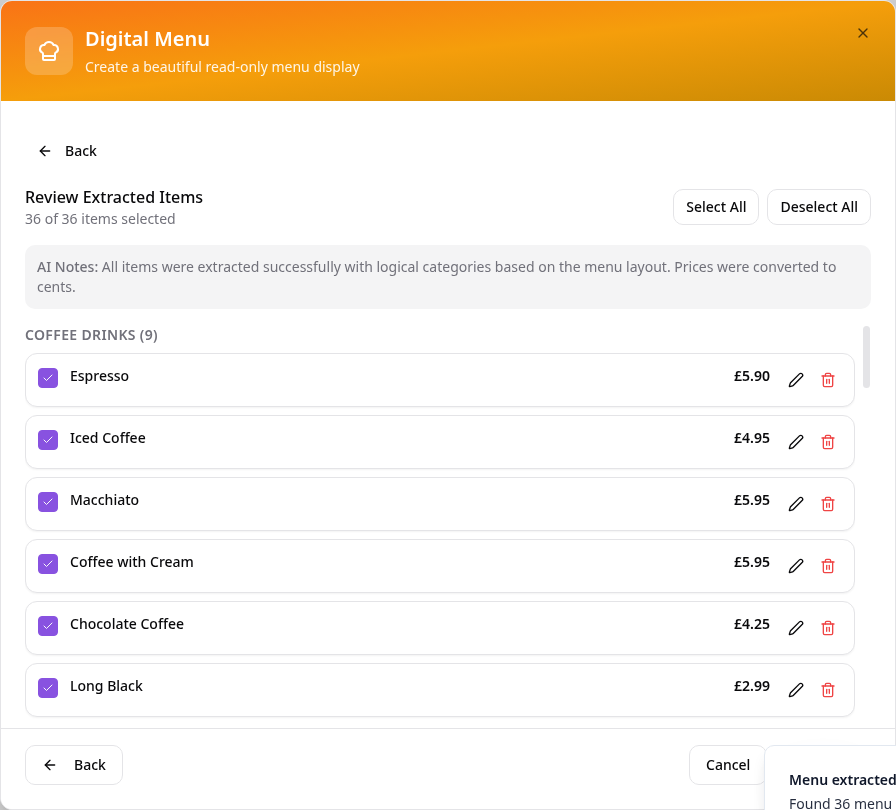
Review what was found
Items, prices and categories are read for you. Edit, remove or untick anything, then continue.
- 8
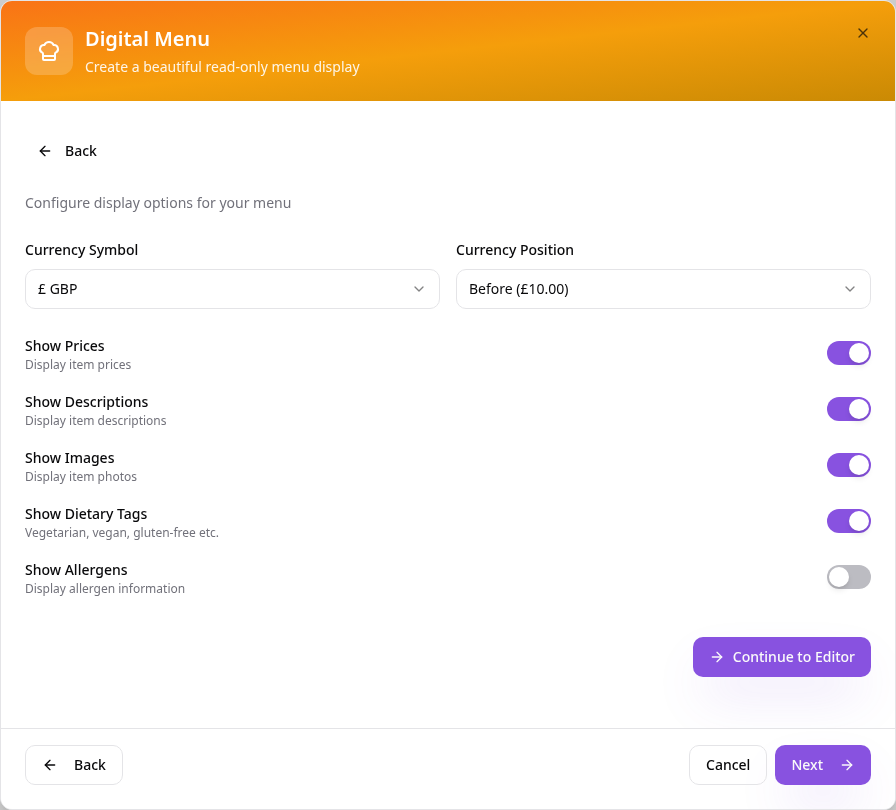
Choose a layout and options
Pick Photo Grid, Classic List or Compact, then set currency and what to show.
- 9
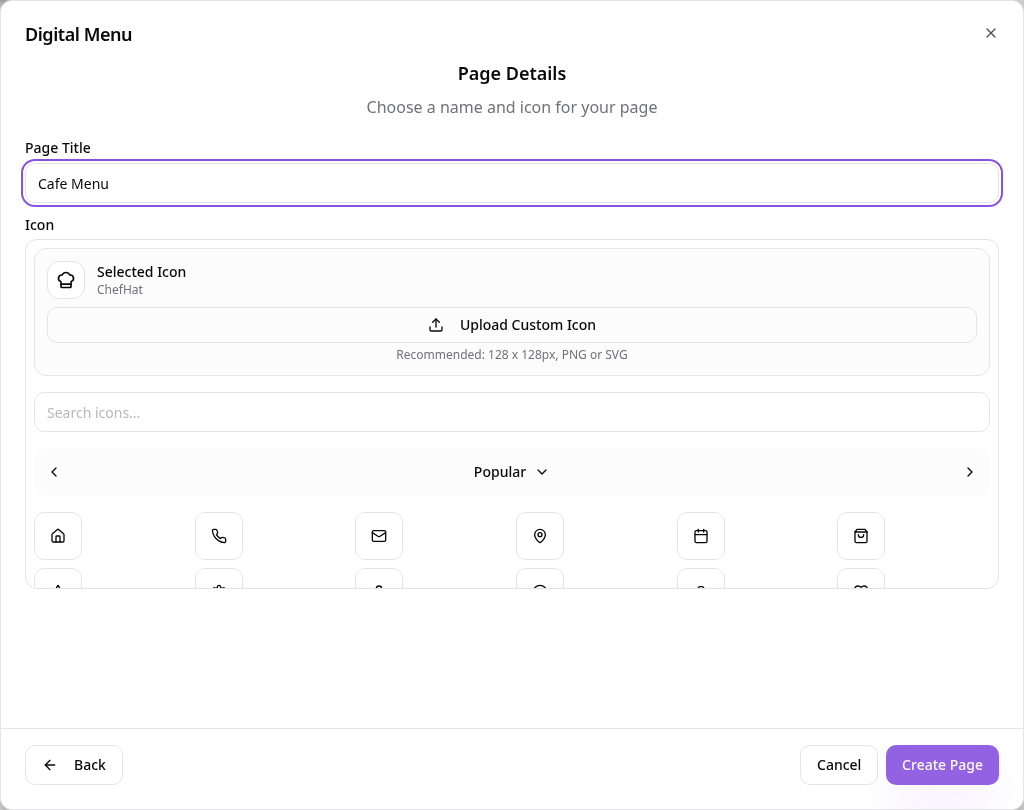
Name the page
Use a short name such as Cafe Menu and tap Create Page.
- 10
See it in your app
Your menu is now easy to read on any phone, with categories and prices.
To add or change items later, open the page in Pages and choose Edit Page Content. You can add categories and items by hand there, just as with Build From Scratch.