Show Eventbrite events in your app
Connect Eventbrite so your events appear in the app, then let customers save and see the events they're going to.
Step-by-step guide
Follow these steps, then download the PDF to keep.
- 1
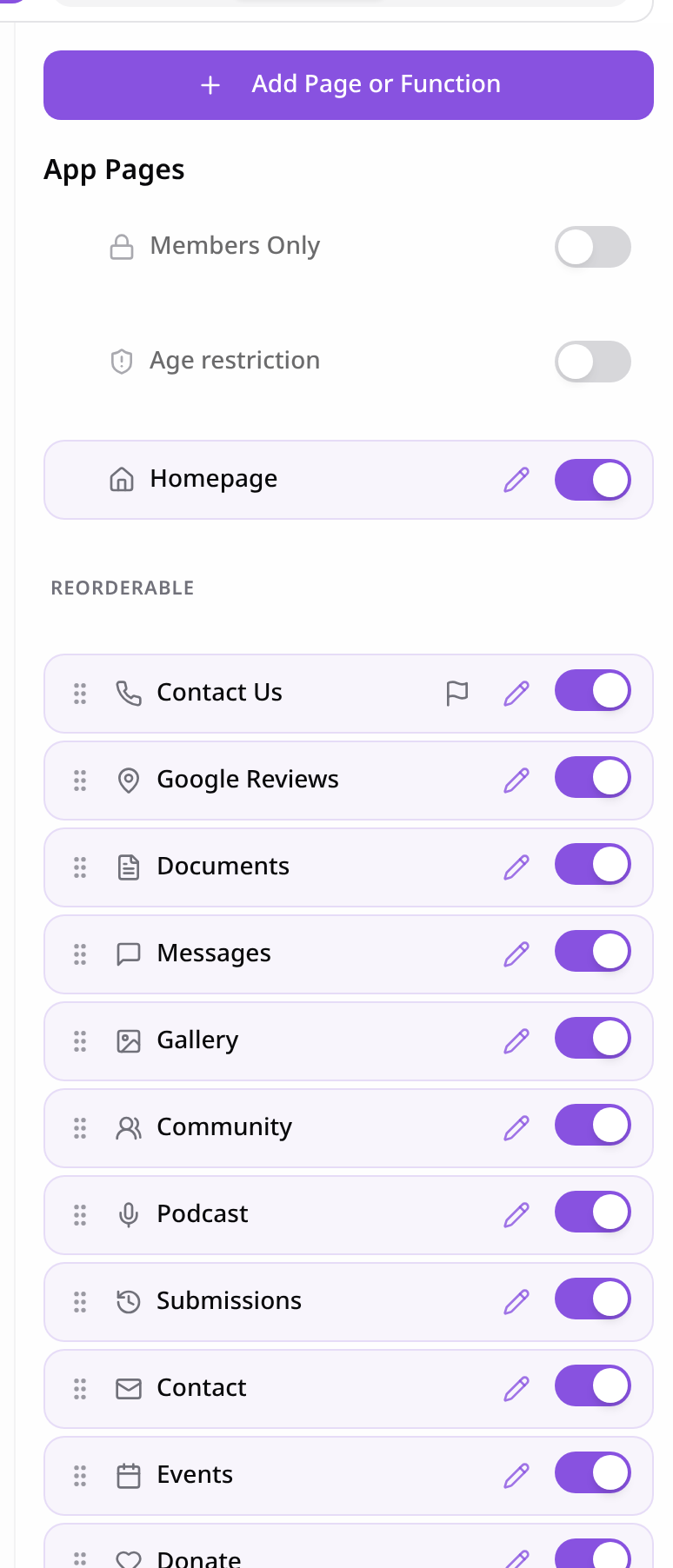
Open Pages
In your app editor, open Pages and tap Add Page or Function.
- 2
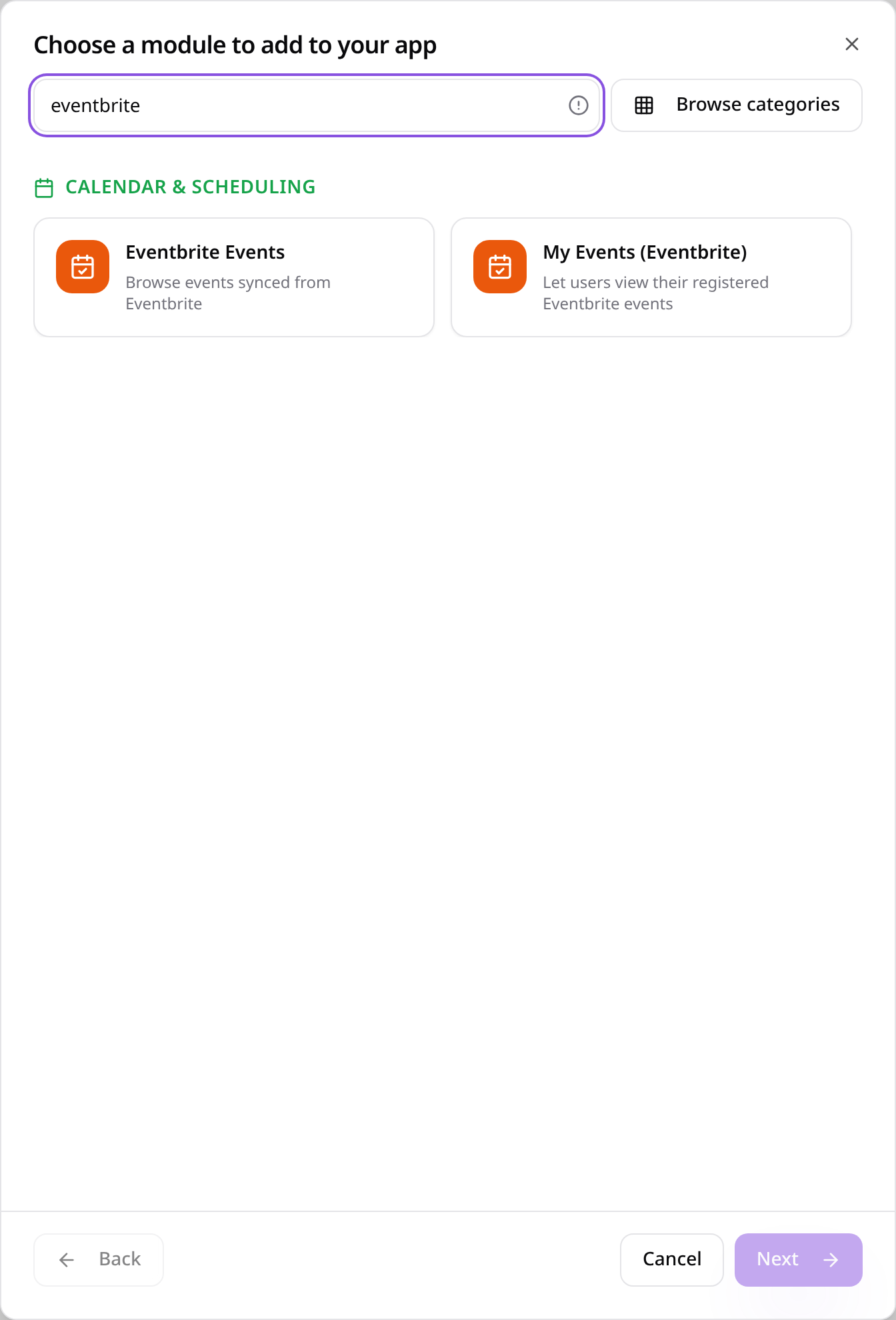
Choose Eventbrite Events
Search “eventbrite” and tap Eventbrite Events.
- 3
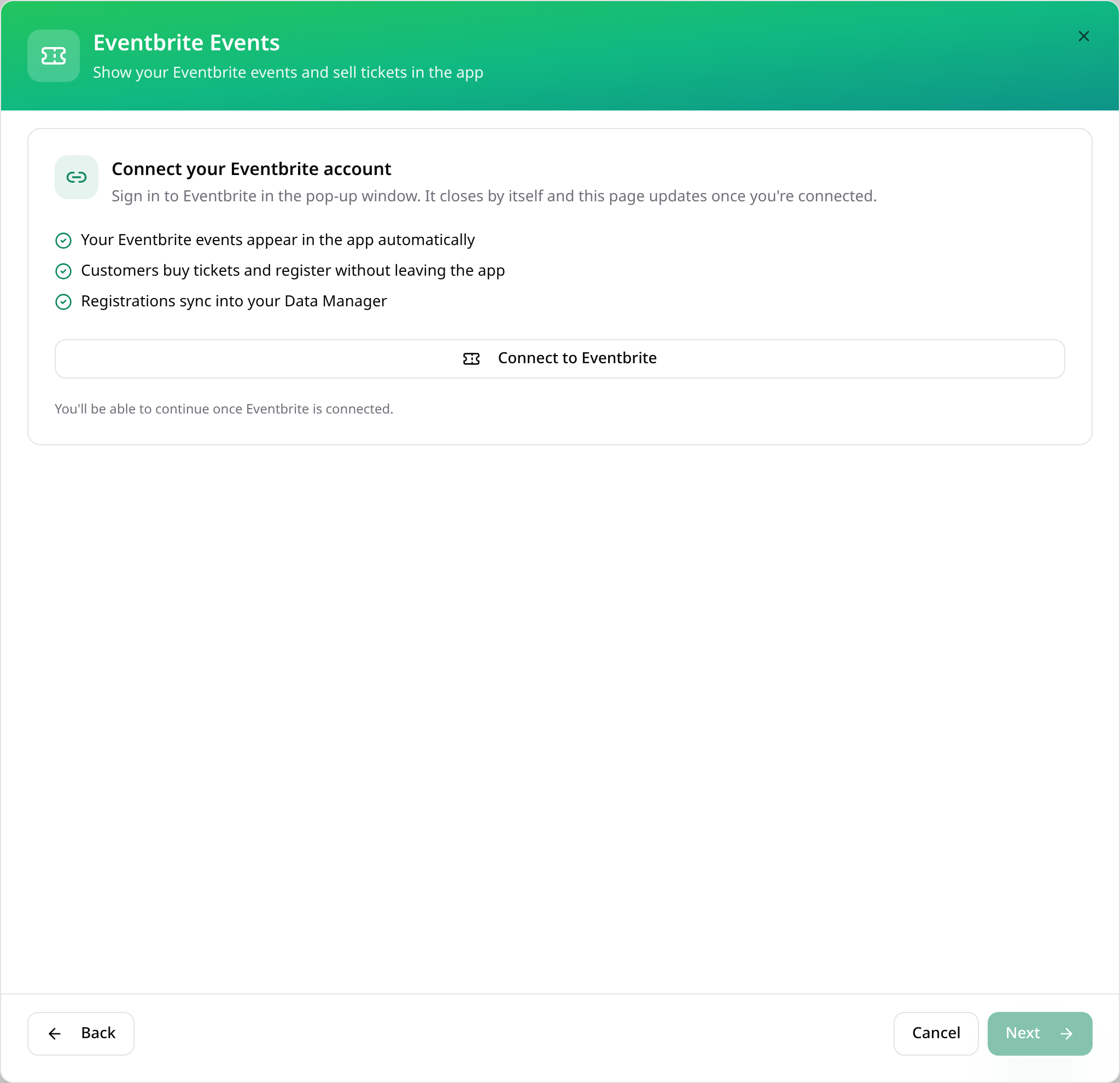
Connect Eventbrite
Tap Connect to Eventbrite and sign in. The window closes by itself once you're connected.
- 4
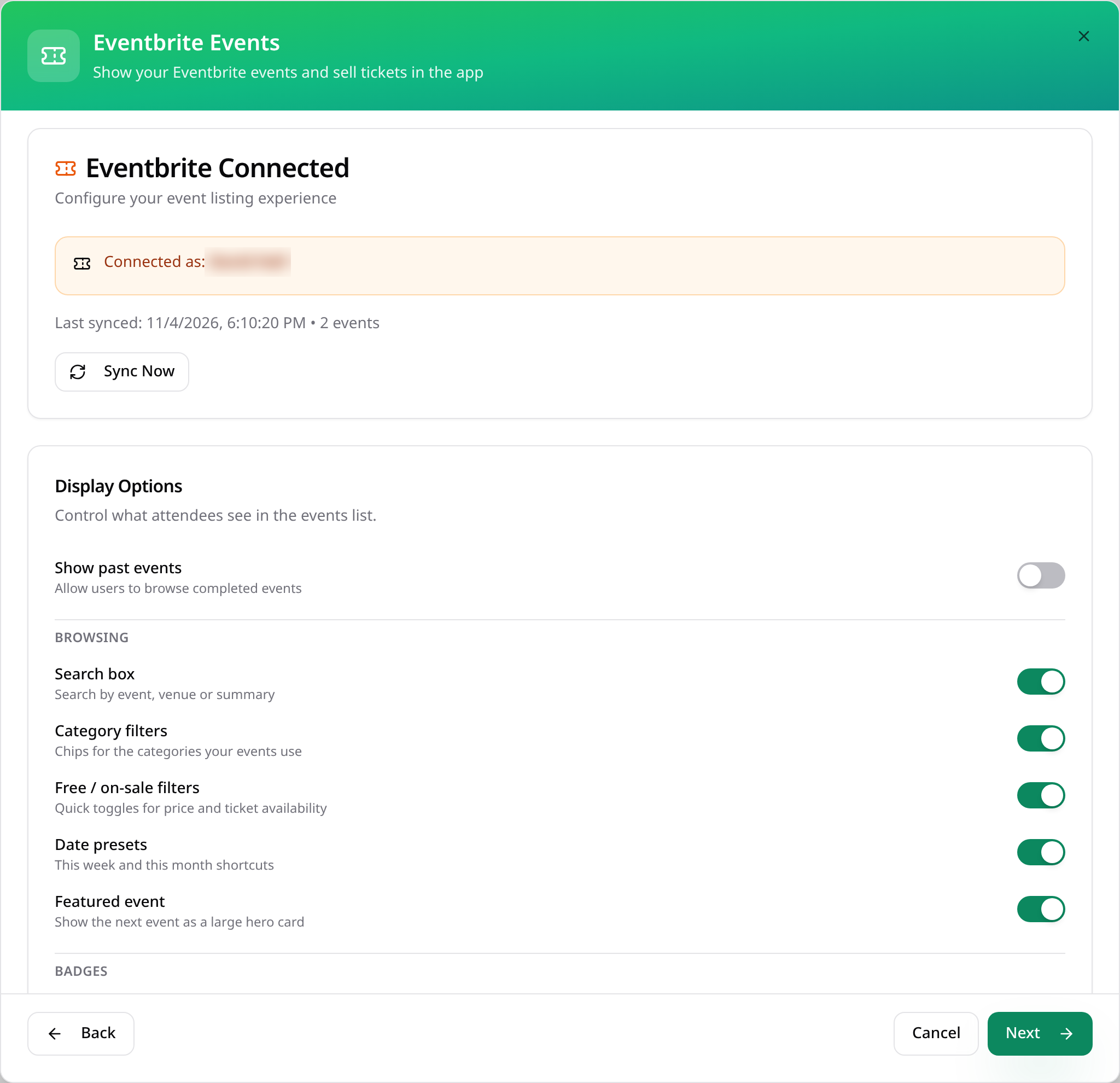
Choose what shows
Once connected, your events sync in. Choose past events, search, filters and badges. Tap Next.
- 5
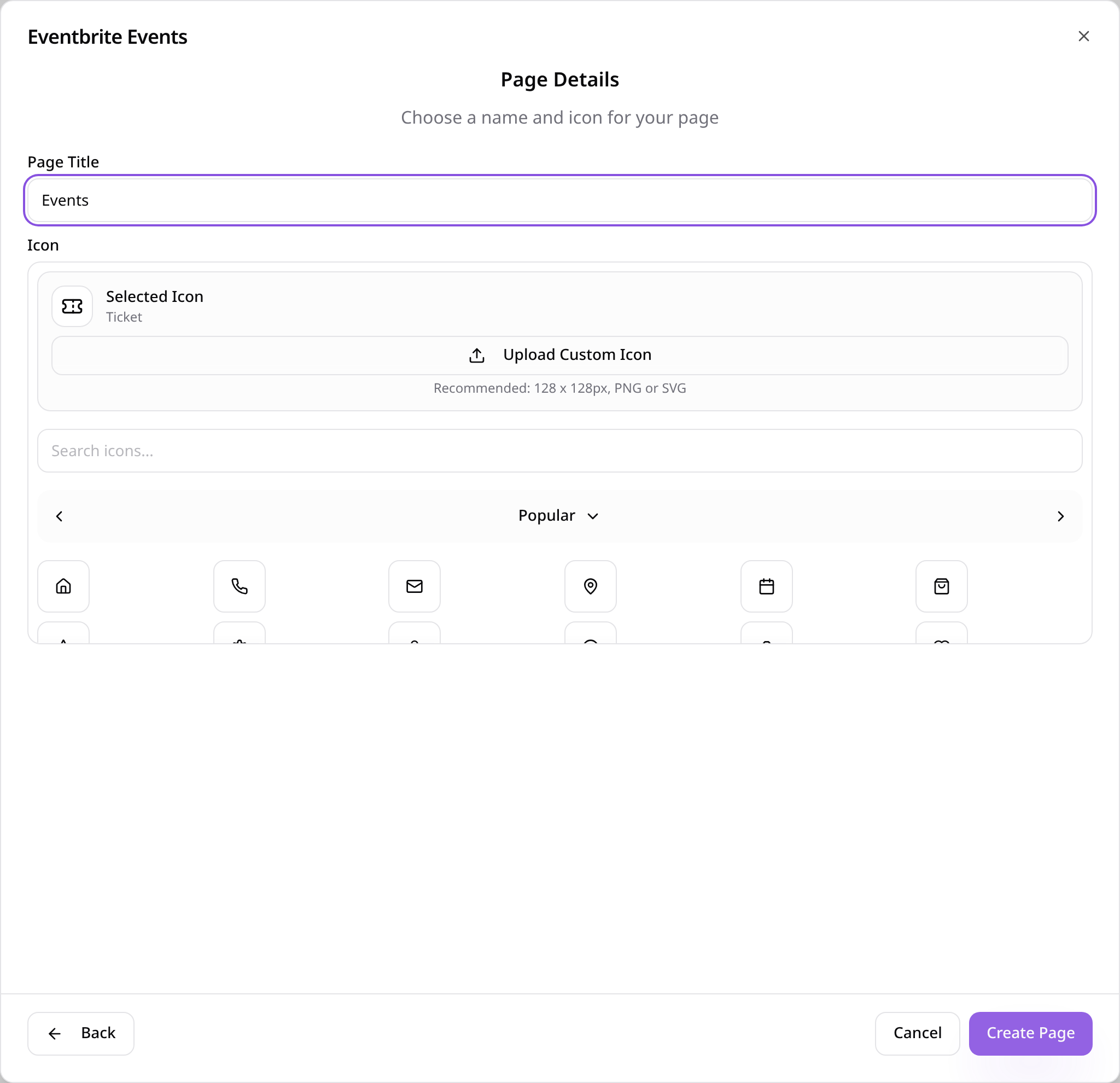
Name the page
Give the page a name, choose an icon and tap Create Page.
- 6
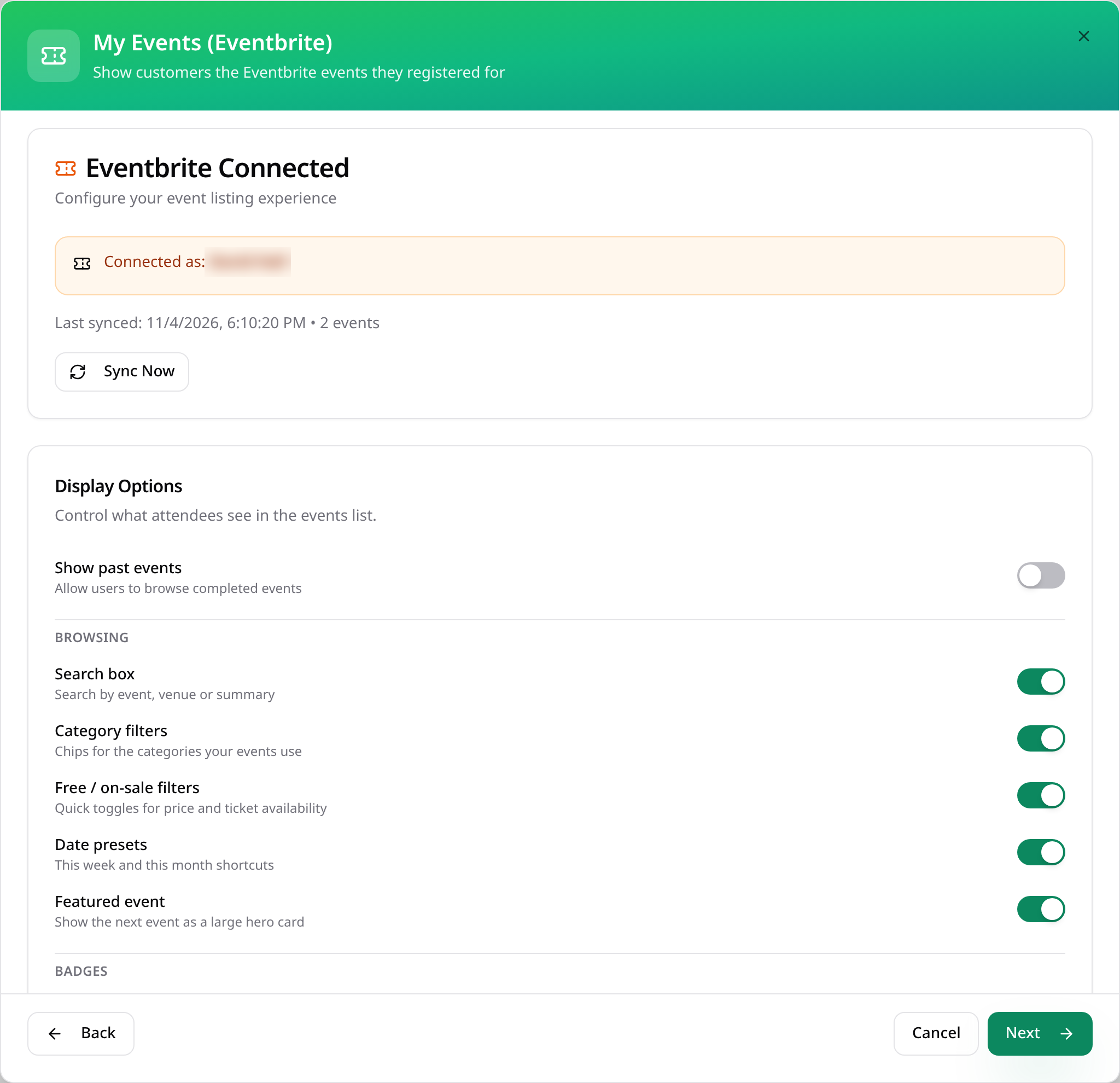
Add My Events
Add a second page with My Events (Eventbrite). It uses the same connection. Tap Next.
- 7
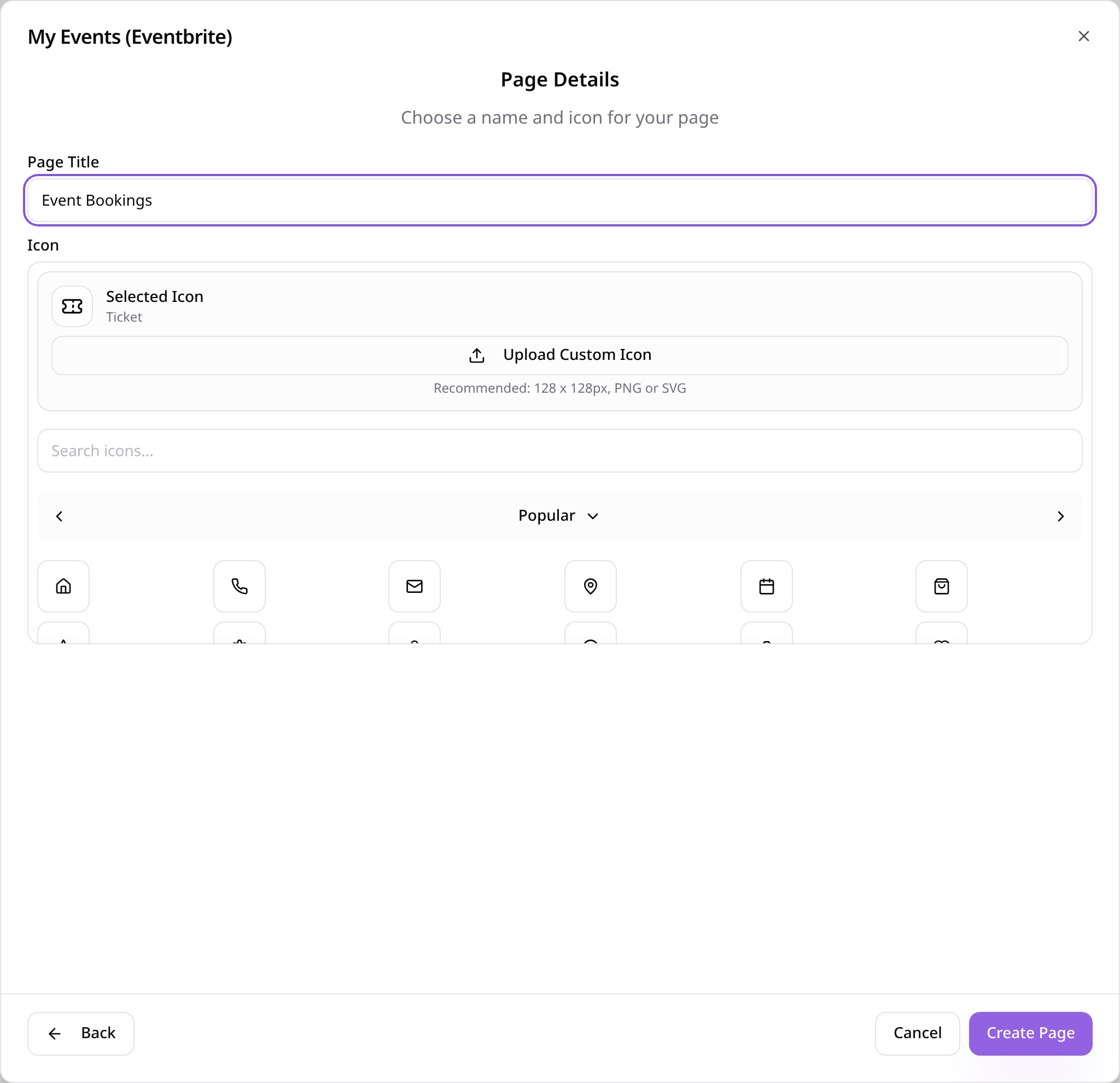
Name it
Name the page, for example Event Bookings, and tap Create Page.
- 8
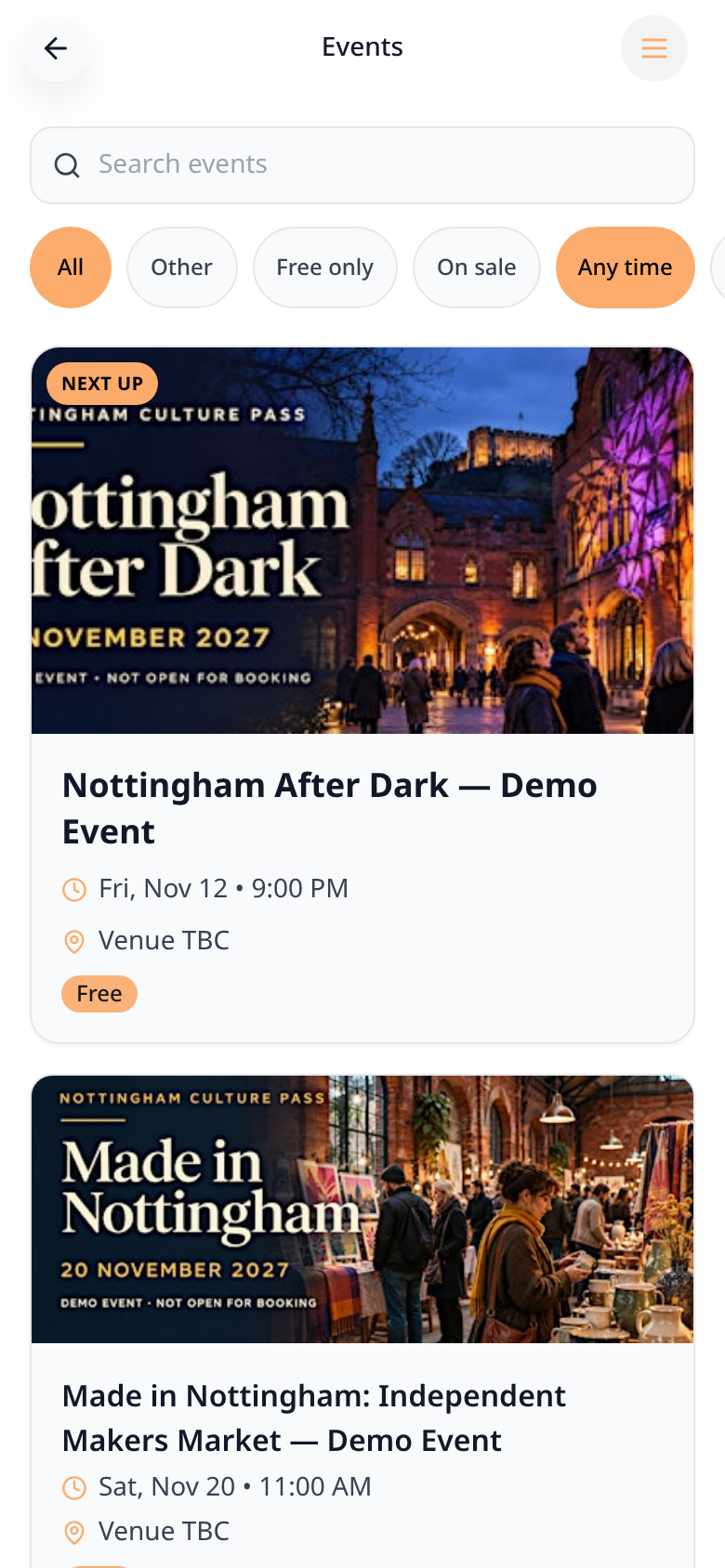
Customers browse events
Your Eventbrite events show with search and quick filters.
- 9
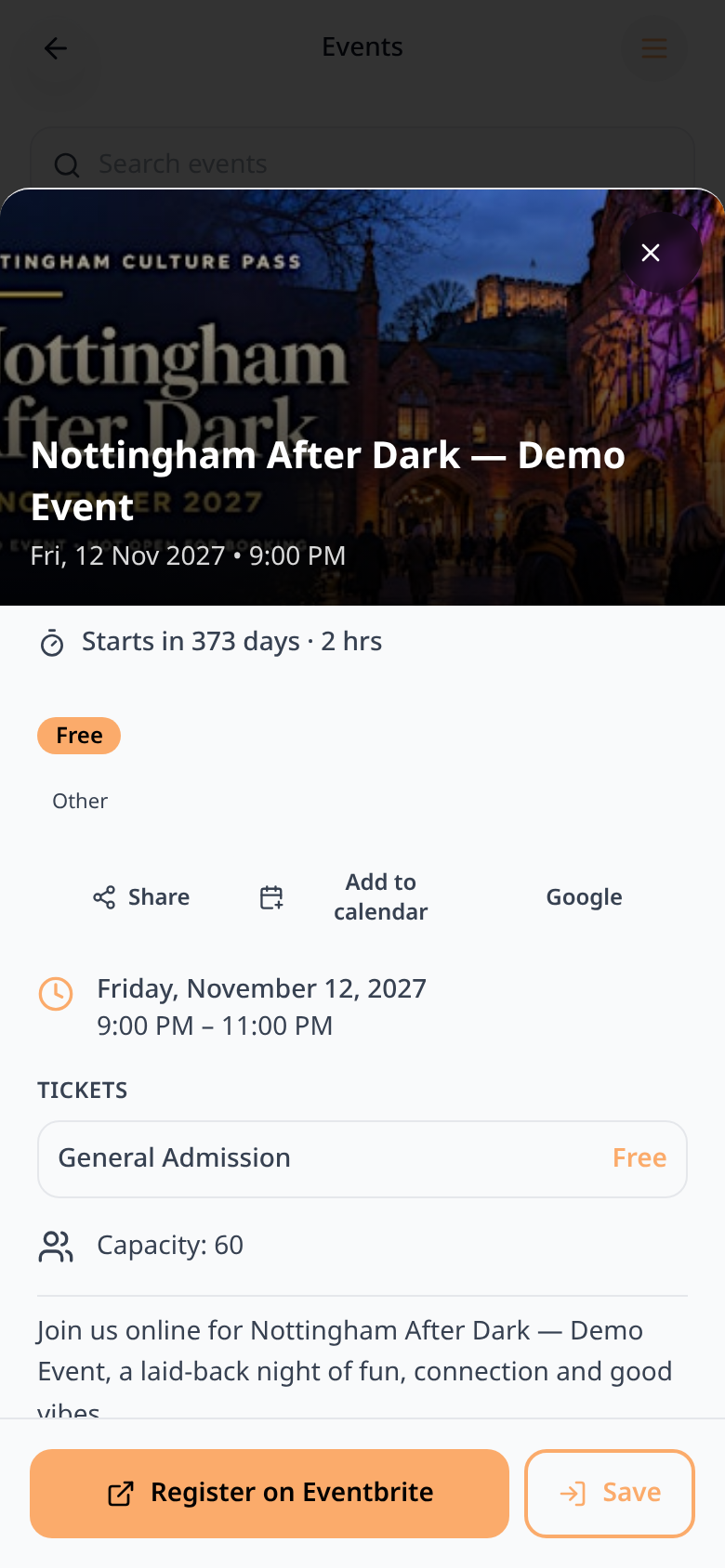
Event details
Each event shows its date, tickets and description, with Register on Eventbrite and Save.
- 10
Sign in for My Events
My Events asks customers to sign in so their events stay private.

- 11
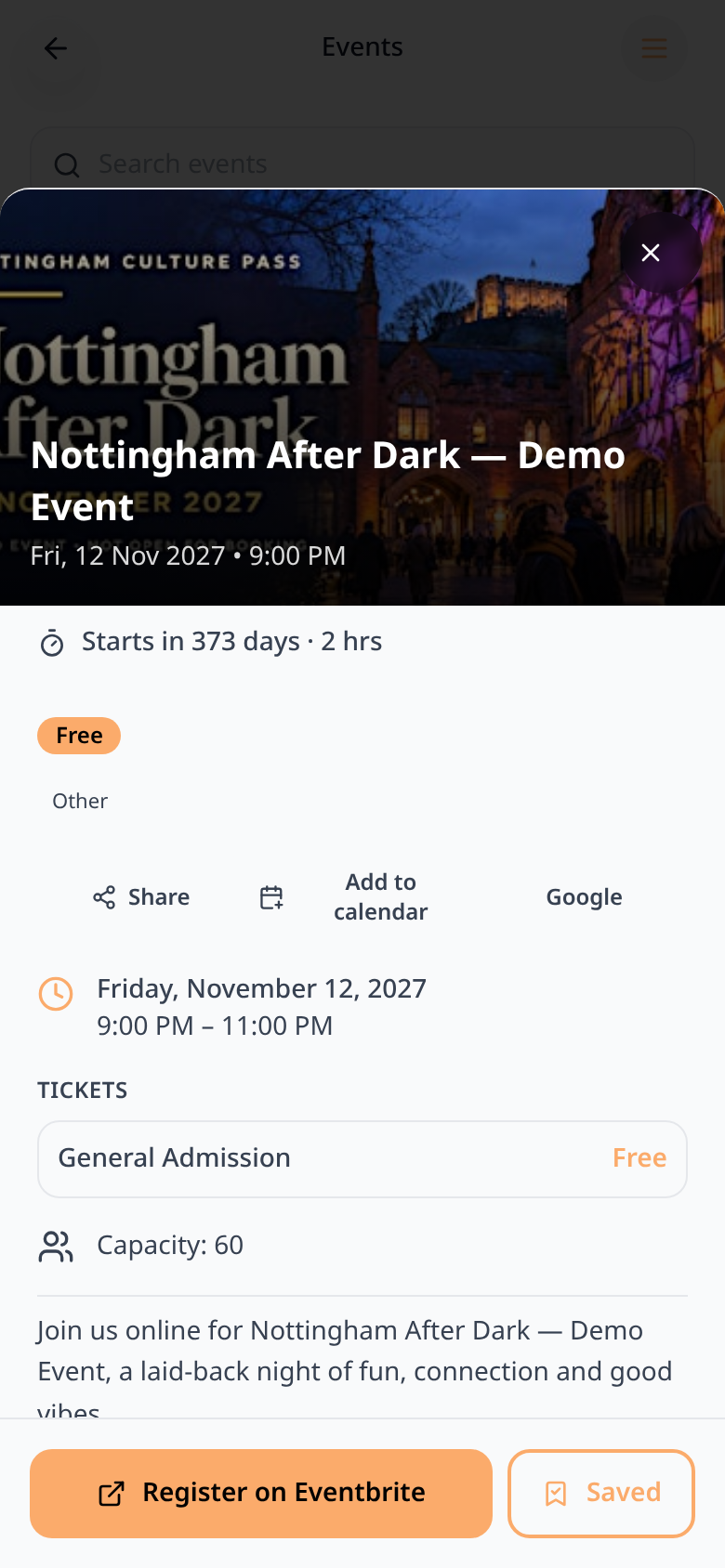
Save an event
Signed-in customers tap Save on any event they're interested in.
- 12
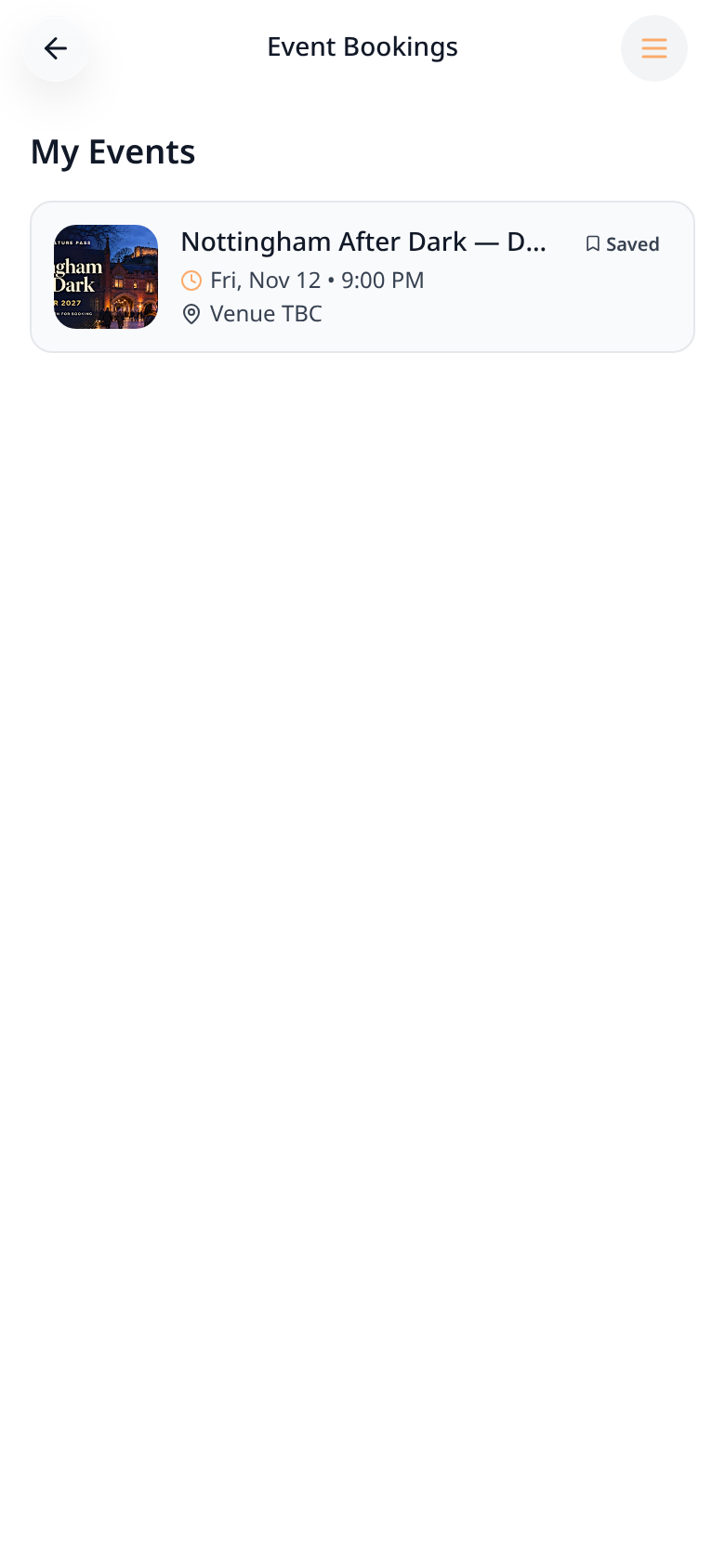
Their events in one place
Saved events and Eventbrite tickets bought with the same email show on My Events.
Events update automatically from Eventbrite. Tap Sync Now in the page settings to refresh straight away.