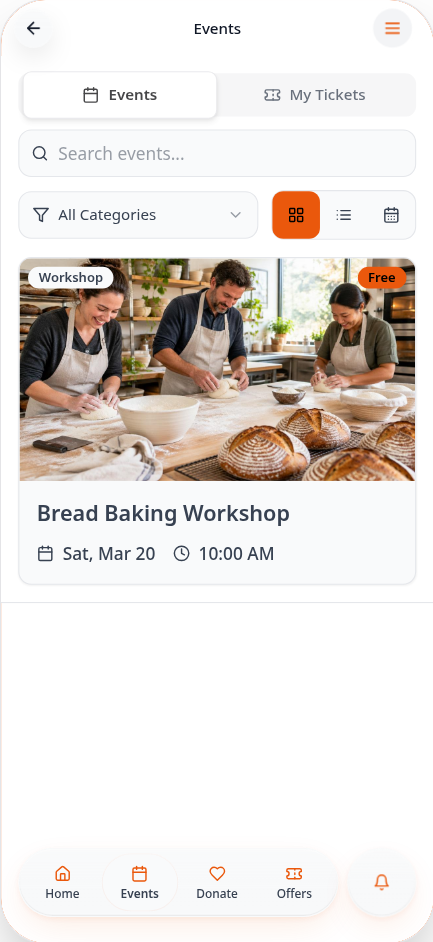
Create events and tickets
Add an event, set tickets and capacity, and collect attendee registrations in your app.
Step-by-step guide
Follow these steps, then download the PDF to keep.
- 1
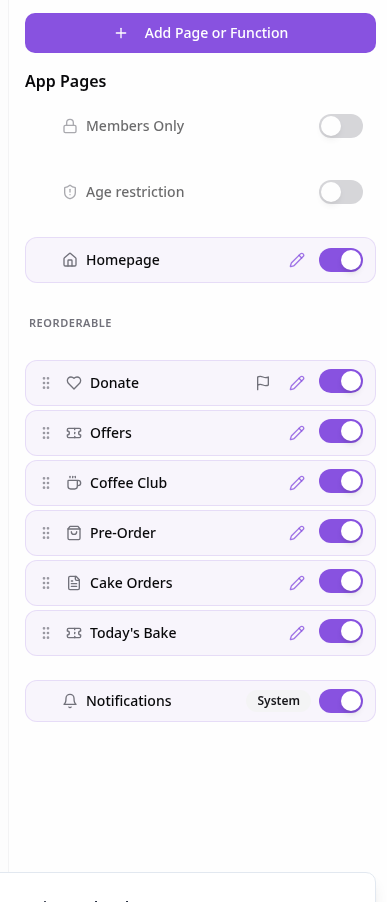
Open Pages
In your app editor, open Pages and tap Add Page or Function.
- 2
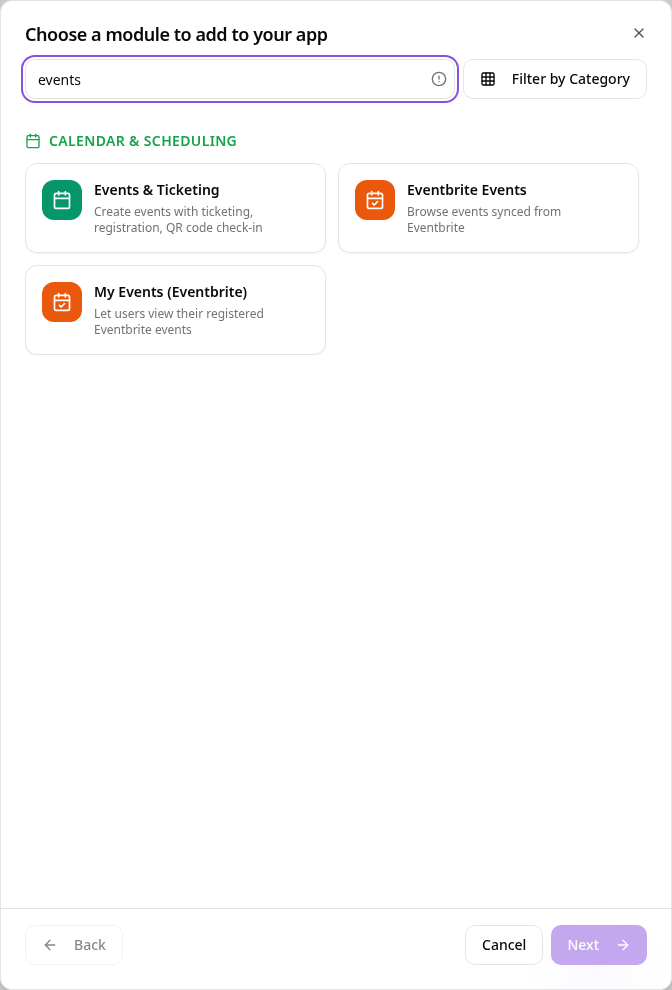
Choose Events & Ticketing
Search “events” and tap Events & Ticketing.
- 3
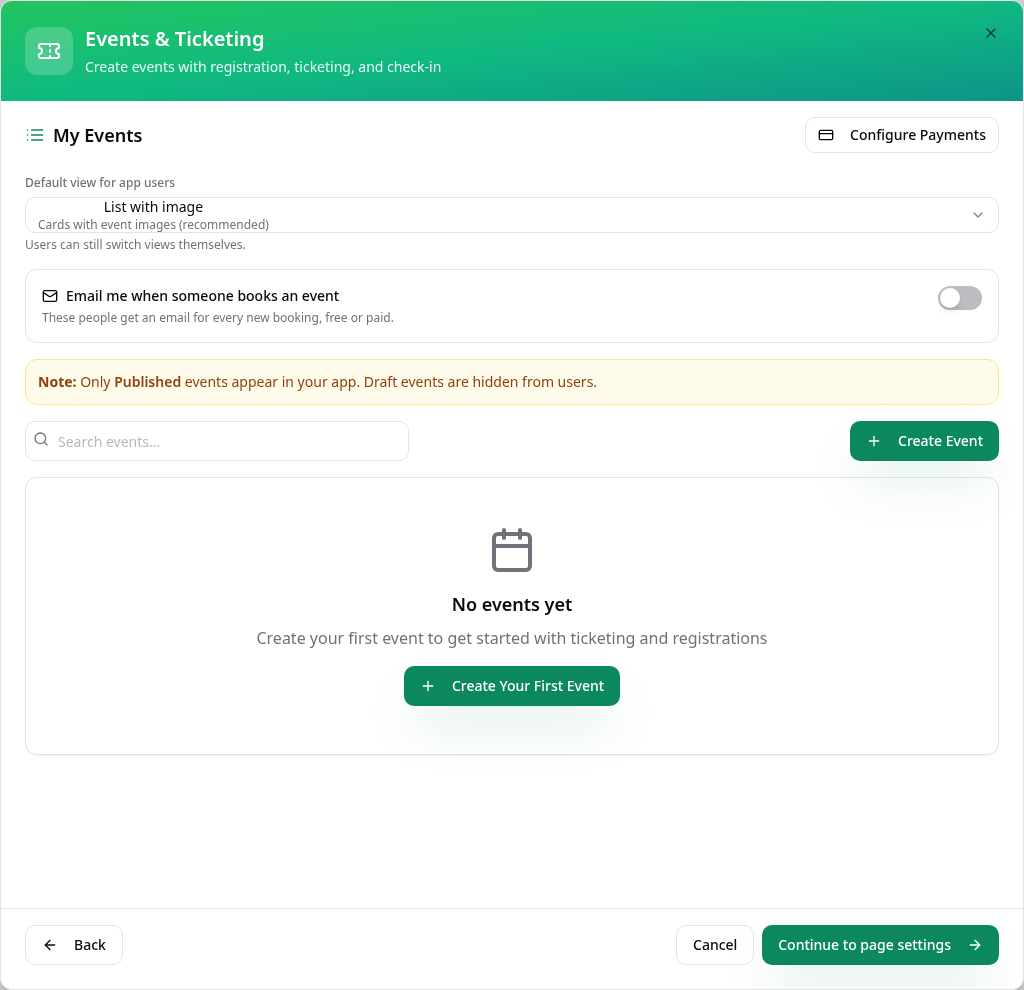
Create your first event
Tap Create Event to open the event setup tabs.
- 4
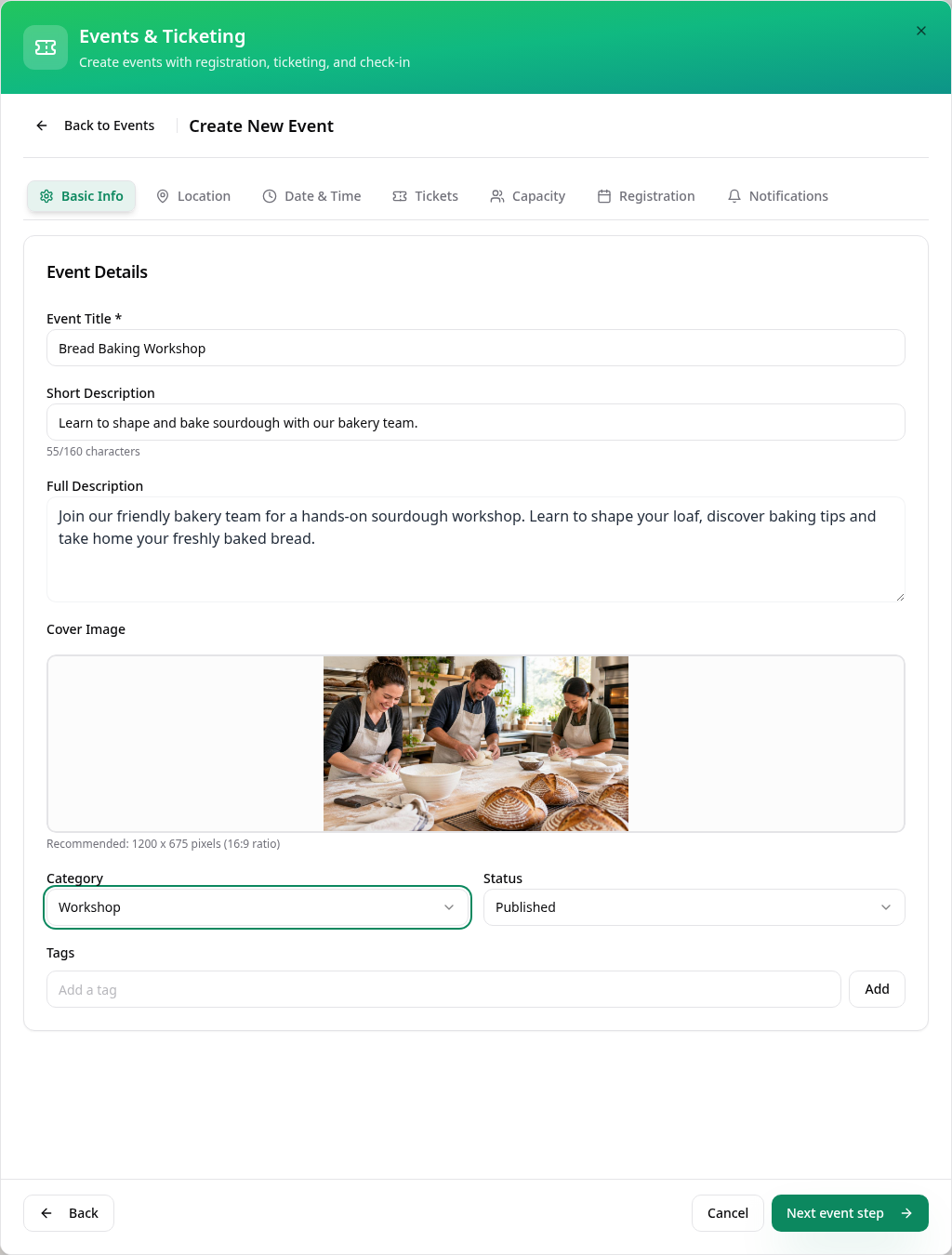
Describe your event
Add a title, descriptions and cover image, choose a category, then tap Next event step.
- 5
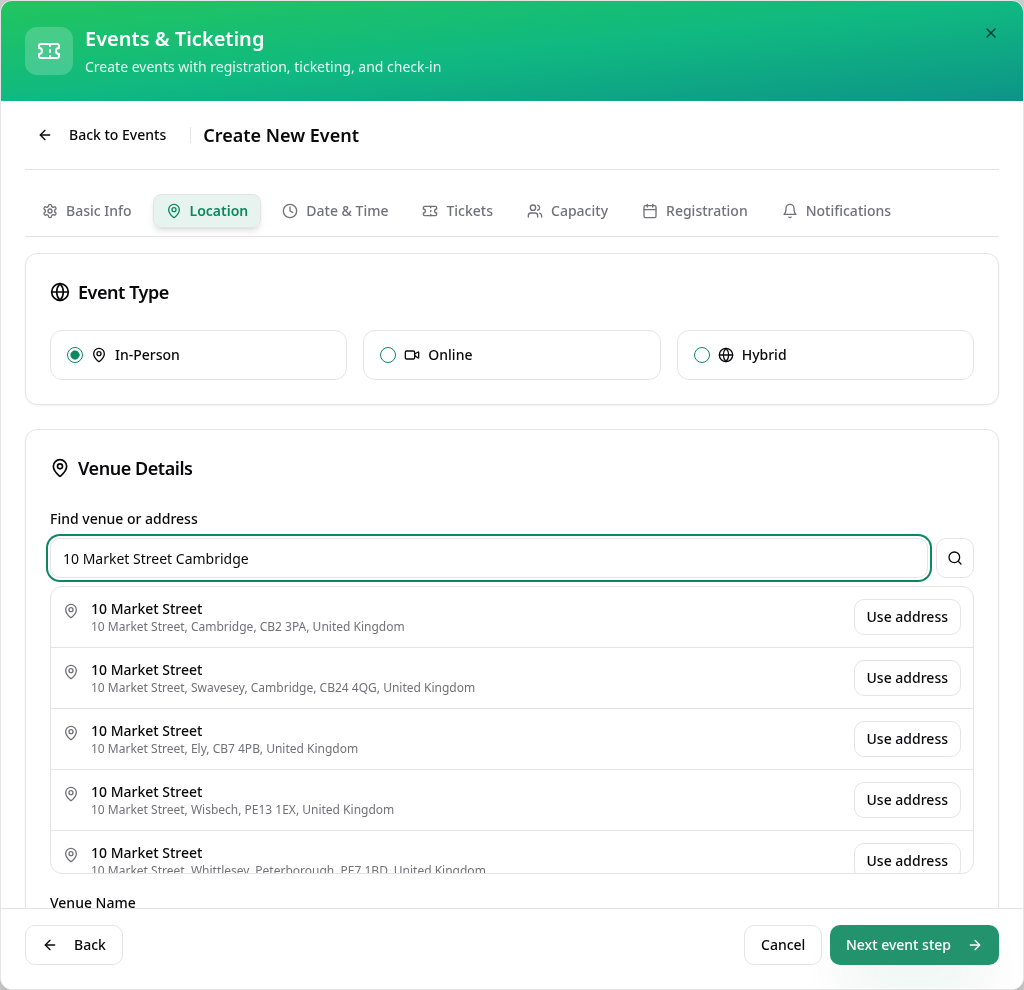
Find the venue
Choose In-Person, search a street or postcode, then tap Use address beside the correct result.
- 6
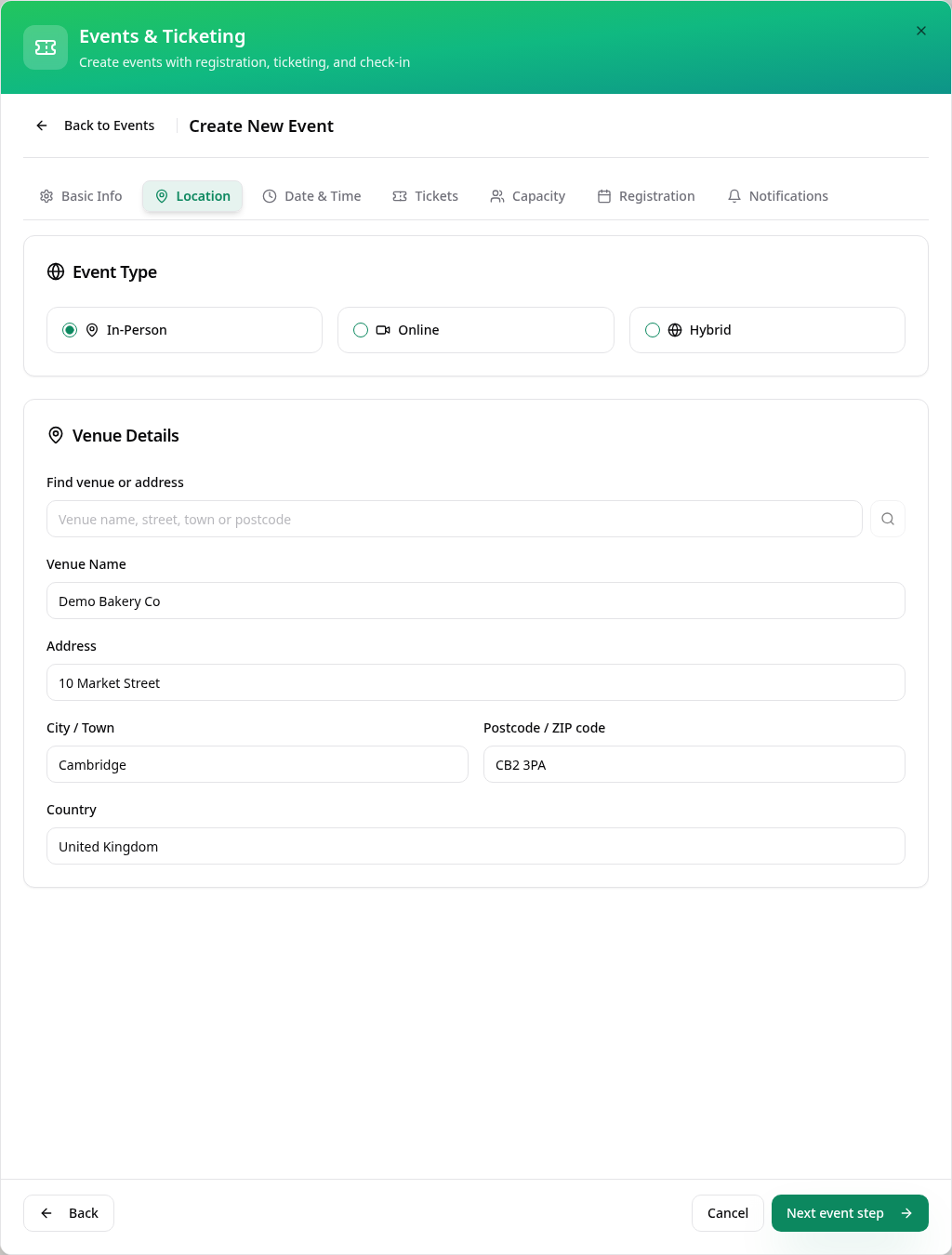
Check the address
Check the filled address and add your venue name before tapping Next event step.
- 7
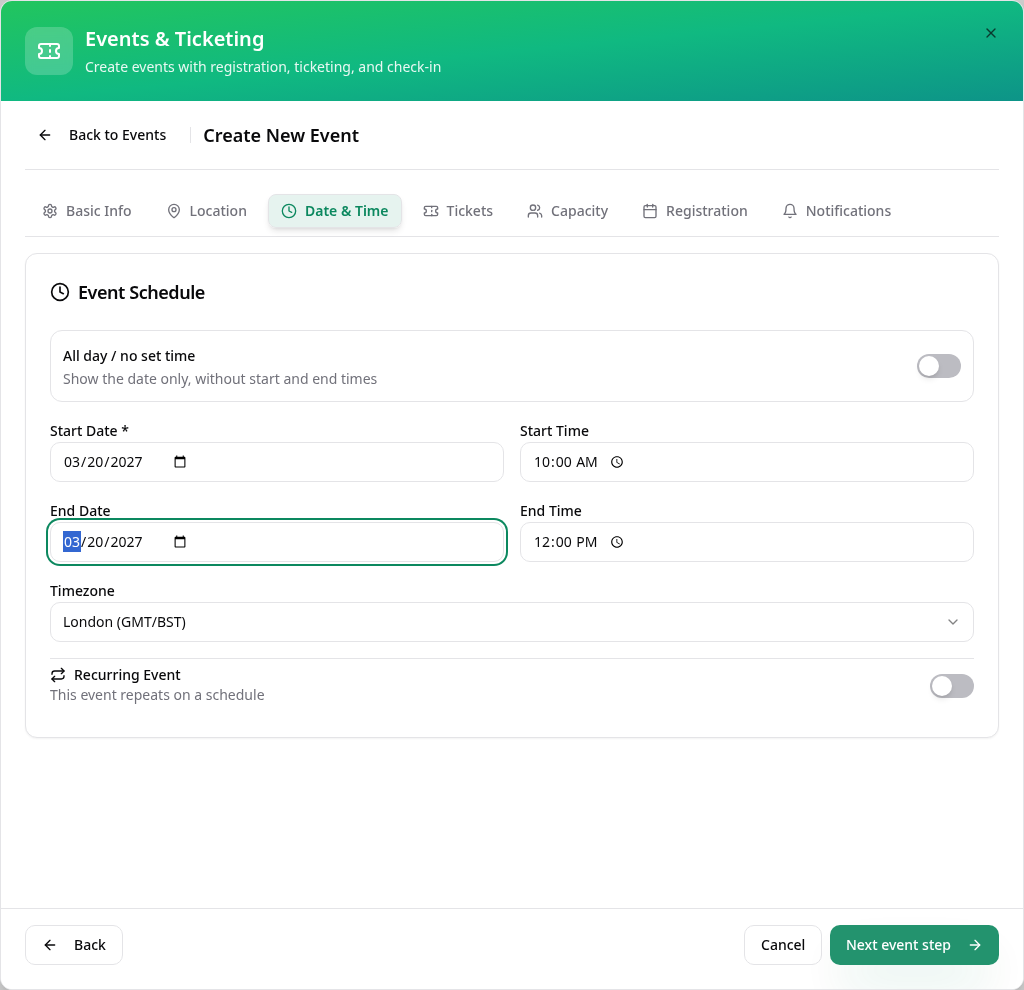
Set the date and time
Choose the start date, times and timezone; add an end date or recurrence if needed, then continue.
- 8
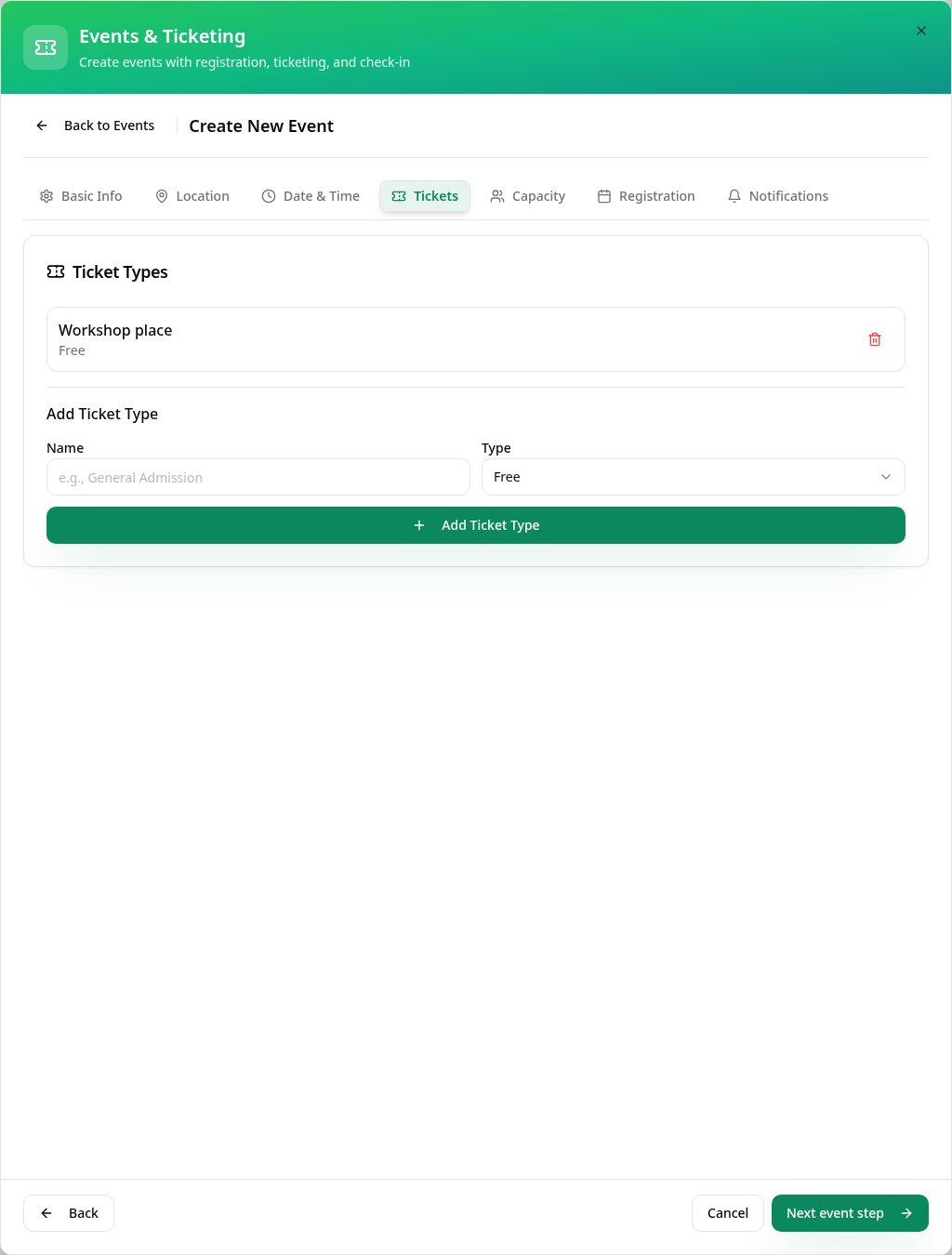
Add a ticket type
Enter a ticket name, choose Free, Paid or Donation, and tap Add Ticket Type before continuing.
- 9
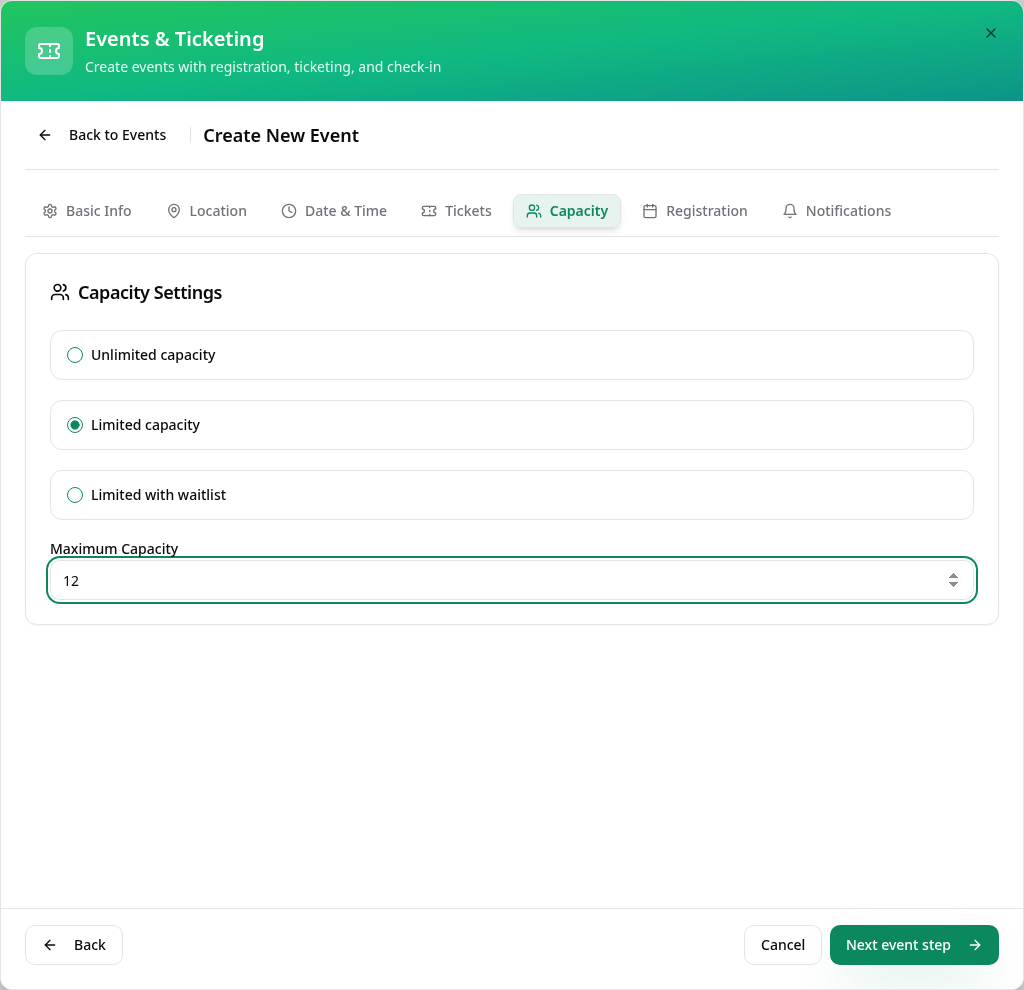
Set your capacity
Choose unlimited places, a limit or a waitlist; this workshop has 12 places.
- 10
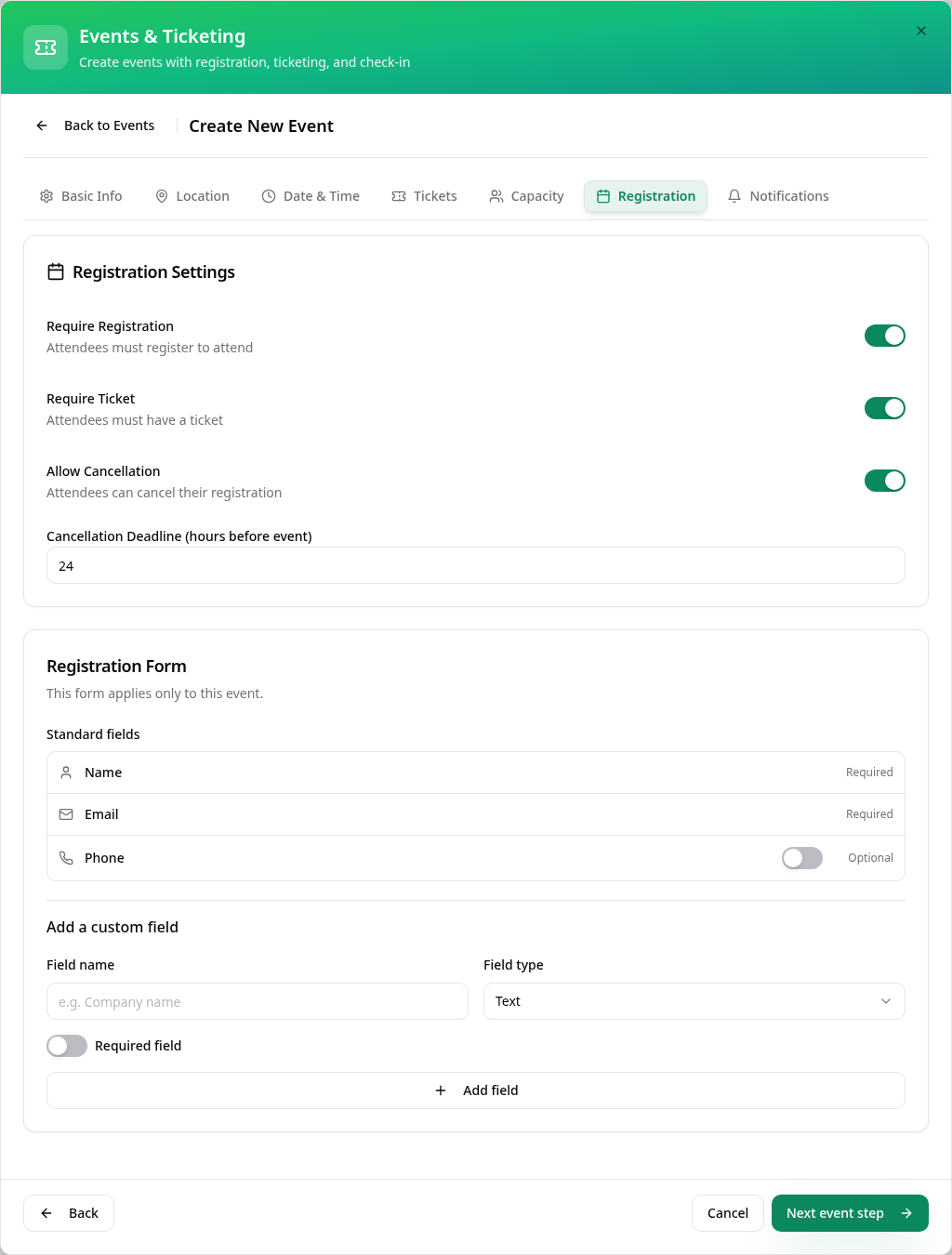
Choose registration settings
Choose whether registration and tickets are required, set cancellation options and add any extra attendee questions.
- 11
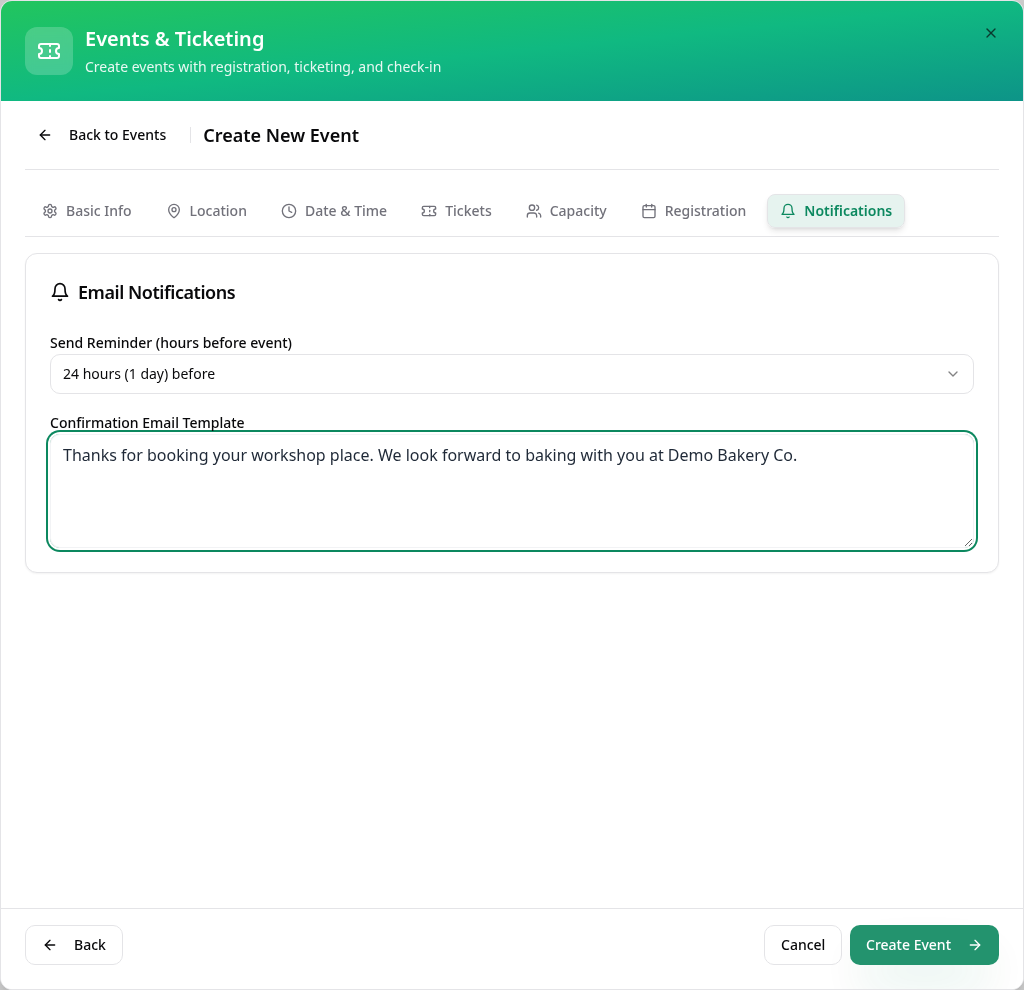
Set reminders and create the event
Choose a reminder and optional confirmation message, then tap Create Event to save the event.
- 12
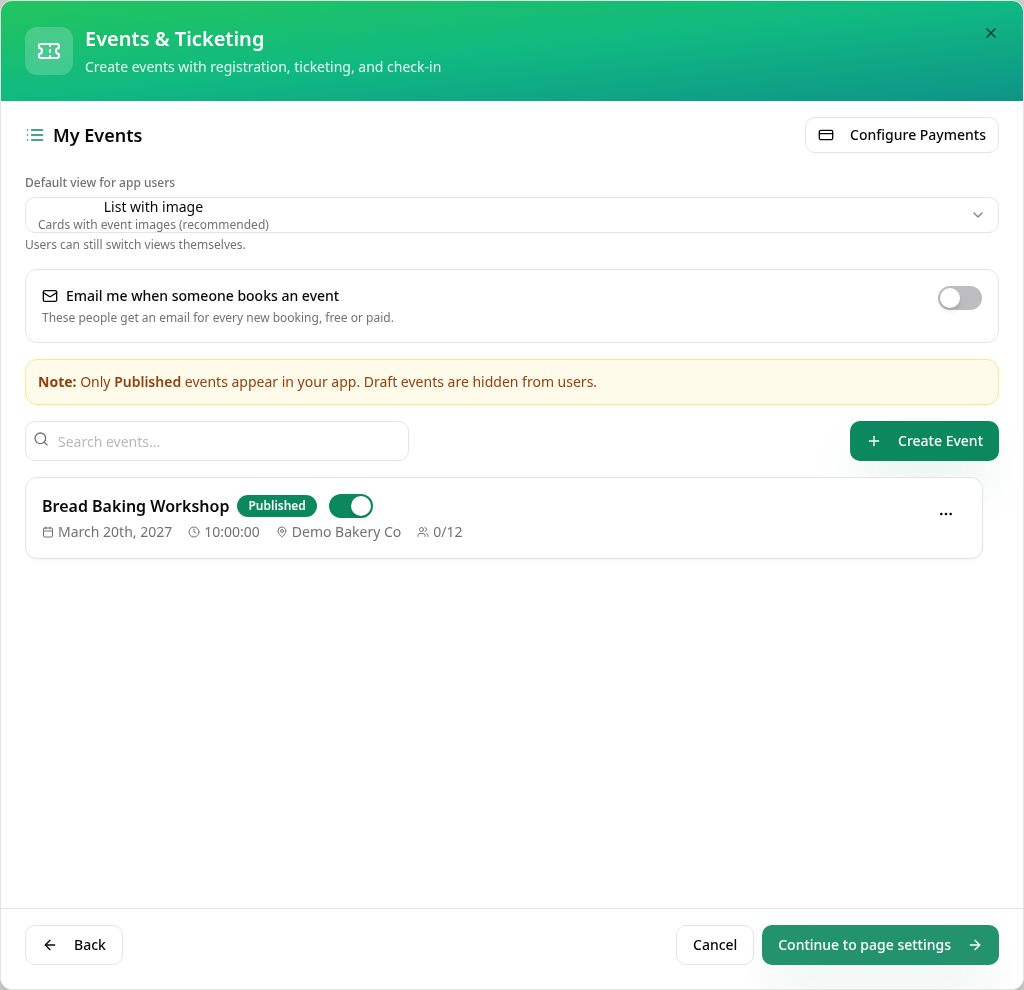
Your event is ready
Check your event in the list, then tap Continue to page settings; paid tickets also need Configure Payments.
- 13
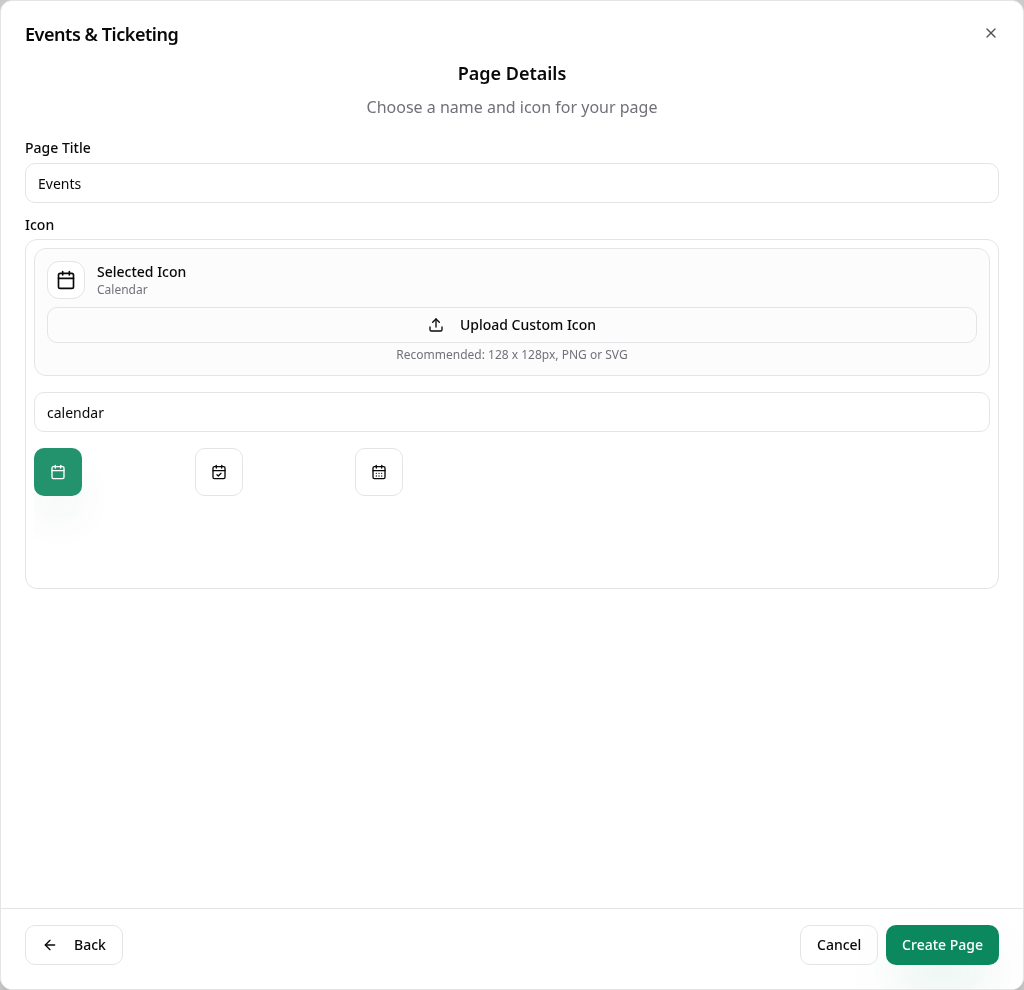
Name the page
Use a short name such as Events, choose an icon and tap Create Page.
- 14
See it in your app
Customers can browse your event and open it to view details and register.
To add or change events later, open Events in Pages and choose Edit Page Content. Manage attendee registrations and check-in in Data Manager. The workshop details shown here are demo examples.