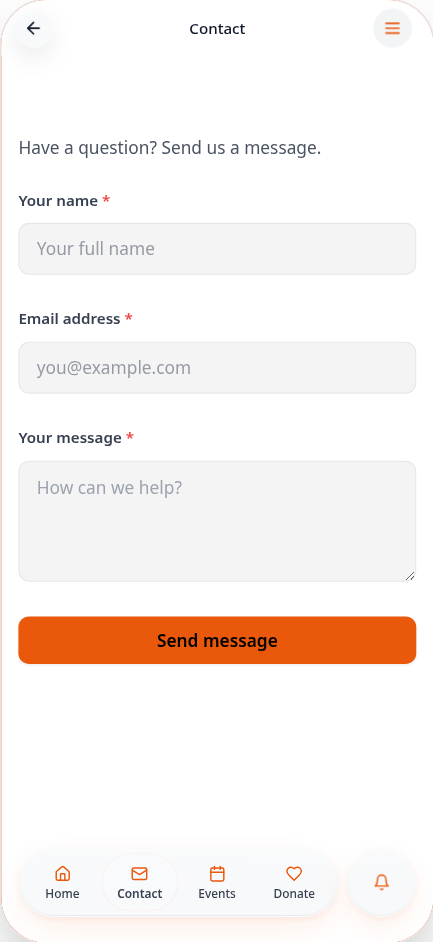
Create a form
Build a contact form, customise its questions and thank-you message, then add it to your app.
Step-by-step guide
Follow these steps, then download the PDF to keep.
- 1
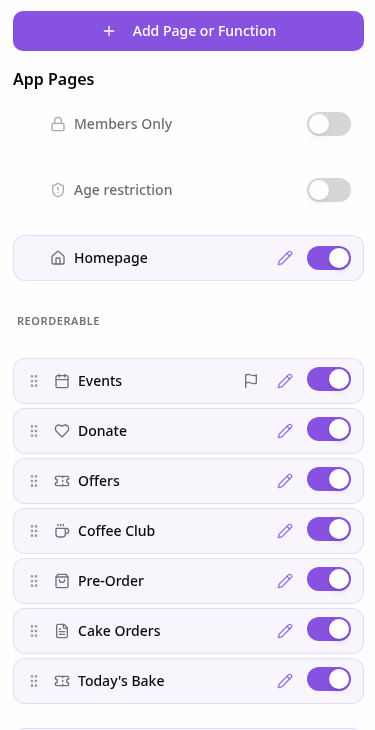
Open Pages
In your app editor, open Pages and tap Add Page or Function.
- 2
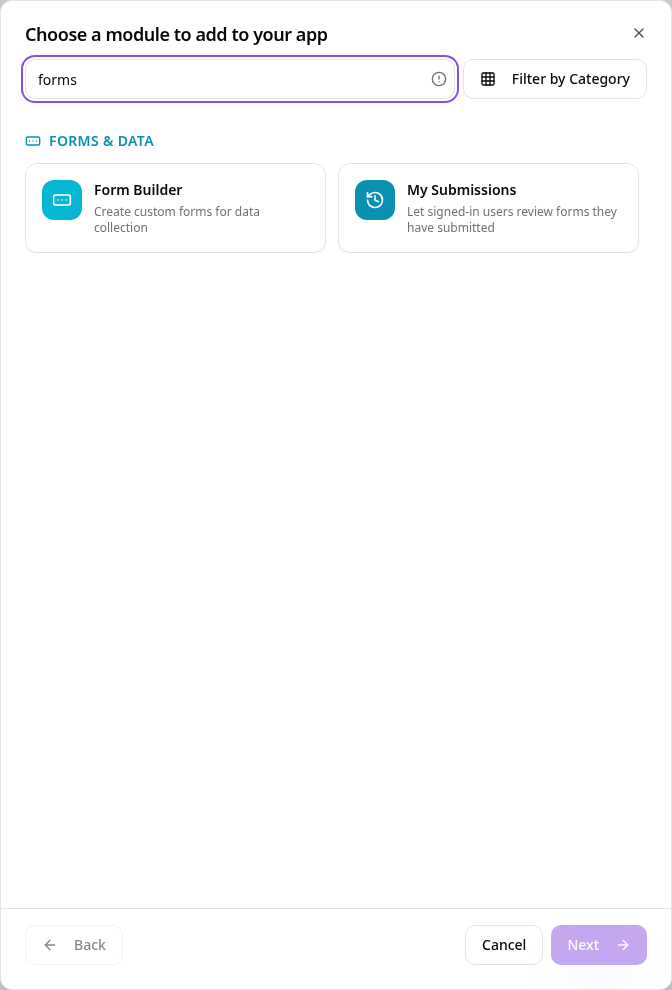
Choose Form Builder
Search “forms” and tap Form Builder.
- 3
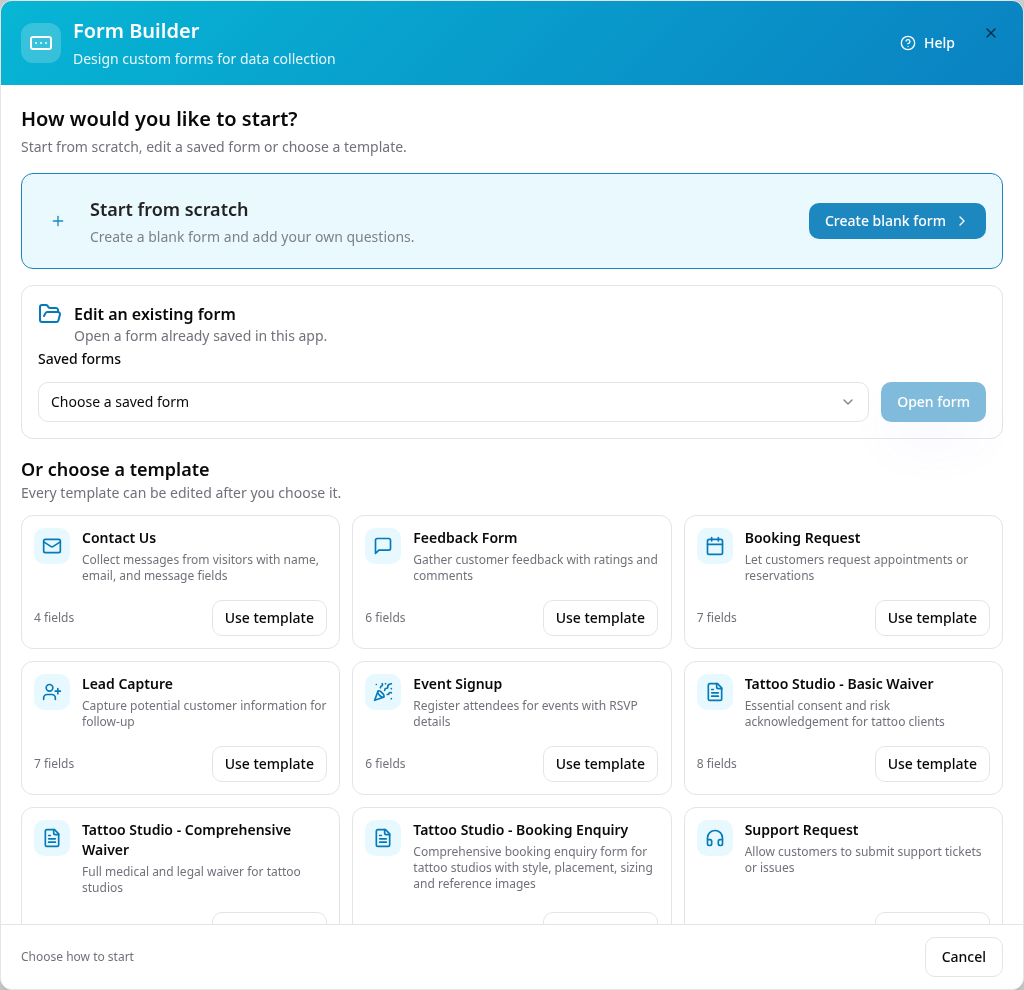
Choose how to start
Tap Start from scratch, or choose a template if you prefer a ready-made starting point.
- 4
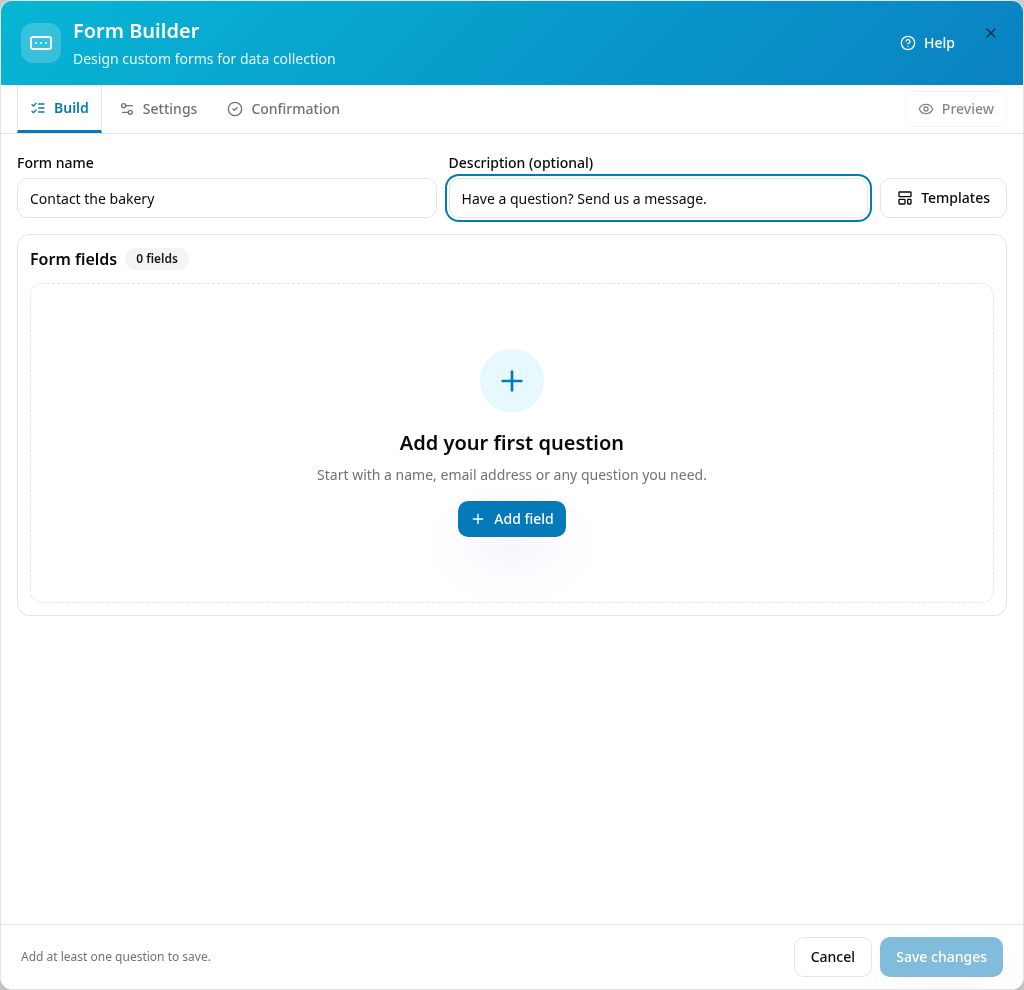
Name your form
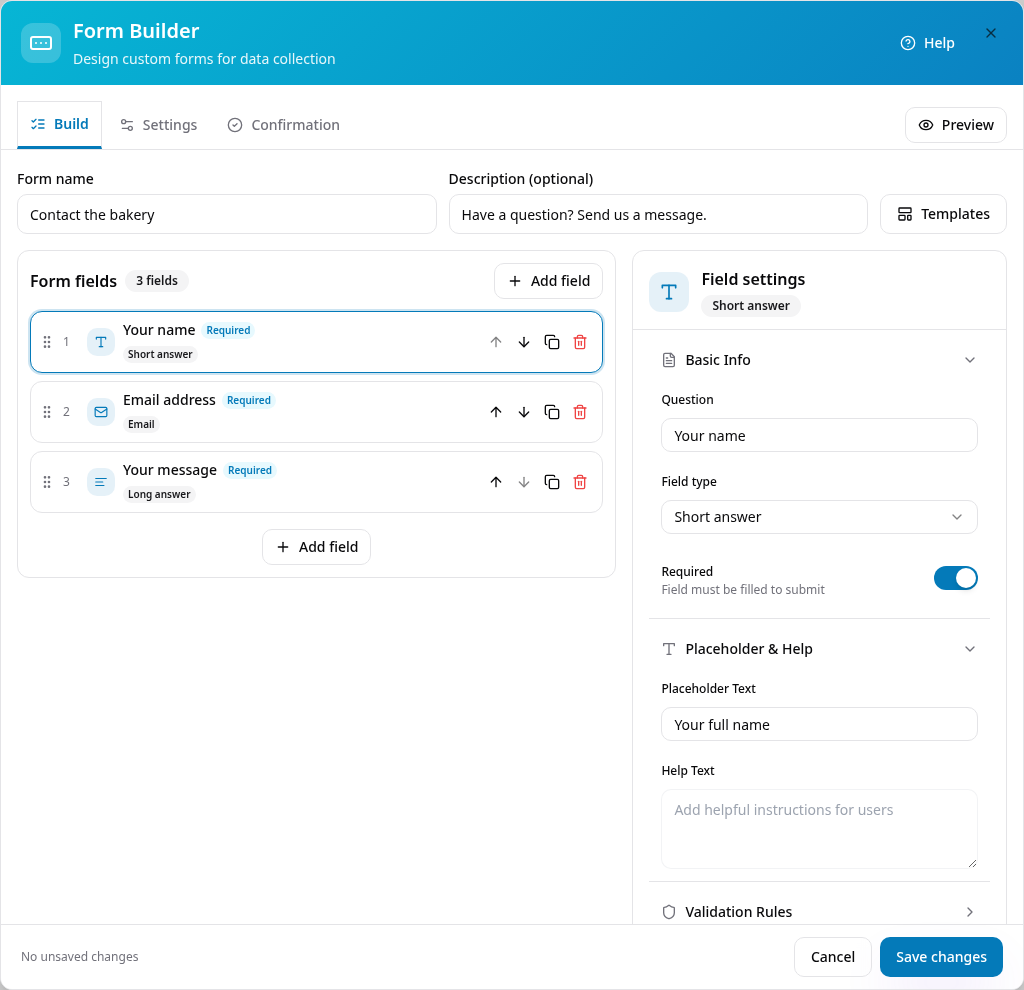
Enter a form name and optional description, then tap Add field to add your first question.
- 5
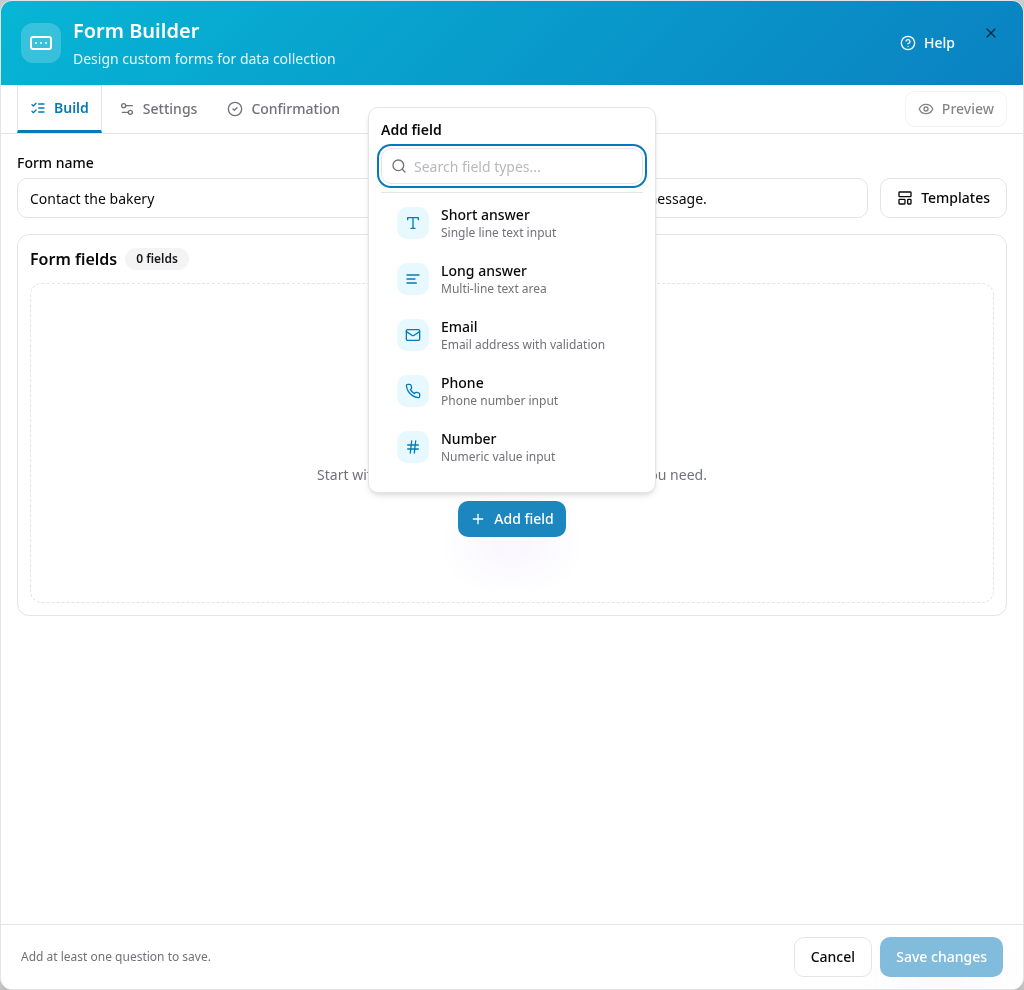
Pick a question type
Choose Short answer for a name; search or scroll to find other question types.
- 6
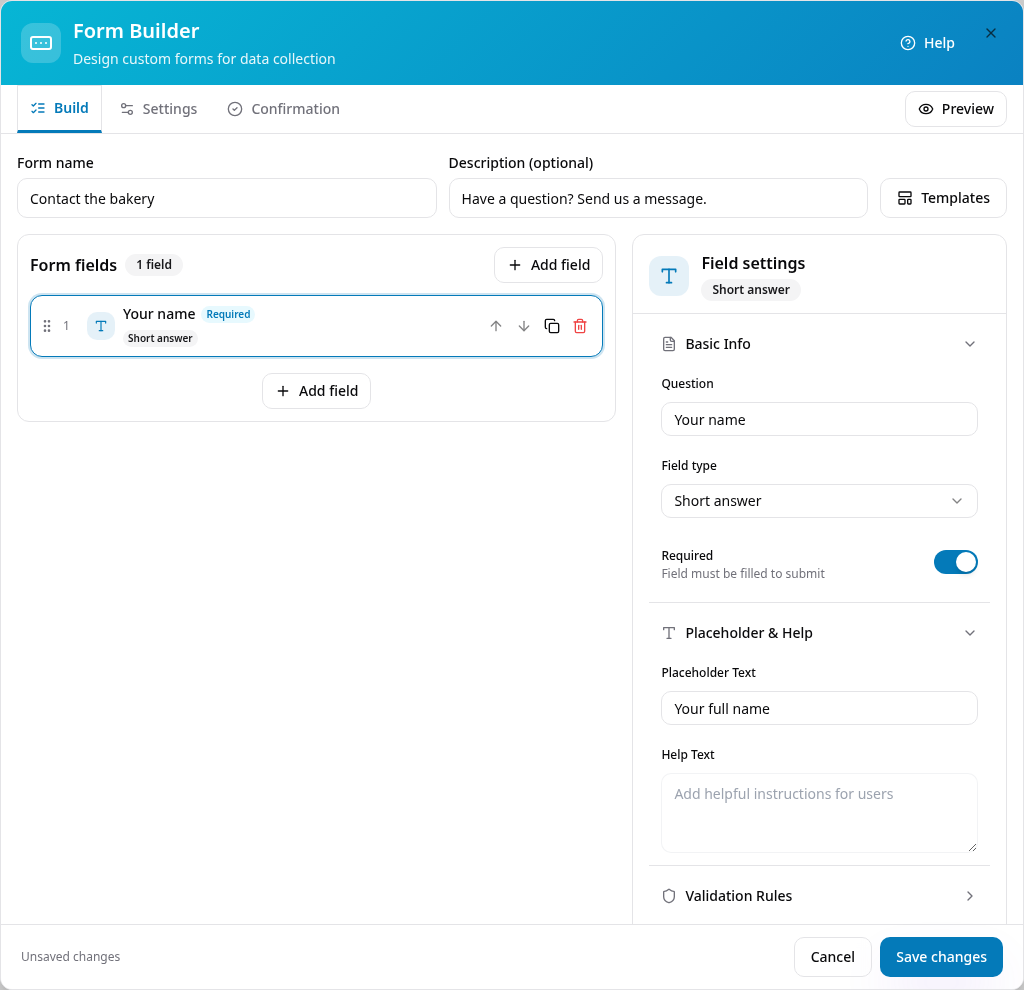
Edit the question
Enter the question and placeholder on the right, and turn on Required if an answer is needed.
- 7
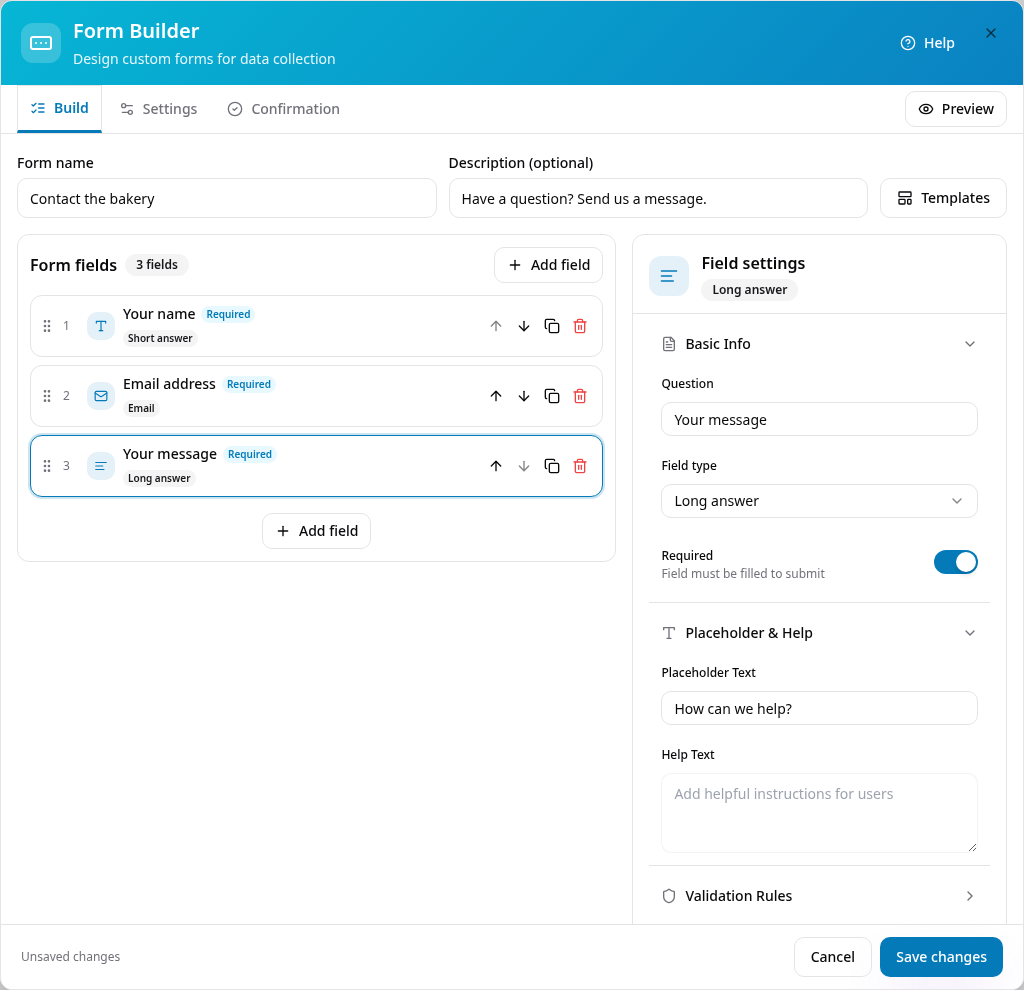
Add and organise questions
Add Email and Long answer questions; use each question’s arrows, duplicate or delete controls to organise the form.
- 8
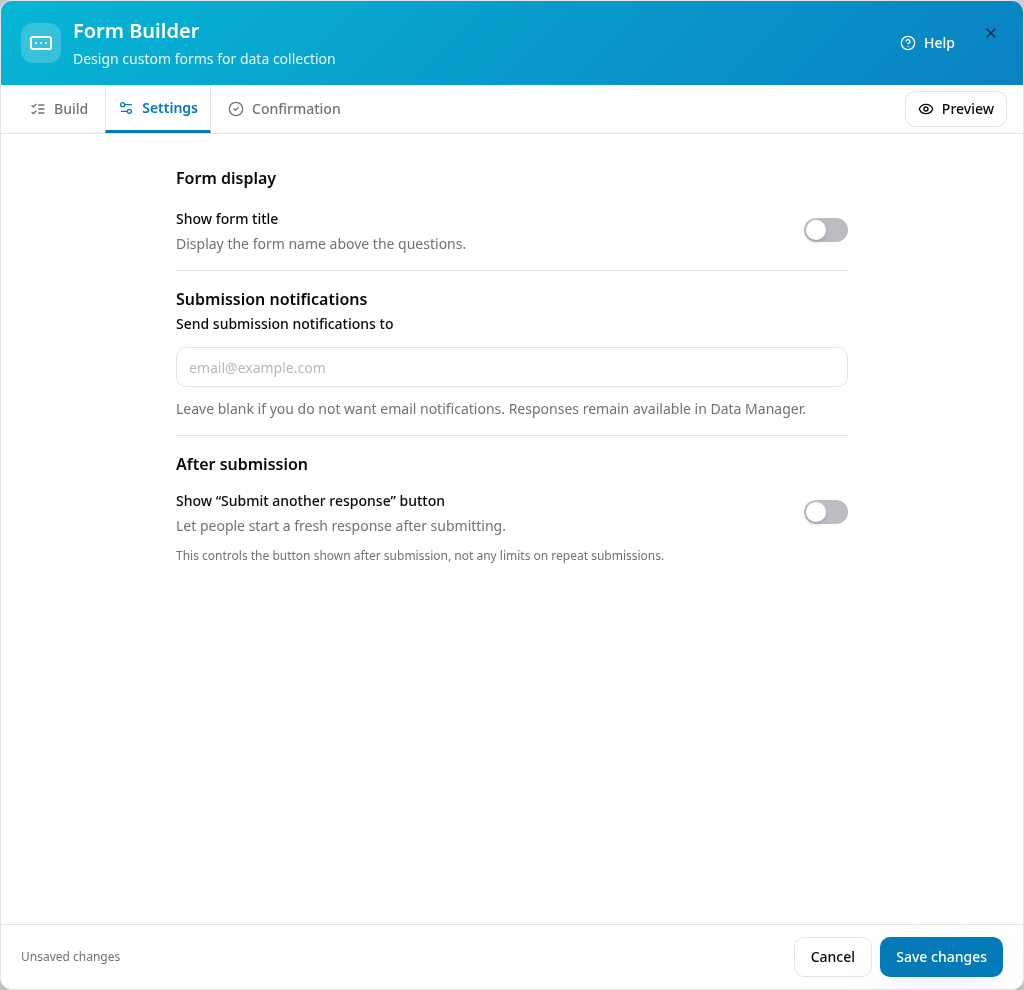
Choose your form settings
Choose title visibility and the response button; add your notification email if you want alerts, or leave it blank.
- 9
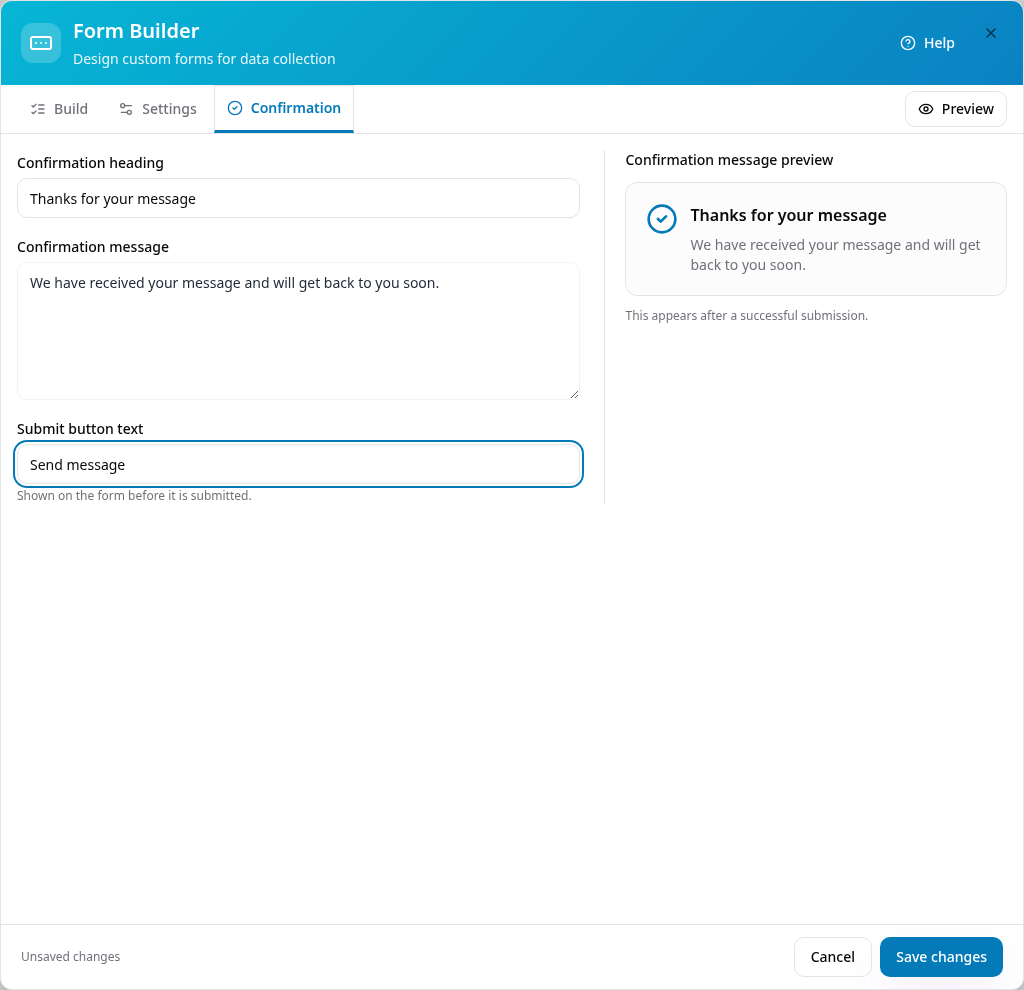
Write your thank-you message
Set the confirmation heading and message, and choose wording for your submit button.
- 10
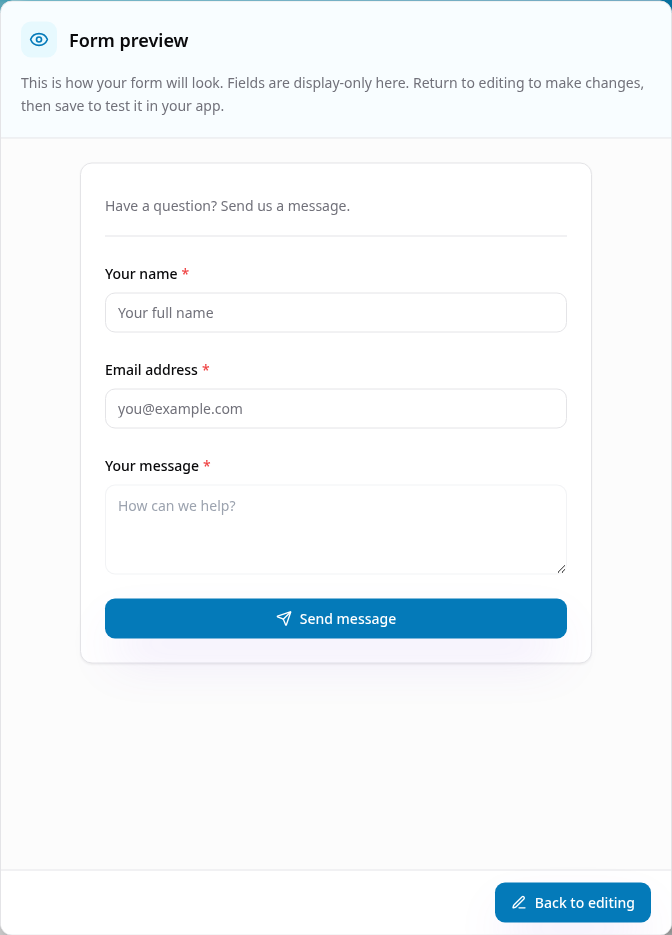
Preview before saving
Preview is display-only: scroll to check your form, then tap Back to editing and Save changes.
- 11
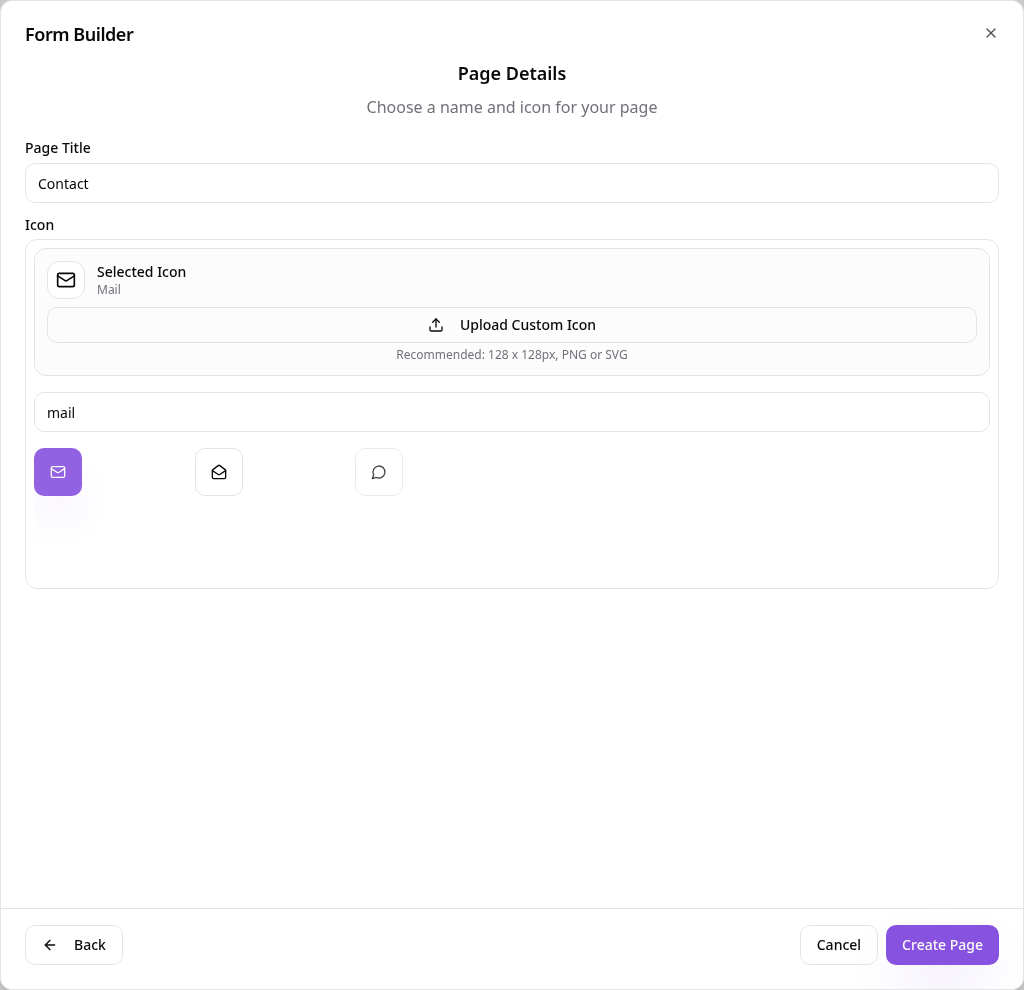
Add the page to your app
Give the page a short name such as Contact, choose an icon and tap Create Page.
- 12
See it in your app
Open Contact to see the saved form; test responses in your own app, not in the display-only preview.
- 13
Edit this form later
In Pages, tap Contact and choose Edit Page Content to open this form directly; save when finished.
Responses are available in Data Manager under Forms. Select your app and form to review submissions. Leave the notification email blank if you do not want email alerts.