Add a photo gallery
Show off your products, venue or work in a swipeable photo gallery.
Step-by-step guide
Follow these steps, then download the PDF to keep.
- 1
Open Pages
In your app editor, open Pages and tap Add Page or Function.

- 2
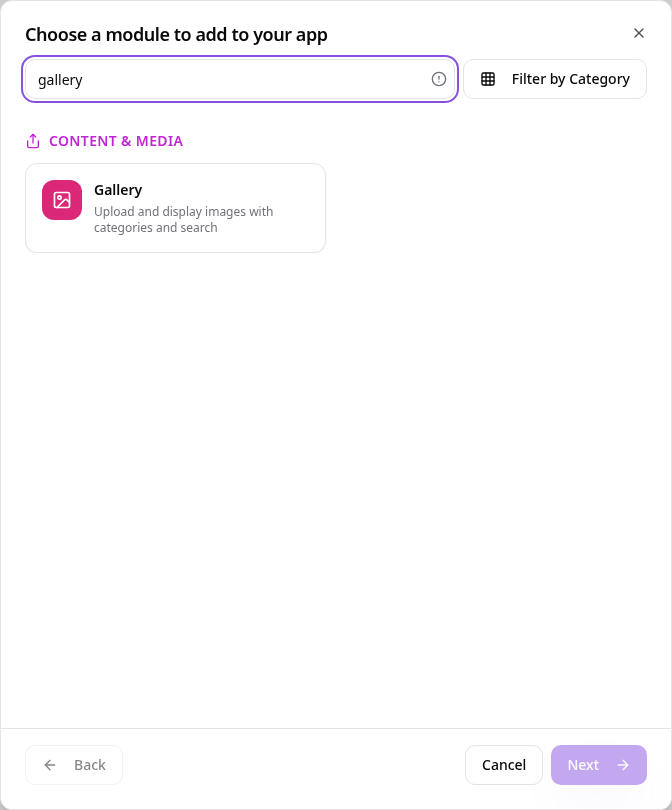
Choose Gallery
Search “gallery” and tap Gallery.
- 3
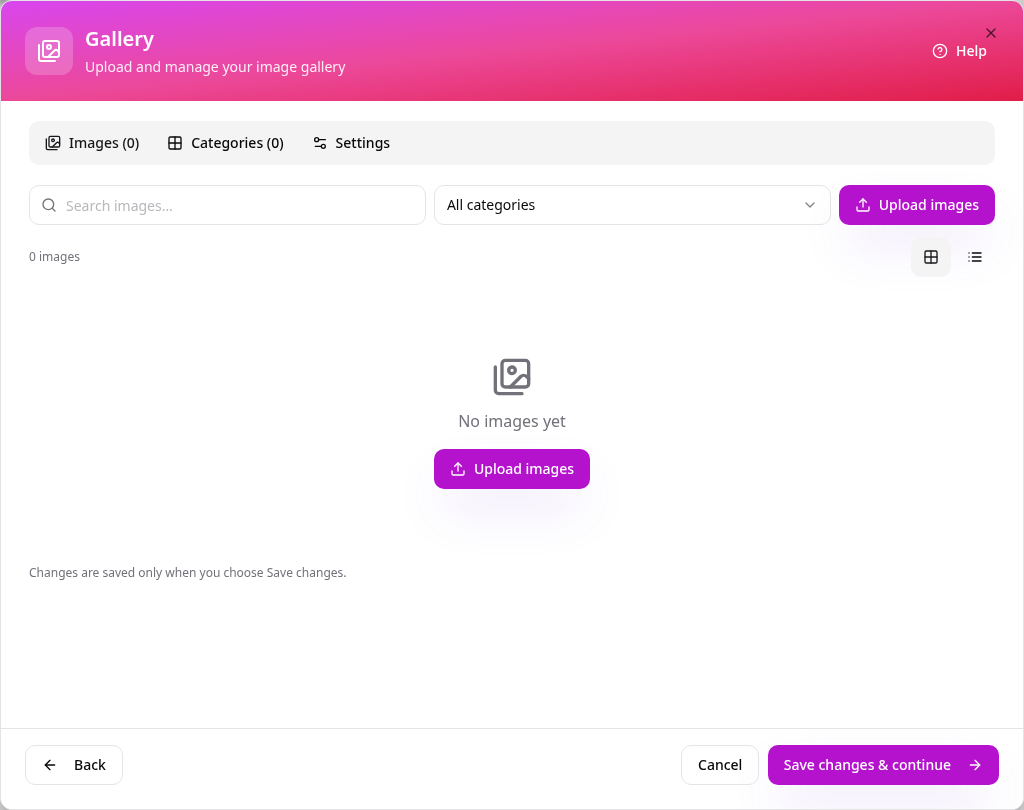
Start your gallery
Your new gallery is empty. Tap Upload images.
- 4
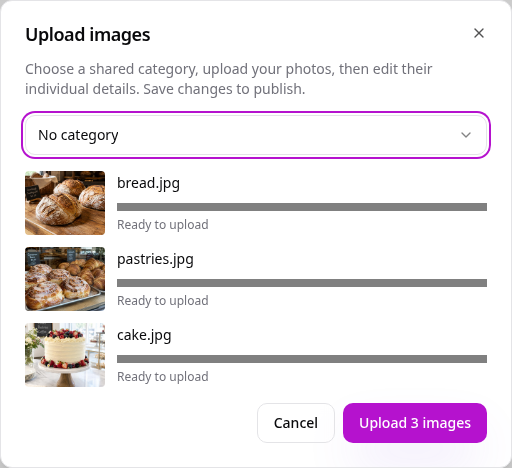
Upload your photos
Pick several photos at once, optionally choose a category, then tap Upload.
- 5
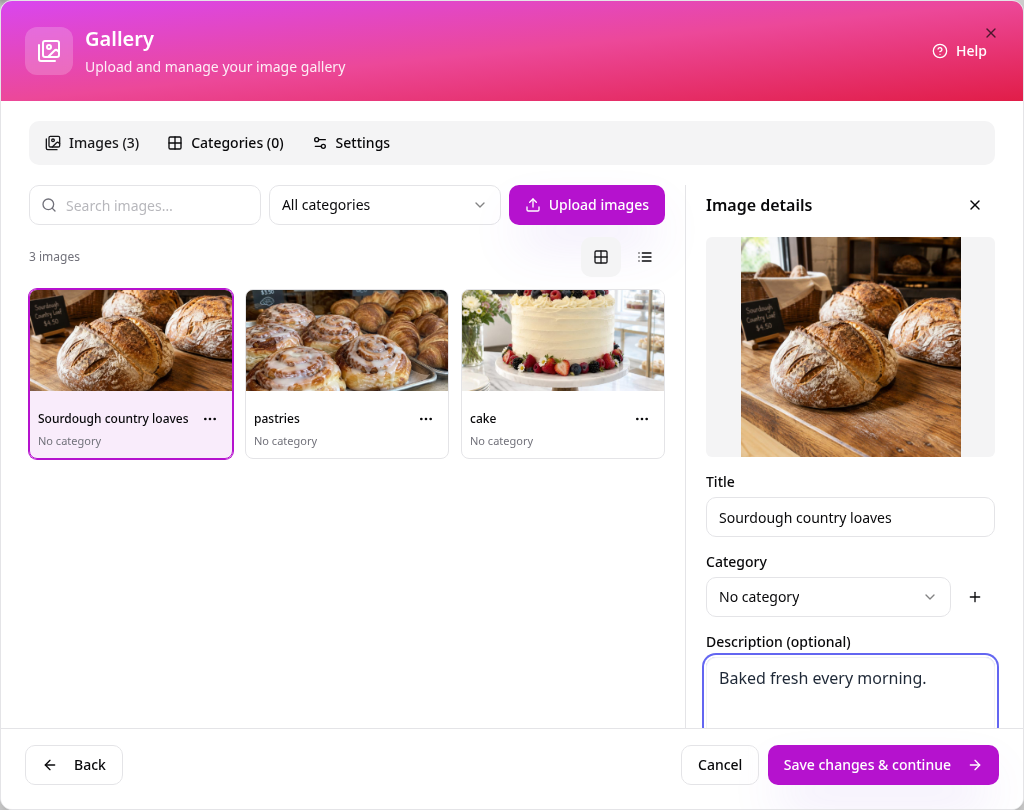
Add photo details
Tap a photo to give it a title and description. Alt text and tags are optional.
- 6
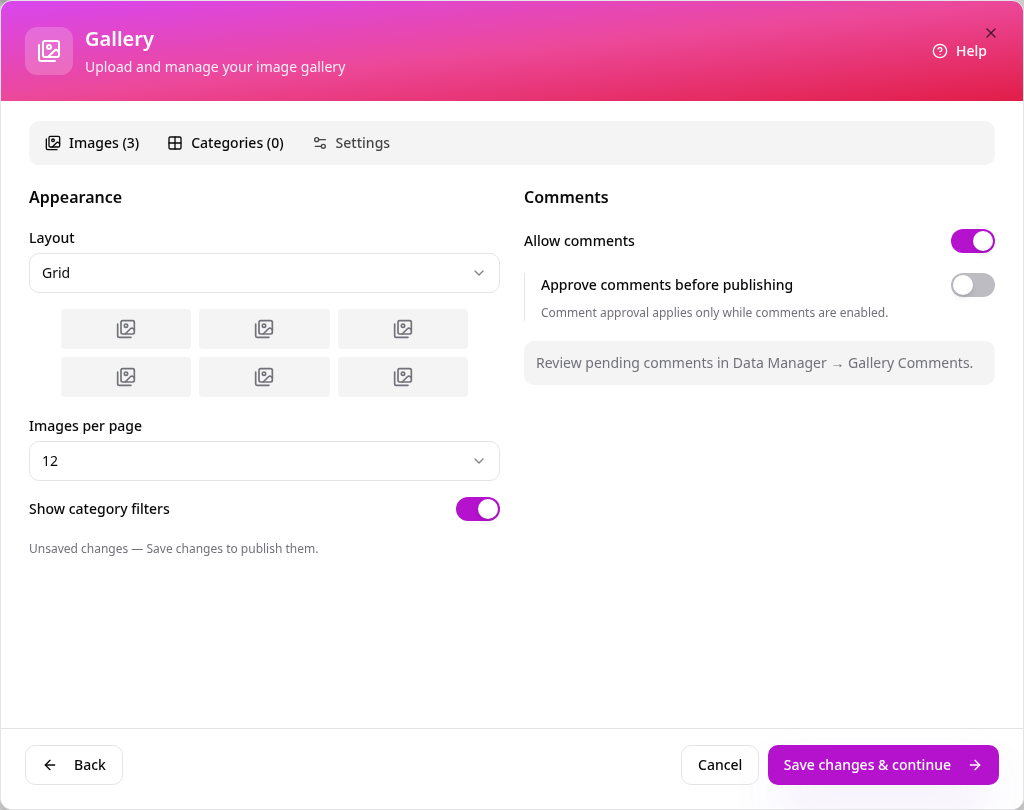
Choose the layout
Pick a layout, how many photos show per page, and whether visitors can comment.
- 7
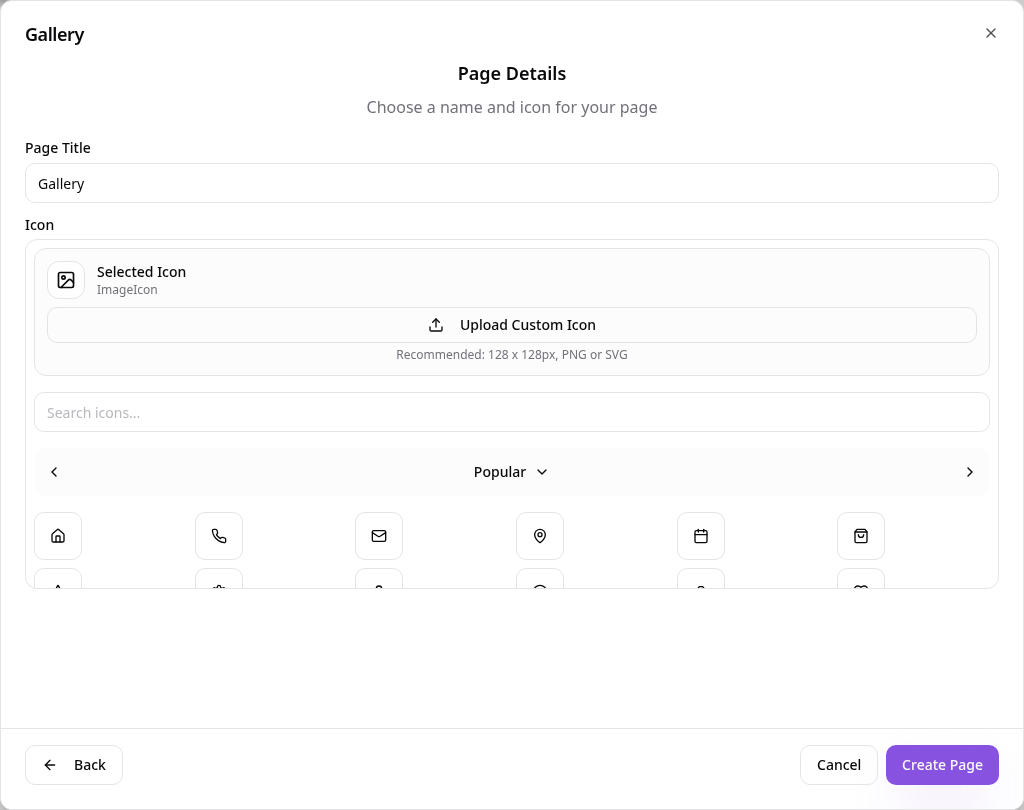
Name the page
Gallery is suggested with a photo icon — tap Create Page.
- 8
See it in your app
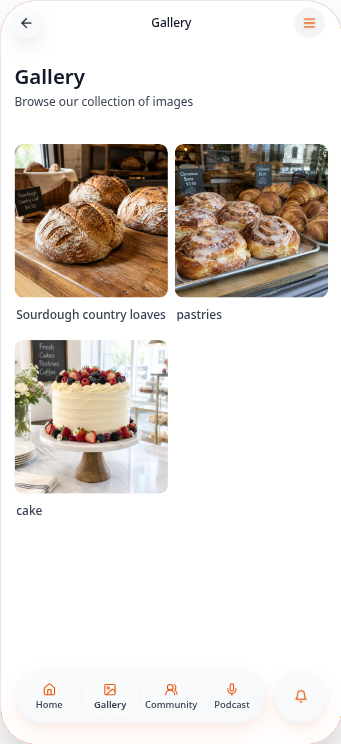
Your photos appear as a tidy grid of square thumbnails.
- 9
View a photo
Tap any photo to see it full size. Swipe or use the arrows to move between photos.

Add more photos at any time from Edit Page Content. Use categories if you have lots of photos so visitors can filter them.