Sell gift vouchers
Let customers buy gift vouchers in your app, paid securely with Stripe and emailed with a unique code.
Step-by-step guide
Follow these steps, then download the PDF to keep.
- 1
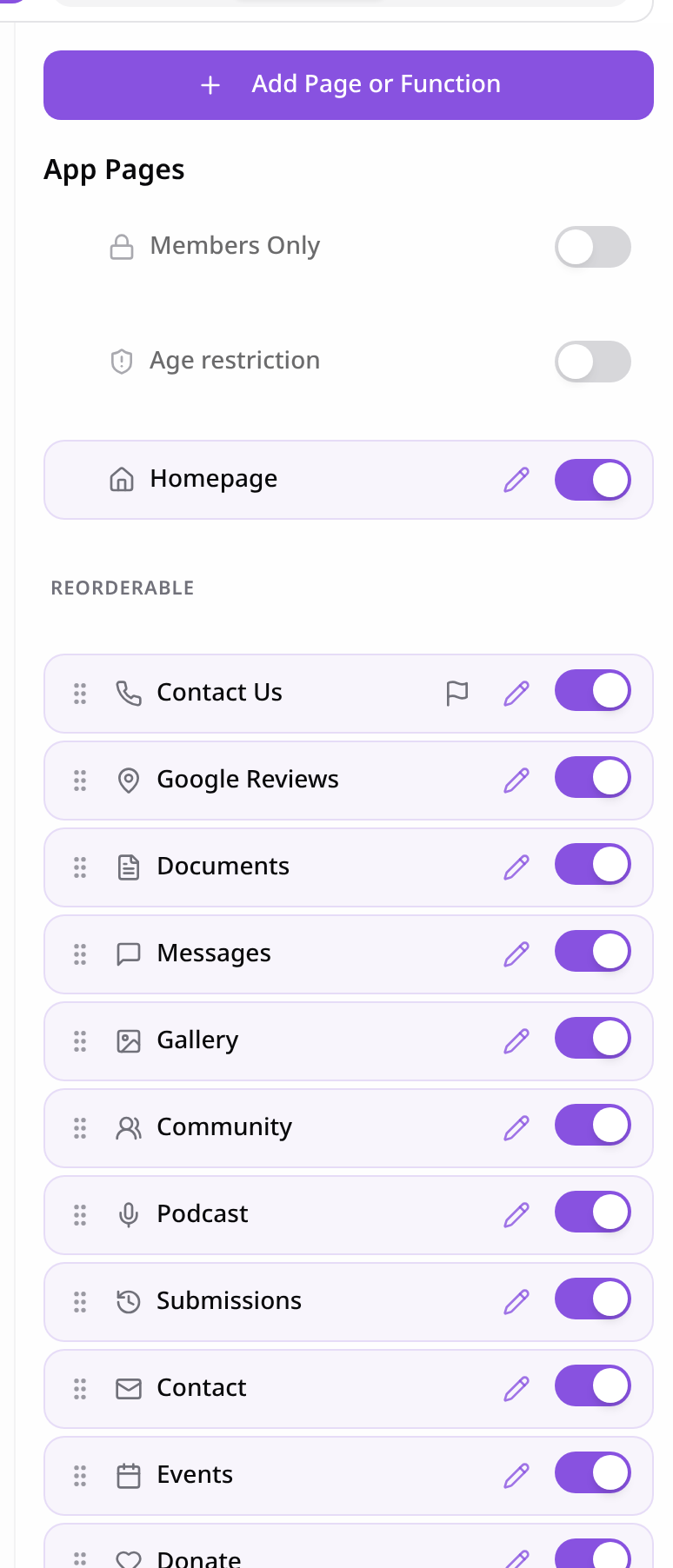
Open Pages
In your app editor, open Pages and tap Add Page or Function.
- 2
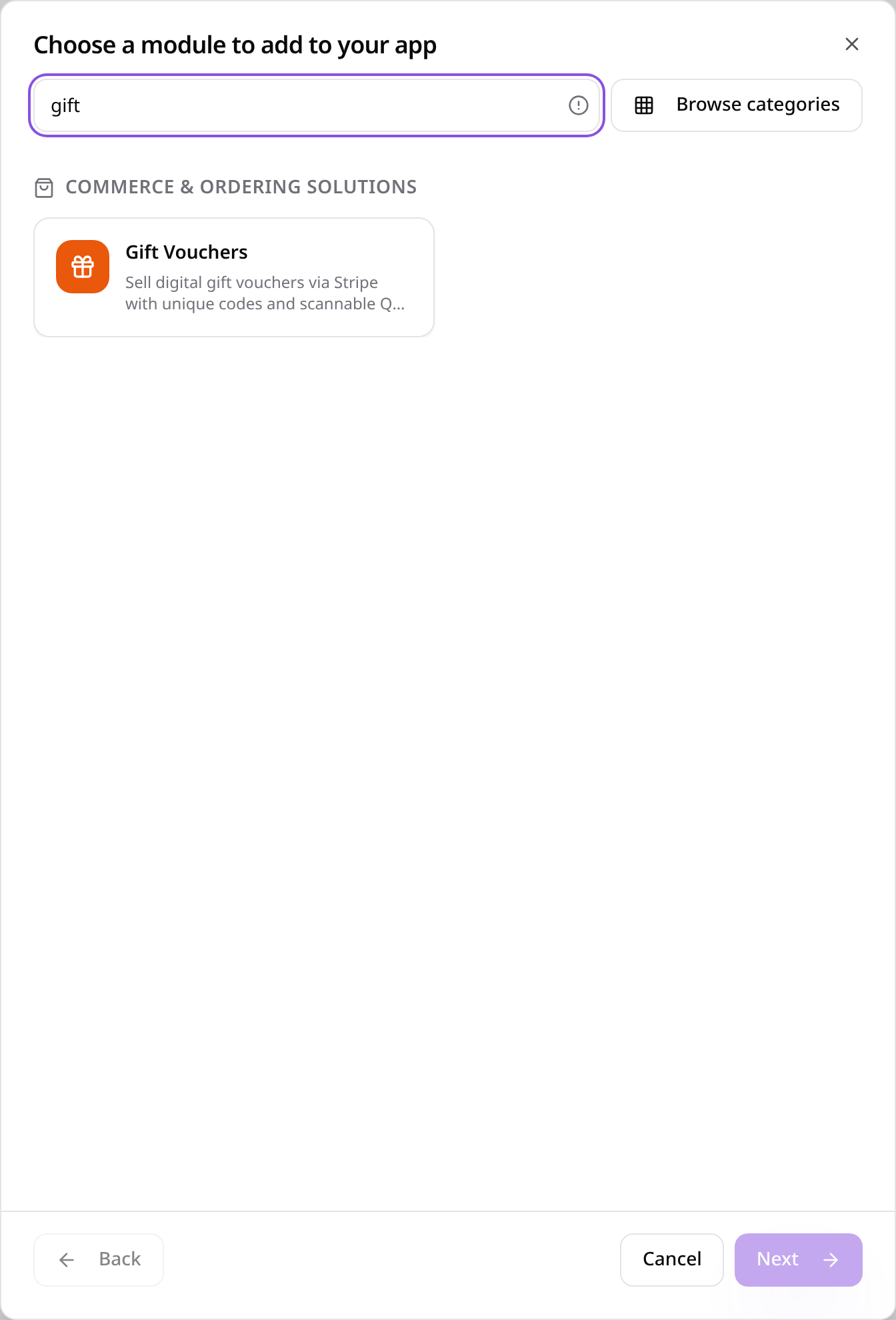
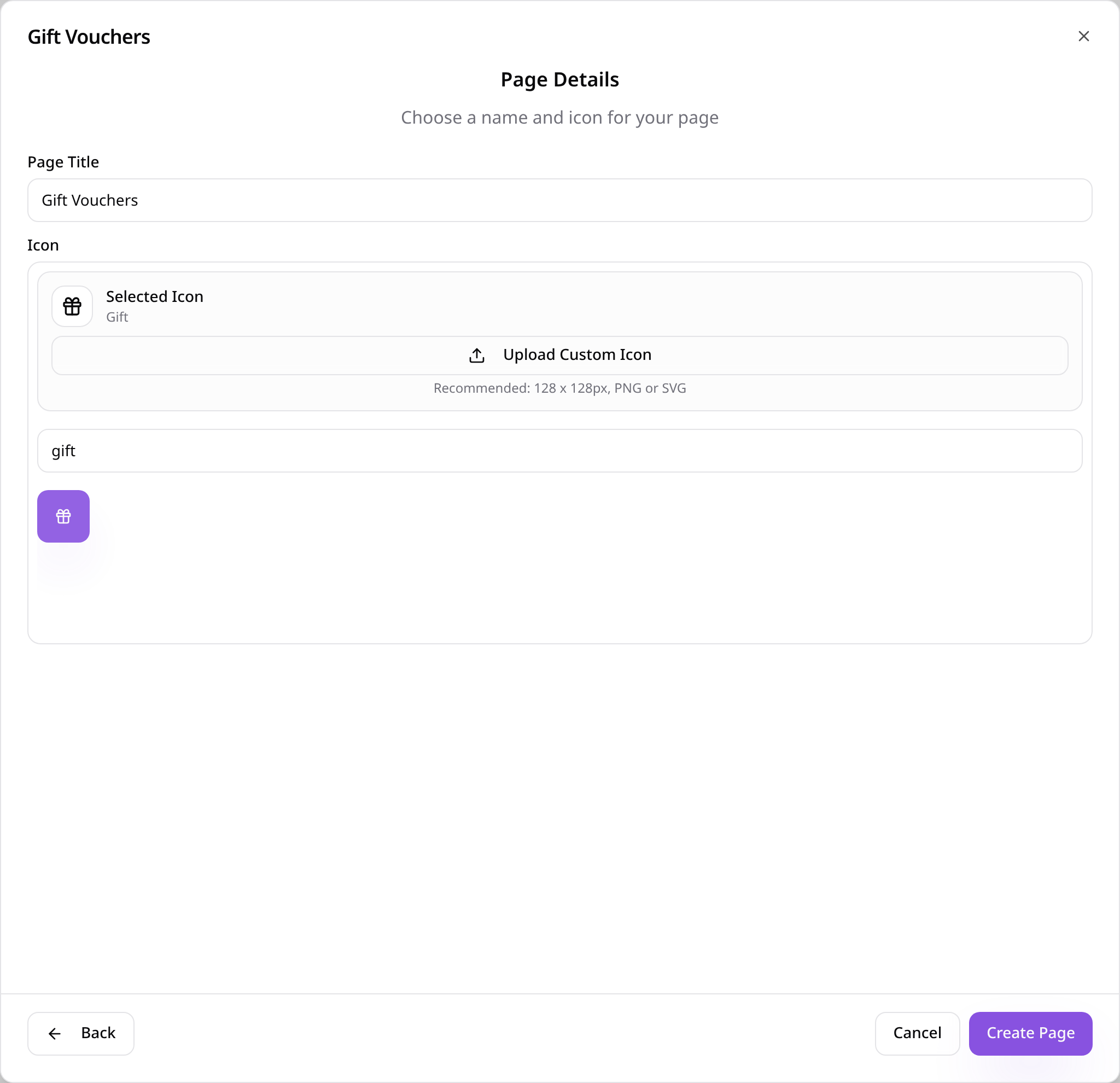
Choose Gift Vouchers
Search “gift” and tap Gift Vouchers.
- 3
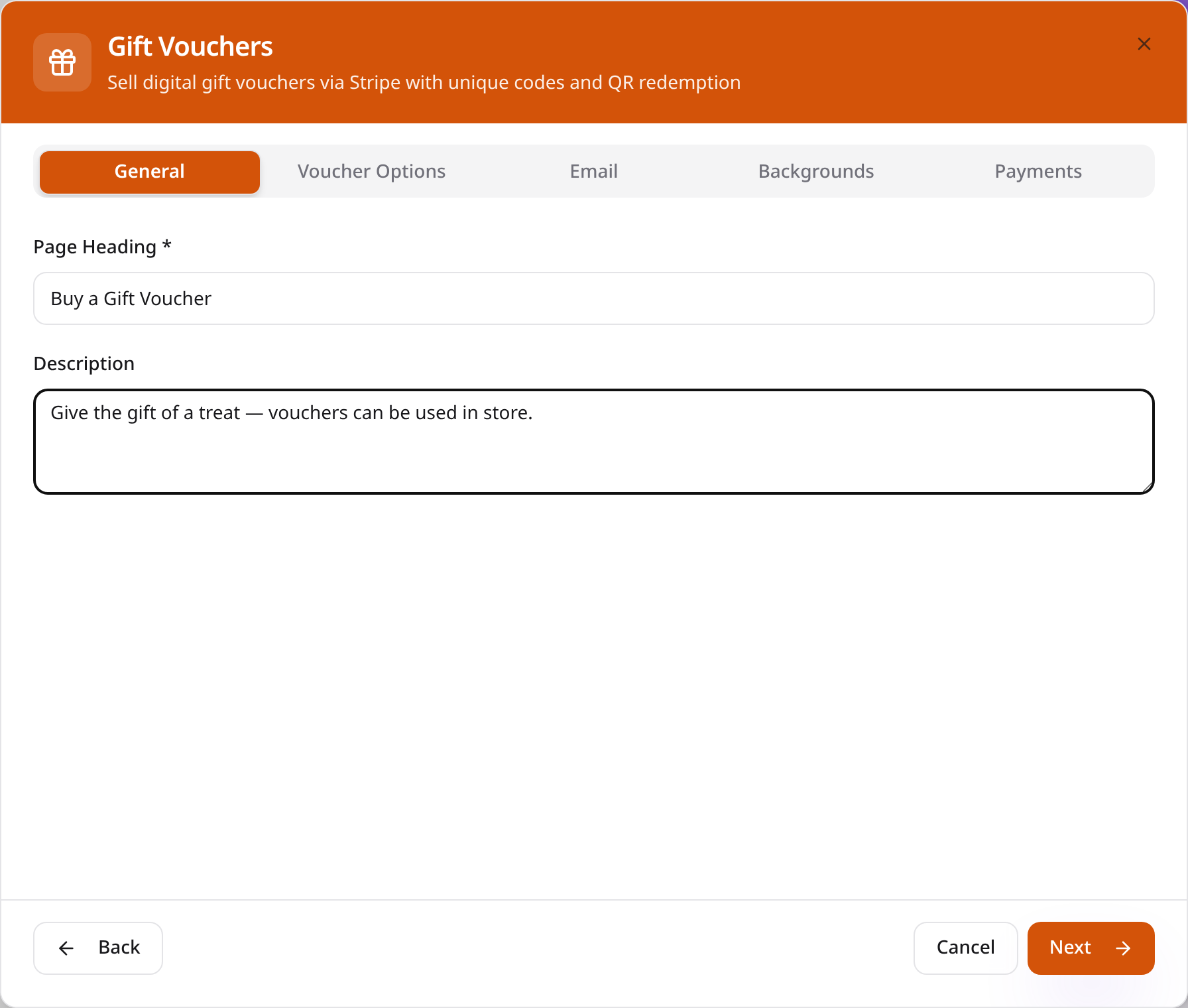
Add a heading
On General, add a heading and a short description customers will see.
- 4
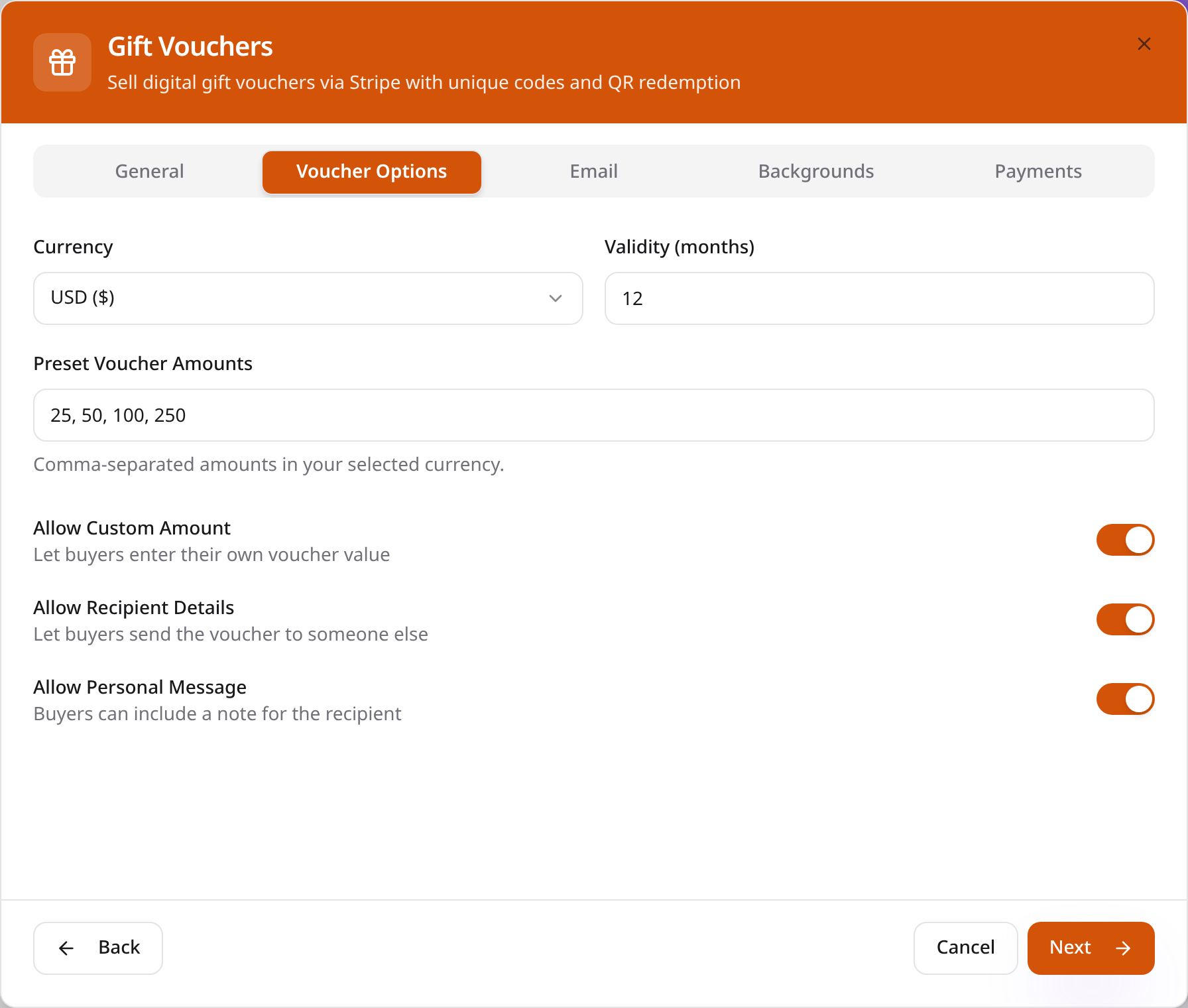
Set voucher options
On Voucher Options, choose the currency, how long vouchers last and the amounts to offer.
- 5
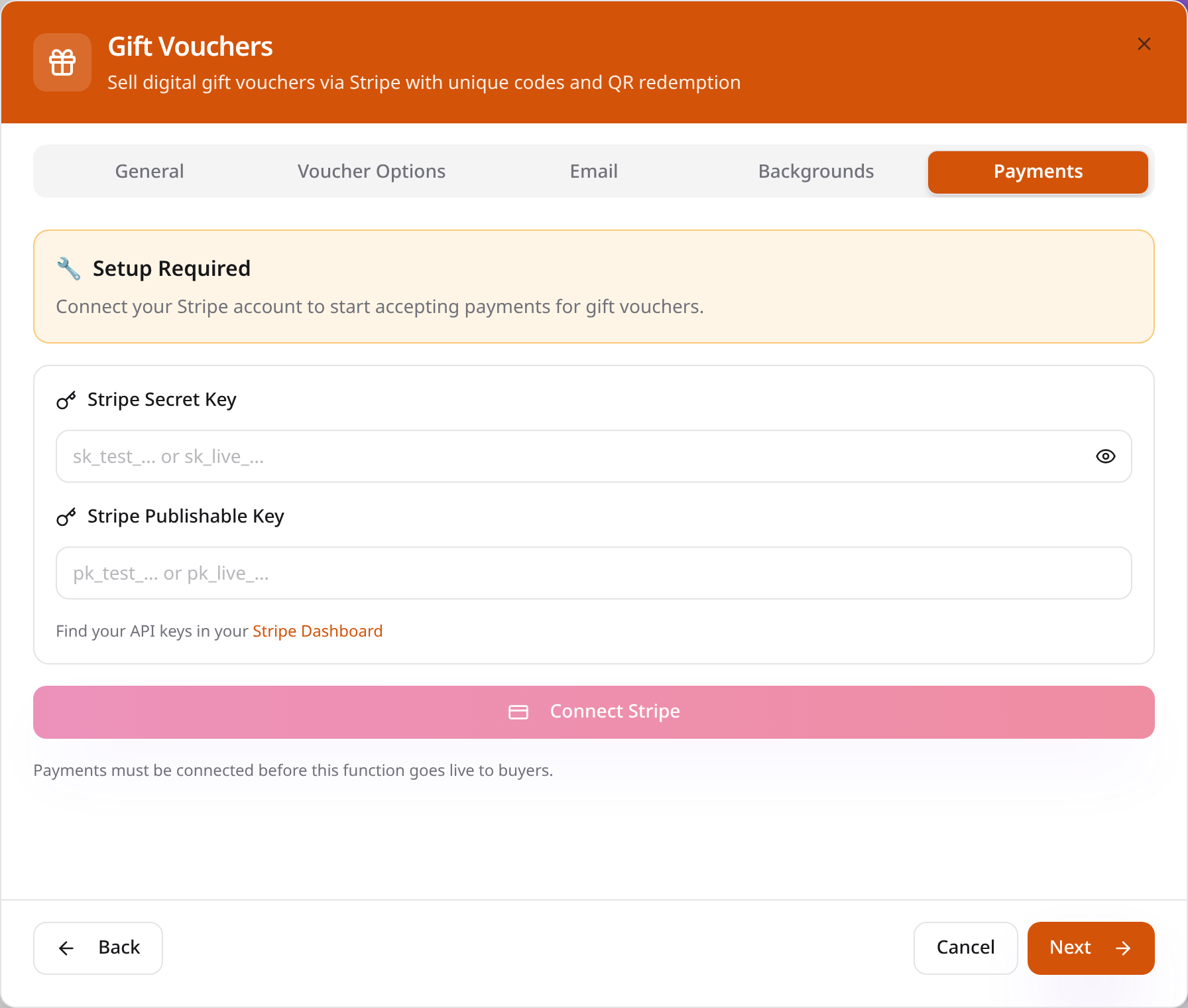
Connect Stripe
On Payments, paste your Stripe secret and publishable keys and tap Connect Stripe. Tap Next.
- 6
Name the page
Give the page a name, choose an icon and tap Create Page.
- 7
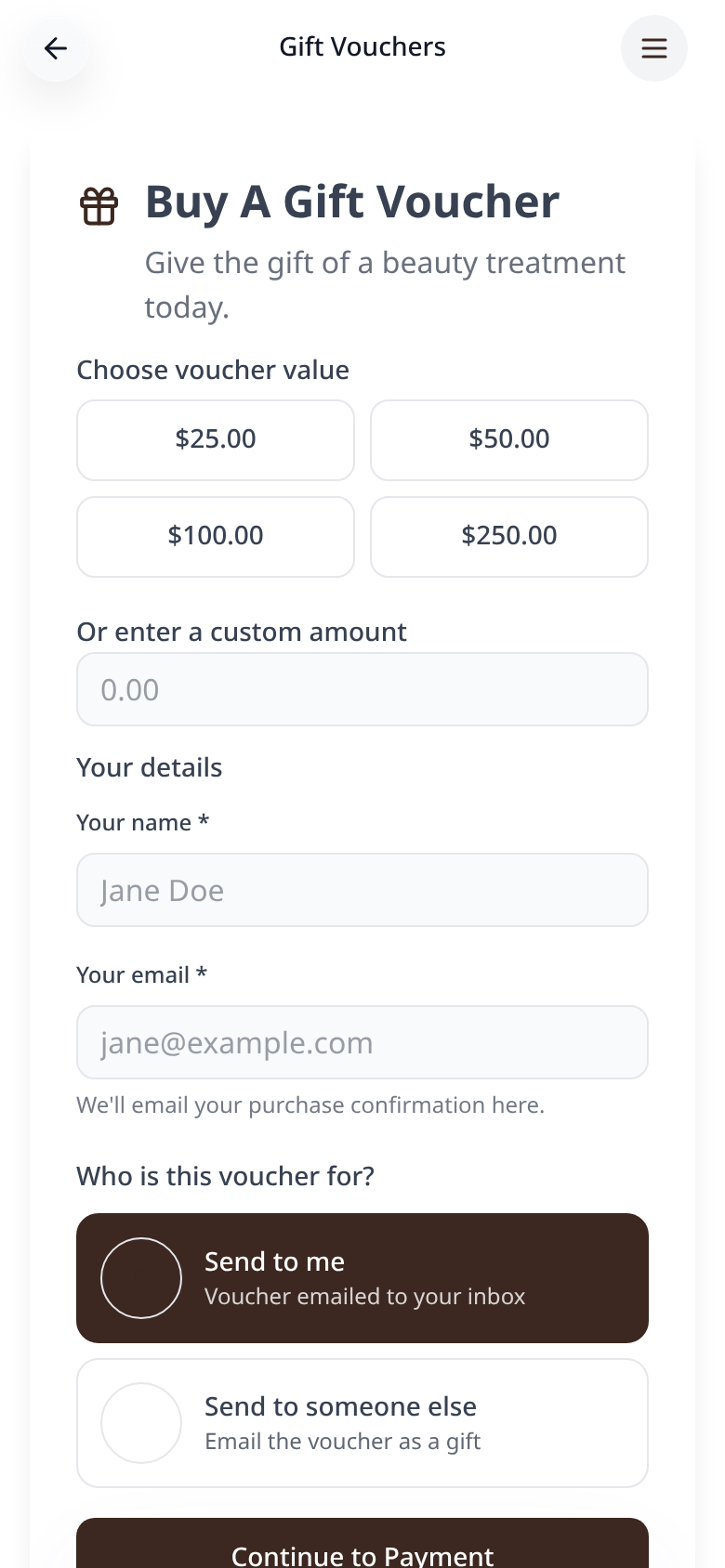
Customers choose a value
Customers pick an amount or enter their own.
- 8
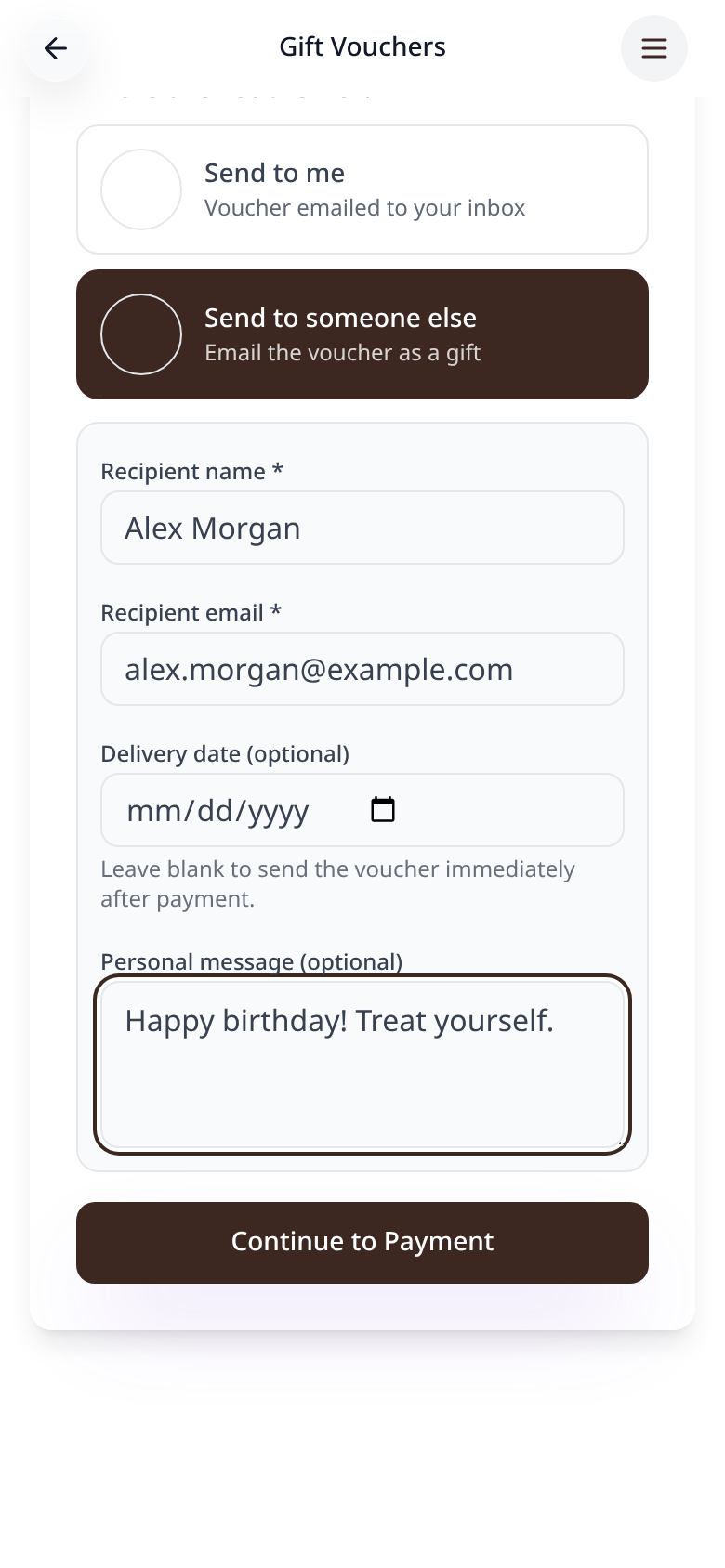
Send it as a gift
They can send the voucher to someone else with a personal message and delivery date.
- 9
Pay securely
Payment is taken by Stripe, then the voucher and its code are emailed.

Vouchers sold appear in your Data Manager, where you can scan or enter a code to redeem them in store.