All guides
User guide
Show your Google reviews
Find your business on Google and show its star rating, with a button that lets customers leave a review.
Step-by-step guide
Follow these steps, then download the PDF to keep.
- 1
Choose Google Reviews
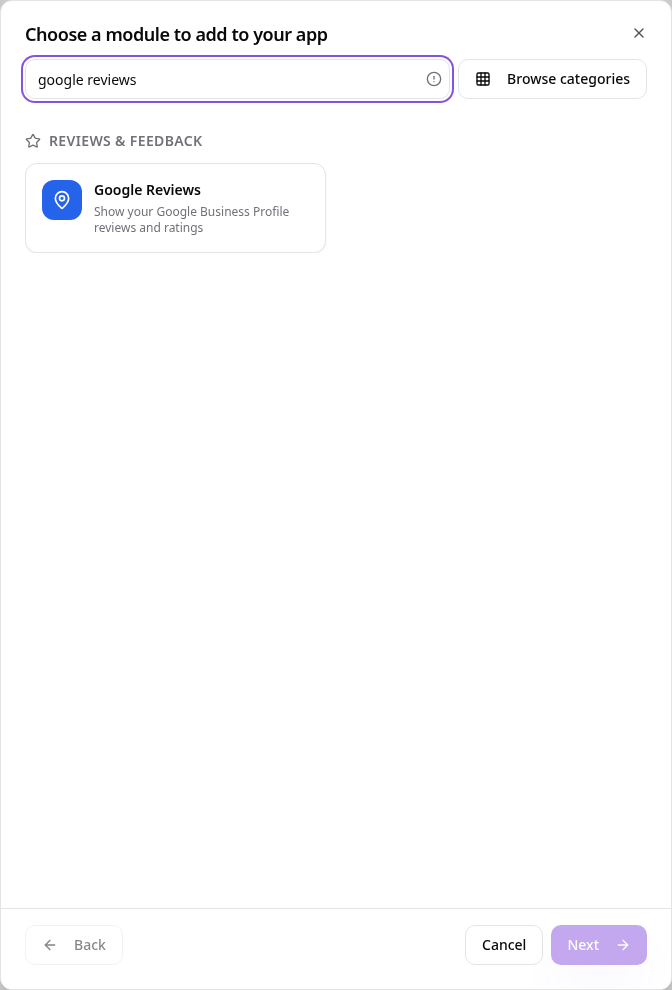
In Pages, tap Add Page or Function, search “google reviews” and tap Google Reviews.
- 2
Find your business
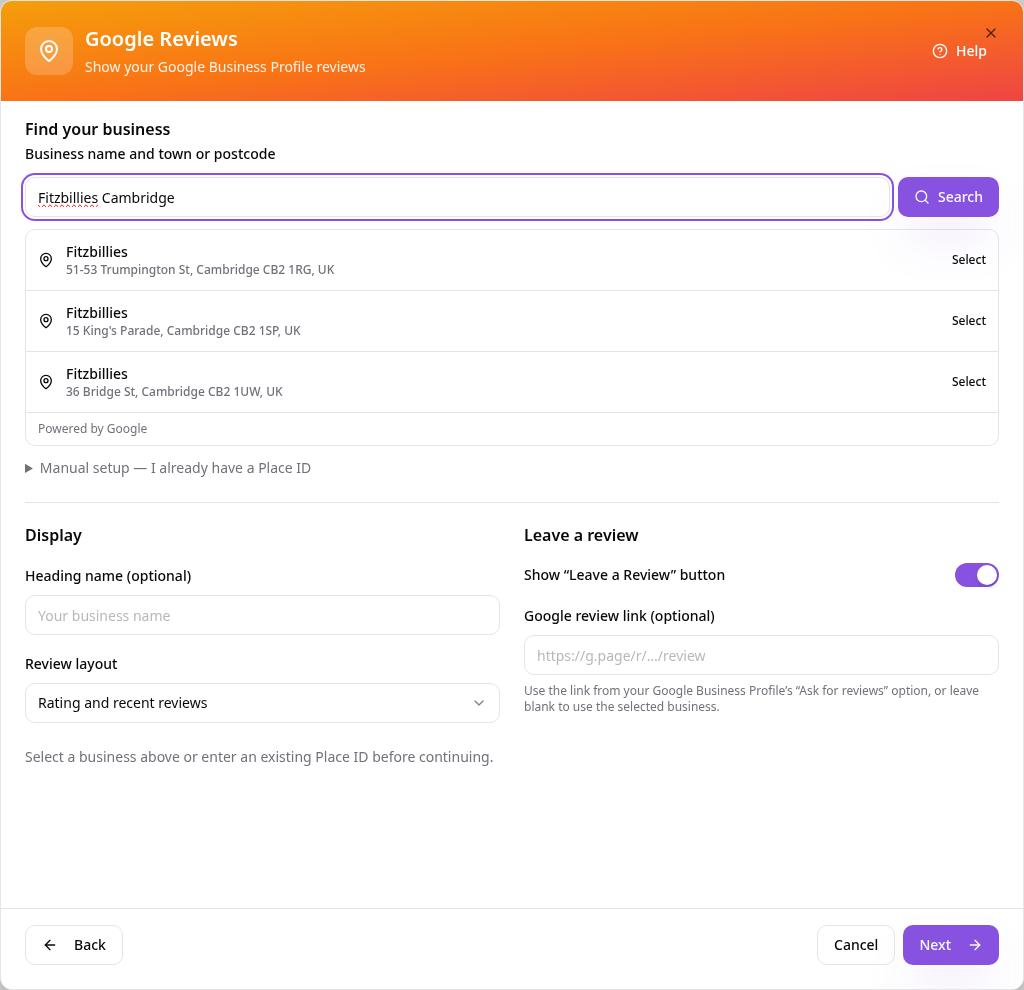
Type your business name and town or postcode, then tap Search. Pick the right branch from the list.
- 3
Check and choose a layout
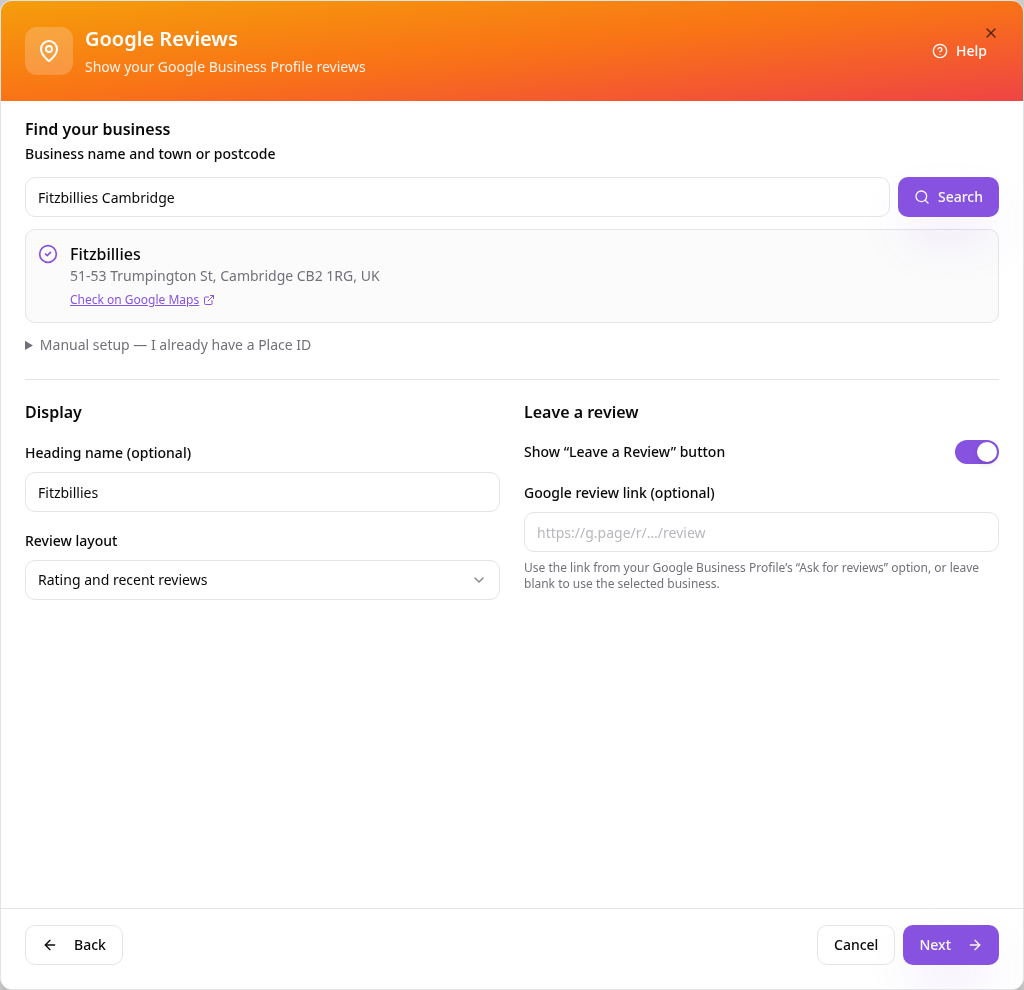
Your business is ticked. Use Check on Google Maps to be sure, change the heading if you like and pick a review layout. Leave the review link blank to use your selected business.
- 4
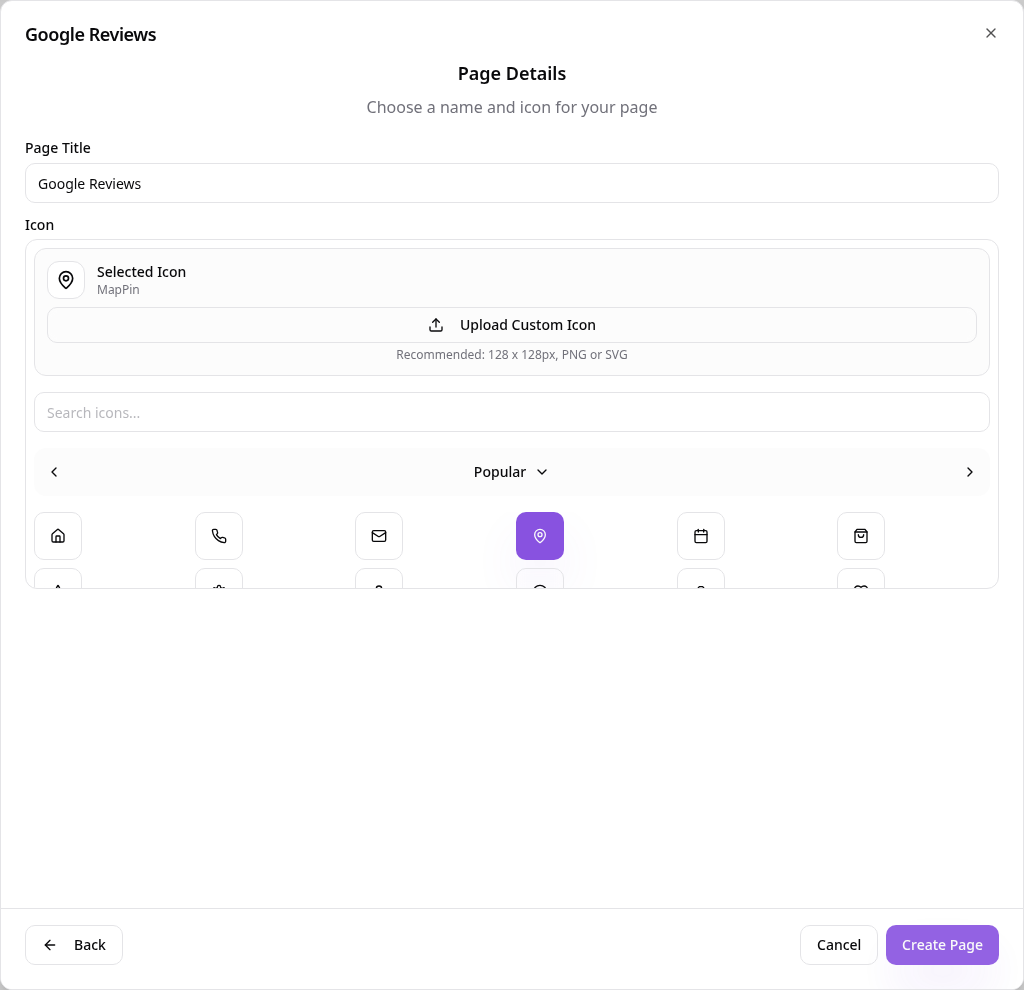
Name your page
Tap Next, choose a page title and icon, then tap Create Page.
- 5
See it in your app
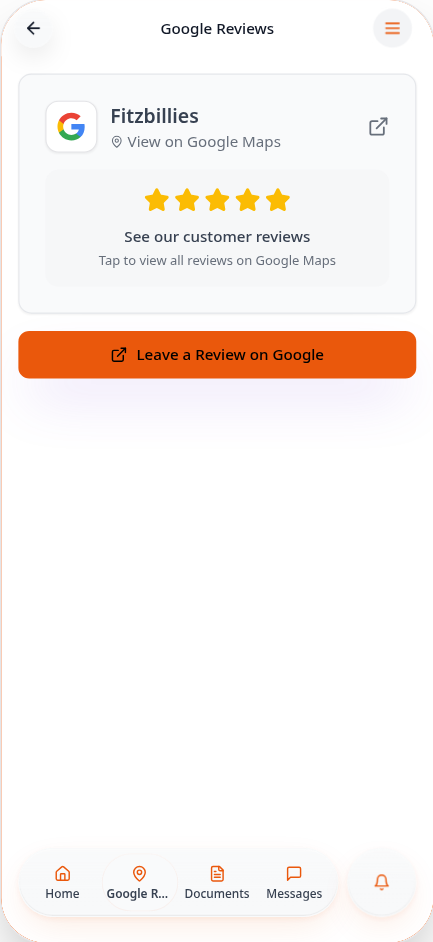
Customers see your rating, can open your Google listing and tap Leave a Review on Google.
Change the business, layout or review button any time from Edit Page Content.