Hire through your app with Job Board
Post vacancies, collect applications with screening questions, and move candidates through your hiring stages in Data Manager.
Step-by-step guide
Follow these steps, then download the PDF to keep.
- 1
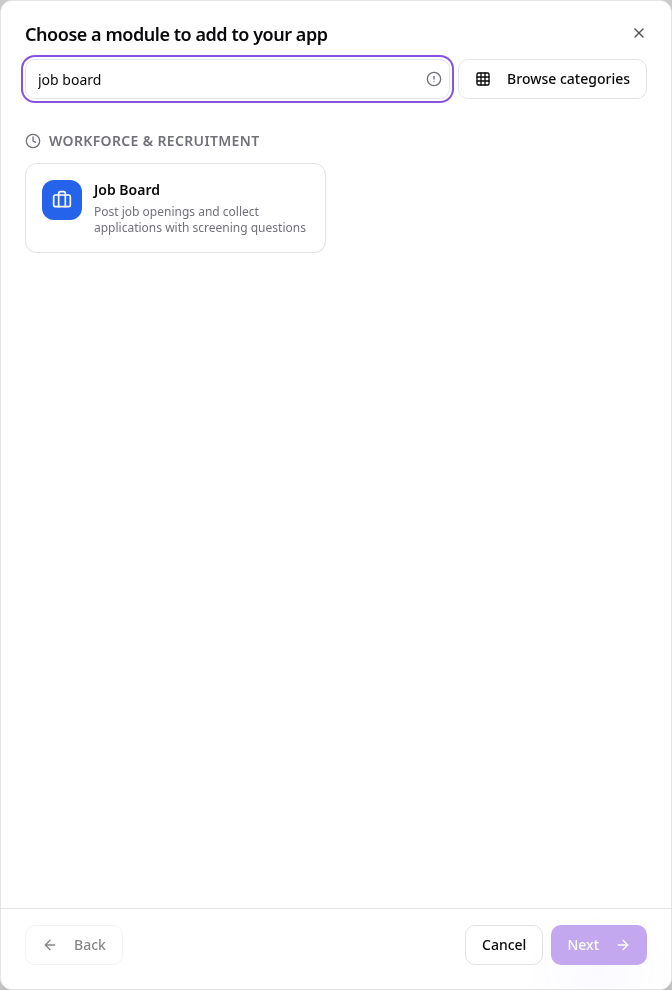
Choose Job Board
In Pages, tap Add Page or Function, search “job board” and tap Job Board.
- 2
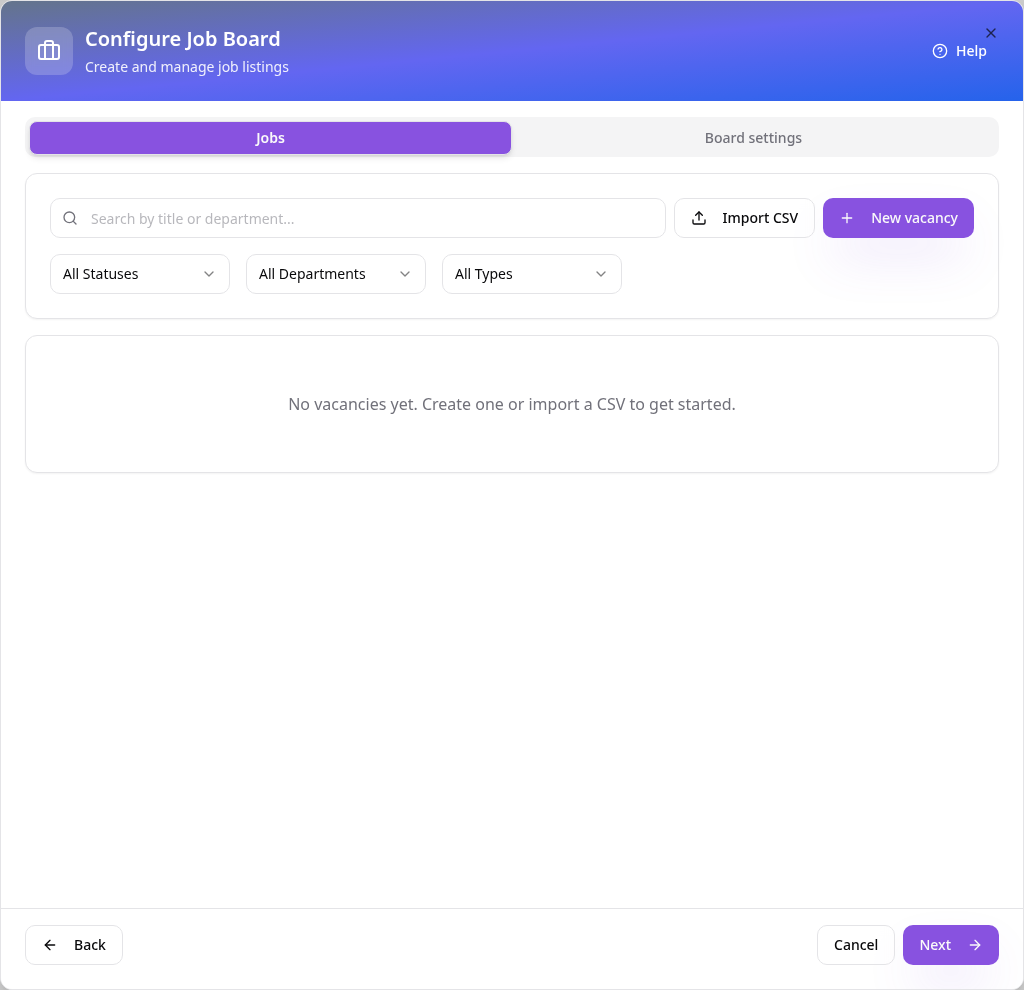
Start a vacancy
On Jobs, tap New vacancy. Board settings holds the page intro and options.
- 3
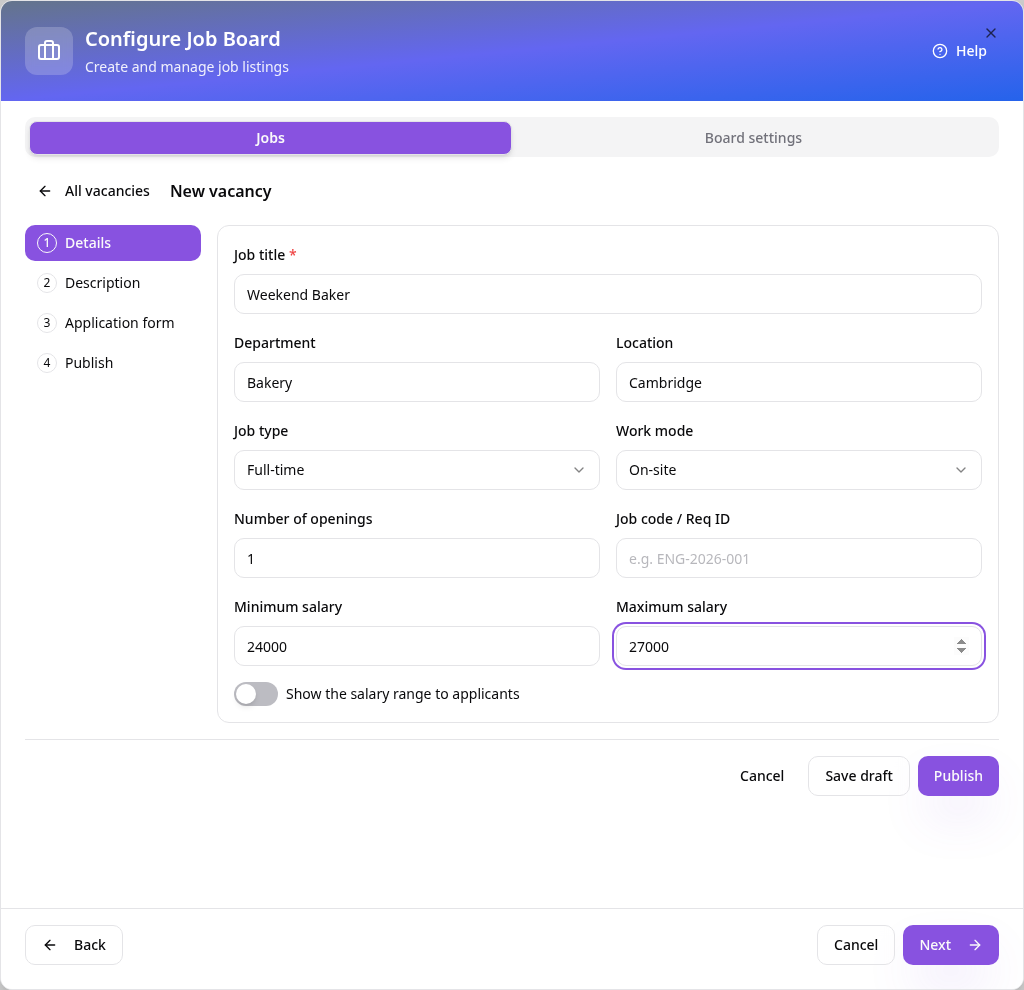
Add the details
On Details, enter the job title, department, location, type and salary range.
- 4
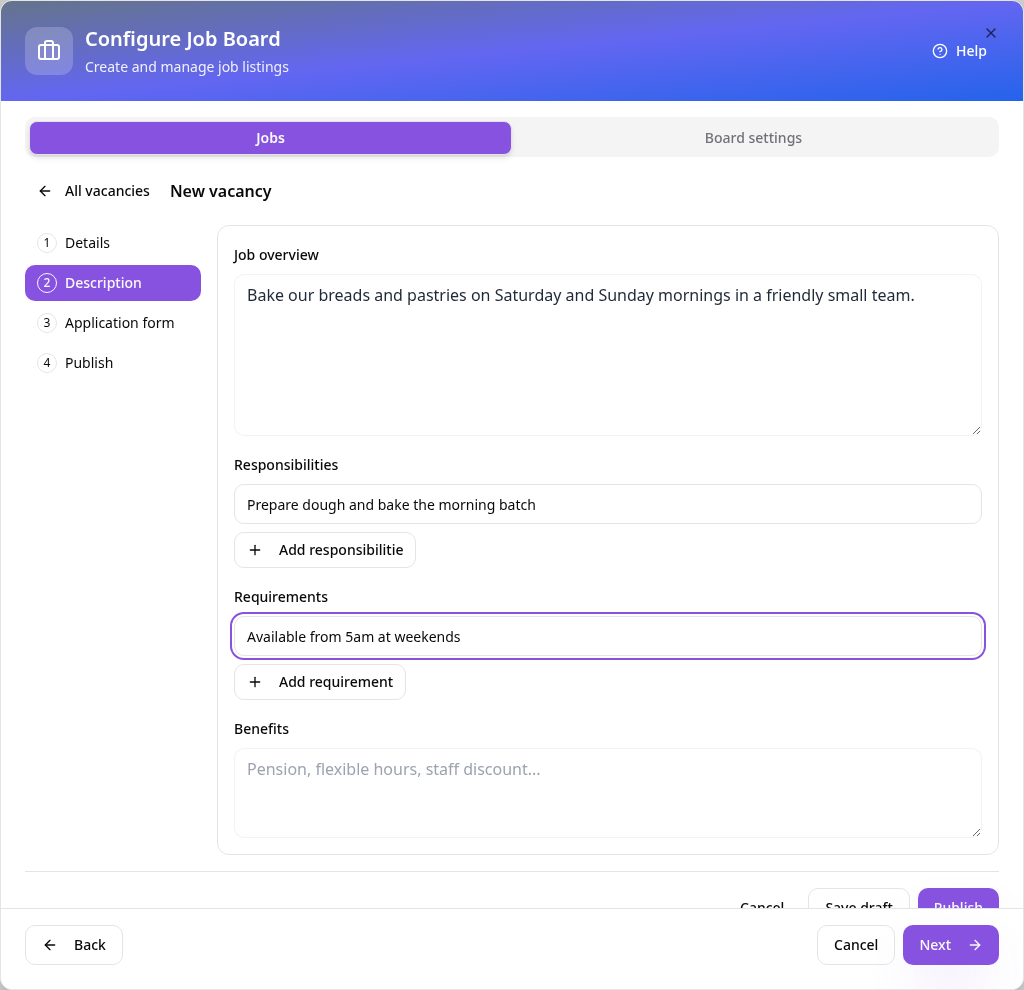
Describe the role
On Description, write an overview and add responsibilities, requirements and benefits.
- 5
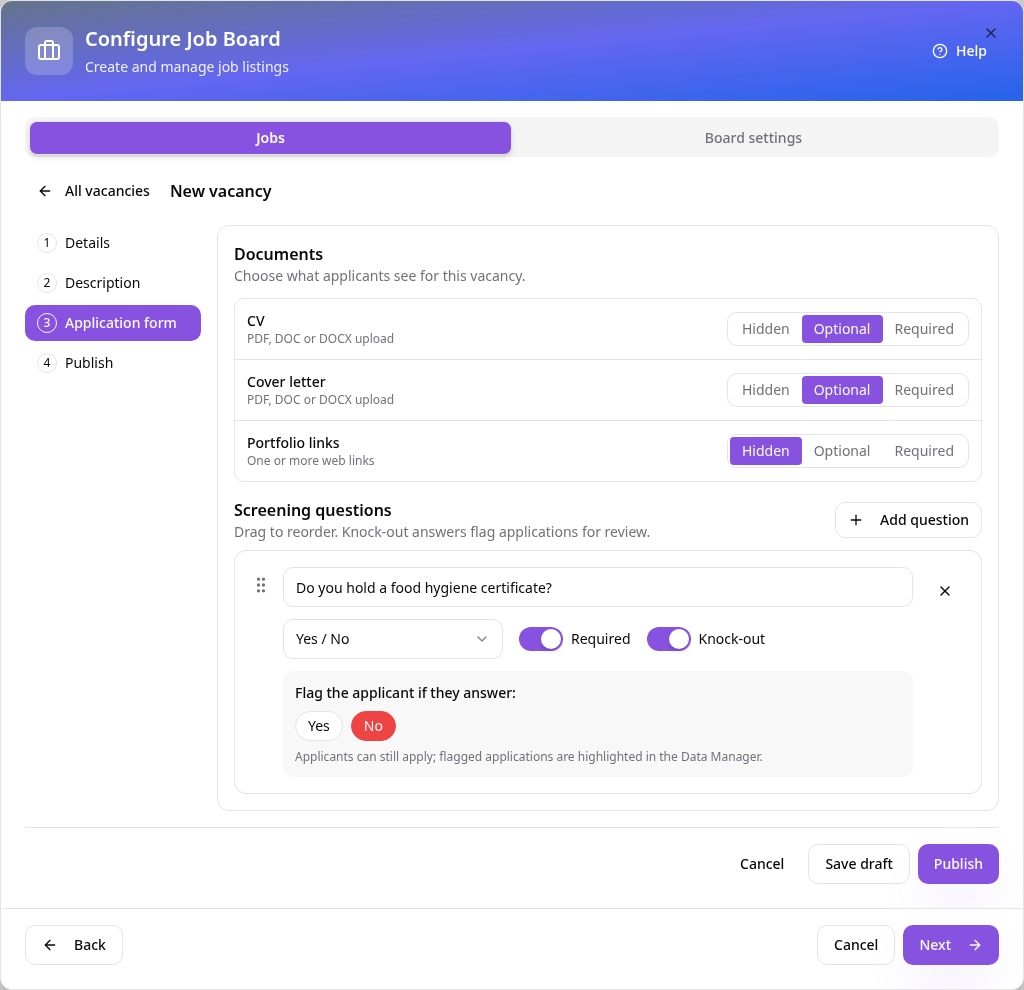
Set up the application form
Choose whether a CV, cover letter and portfolio links are hidden, optional or required. Add screening questions; turn on Knock-out to flag answers you want to check.
- 6
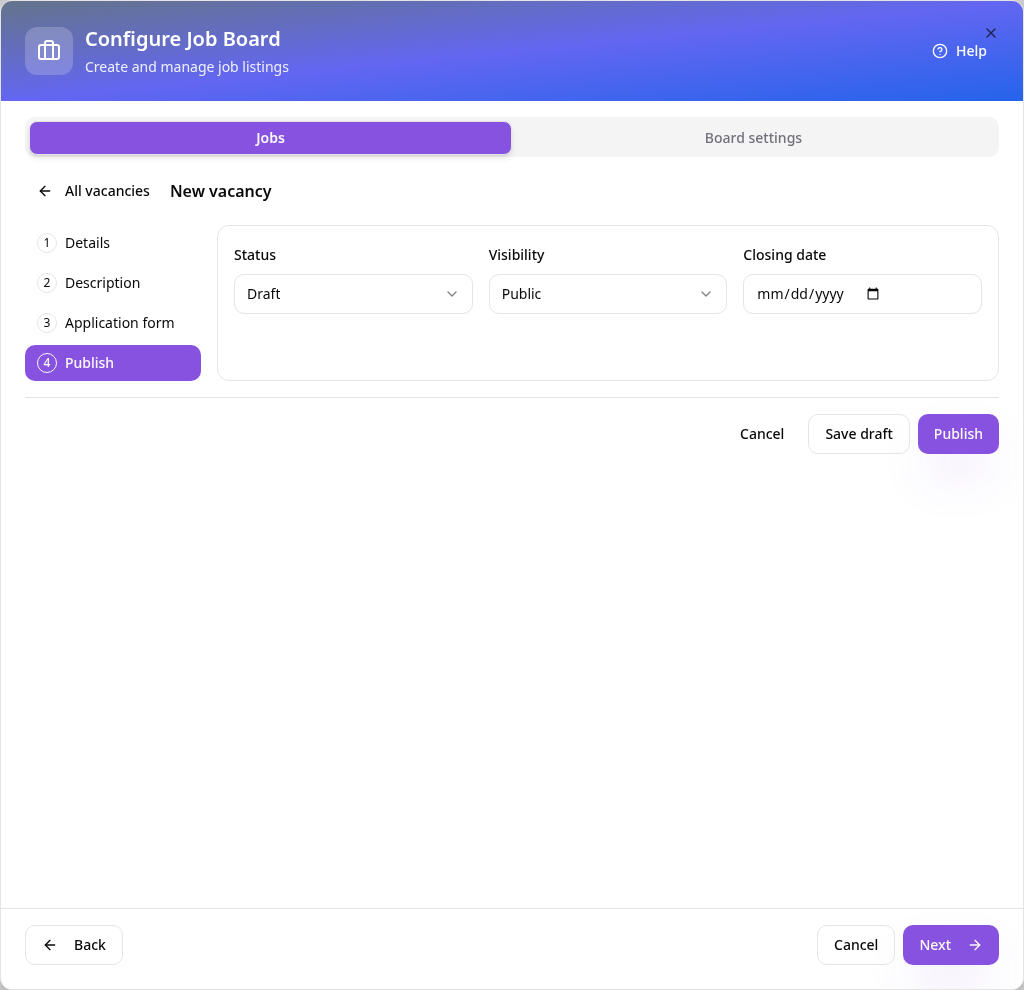
Publish settings
On Publish, check visibility and add a closing date if you need one, then tap Publish. Save draft keeps it hidden.
- 7
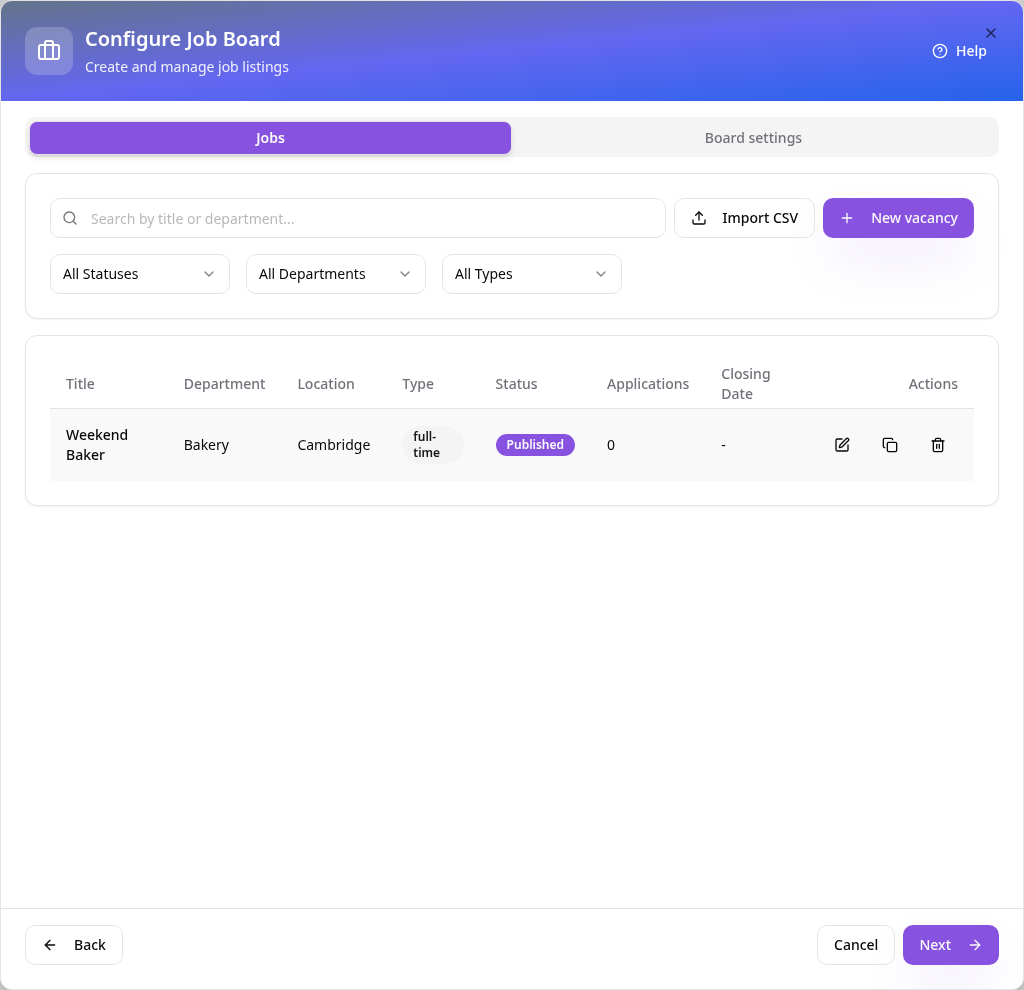
Your vacancies
Published vacancies appear in the list. Tap one to edit, copy or delete it.
- 8
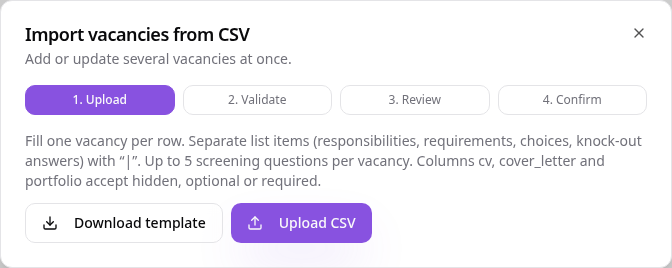
Or import several at once
Tap Import CSV, download the template, fill one vacancy per row and upload it. You’ll check problems and choose what to do with duplicates before confirming.
- 9
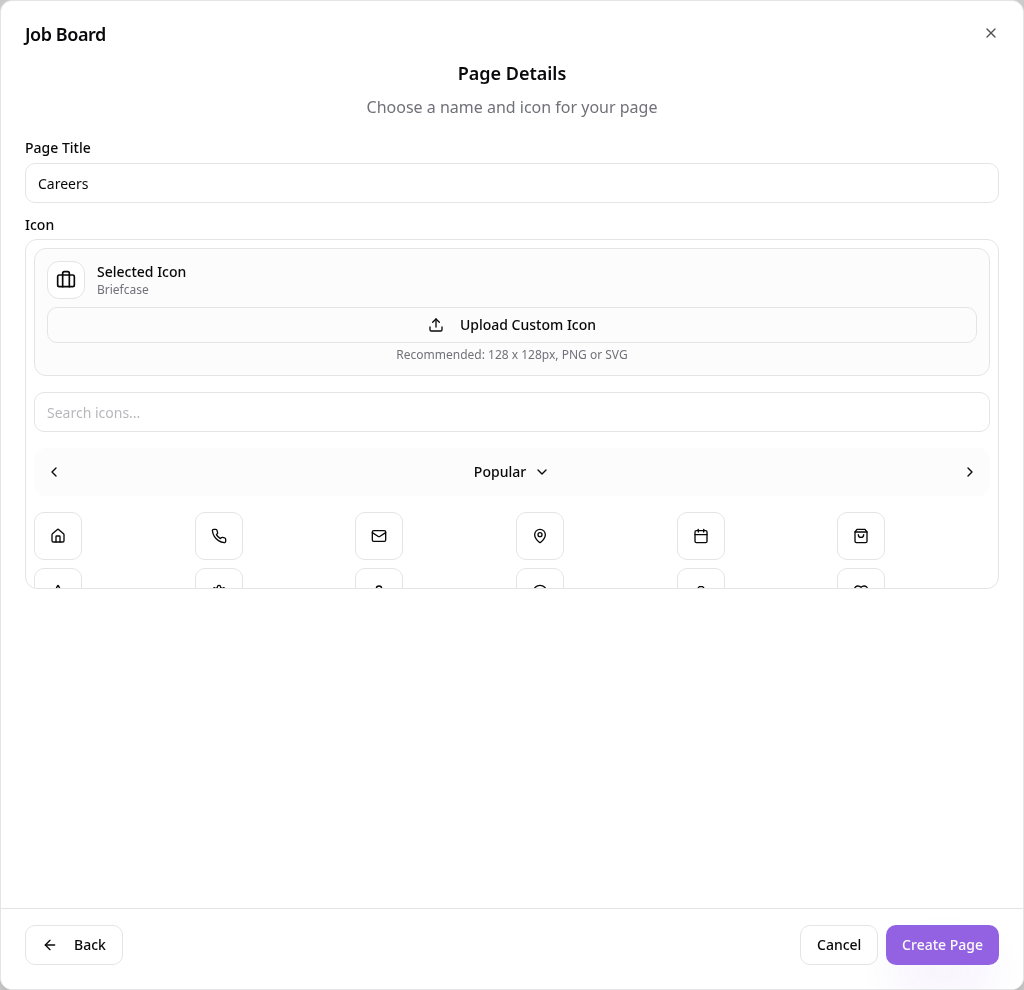
Name the page
Tap Next, check the page name and icon, then tap Create Page.
- 10
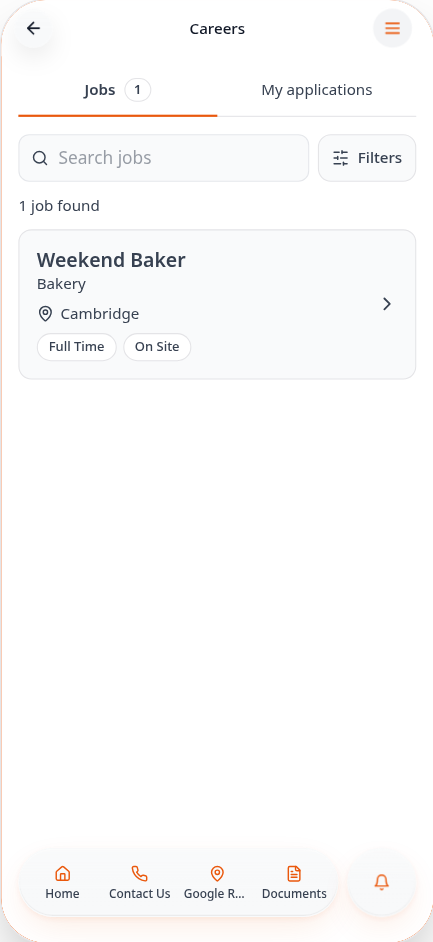
Candidates browse jobs
In your app, people can search and filter your open vacancies.
- 11
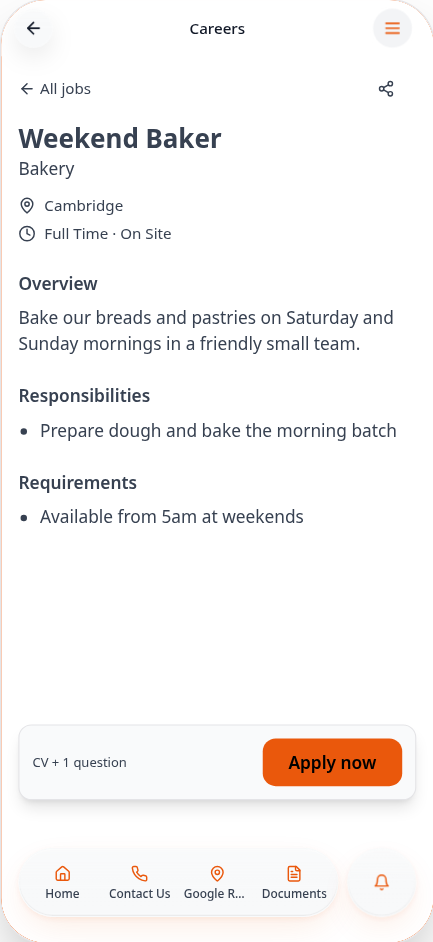
They read the vacancy
Each vacancy shows its details, with Apply now at the bottom.
- 12
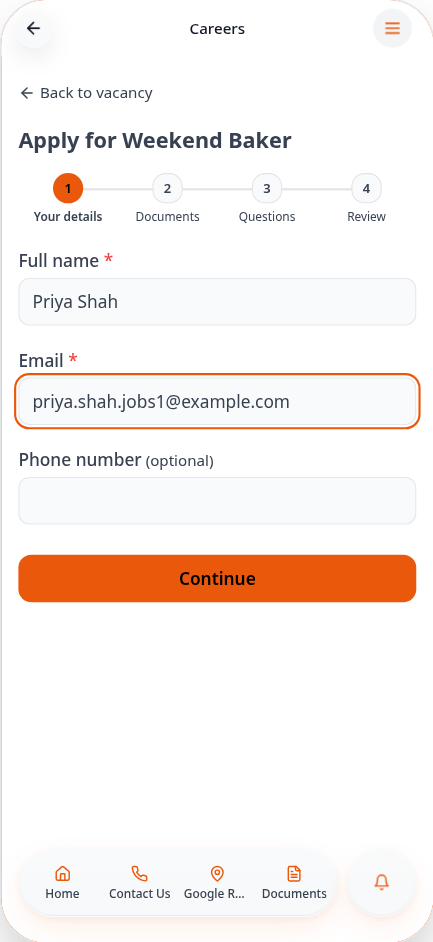
They apply in four steps
Candidates enter their details, add any documents, answer your questions and review before sending.
- 13
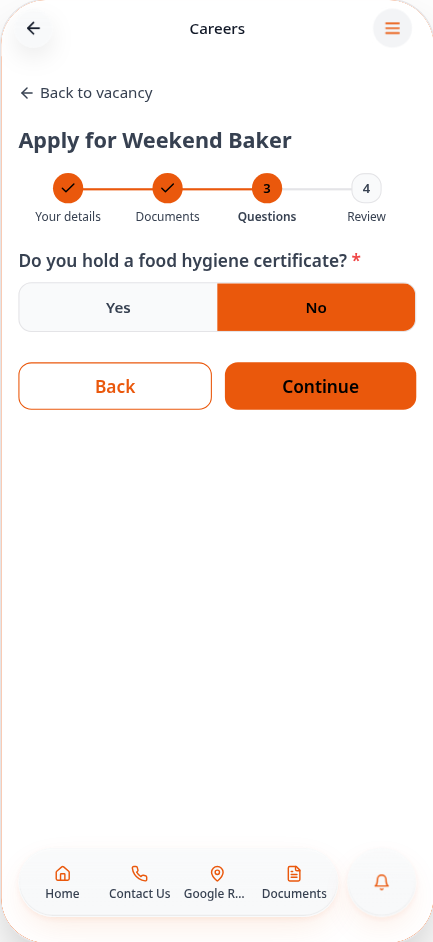
Screening questions
Your questions appear in order. Required ones must be answered to continue.
- 14
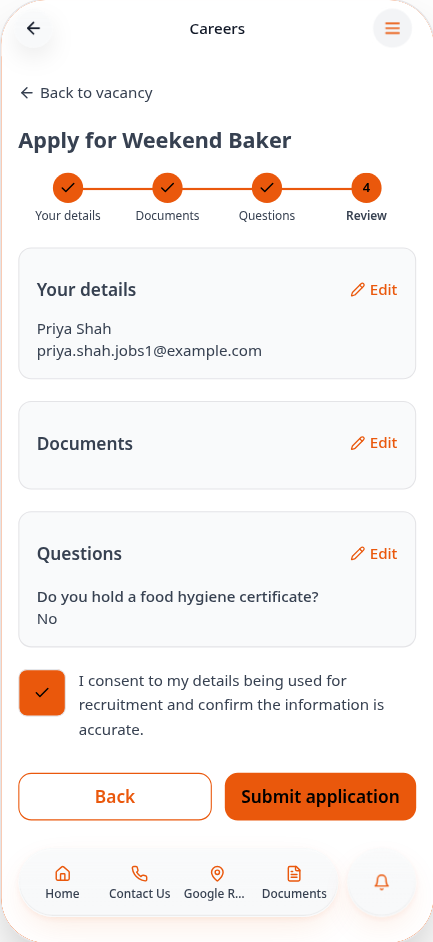
Review and submit
They check each section, tick the consent box and tap Submit application.
- 15
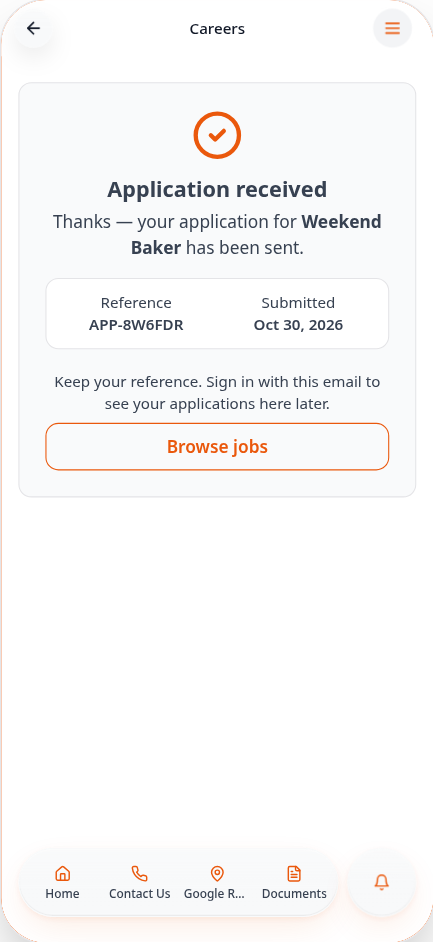
Application received
Candidates get a reference number and can follow progress under My applications.
- 16
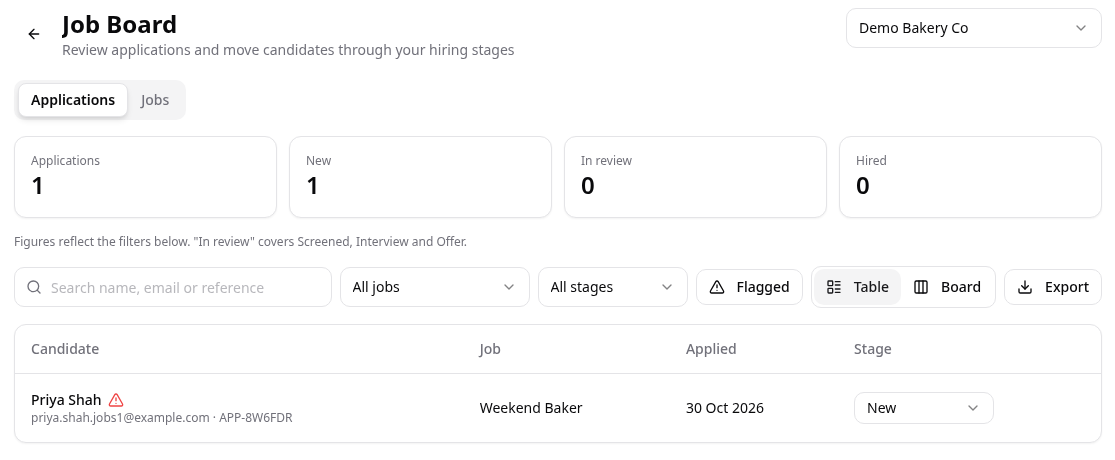
See applications in Data Manager
Open Data Manager, then Job Board. Search, filter by job or stage, or show only flagged candidates. The figures follow your filters.
- 17
Review a candidate
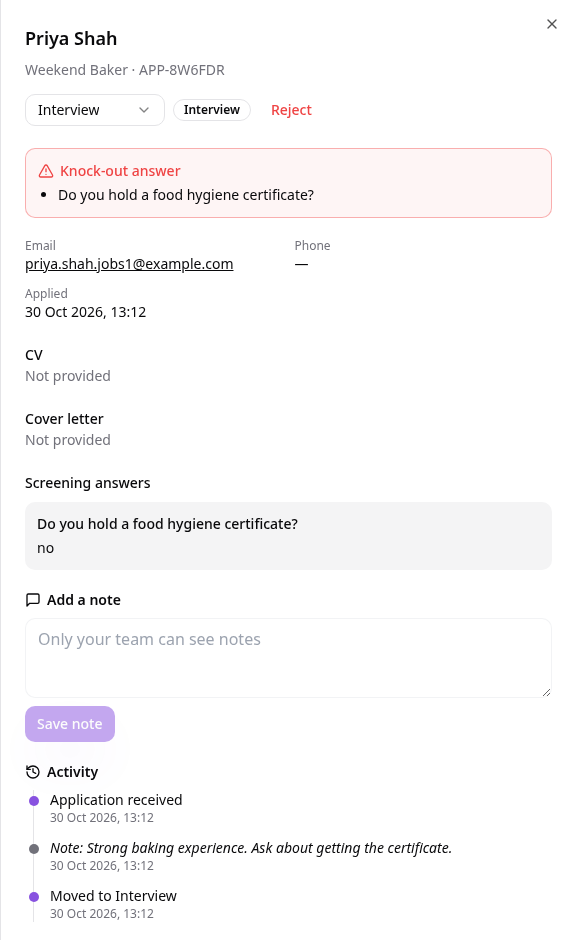
Tap a candidate to see answers, documents and any knock-out flag. Change the stage at the top, add private notes, and follow the activity history.
- 18
Track your pipeline
Switch to Board to see every candidate by stage, from New to Hired.
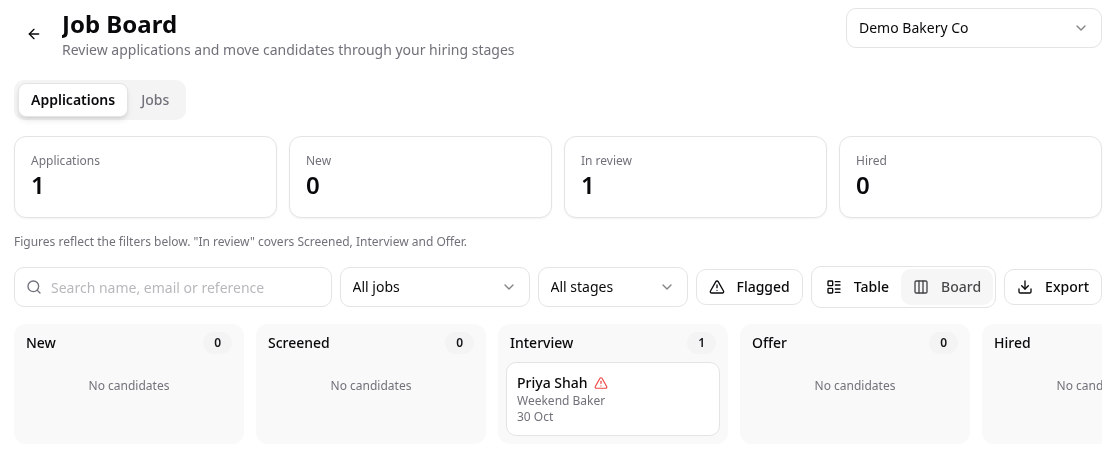
Everything candidates send is kept in Data Manager under Job Board. Use Export for a CSV of the applications you’re viewing, and edit vacancies any time from the App Editor.