Create a loyalty stamp card
Reward regular customers with a digital stamp card in about two minutes.
- 1
Open Pages
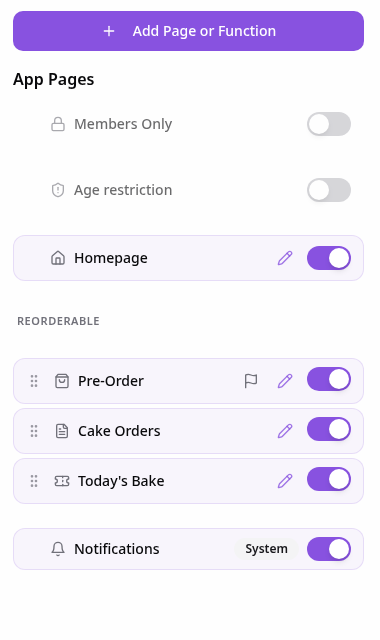
In your app editor, open Pages and tap Add Page or Function.
- 2
Choose Loyalty Stamp Cards
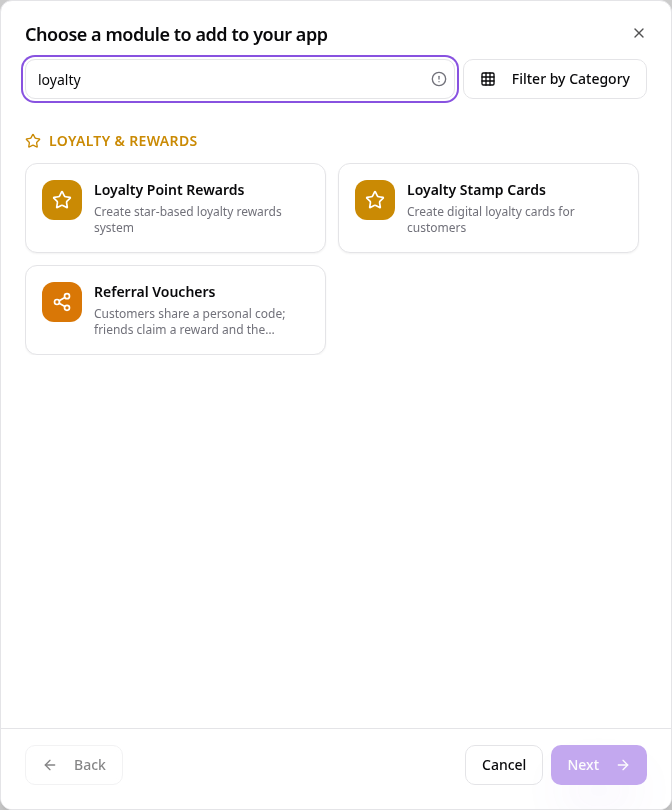
Search “loyalty” and tap Loyalty Stamp Cards.
- 3
Add a card
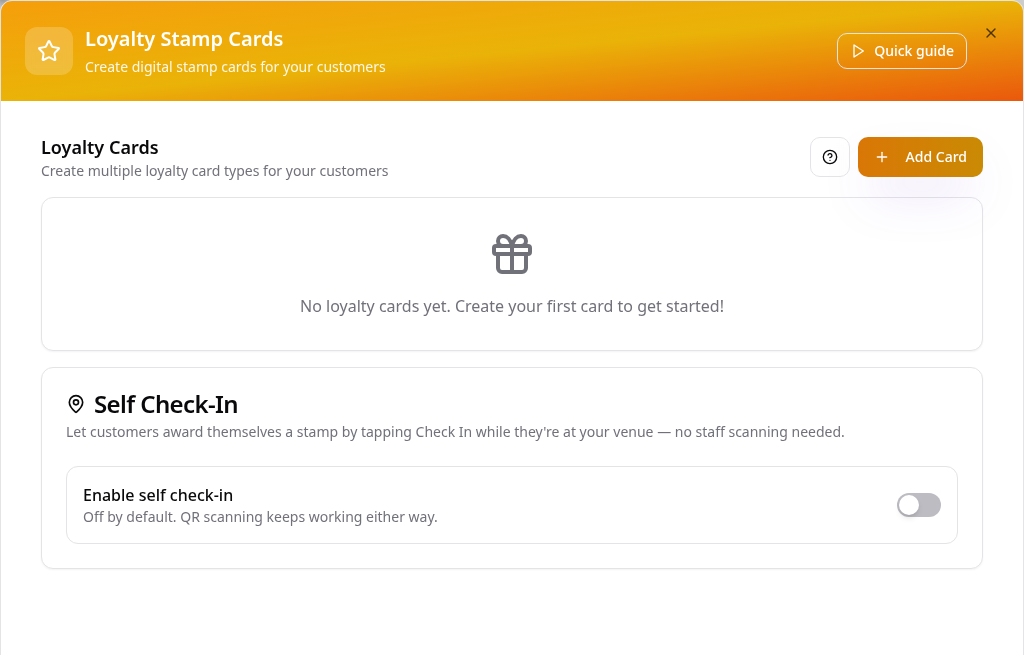
Tap Add Card.
- 4
Set stamps and reward
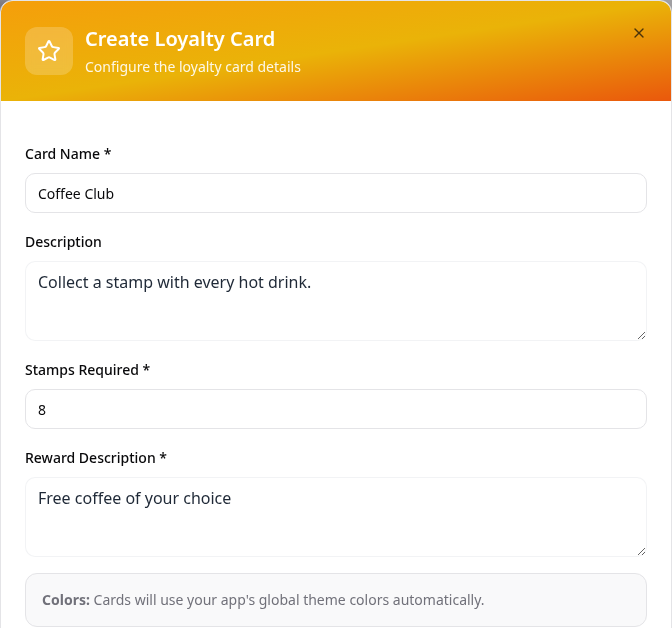
Enter a card name, how many stamps are needed and the reward.
- 5
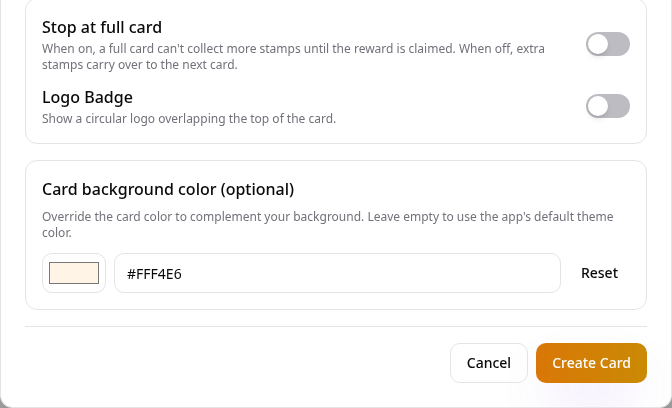
Style the card
Pick a stamp icon and background, and a card colour your text stands out on. Tap Create Card.
- 6
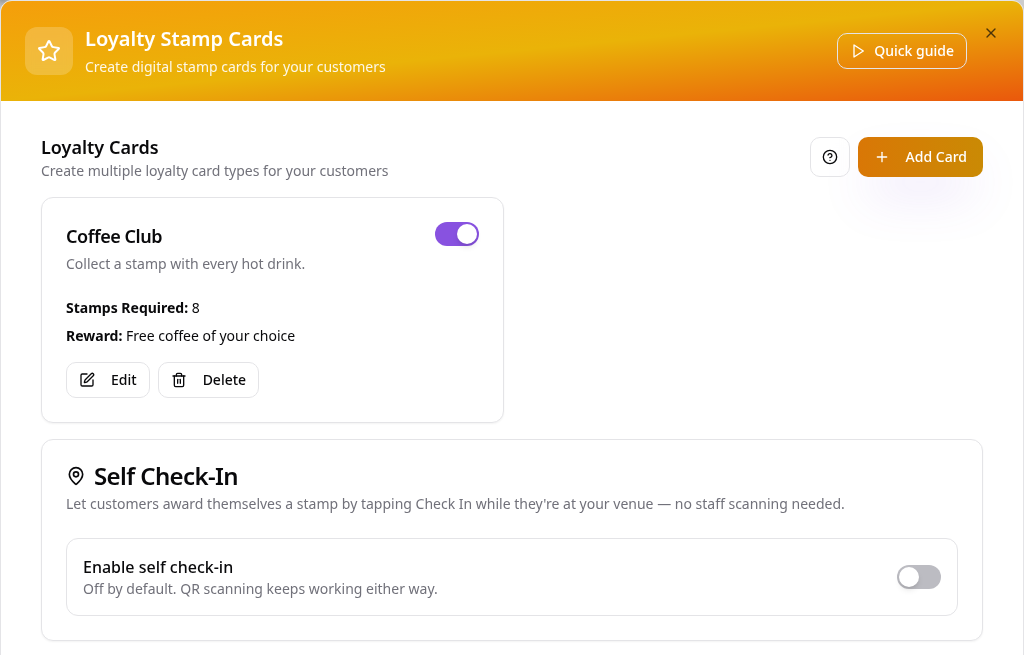
Your card is ready
Your card appears in the list. Tap Next.
- 7
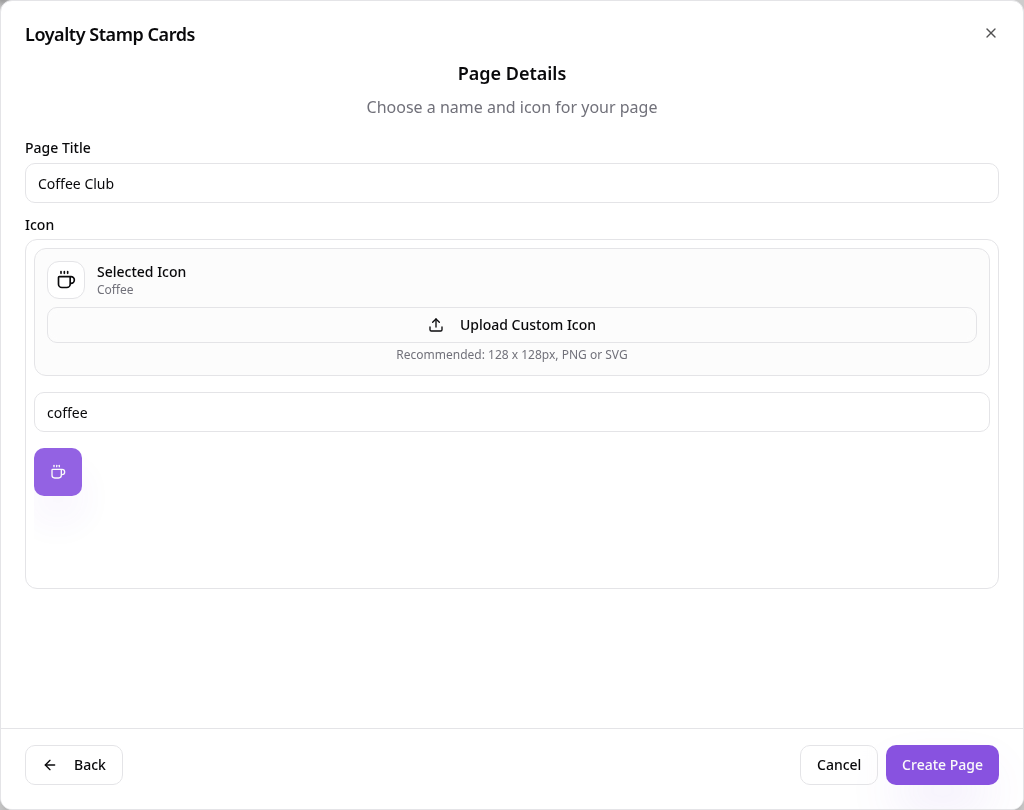
Name the page
Give the page a name, choose an icon and tap Create Page.
- 8
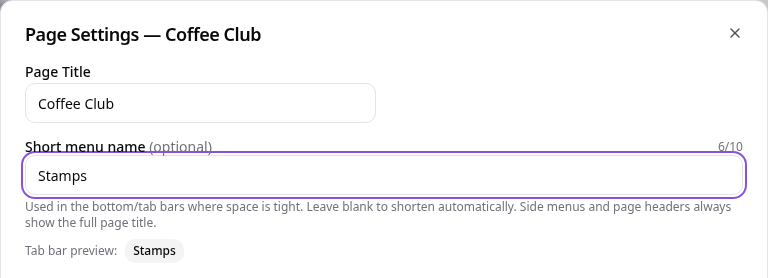
Set a short tab name
Tap the page in Pages, choose Edit Page Settings and add a short menu name so it fits the tab bar.
- 9
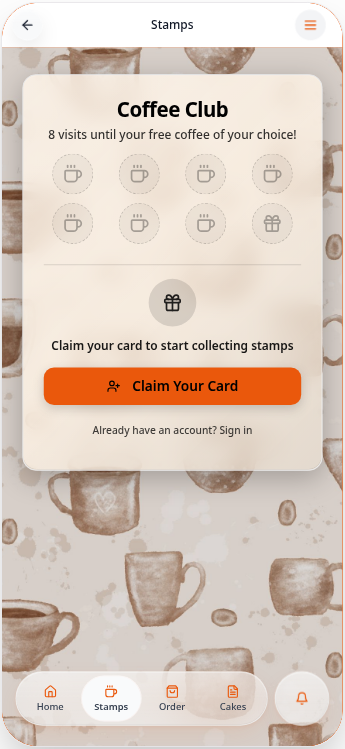
See it in your app
Customers claim the card and collect a stamp each visit.
That's it. To add stamps, scan the customer's QR code in Data Manager, or turn on Self Check-In.