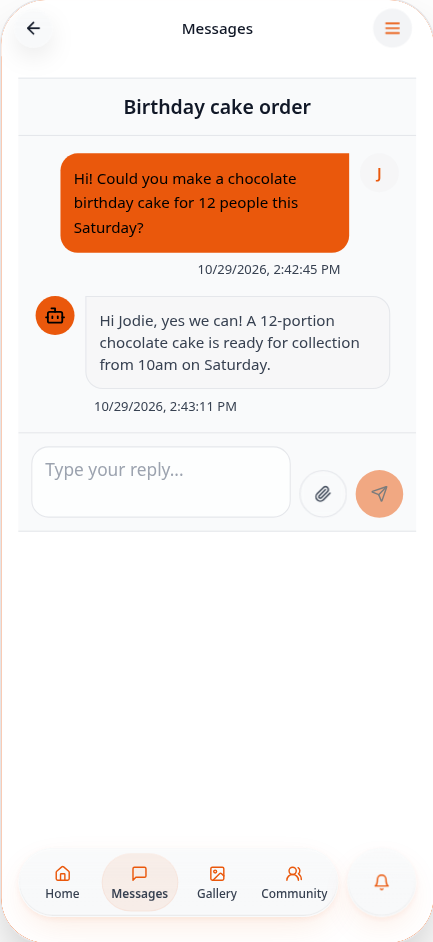
Chat with customers using Messages
Let customers message you from your app and reply to them from Data Manager.
Step-by-step guide
Follow these steps, then download the PDF to keep.
- 1
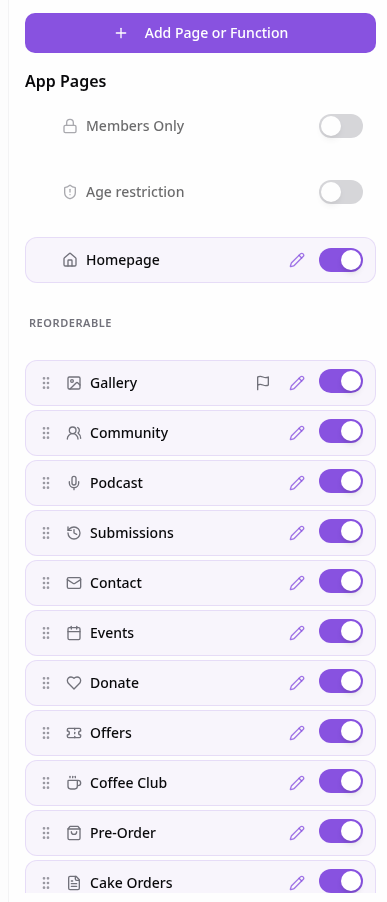
Open Pages
In your app editor, open Pages and tap Add Page or Function.
- 2
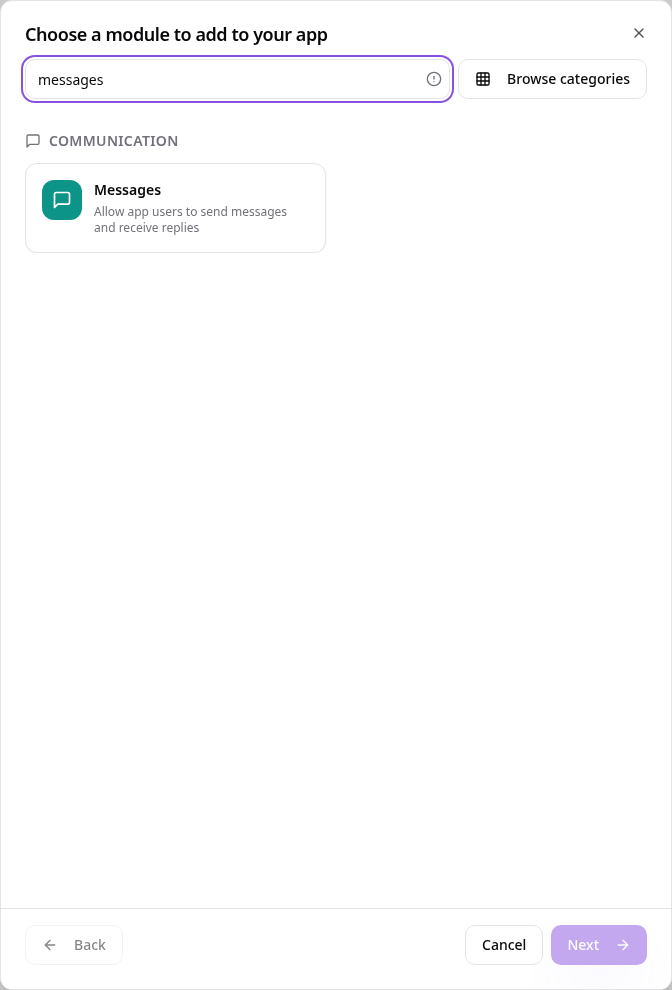
Choose Messages
Search “messages” and tap Messages. Your app can have one Messages page.
- 3
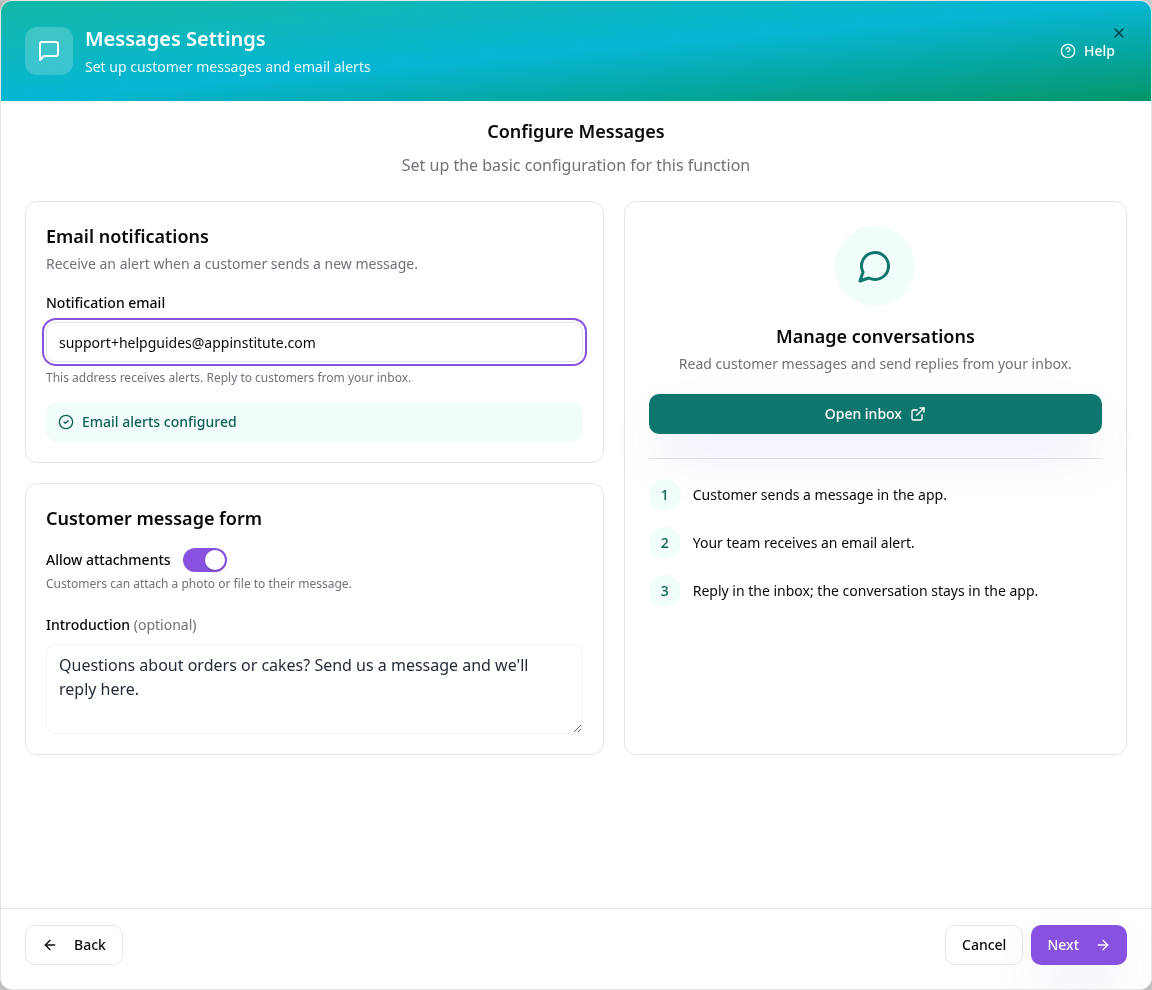
Set up Messages
Add the email that gets an alert for each new message, choose whether customers can attach photos or files, and add a short introduction.
- 4
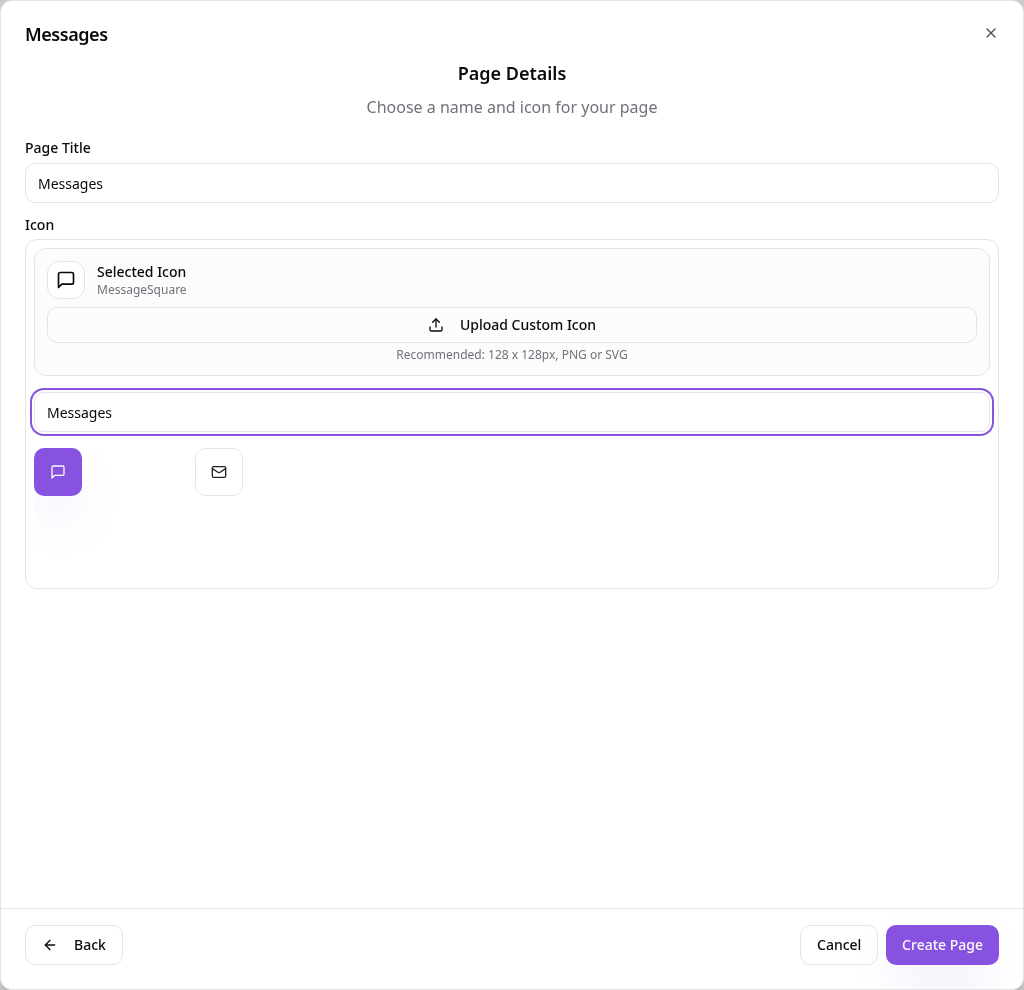
Name the page
Give the page a name, choose an icon and tap Create Page.
- 5
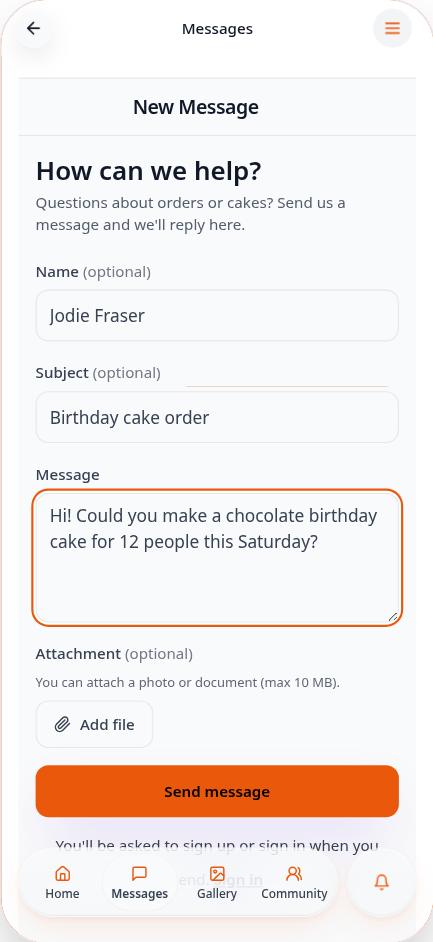
A customer writes in
Customers open Messages, add a subject and their message, then tap Send message.
- 6
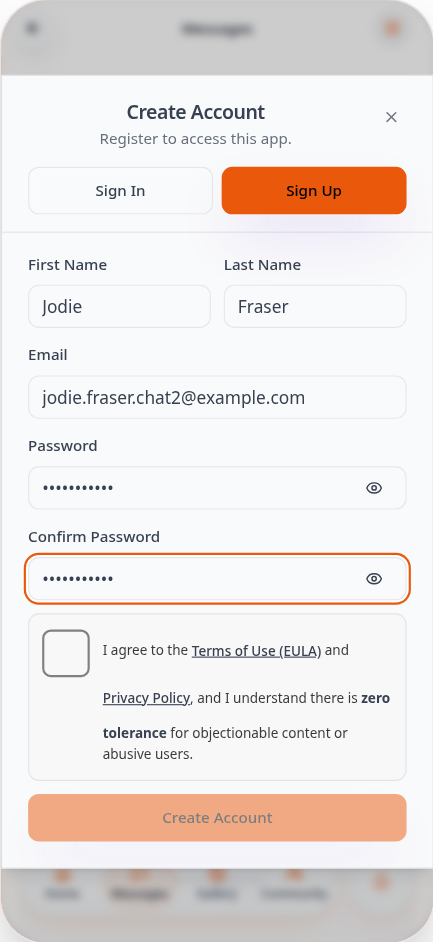
Sign up to send
New customers create an account when they send. Their message stays filled in and sends automatically.
- 7
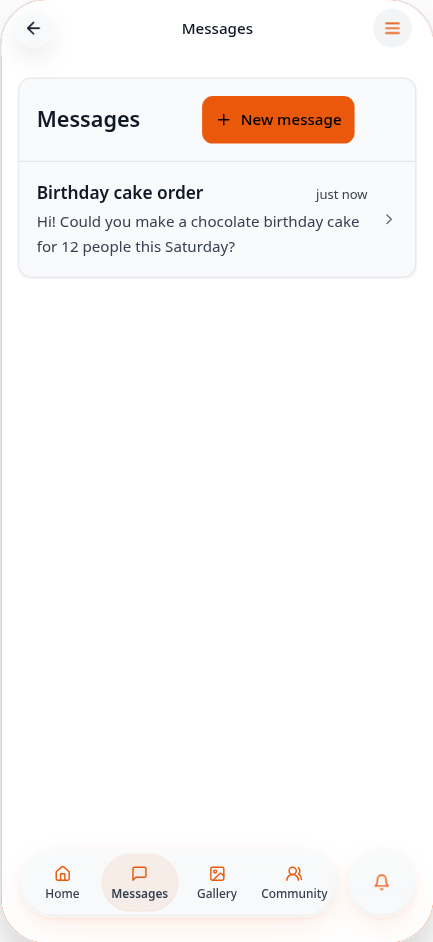
The message is sent
The conversation appears in the customer's Messages list, and you get an email alert.
- 8
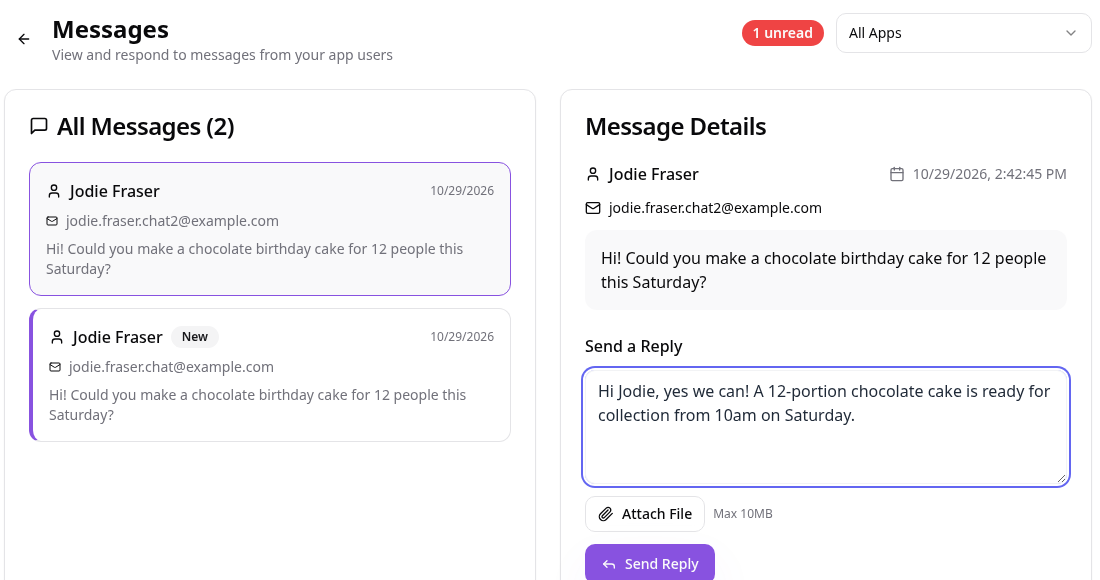
Reply from Data Manager
Open Data Manager, then Messages. Pick the message, type your reply and tap Send Reply.
- 9
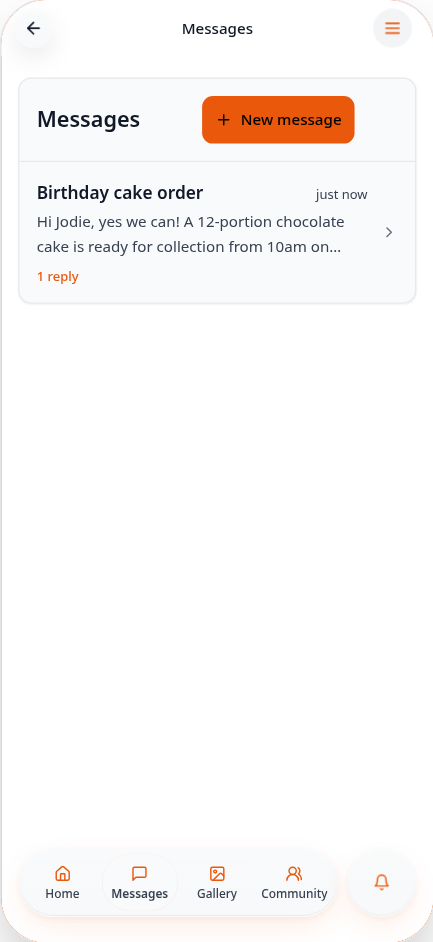
The customer sees your reply
Your reply shows in the customer's Messages list straight away.
- 10
Keep the conversation going
Customers tap the conversation to read the whole chat and reply back.
Every conversation is kept in Data Manager under Messages. You can change the alert email, attachments and introduction any time from Edit Page Content.