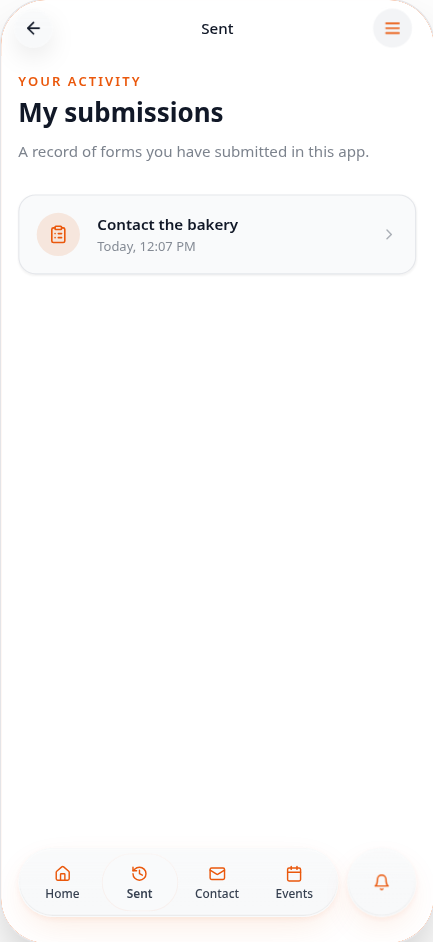
Add My Submissions
Let customers revisit the forms they have submitted while signed in.
Step-by-step guide
Follow these steps, then download the PDF to keep.
- 1
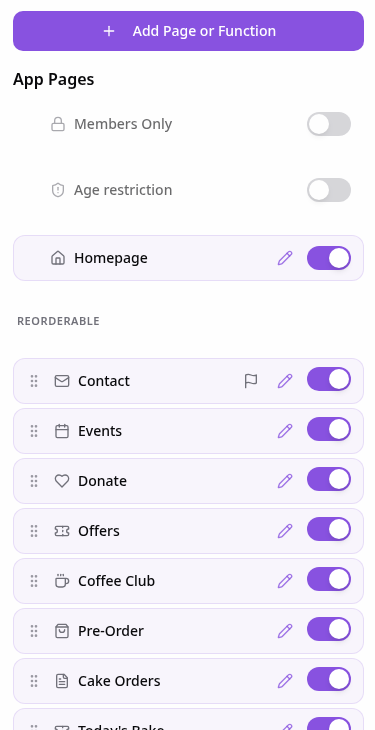
Open Pages
Open Pages in your app editor and tap Add Page or Function.
- 2
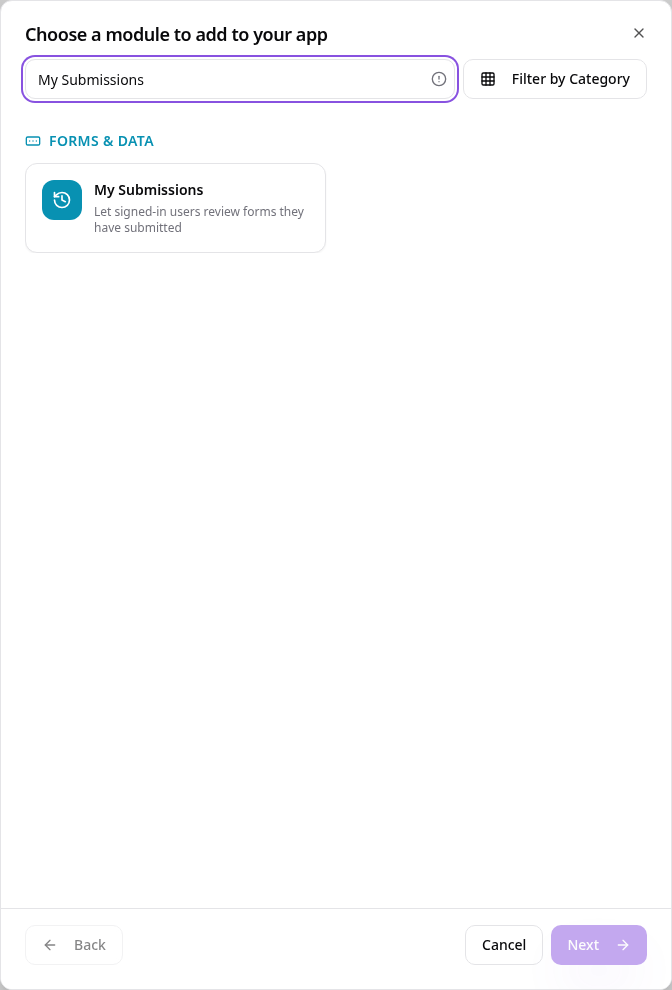
Choose My Submissions
Search for My Submissions and select it.
- 3
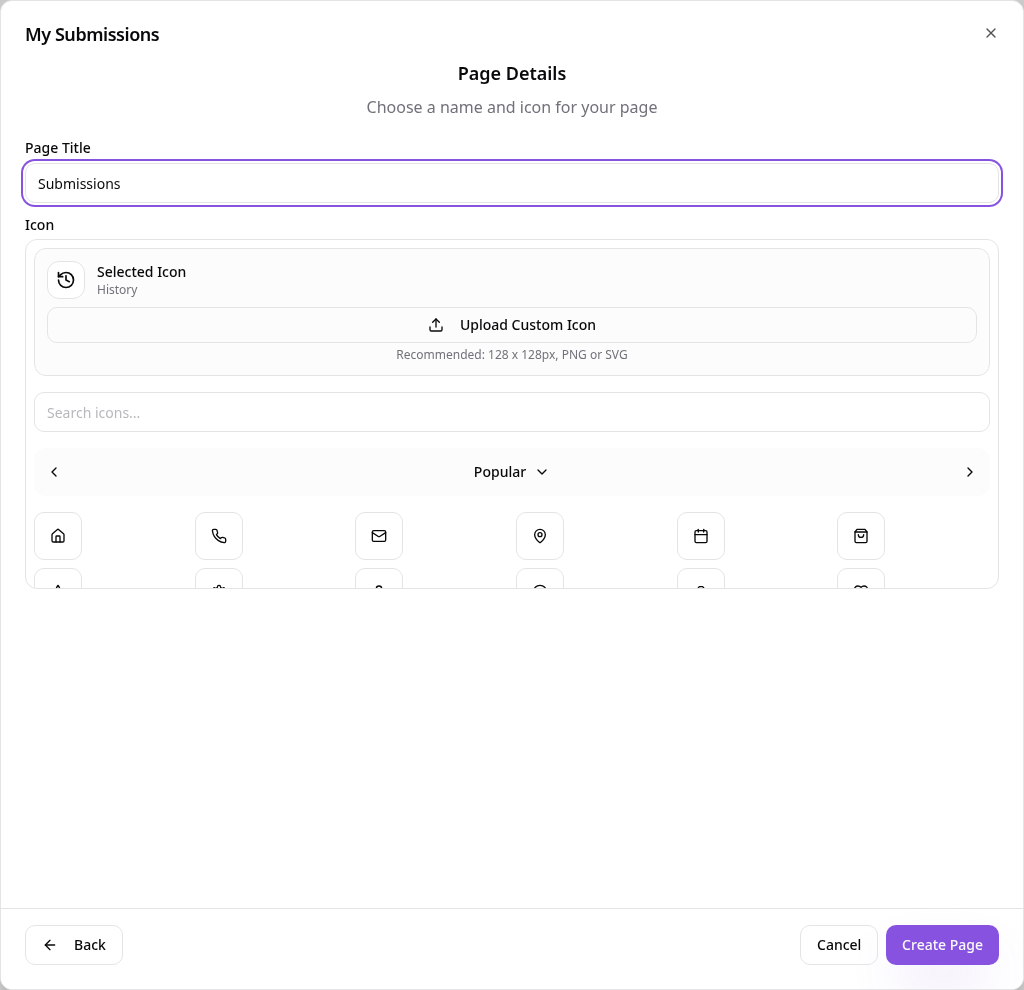
Name the page
Use a short name such as Submissions, choose an icon and tap Create Page.
- 4
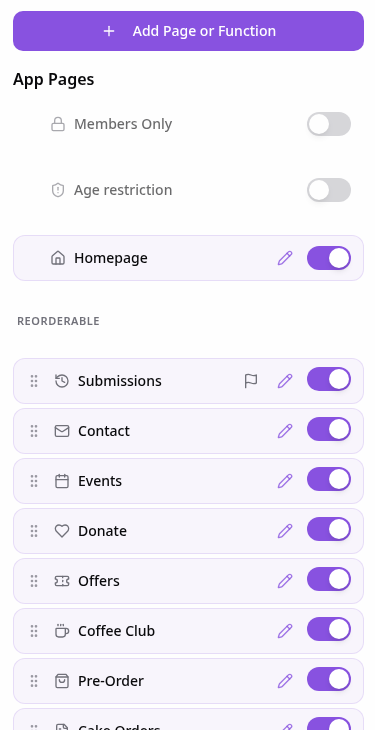
Your page is added
Keep a Form Builder page too; in Edit Page Settings, a short menu name such as Sent keeps the tab tidy.
- 5
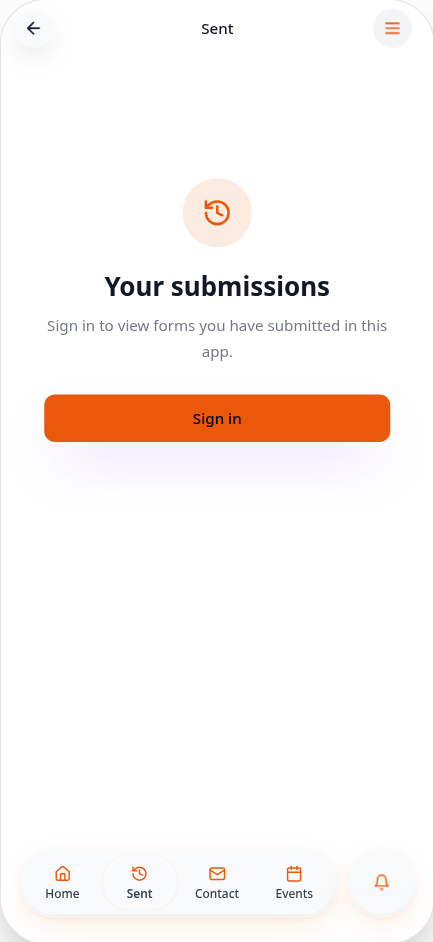
Sign in to the app
Customers sign in or create an account before sending a form they want to keep.
- 6
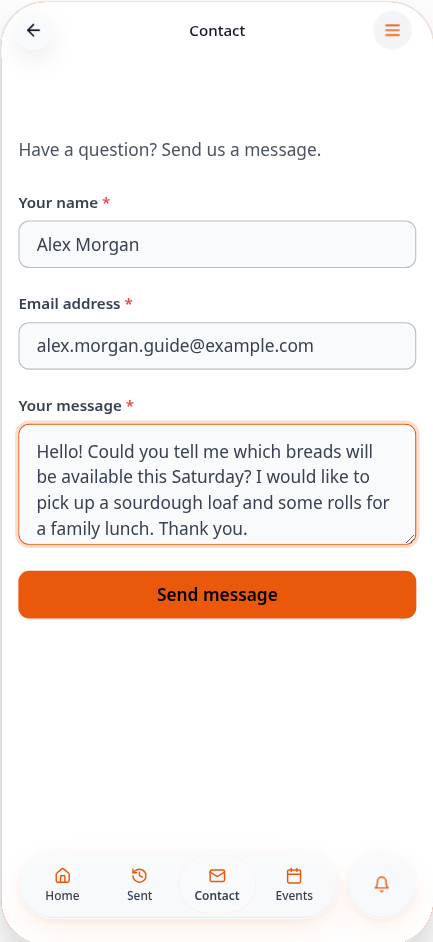
Submit a form
While signed in, open the form, fill in your answers and tap its submit button (Send message here).
- 7
Open your submission
Return to Submissions and tap the form row to see its saved answers.
- 8
Read the saved answers
Answers are read-only; use Back to return to your submission list.
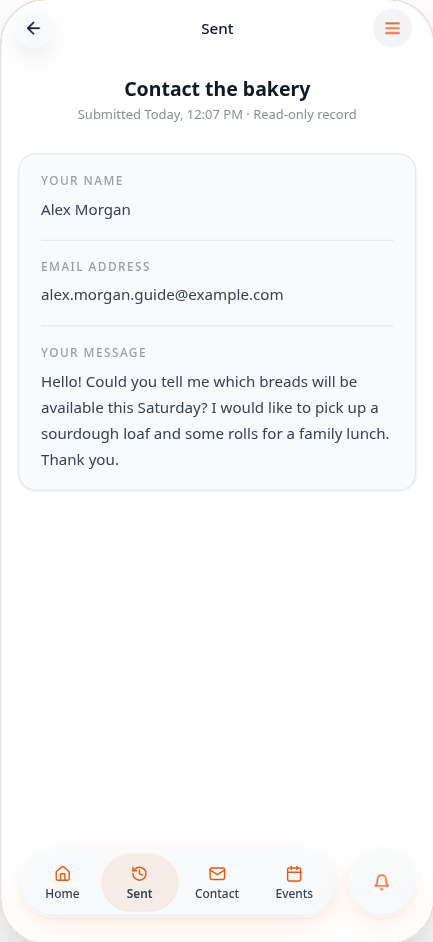
Each customer sees only their own signed-in submissions from this app.