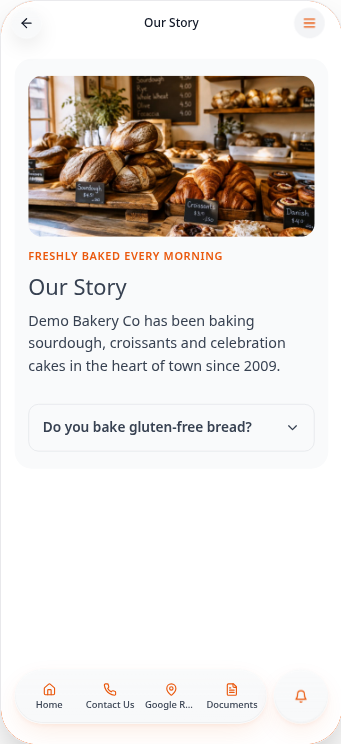
Build a page with Page Builder
Make your own page from ready-made blocks: headings, photos, buttons, FAQs and more.
Step-by-step guide
Follow these steps, then download the PDF to keep.
- 1
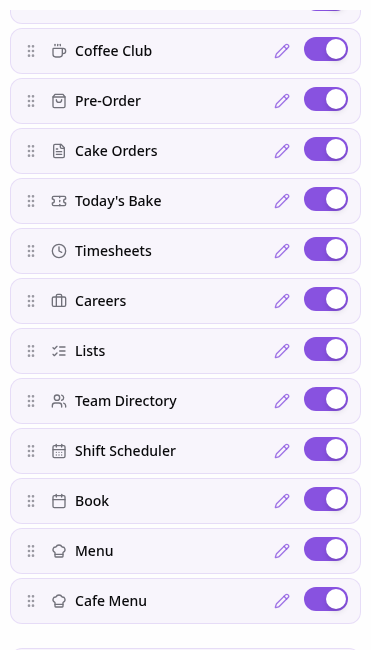
Open Pages
In your app editor, open Pages and tap Add Page or Function.
- 2
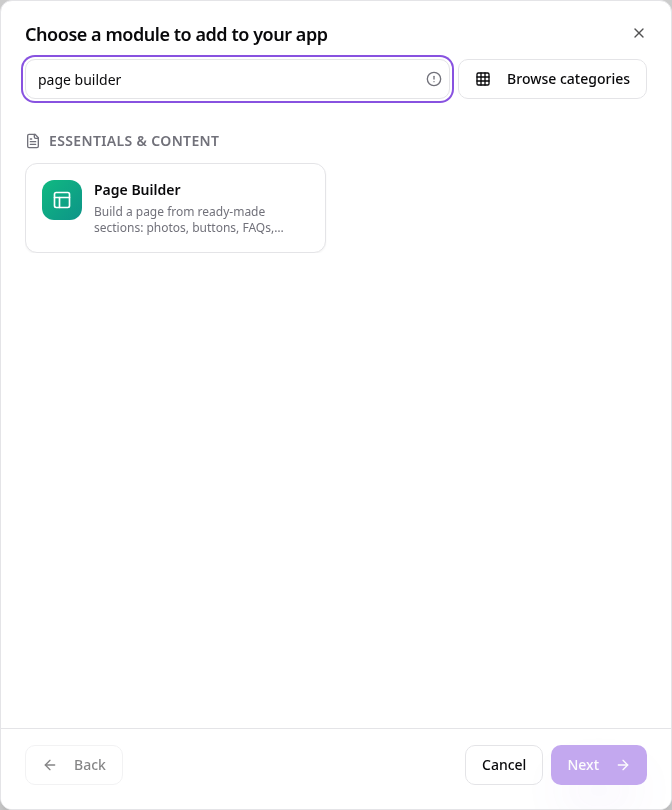
Choose Page Builder
Search “page builder” and tap Page Builder.
- 3
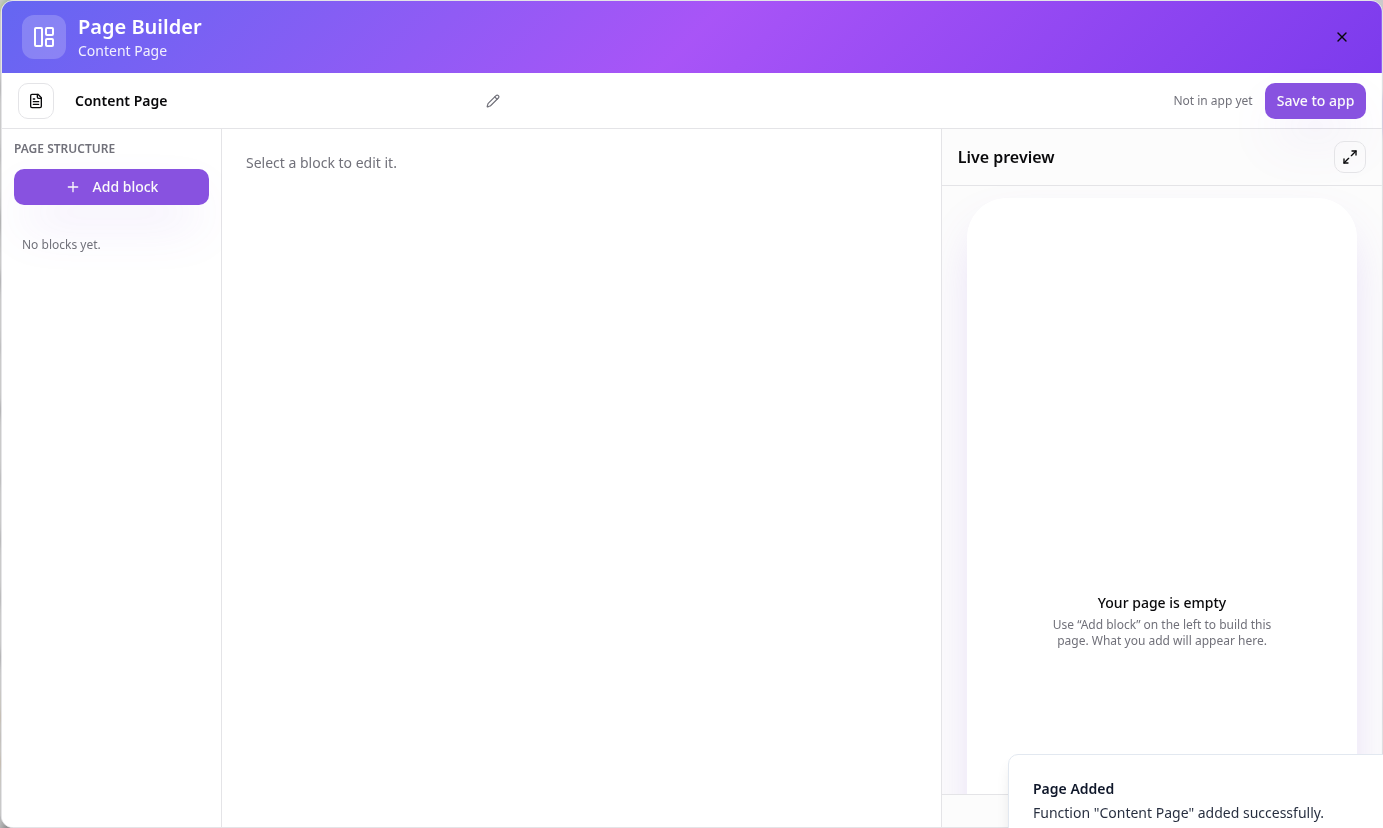
Your blank page
The editor opens with page blocks on the left and a live preview on the right.
- 4
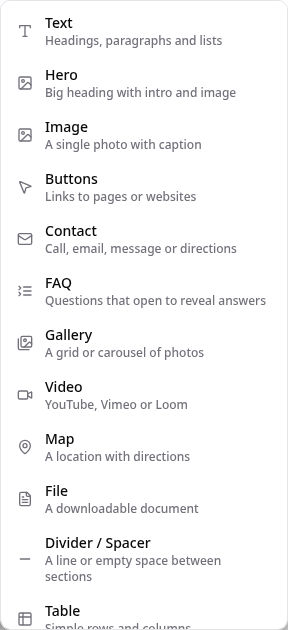
Add a block
Tap Add block and choose one, such as Hero, Text, Image, Buttons or FAQ.
- 5
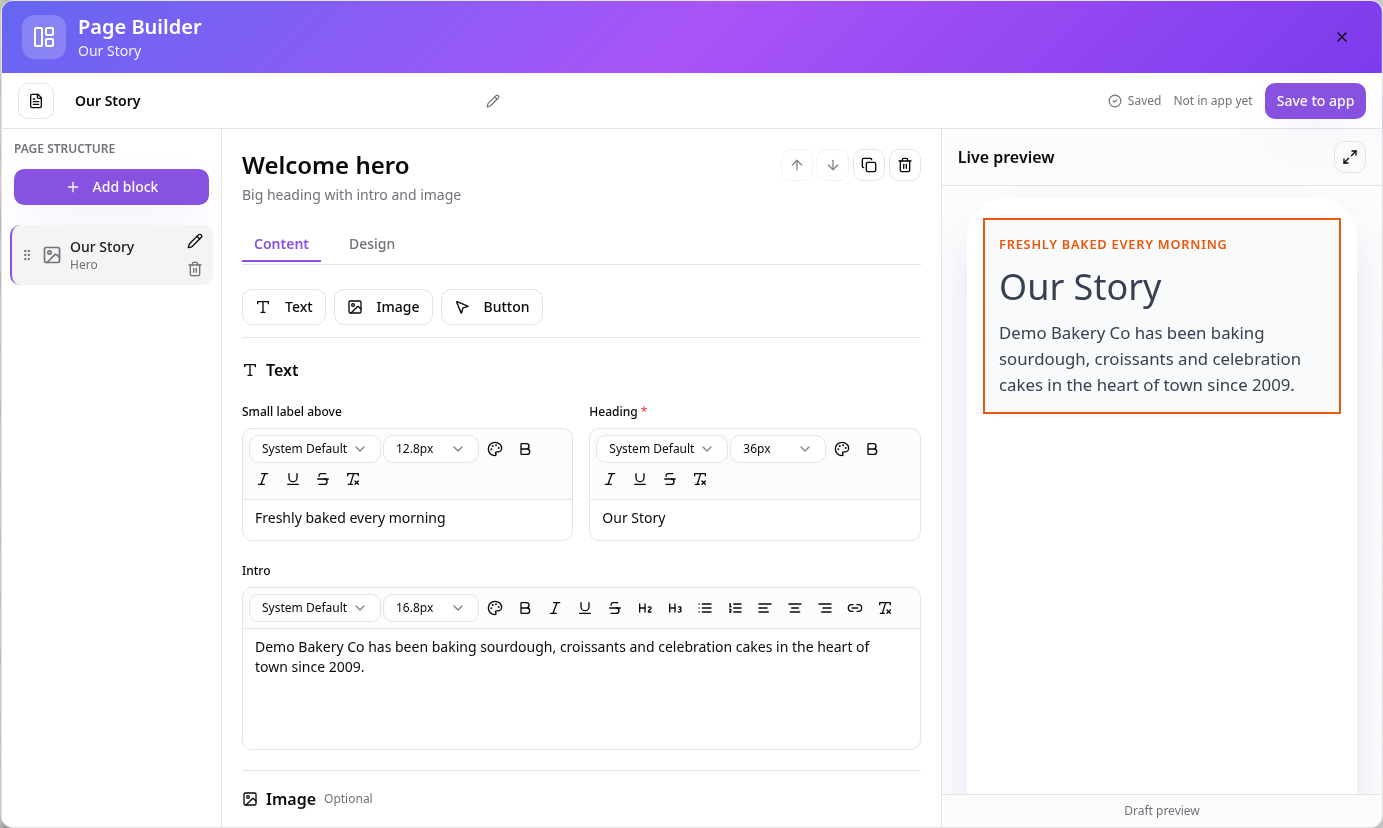
Write your text
Name the page at the top, then fill in the heading and intro.
- 6
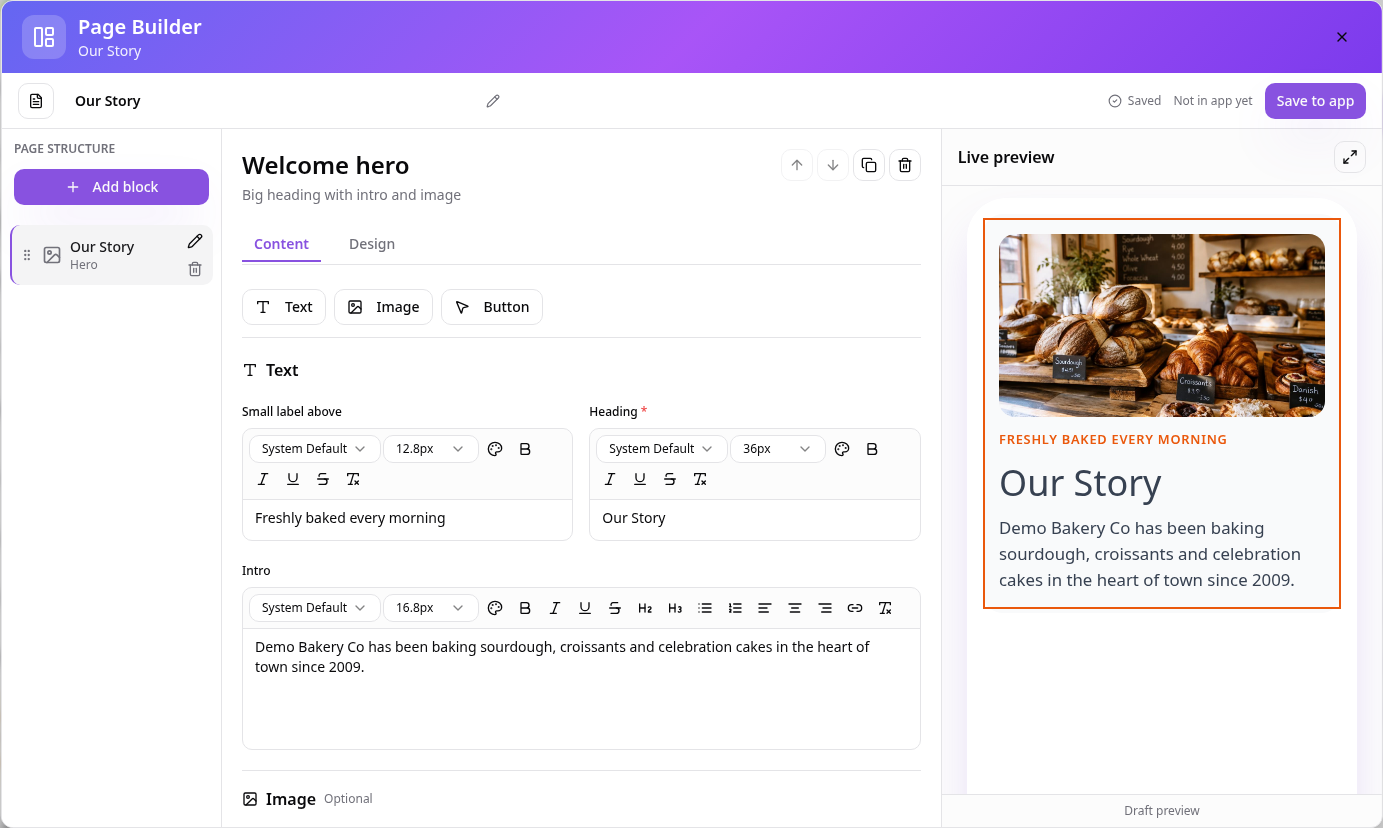
Add a photo
Upload an image for the block. The preview updates straight away.
- 7
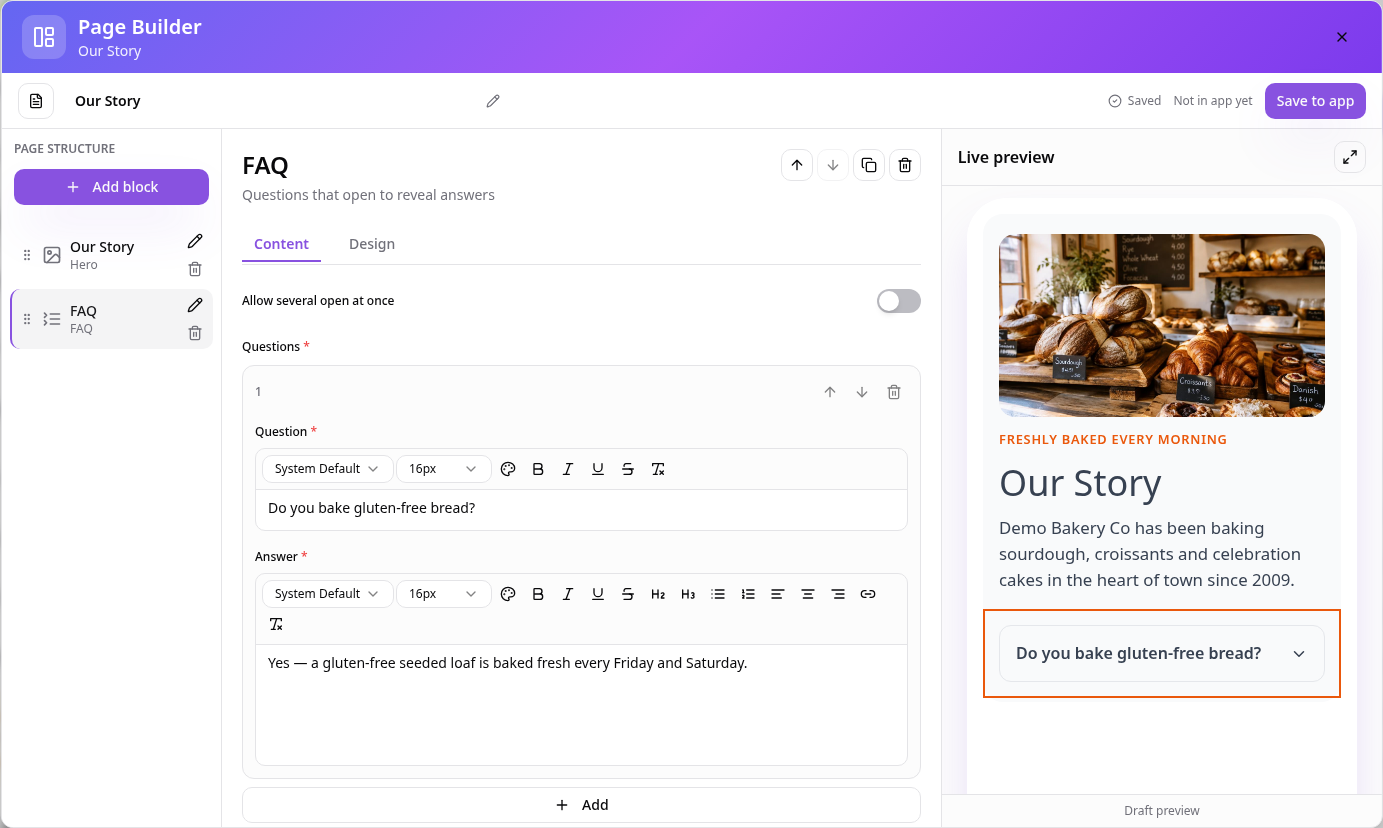
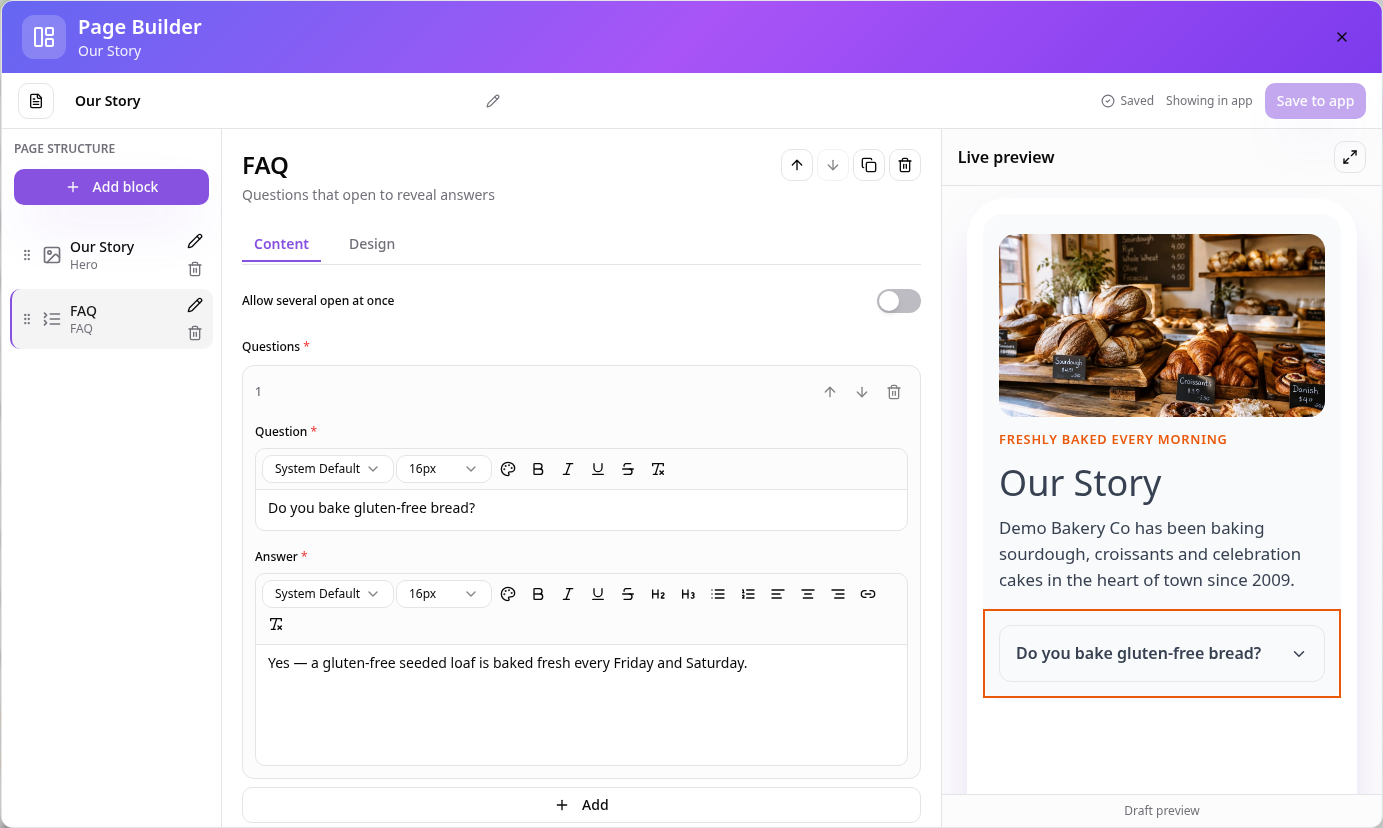
Add more blocks
Add an FAQ and type a question and answer. Use the arrows to reorder blocks.
- 8
Save to app
Tap Save to app. The status changes to Showing in app.
- 9
See it in your app
Your new page is ready for customers.
To change the page later, open it in Pages and choose Edit Page Content. Changes only reach customers when you tap Save to app.