Share documents with the PDF Library
Upload PDFs such as guides, menus and checklists so customers can read, download and print them in your app.
Step-by-step guide
Follow these steps, then download the PDF to keep.
- 1
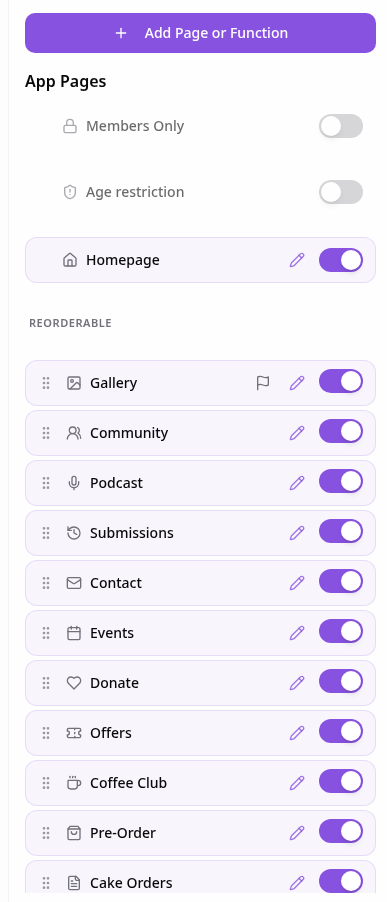
Open Pages
In your app editor, open Pages and tap Add Page or Function.
- 2
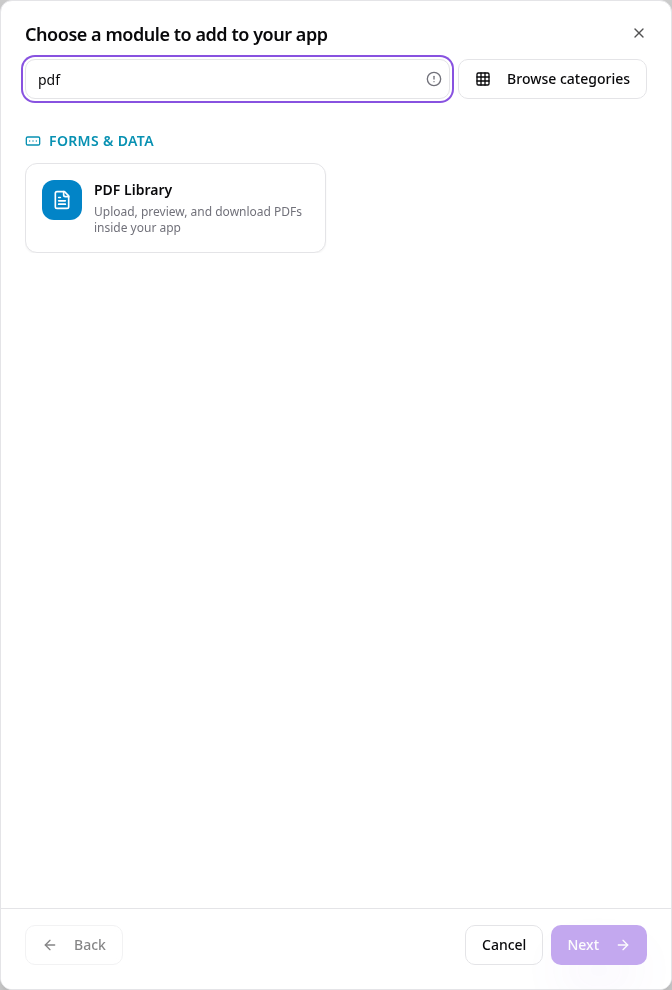
Choose PDF Library
Search “pdf” and tap PDF Library.
- 3
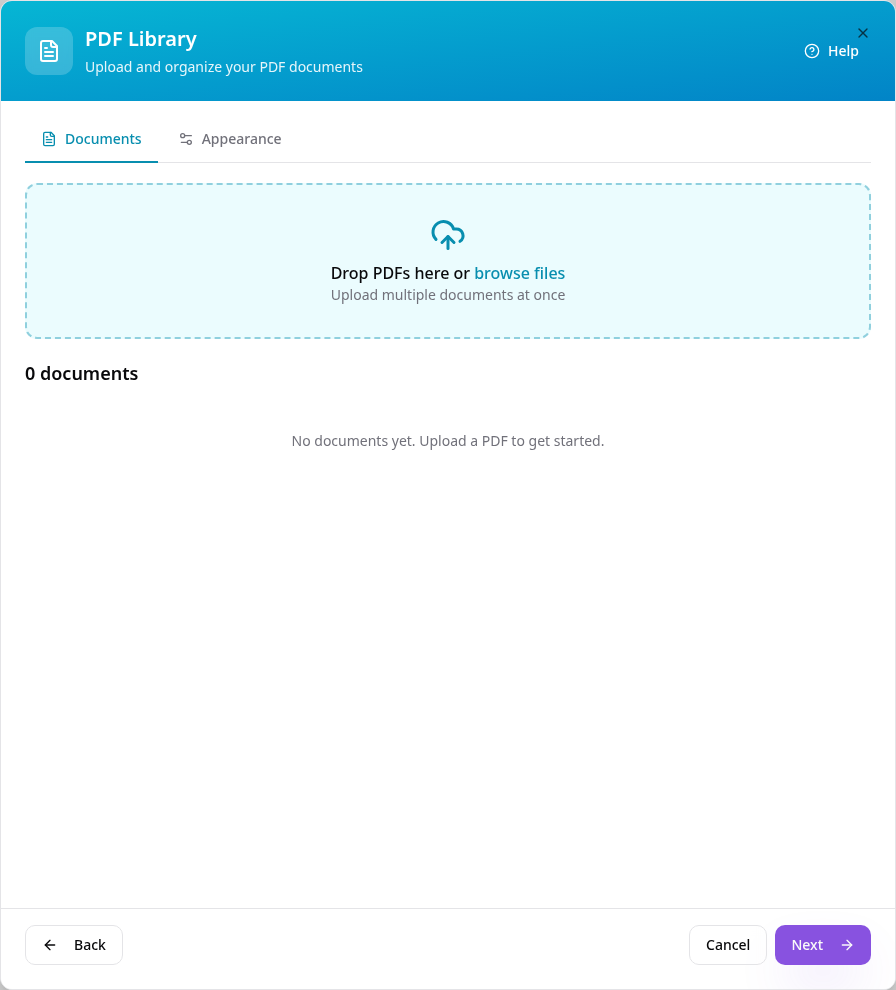
Upload your PDFs
Drop your PDFs into the box or tap browse files. You can pick several at once.
- 4
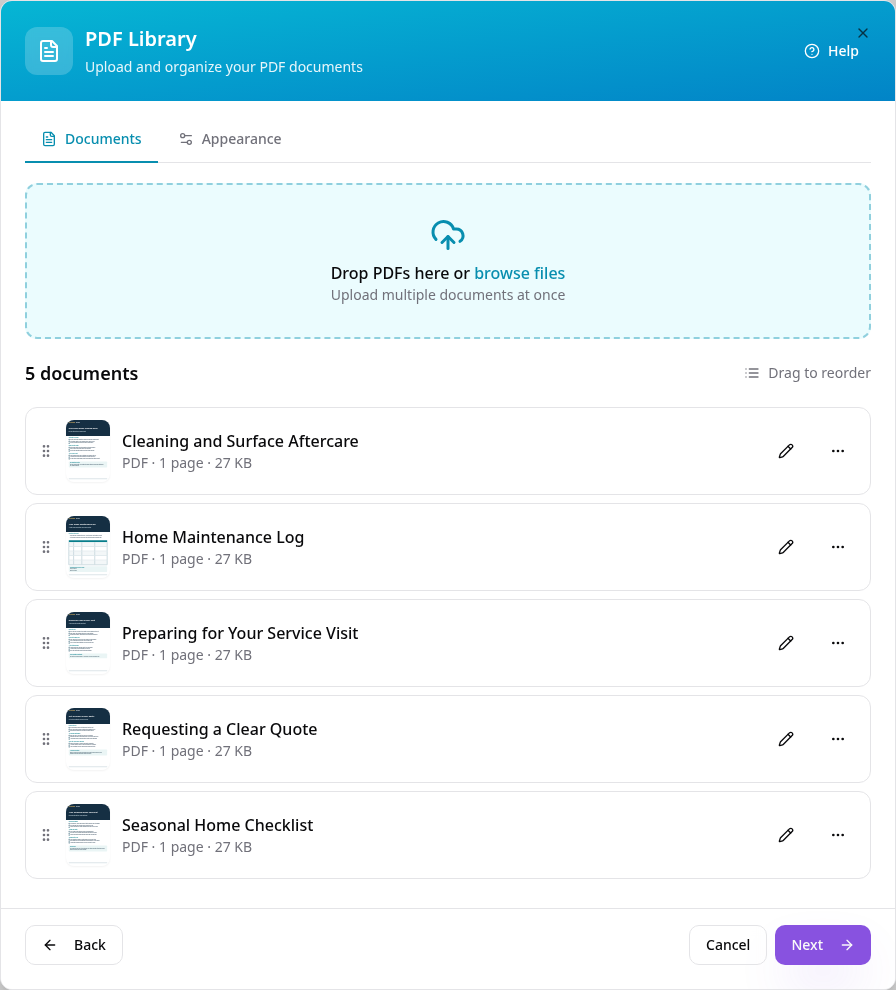
Your documents are added
Each PDF gets a title from its file name, so name files clearly before uploading. Drag documents to change their order.
- 5
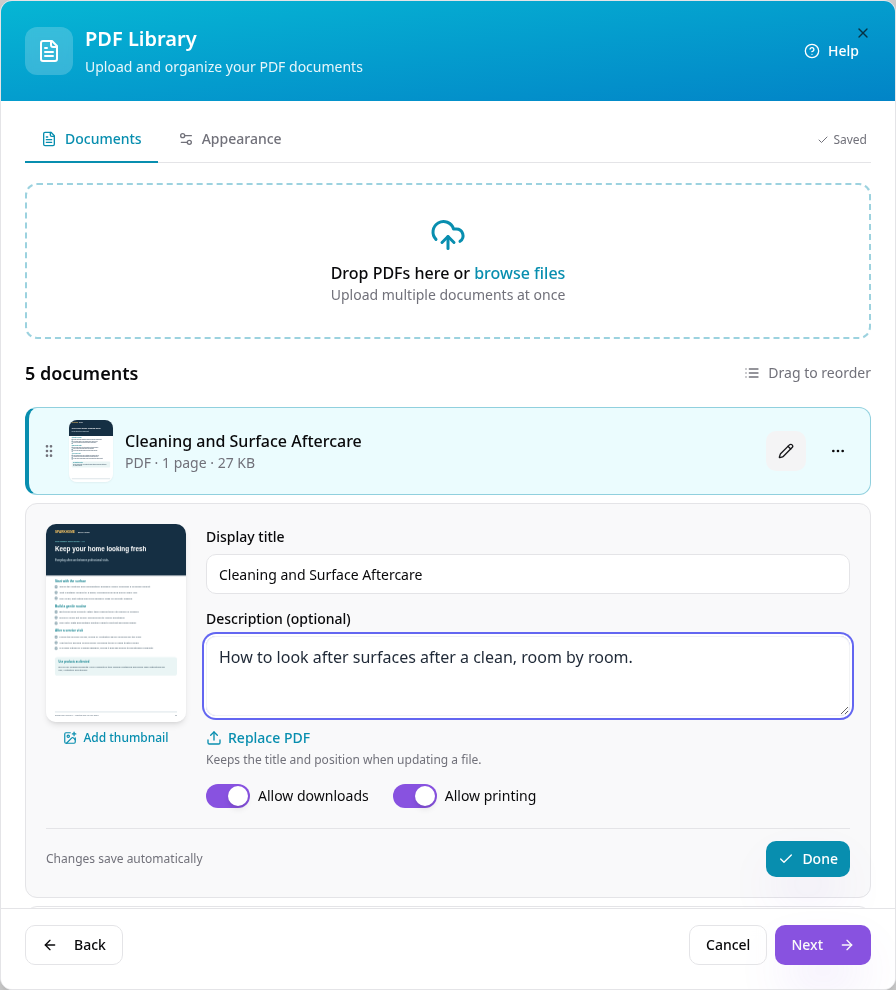
Edit a document
Tap the pencil to change the title, add a short description or thumbnail, and choose whether customers can download or print it. Tap Done.
- 6
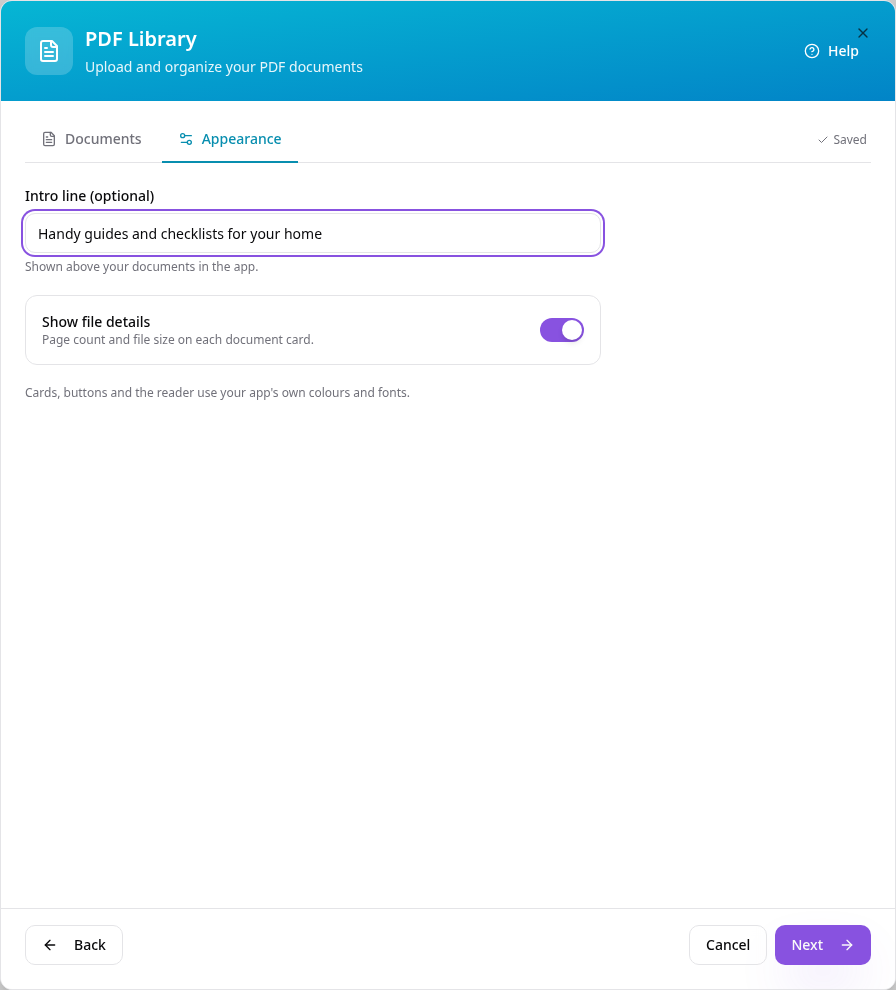
Add an intro line
On Appearance, add a short line shown above your documents and choose whether to show page count and file size.
- 7
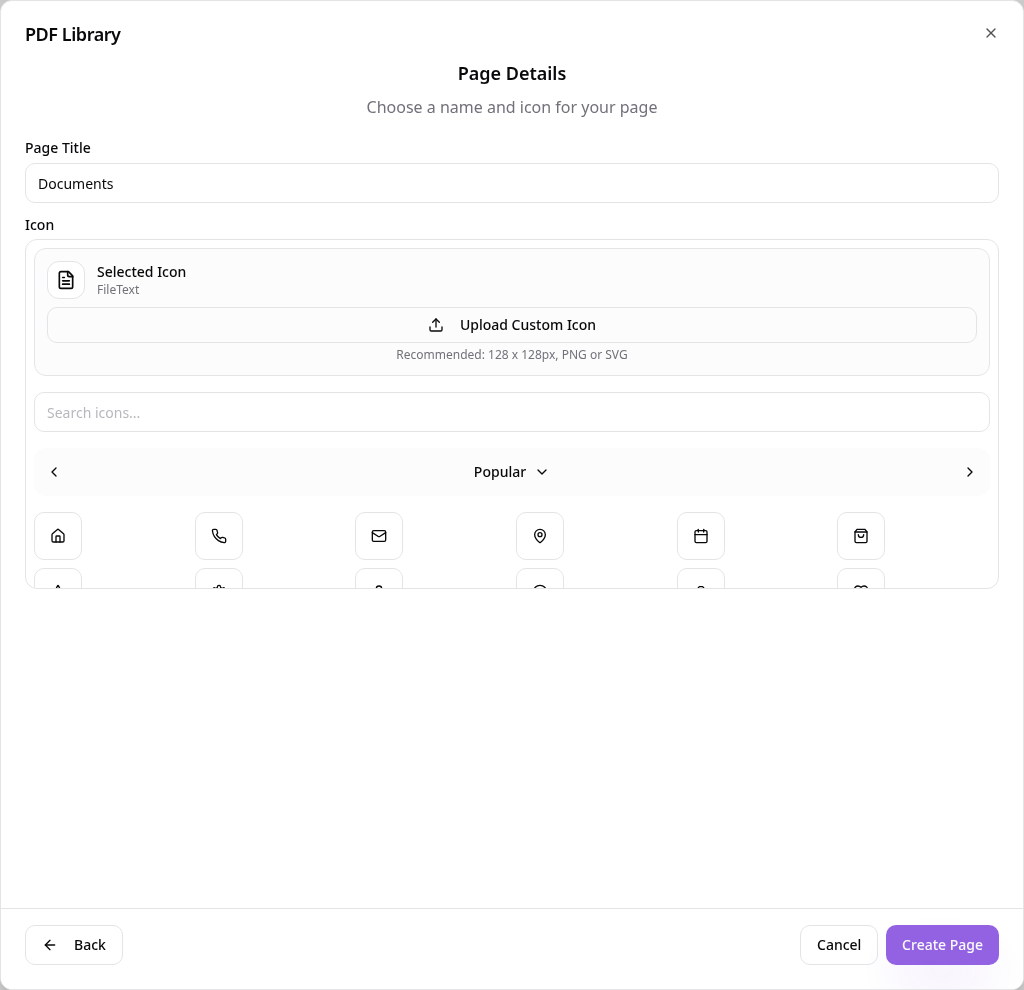
Name the page
Keep the name Documents or choose your own, pick an icon and tap Create Page.
- 8
See it in your app
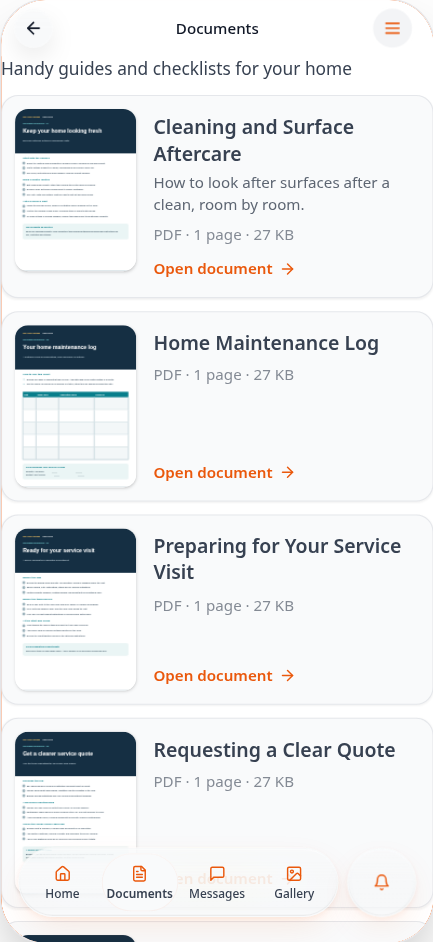
Customers see your intro and a card for each document. Tap Open document to read it.
- 9
Read the document
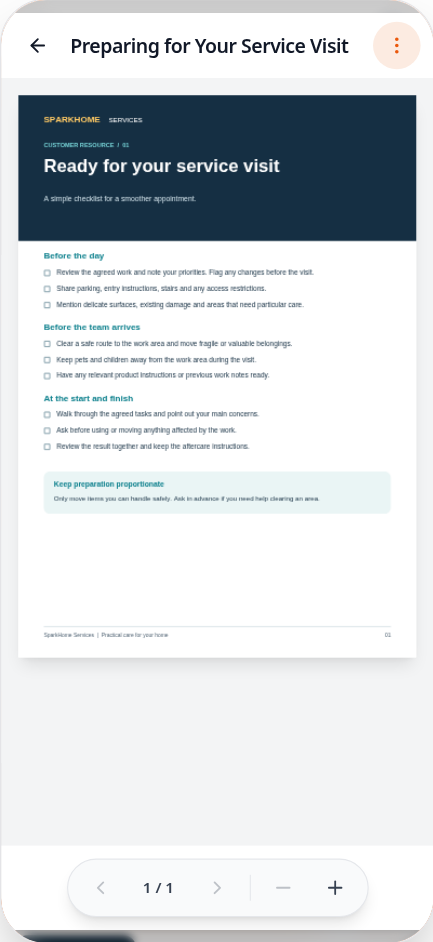
The PDF opens inside the app with page and zoom controls. The menu offers download and print when you allow them.
Add, replace, rename or remove documents any time from Edit Page Content. Replacing a PDF keeps its title and position.