Full guide (1:04)
Step-by-step guide
Follow these steps, then download the PDF to keep.
- 1
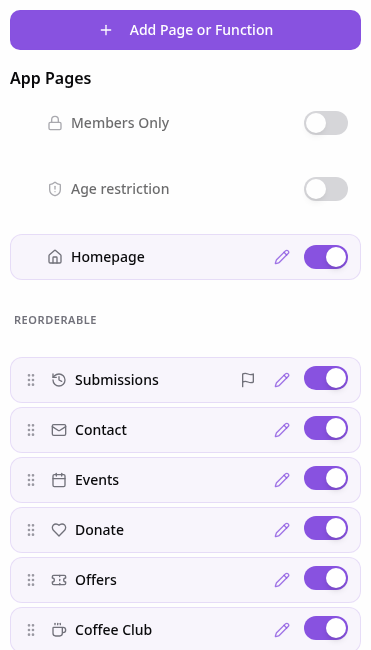
Open Pages
In your app editor, open Pages and tap Add Page or Function.
- 2
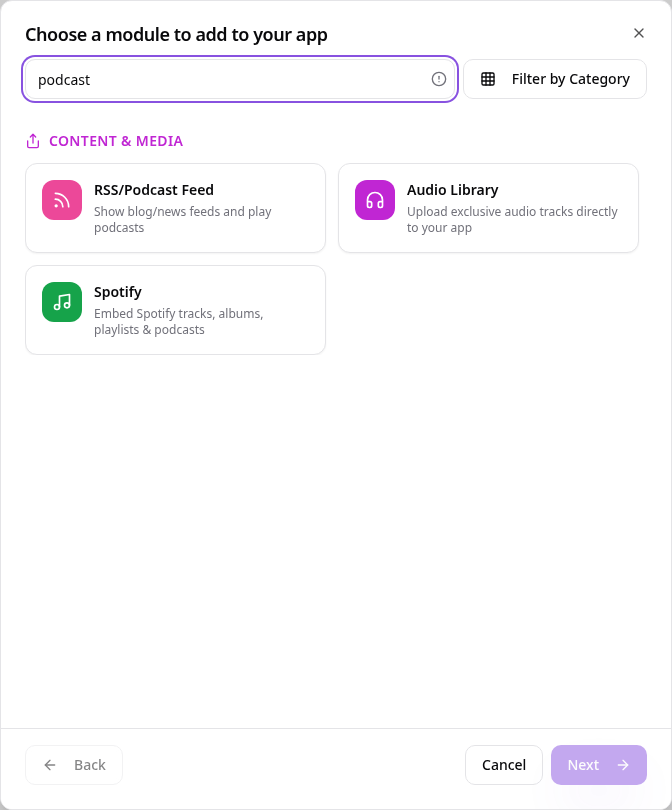
Choose Podcast
Search “podcast” and tap RSS/Podcast Feed.
- 3
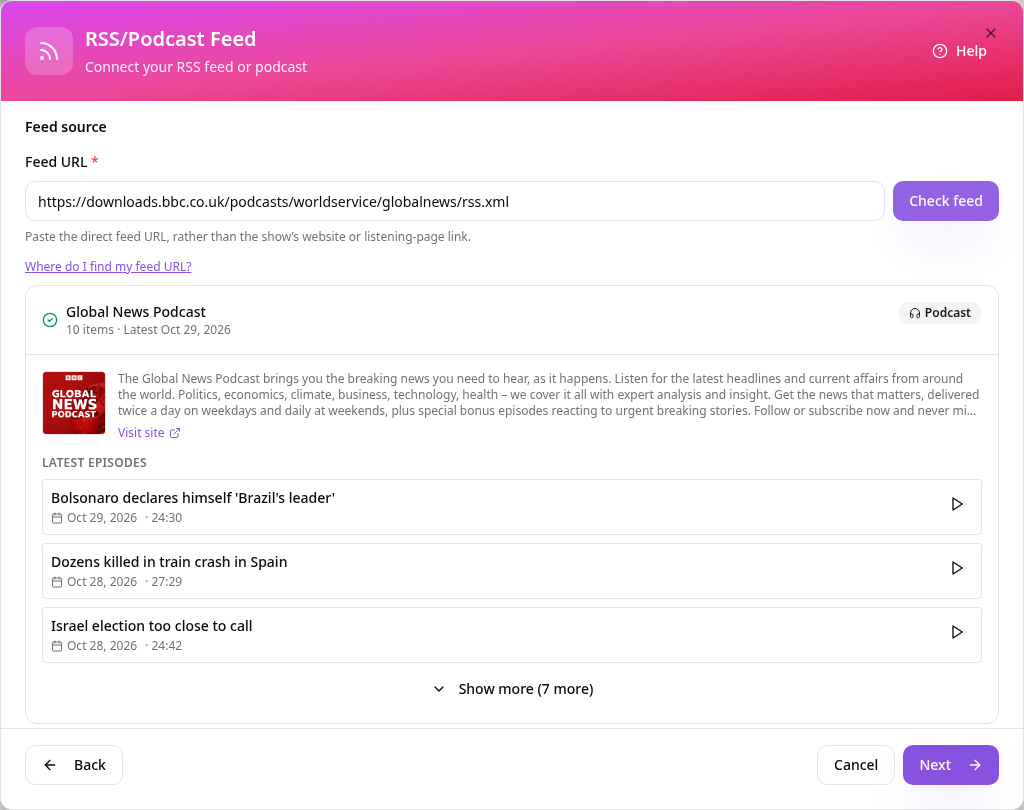
Paste your feed URL
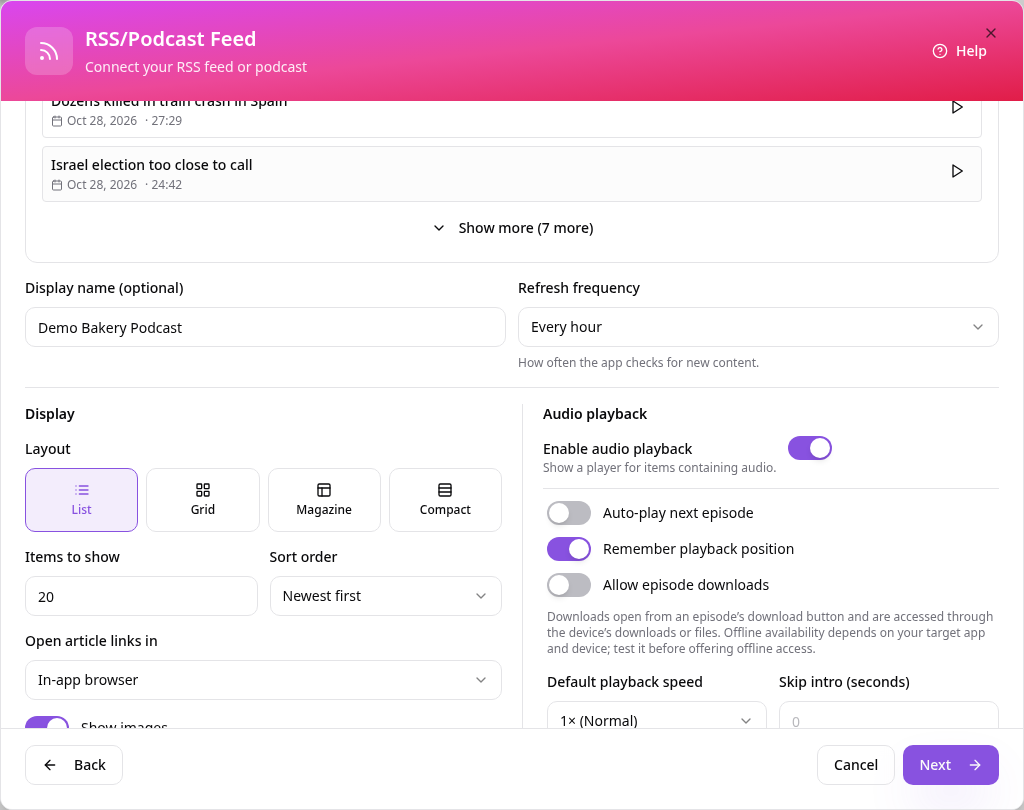
Add your podcast feed URL and a display name, then tap Check feed to preview the episodes.
- 4
Choose the look and audio options
Pick a layout and set audio options such as auto-play next episode and playback speed.
- 5
Name the page
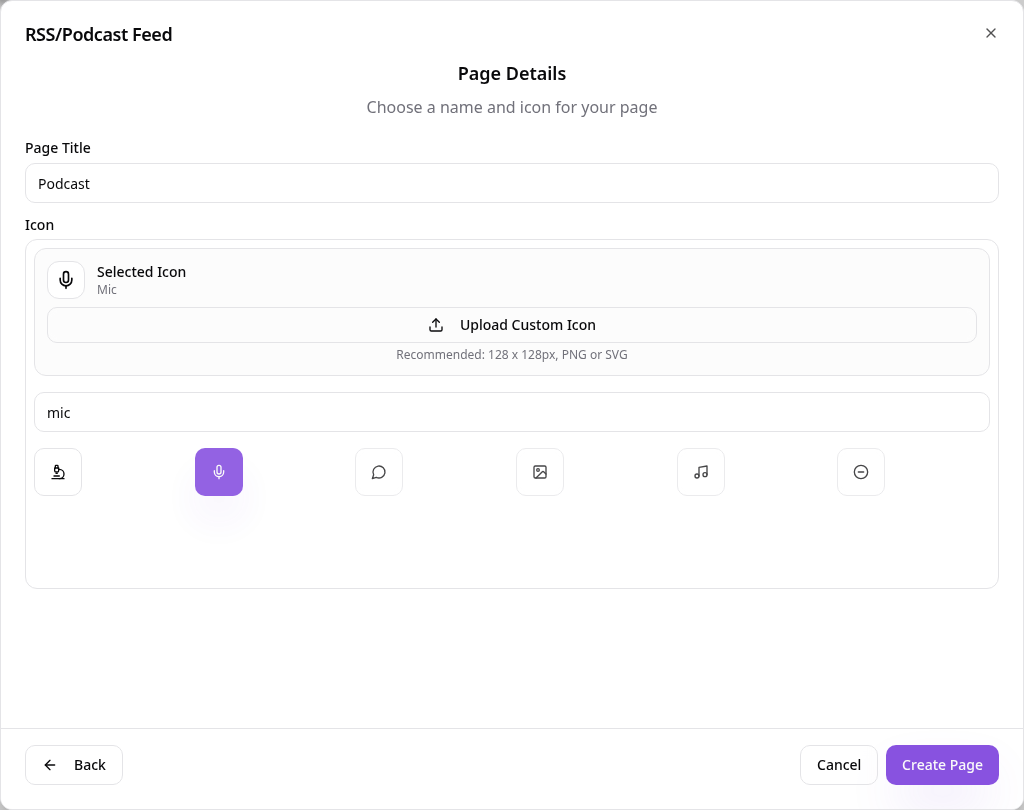
Use a short name such as Podcast, choose an icon and tap Create Page.
- 6
See it in your app
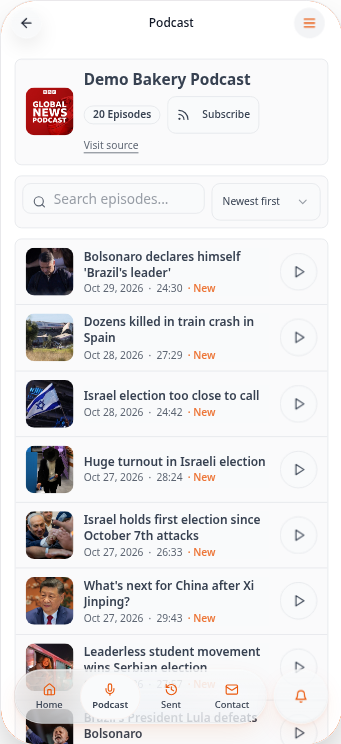
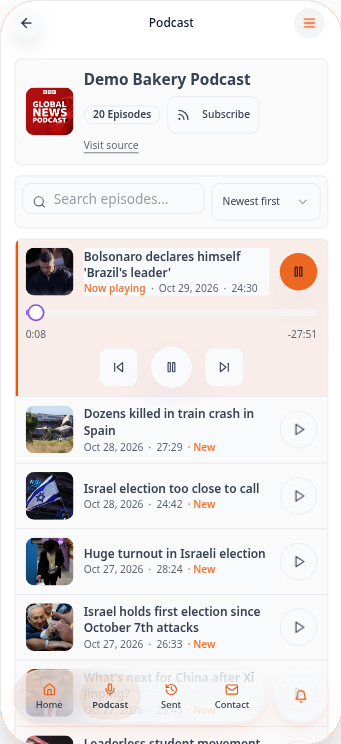
Episodes appear with artwork, titles, dates and a play button.
- 7
Play an episode
Tapping play opens the episode controls; playback continues while customers browse.
New episodes appear automatically from your feed. Upload episodes to your podcast host, not to the app.