Show property listings
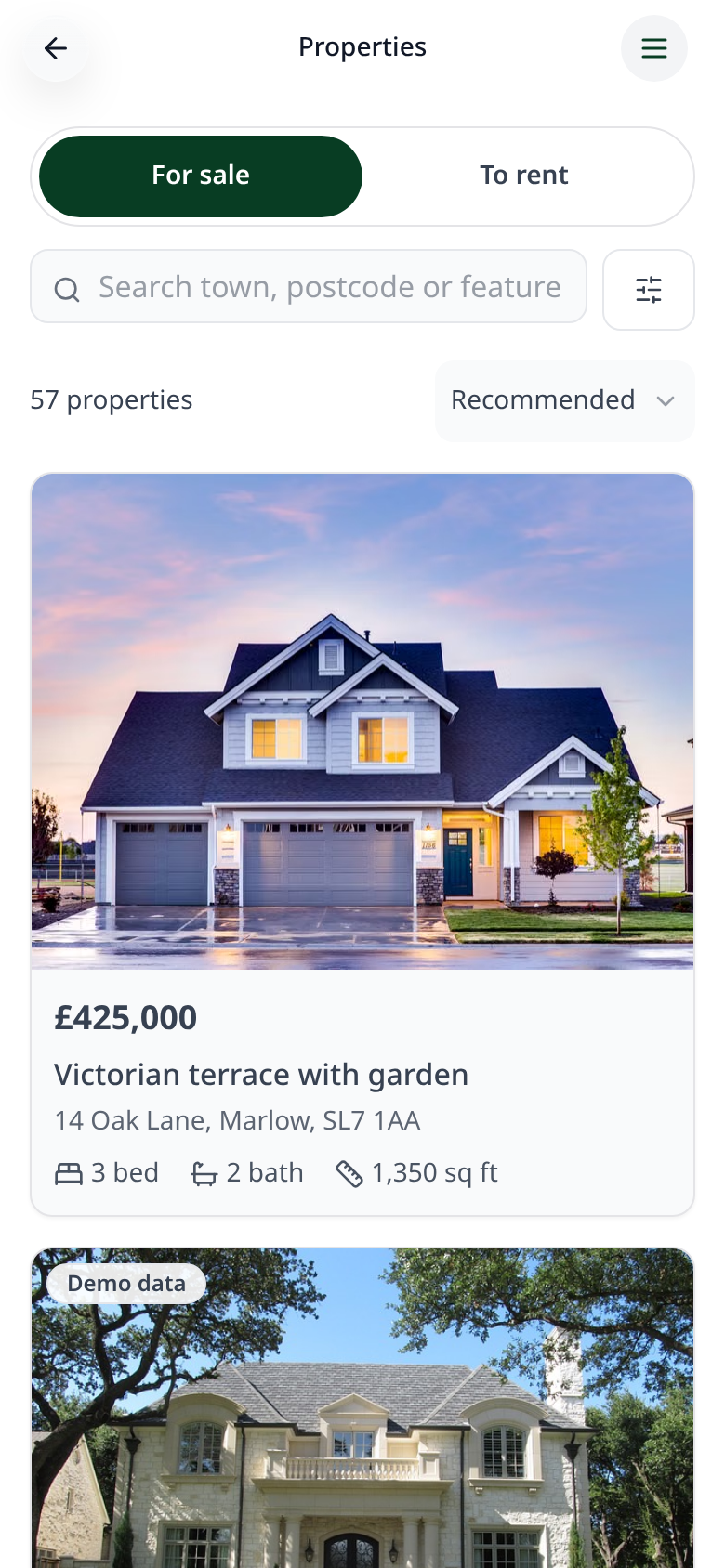
Add a property catalogue so customers can browse homes for sale or rent, filter them and send an enquiry.
Step-by-step guide
Follow these steps, then download the PDF to keep.
- 1
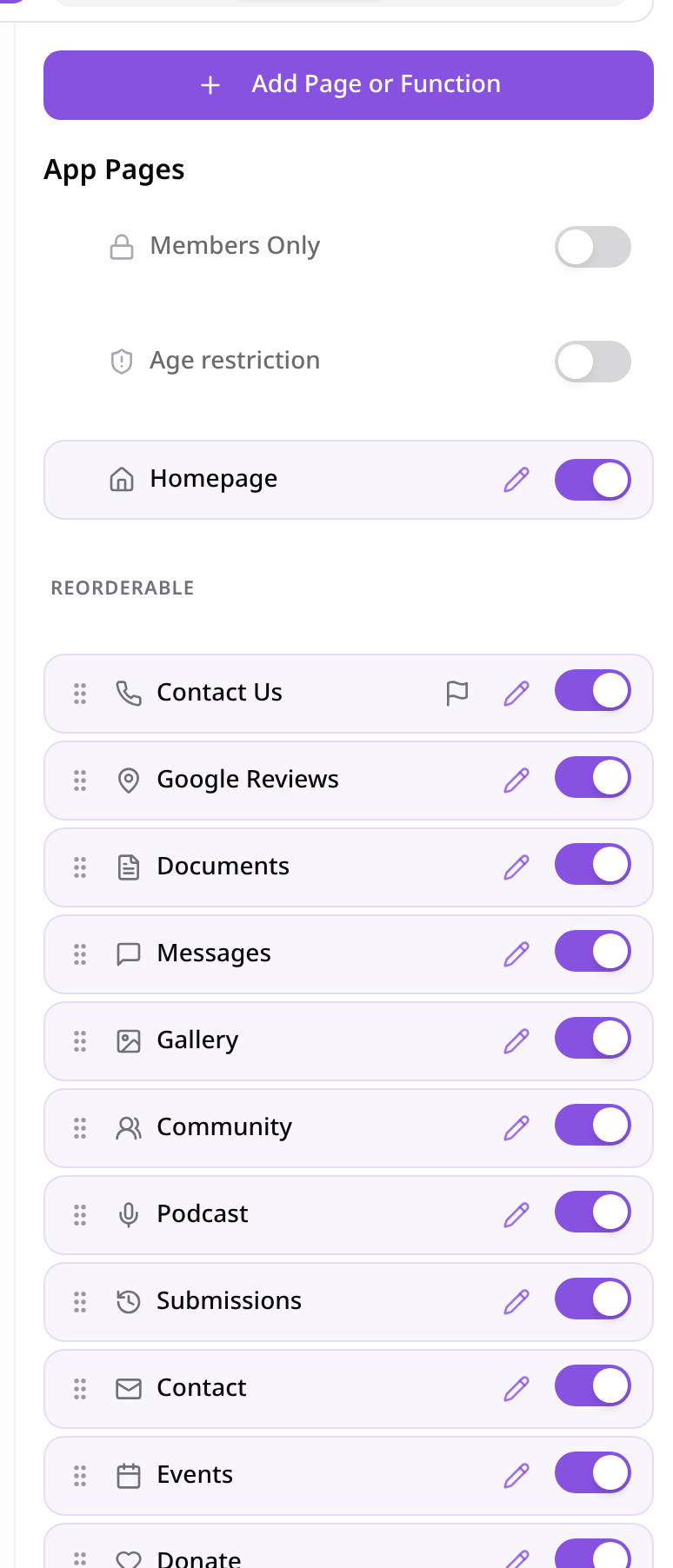
Open Pages
In your app editor, open Pages and tap Add Page or Function.
- 2
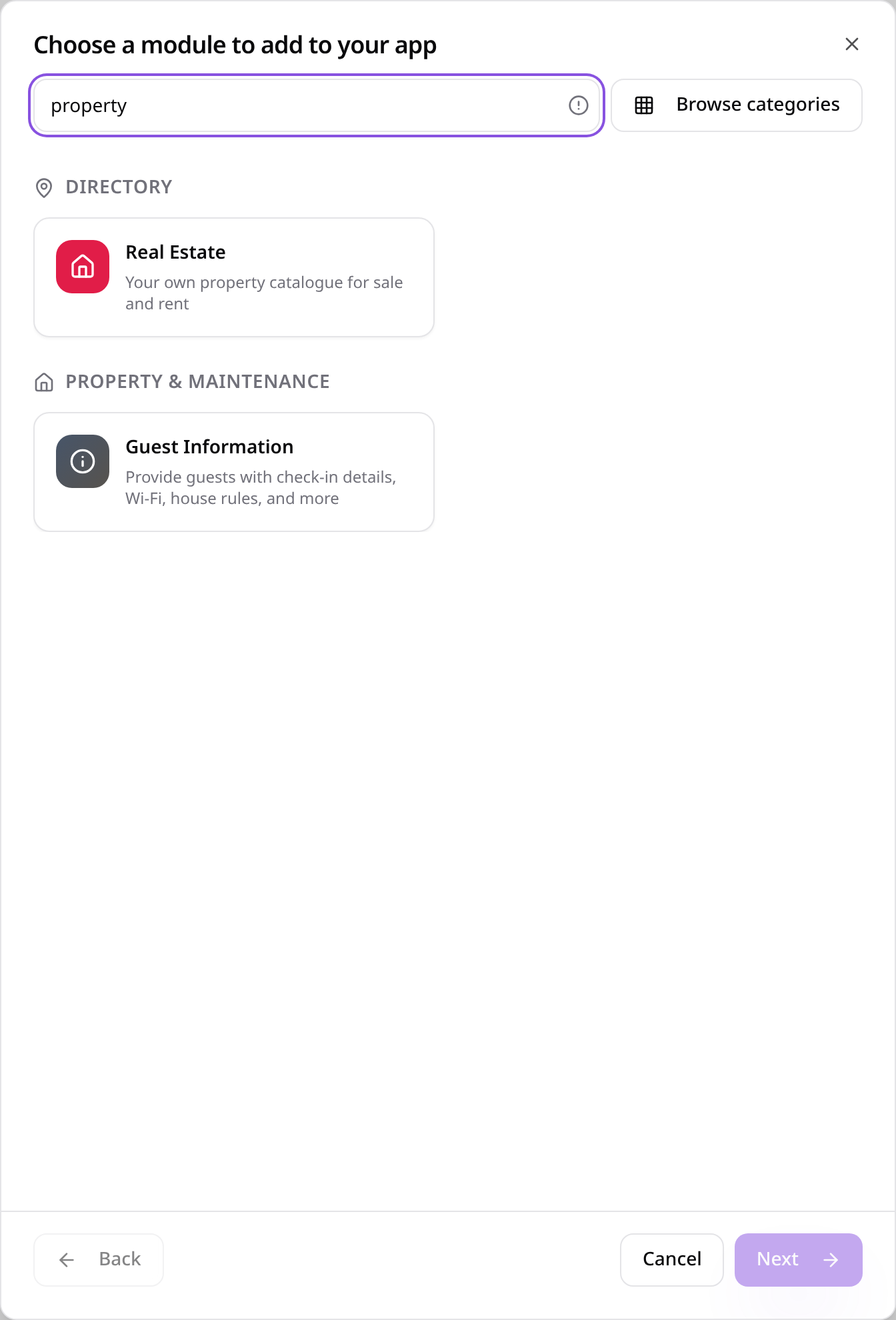
Choose Real Estate
Search “property” and tap Real Estate.
- 3
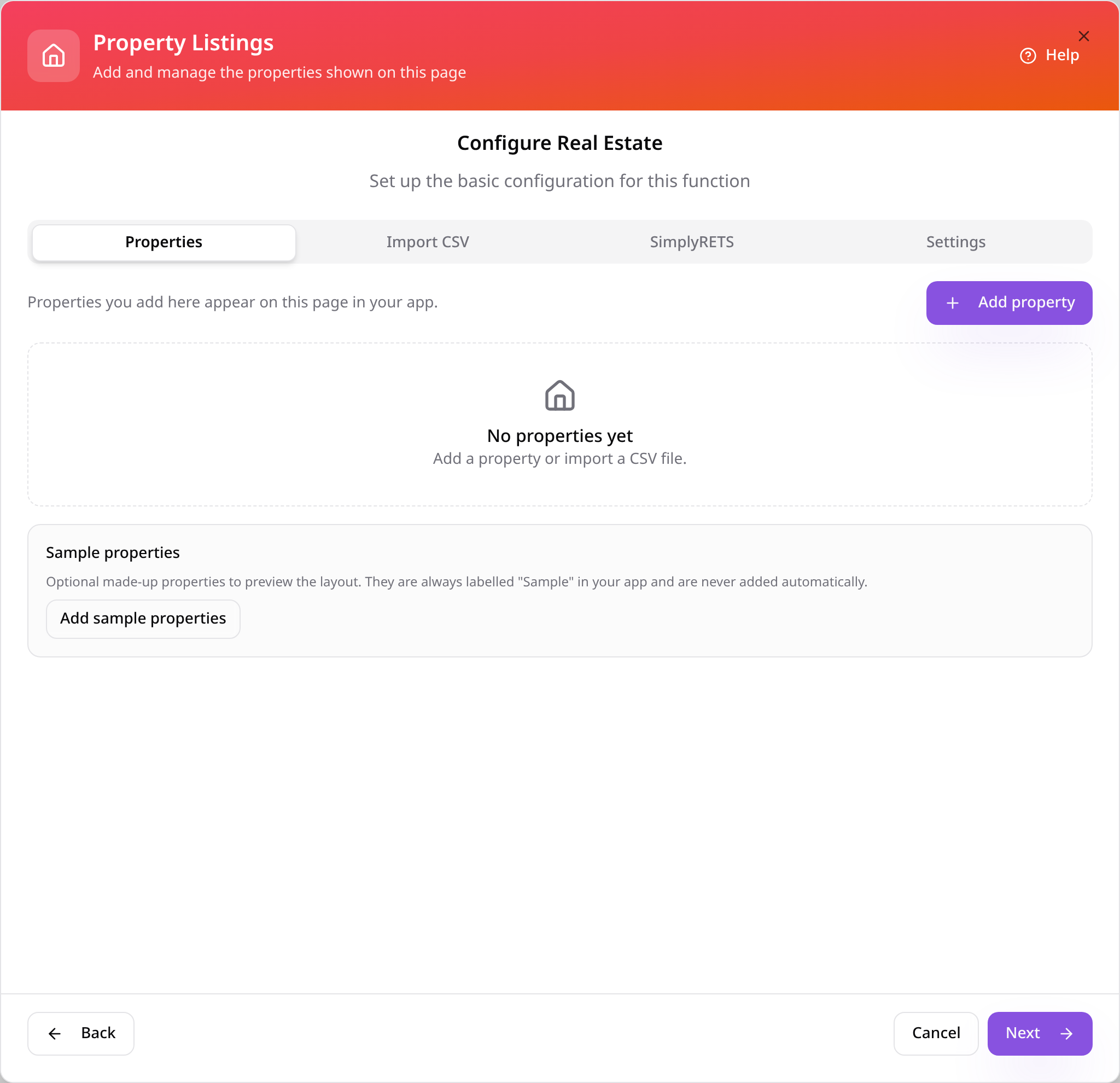
Your property list
Properties you add here appear in your app. Tap Add property.
- 4
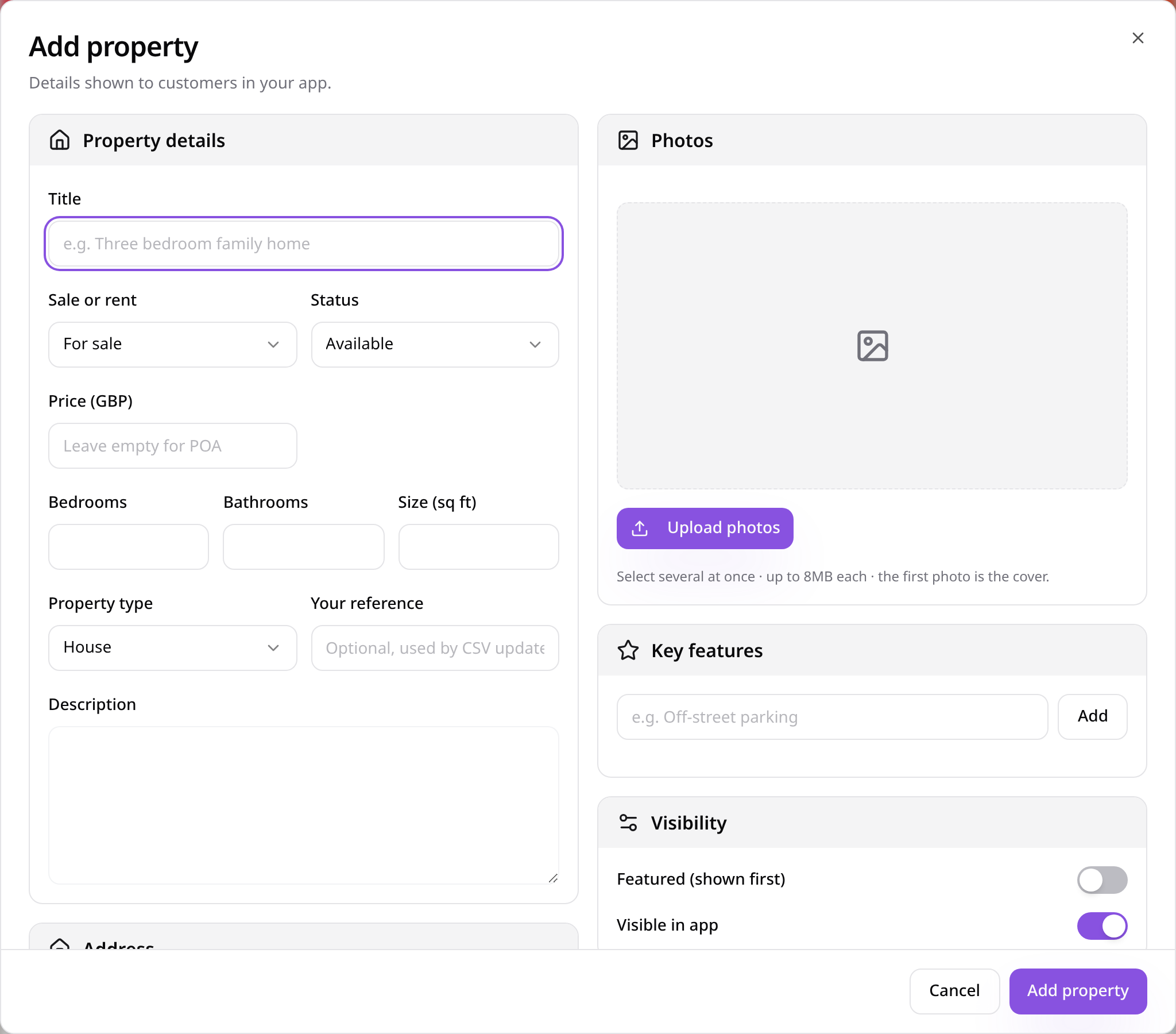
Add a property
Fill in the price, address, rooms, photos and description, then save.
- 5
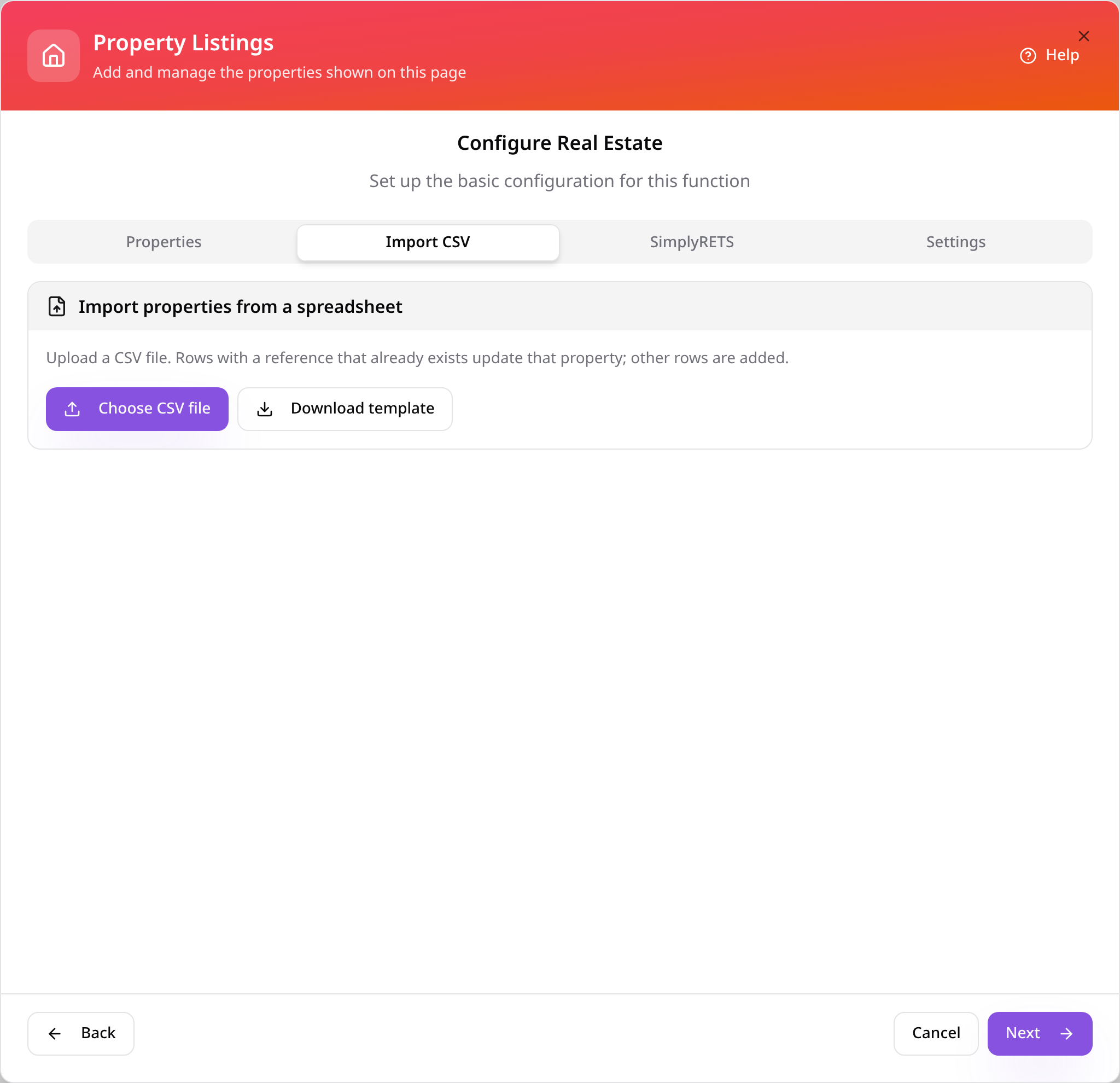
Or import a CSV
Have lots of properties? Download the template, fill it in and import it.
- 6
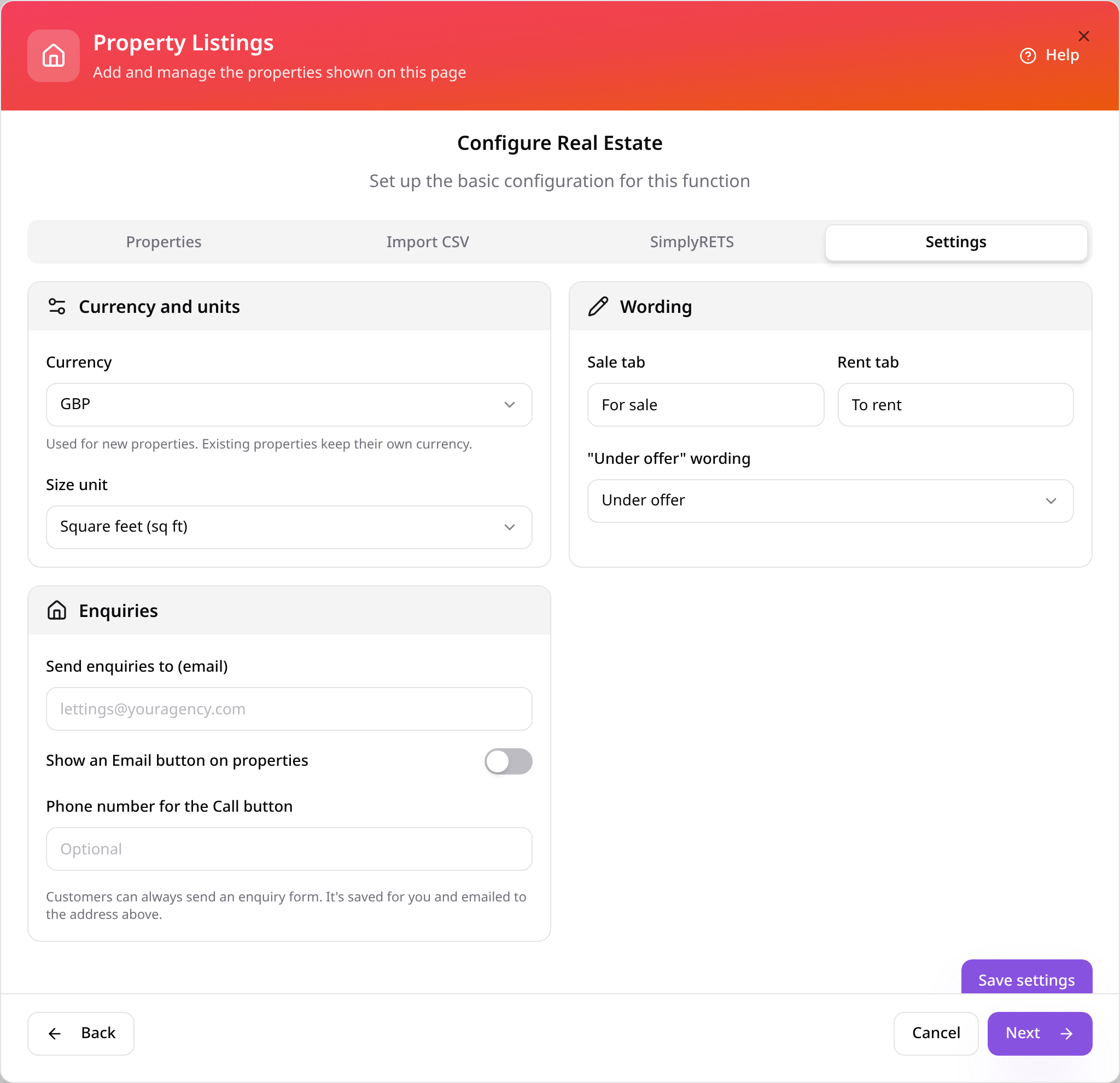
Check settings
On Settings, choose the currency, size unit and tab wording, and the email enquiries go to. Tap Next.
- 7
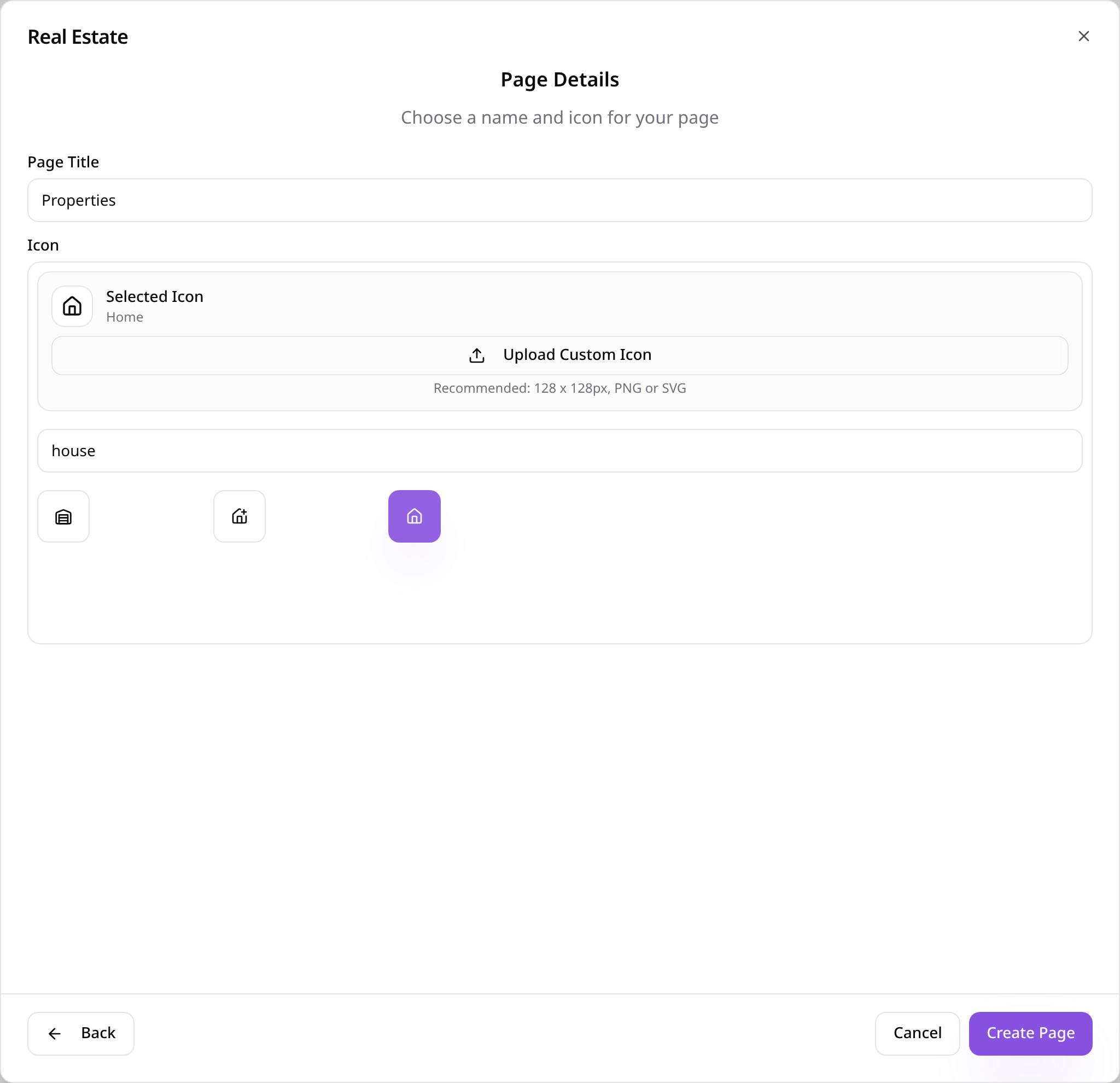
Name the page
Give the page a name, choose an icon and tap Create Page.
- 8
Customers browse
Customers switch between For sale and To rent, search and sort.
- 9
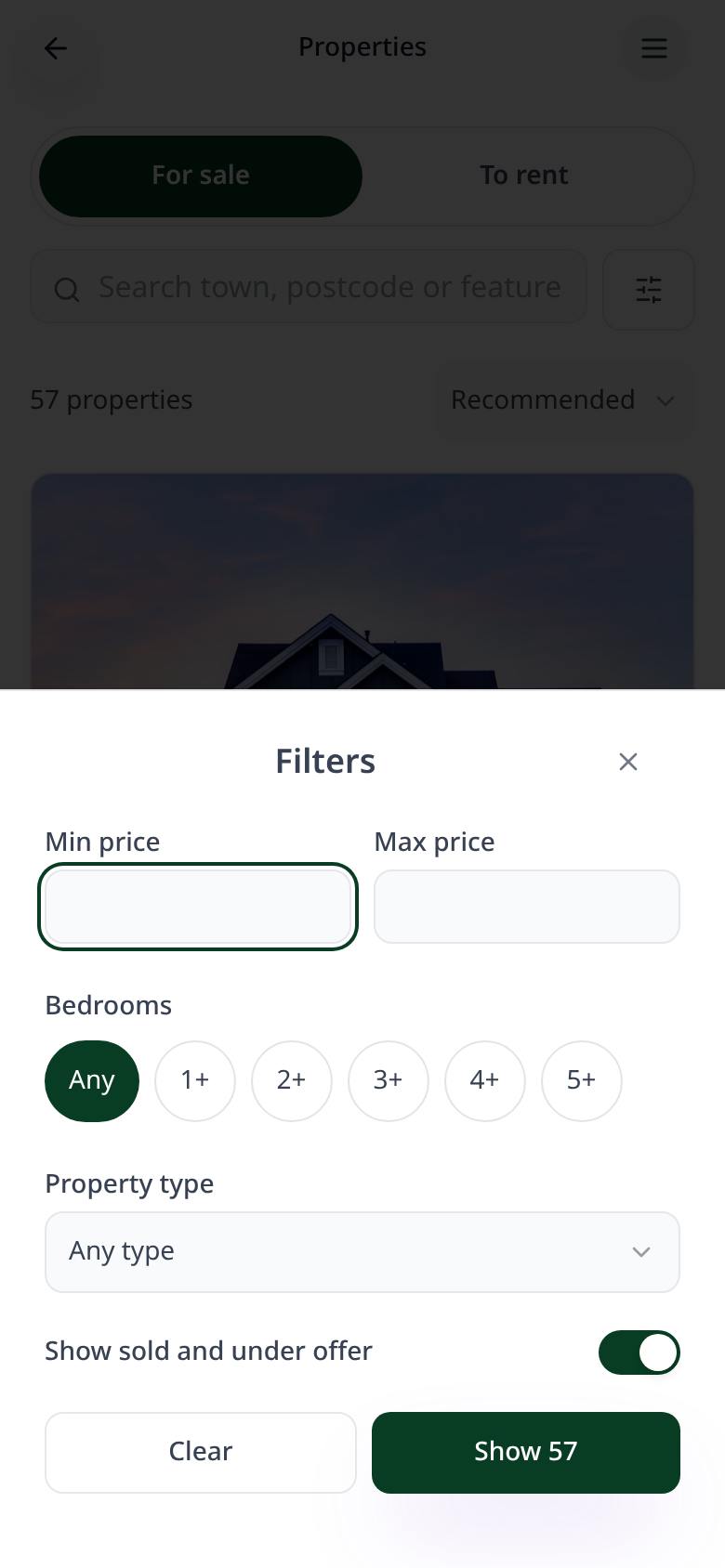
Filter results
Filters narrow results by price, bedrooms and property type.
- 10
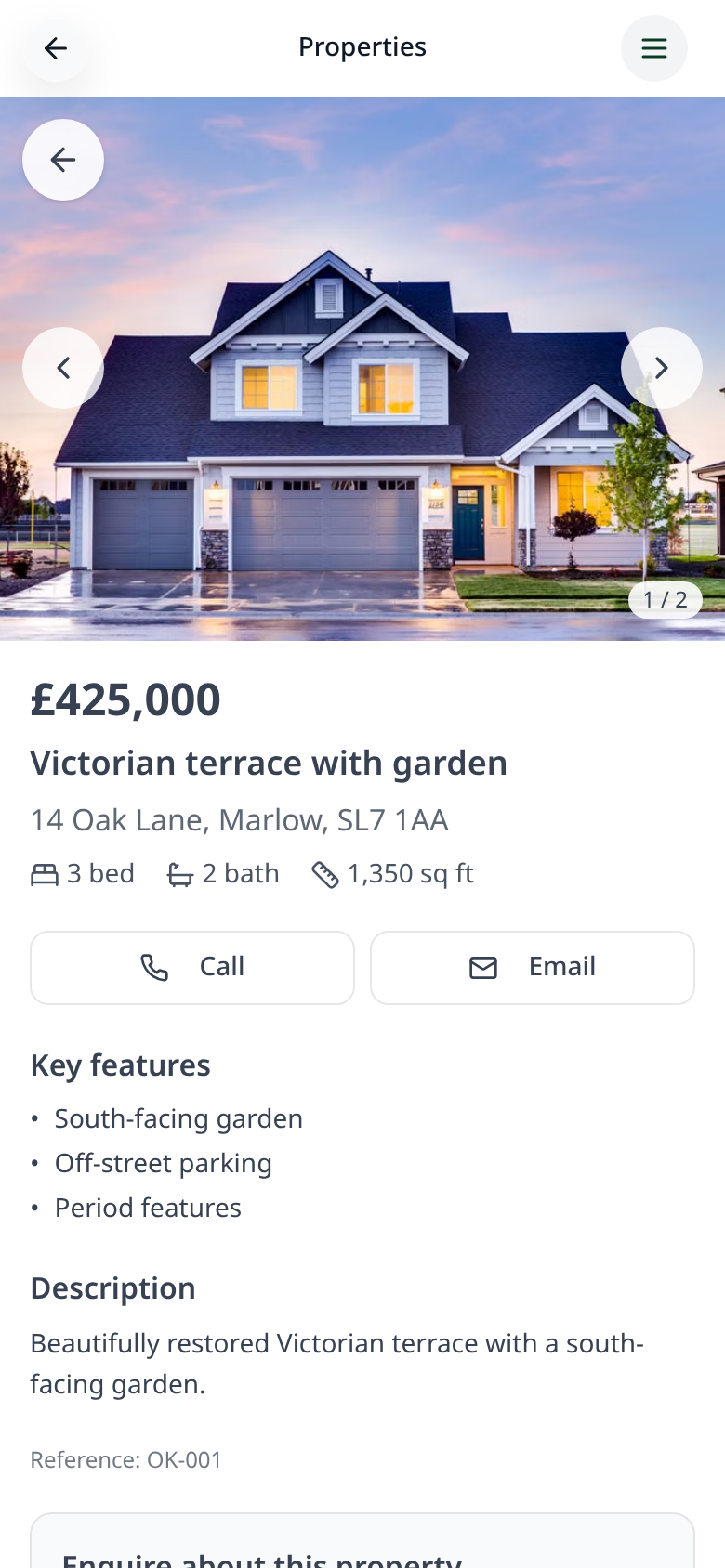
View a property
Each property shows photos, key features and a description, with Call and Email buttons.
- 11
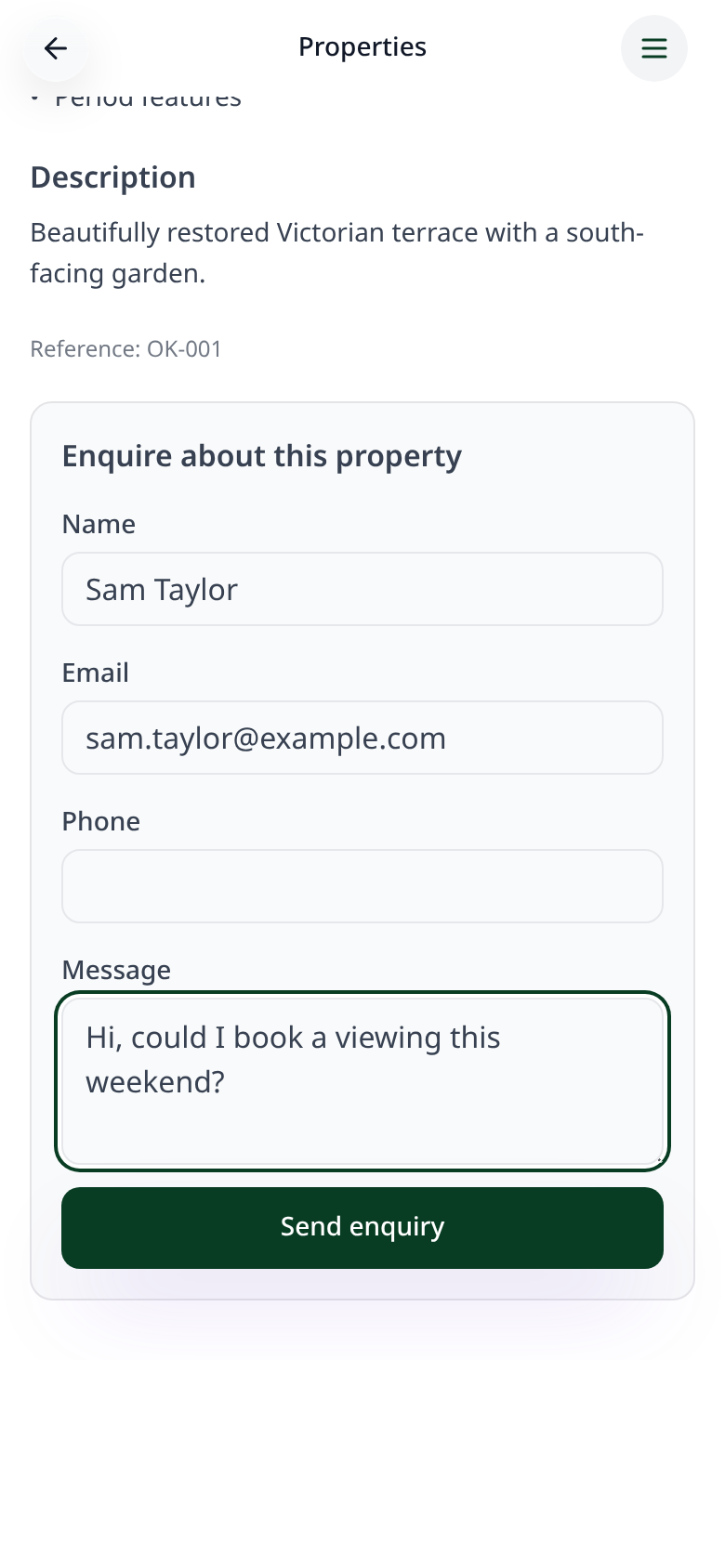
Send an enquiry
Customers send an enquiry from the property, and it's emailed to you.
Open the page in Pages and choose Edit Page Content to add, update or mark properties as under offer or sold.