Add a radio stream to your app
Connect an audio stream, set provider widgets and choose a player layout.
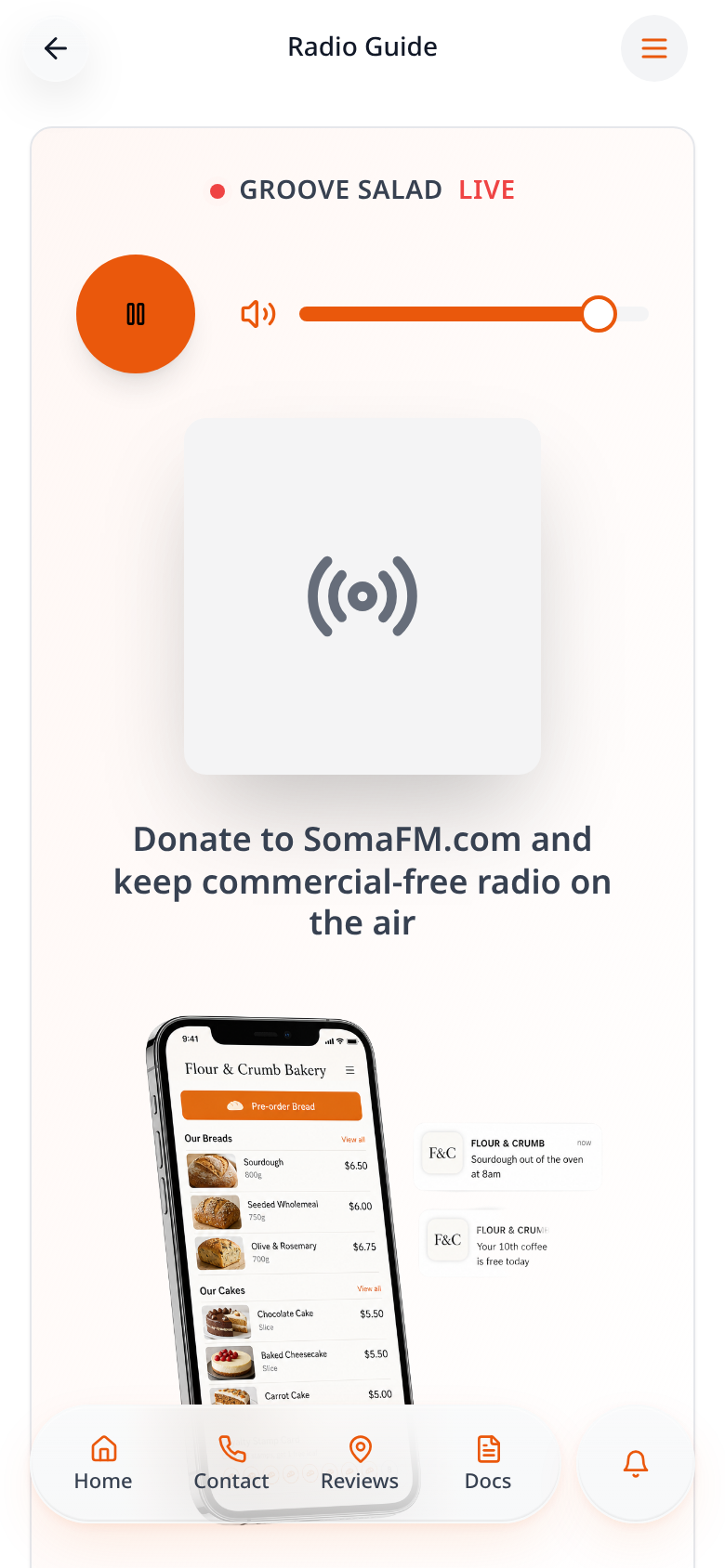
Step-by-step guide
Follow these steps, then download the PDF to keep.
- 1
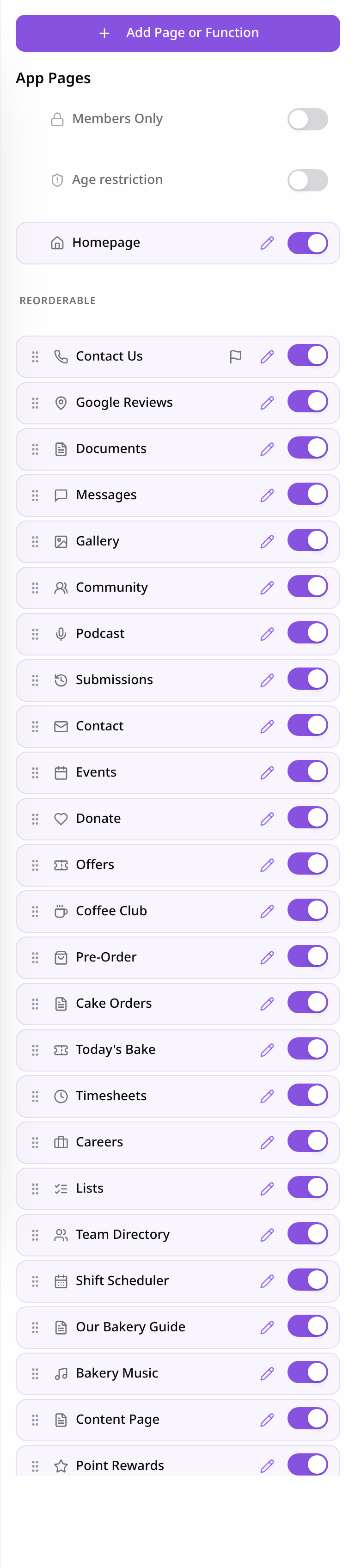
Open Pages
Open your app editor, select Pages, then Add Page or Function.
- 2
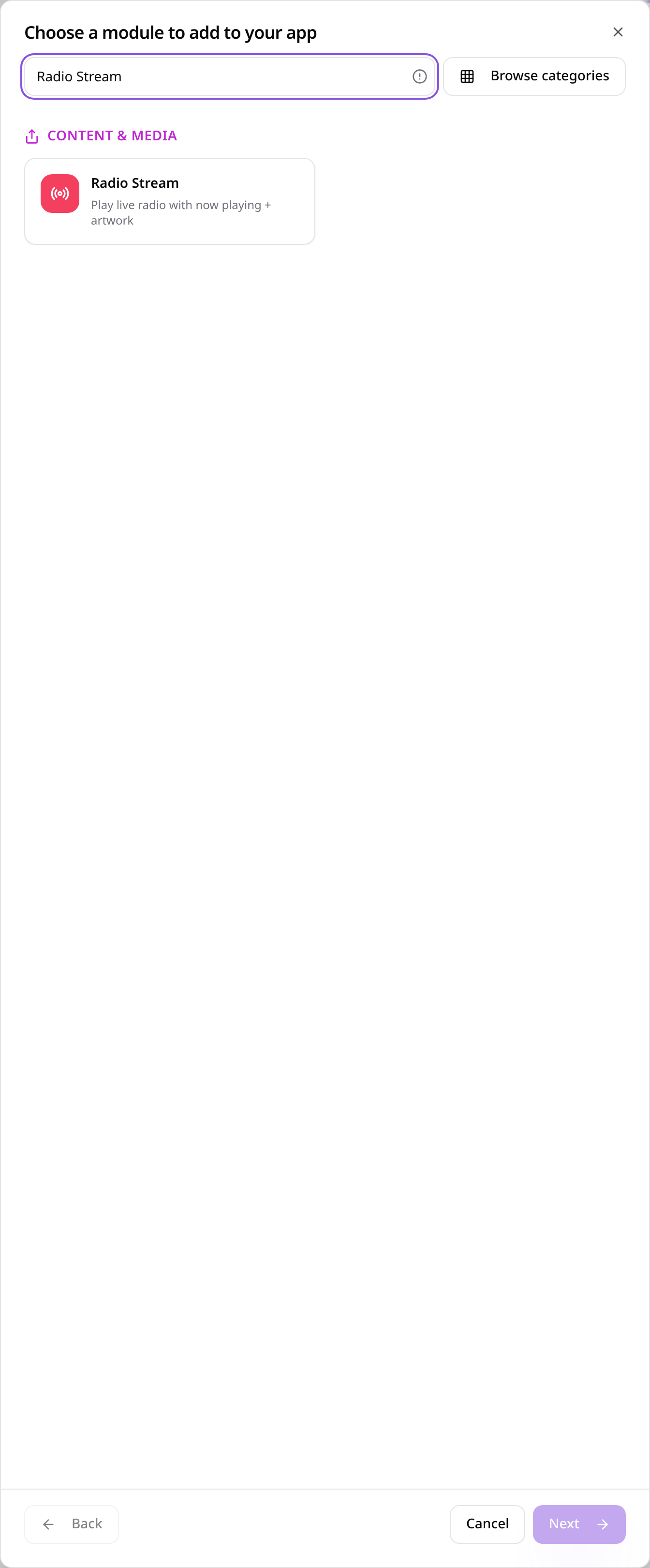
Choose Radio Stream
Search for Radio Stream and select it.
- 3
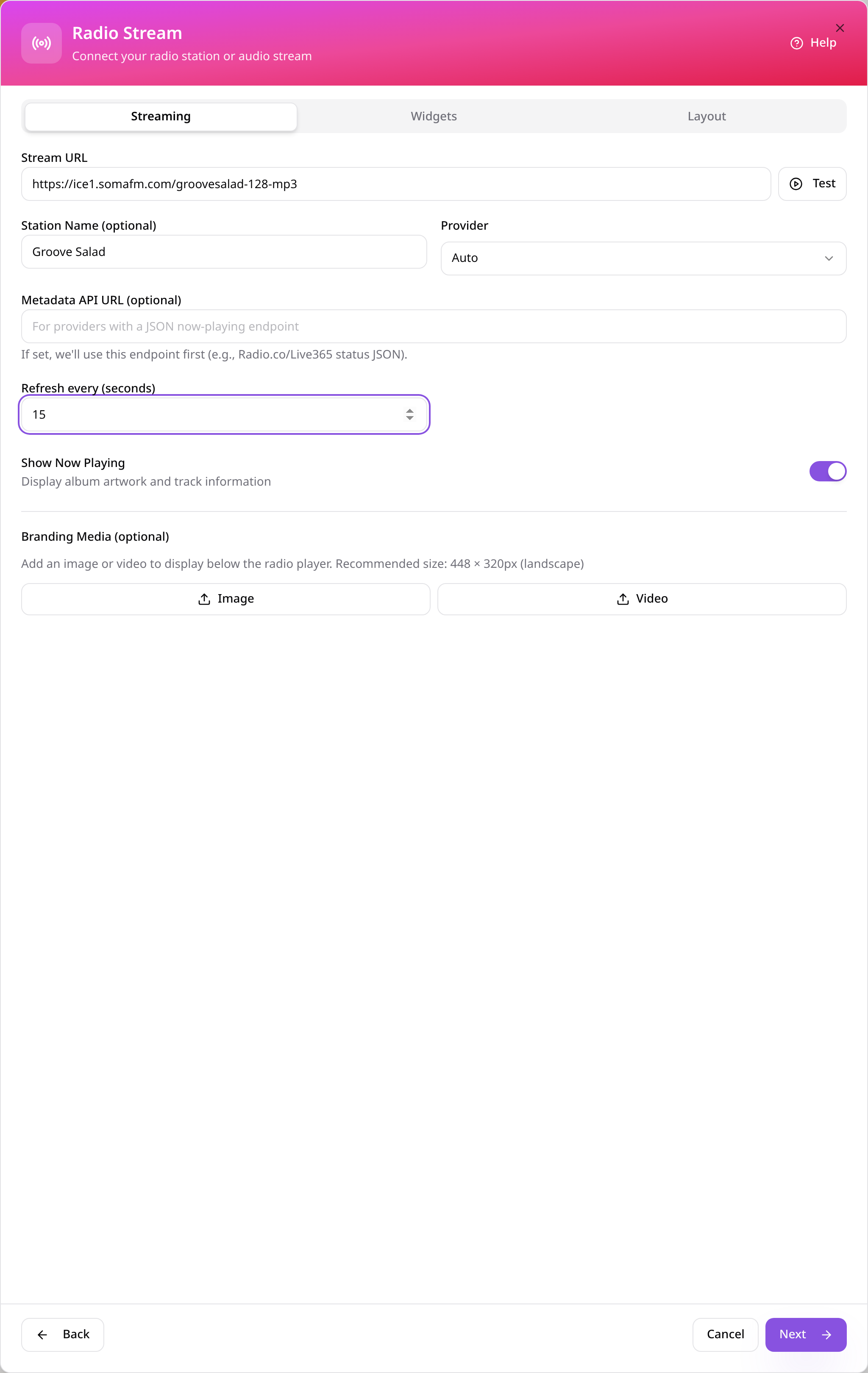
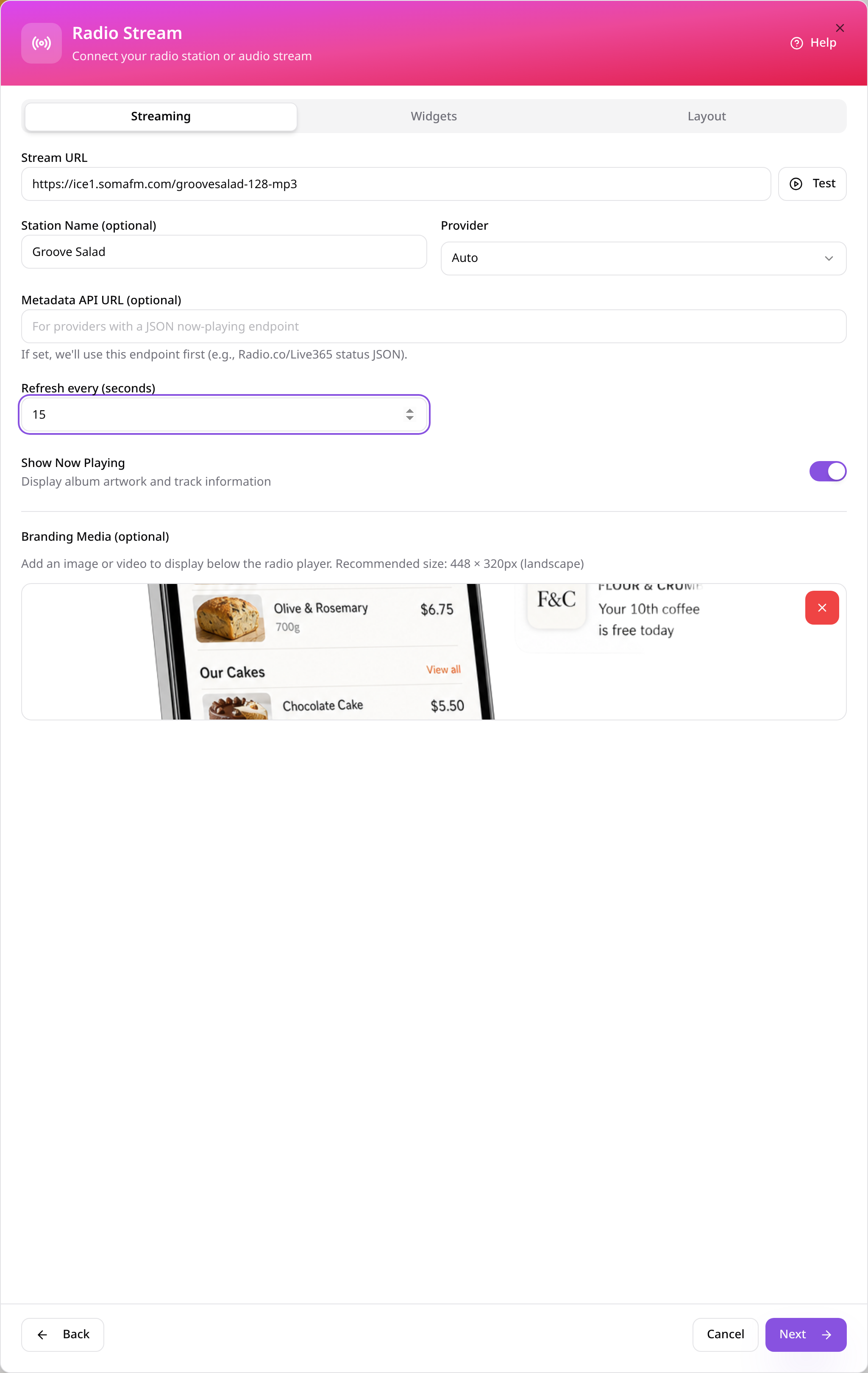
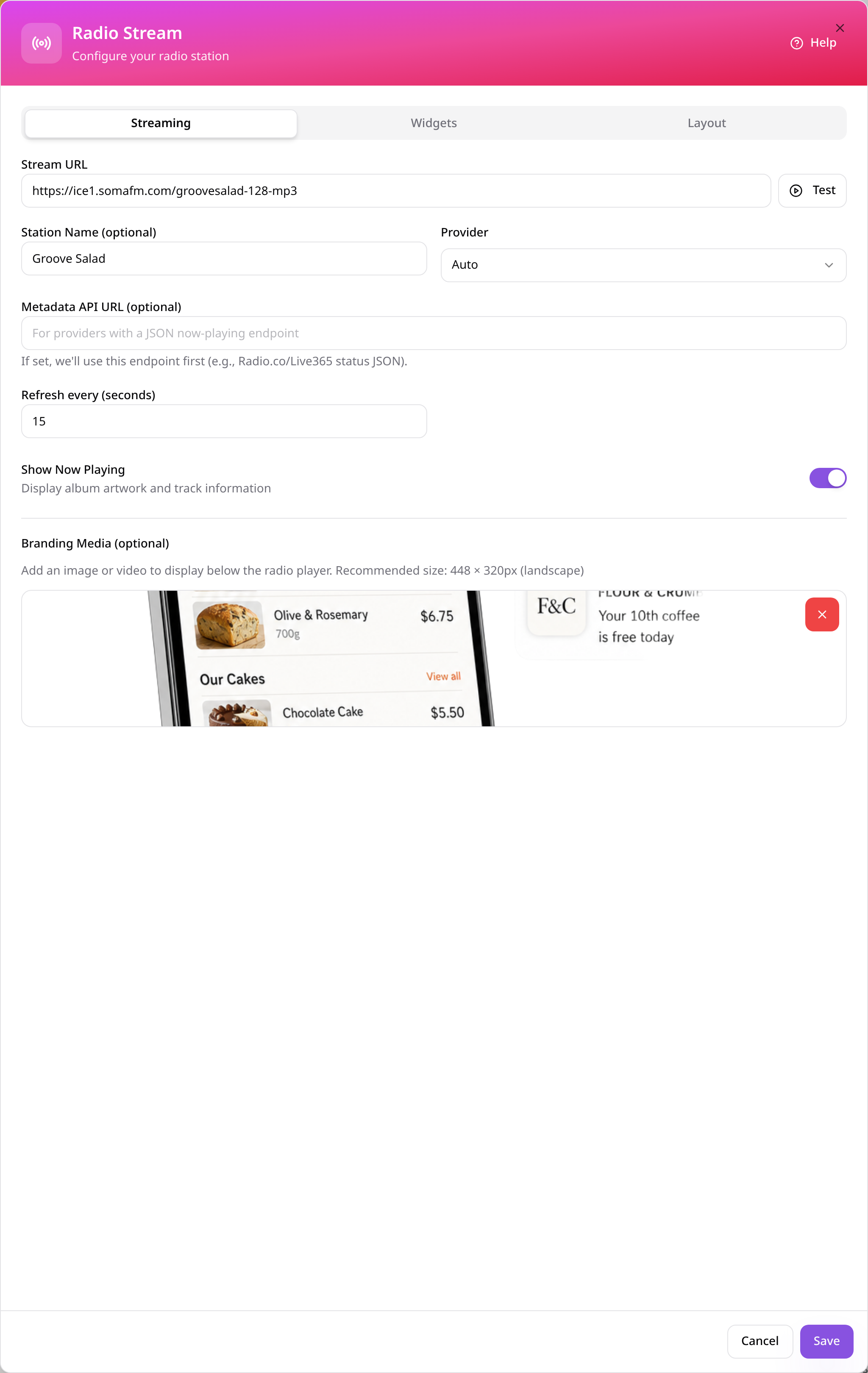
Enter your audio stream
Paste the direct stream URL, add an optional station name, and set the provider and refresh interval.
- 4
Set Now Playing and branding
Choose whether to show track information and upload an optional branding image or video.
- 5
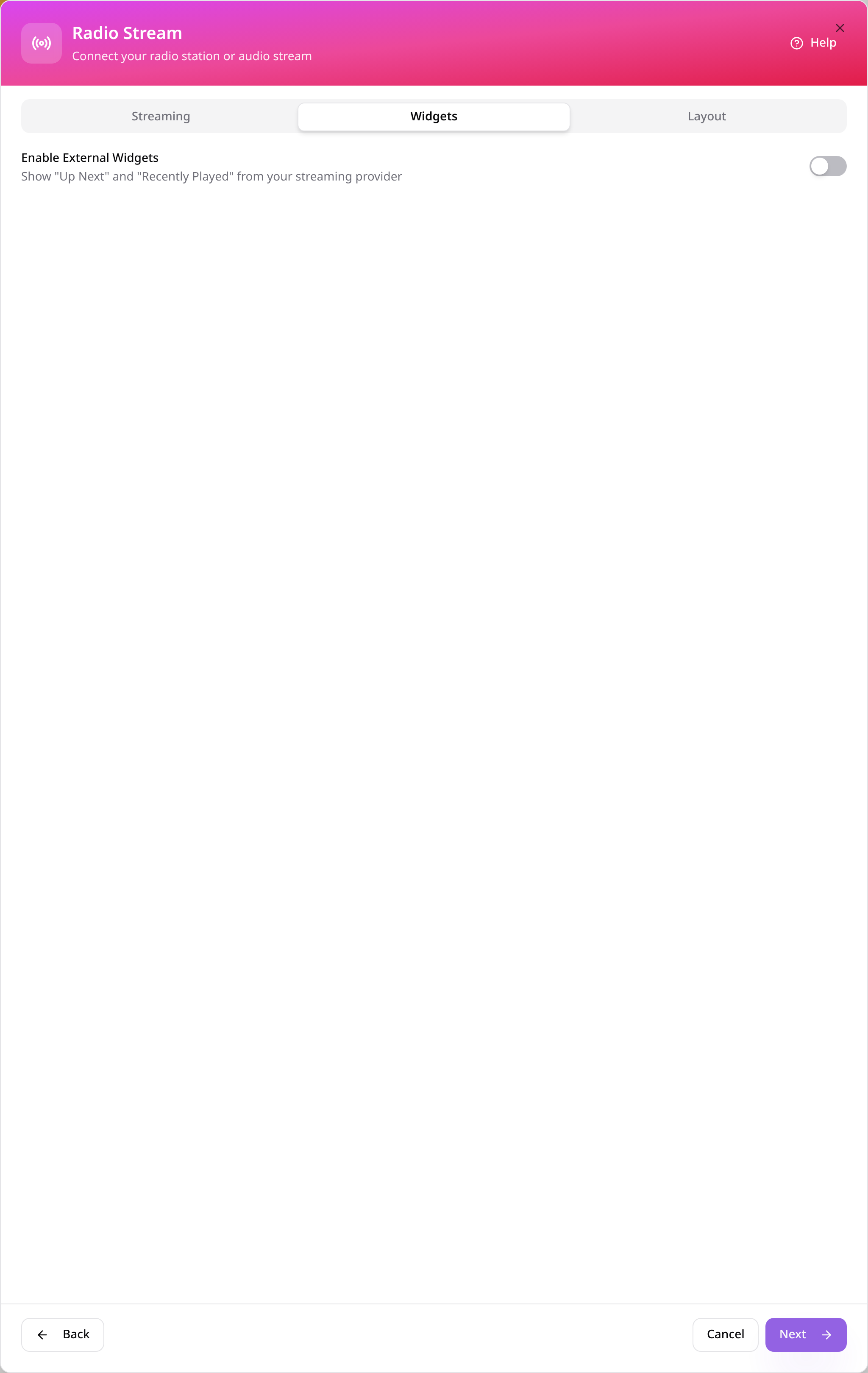
Configure optional provider widgets
Enable External Widgets only if your provider supports them, then enter its station or widget details.
- 6
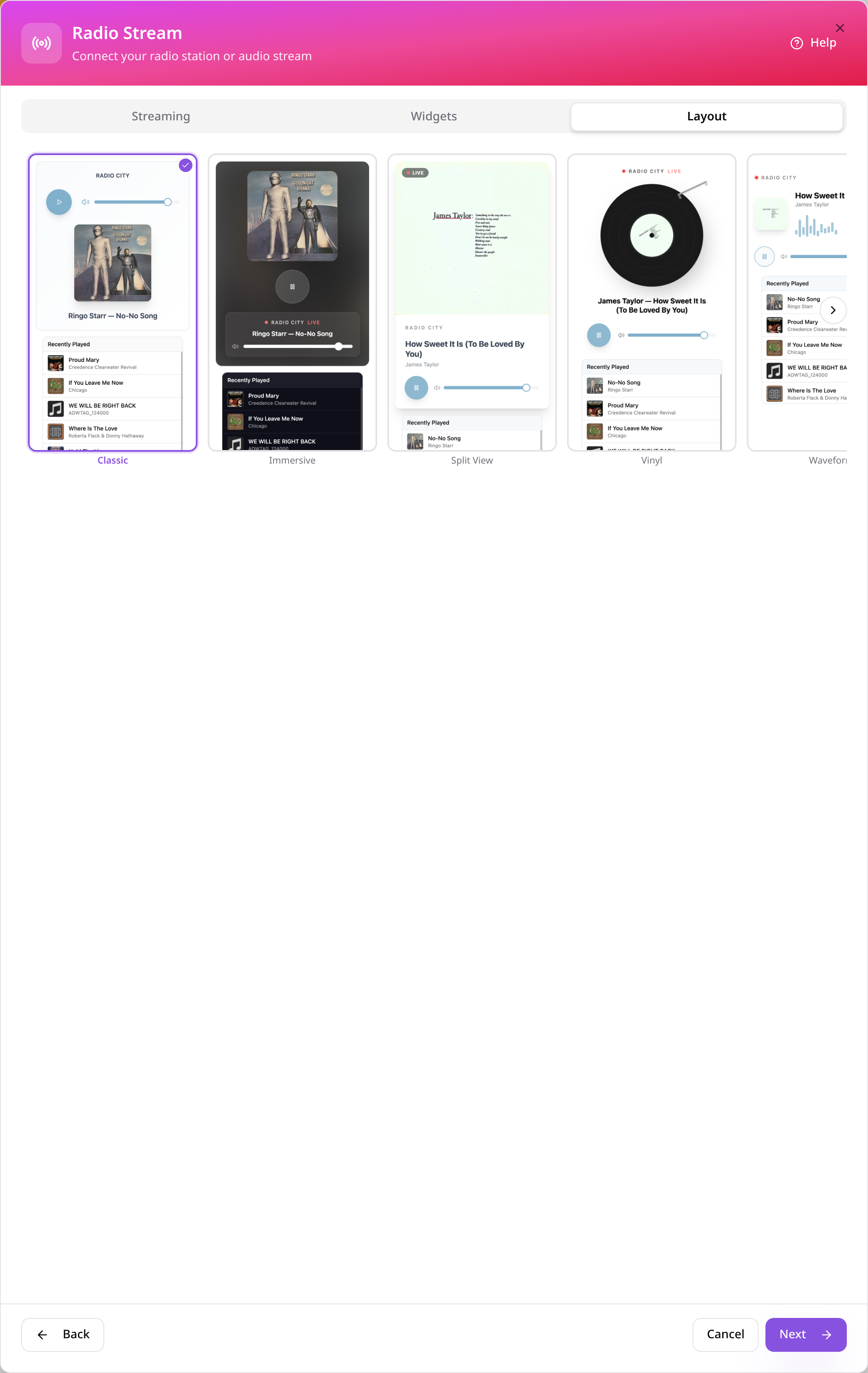
Choose a player layout
Browse the player designs, select your preferred layout and choose Next.
- 7
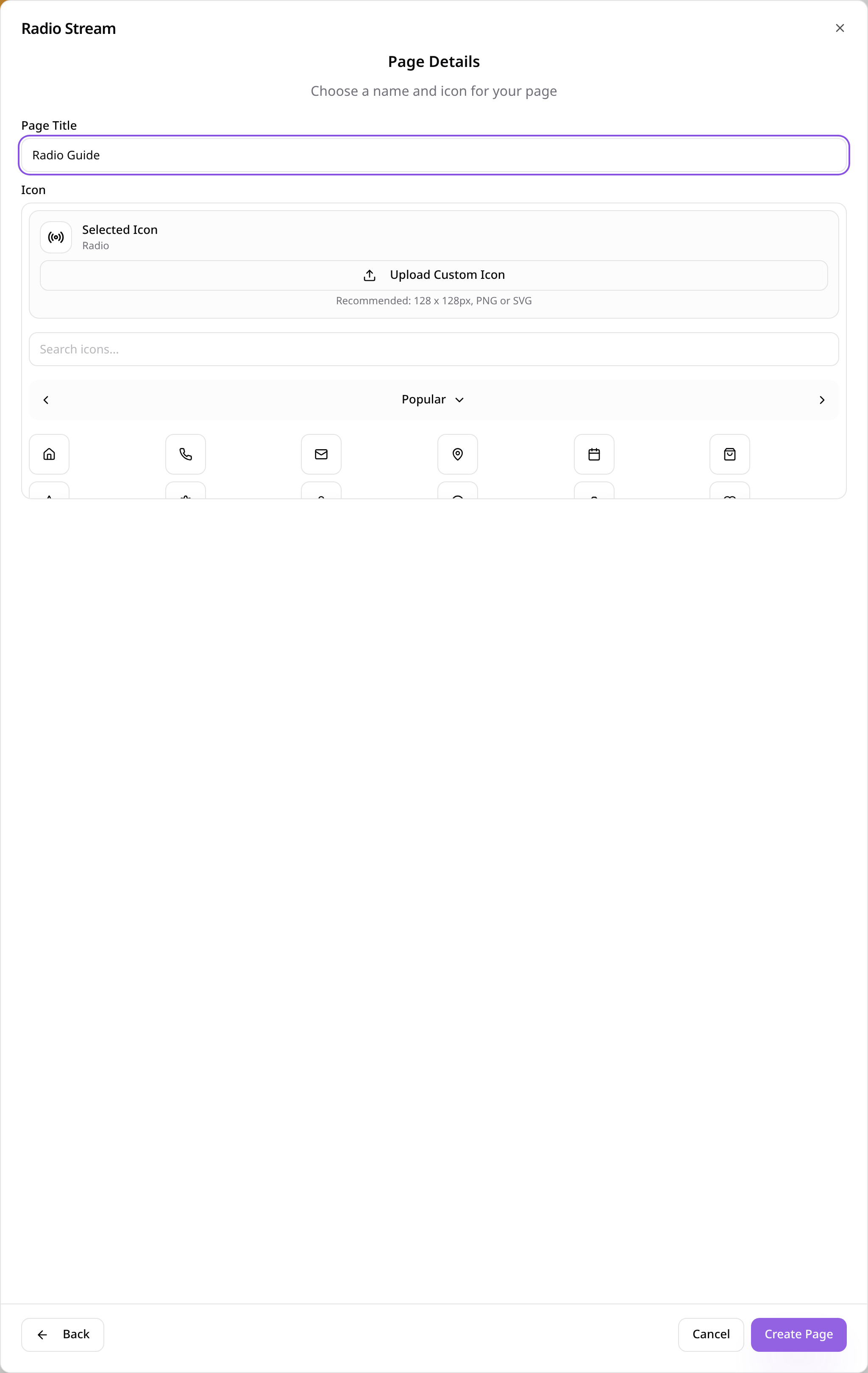
Name the page and choose an icon
Give the page a short, clear title, choose an icon, then select Create Page.
- 8
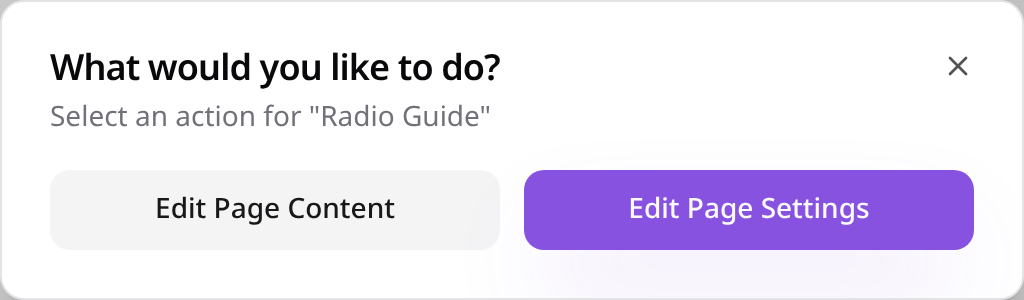
Change it later
Select the page in Pages, then choose Edit Page Content to update its settings.
- 9
Check your saved settings
The saved content reopens here; make changes and select Save when ready.
- 10
Check the page in your app
Open the page from your app menu and check the customer view before publishing.
Check the page on your phone, then publish your app when you are ready. Provider content and availability are controlled by the provider.