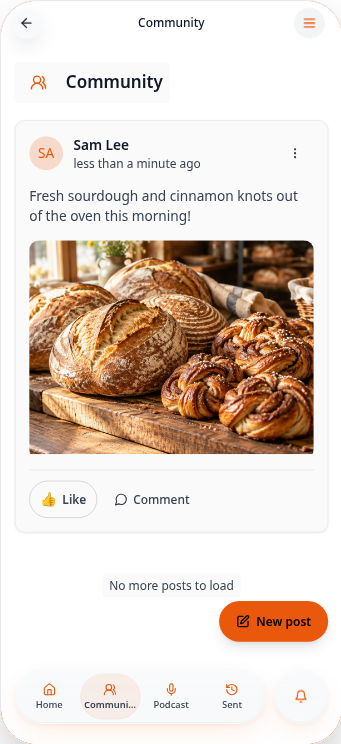
Add a social wall
Let your members share updates, photos and comments in a private community feed.
Step-by-step guide
Follow these steps, then download the PDF to keep.
- 1
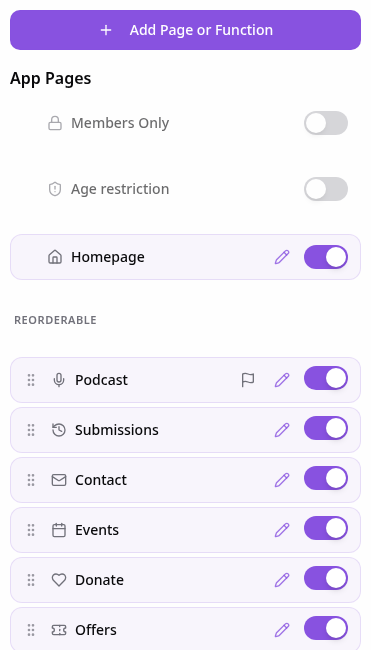
Open Pages
In your app editor, open Pages and tap Add Page or Function.
- 2
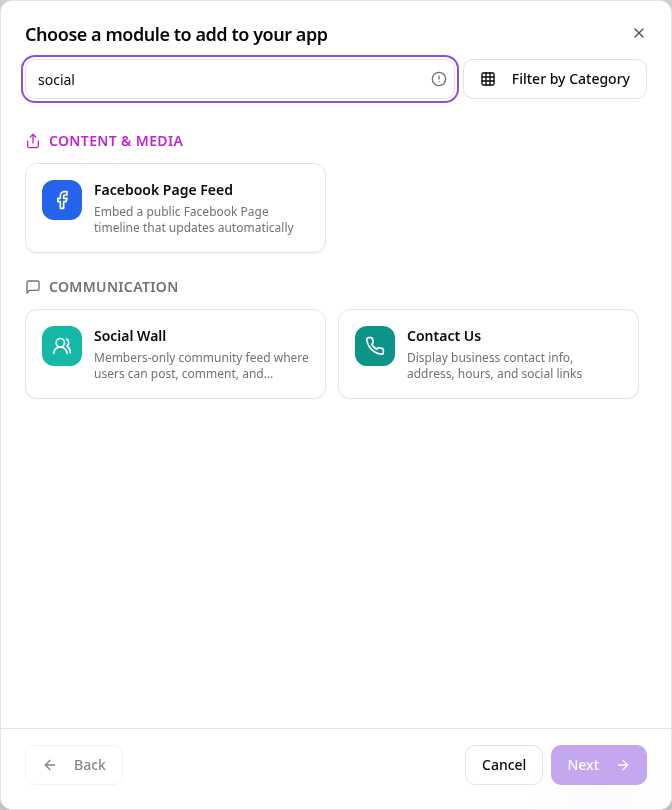
Choose Social Wall
Search “social” and tap Social Wall.
- 3
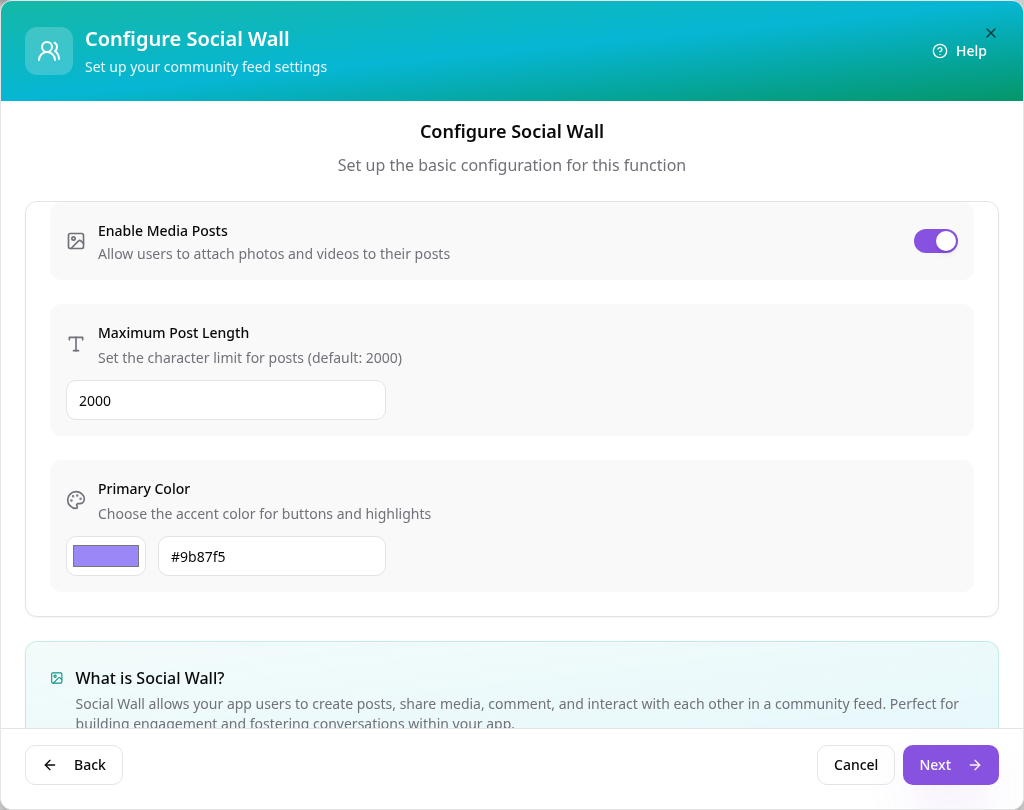
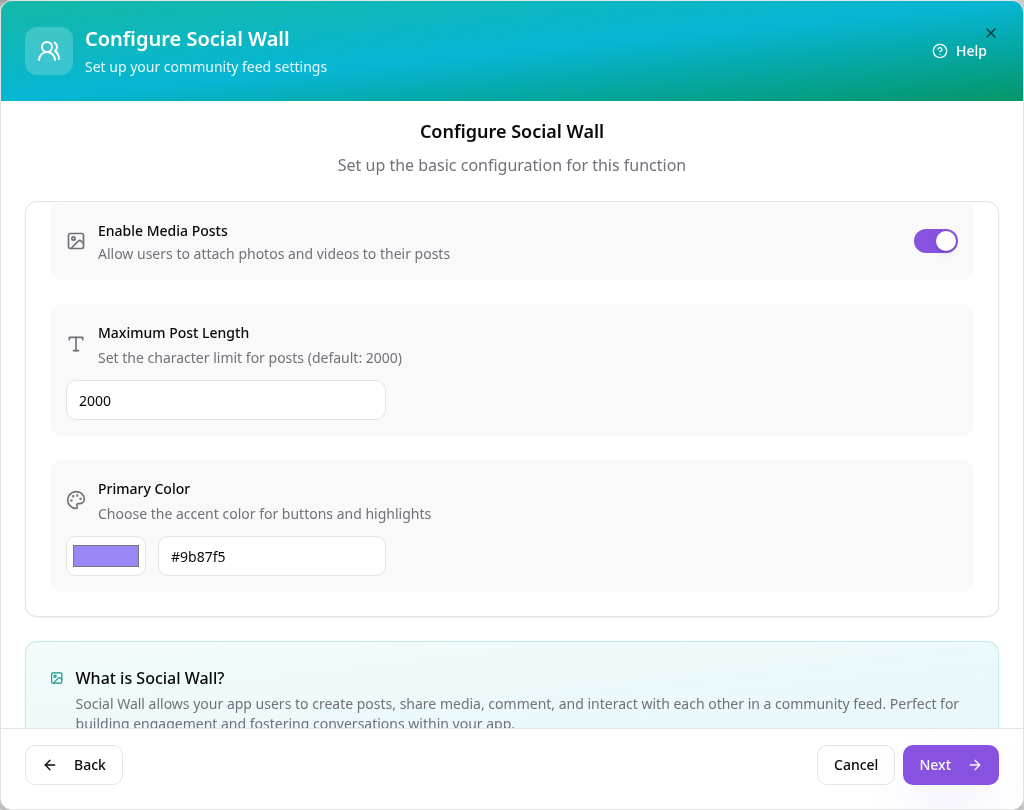
Allow photo posts
Media posts are switched on by default, so members can attach photos to their updates.
- 4
Set post limits
Choose a maximum post length and an accent colour for buttons and highlights.
- 5
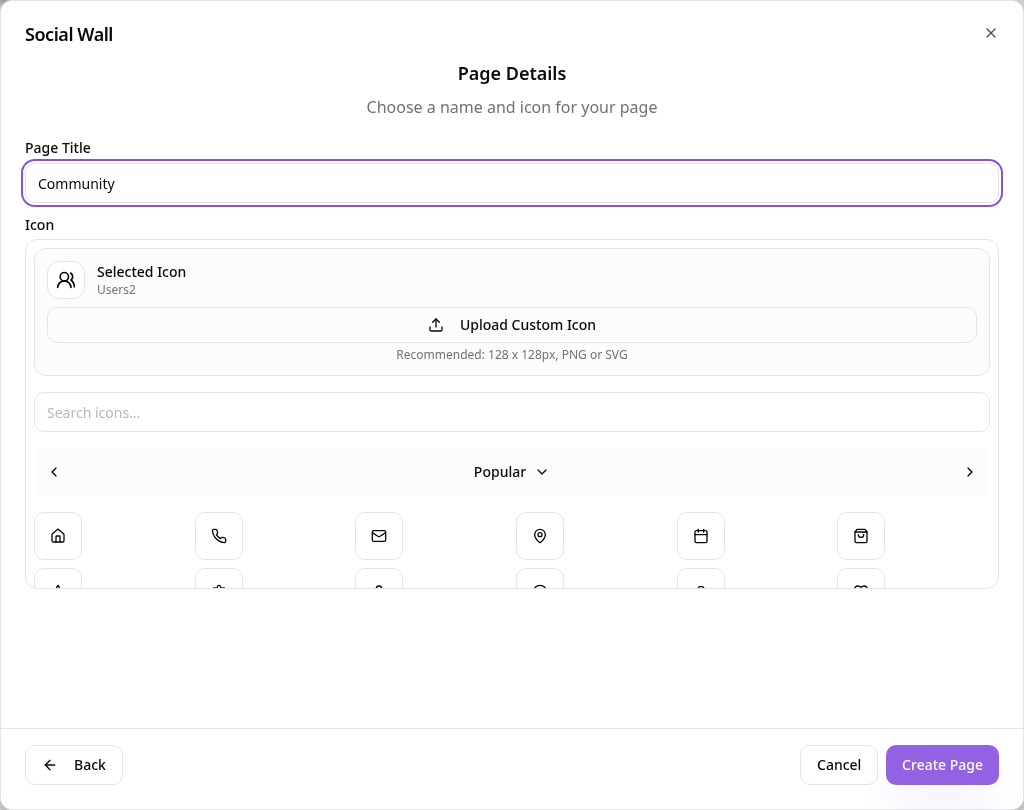
Name the page
Community is suggested with a community icon — tap Create Page.
- 6
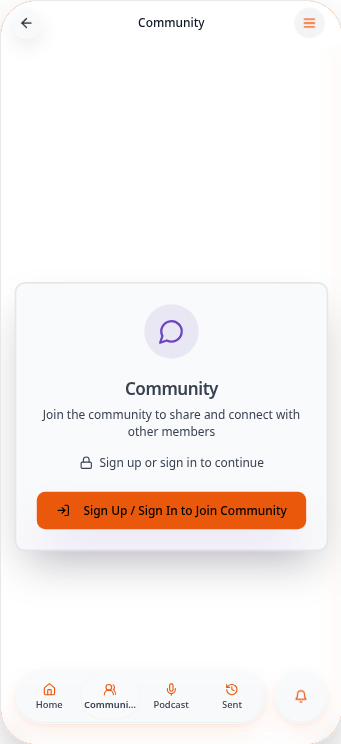
Members sign in first
Your wall is members-only. Visitors are asked to sign in or create an account before they can post.
- 7
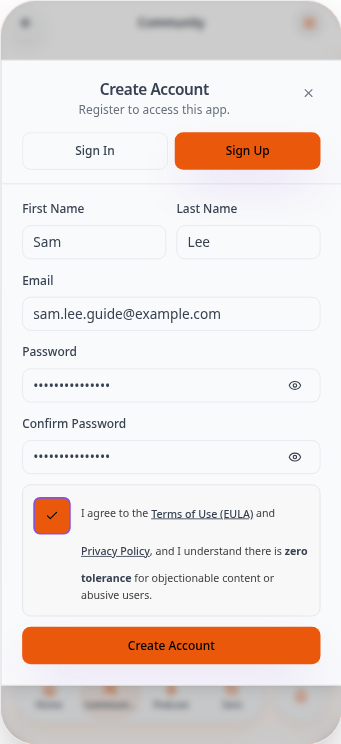
Create an account
New members add their name, email and a password — no waiting for approval.
- 8
Your wall is ready
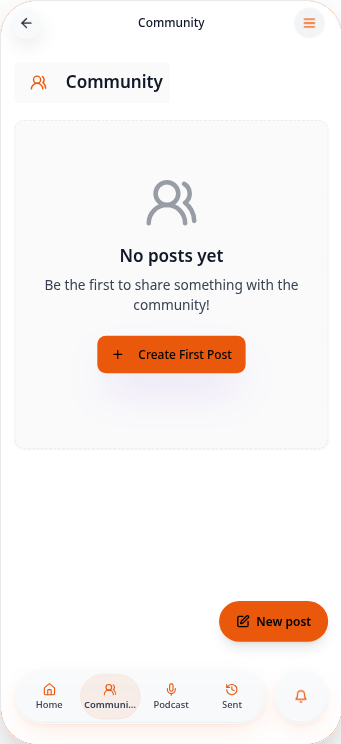
Signed-in members see the community feed. Tap Create First Post to start the conversation.
- 9
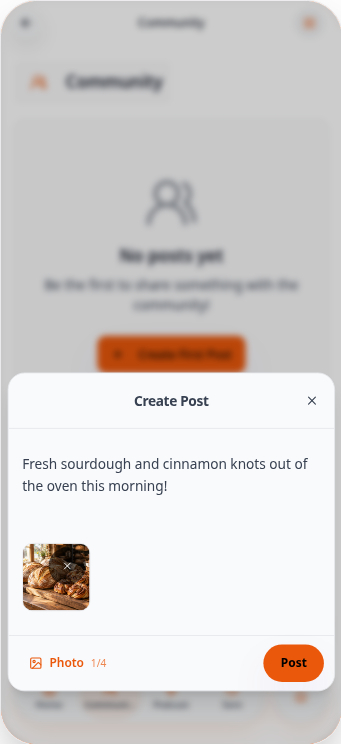
Write your post
Type your update and attach a photo from your device, then tap Post.
- 10
See it on the wall
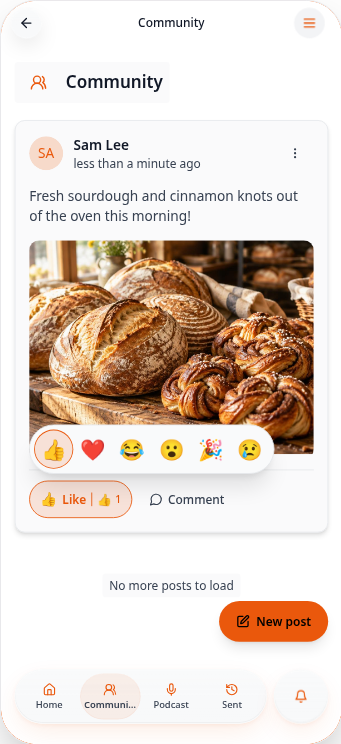
Your post appears at the top of the feed with your name and photo.
- 11
React to a post
Tap the thumbs-up to like a post — hover or hold for more reactions such as love and celebrate.
- 12
Comment
Tap Comment to join the conversation — replies appear straight away.

Only signed-in app users can see and post on your wall, so your community stays private. Members can share updates and photos, react and comment — everything appears in the feed straight away.