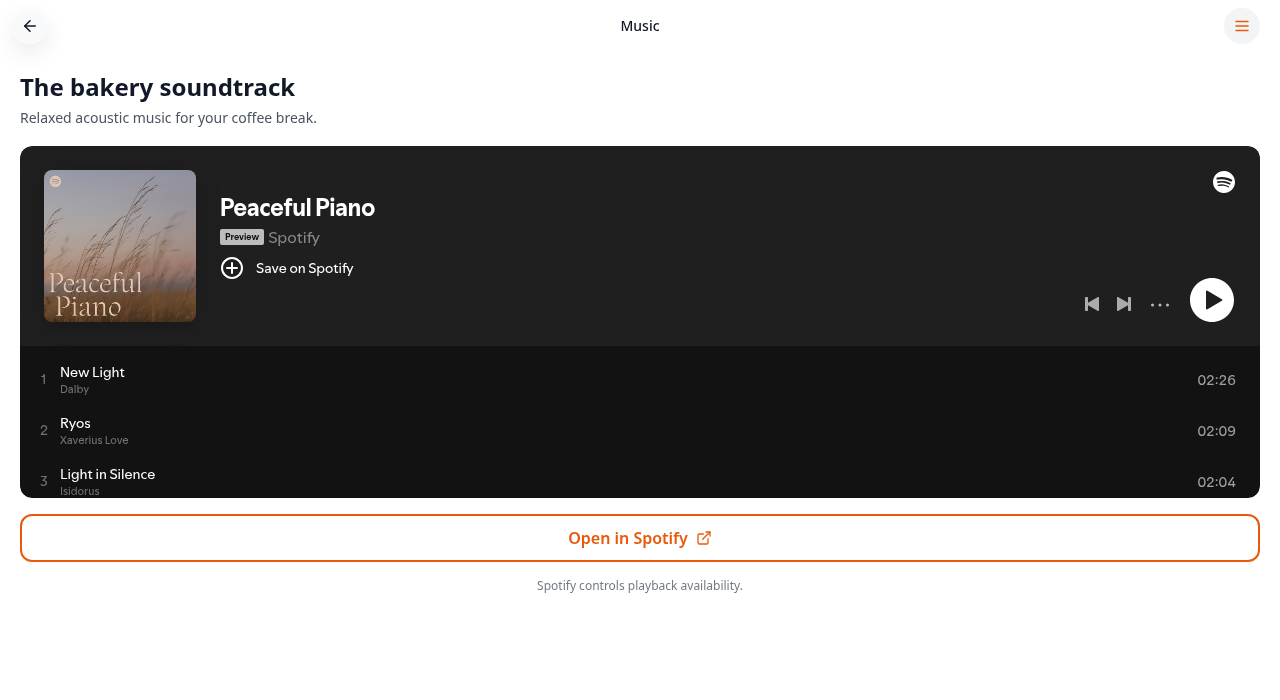
Add Spotify to your app
Add a Spotify playlist, customise its player and check it in your app.
Step-by-step guide
Follow these steps, then download the PDF to keep.
- 1
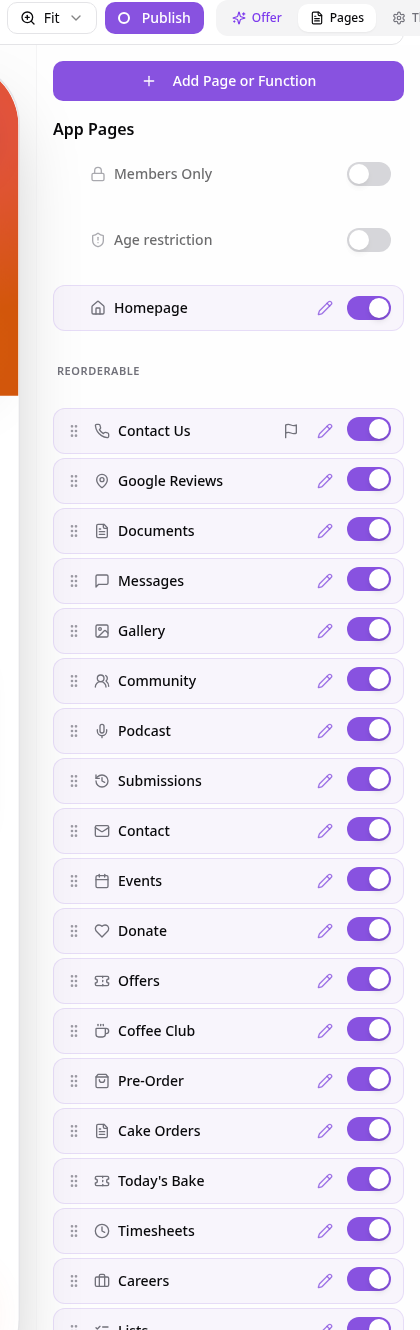
Open Pages
In your app editor, open Pages and choose Add Page or Function.
- 2
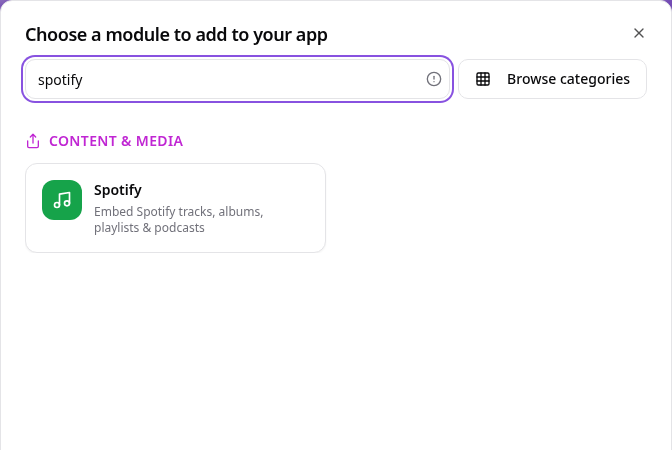
Choose Spotify
Search for Spotify and select it.
- 3
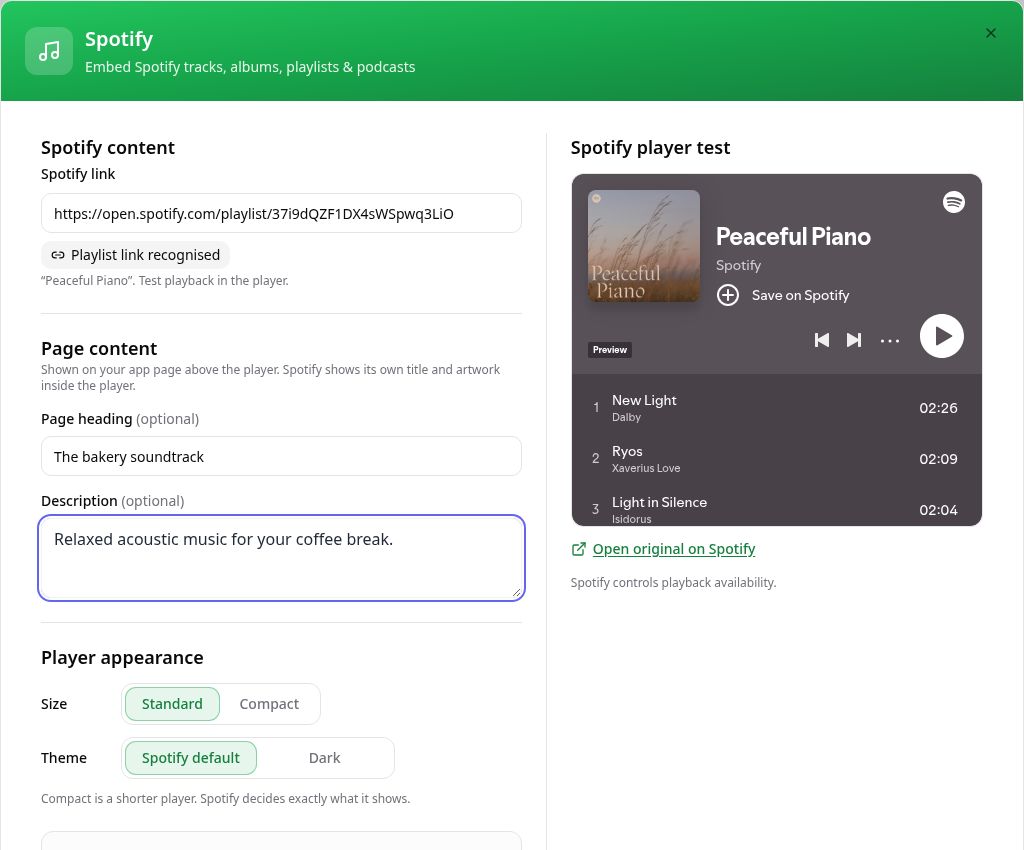
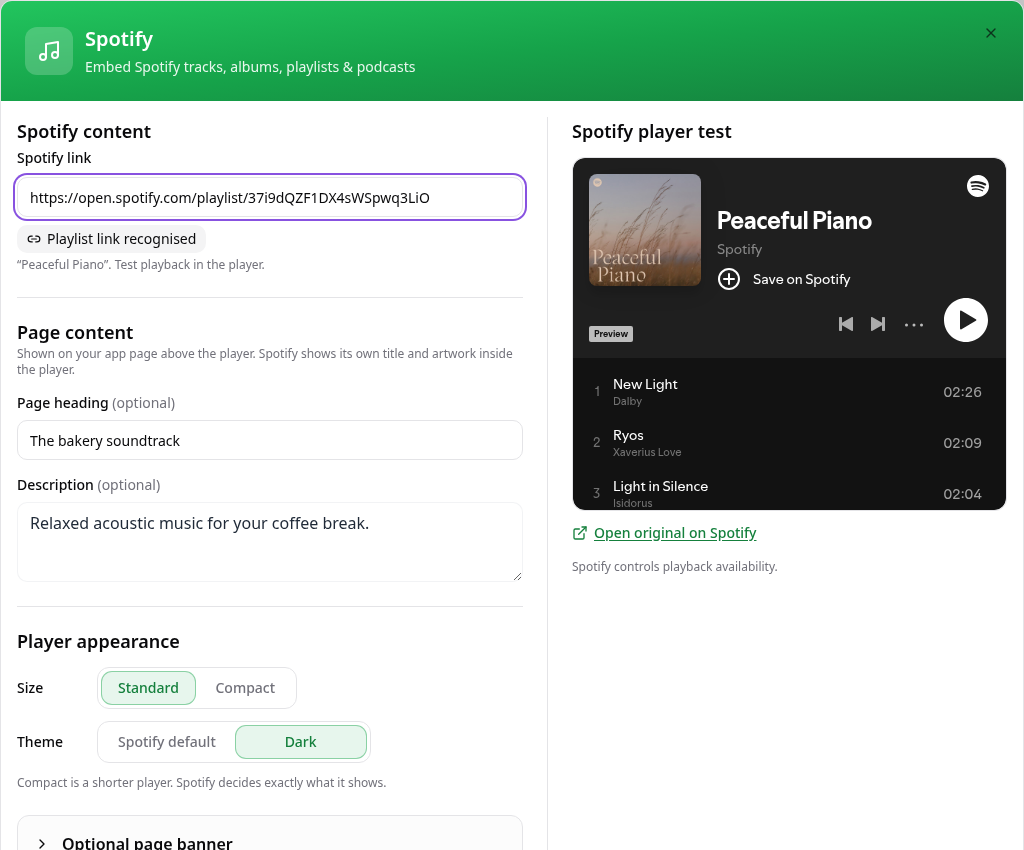
Paste a Spotify share link
Copy a link from Spotify using Share → Copy link, then paste it into Spotify link.
- 4
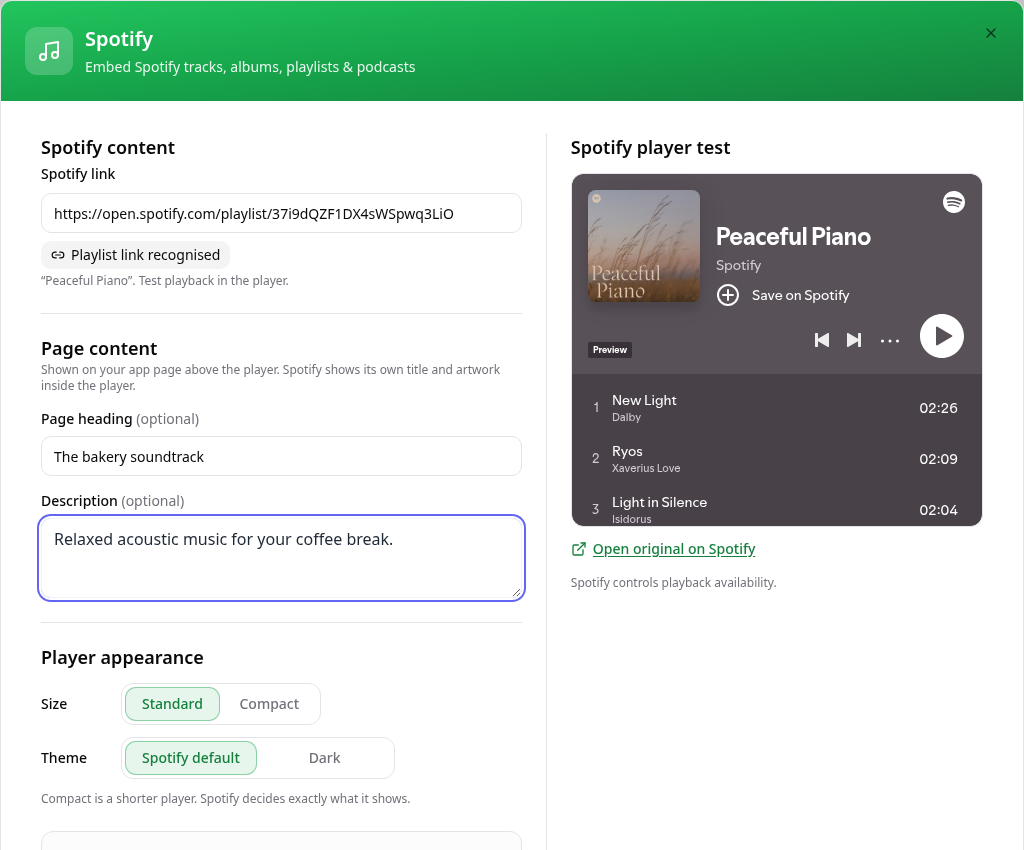
Set the heading and player appearance
Add optional page text, then choose Standard or Compact and Spotify default or Dark.
- 5
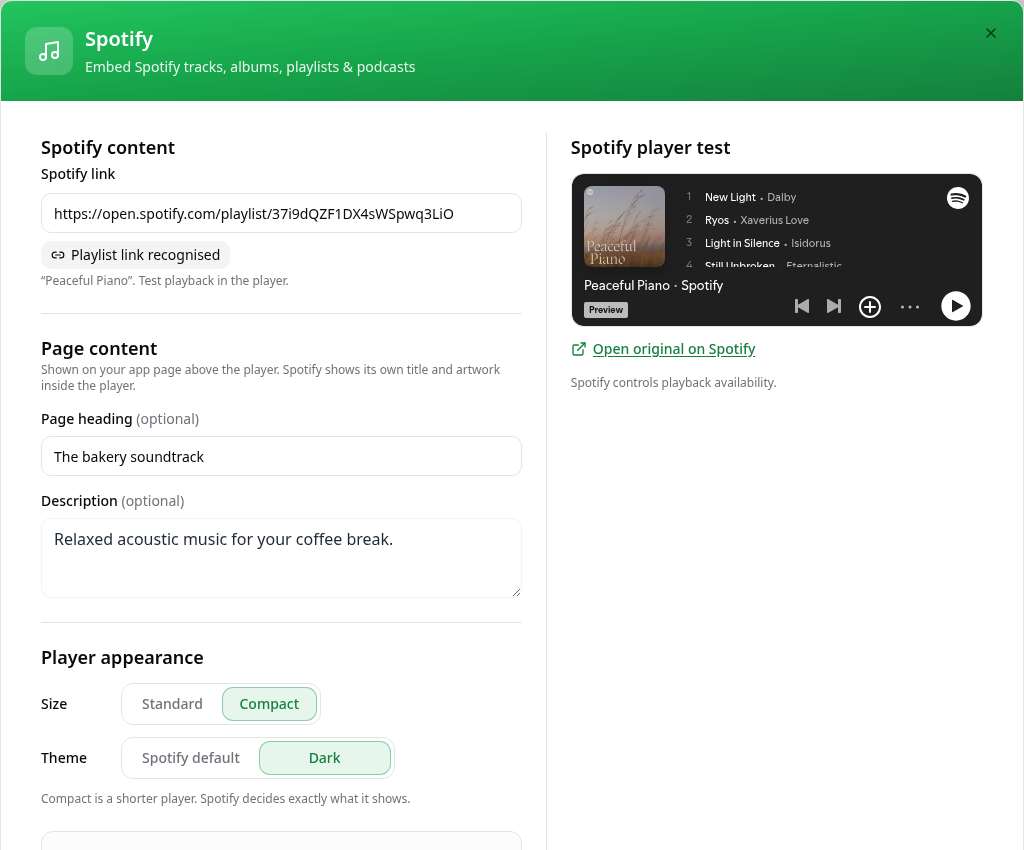
Test the compact player
Check the player on the right; Spotify determines playback availability.
- 6
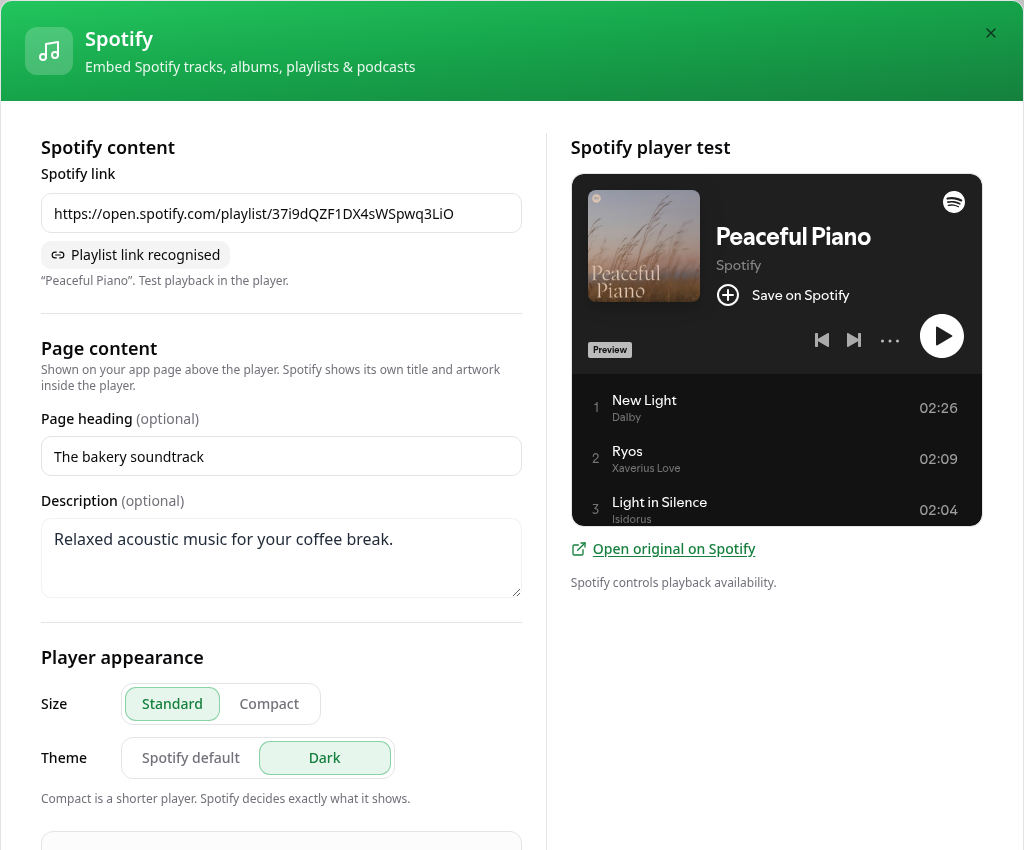
Add an optional banner
Turn on Show banner only if you want an image above the page heading.
- 7
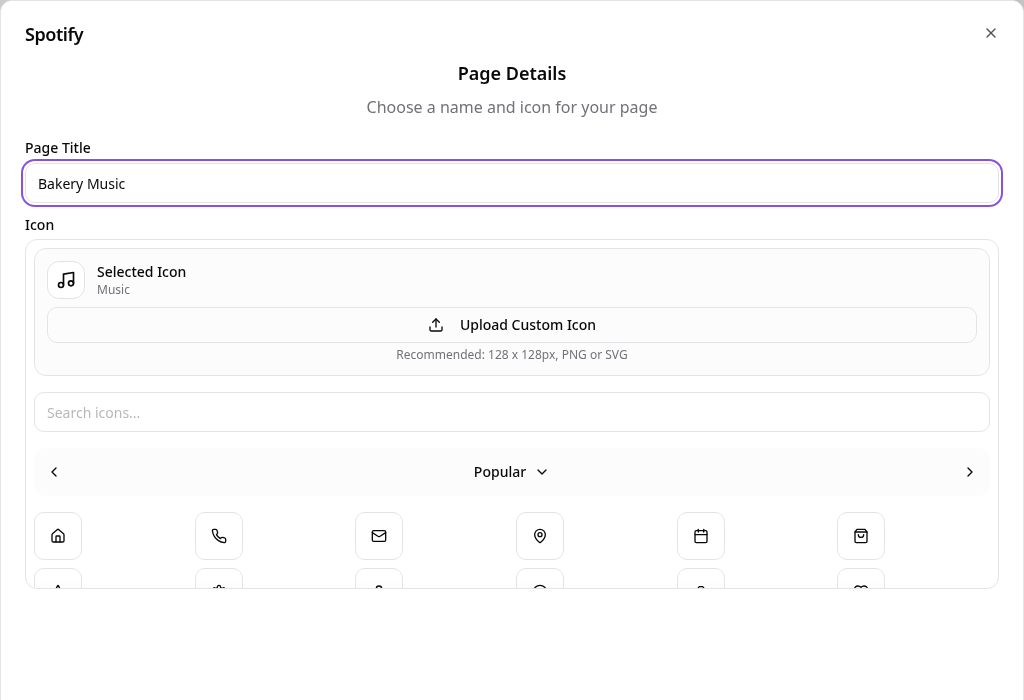
Name the page
Give the page a clear title, choose an icon and select Create Page.
- 8
Edit the page later
Open the page in Pages and choose Edit Page Content to update its content or settings.
- 9
See it in the app
Open the page from the app menu and check the customer view.
Check the page in your app preview, then publish the app when you are ready for customers to see it.