Take bookings with Square Appointments
Connect Square Appointments so customers can book your services, staff and times inside your app.
Step-by-step guide
Follow these steps, then download the PDF to keep.
- 1
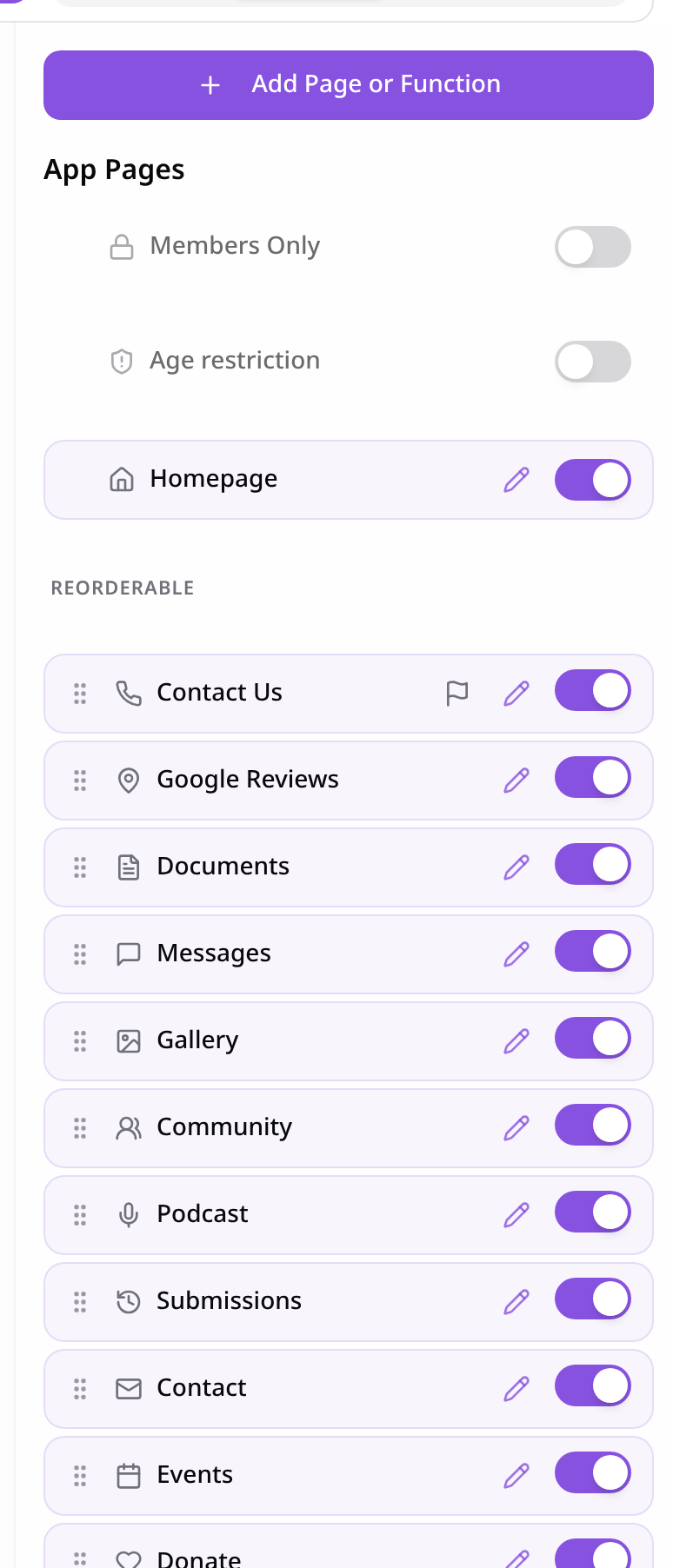
Open Pages
In your app editor, open Pages and tap Add Page or Function.
- 2
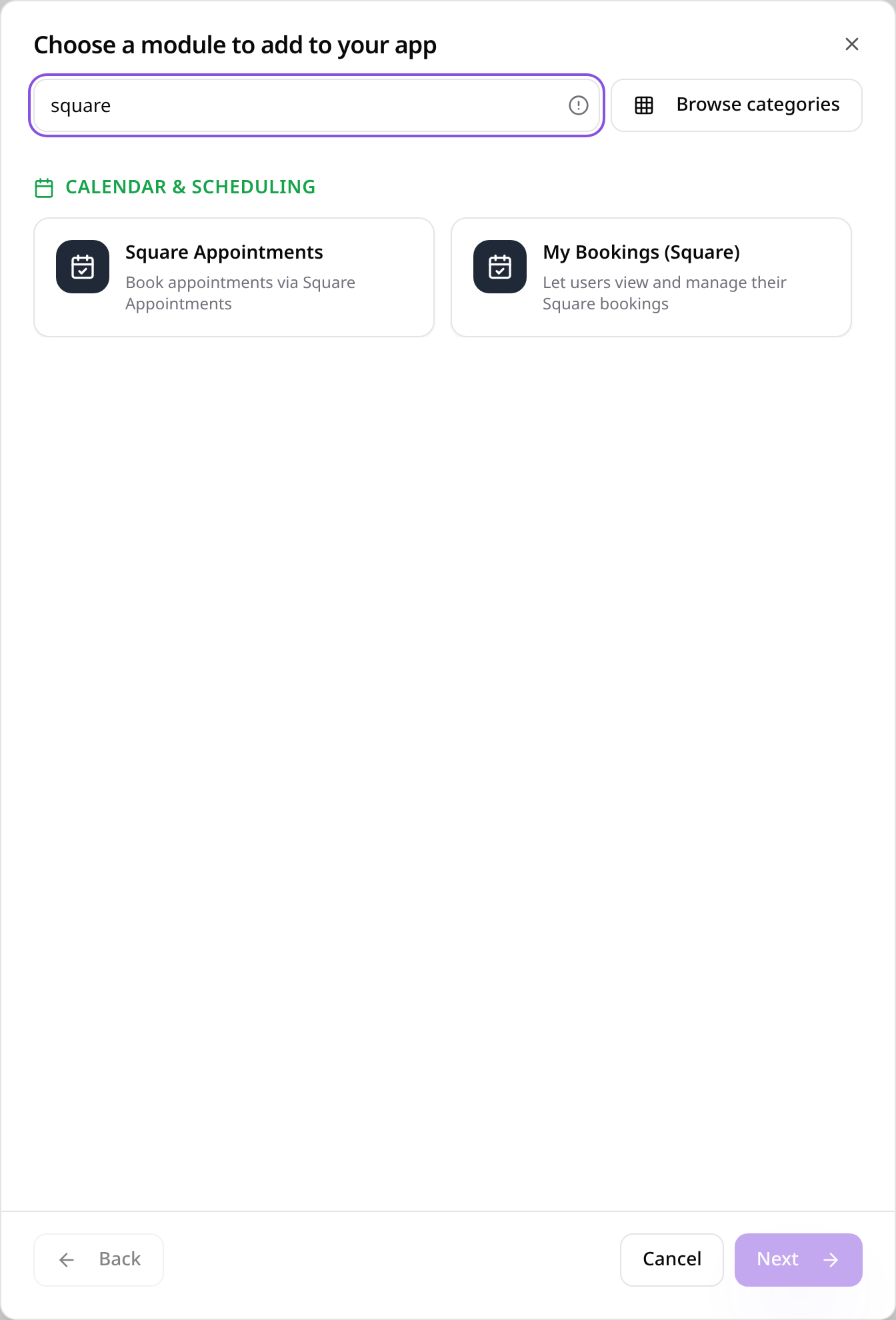
Choose Square Appointments
Search “square” and tap Square Appointments.
- 3
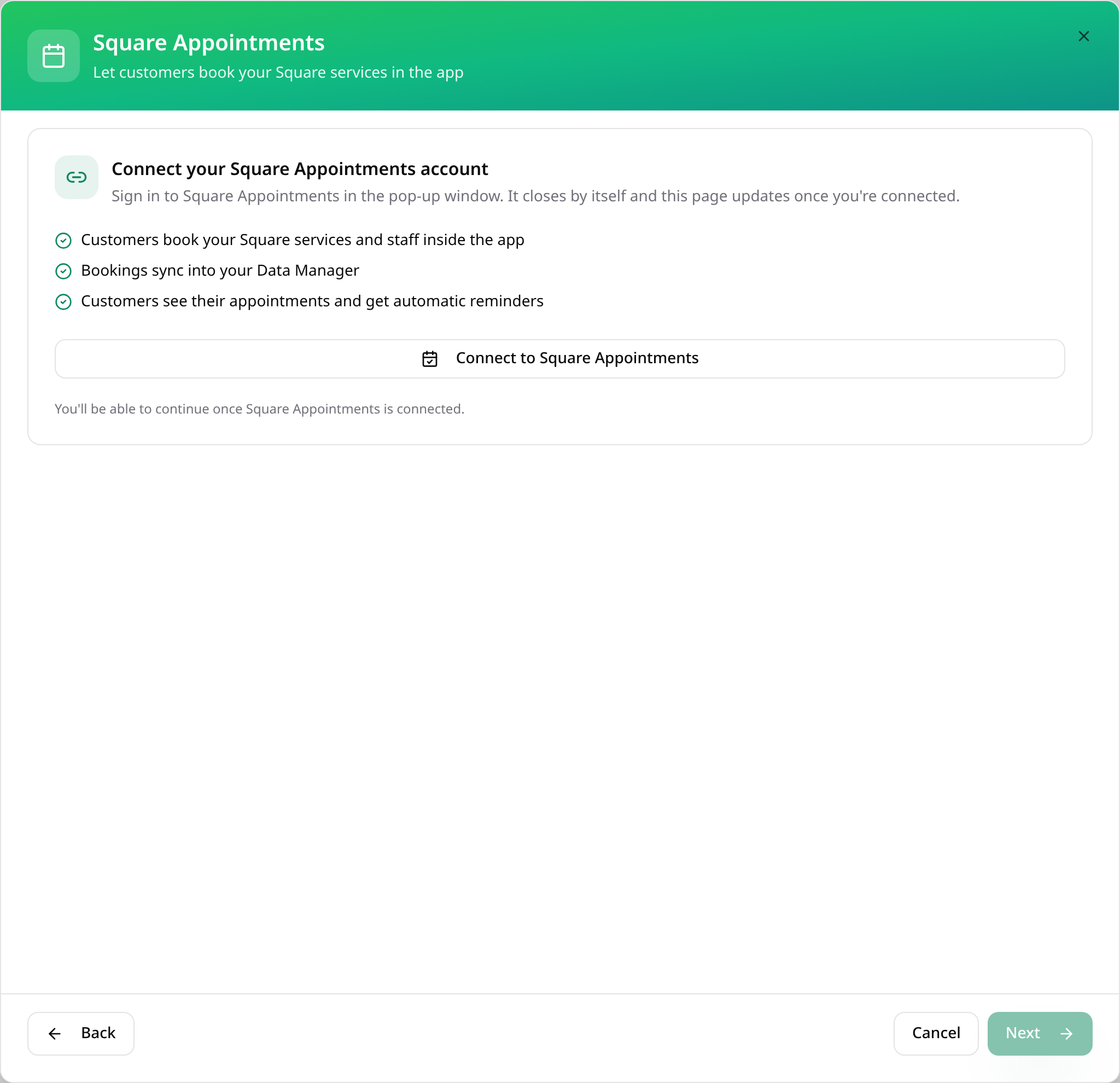
Connect Square
Tap Connect to Square Appointments, sign in to Square and allow access. The window closes by itself.
- 4
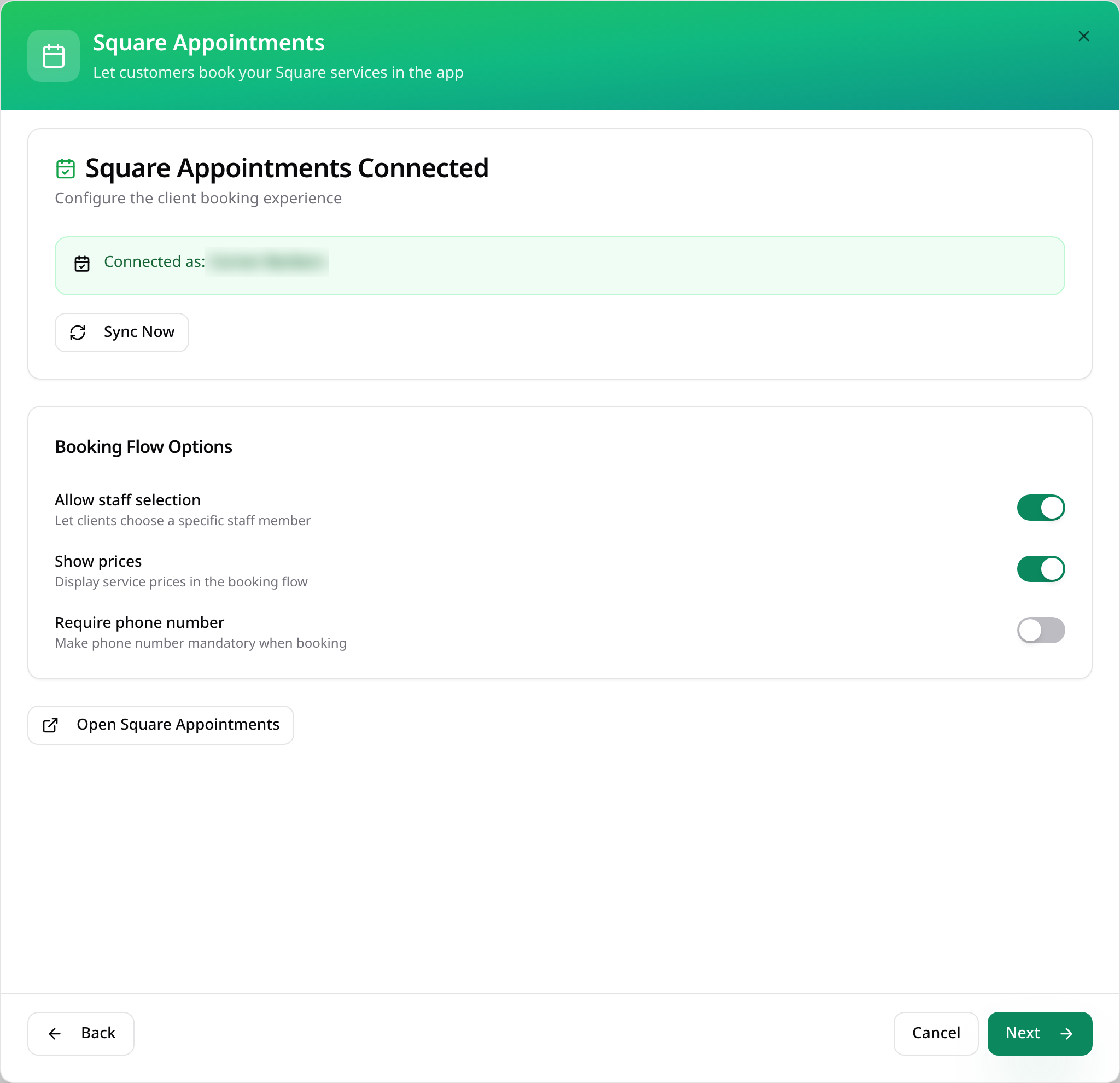
Choose booking options
Once connected, choose whether customers can pick staff, see prices or must give a phone number. Tap Next.
- 5
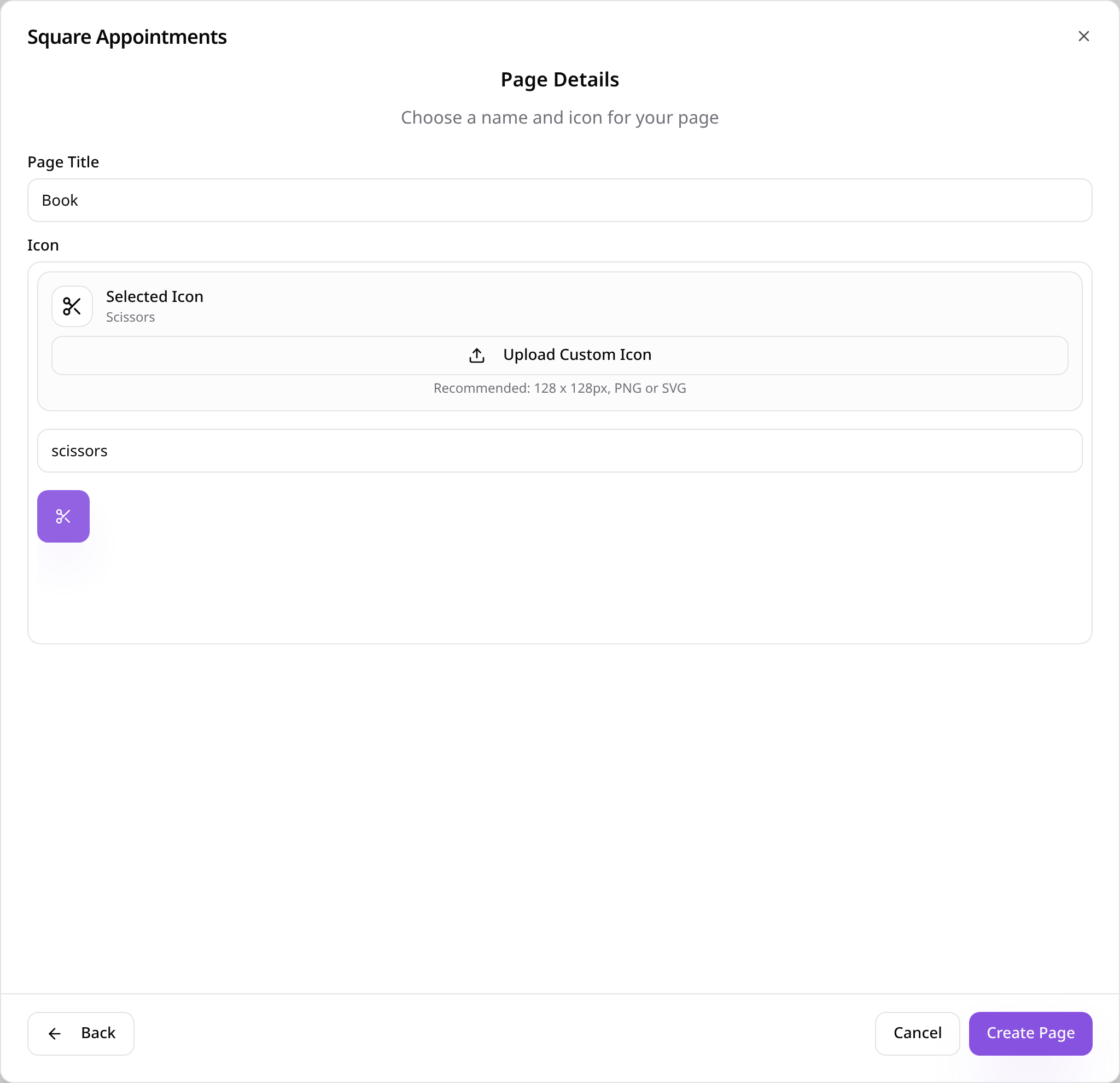
Name the page
Give the page a name, choose an icon and tap Create Page.
- 6
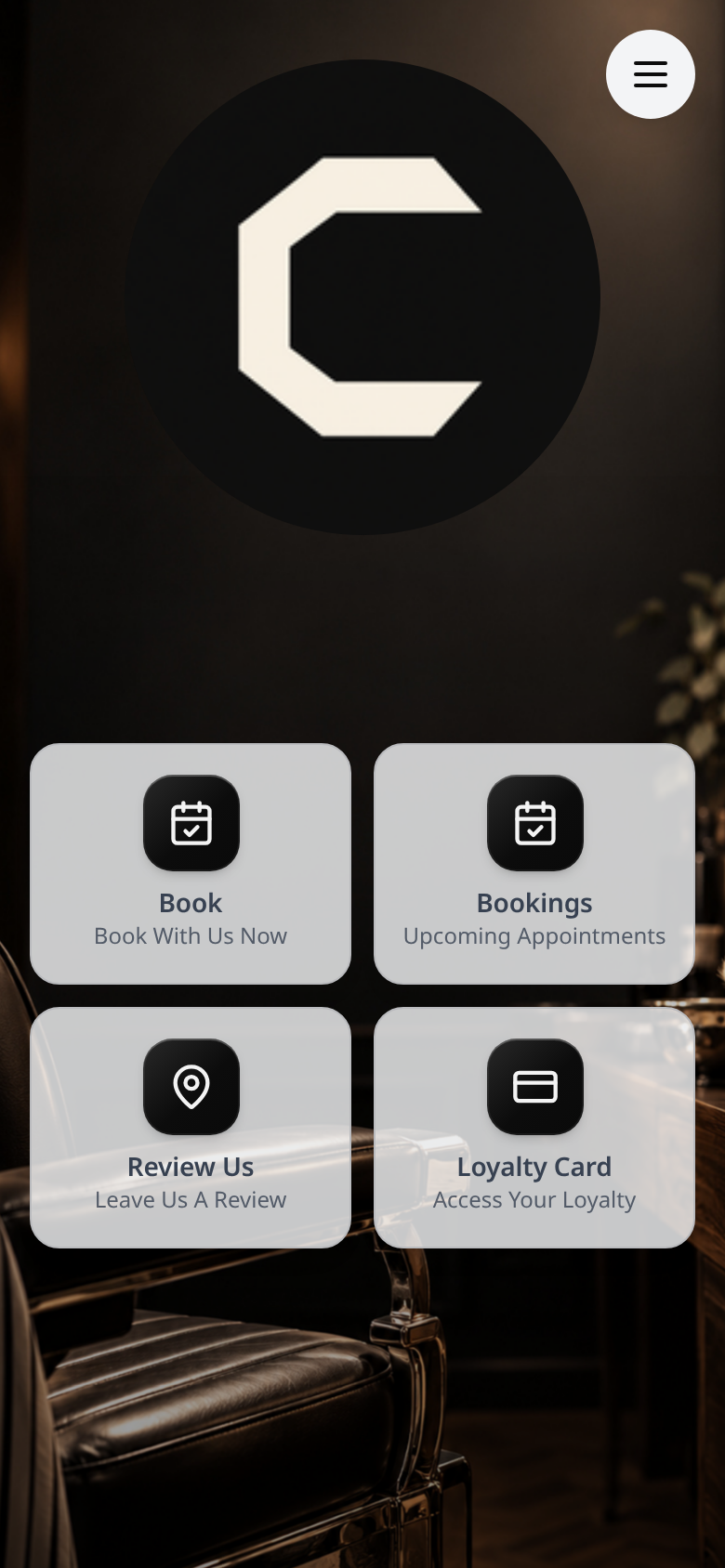
See it in your app
Your booking page appears in your app's menu.
- 7
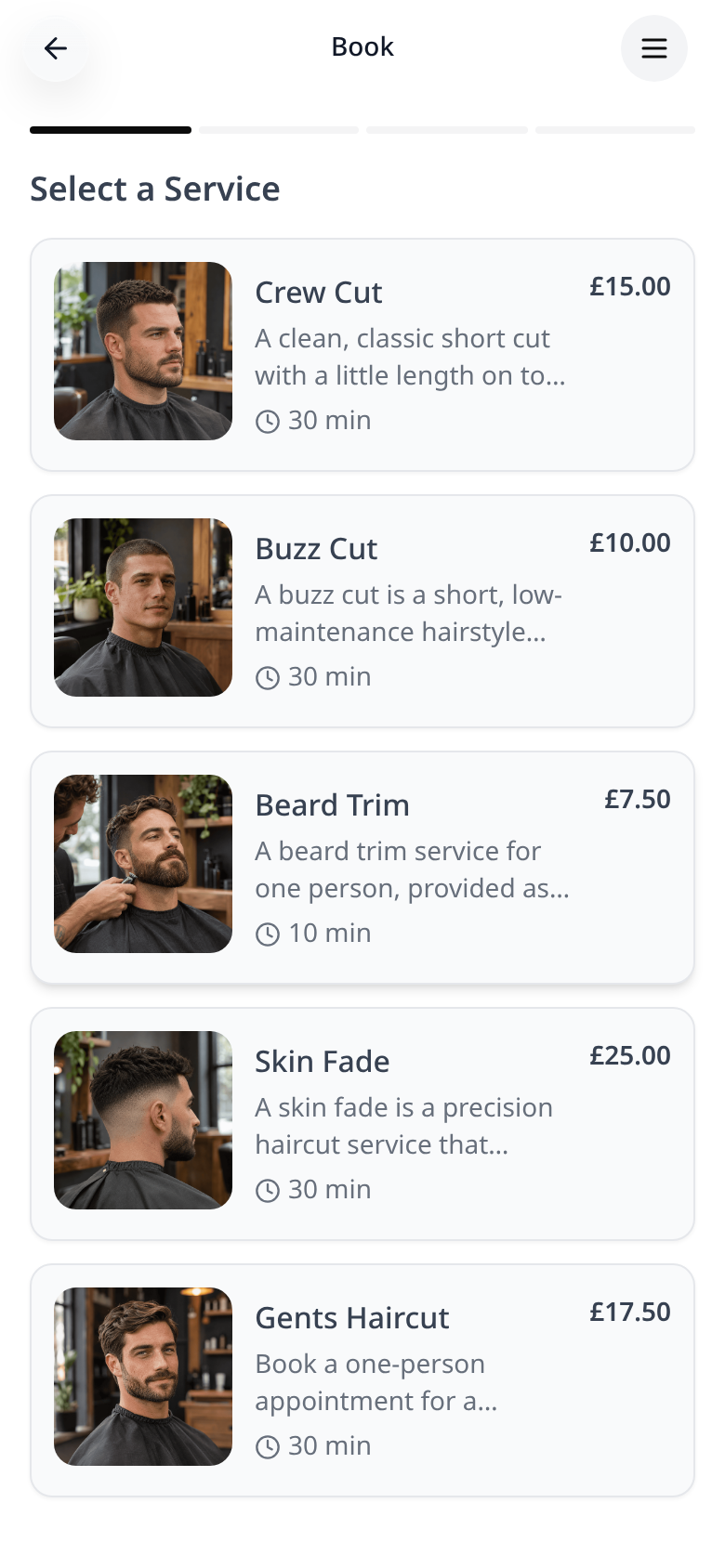
Customers pick a service
Your Square services show with their photo, price and length.
- 8
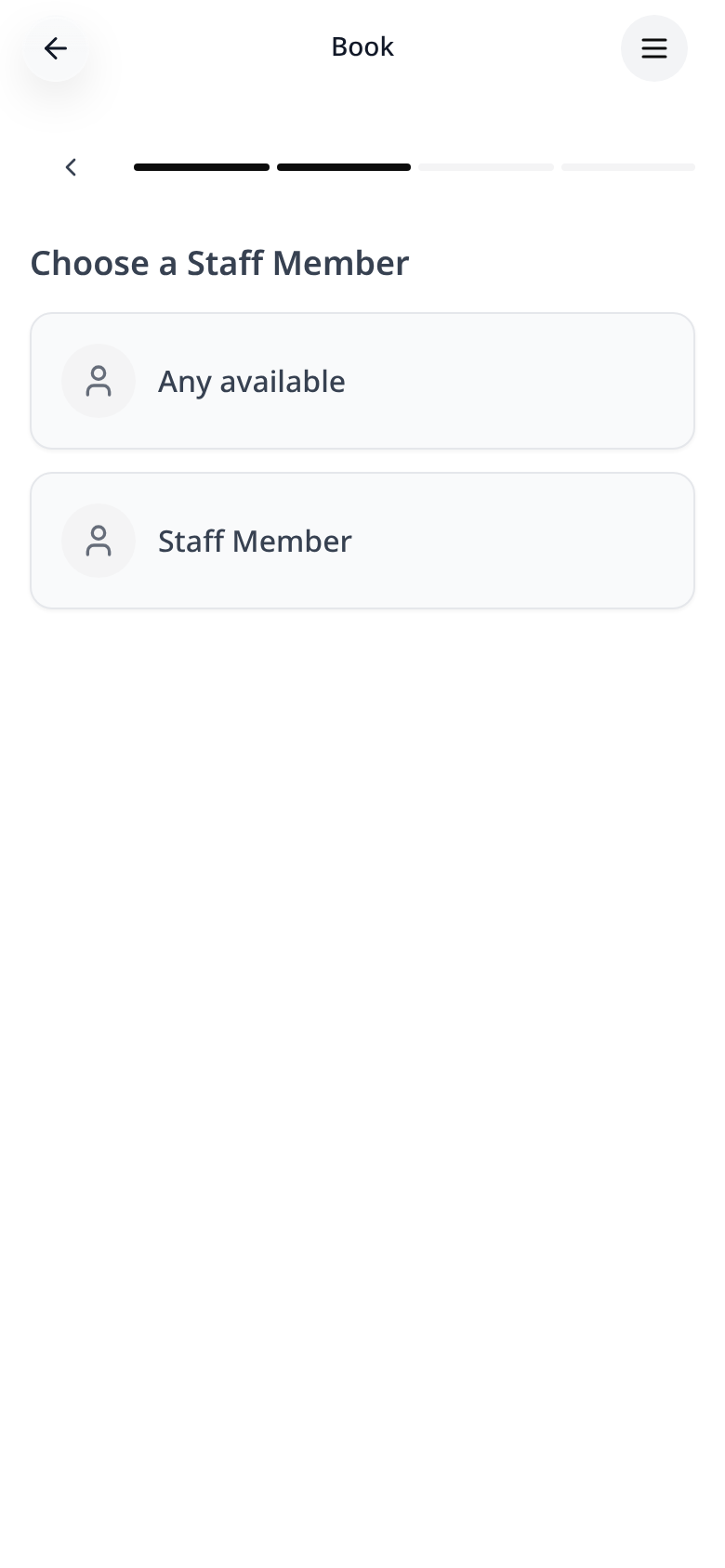
Then a staff member
Customers choose who they'd like, or anyone available.
- 9
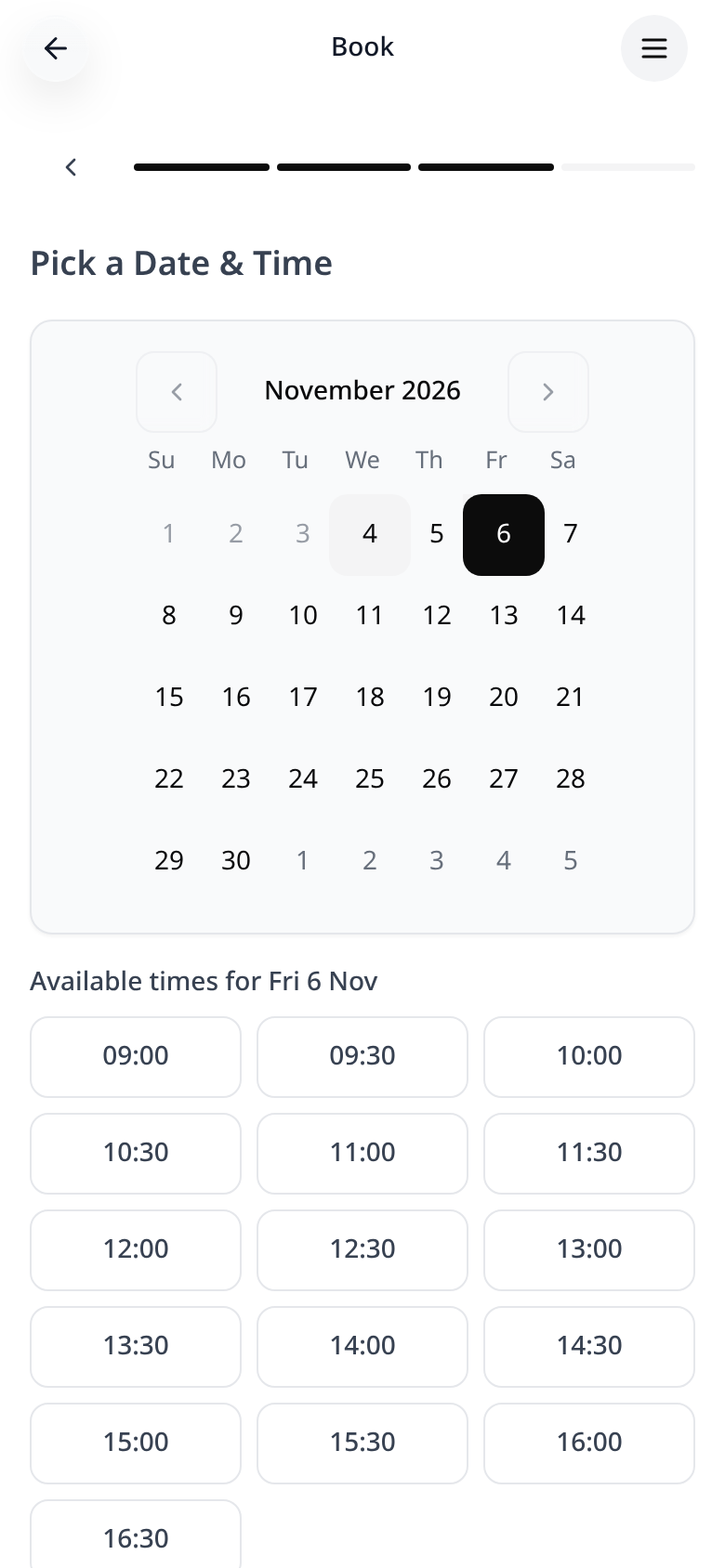
Then a day and time
Only free times from your Square calendar can be picked. Customers then add their details and confirm.
Bookings go straight into your Square calendar. Add a My Bookings (Square) page so customers can see, reschedule or cancel them.