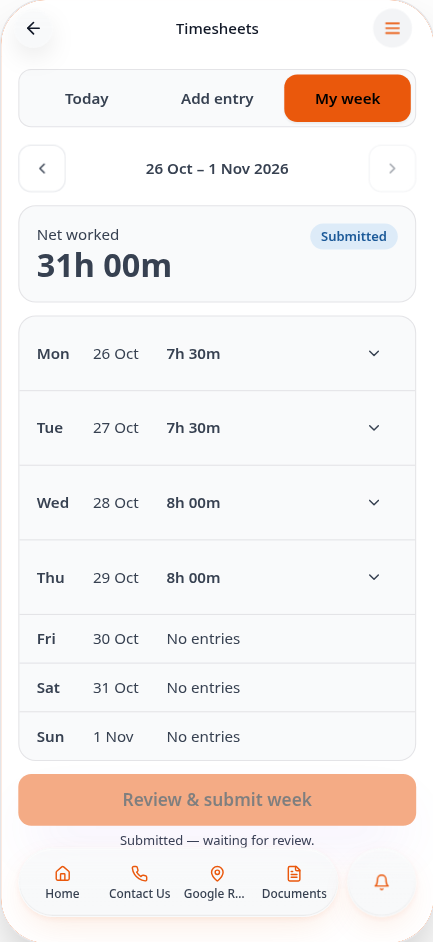
Track staff hours with Timesheets
Let your team record their hours in your app, submit each week, and approve their timesheets in Data Manager.
Step-by-step guide
Follow these steps, then download the PDF to keep.
- 1
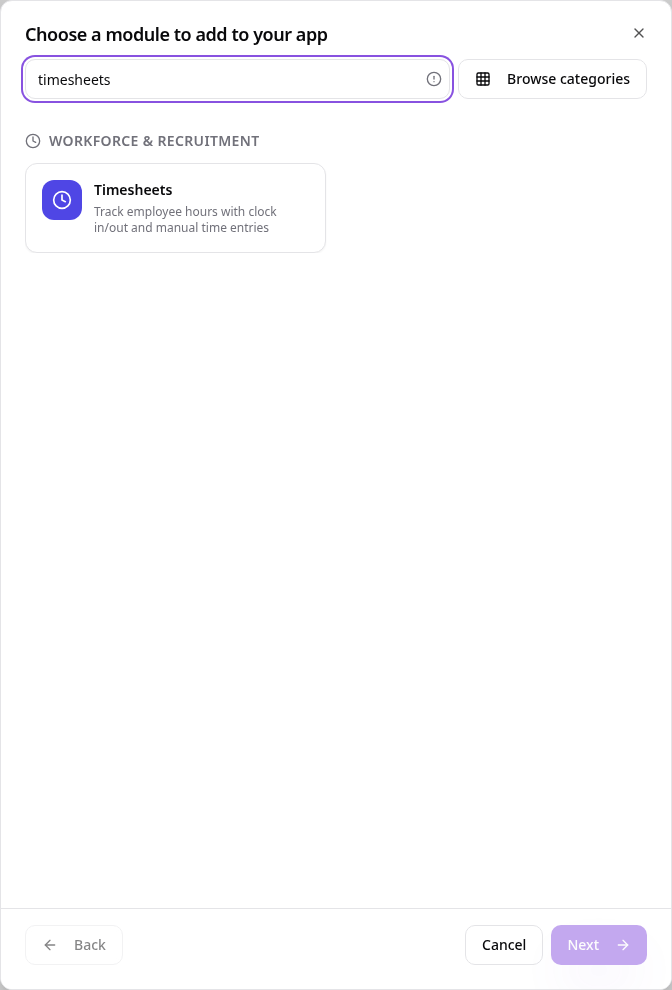
Choose Timesheets
In Pages, tap Add Page or Function, search “timesheets” and tap Timesheets.
- 2
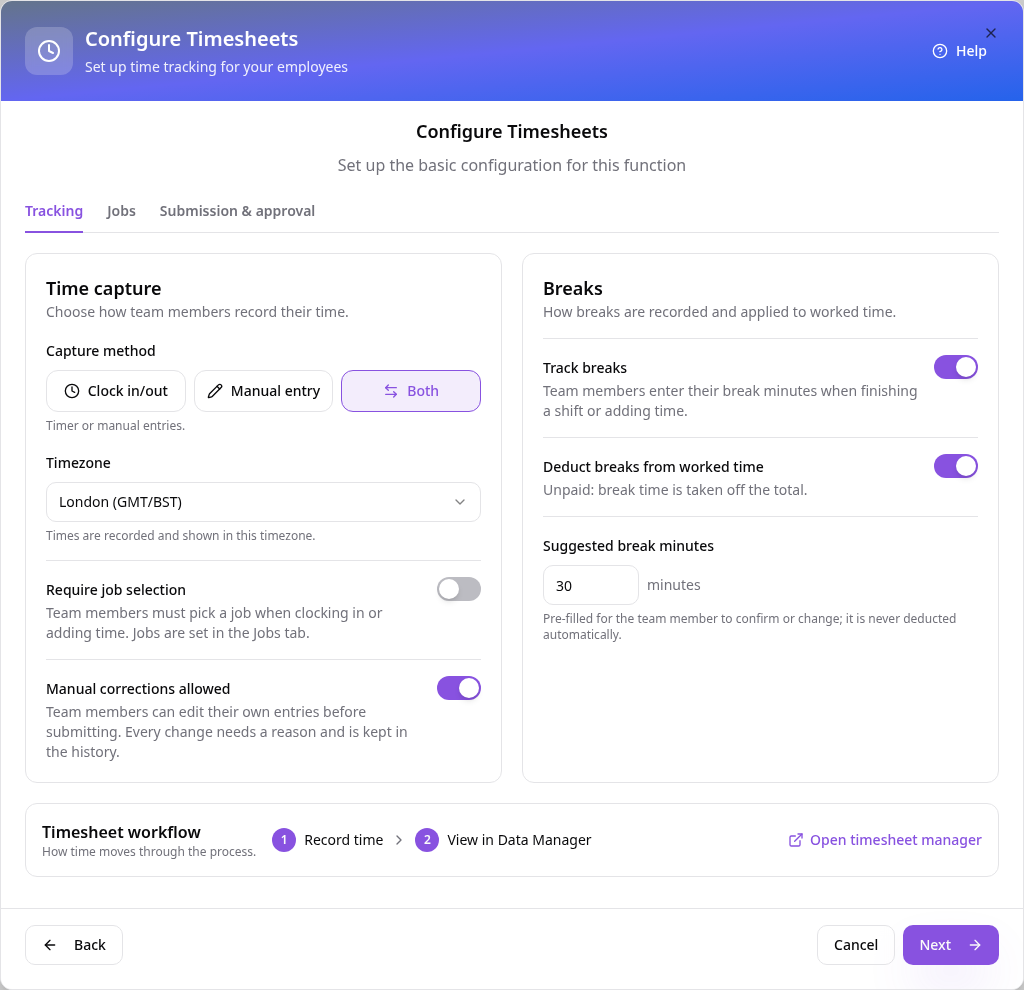
Choose how time is recorded
On Tracking, pick Clock in/out, Manual entry or Both, check the timezone and set how breaks work.
- 3
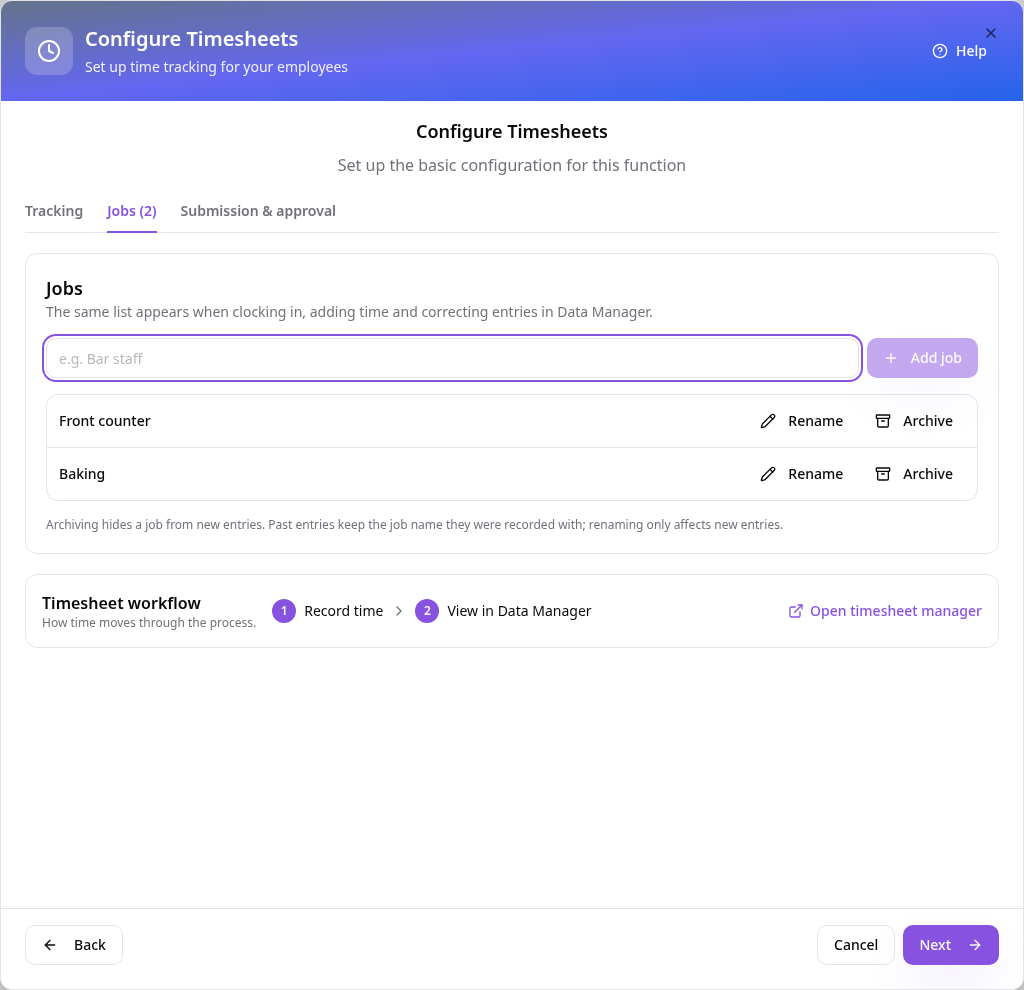
Add your jobs
On Jobs, type each job or role and tap Add job. Your team picks one when they record time.
- 4
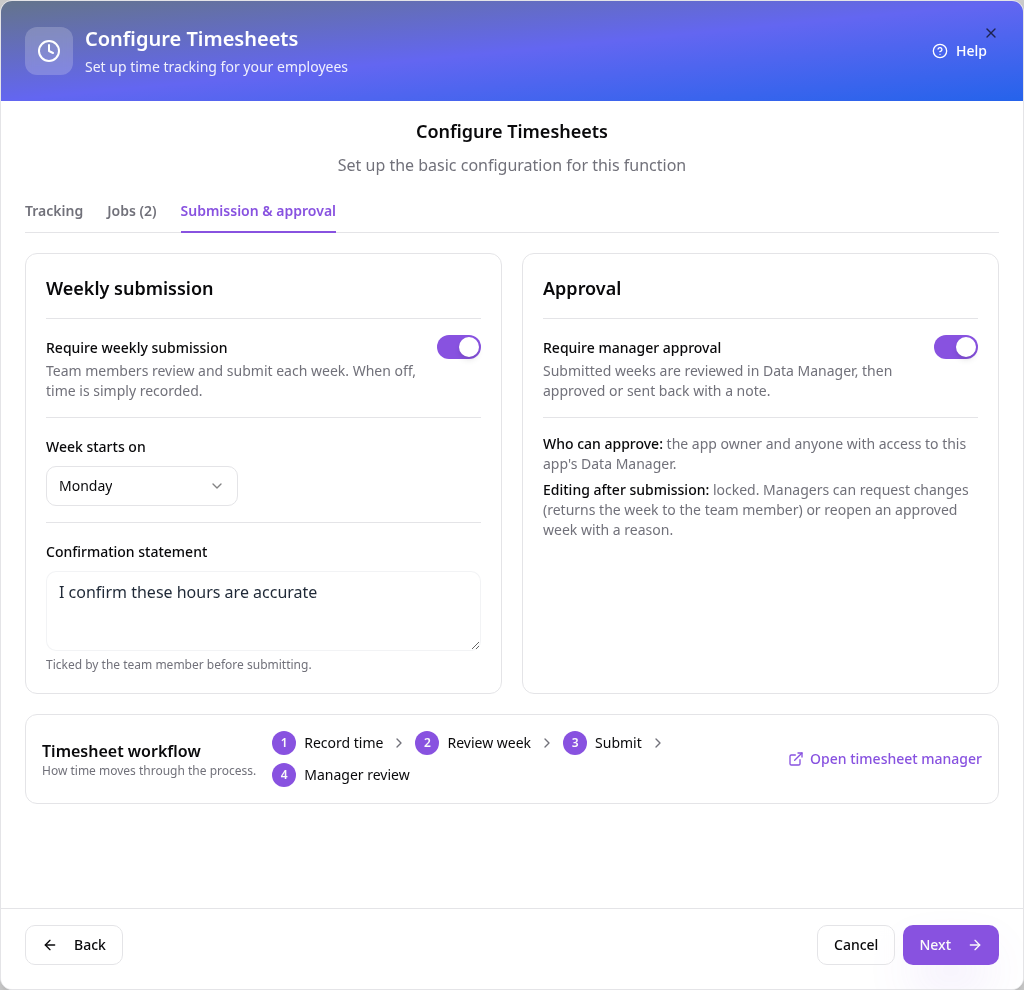
Turn on weekly submission
On Submission & approval, switch on Require weekly submission. Choose the day your week starts and keep Require manager approval on.
- 5
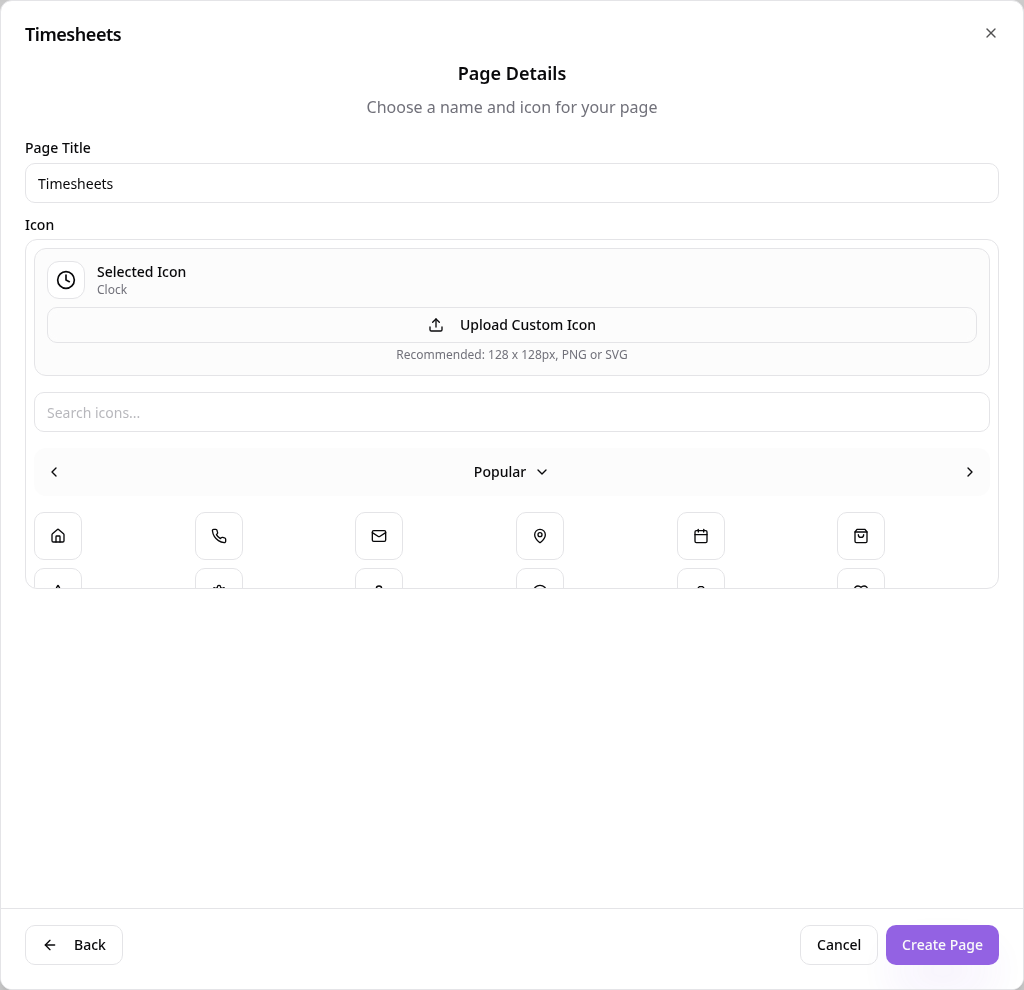
Name the page
Tap Next, check the page name and icon, then tap Create Page.
- 6
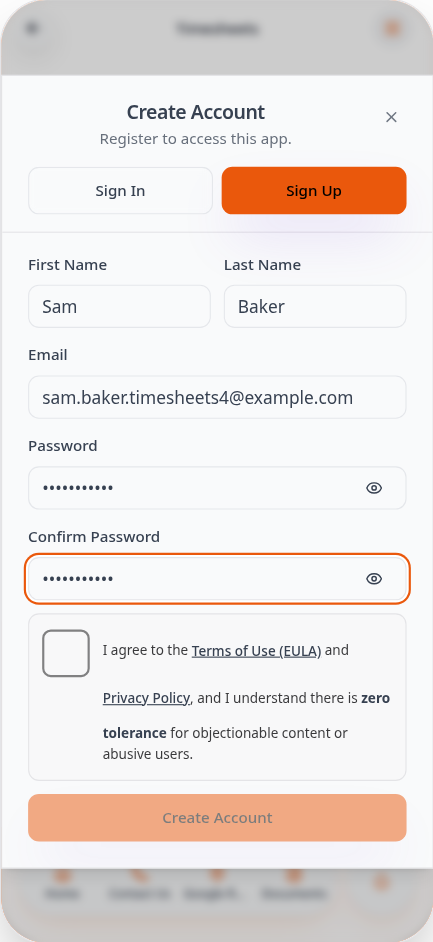
Your team signs up
Team members open Timesheets in your app and create an account, or sign in if they already have one.
- 7
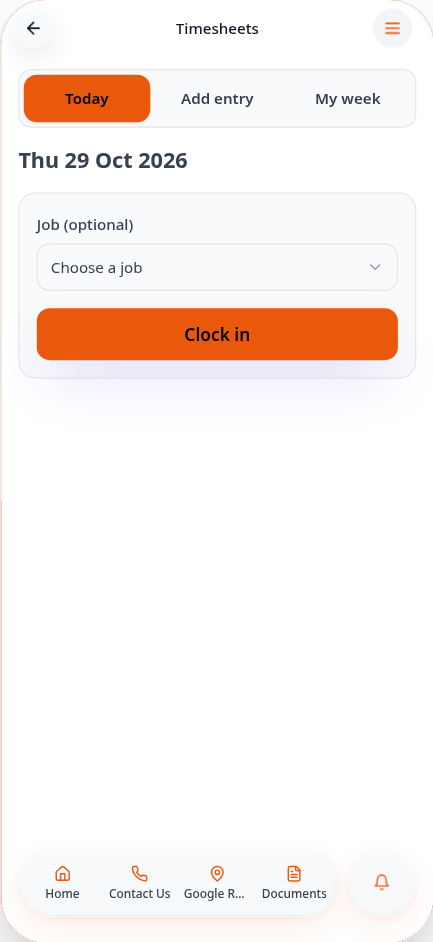
Clock in or add time
On Today, team members can tap Clock in when they start, or use Add entry to type in their hours.
- 8
Record a day's hours
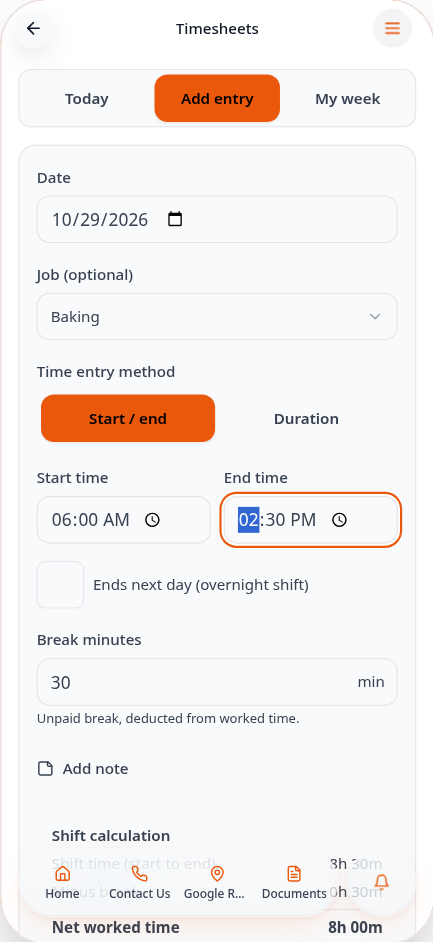
On Add entry, choose the date and job, enter the start and end time and any break, then tap Save entry.
- 9
Check today's entries
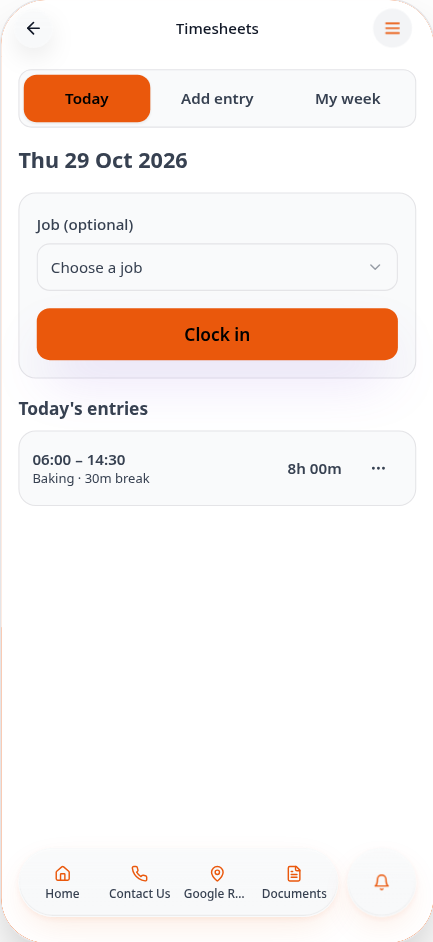
The saved hours show under Today's entries, with the job and break.
- 10
Review the week
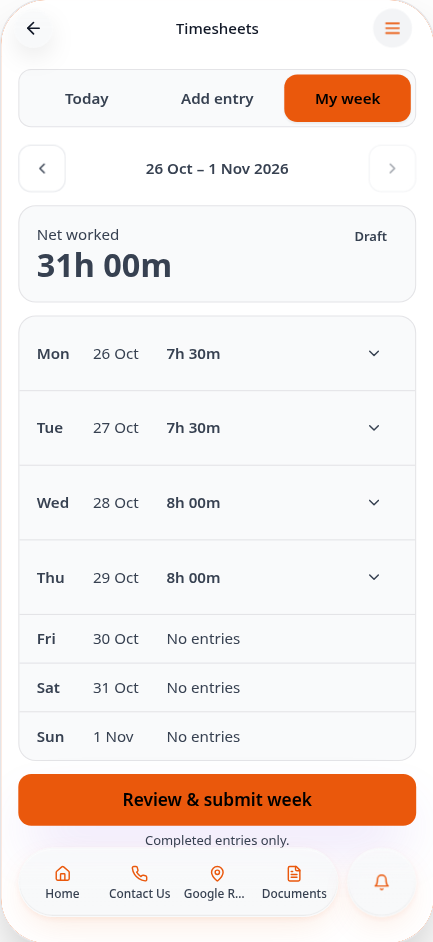
On My week, check each day and the total hours worked, then tap Review & submit week.
- 11
Submit the week
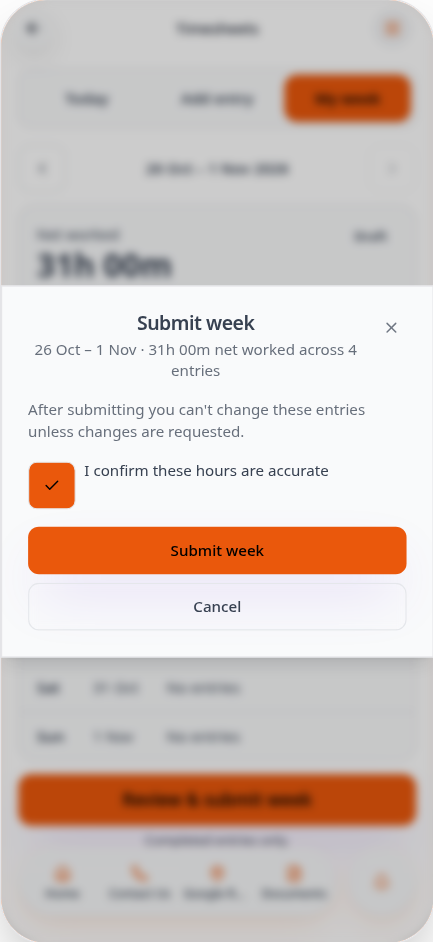
Tick the confirmation and tap Submit week. Entries are locked unless you ask for changes.
- 12
Waiting for review
The week now shows Submitted, waiting for your review.
- 13
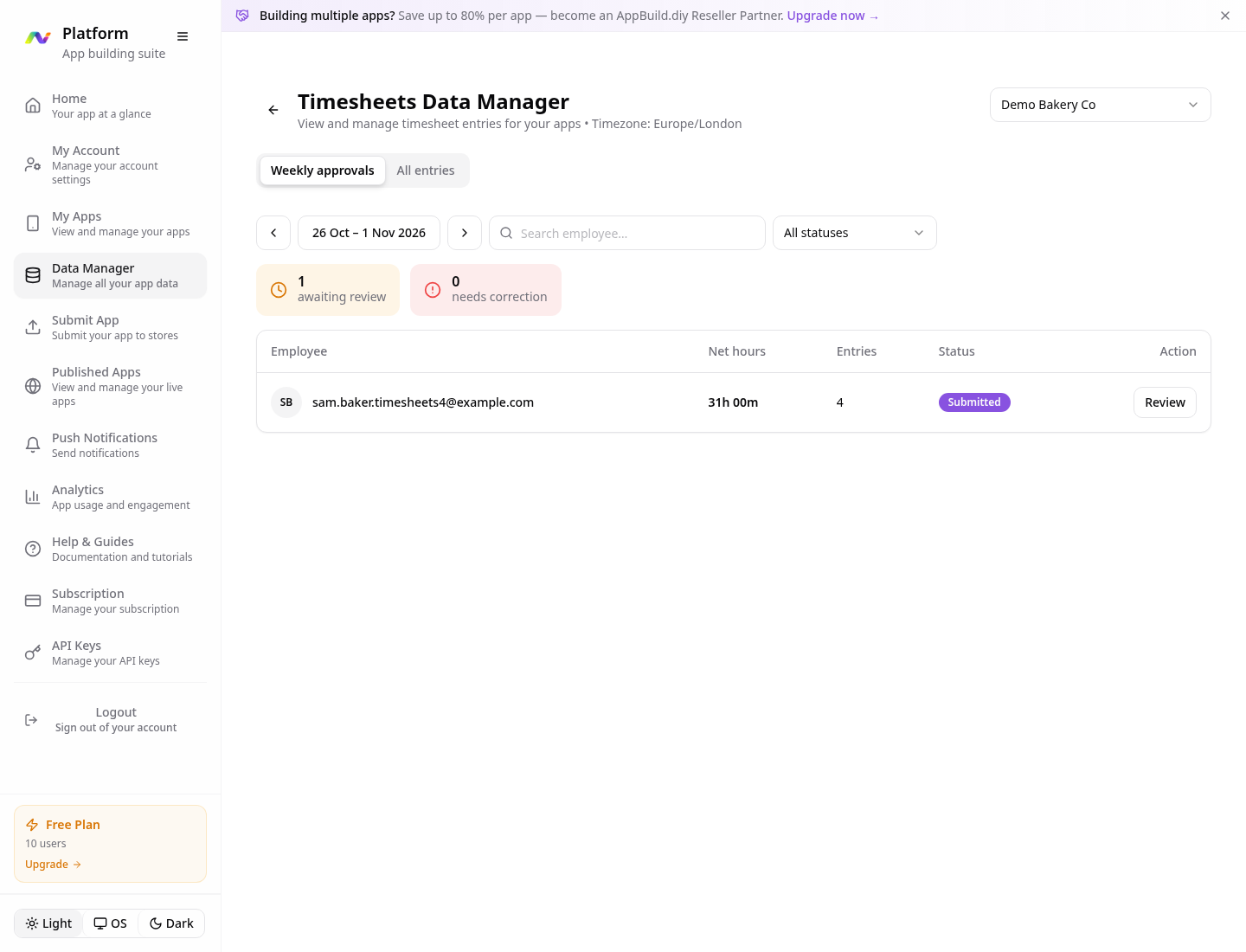
Open Data Manager
Go to Data Manager, then Timesheets. Weekly approvals lists everyone who has submitted that week.
- 14
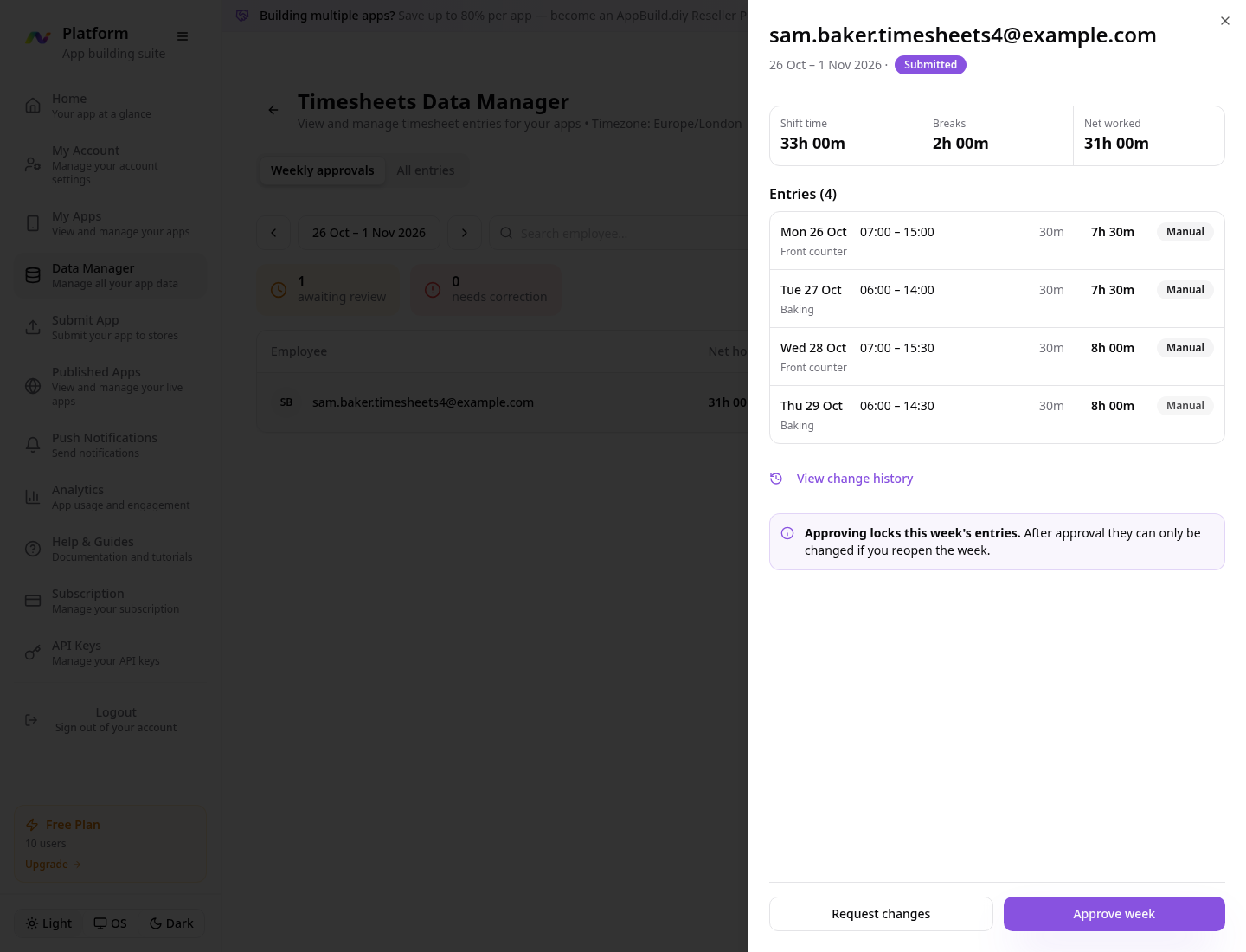
Review the timesheet
Tap Review to see every entry, the breaks and the total. Tap Approve week, or Request changes to send it back with a note.
- 15
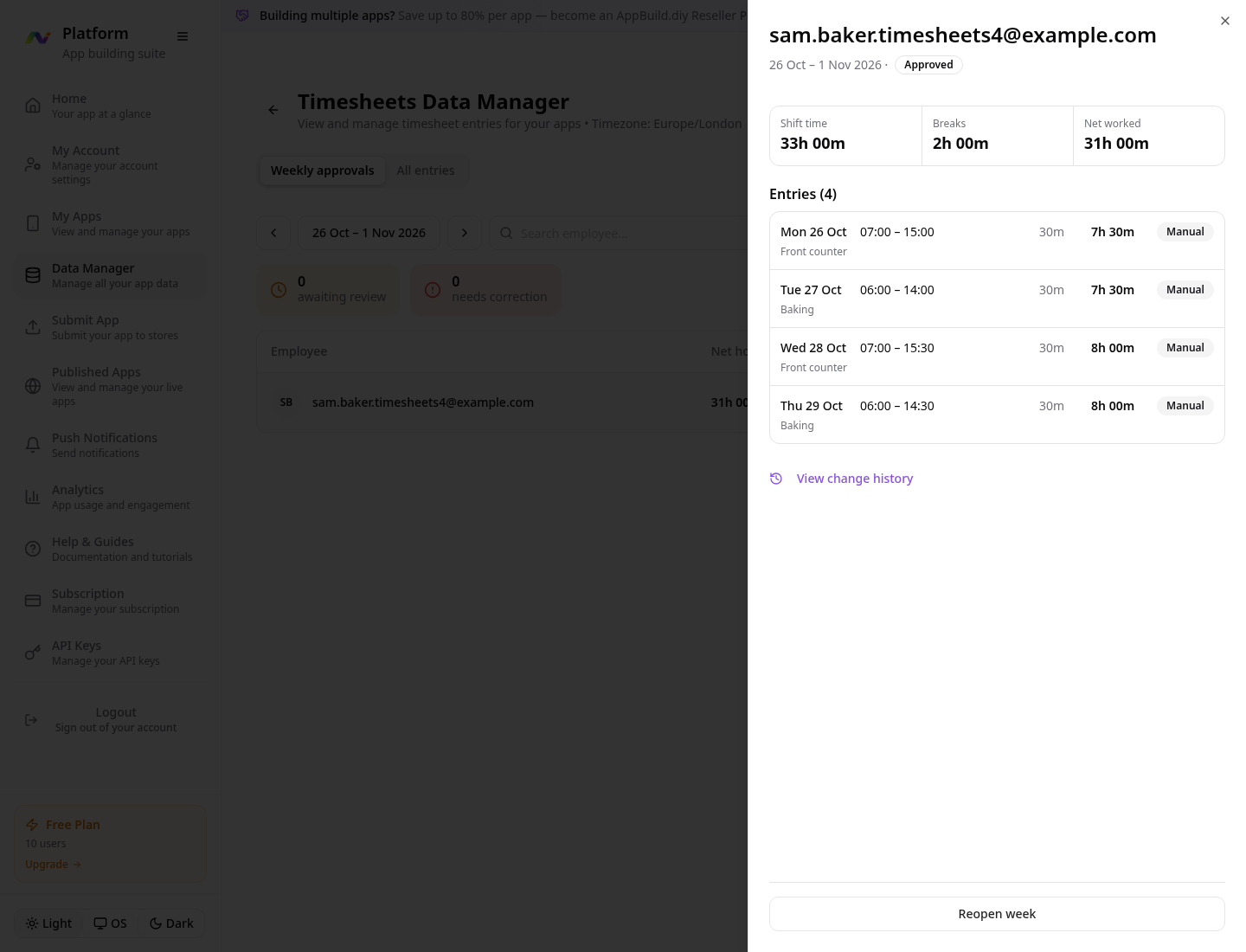
The week is approved
The week is marked Approved and its entries are locked. Use Reopen week if something needs fixing.
- 16
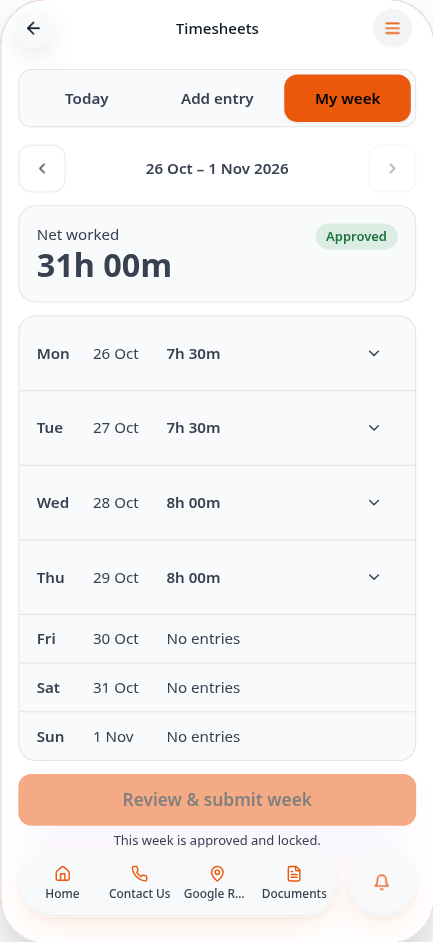
Your team sees it
In the app, the week shows Approved for the team member.
Every entry and week is kept in Data Manager under Timesheets, with a full change history. Use All entries to correct times or export a CSV for payroll.