Take bookings with Vagaro
Show your Vagaro booking page inside your app so customers can book without leaving it.
Step-by-step guide
Follow these steps, then download the PDF to keep.
- 1
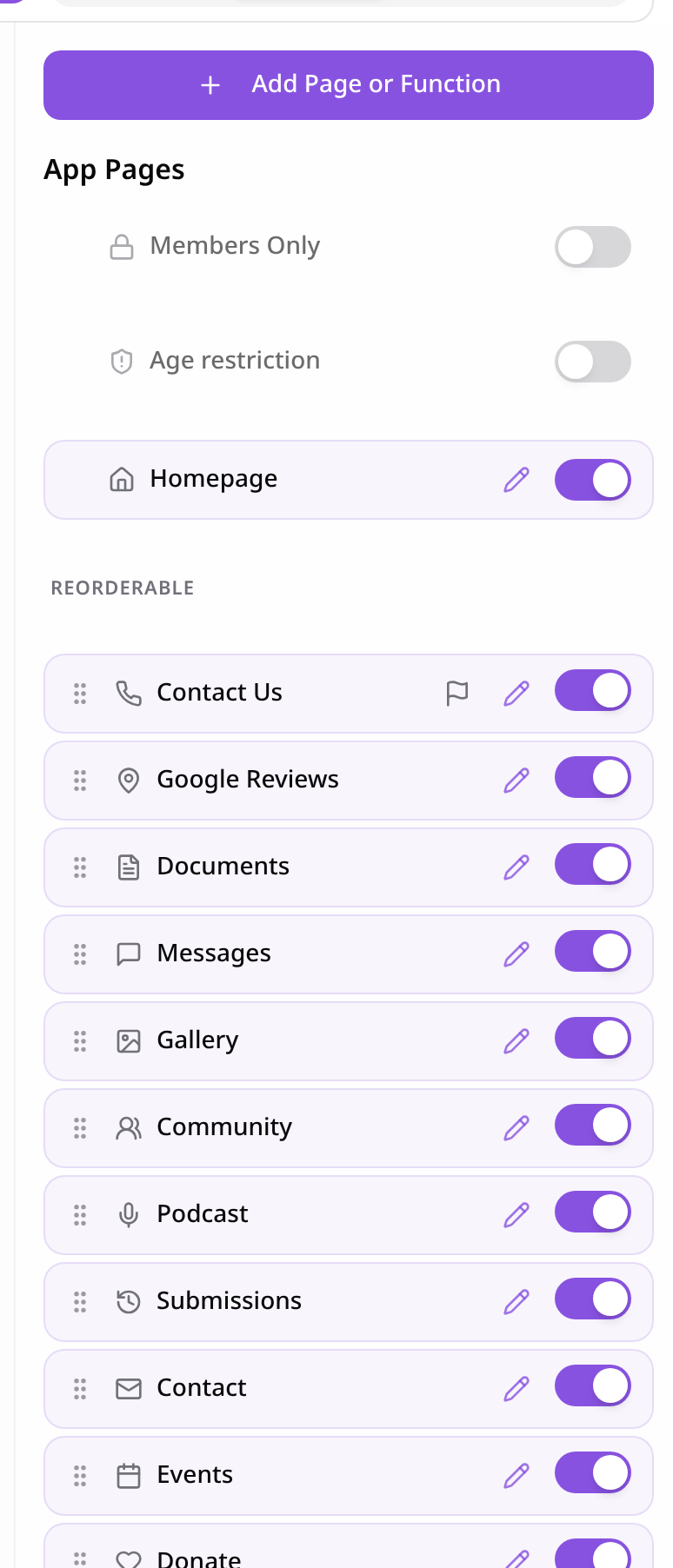
Open Pages
In your app editor, open Pages and tap Add Page or Function.
- 2
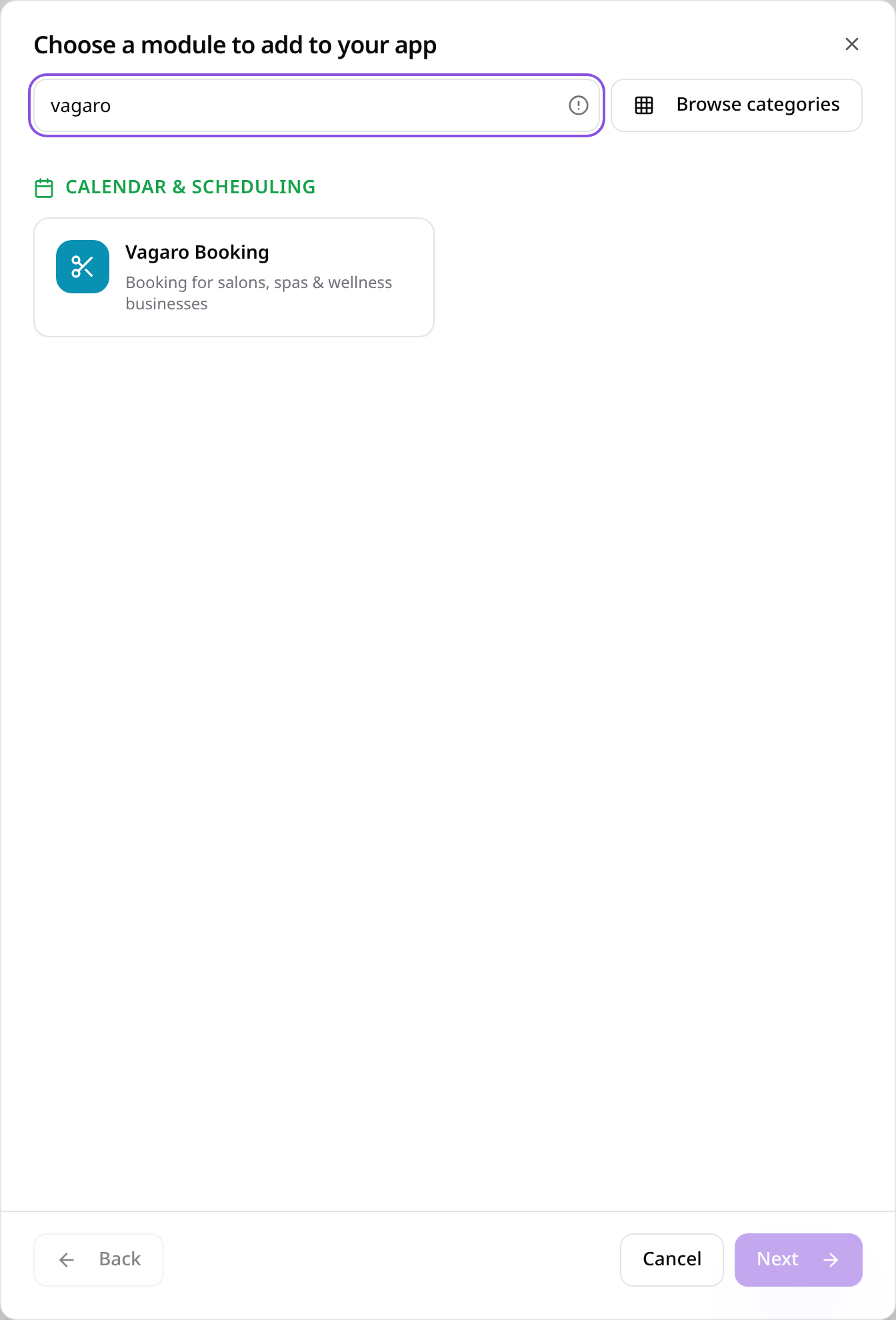
Choose Vagaro Booking
Search “vagaro” and tap Vagaro Booking.
- 3
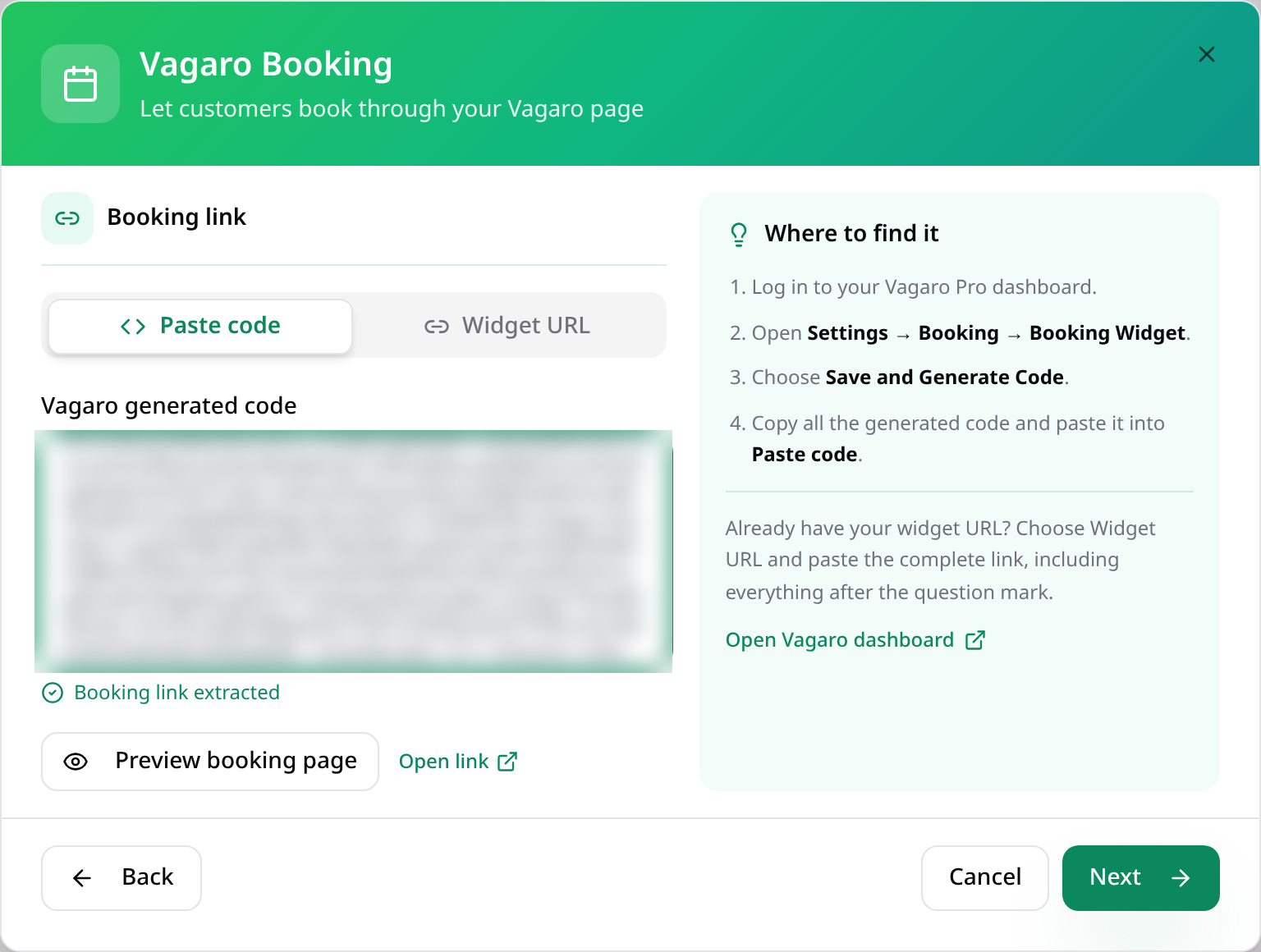
Get your Vagaro code
In Vagaro, create a booking widget, choose In Website and tap Save and Generate Code. Paste all of the code here.
- 4
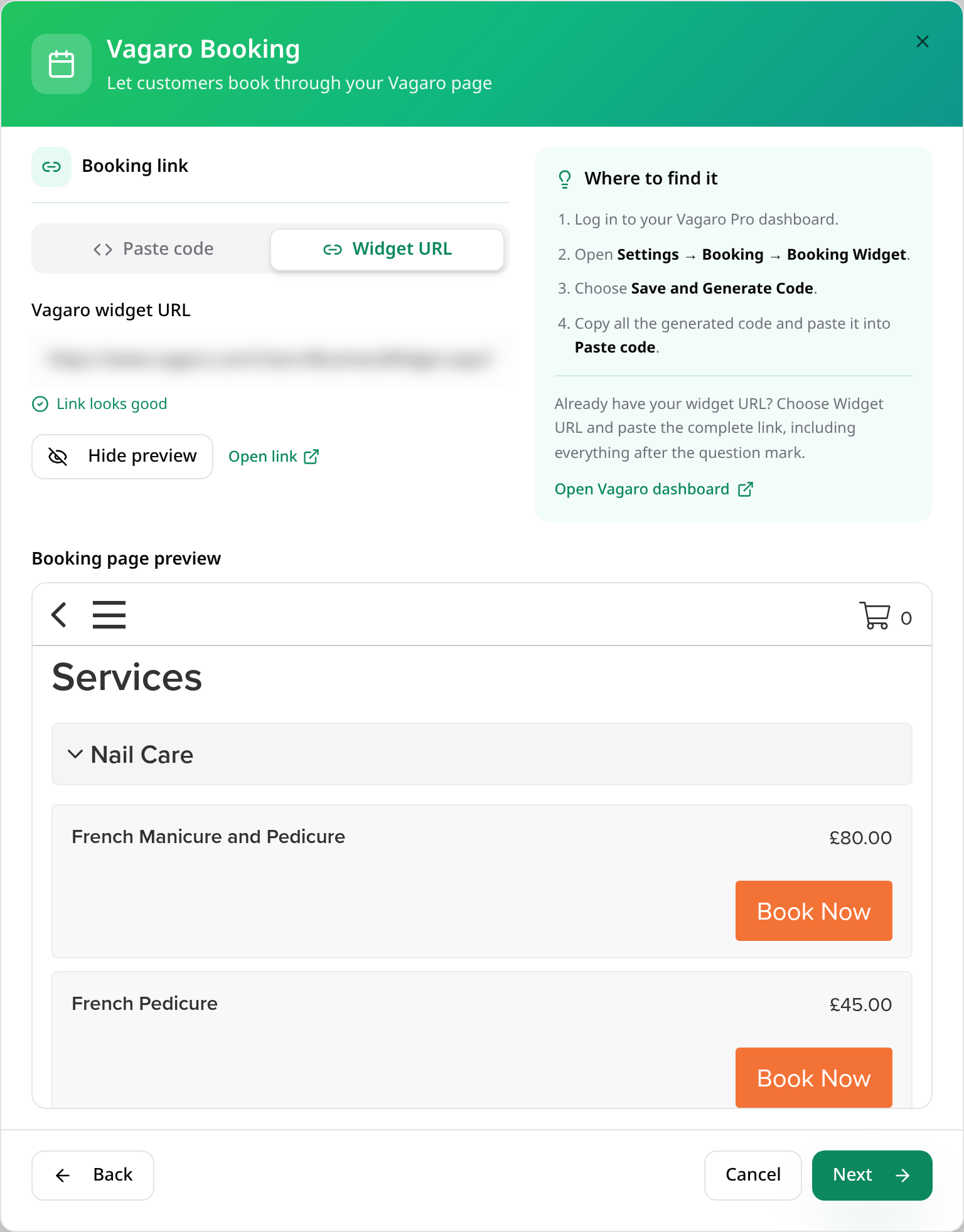
Or paste the widget link
If you have the widget link instead, use Widget URL. The preview shows your booking page. Tap Next.
- 5
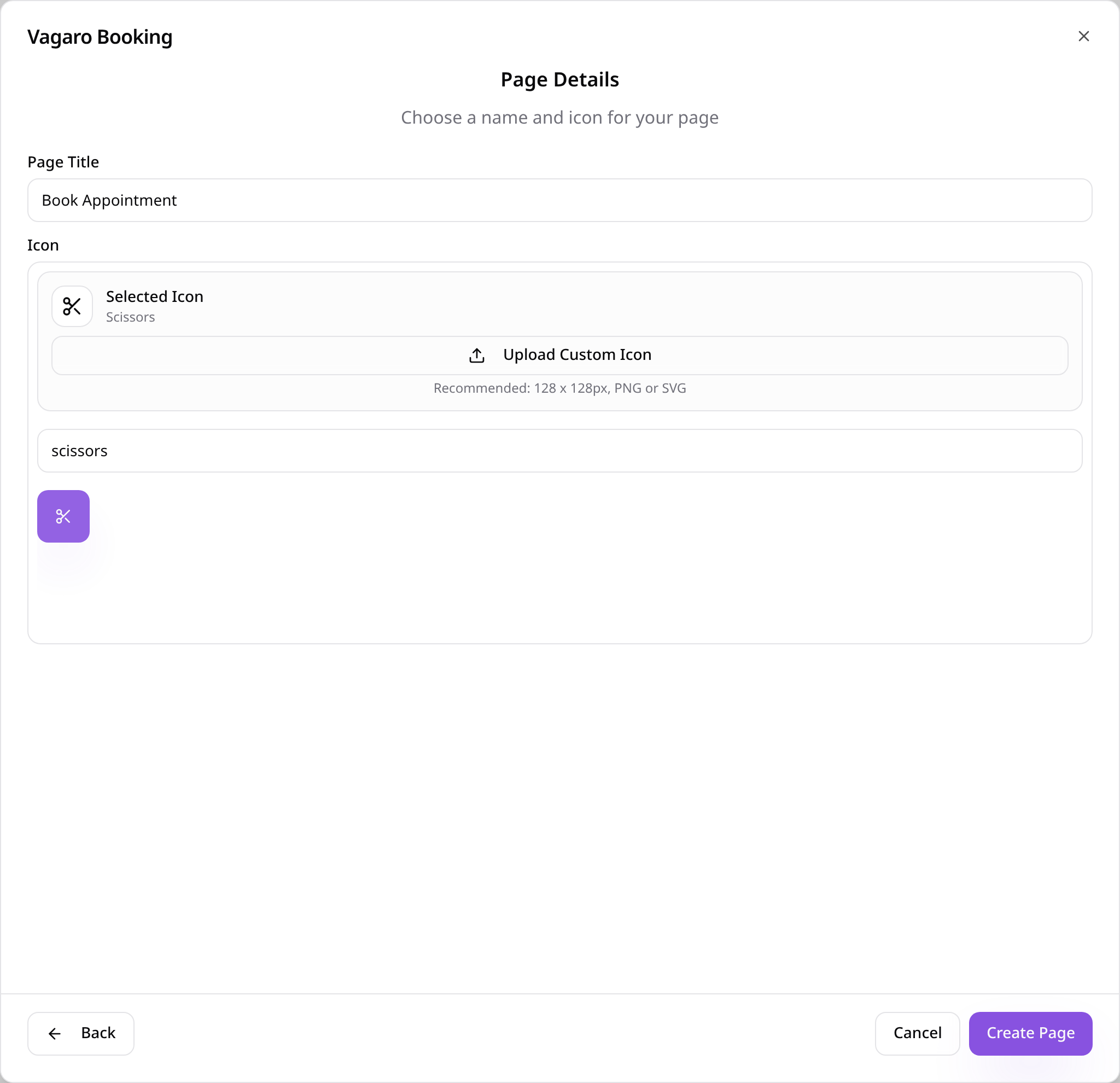
Name the page
Give the page a name, choose an icon and tap Create Page.
- 6
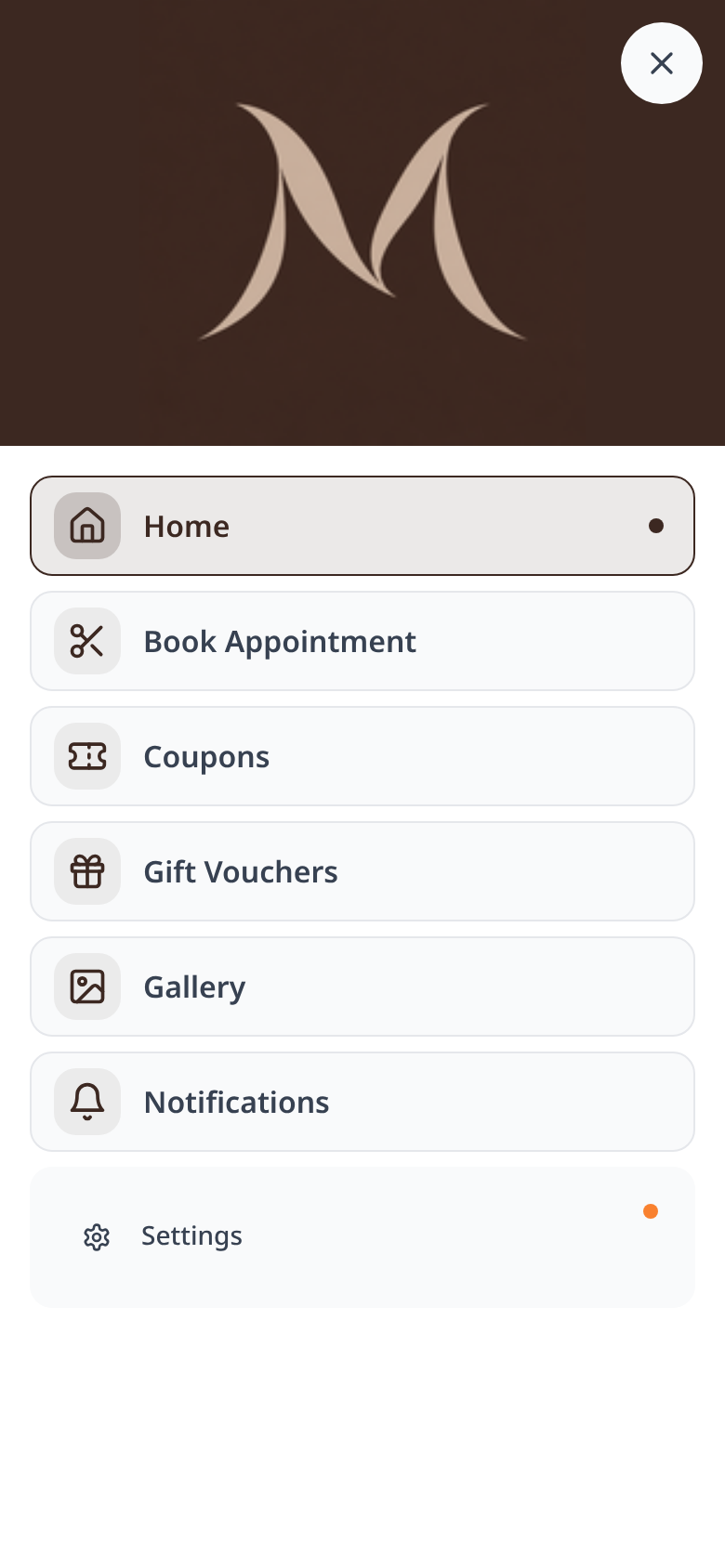
Find it in your app
Customers tap your booking page in the app menu.
- 7
Customers choose a service
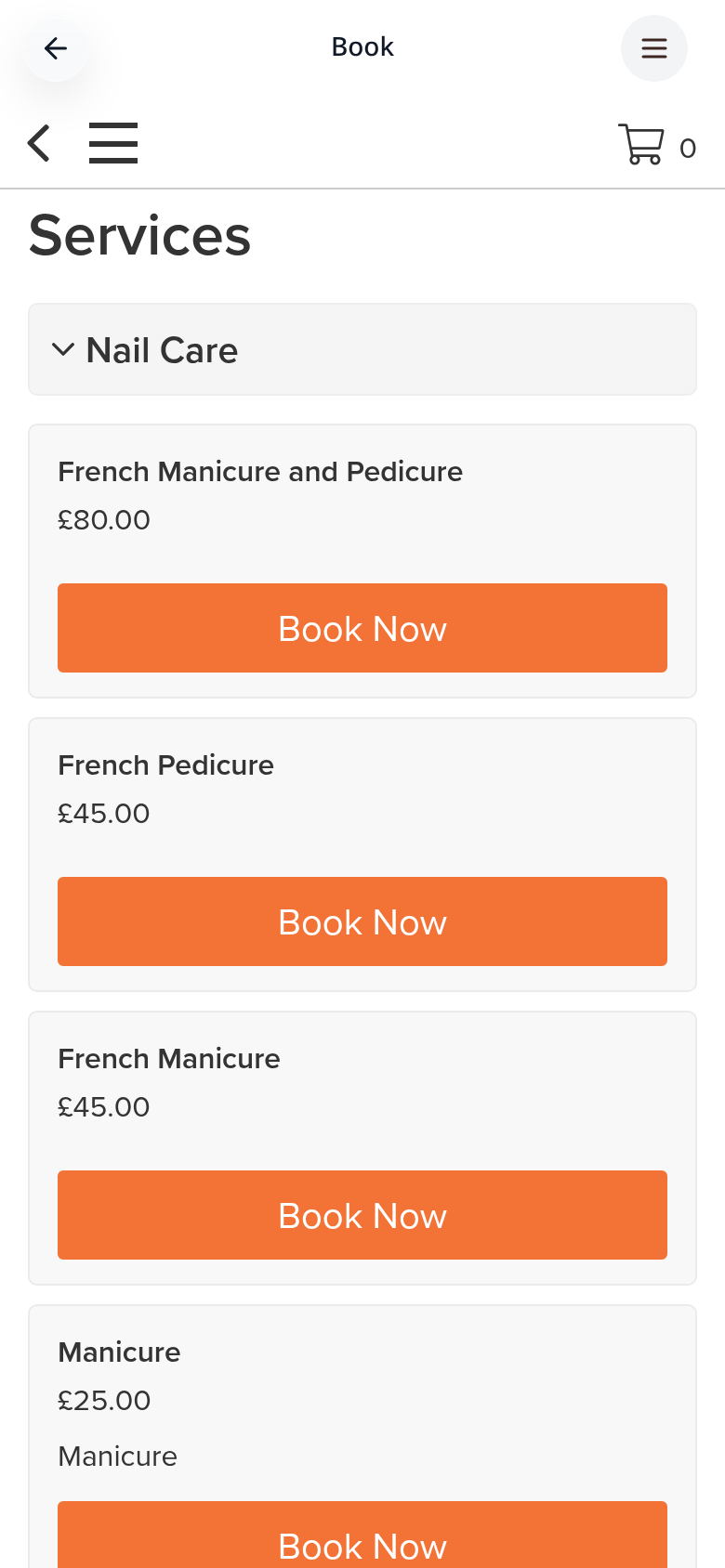
Your Vagaro services and prices show inside the app. Customers tap Book Now.
- 8
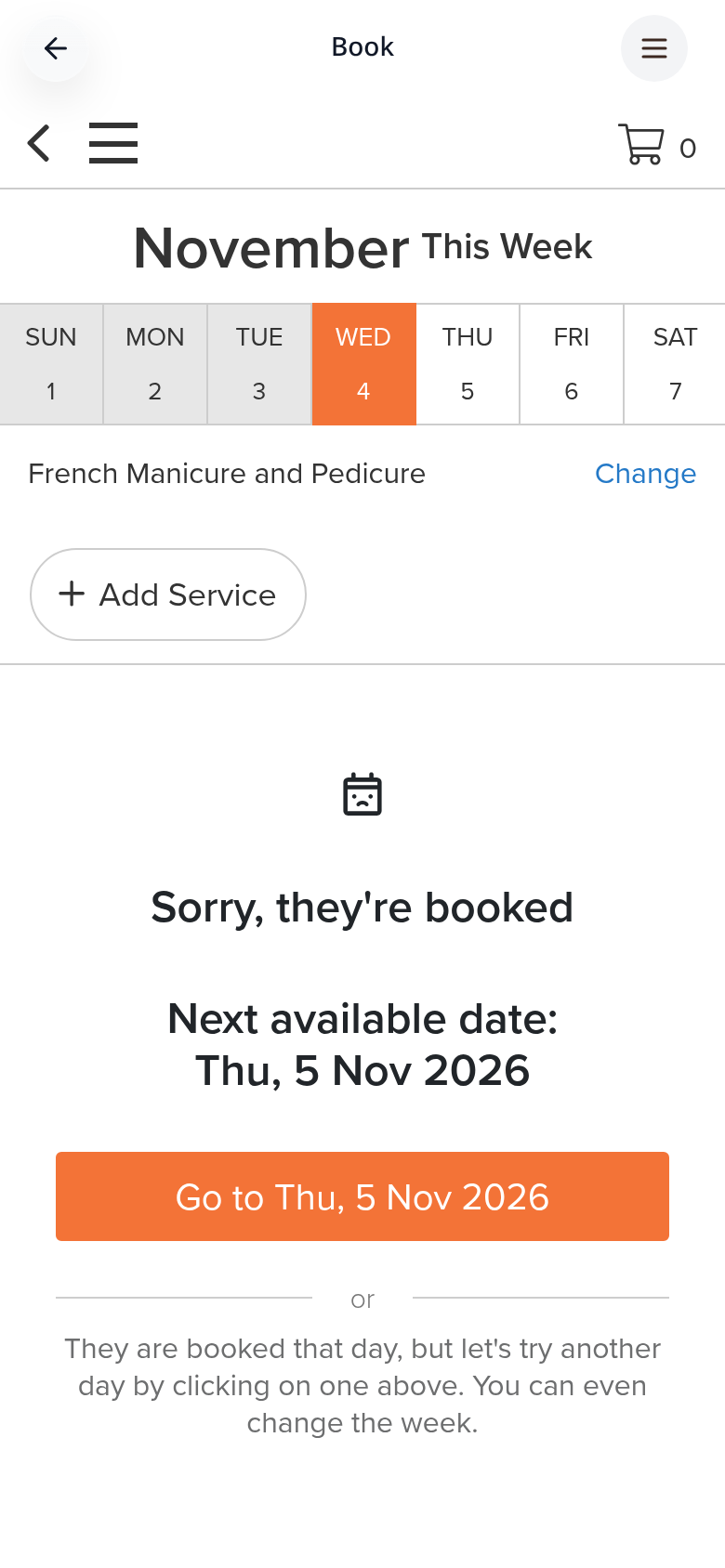
Customers pick a time
They choose a time and finish booking without leaving your app.
Bookings go straight into your Vagaro account. To change the widget, open the page in Pages and choose Edit Page Content.