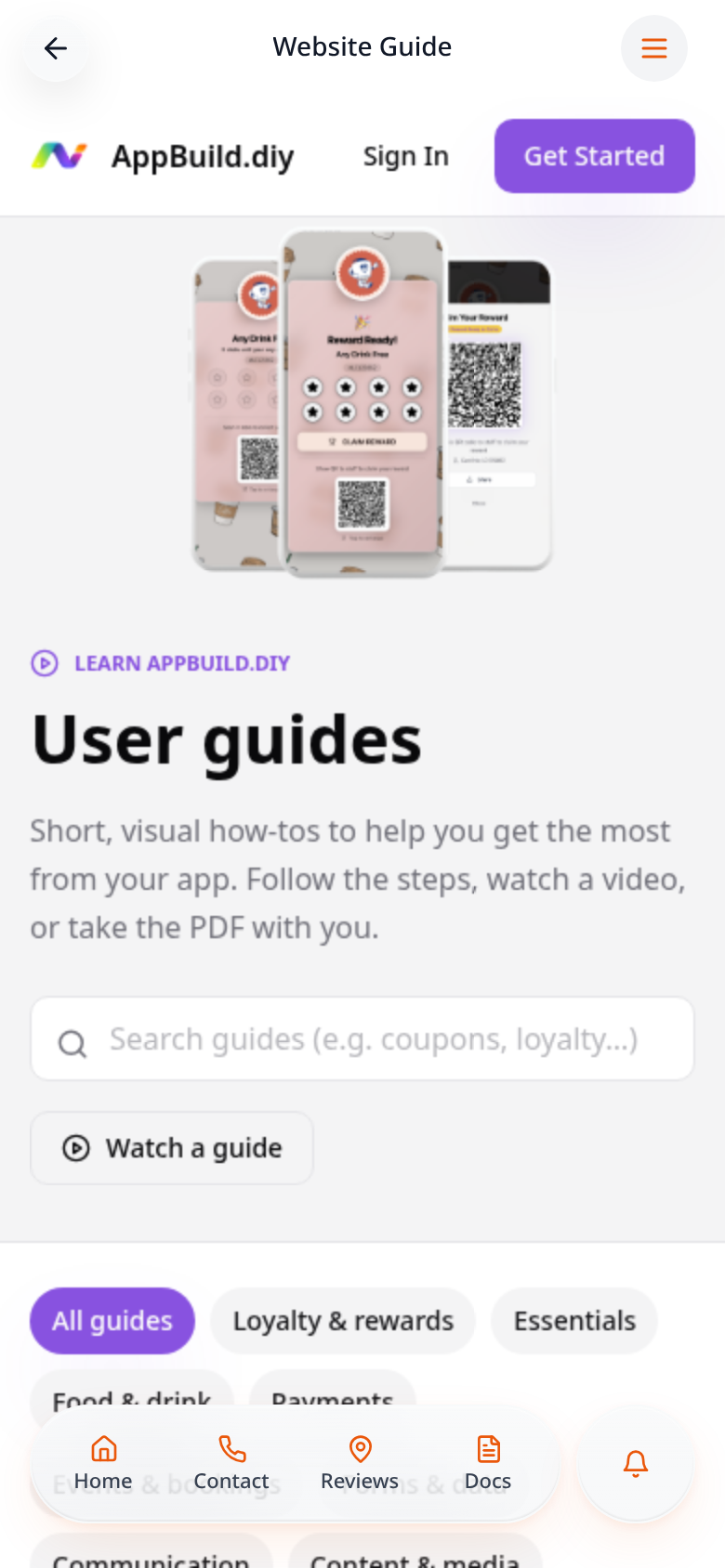
Step-by-step guide
Follow these steps, then download the PDF to keep.
- 1
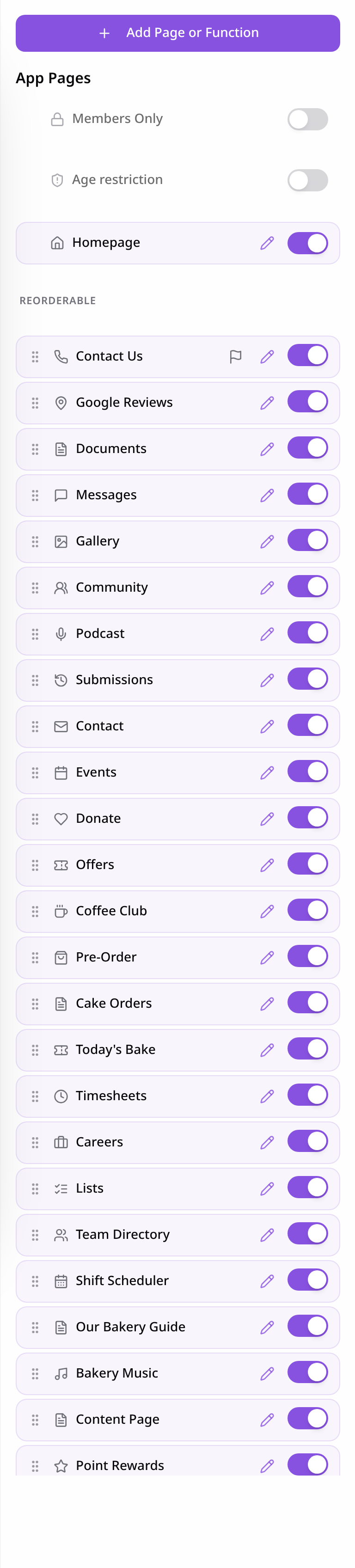
Open Pages
Open your app editor, select Pages, then Add Page or Function.
- 2
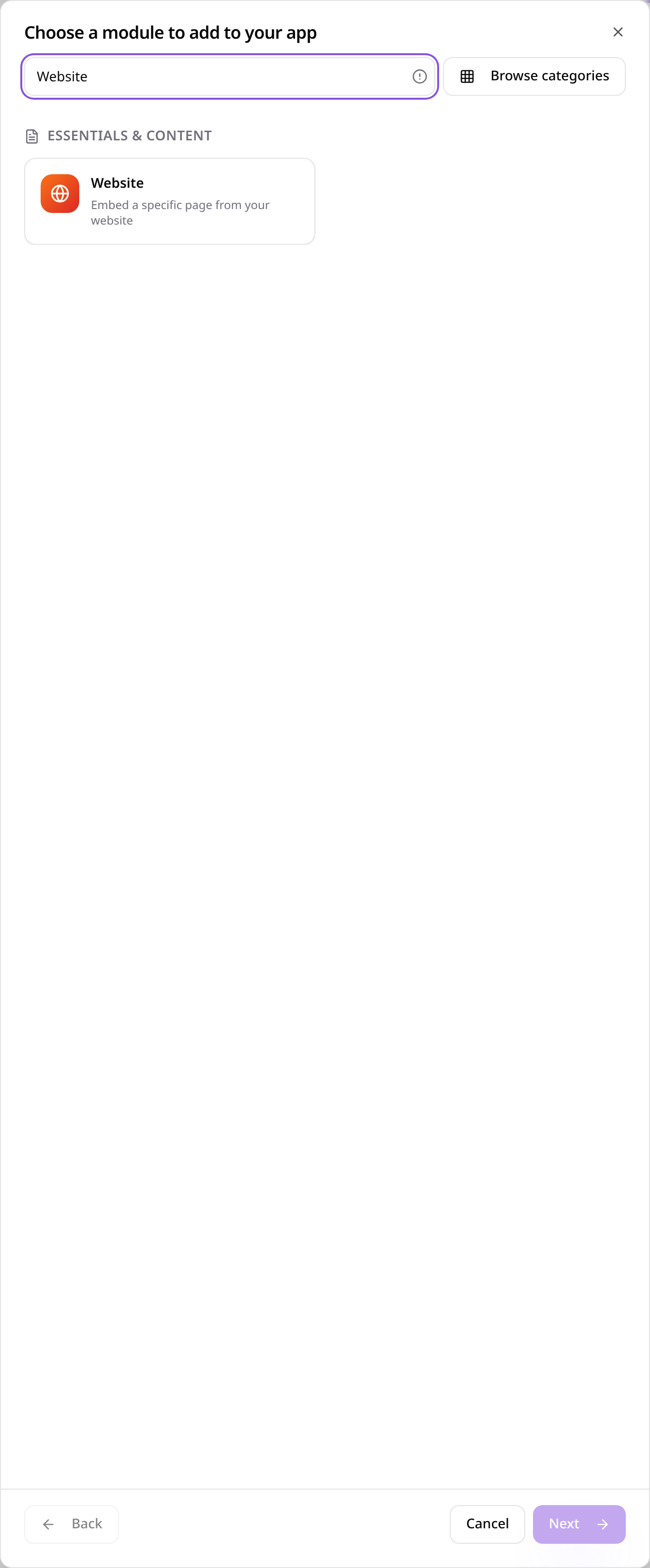
Choose Website
Search for Website and select it.
- 3
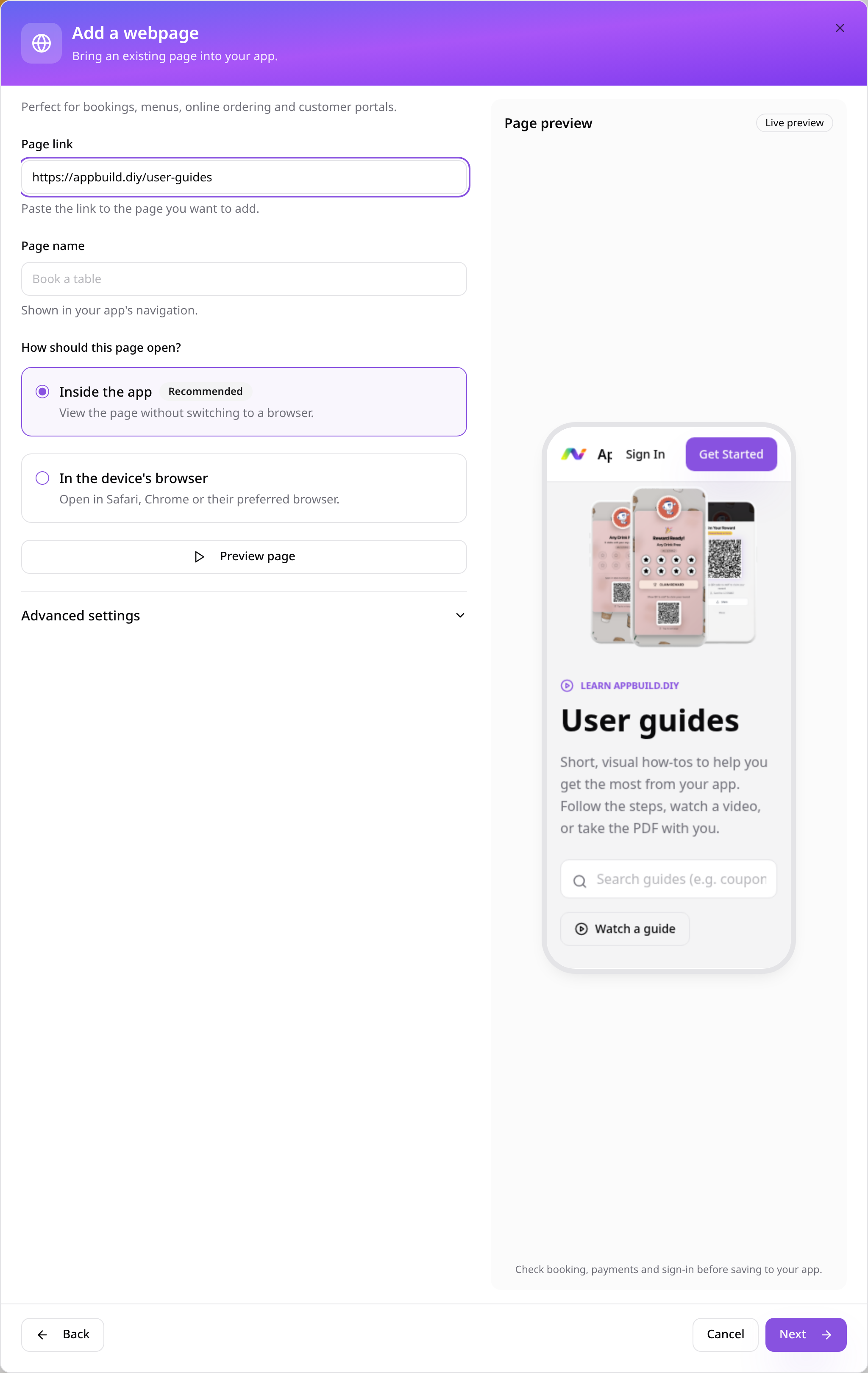
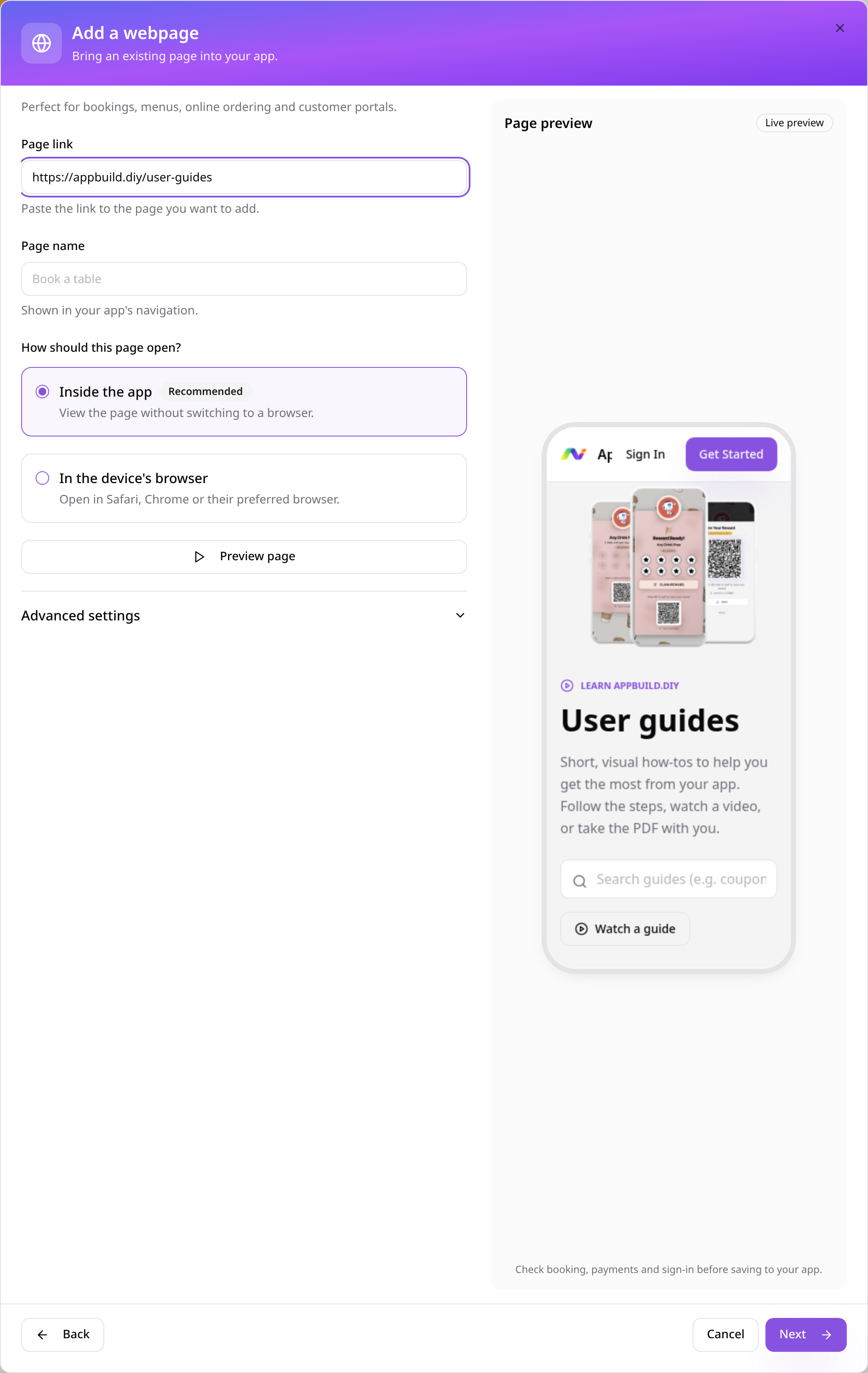
Paste the website page link
Paste the full URL of the page you want to add, not just its website name.
- 4
Choose how the page opens
Choose Inside the app, the device’s browser or Advanced display options; some sites do not allow embedding.
- 5
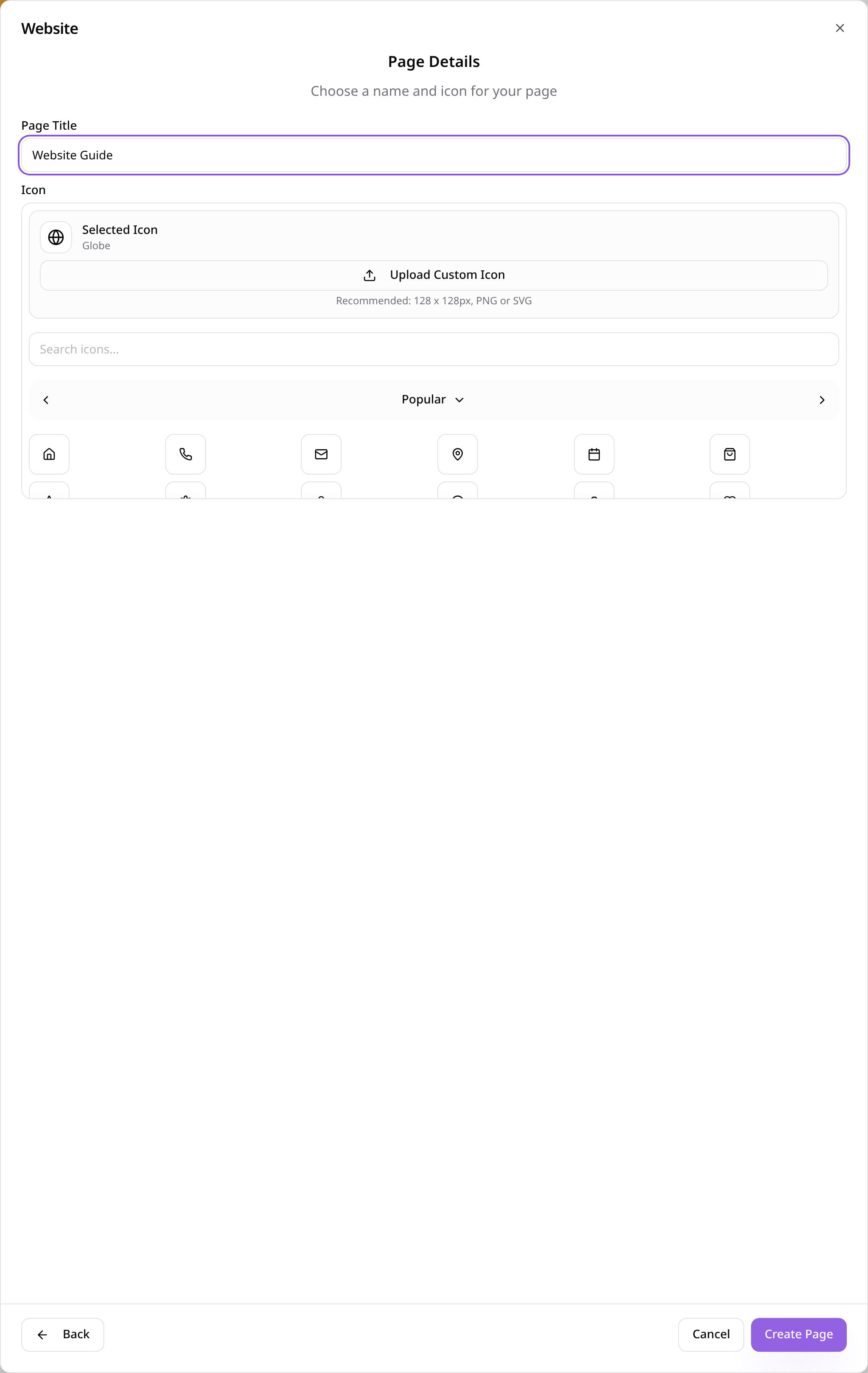
Name the page and choose an icon
Give the page a short, clear title, choose an icon, then select Create Page.
- 6
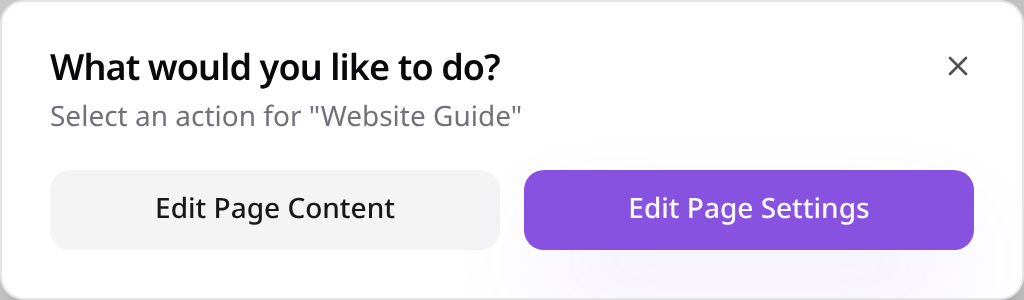
Change it later
Select the page in Pages, then choose Edit Page Content to update its settings.
- 7
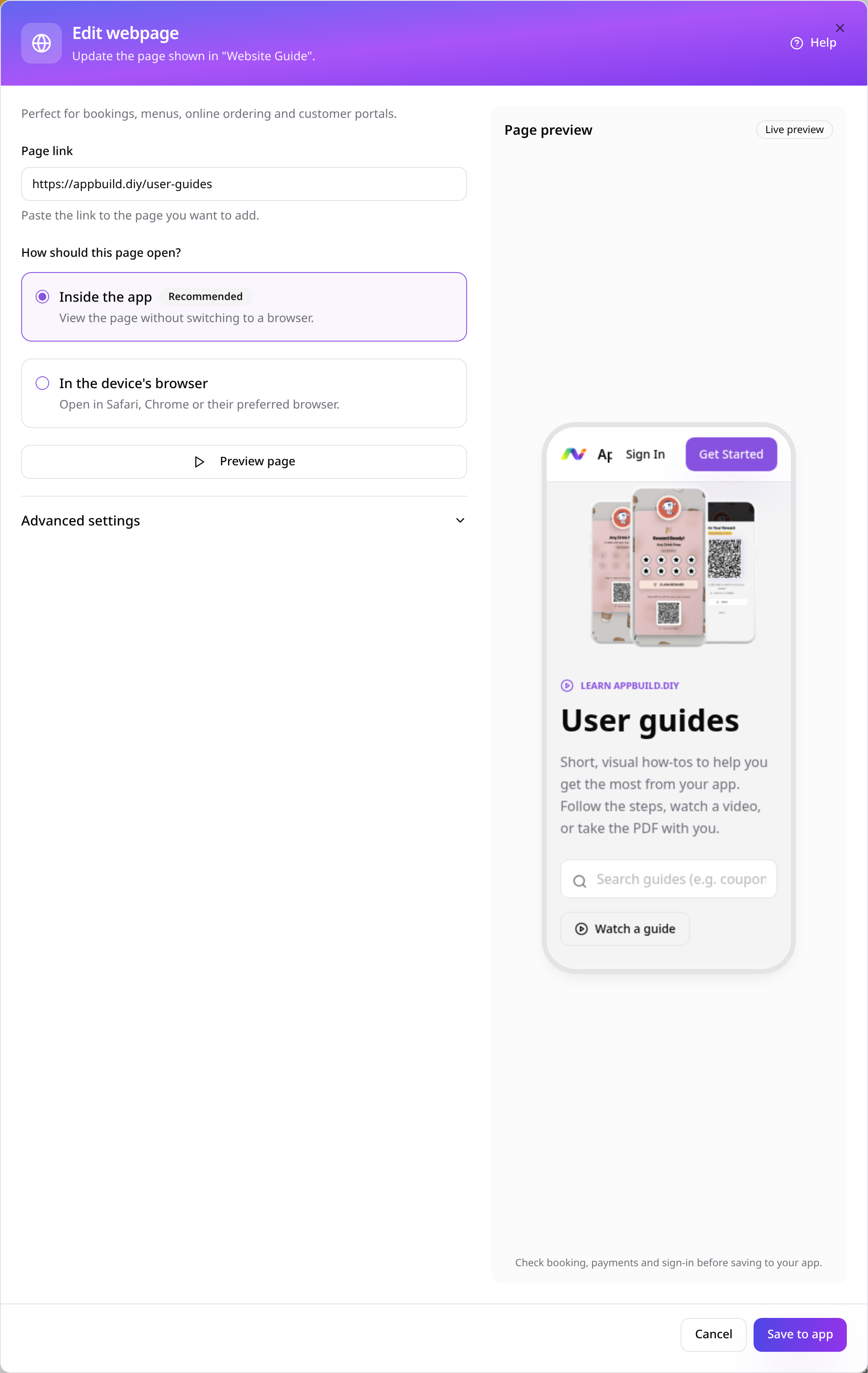
Check your saved page link
Review the saved website link and opening style, then save any changes.
- 8
Check the page in your app
Open the page from your app menu and check the customer view before publishing.
Check the page on your phone, then publish your app when you are ready. Provider content and availability are controlled by the provider.