Add YouTube to your app
Connect a channel, choose multiple content tabs and set the video layout.
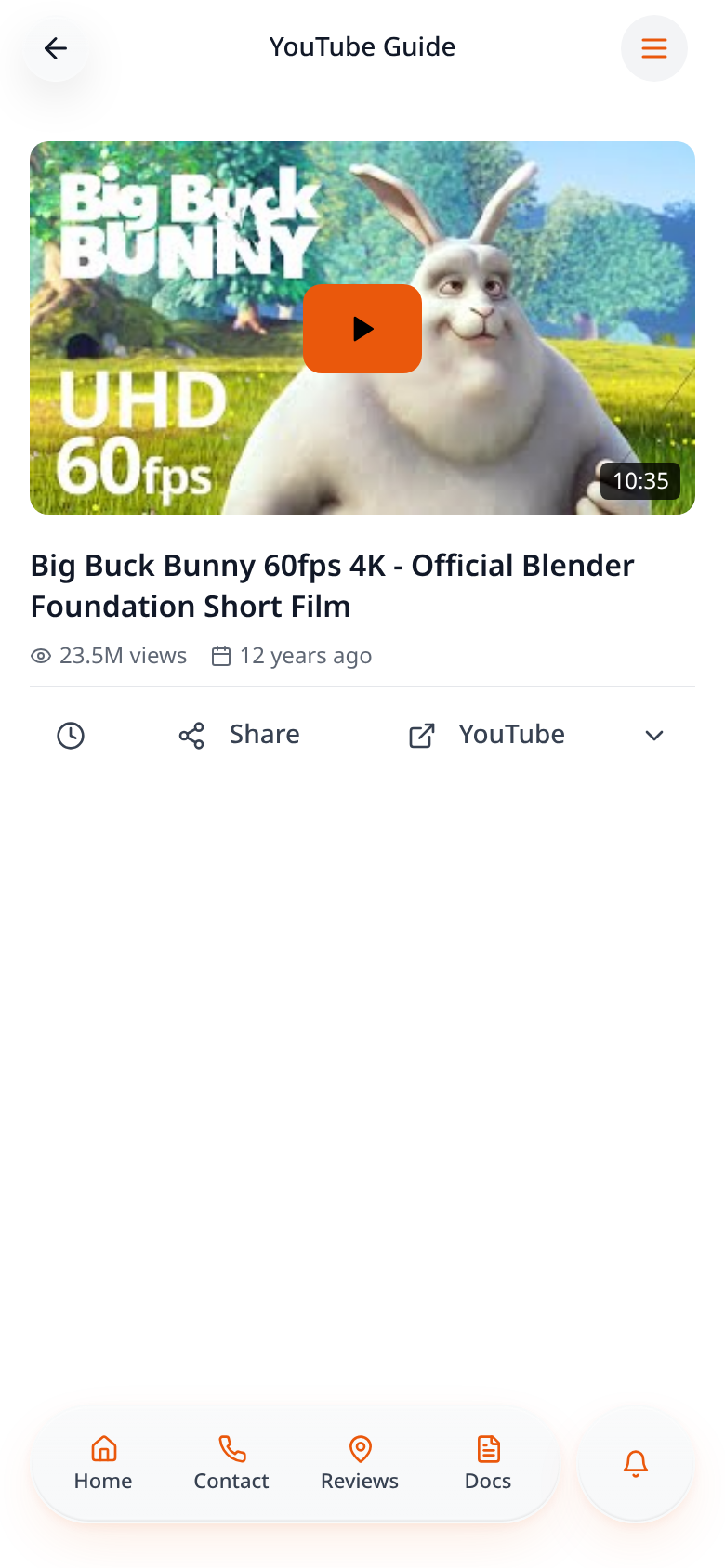
Step-by-step guide
Follow these steps, then download the PDF to keep.
- 1
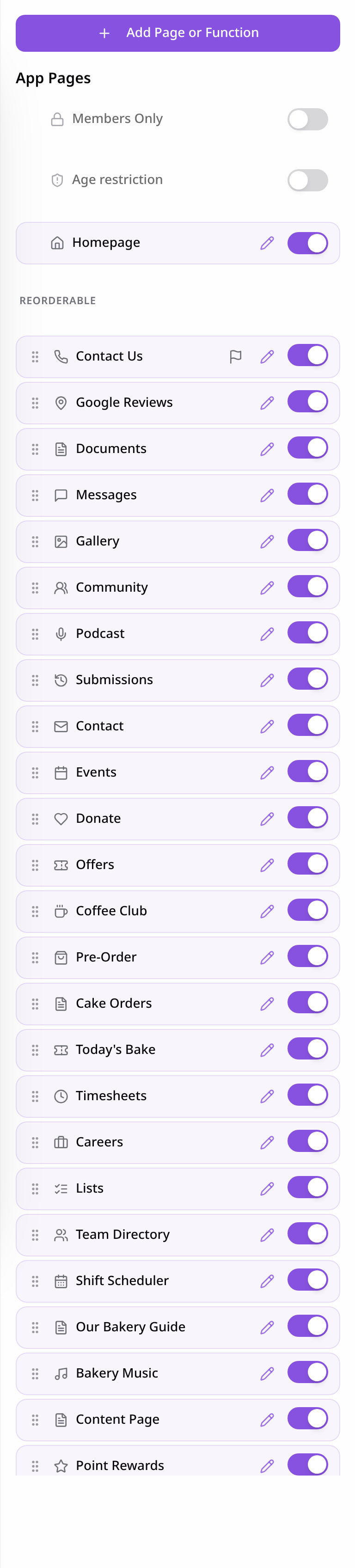
Open Pages
Open Pages and choose Add Page or Function.
- 2
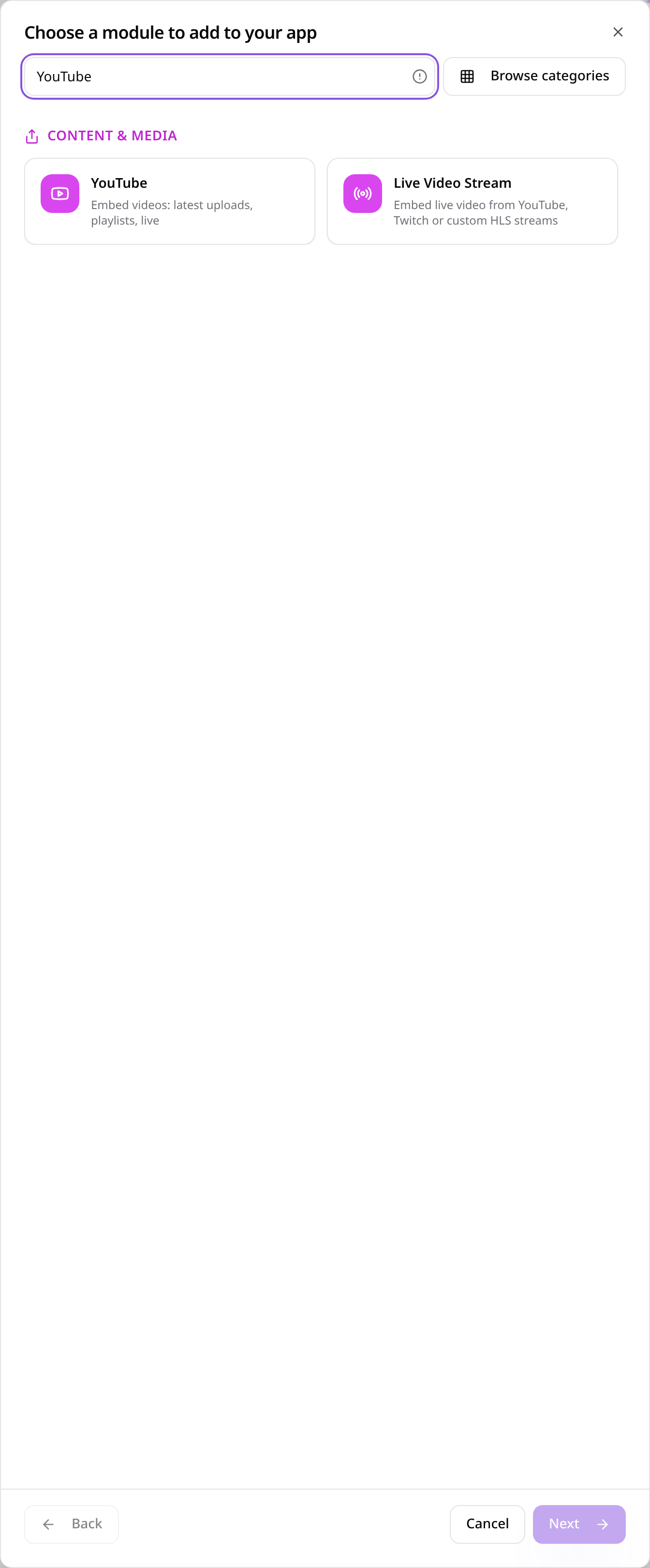
Choose YouTube
Search for YouTube and select it.
- 3
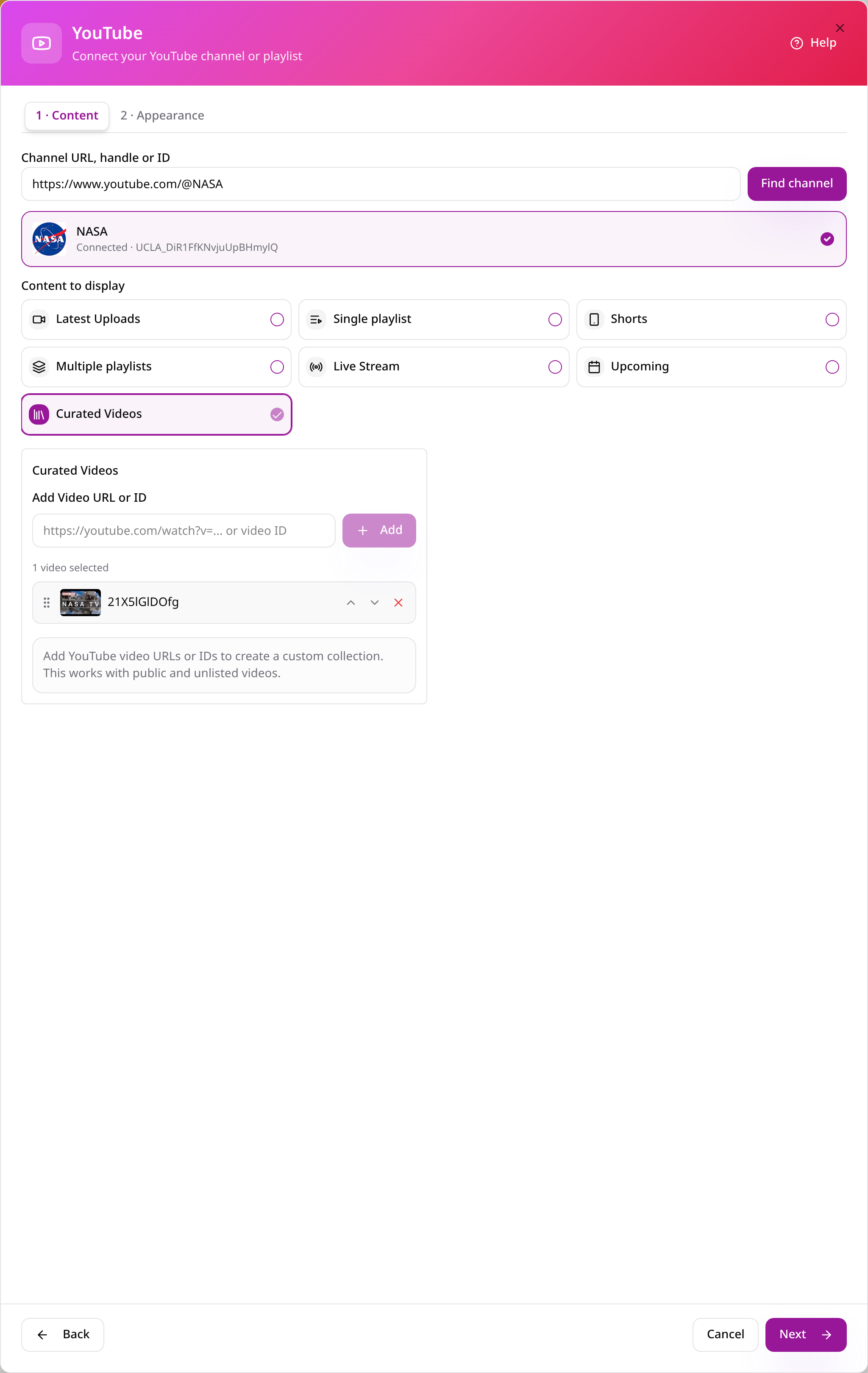
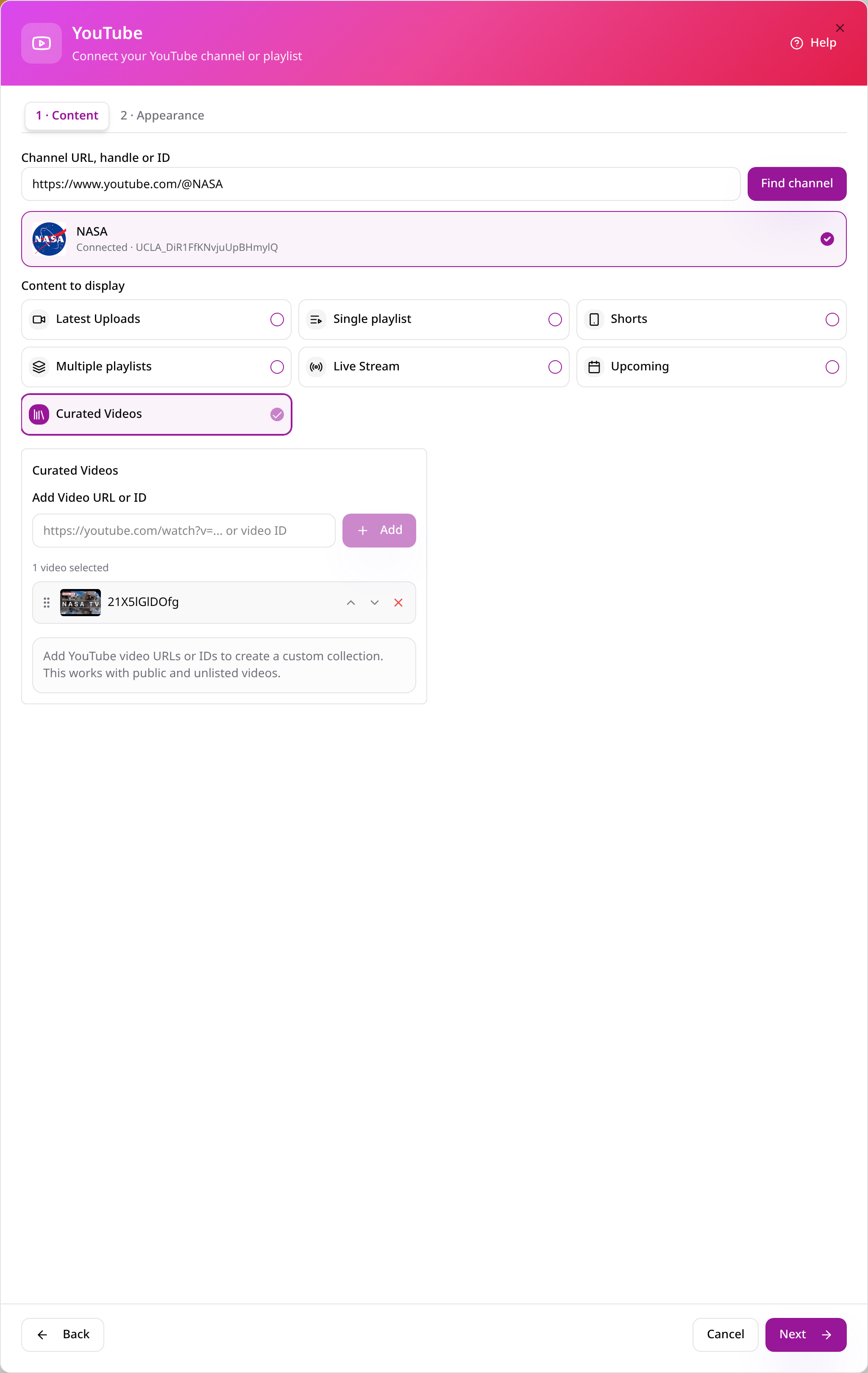
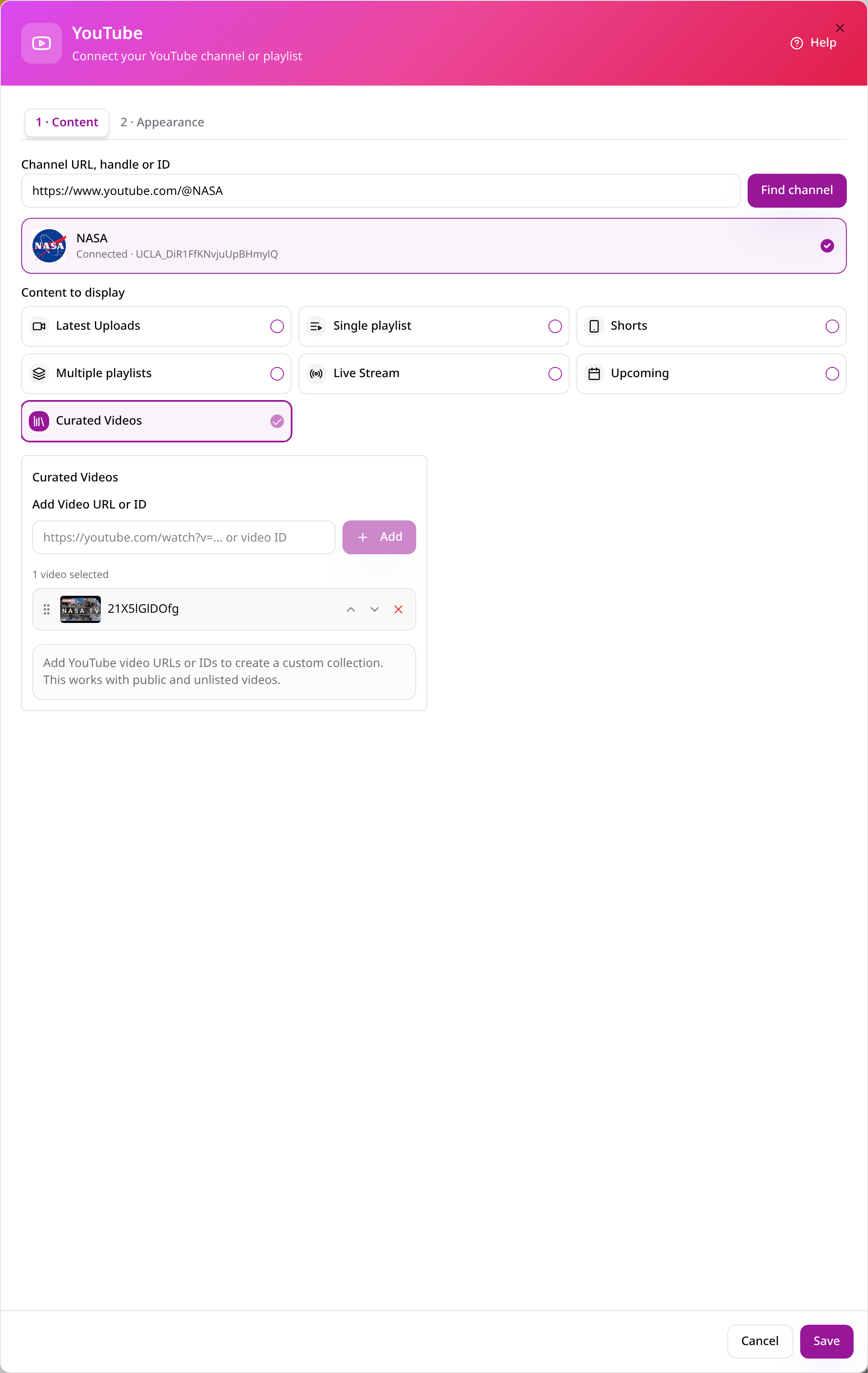
Connect a channel and choose content
Paste a channel URL or handle and select Find channel; select one or more content types for separate app tabs.
- 4
Add selected videos
Paste a video URL or ID and select Add; repeat to build your collection.
- 5
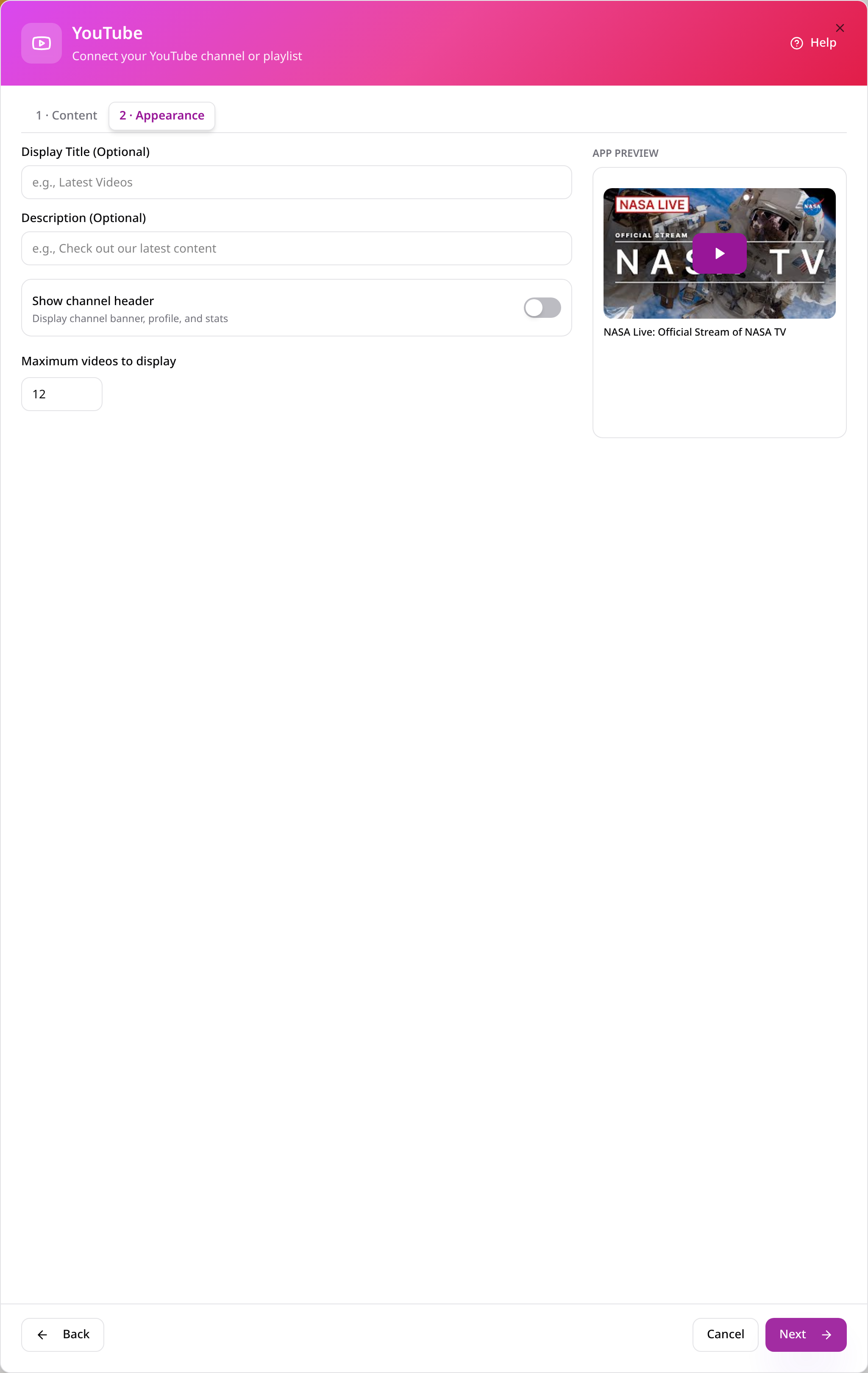
Choose the appearance
Set the title, description, channel header and video layout, checking the preview.
- 6
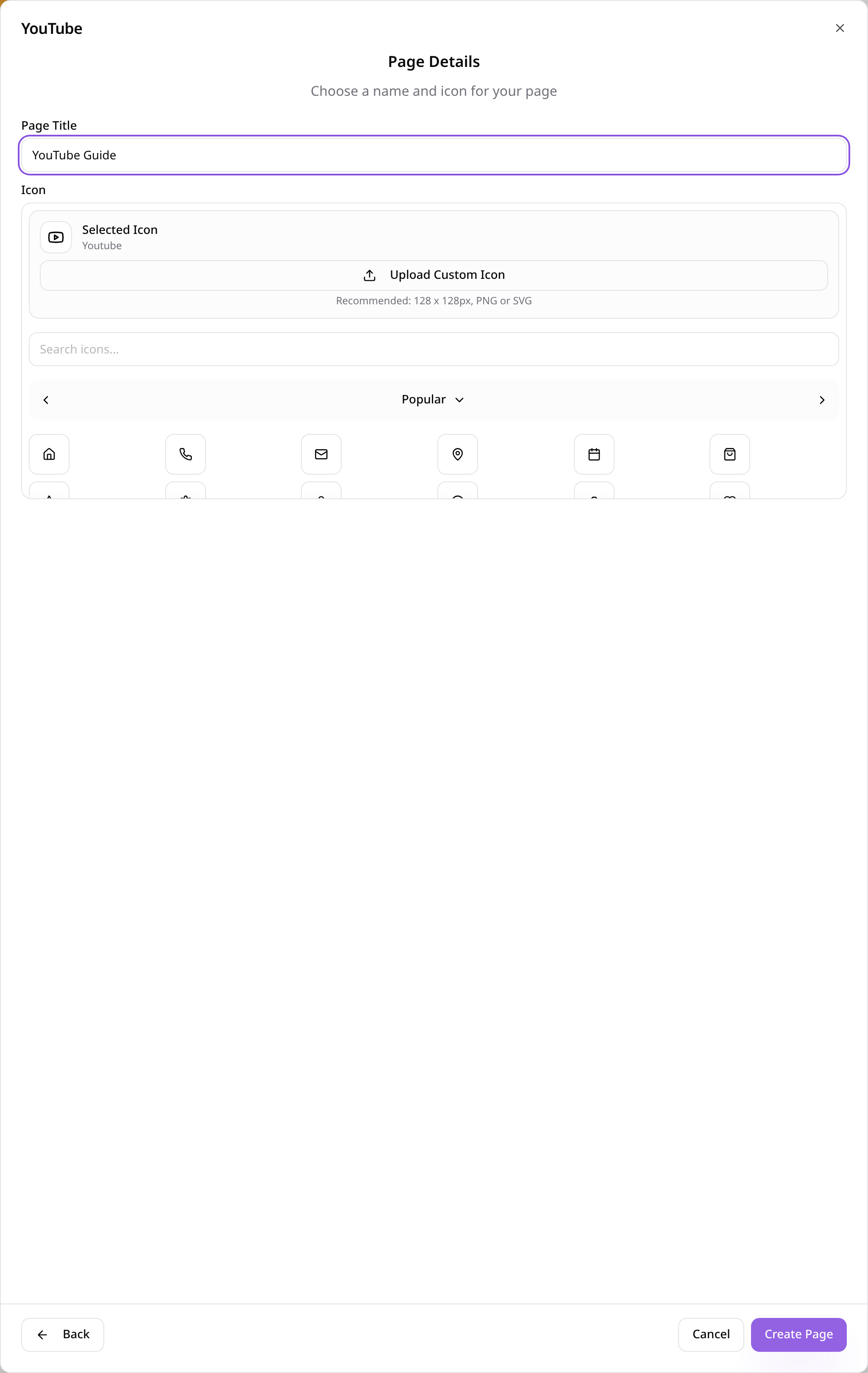
Name the page and choose an icon
Give the page a short title, choose an icon and select Create Page.
- 7
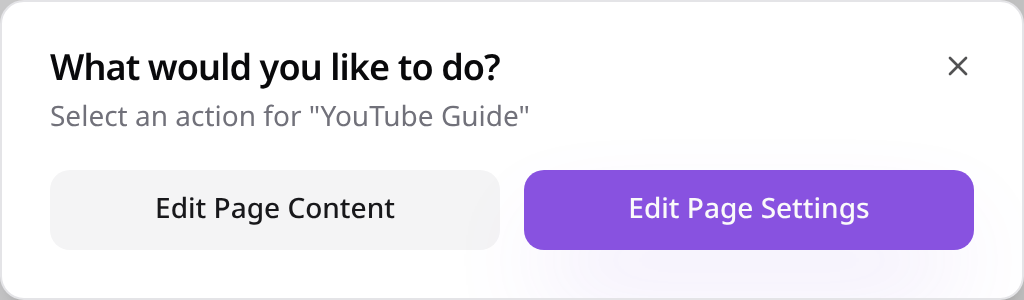
Change it later
Select the page and choose Edit Page Content.
- 8
Check your saved settings
Review saved content and appearance settings; select Save after making changes.
- 9
Check the page in your app
Open the page from your app menu and check the customer view before publishing.
Check the page on your phone, then publish your app when you are ready. Provider content and availability are controlled by the provider.