Build an event agenda
Add a timed schedule of sessions, link it to an event and import it from a spreadsheet.
Step-by-step guide
Follow these steps, then download the PDF to keep.
- 1
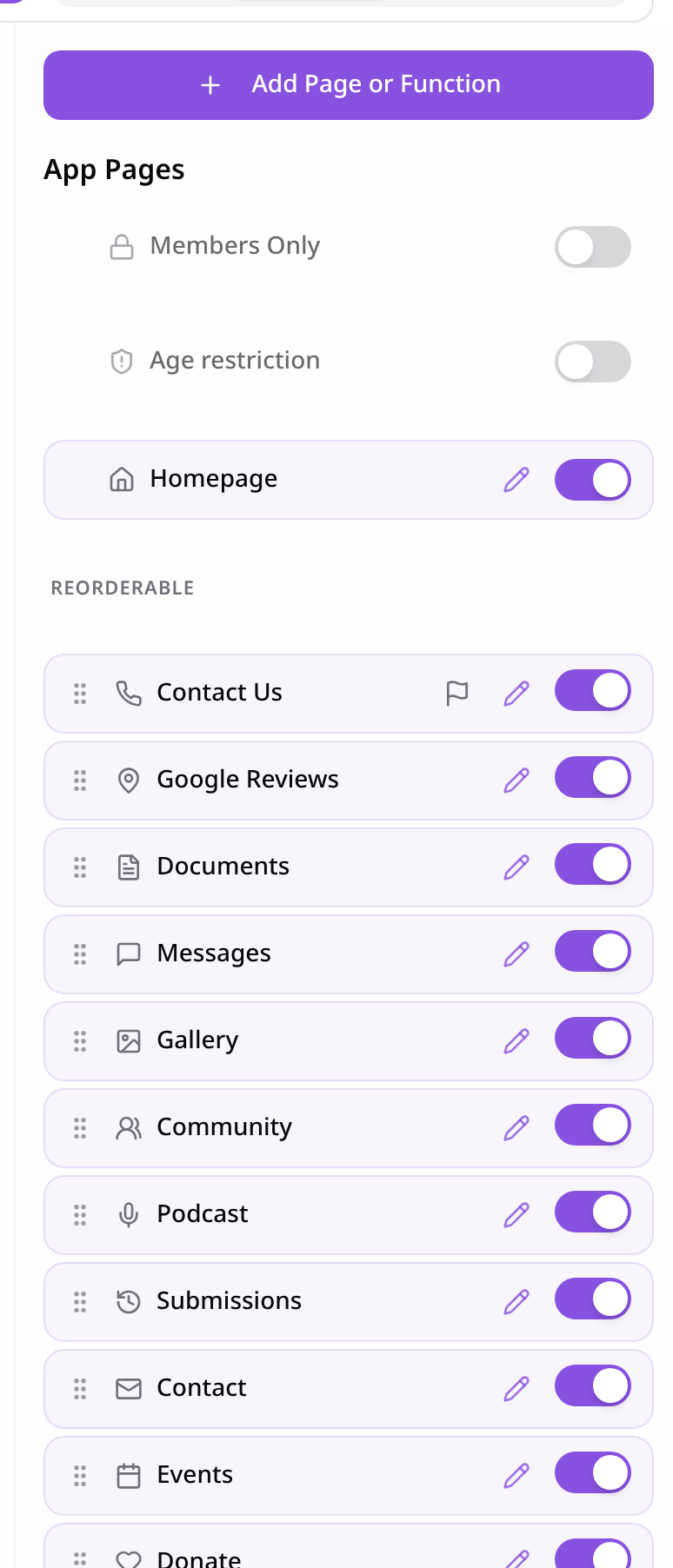
Open Pages
In your app editor, open Pages and tap Add Page or Function.
- 2
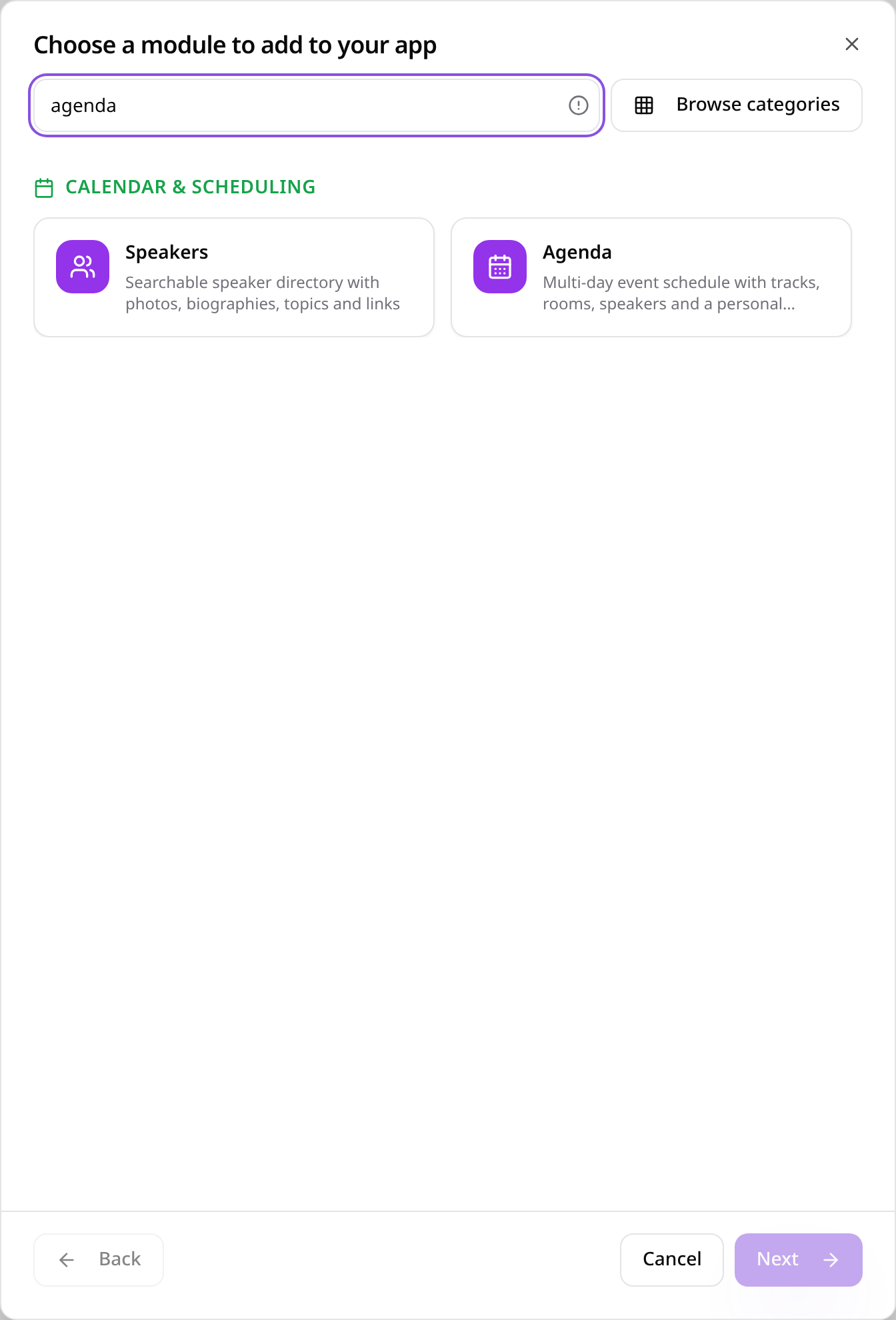
Choose Agenda
Search “agenda” and tap Agenda.
- 3
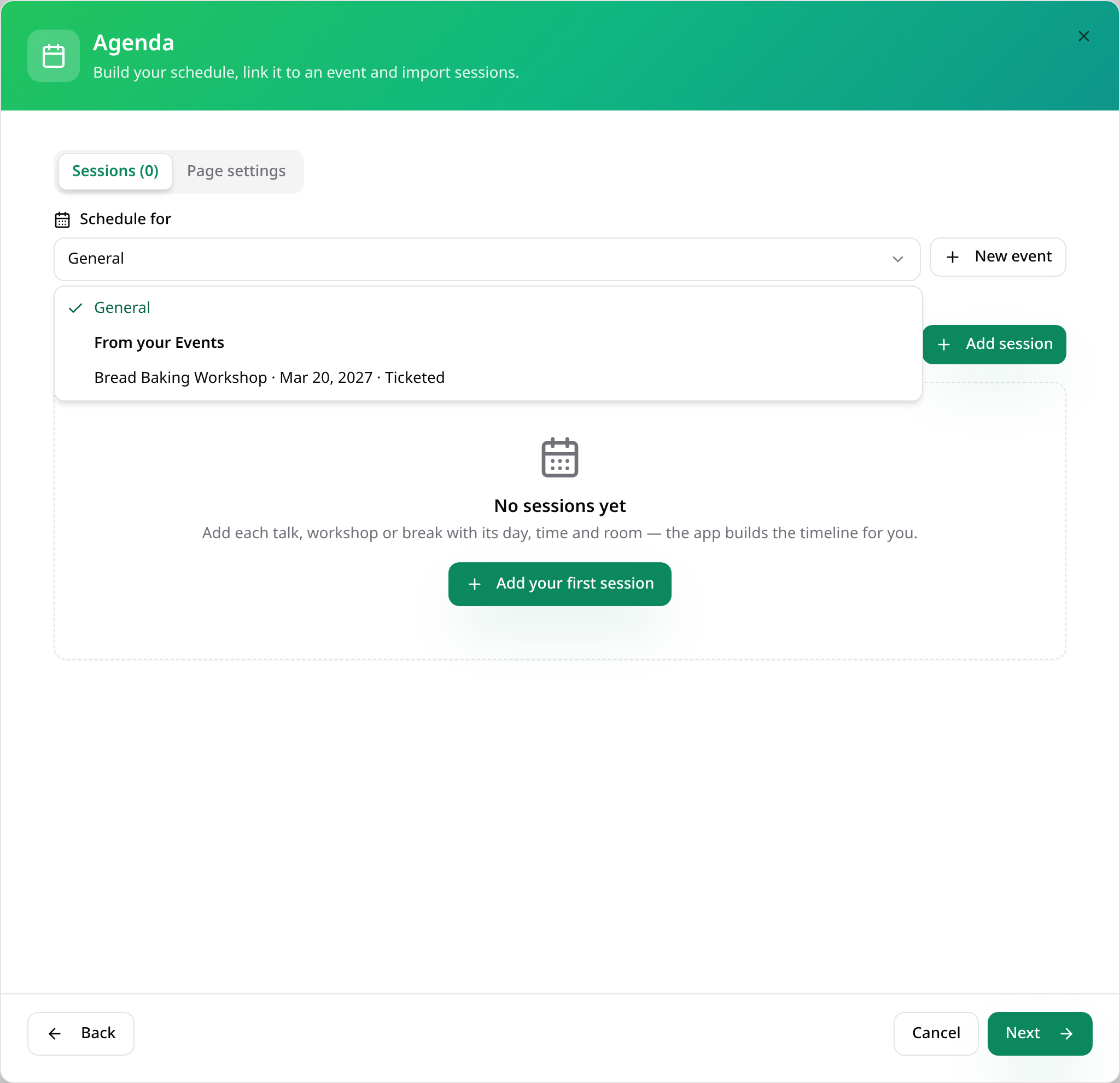
Pick the event
Under Schedule for, choose one of your events, or General if your app runs one schedule.
- 4
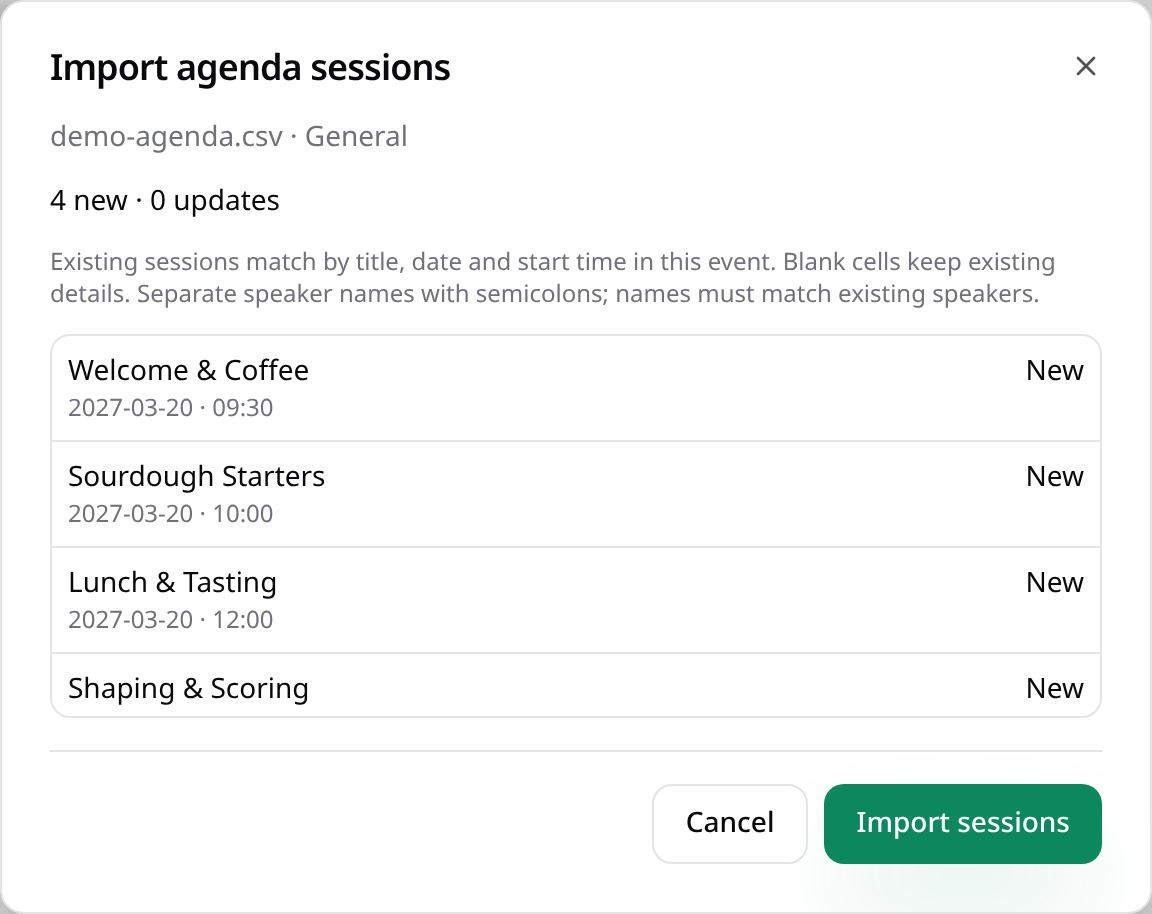
Import a CSV
Download the CSV template, fill it in and tap Import CSV. Check the sessions, then tap Import sessions.
- 5
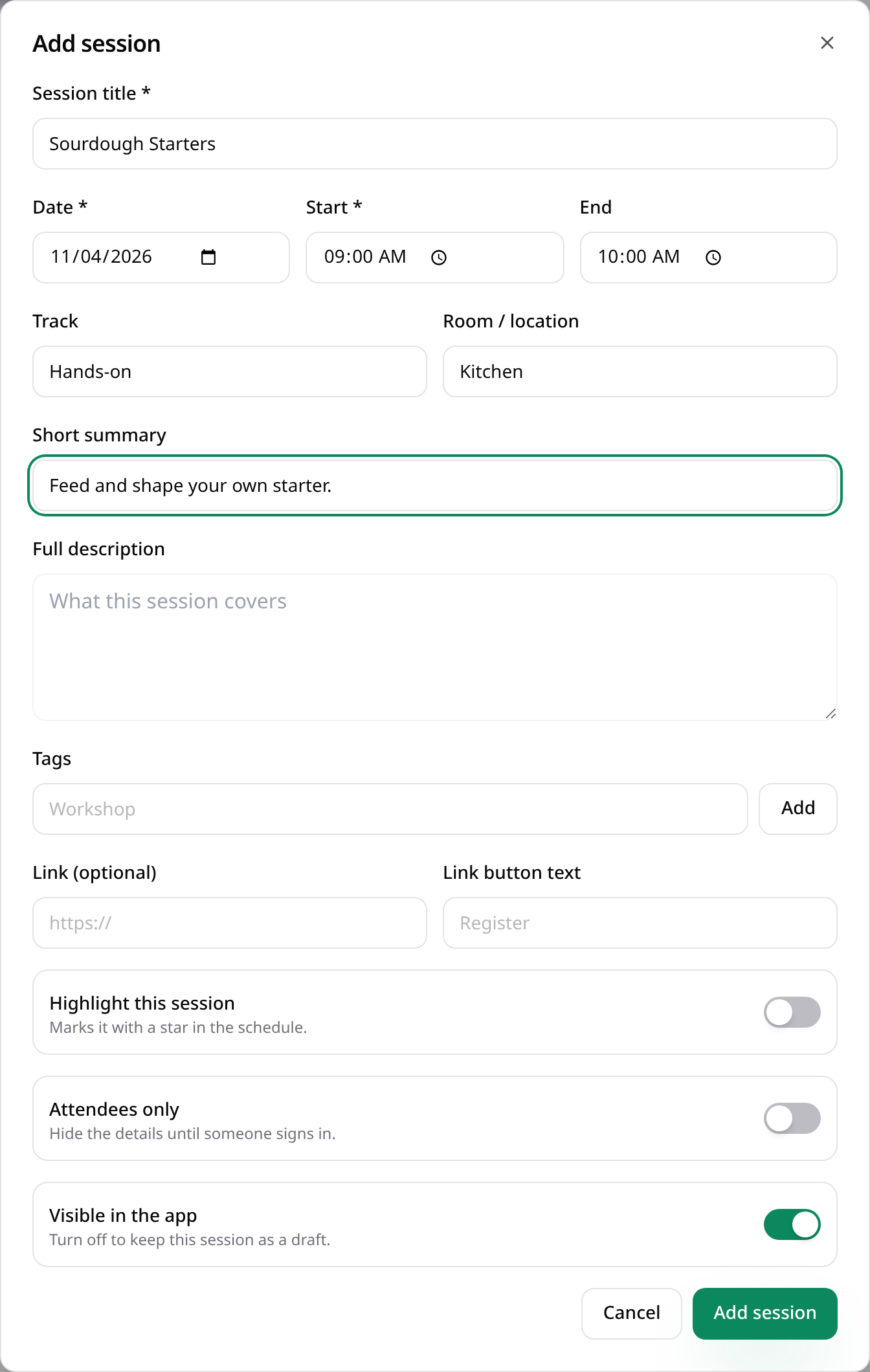
Or add a session
Tap Add session to enter the title, day, times, room and speakers by hand.
- 6
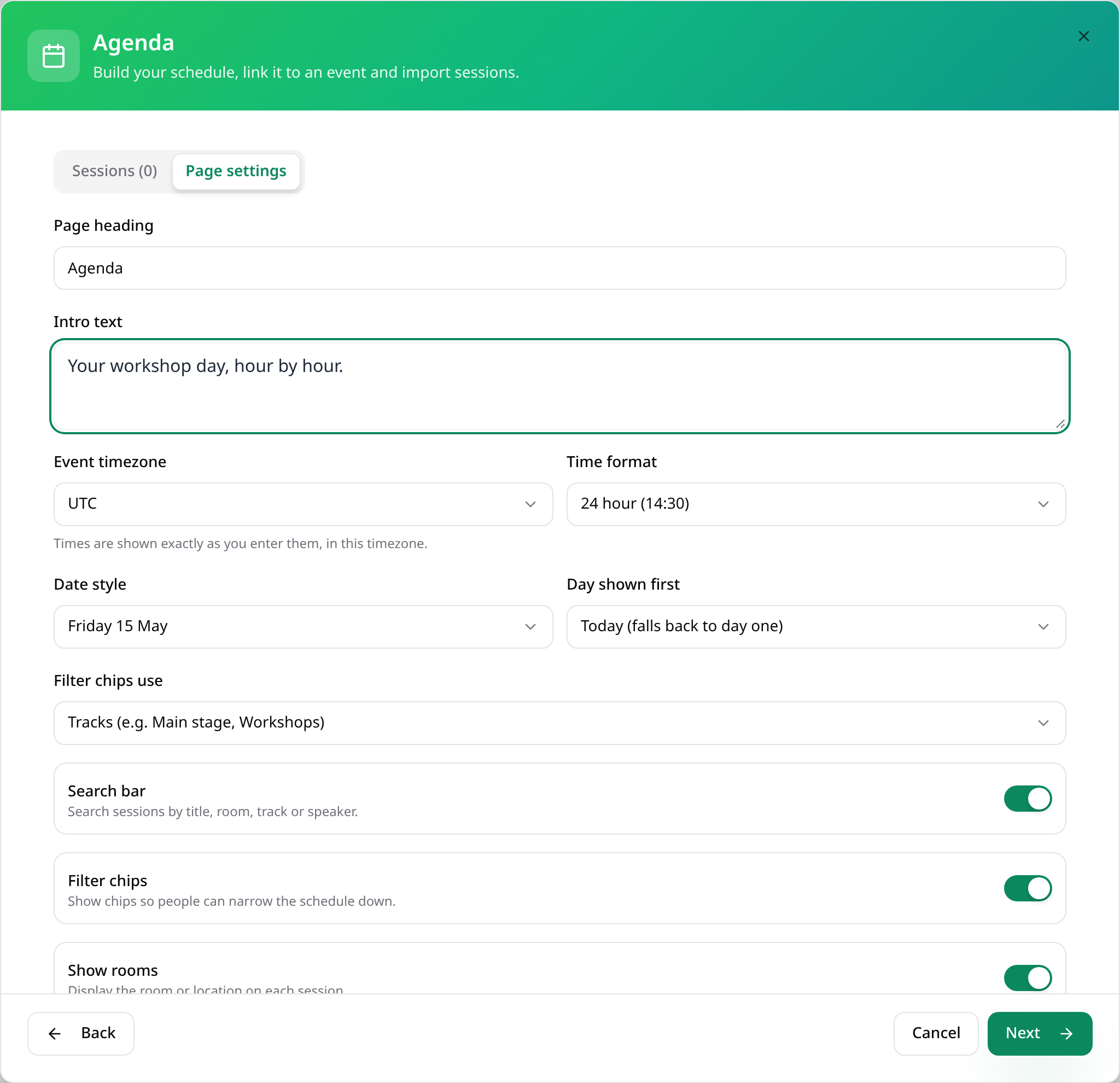
Page settings
On Page settings, choose how the schedule looks. Tap Next.
- 7
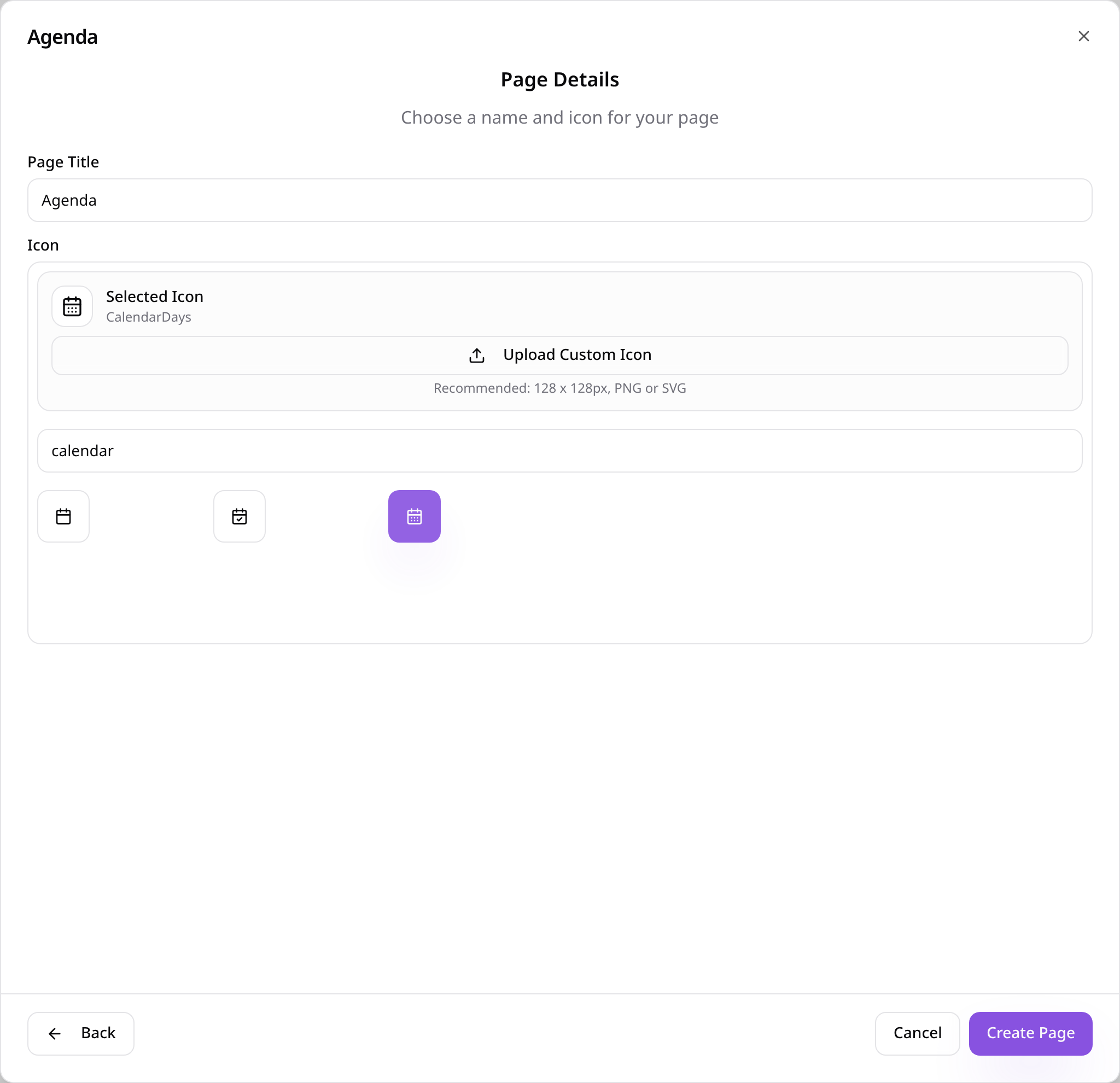
Name the page
Give the page a name, choose an icon and tap Create Page.
- 8
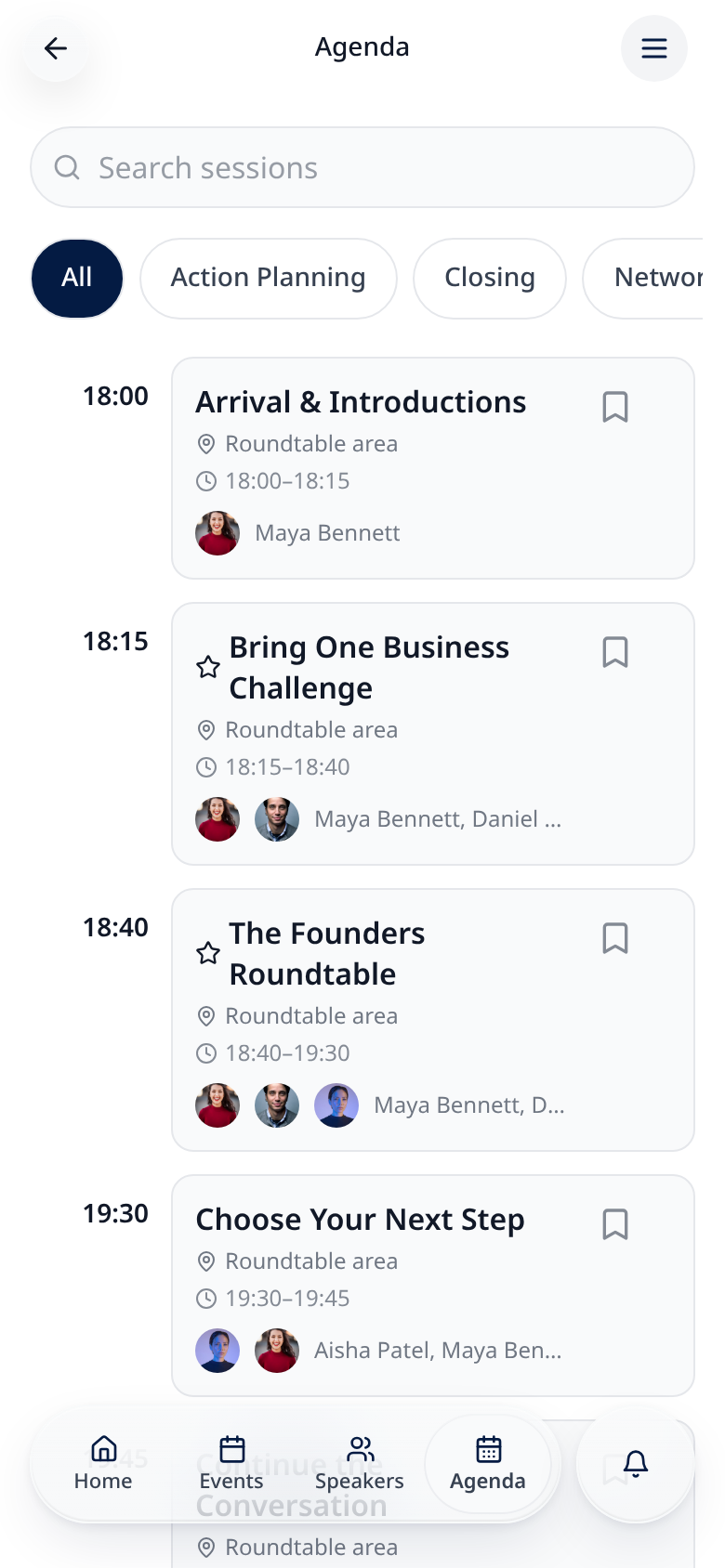
Attendees see the schedule
Sessions show by day and time, with tracks and rooms.
- 9
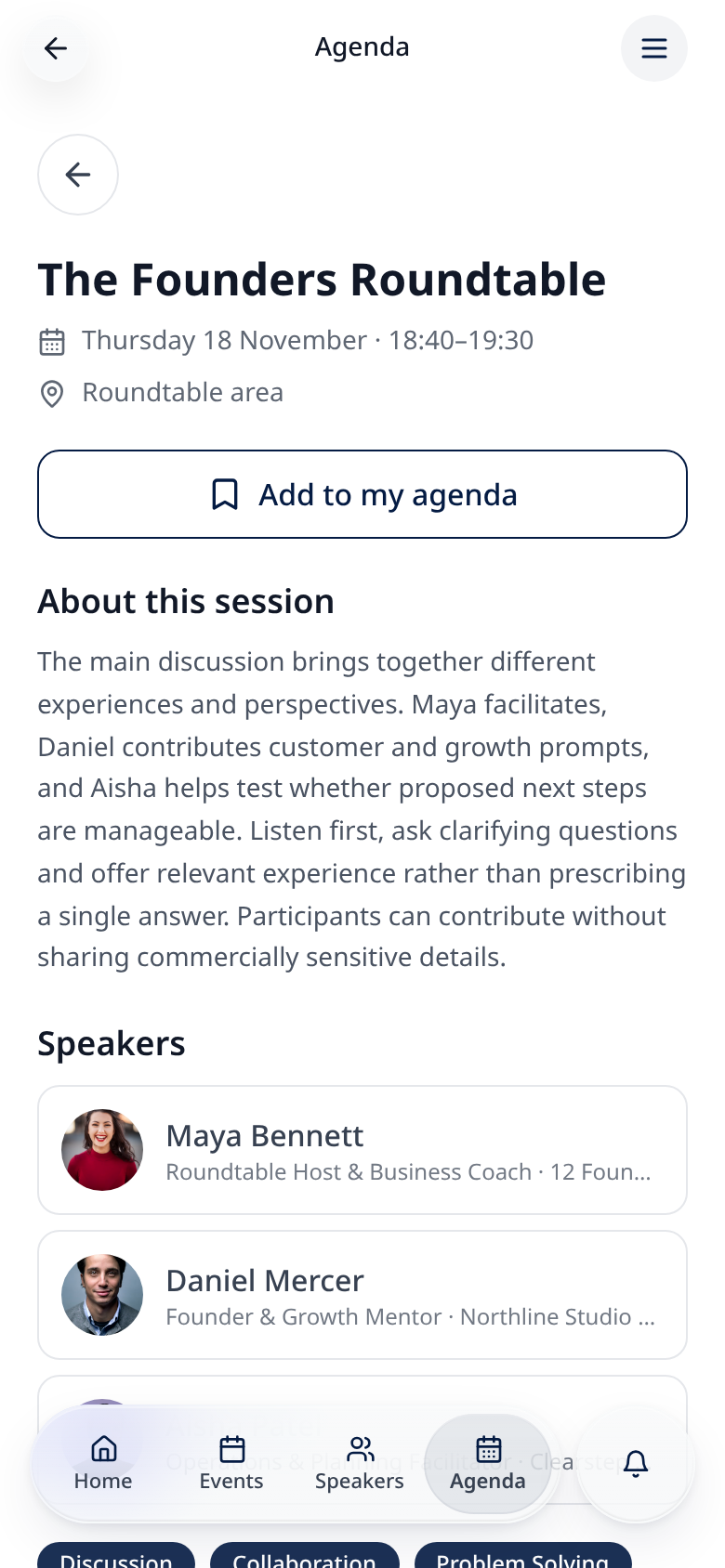
Session details
Tapping a session shows its description, speakers and location.
Re-importing the same CSV updates sessions with matching titles instead of adding duplicates.