Add a chat room
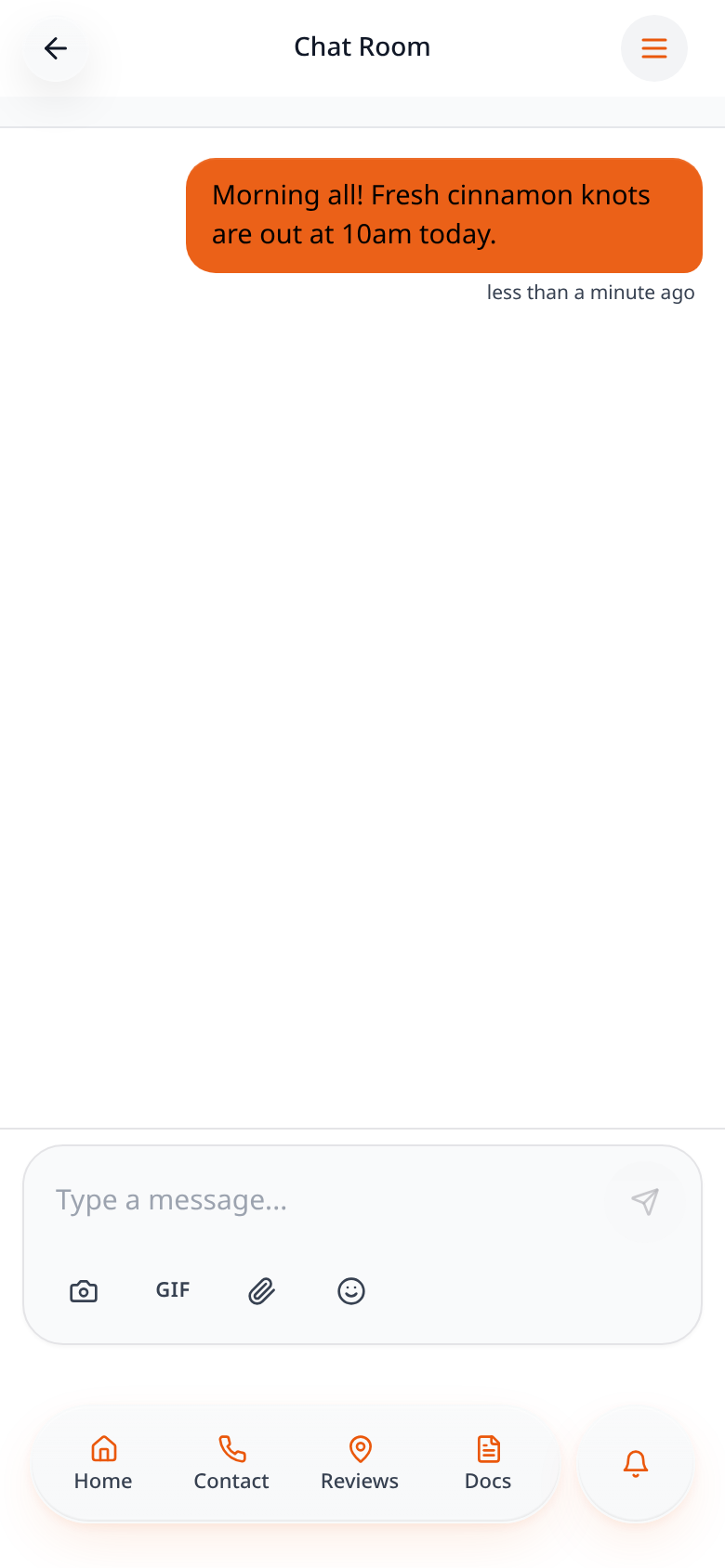
Give your members a live group chat with photos, GIFs, files and reactions.
Step-by-step guide
Follow these steps, then download the PDF to keep.
- 1
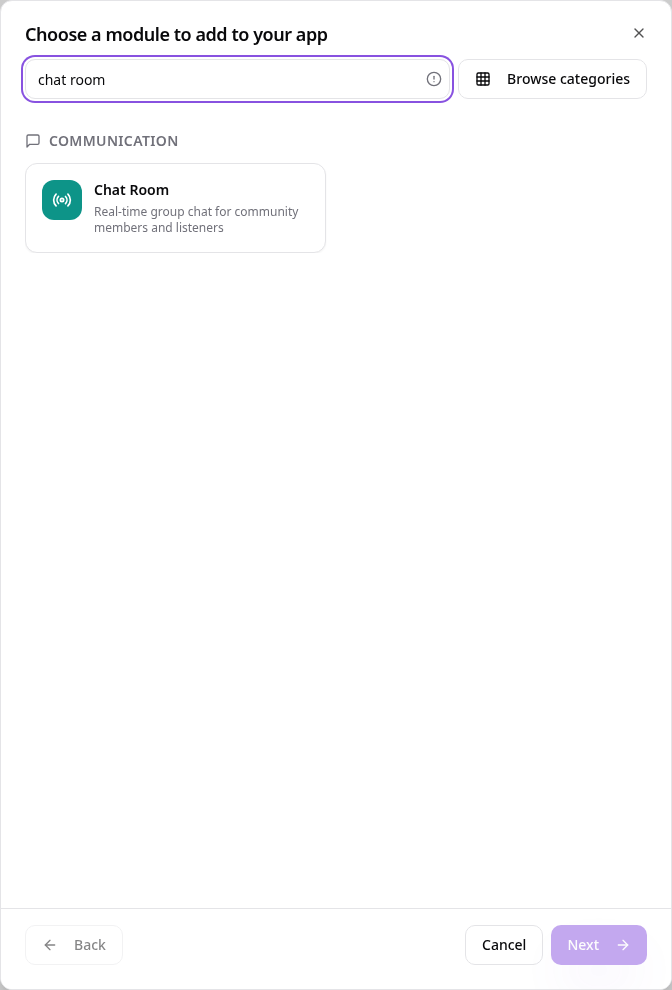
Choose Chat Room
In Pages, tap Add Page or Function, search “chat room” and tap Chat Room.
- 2
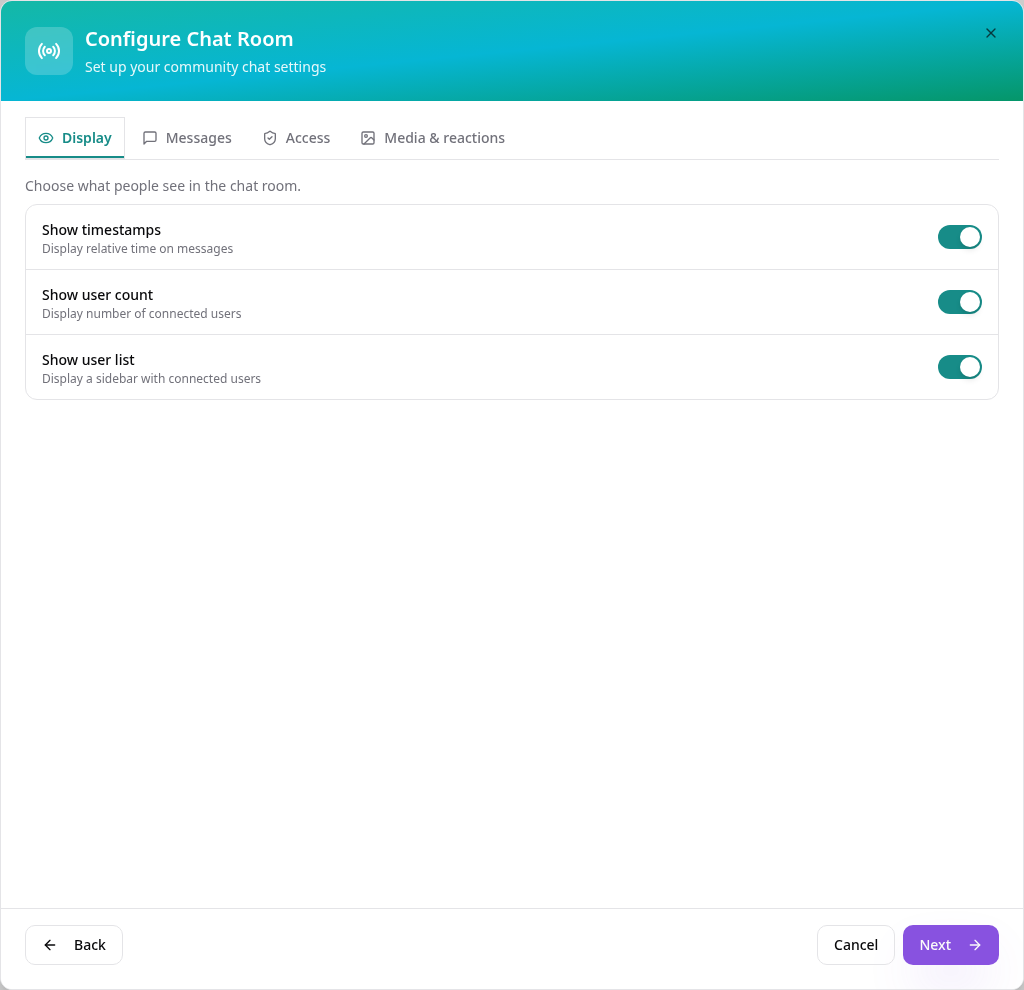
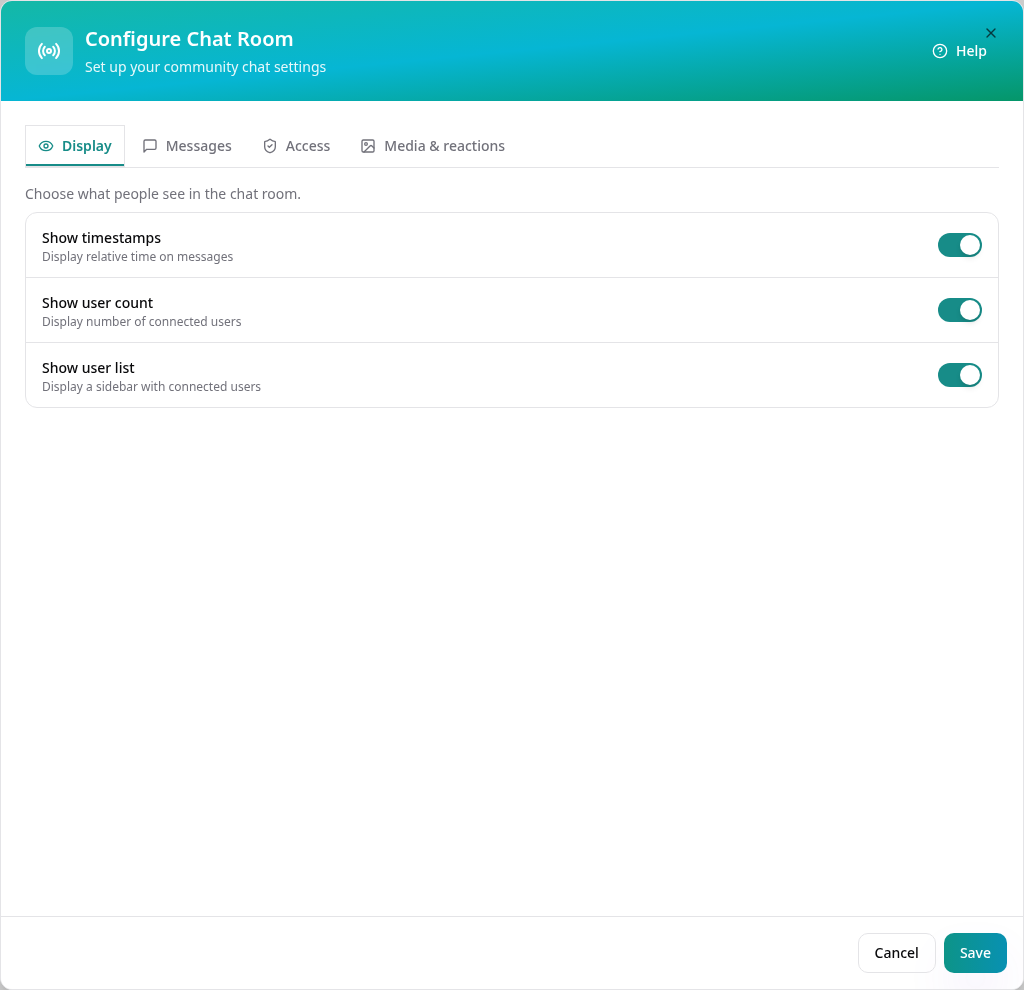
Choose what people see
On Display, switch timestamps, the user count and the user list on or off.
- 3
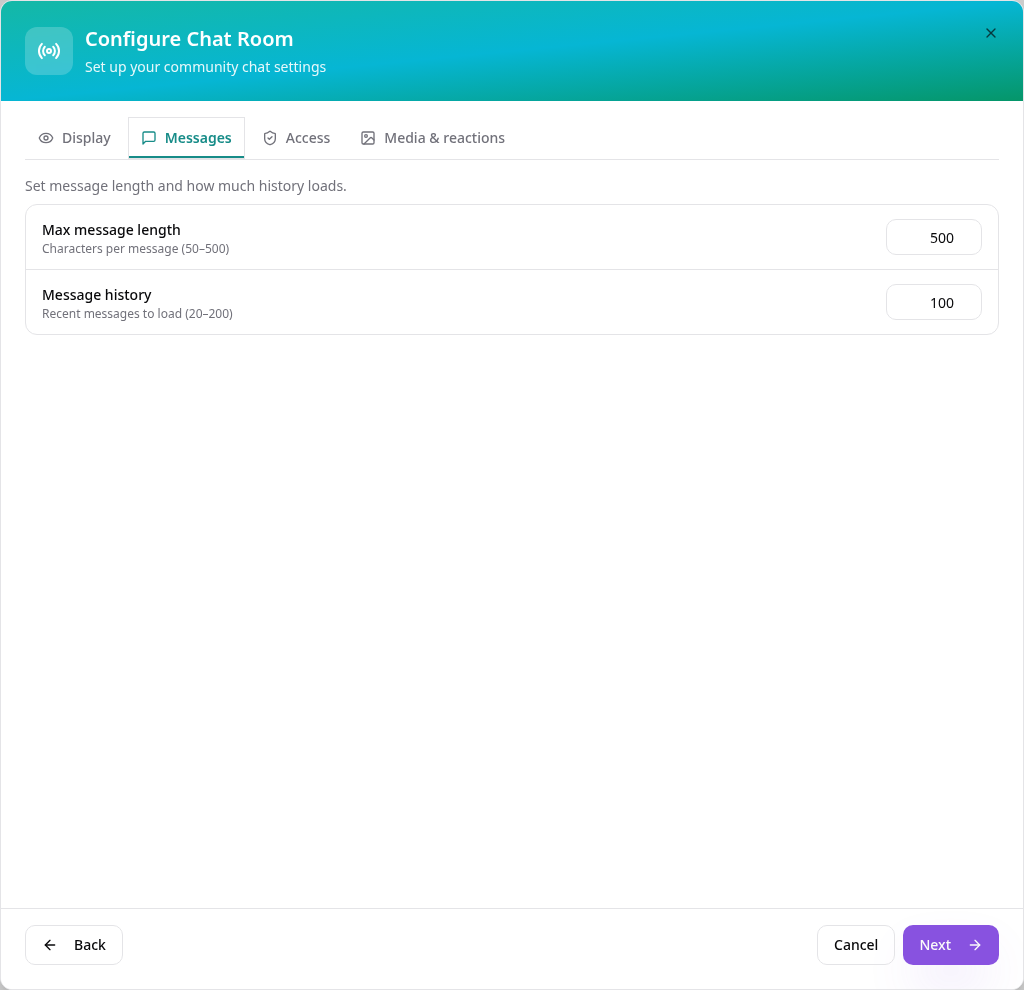
Set message limits
On Messages, set the longest message allowed and how many recent messages load.
- 4
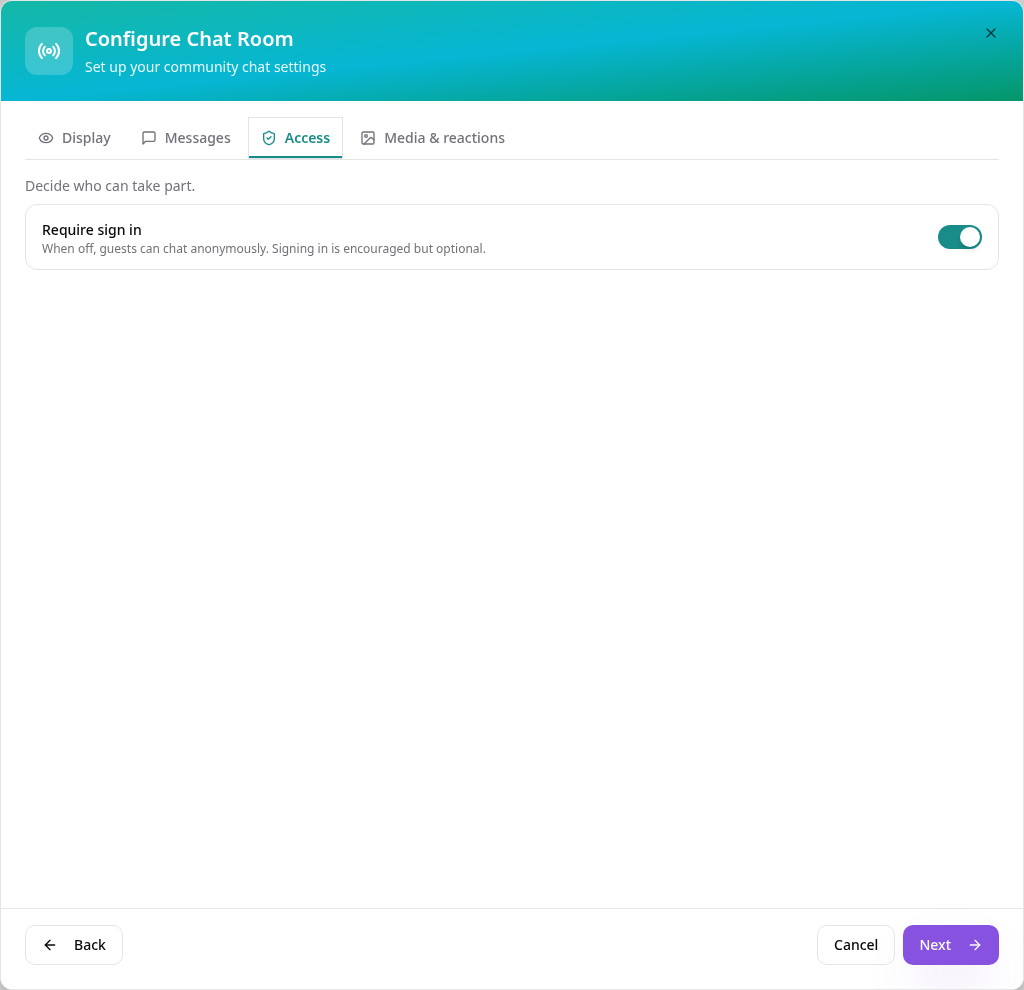
Decide who can chat
Keep Require sign in on for members only, or turn it off to let guests chat.
- 5
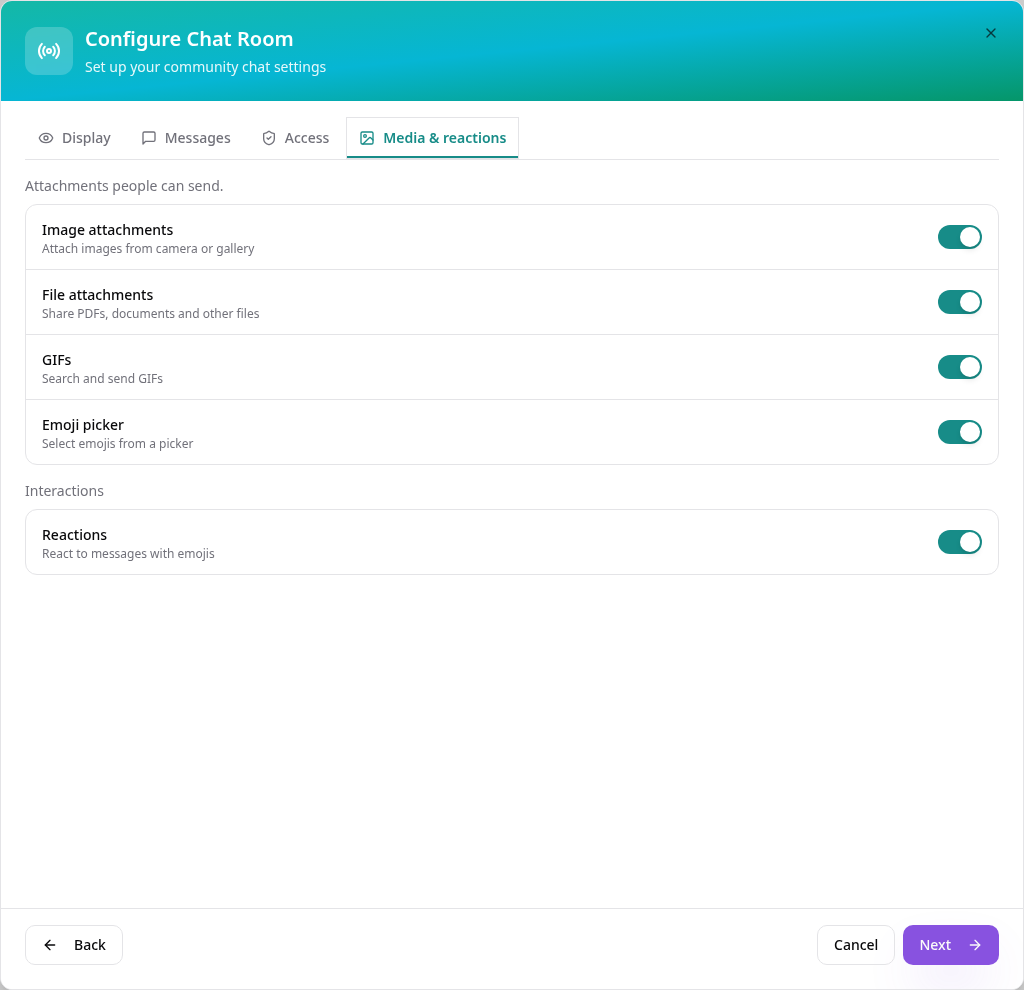
Allow media and reactions
Choose whether people can send images, files, GIFs and emojis, and react to messages.
- 6
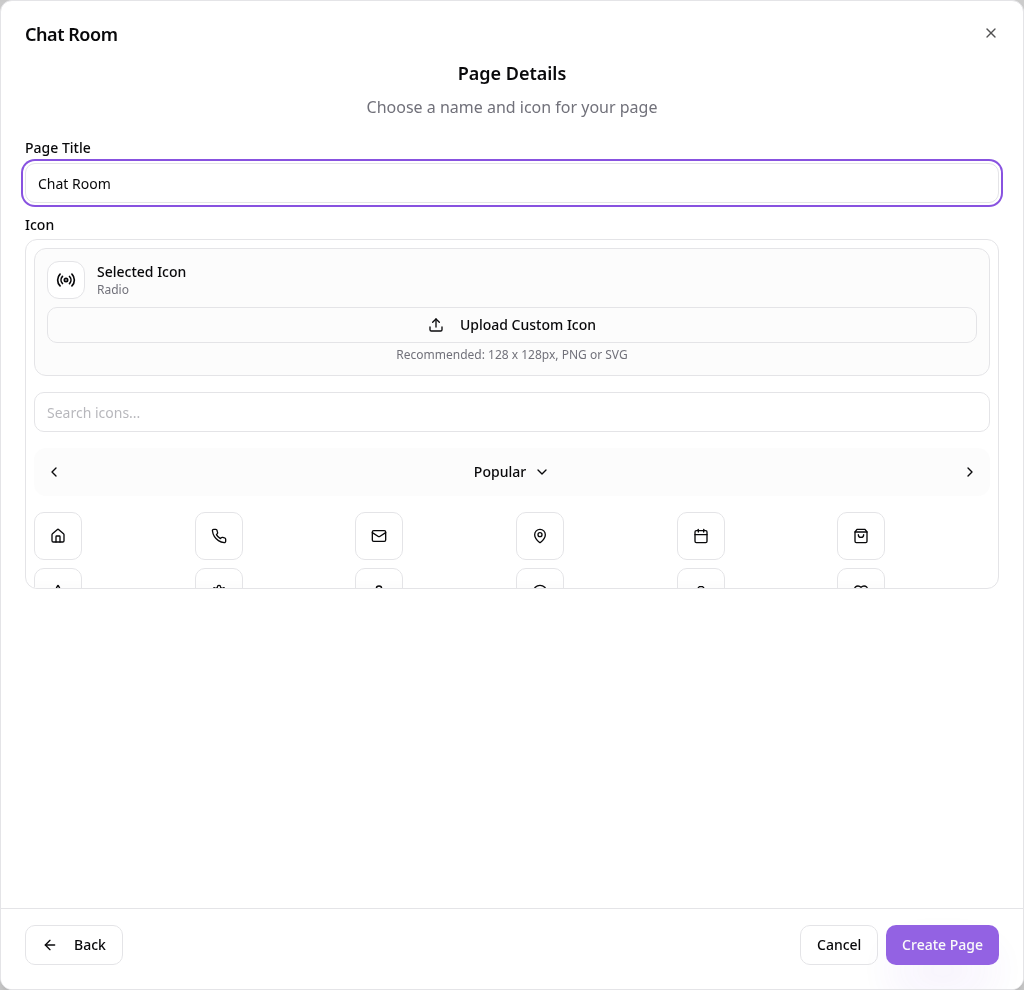
Name the page
Tap Next, choose a page title and icon, then tap Create Page.
- 7
Change it later
Select the page in Pages and choose Edit Page Content to change any setting, then tap Save.
- 8
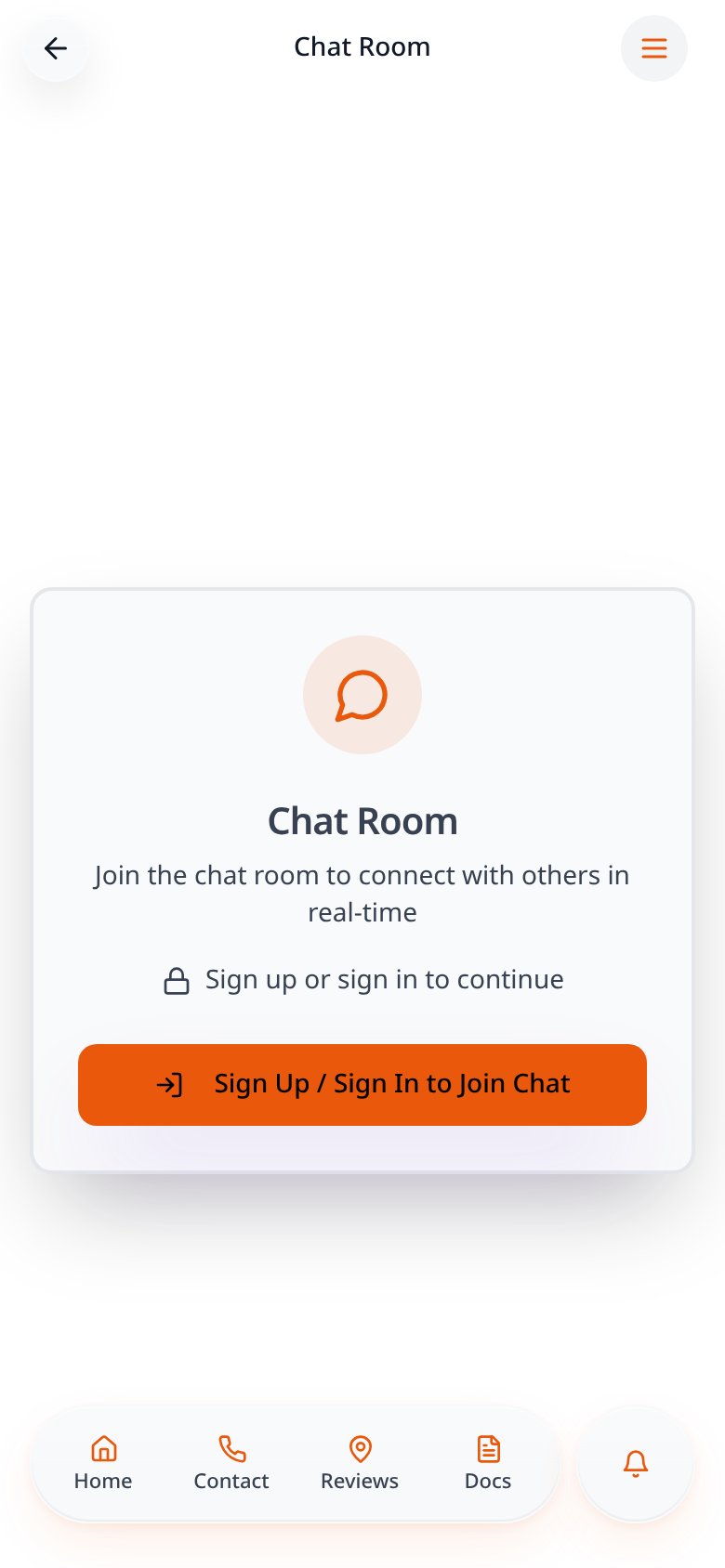
Members sign in
With sign-in required, visitors tap Sign Up / Sign In to Join Chat. New members create an account in seconds.
- 9
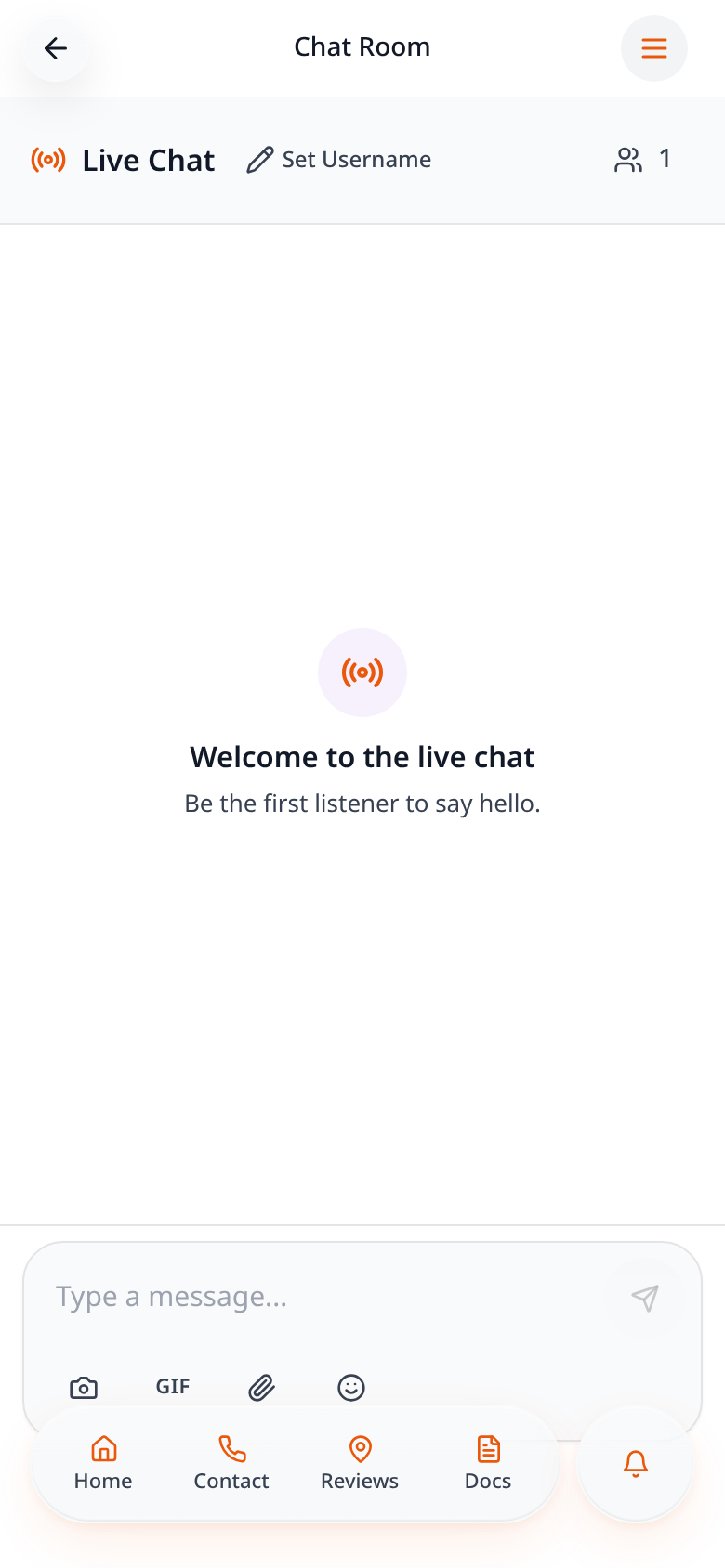
Join the room
Signed-in members see the live chat, who is online and the message box.
- 10
Send a message
Type a message and tap send — it appears for everyone in the room straight away.
Messages appear live for everyone in the room. Change who can chat or what they can send any time from Edit Page Content.