Answer common questions with FAQs
Add searchable questions and answers, sorted into categories, and import them from a spreadsheet.
Step-by-step guide
Follow these steps, then download the PDF to keep.
- 1
Open Pages
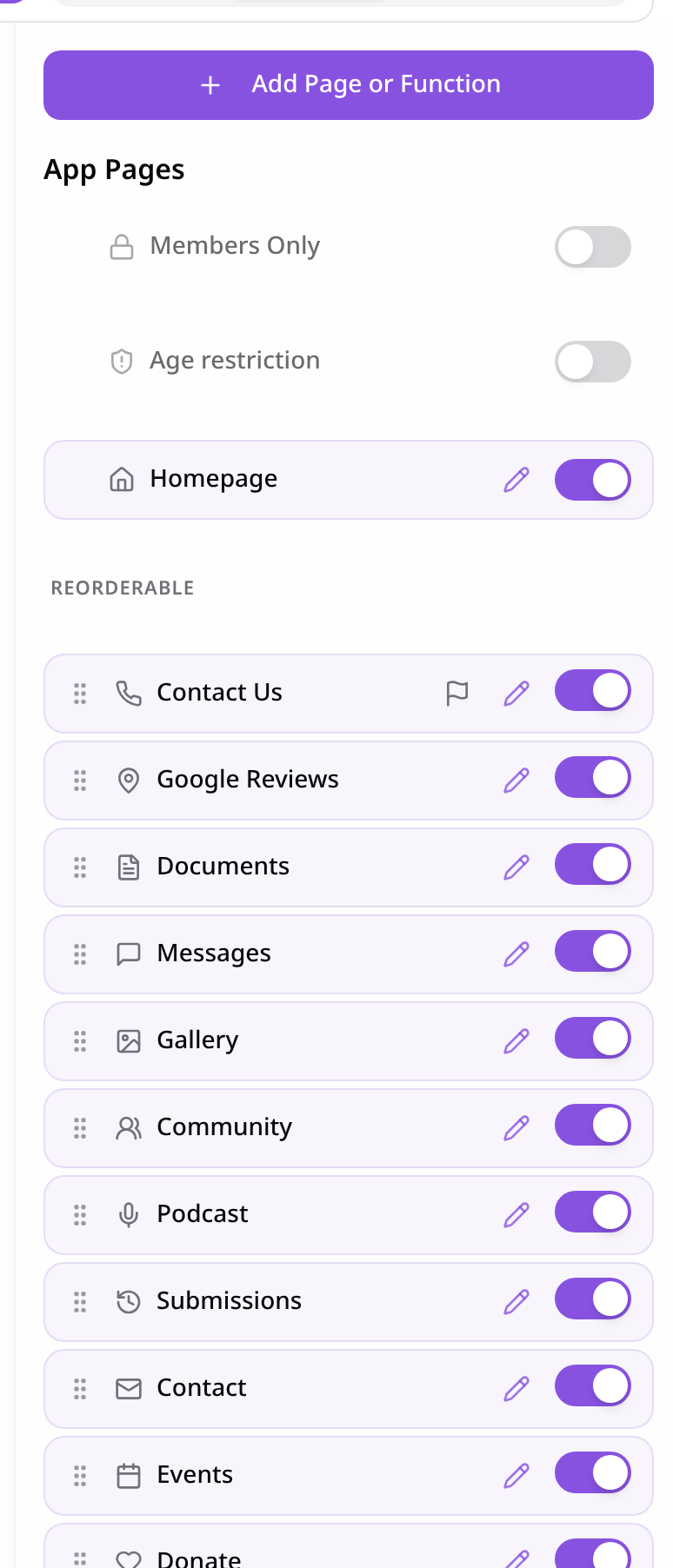
In your app editor, open Pages and tap Add Page or Function.
- 2
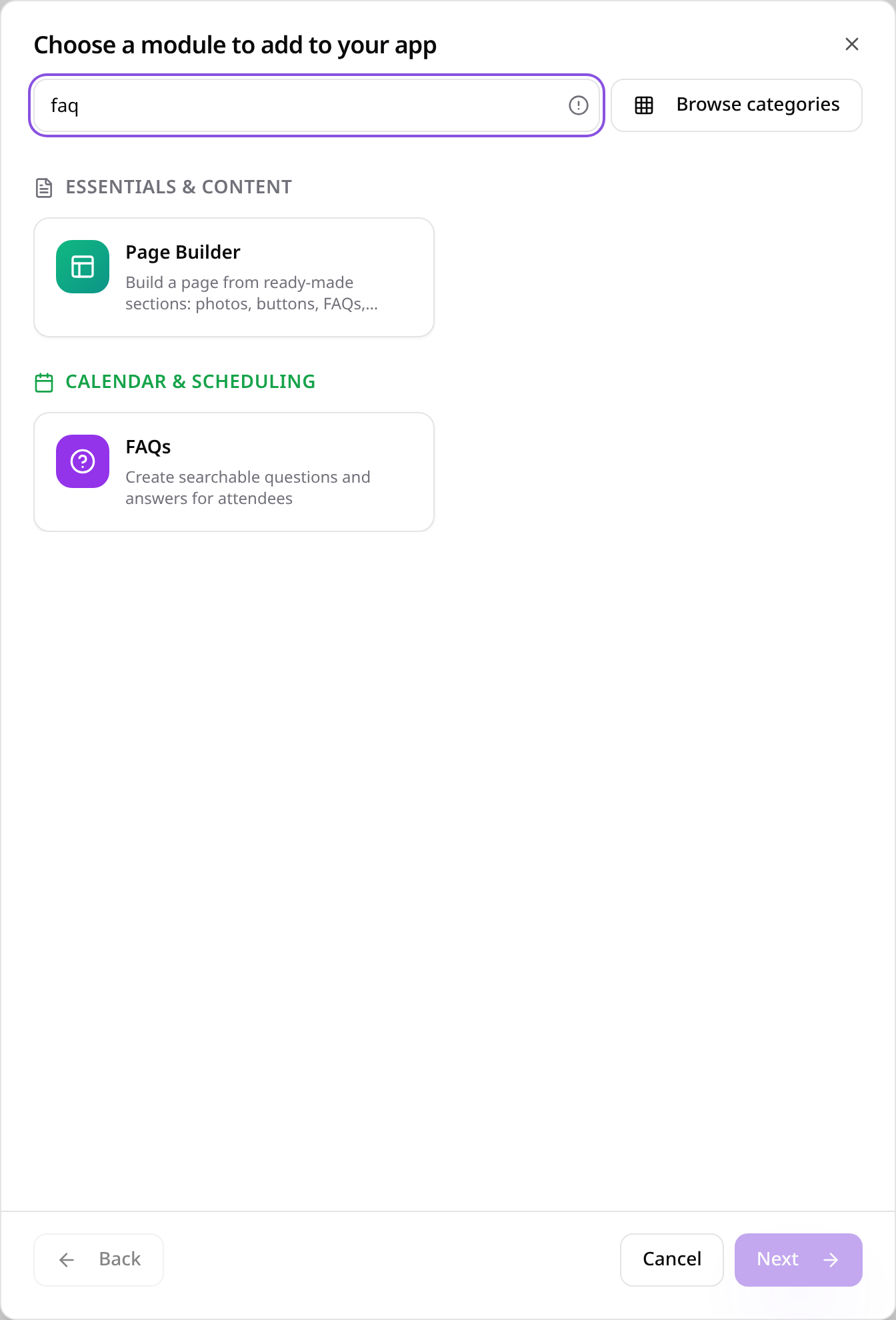
Choose FAQs
Search “faq” and tap FAQs.
- 3
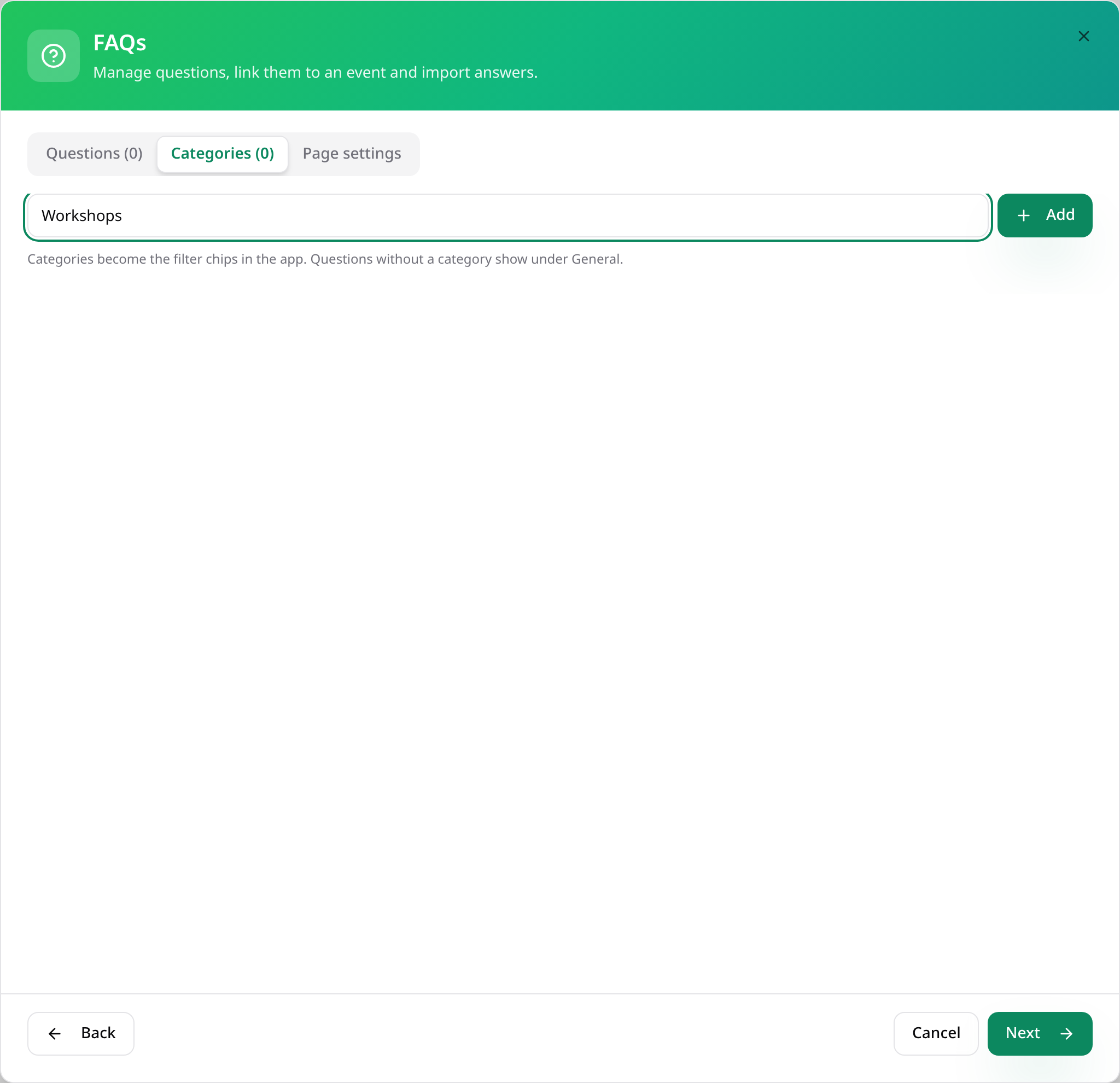
Add categories
On Categories, type a name and tap Add. Each category becomes a filter in the app.
- 4
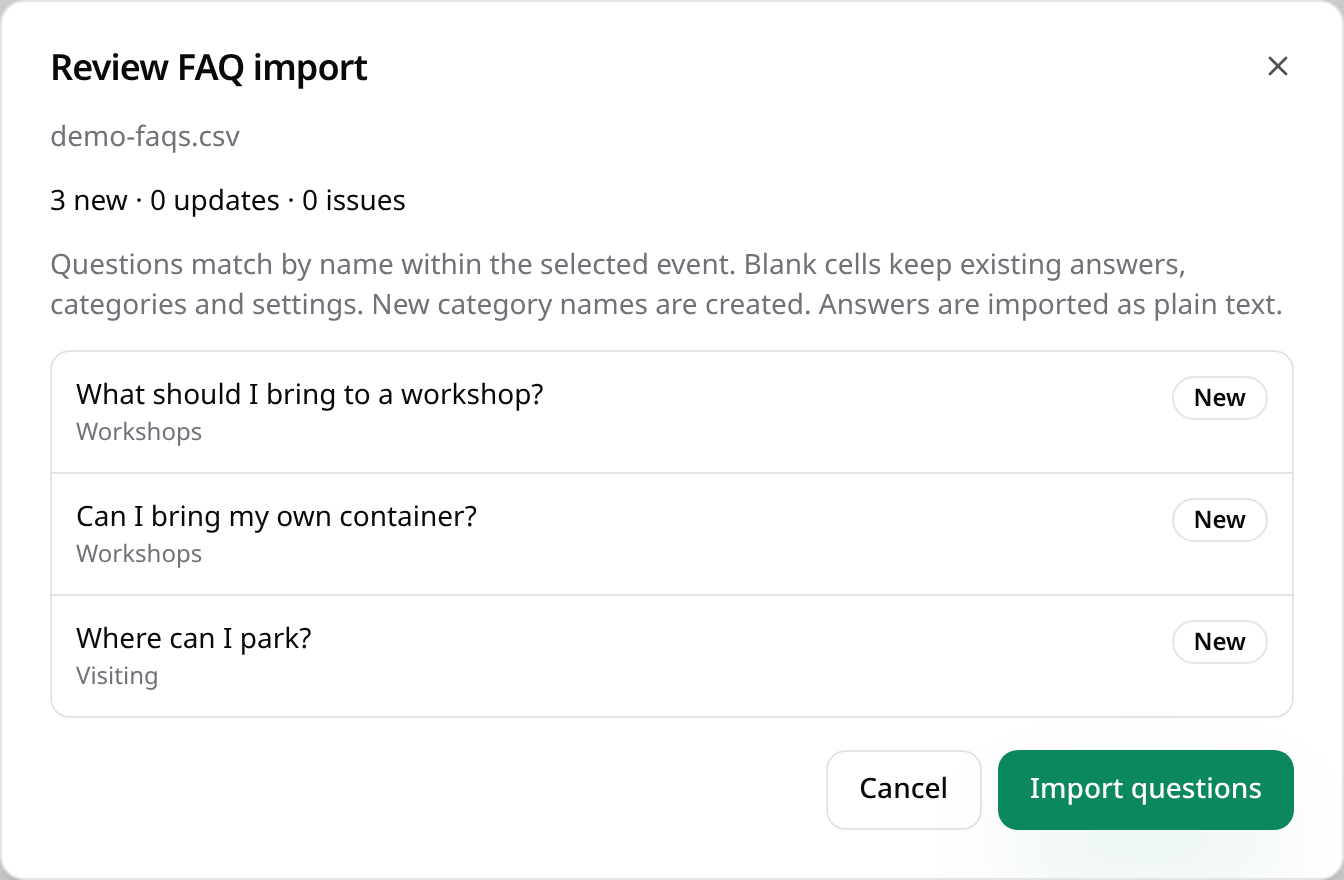
Import a CSV
On Questions, download the CSV template, fill it in and tap Import CSV. Check the list, then tap Import questions.
- 5
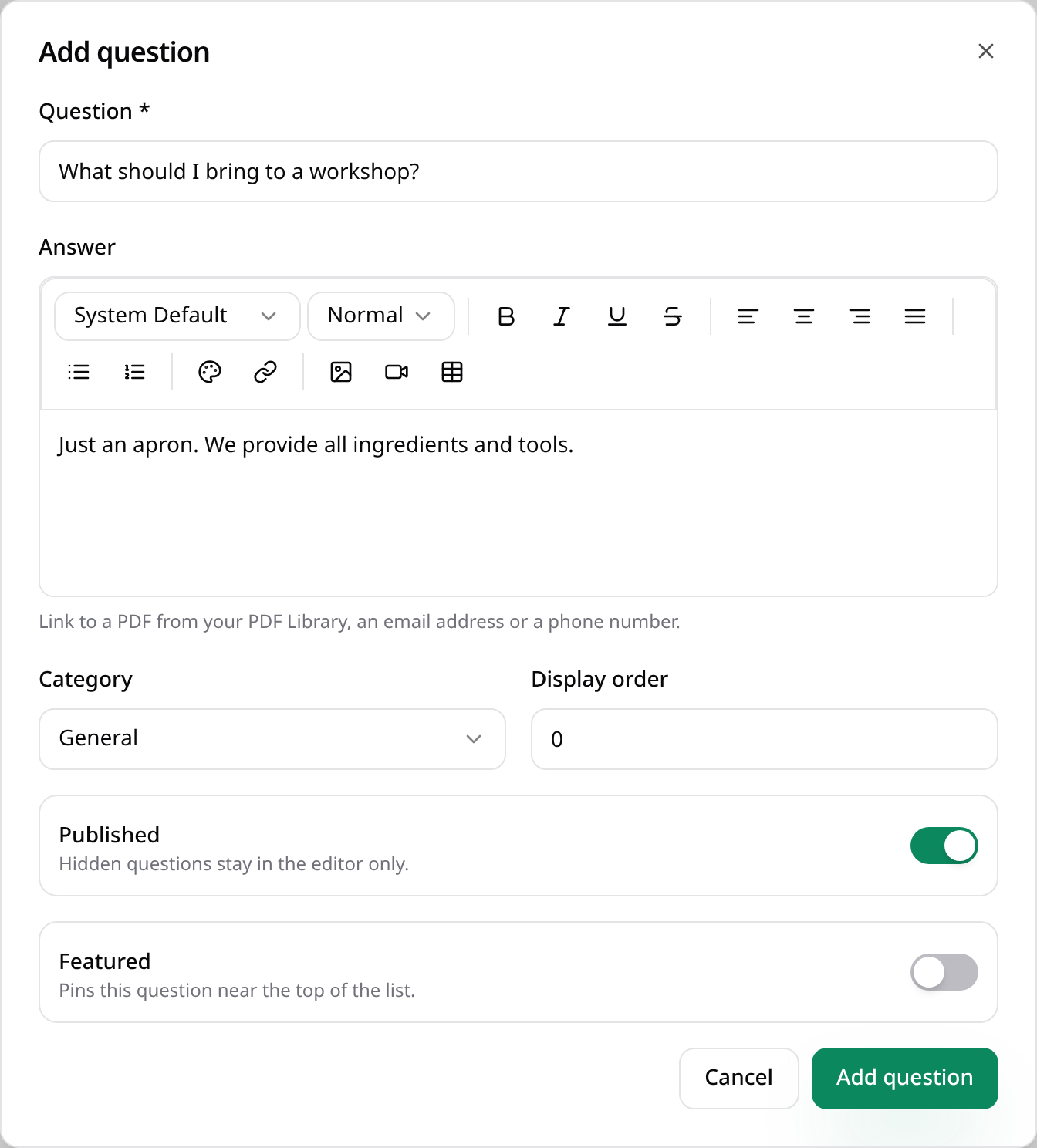
Or add a question
Tap Add question to type a question and answer and choose its category.
- 6
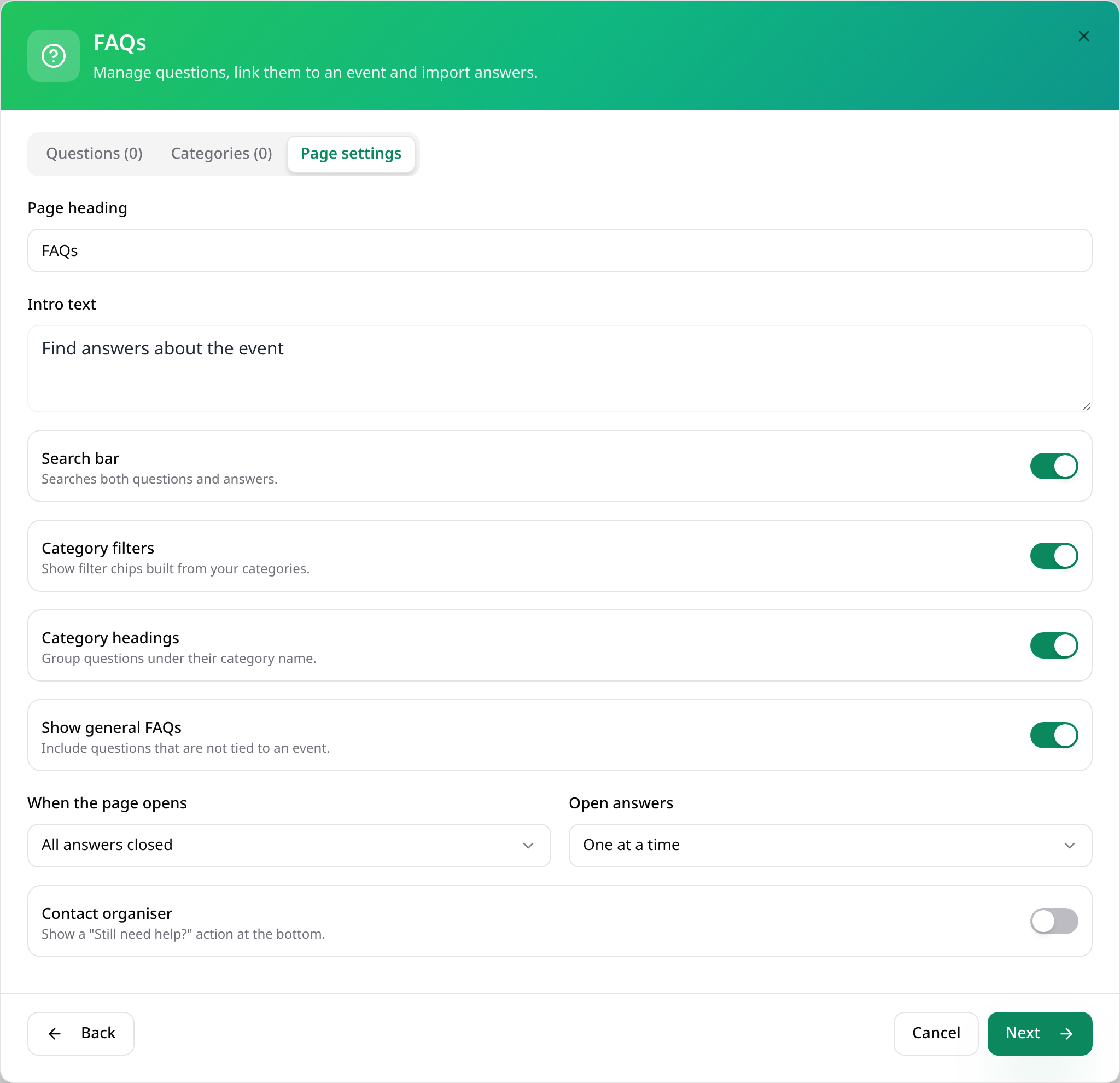
Page settings
On Page settings, turn on search and category filters and choose how answers open. Tap Next.
- 7
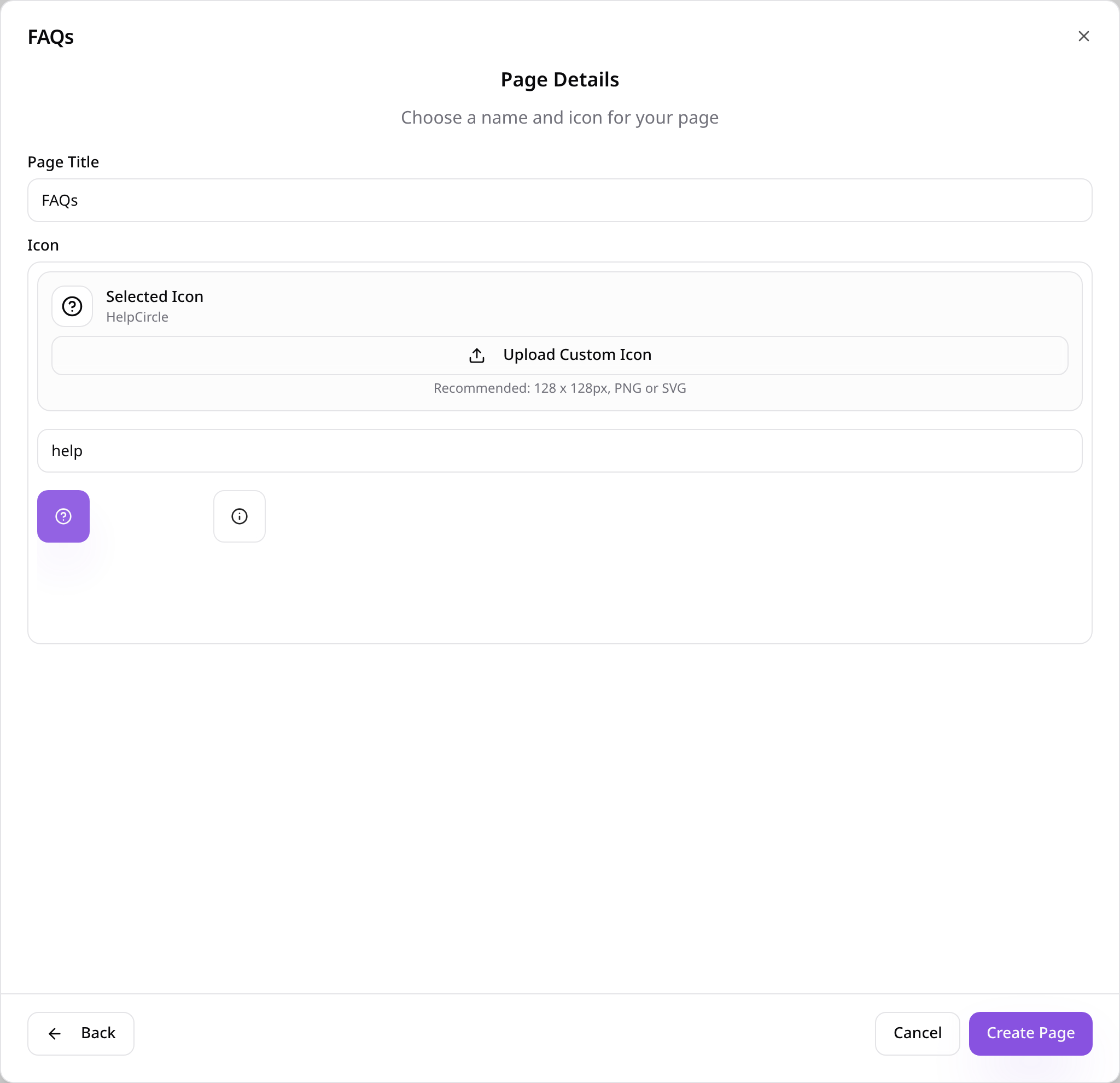
Name the page
Give the page a name, choose an icon and tap Create Page.
- 8
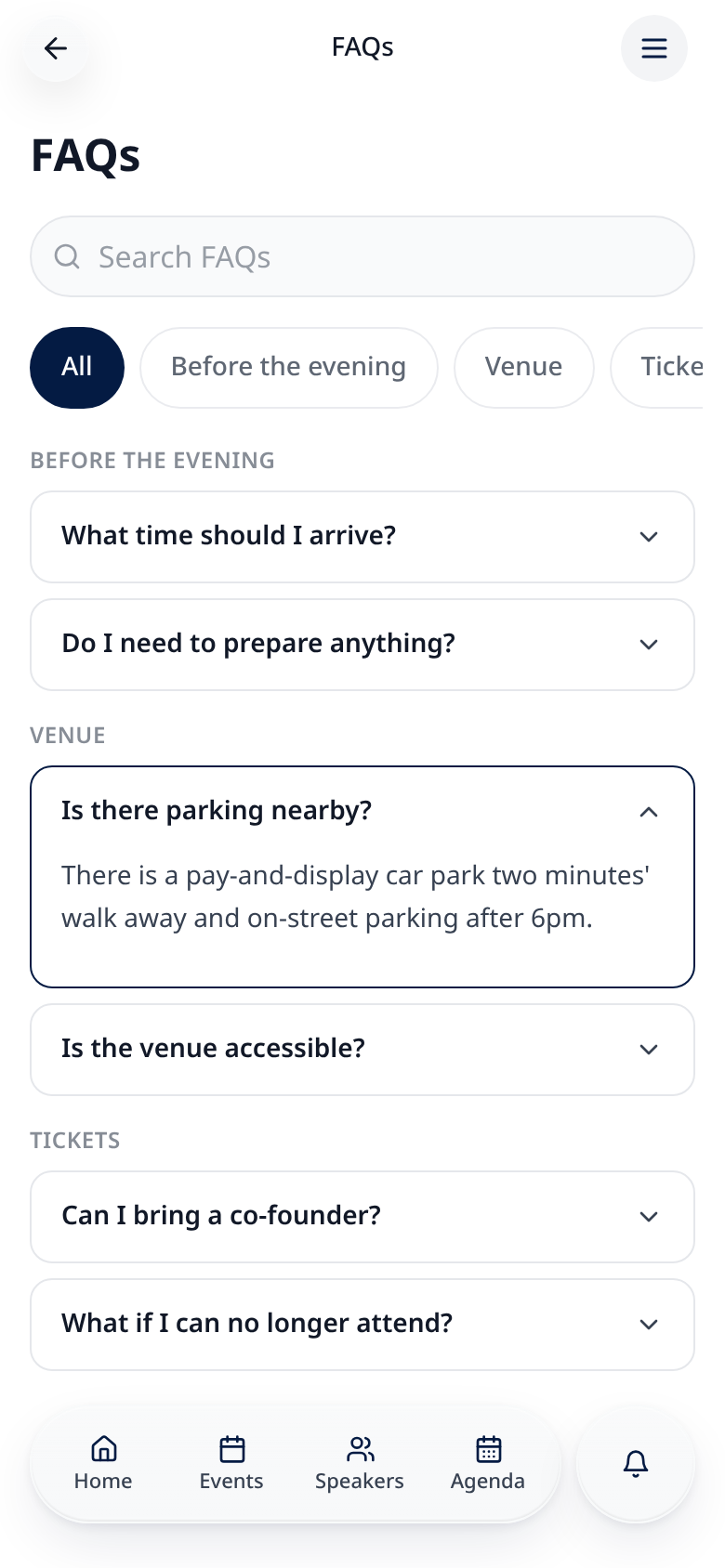
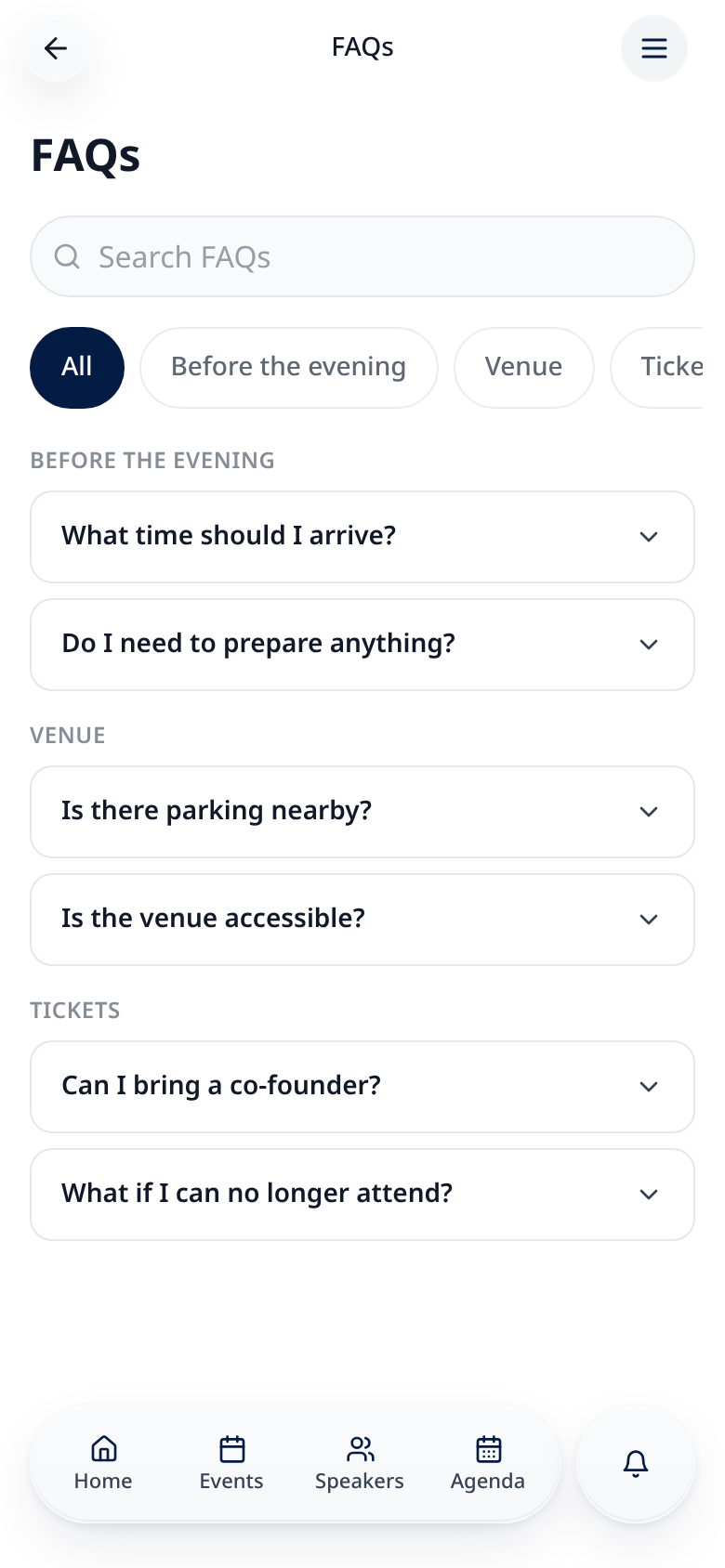
People browse questions
Questions show under their categories, with search and filters at the top.
- 9
Tap to see the answer
Tapping a question opens its answer.
Use FAQs for to link questions to one event; General questions show for every event.