Build a local directory
List local businesses by category, add them from Google or a spreadsheet, and let businesses ask to be listed.
Step-by-step guide
Follow these steps, then download the PDF to keep.
- 1
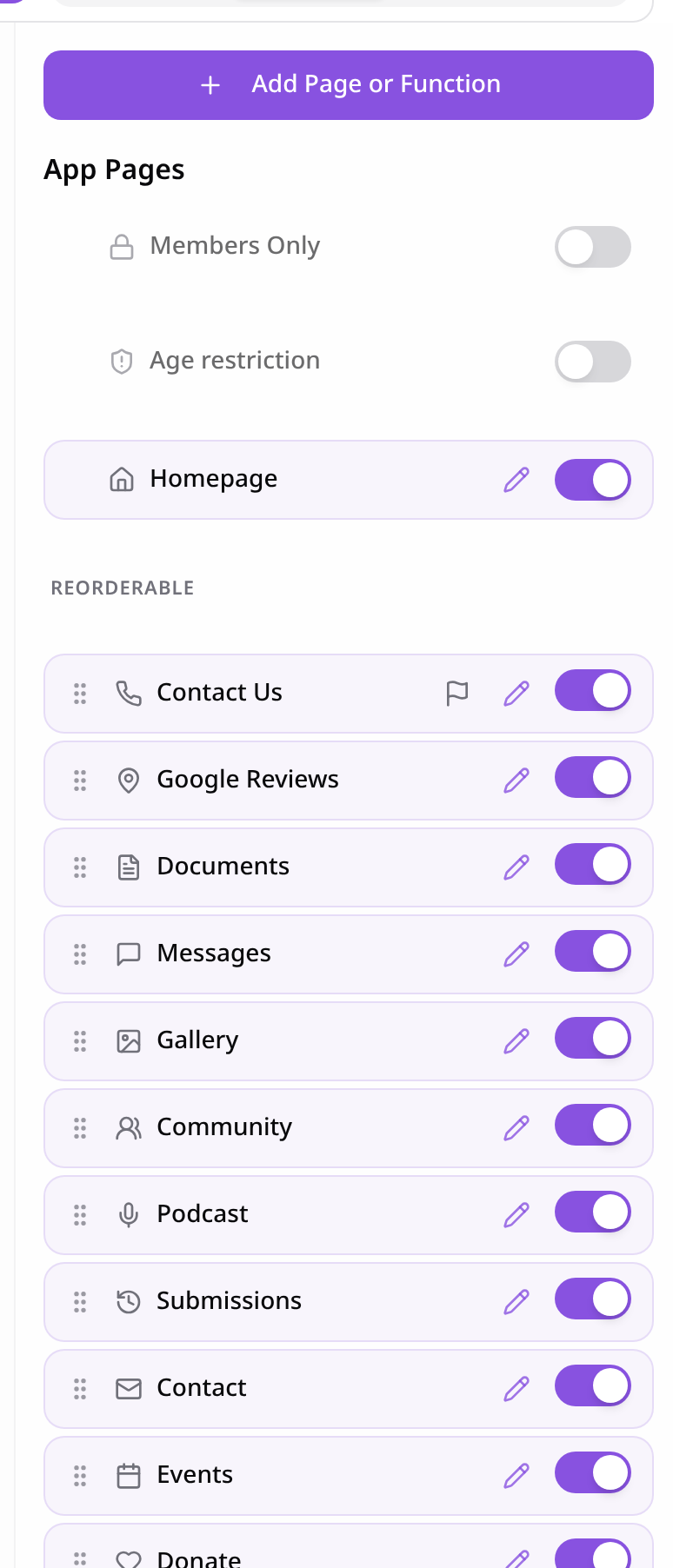
Open Pages
In your app editor, open Pages and tap Add Page or Function.
- 2
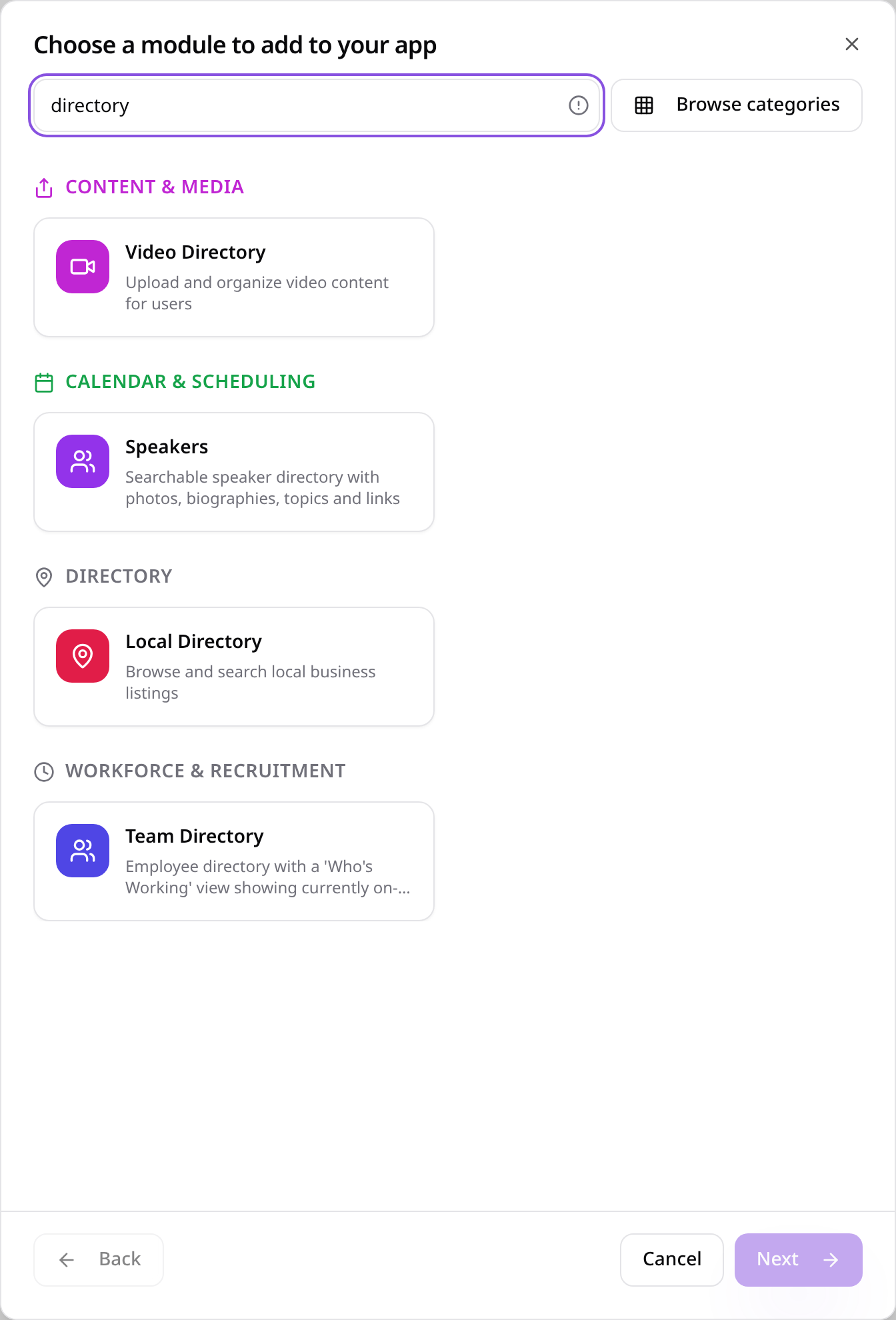
Choose Local Directory
Search “directory” and tap Local Directory.
- 3
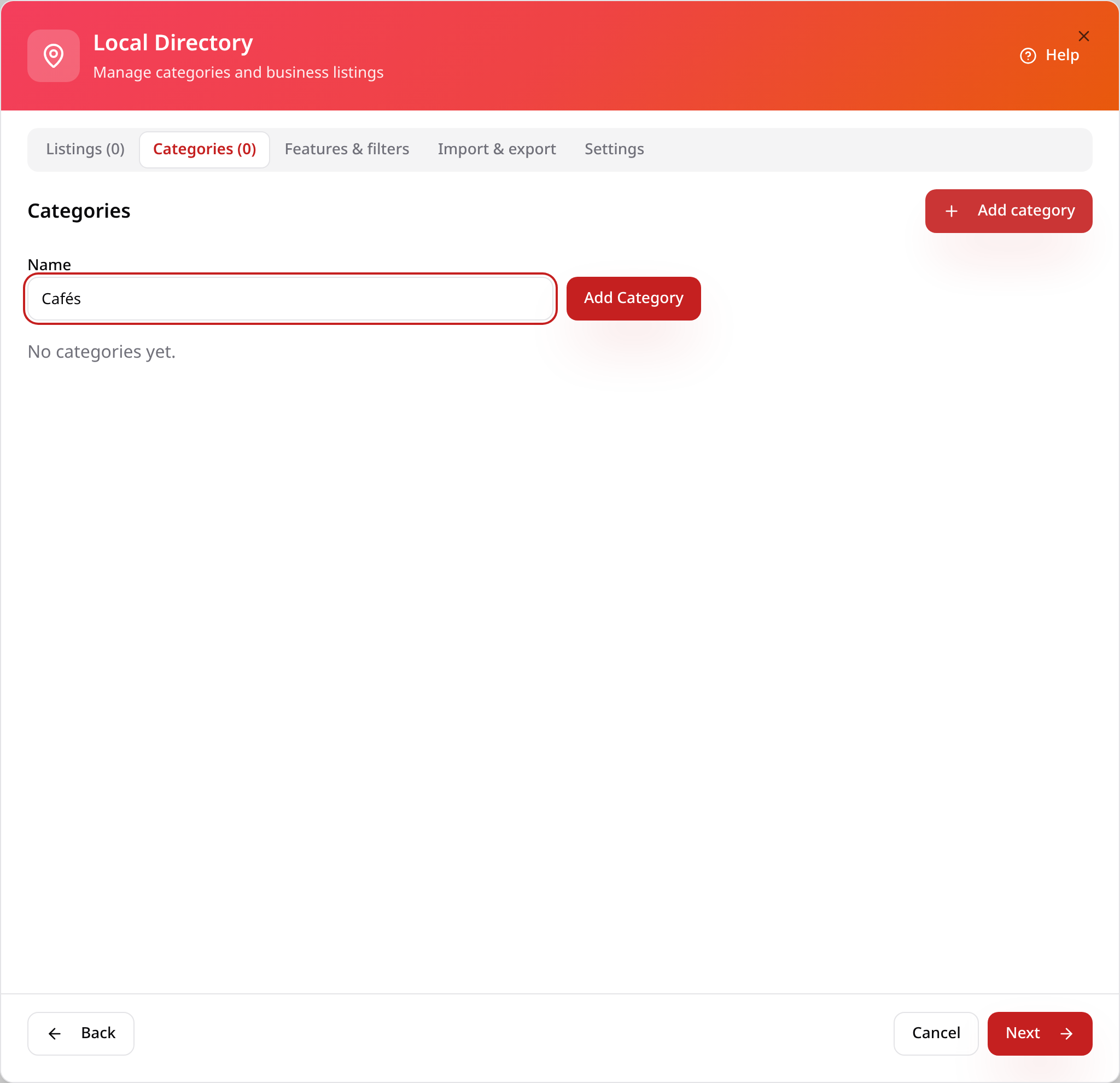
Add categories
On Categories, type a name and tap Add category. Customers filter by these in the app.
- 4
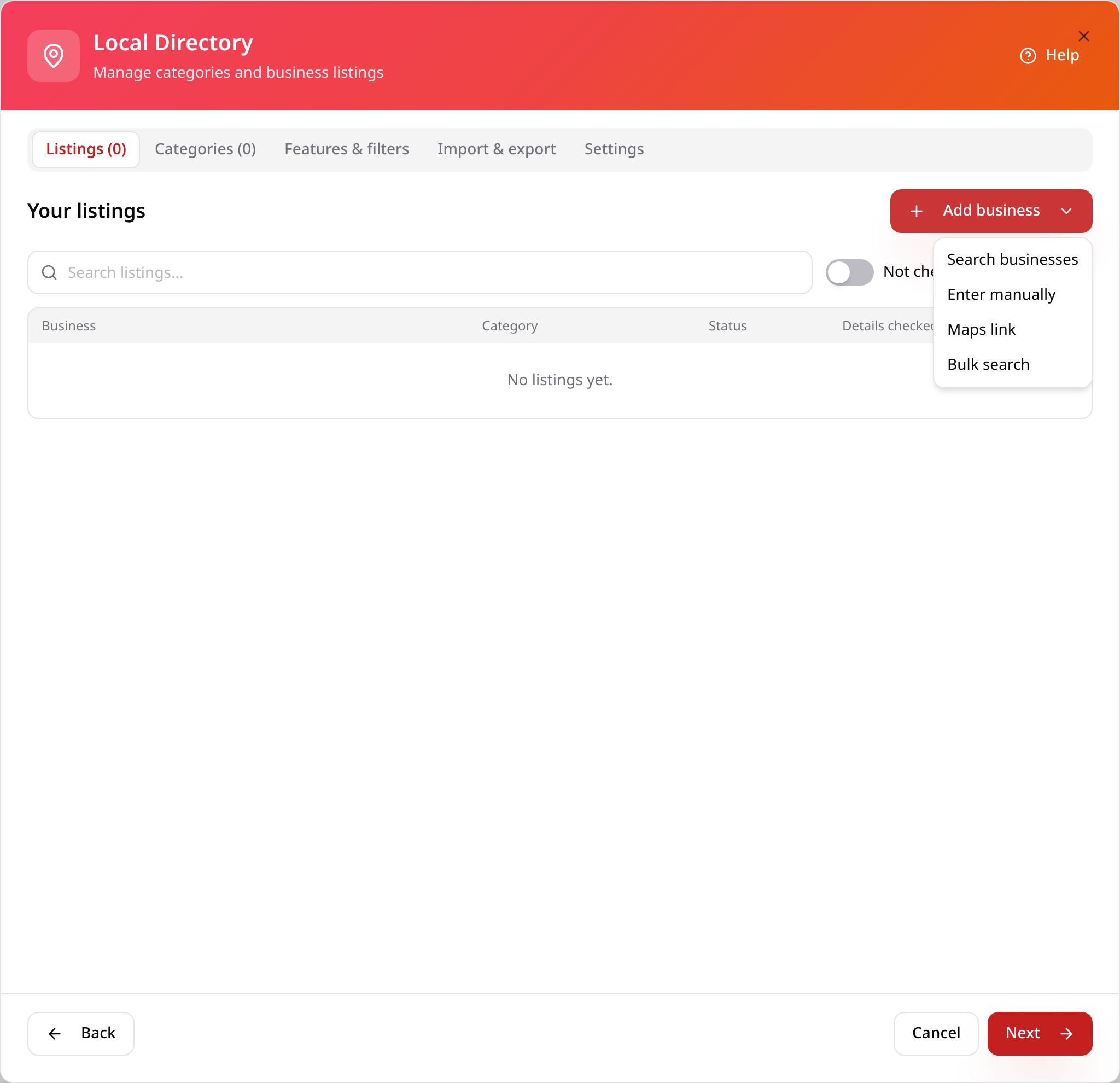
Add a business
On Listings, tap Add business. Search Google, enter details by hand, paste a Maps link or search in bulk.
- 5
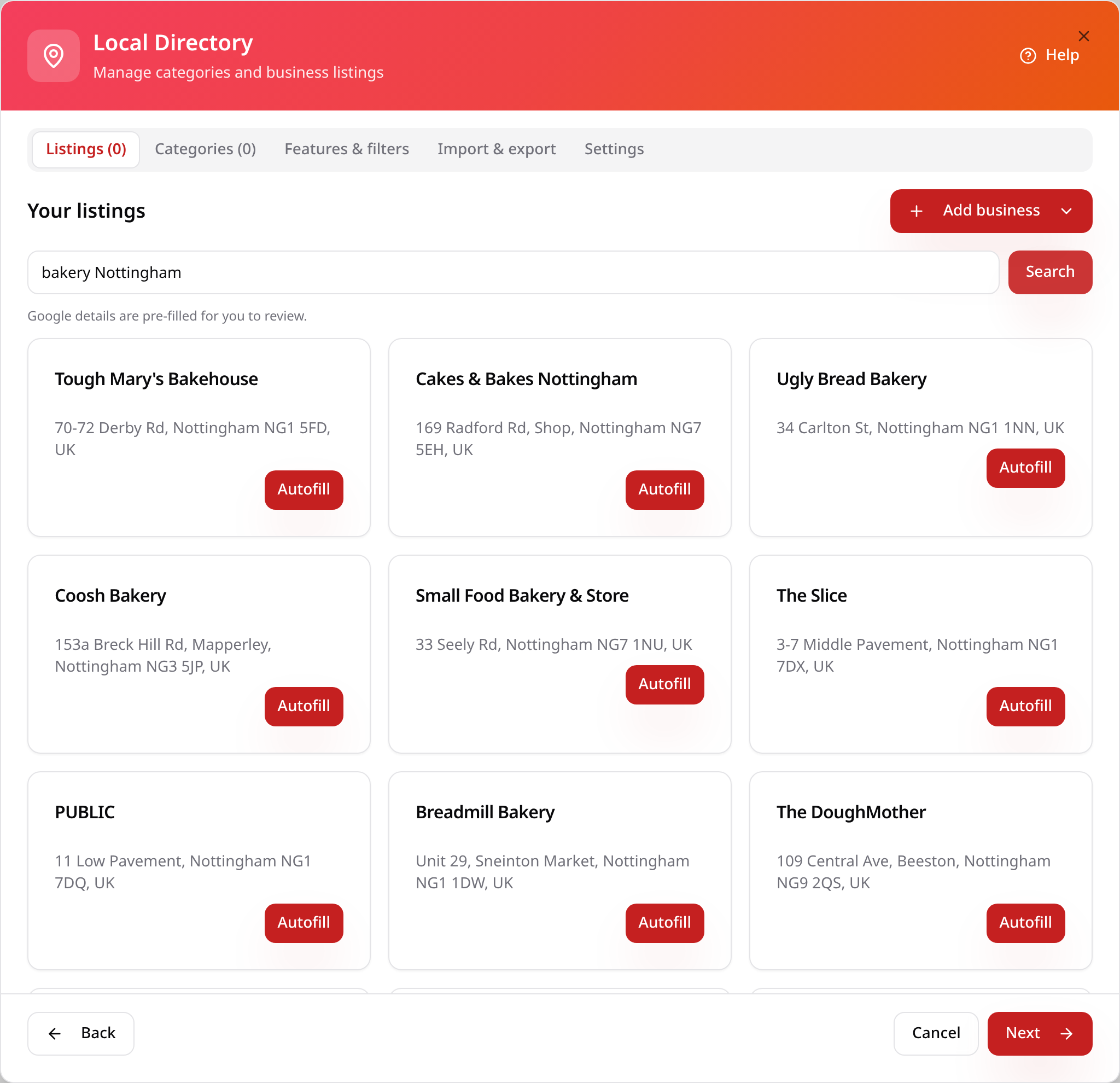
Search Google
Type a business name or type and area, then tap Search. Tap Autofill on the right one.
- 6
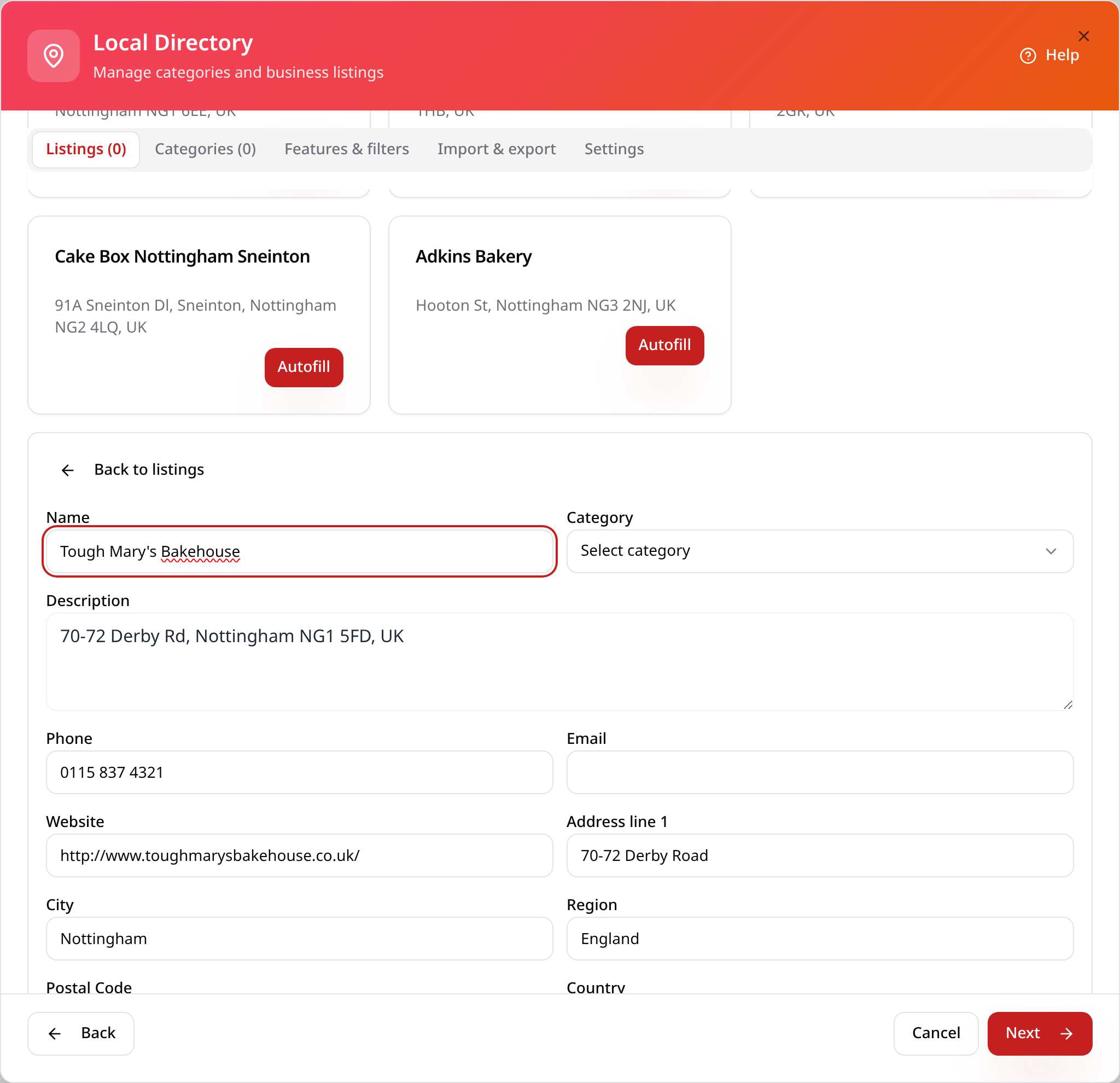
Check the listing
Google fills in the address, phone, website, hours and photos. Choose a category, check the details and save.
- 7
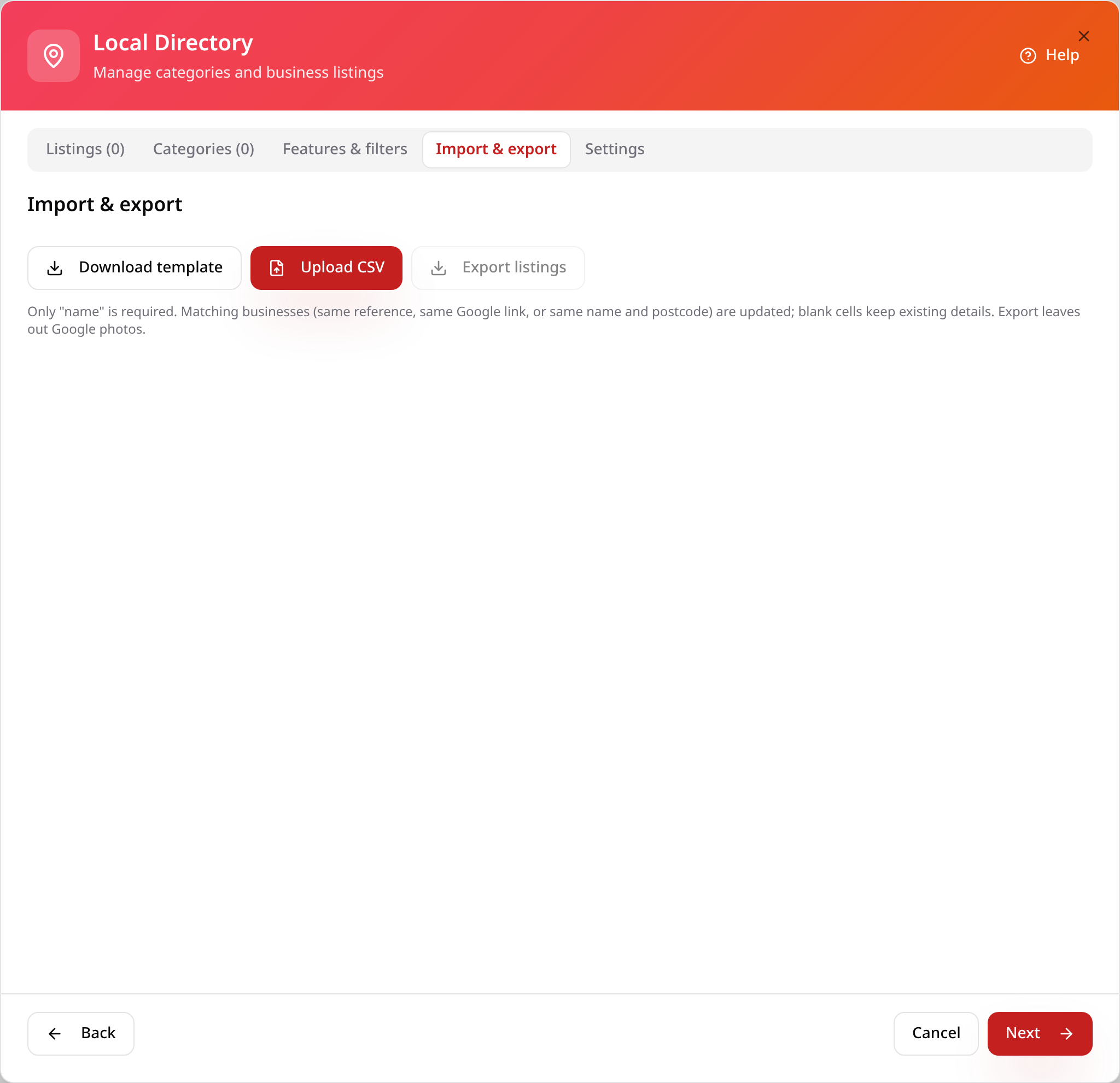
Or import a CSV
On Import & export, download the template, fill it in and upload it. Matching businesses are updated, not duplicated.
- 8
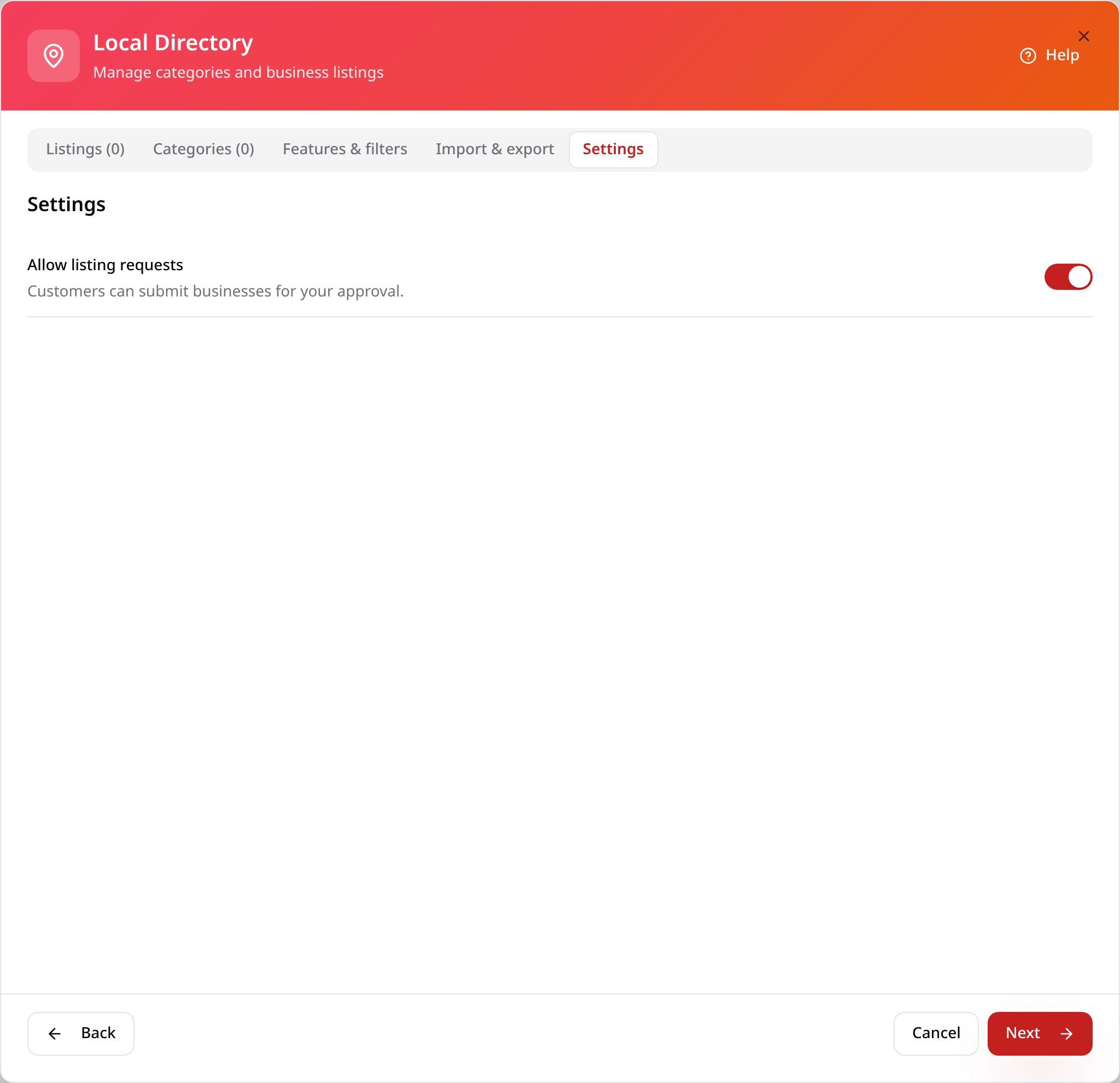
Listing requests
On Settings, turn on listing requests so businesses can ask to be added. Tap Next.
- 9
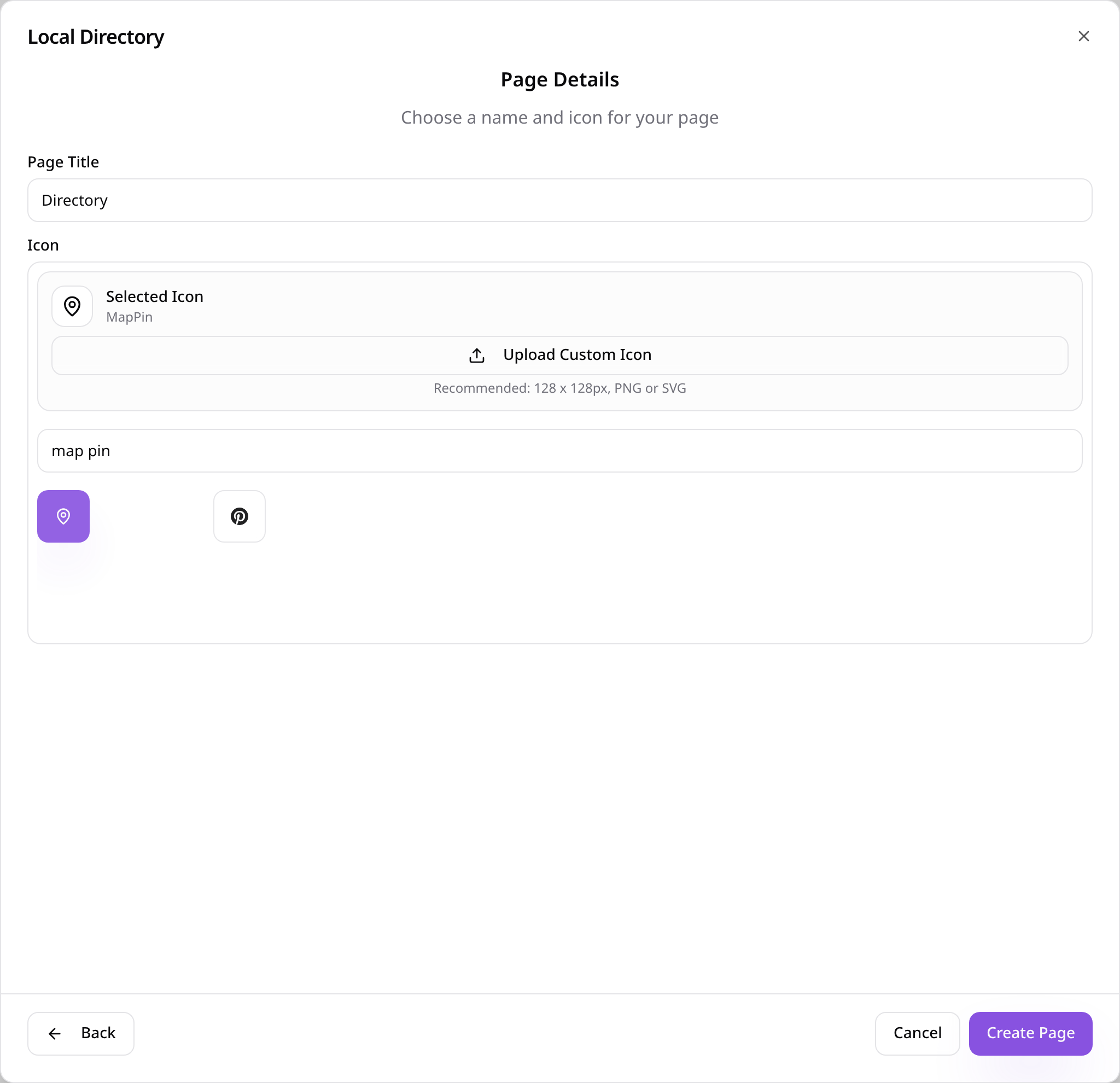
Name the page
Give the page a name, choose an icon and tap Create Page.
- 10
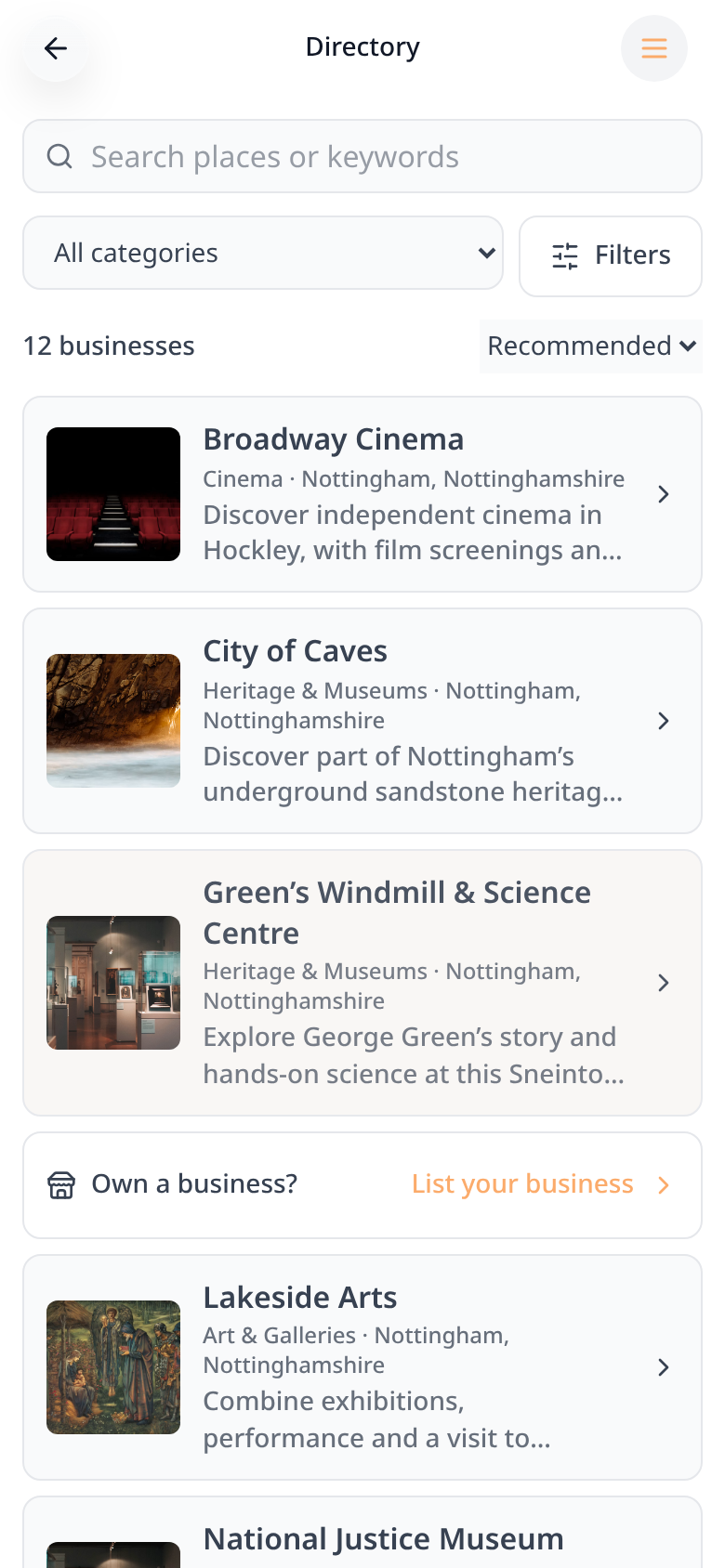
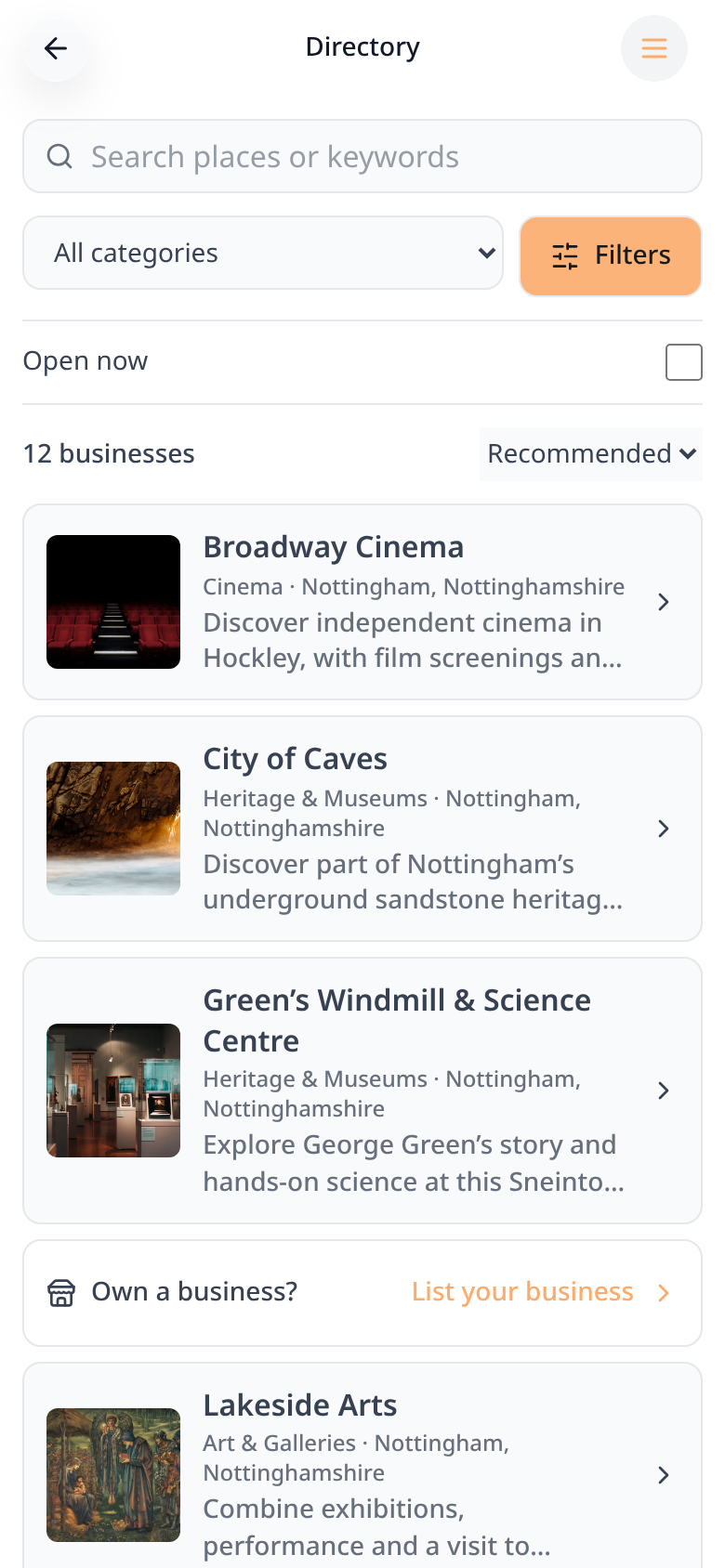
Customers browse
Businesses show as cards with search, categories and sorting.
- 11
Filter results
Filters narrow the list, for example to places open now.
- 12
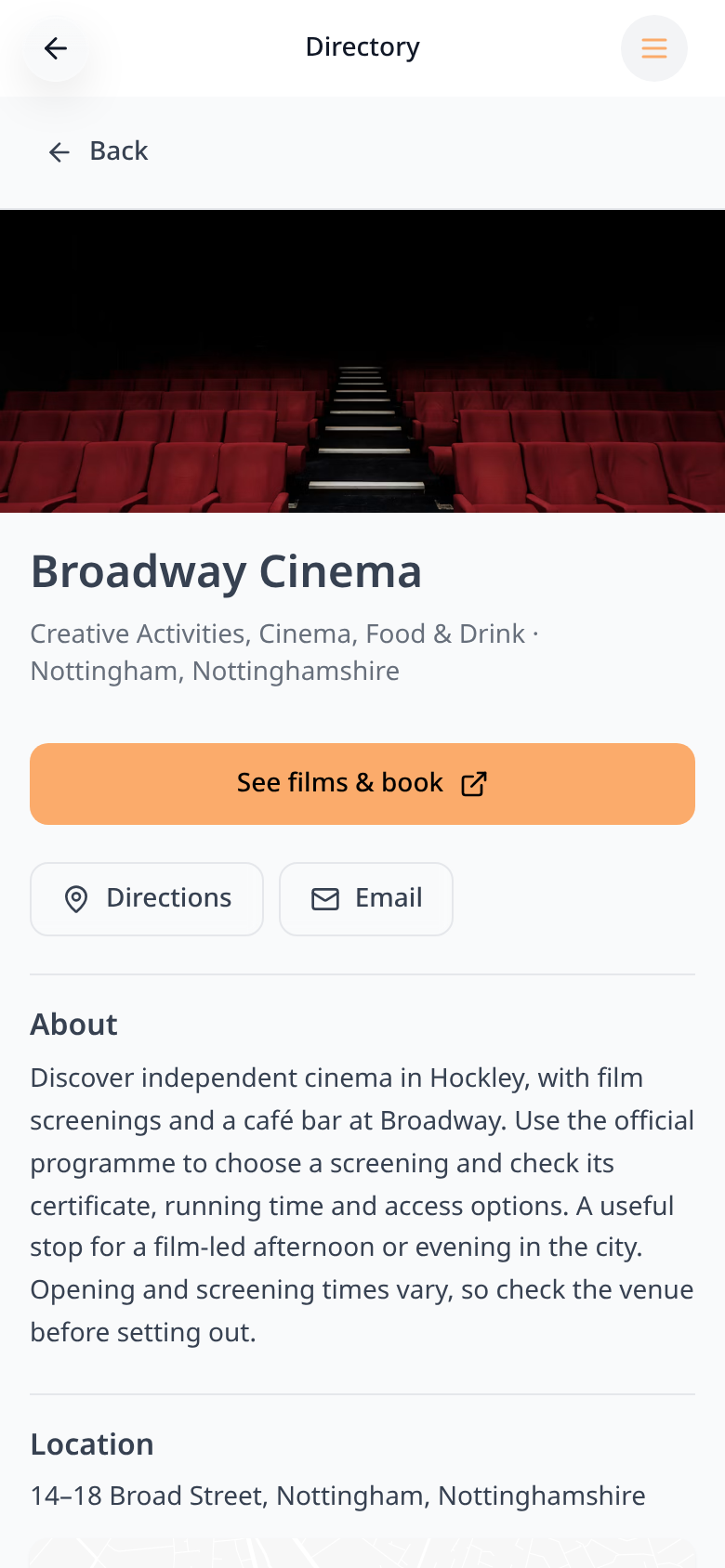
Business details
Each business shows photos, opening hours, contact buttons and directions.
- 13
Businesses can apply
Businesses tap List your business to send their details for your approval.
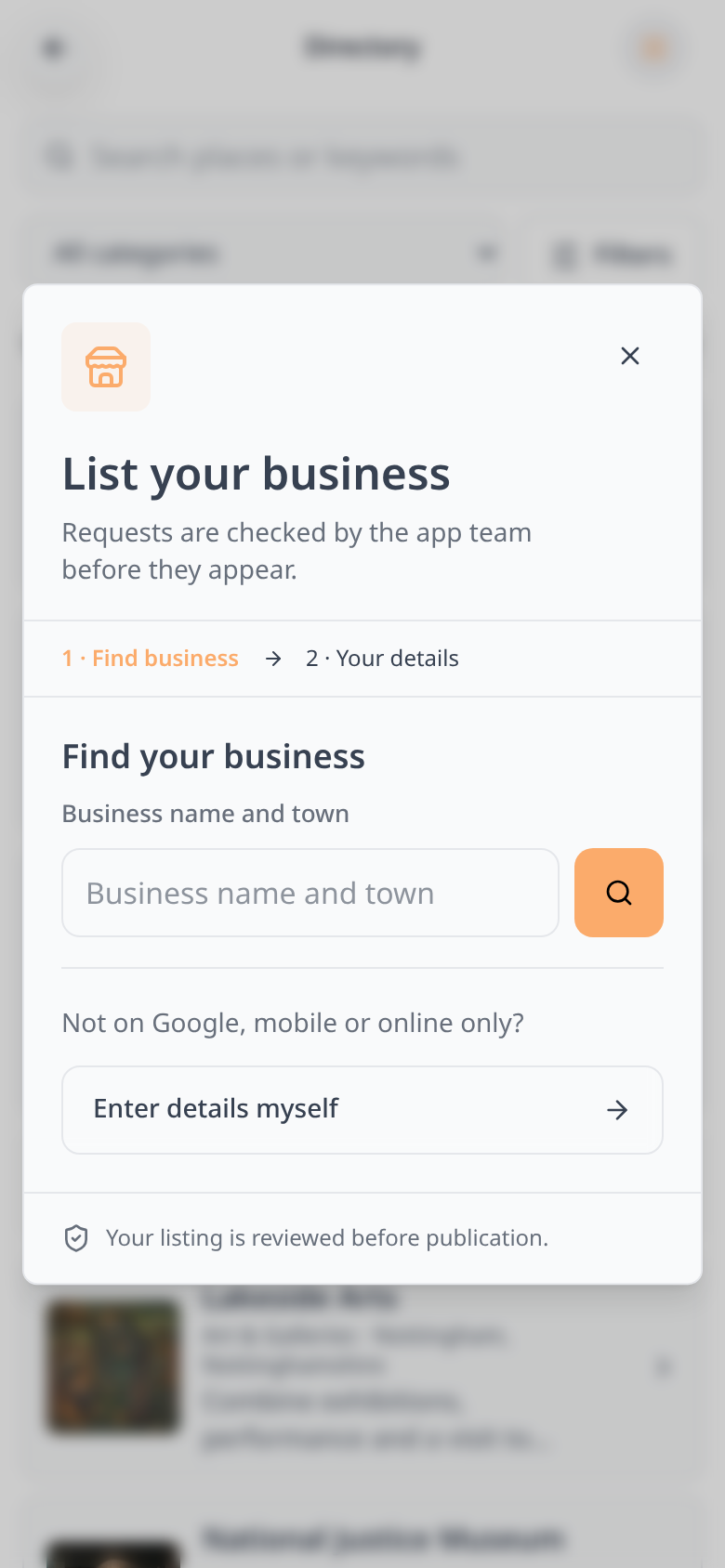
Approve or reject listing requests from the directory editor. Nothing new appears in the app until you approve it.