Set up Loyalty Point Rewards
Reward repeat customers with stars earned on purchases and a choice of rewards.
Step-by-step guide
Follow these steps, then download the PDF to keep.
- 1
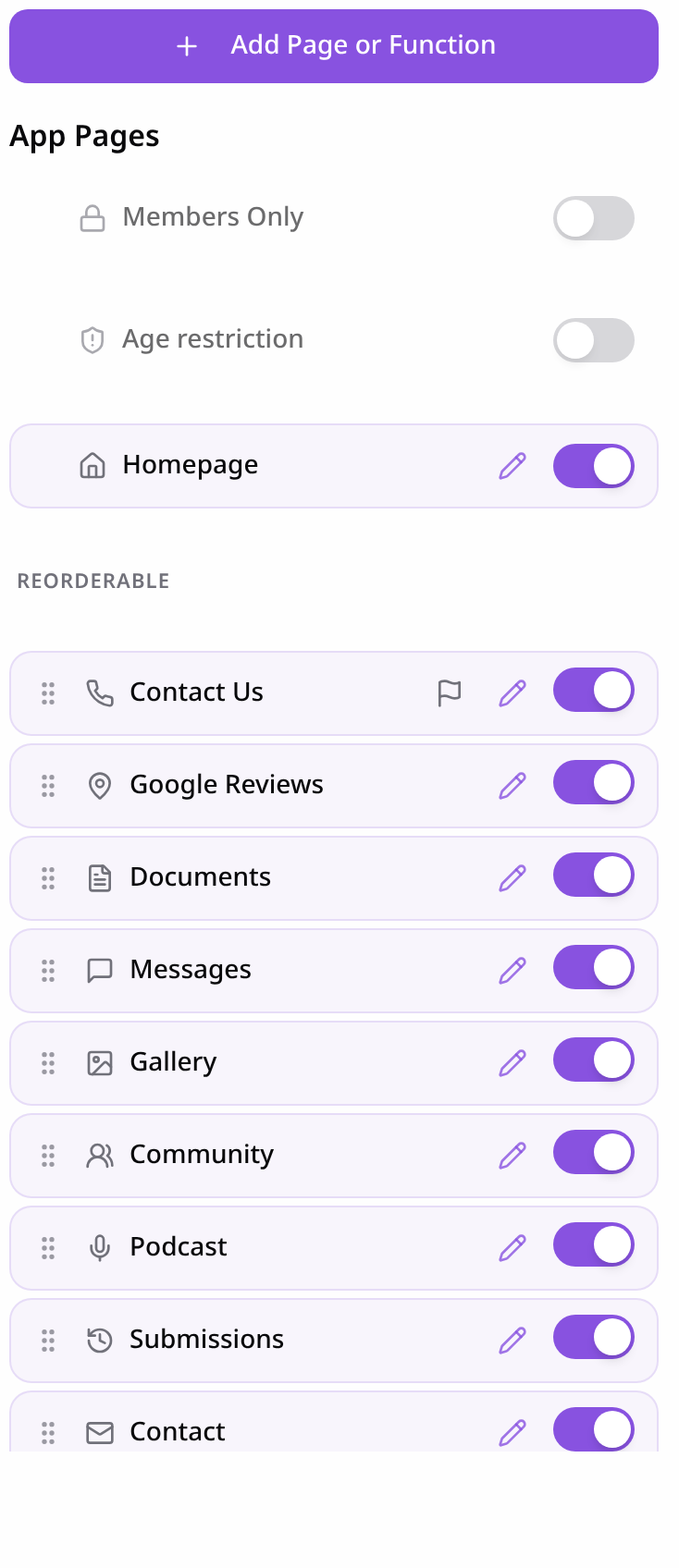
Open Pages
In your app editor, open Pages and tap Add Page or Function.
- 2
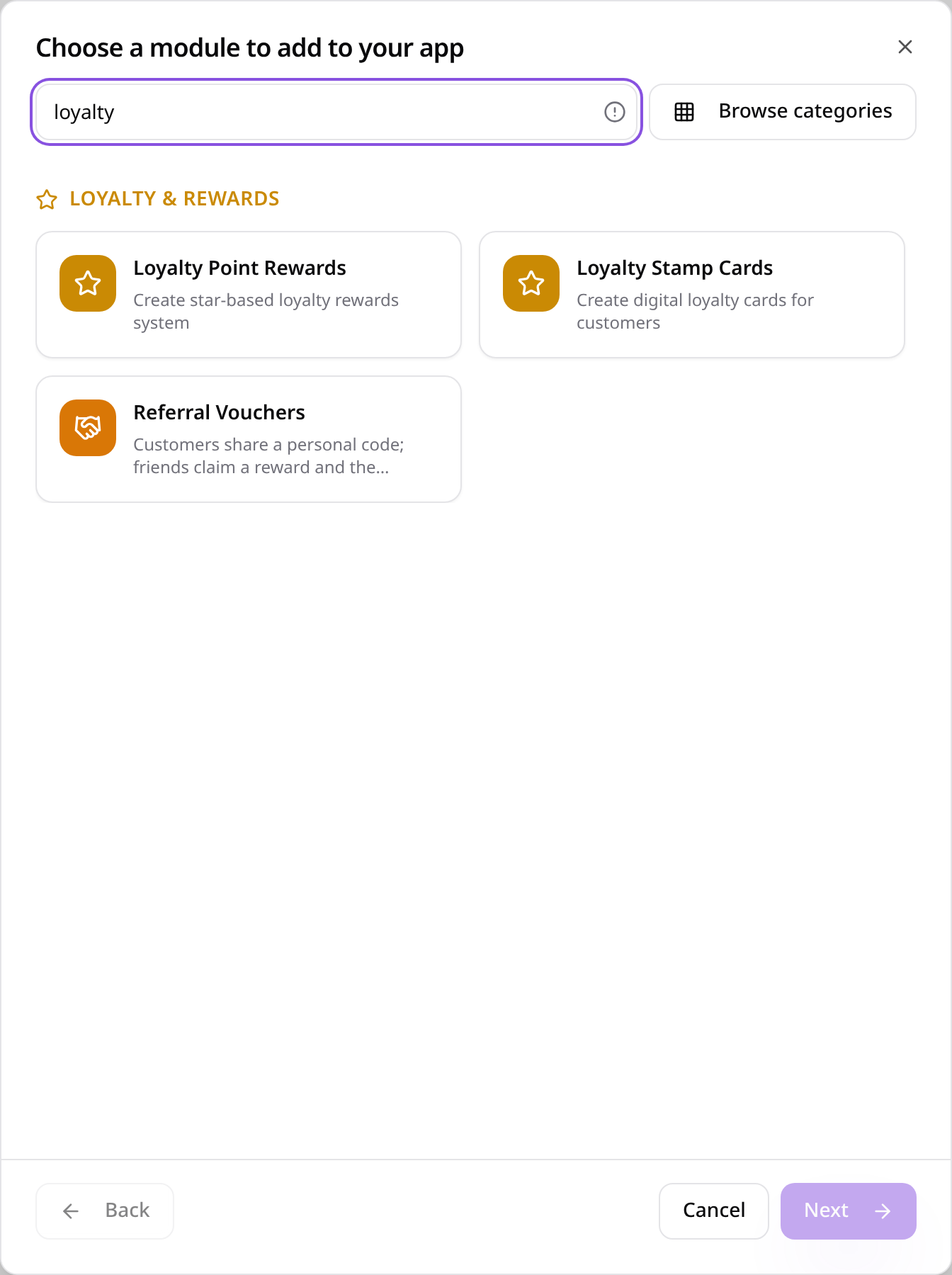
Choose Loyalty Point Rewards
Search “loyalty” and choose Loyalty Point Rewards.
- 3
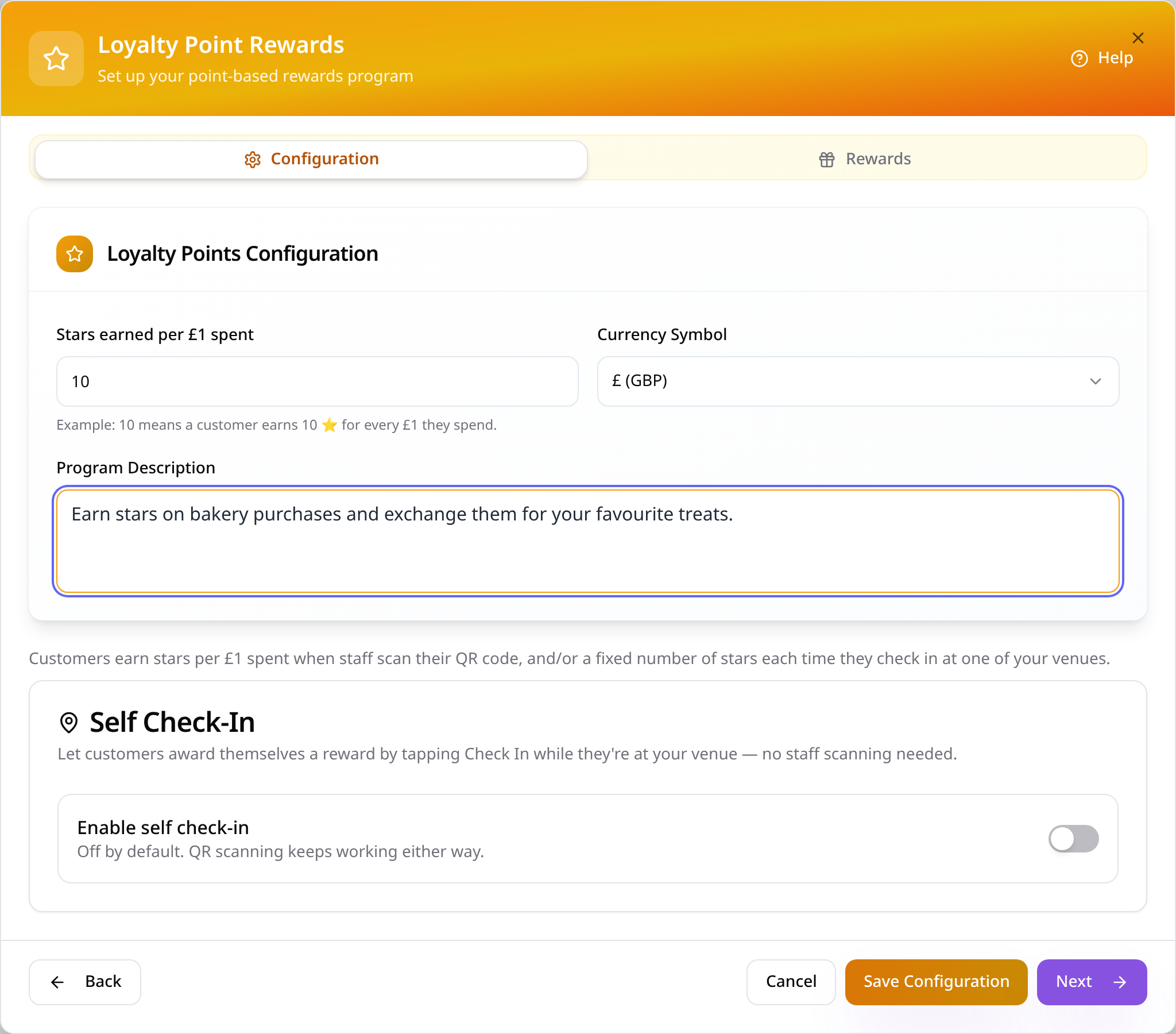
Set how customers earn stars
Choose the stars earned per £1, currency and description; Self Check-In is optional and needs your venue settings.
- 4
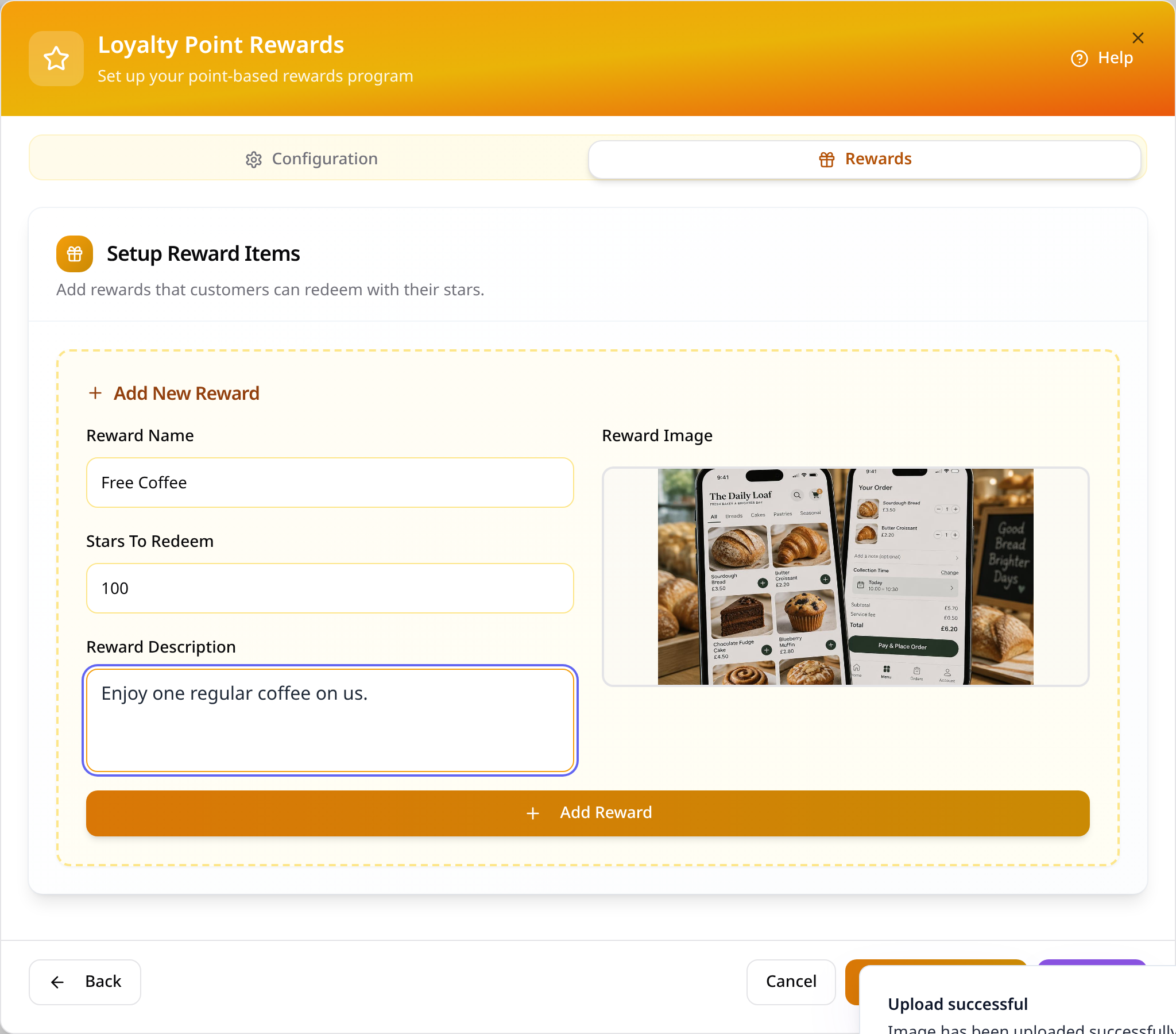
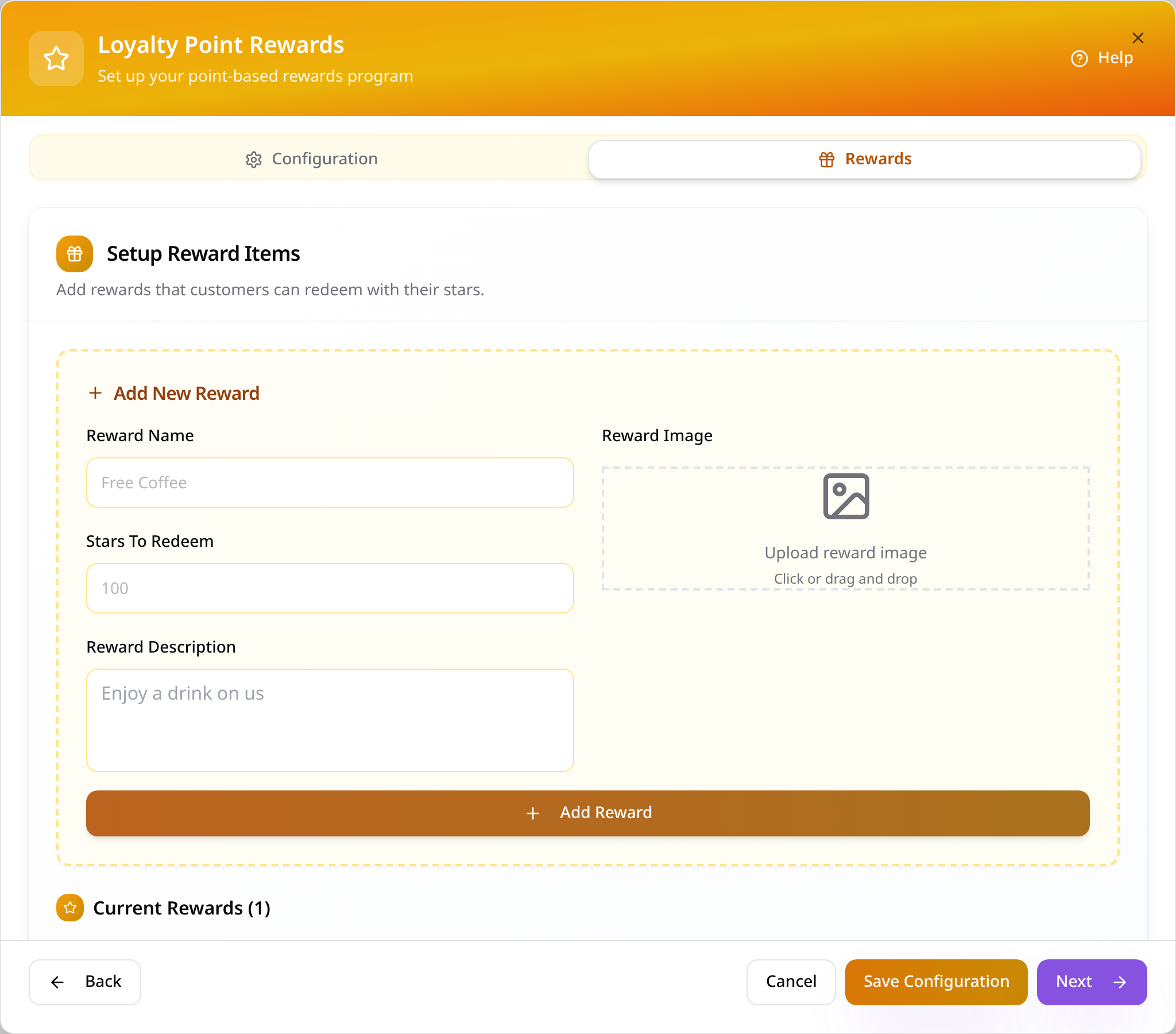
Prepare a reward
Open Rewards and enter a name, stars required, description and optional image.
- 5
Add and save your rewards
Tap Add Reward for each item, then Save Configuration and Next once your rewards list is ready.
- 6
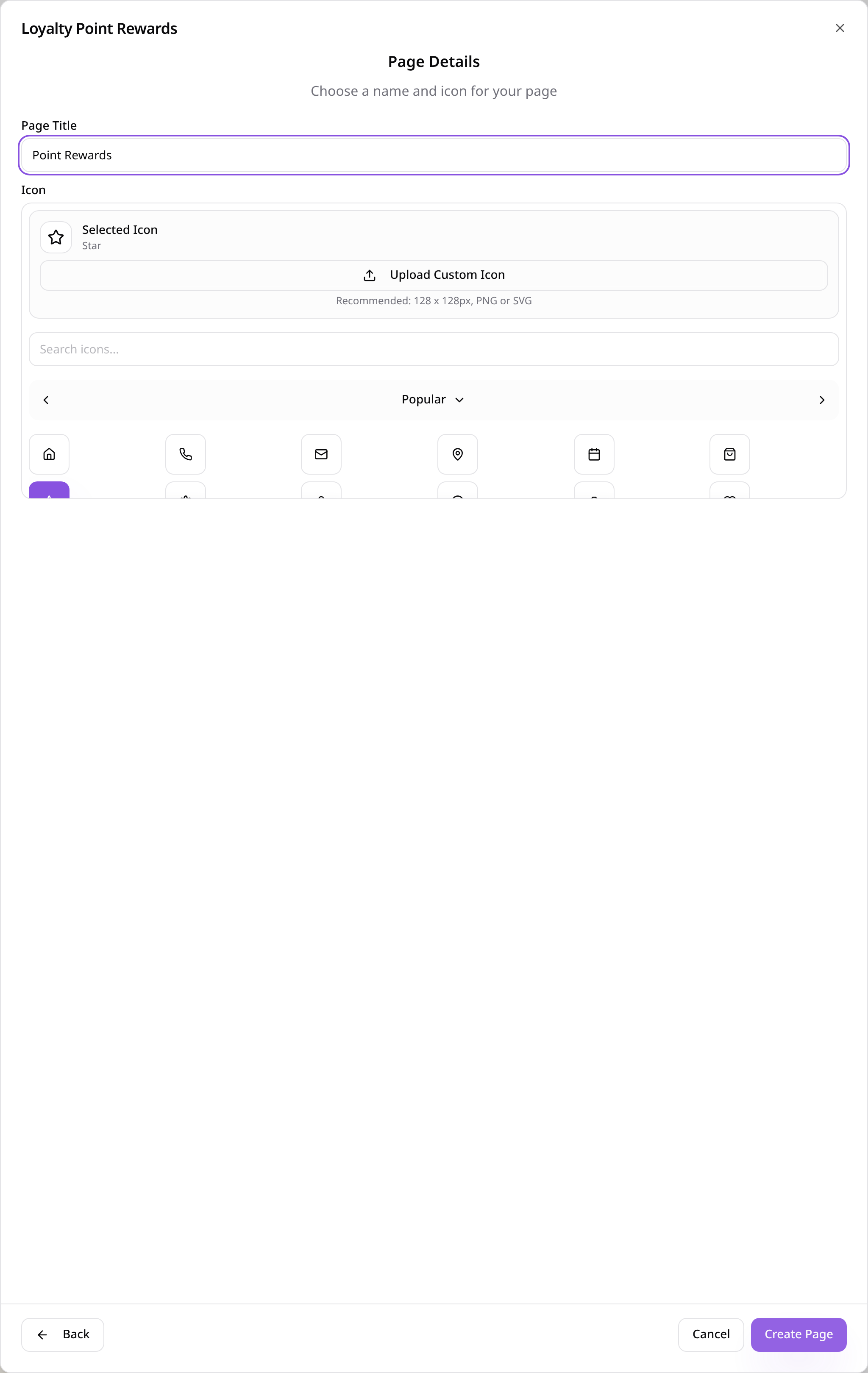
Name the page
Enter a page title, keep or choose an icon and tap Create Page.
- 7
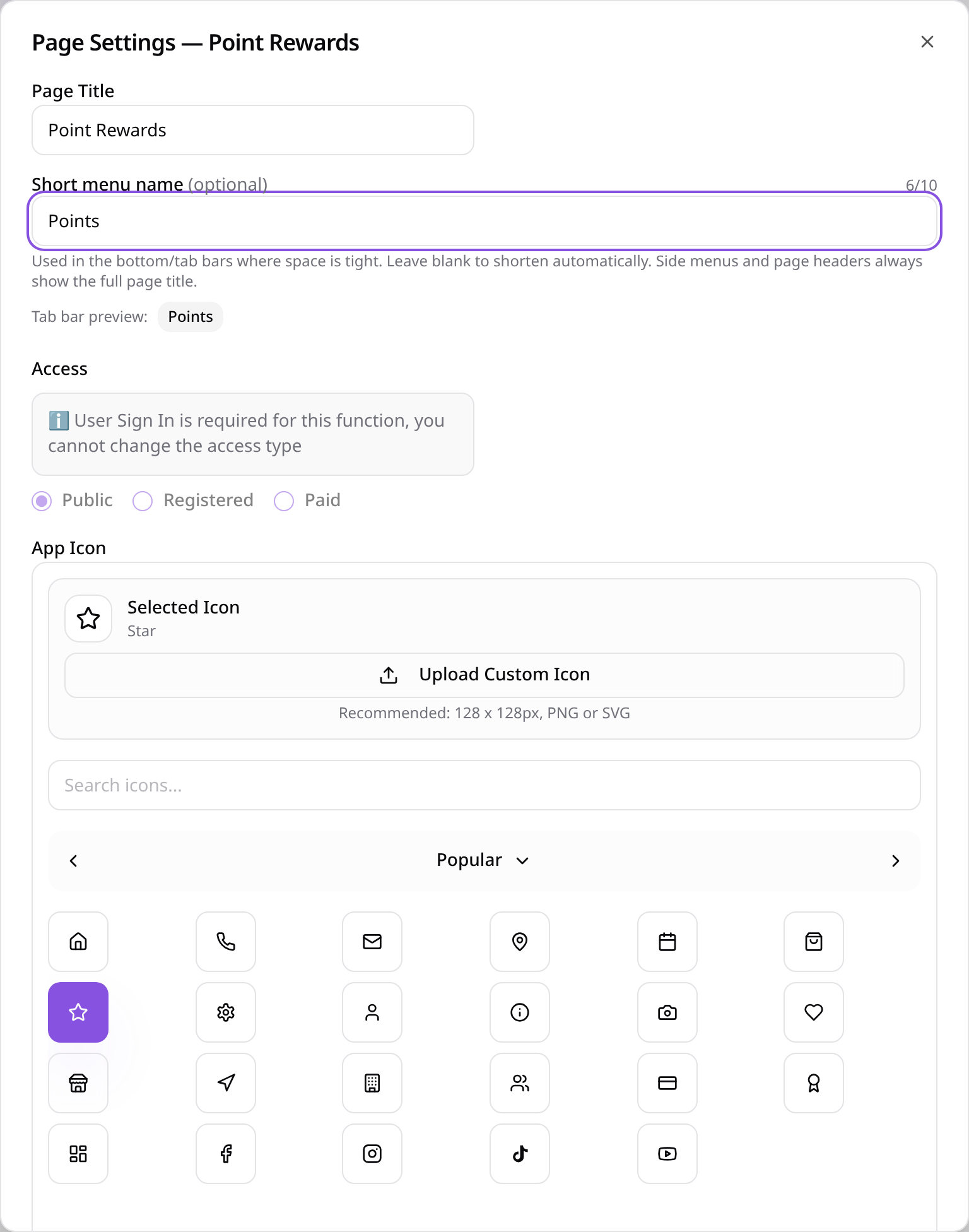
Keep the tab name short
Open Edit Page Settings, enter a short menu name such as Points and tap Save Settings.
- 8
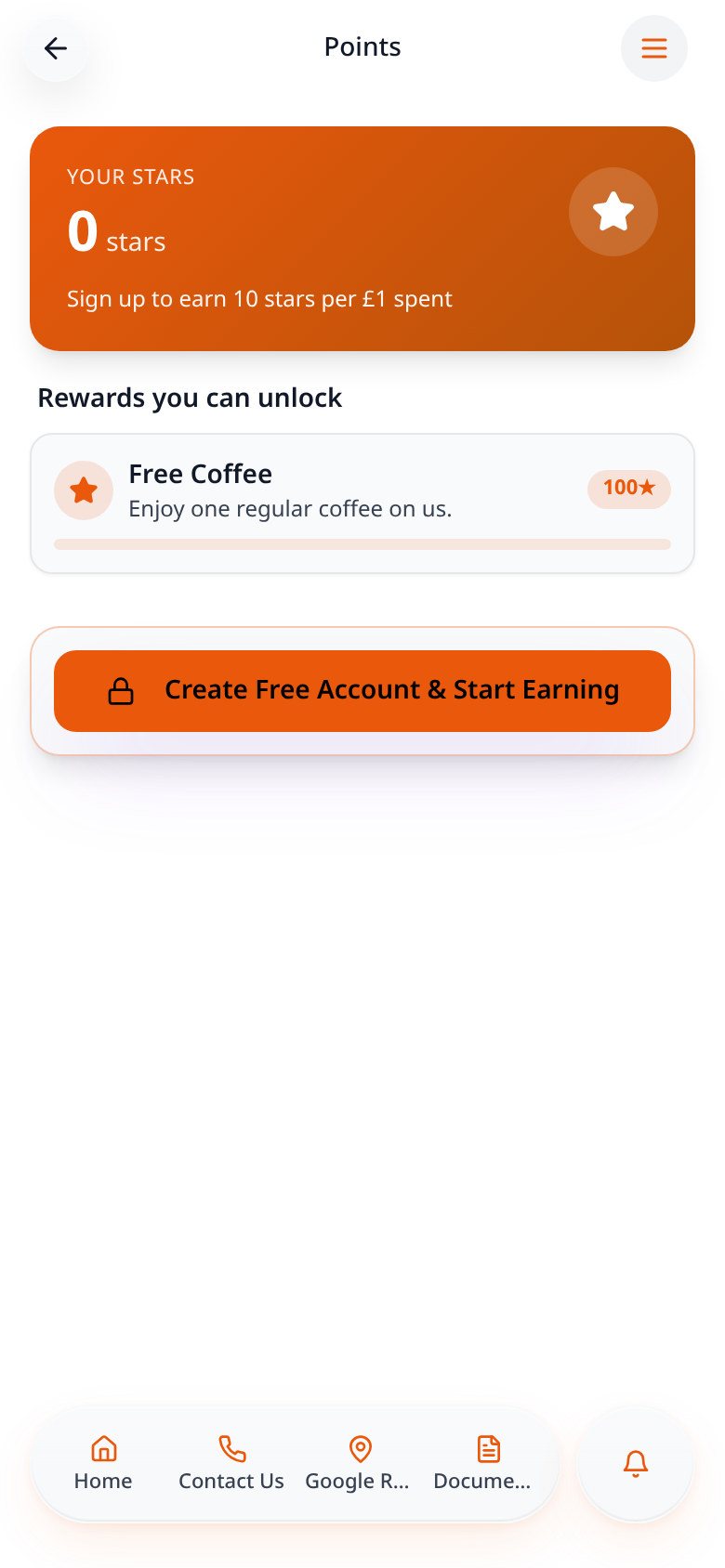
See the customer offer
Customers open the page to see the earning rate and available rewards.
- 9
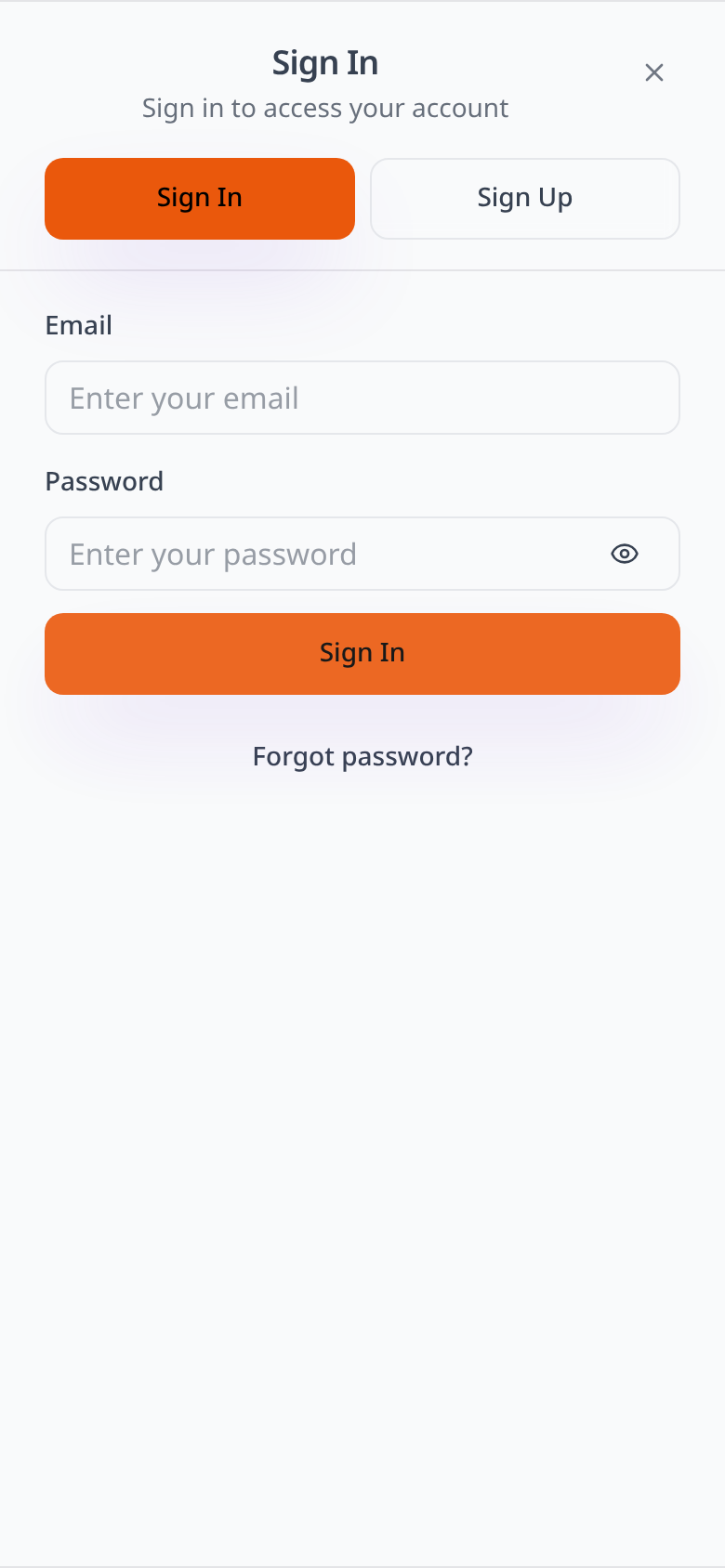
Sign in to start collecting
Customers sign in or select Sign Up for their own app account before collecting stars.
- 10
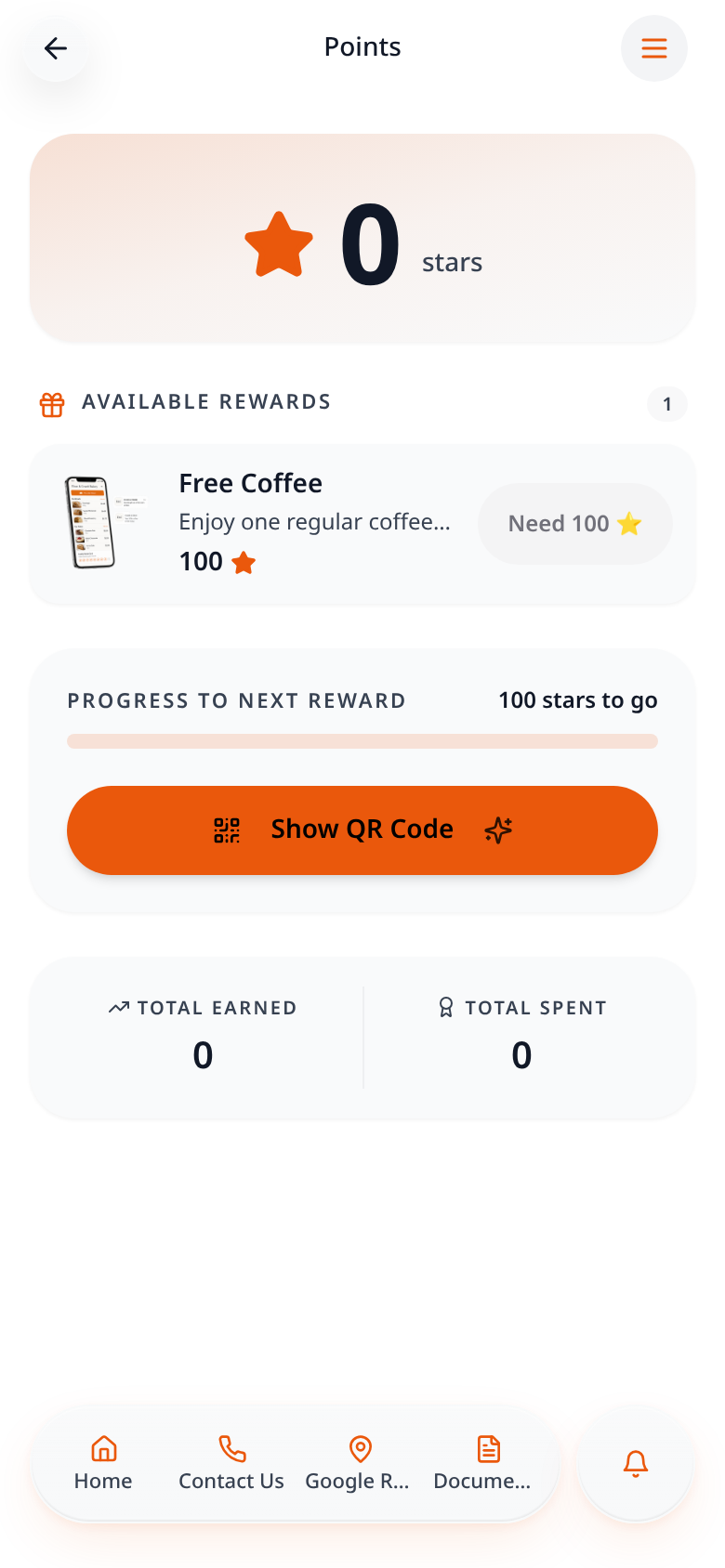
Open your loyalty card
After signing in, customers see their stars, reward choices and progress.
- 11
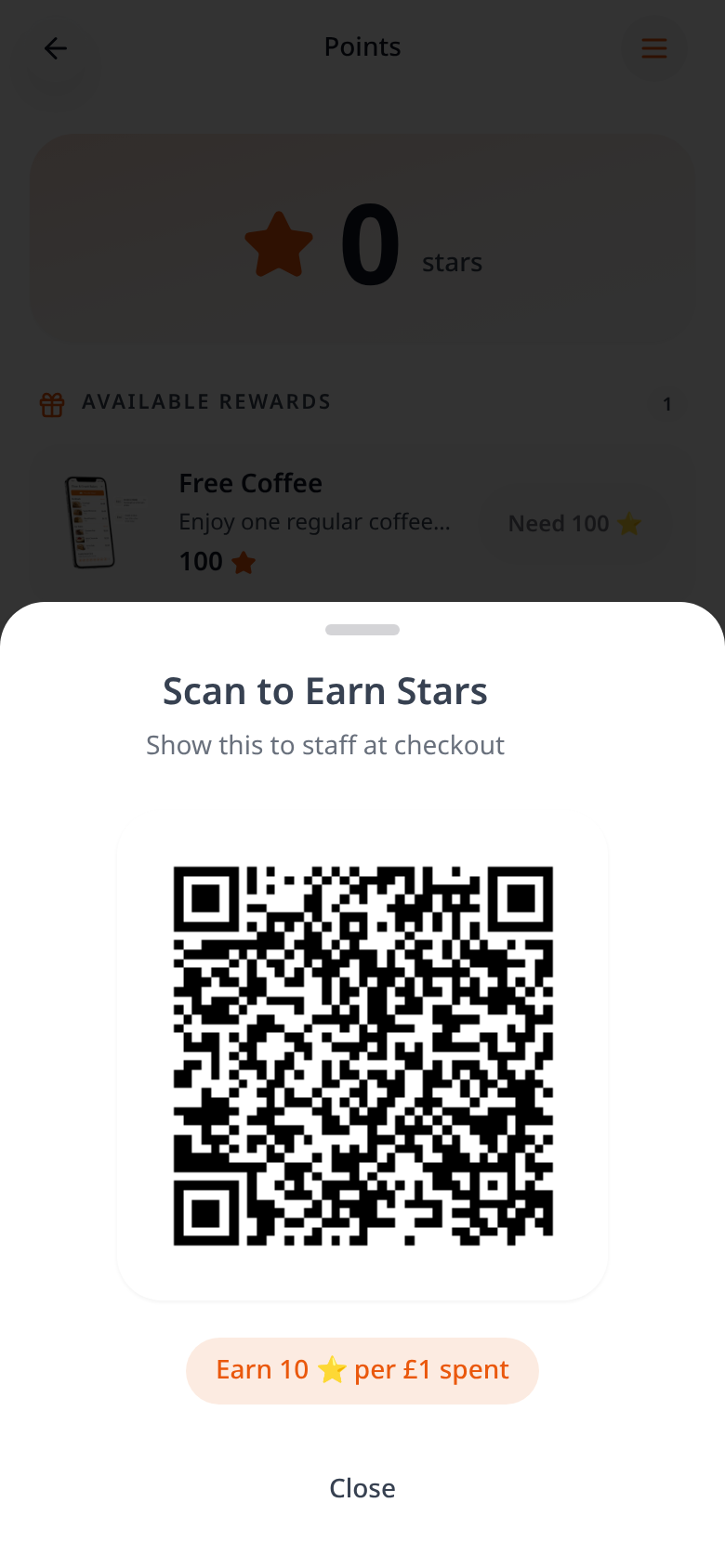
Show the QR code
Tap Show QR Code and show it to staff at checkout.
- 12
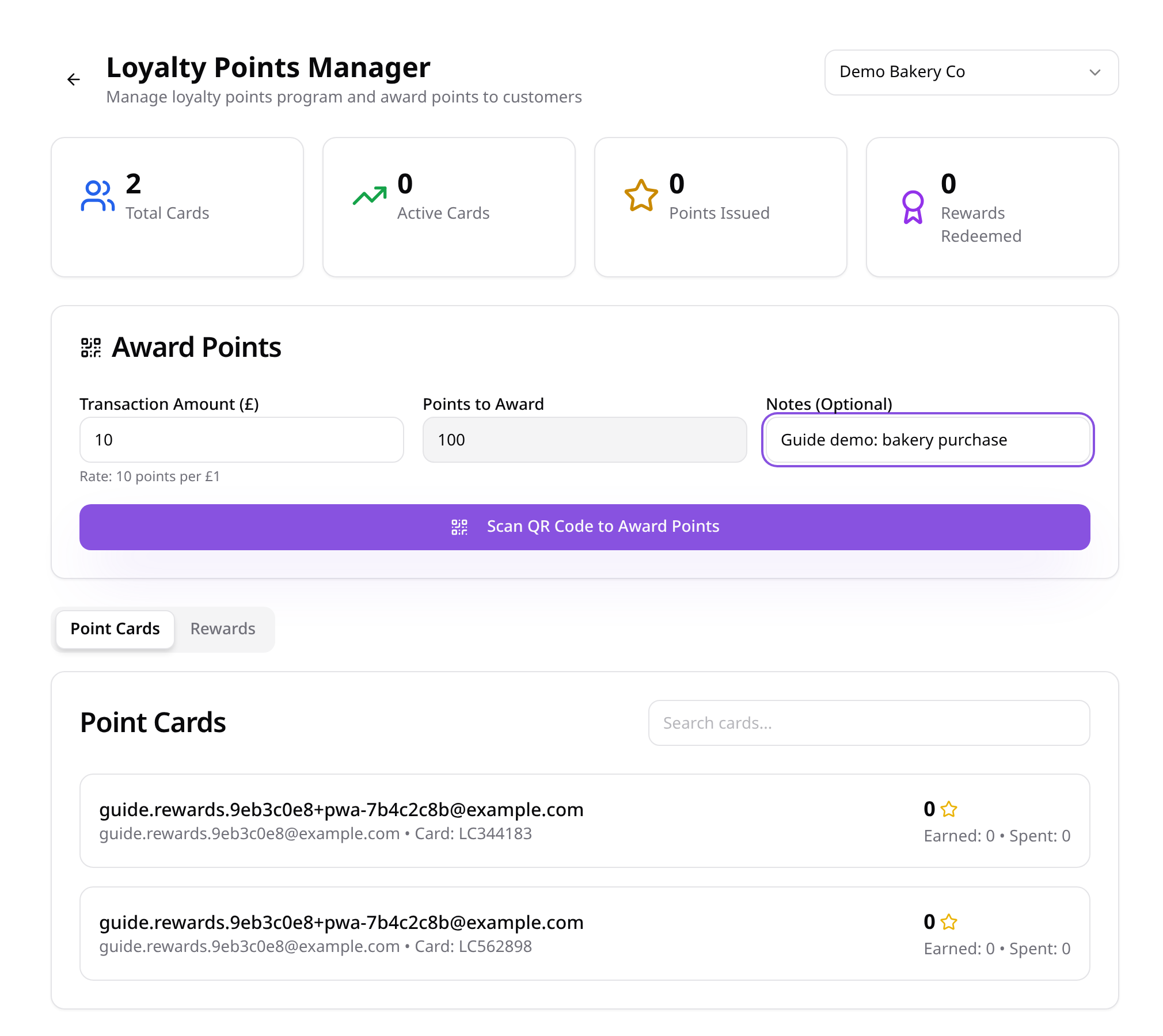
Scan to award points
In Data Manager, enter the purchase amount and tap Scan QR Code to Award Points; scan the customer’s code.
- 13
See stars added
The customer balance updates after the scan; this £10 example adds 100 stars.
- 14
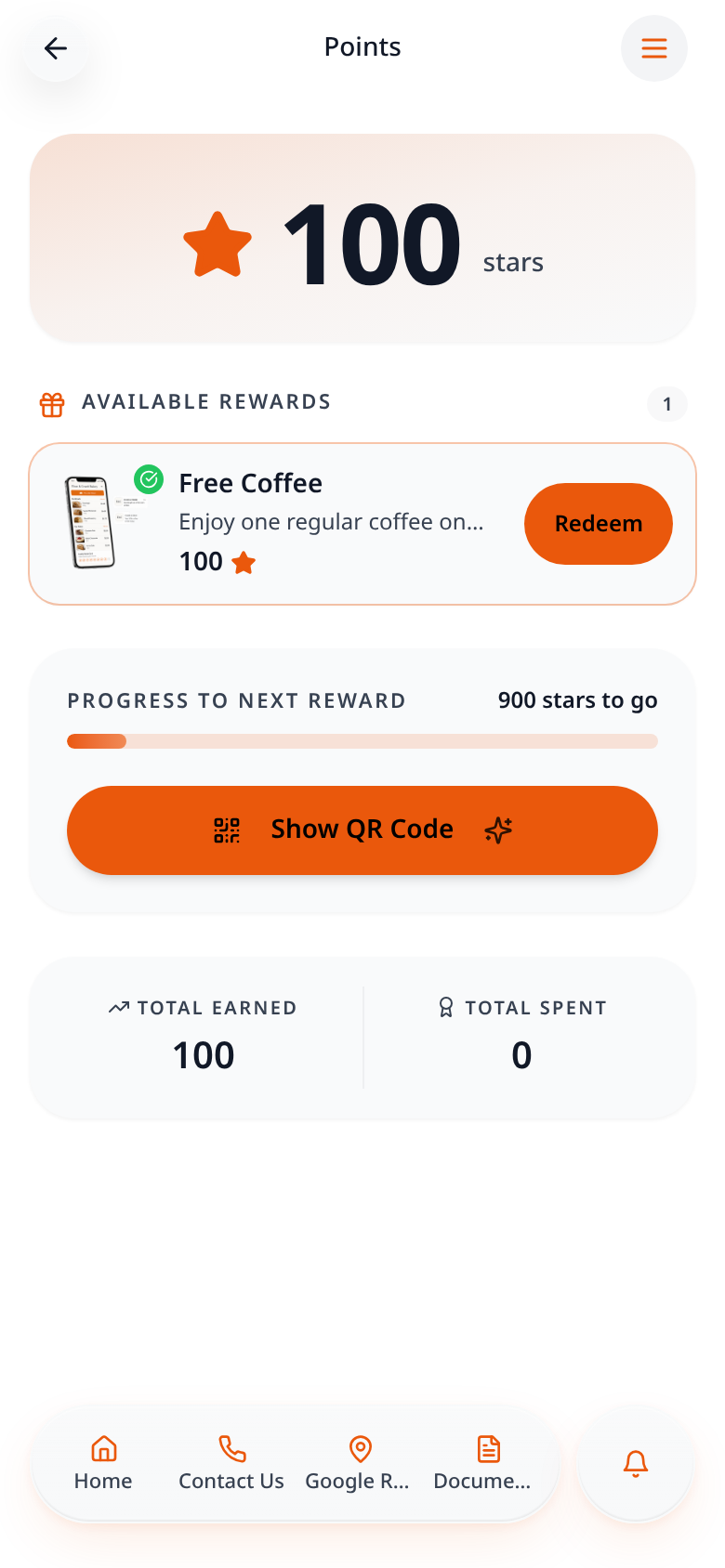
Redeem a reward
When enough stars are available, tap Redeem on the chosen reward.
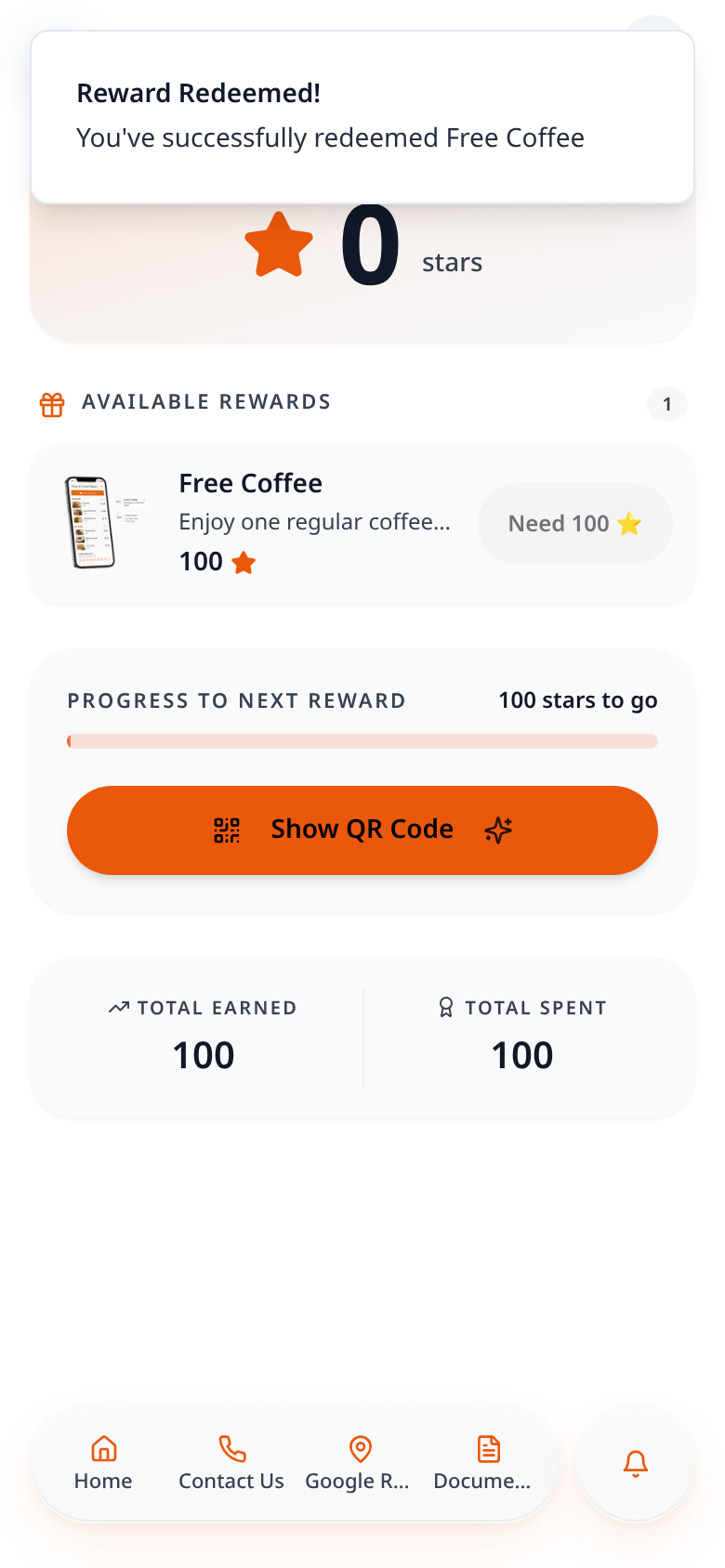
- 15
Check the new balance
The redeemed reward deducts its stars; total earned and total spent remain visible.
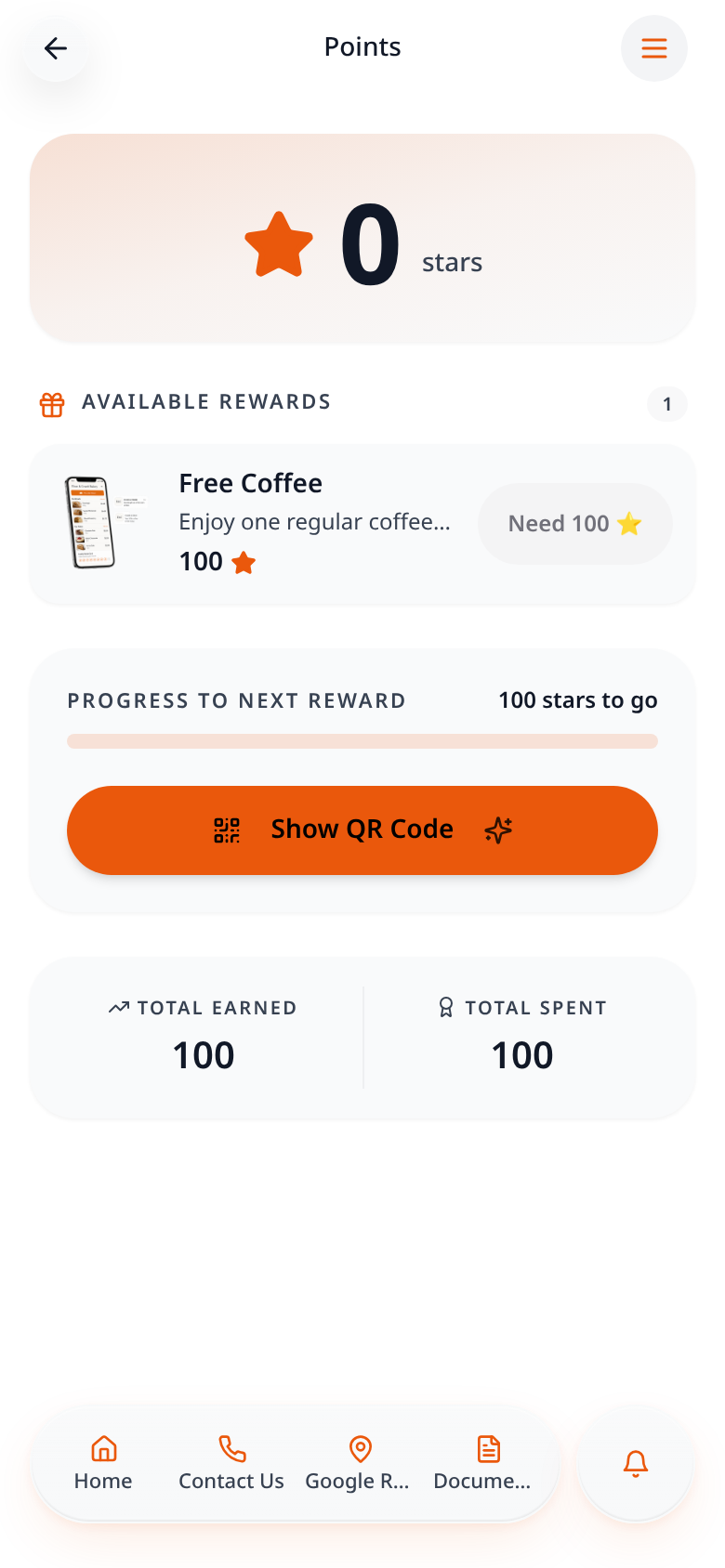
Staff scanning awards stars to the signed-in customer; redeeming a reward deducts its required stars. Self Check-In remains optional.