Set up Referral Vouchers
Give customers a reason to introduce a friend, with separate rewards and staff-confirmed in-store redemption.
Step-by-step guide
Follow these steps, then download the PDF to keep.
- 1
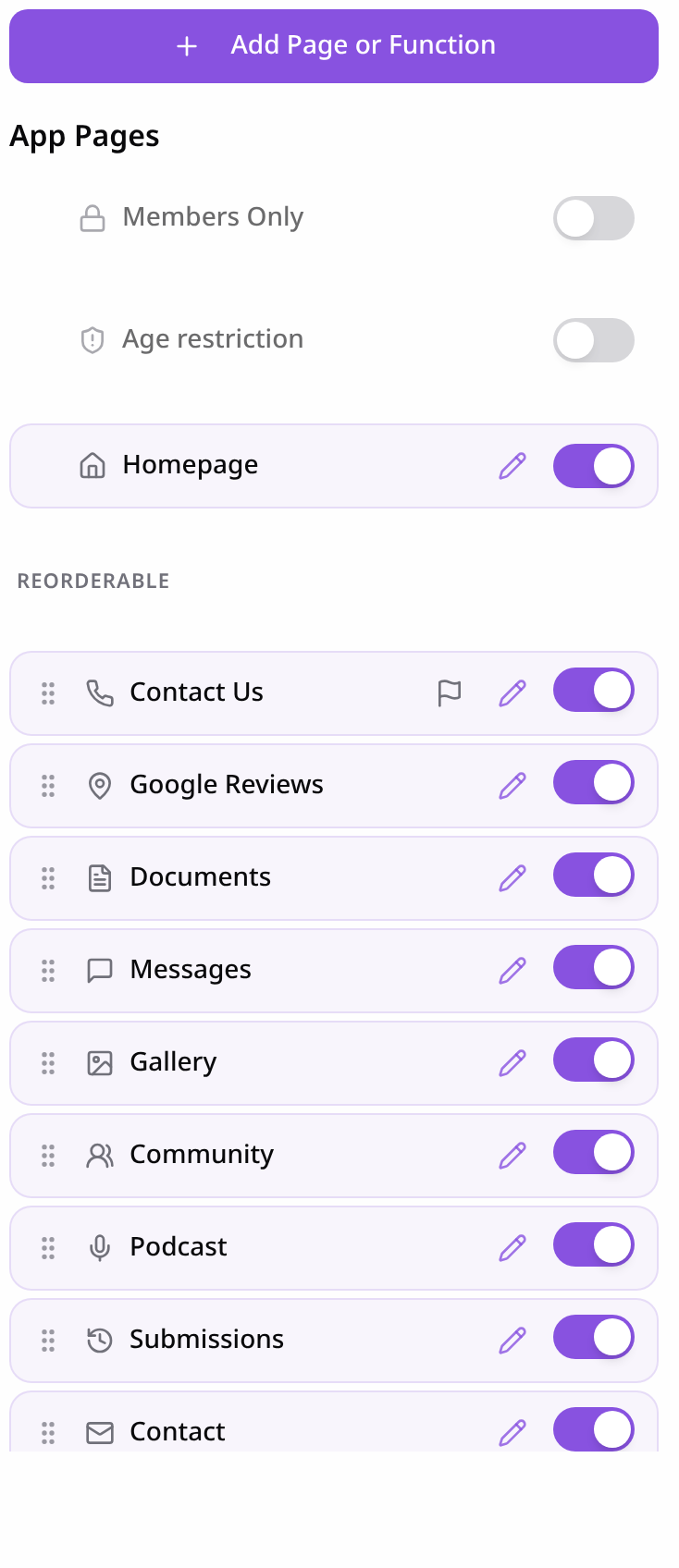
Open Pages
In your app editor, open Pages and tap Add Page or Function.
- 2
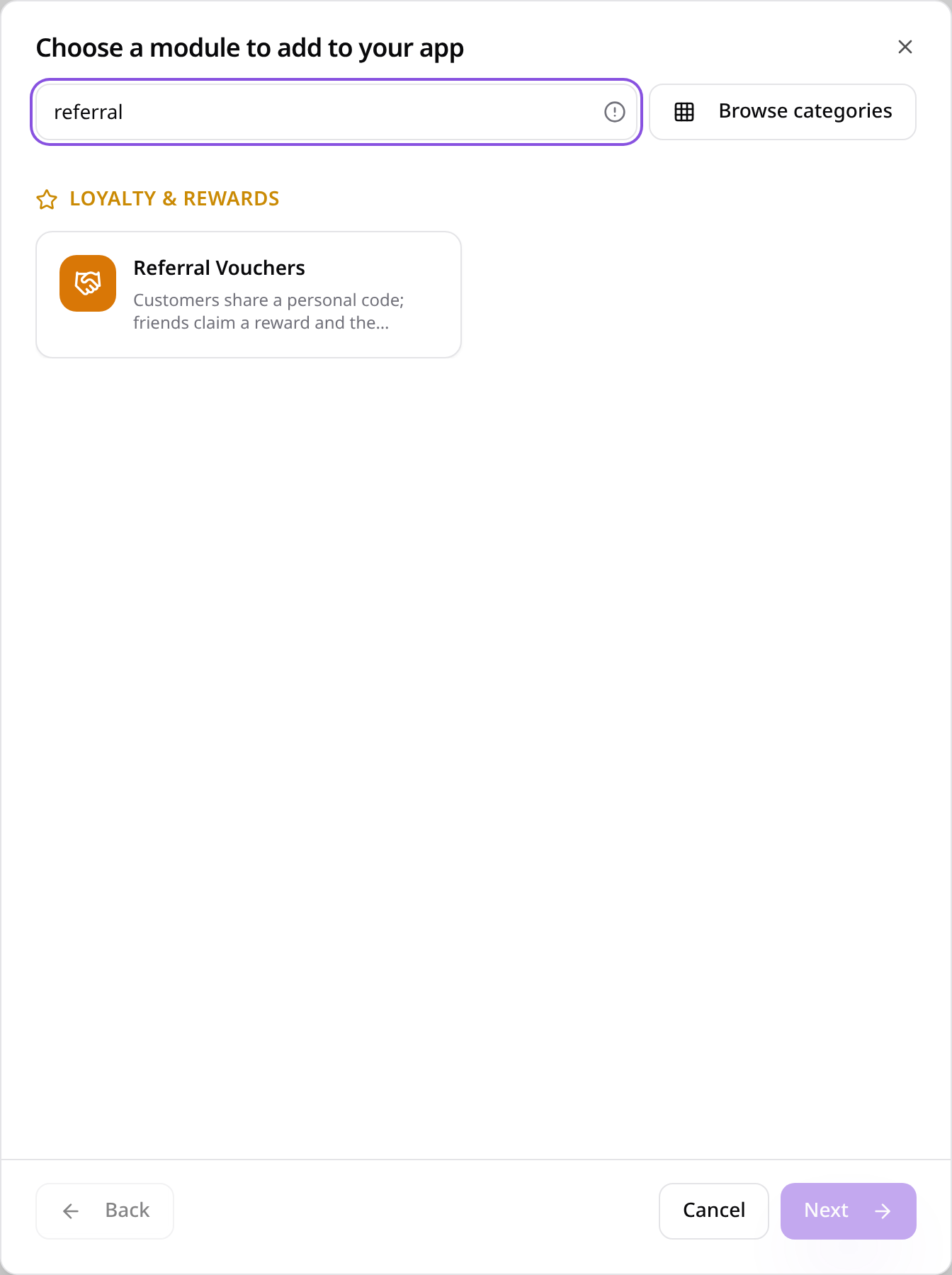
Choose Referral Vouchers
Search “referral” and choose Referral Vouchers.
- 3
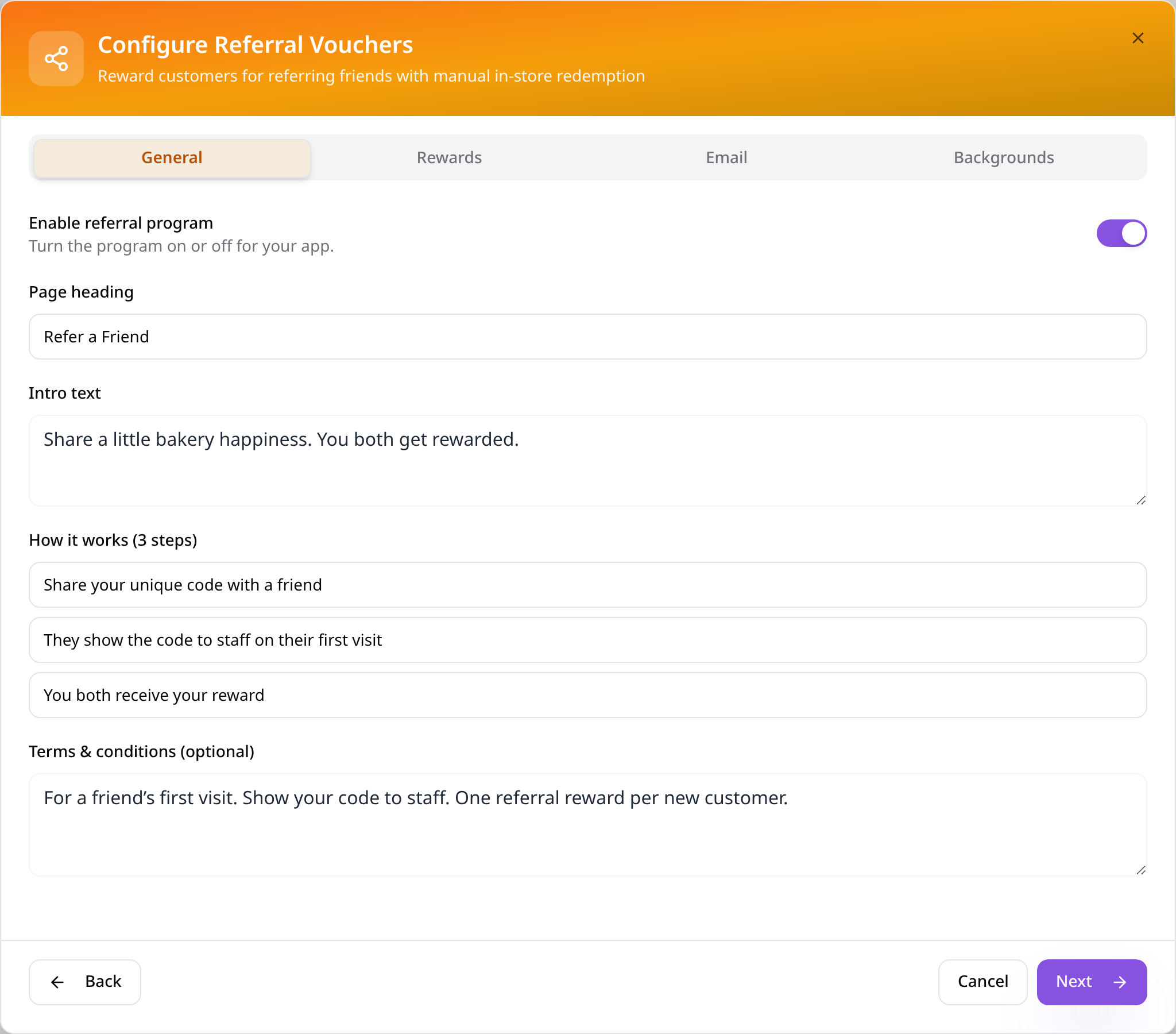
Explain the program
On General, enable referrals and set the heading, introduction, three instructions and terms; tap Next.
- 4
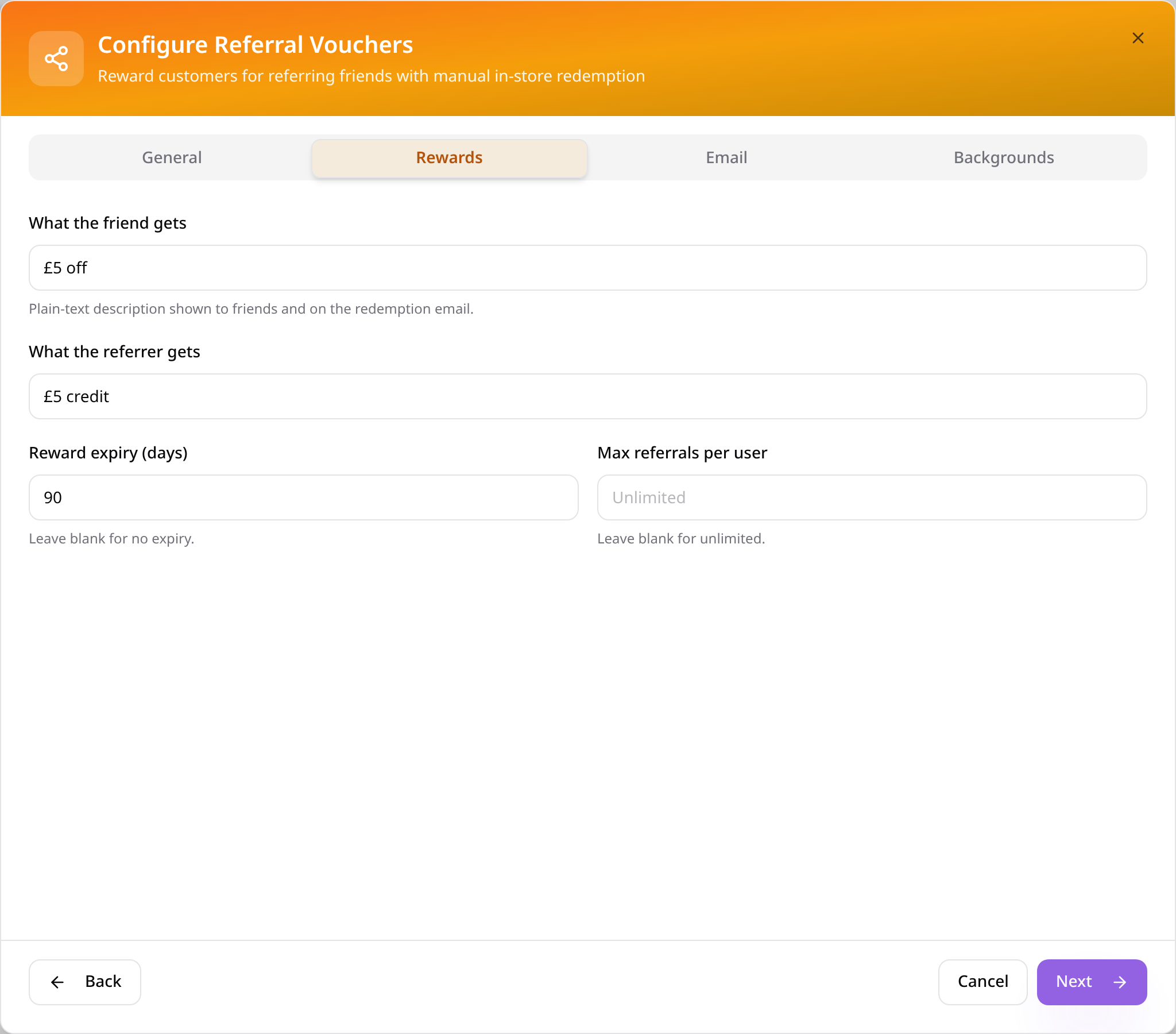
Set both rewards
Enter what the friend gets and what the referrer gets, choose expiry and referral limits, then tap Next.
- 5
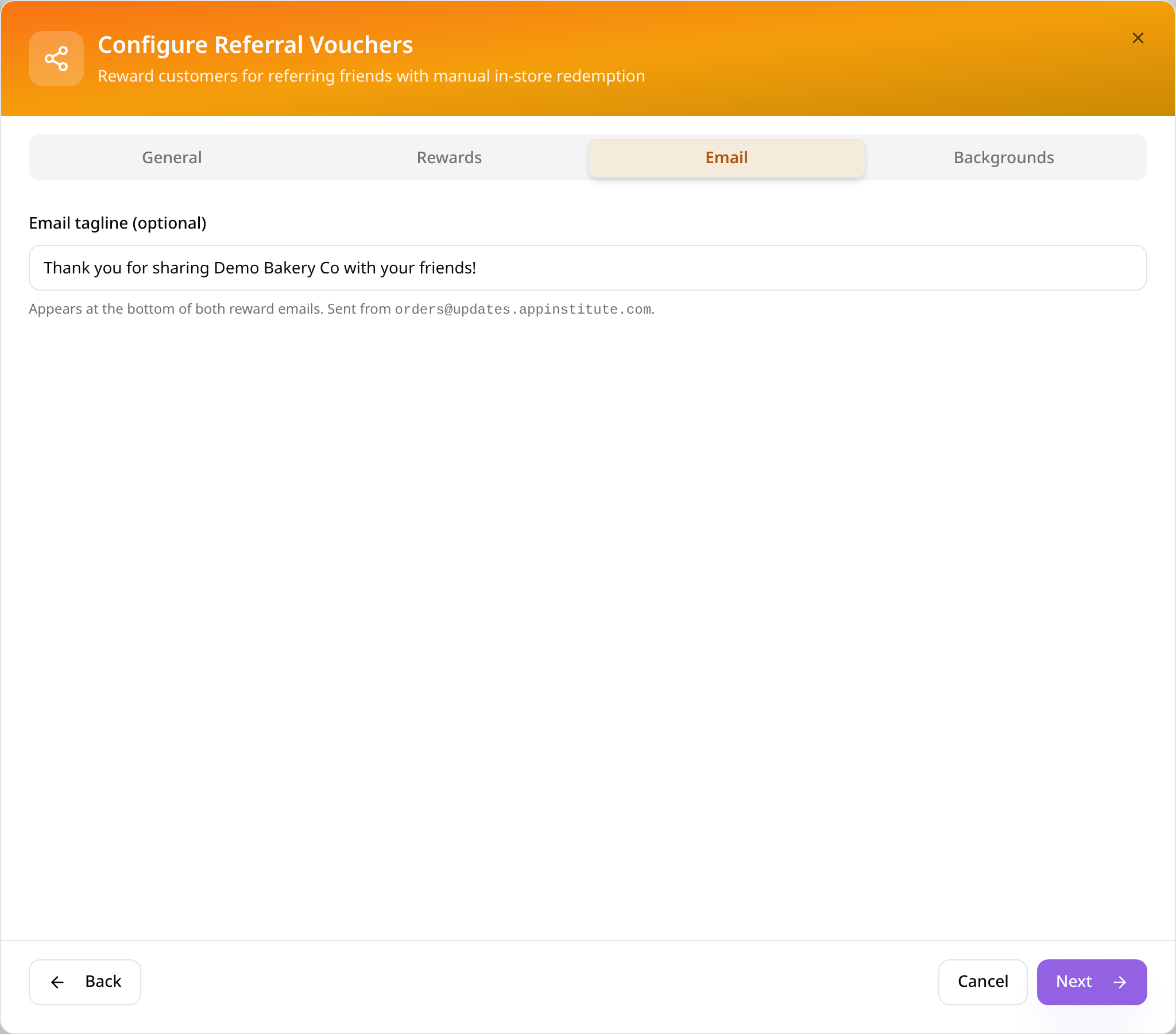
Add an email tagline
Add an optional line for reward emails and tap Next to continue.
- 6
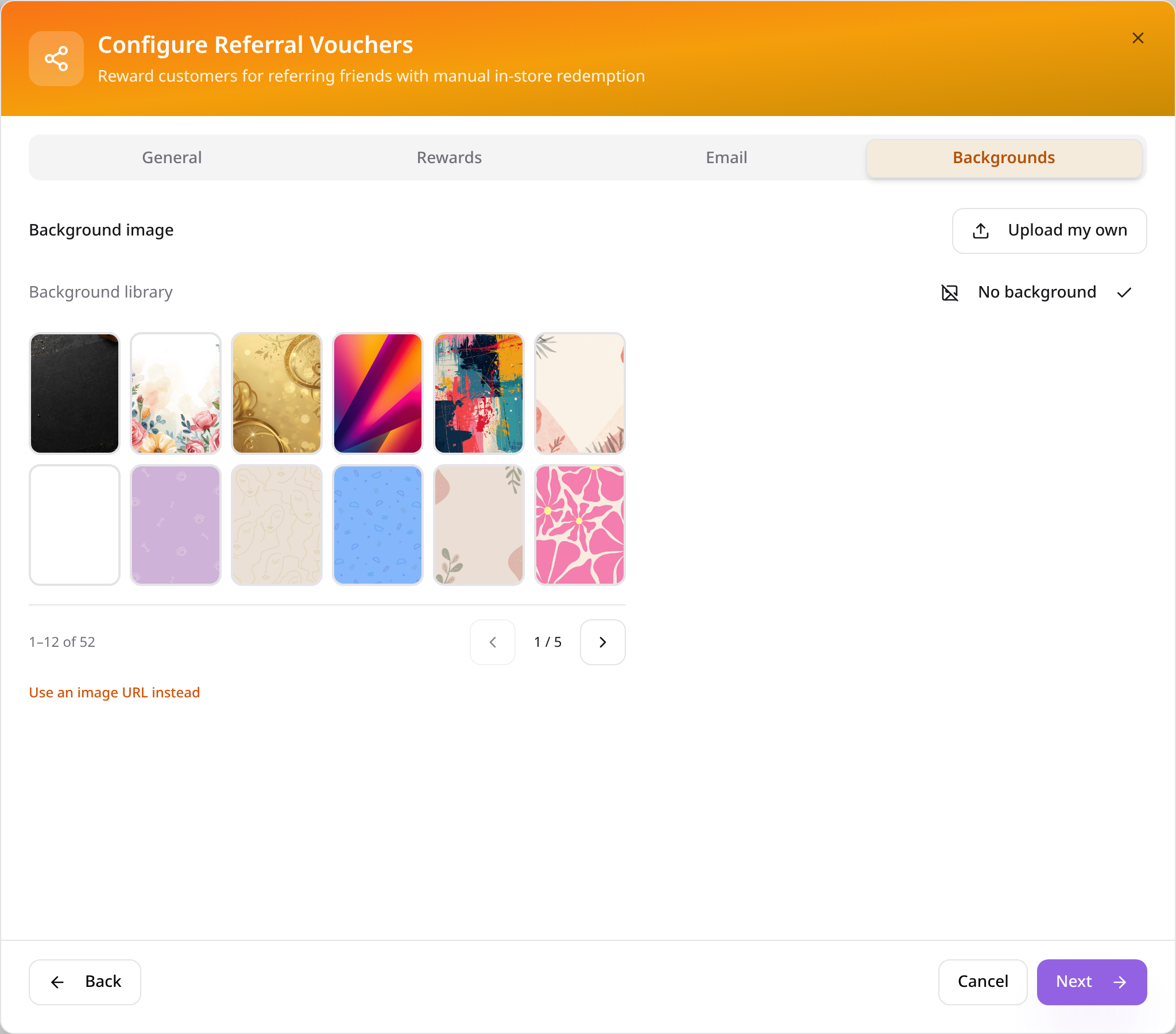
Browse backgrounds
Use the background library arrows to browse, or choose No background.
- 7
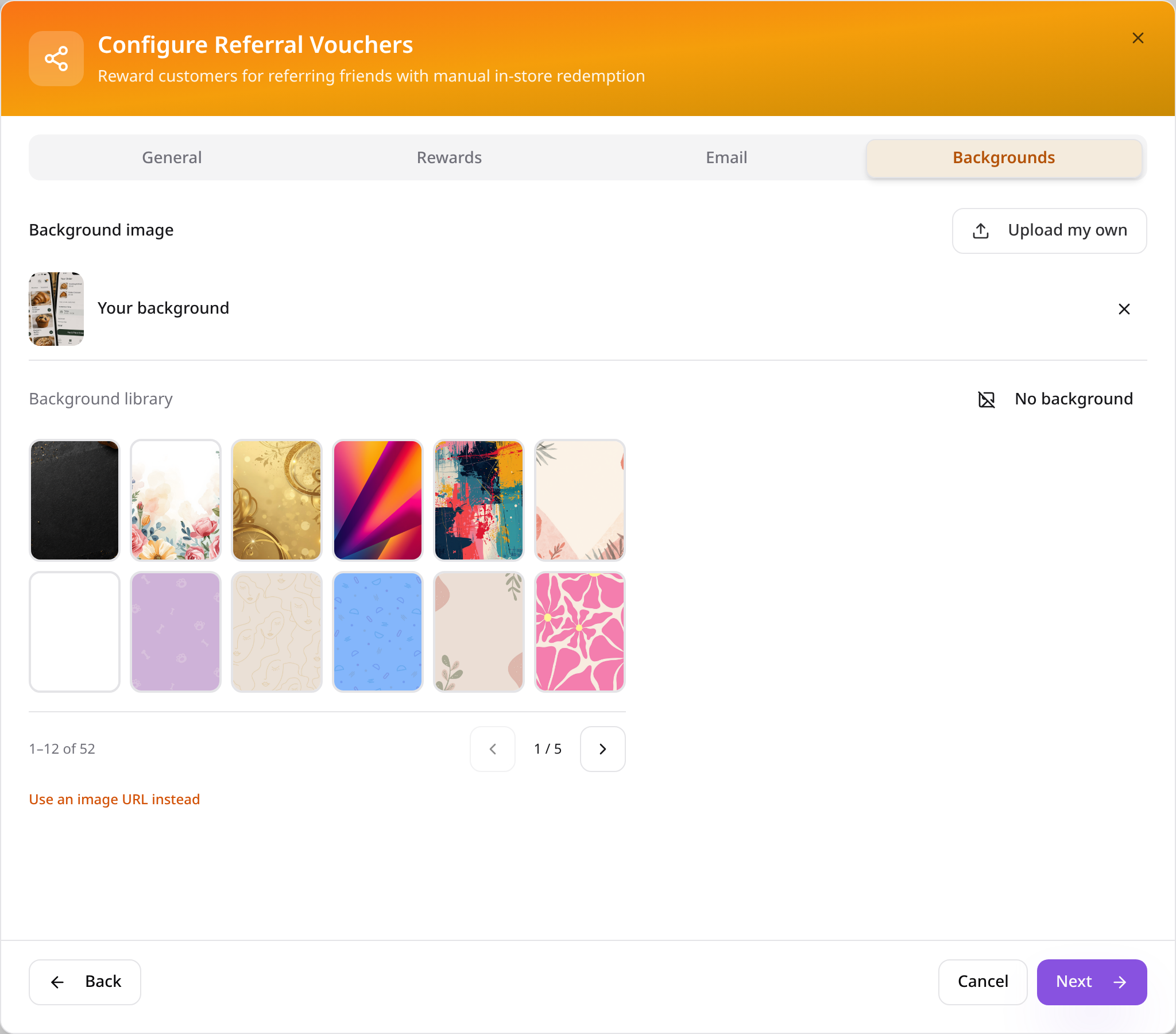
Upload your own photo
Tap Upload my own, choose an image and check its preview; tap Next to save all four tabs together.
- 8
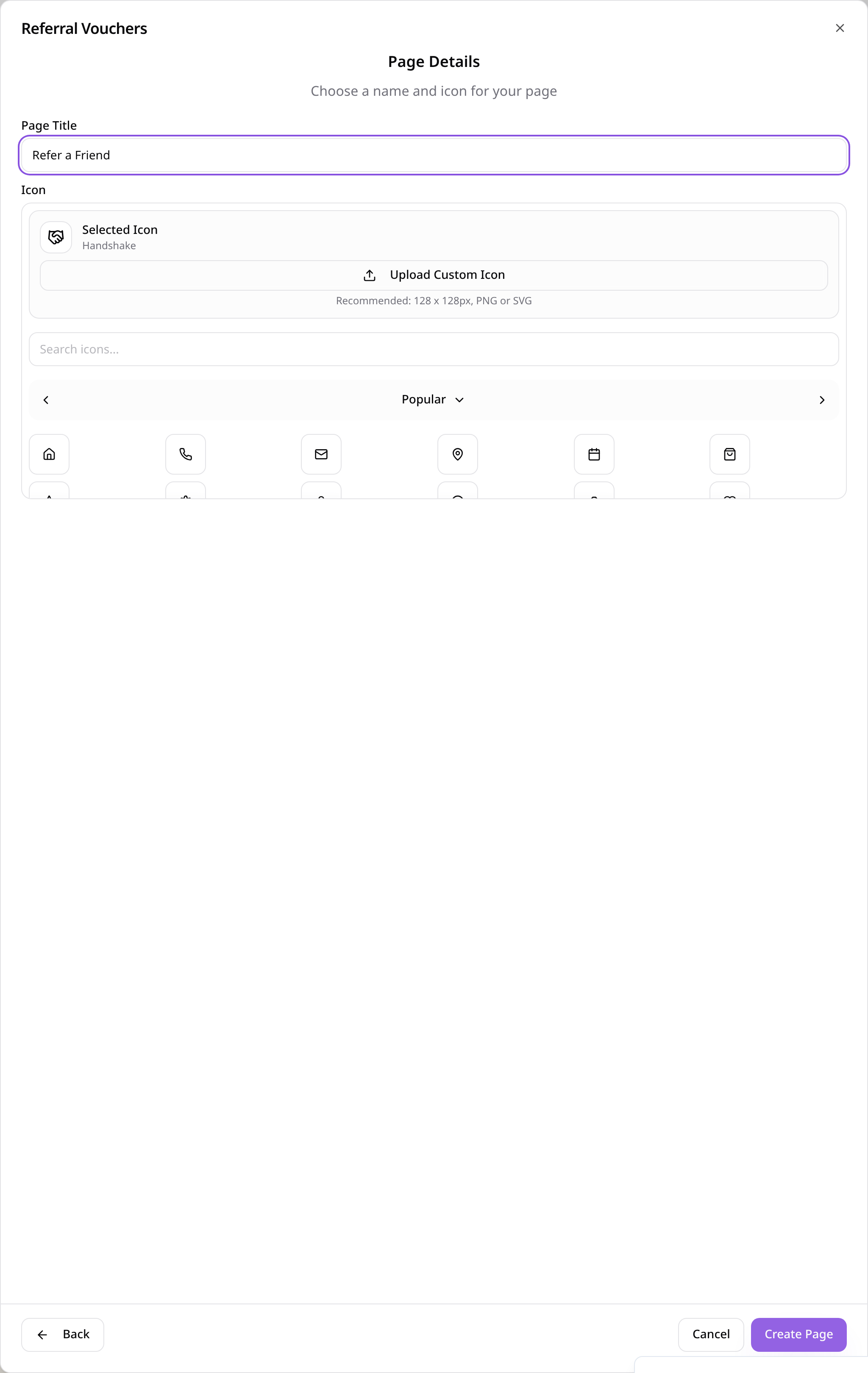
Create the page
Enter a page title, keep or choose the Handshake icon and tap Create Page.
- 9
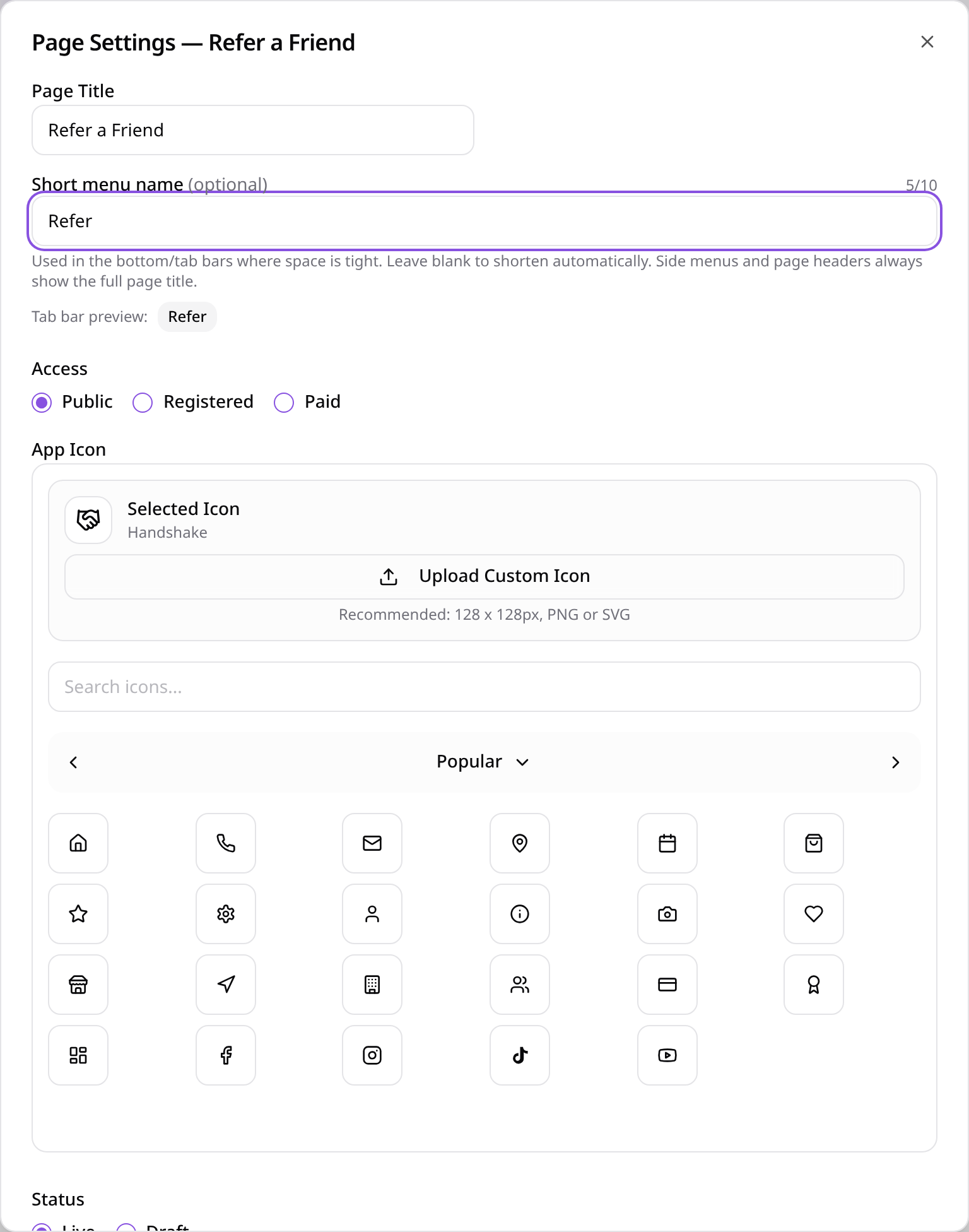
Give the tab a short name
Open Edit Page Settings, enter a short menu name such as Refer and tap Save Settings.
- 10
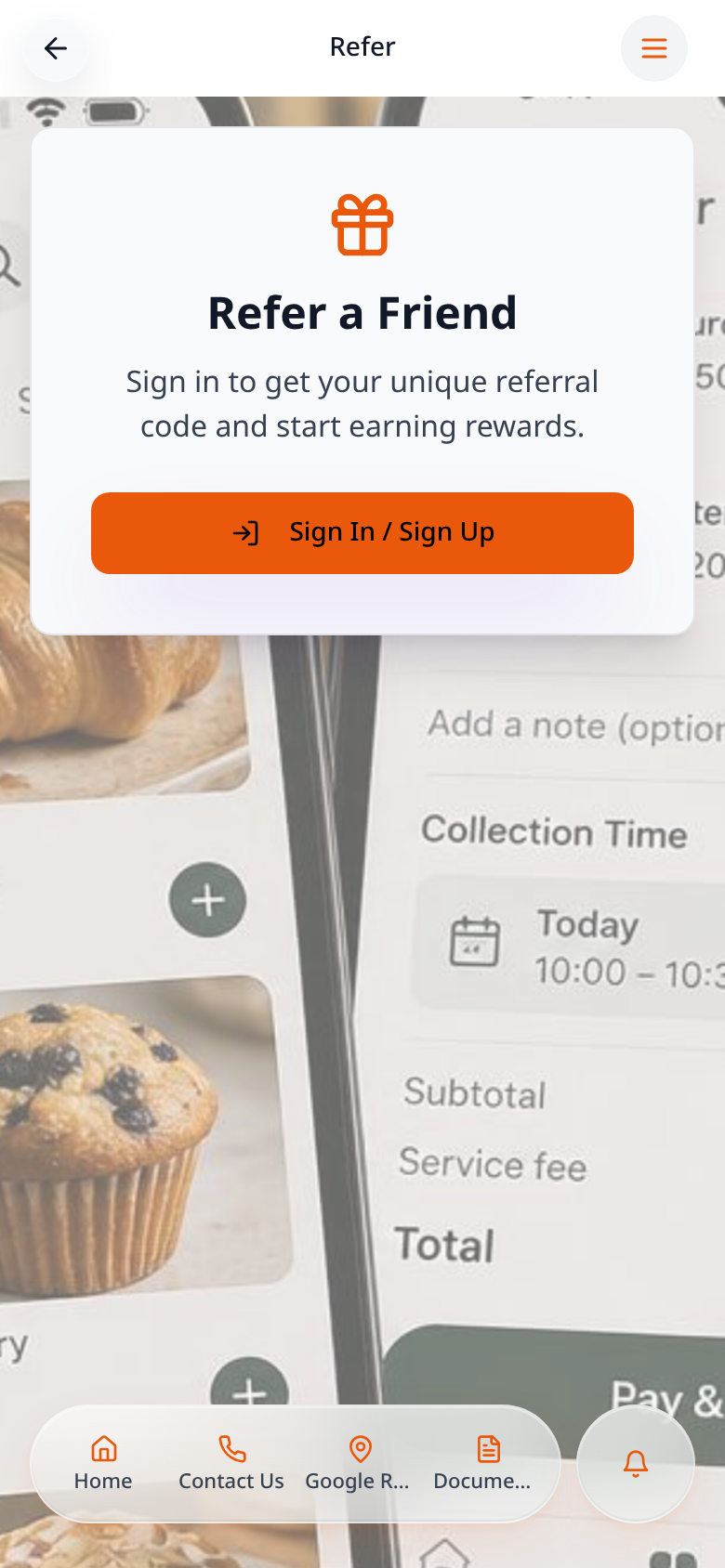
Open referrals in the app
Customers open the page and tap Sign In / Sign Up to get started.
- 11
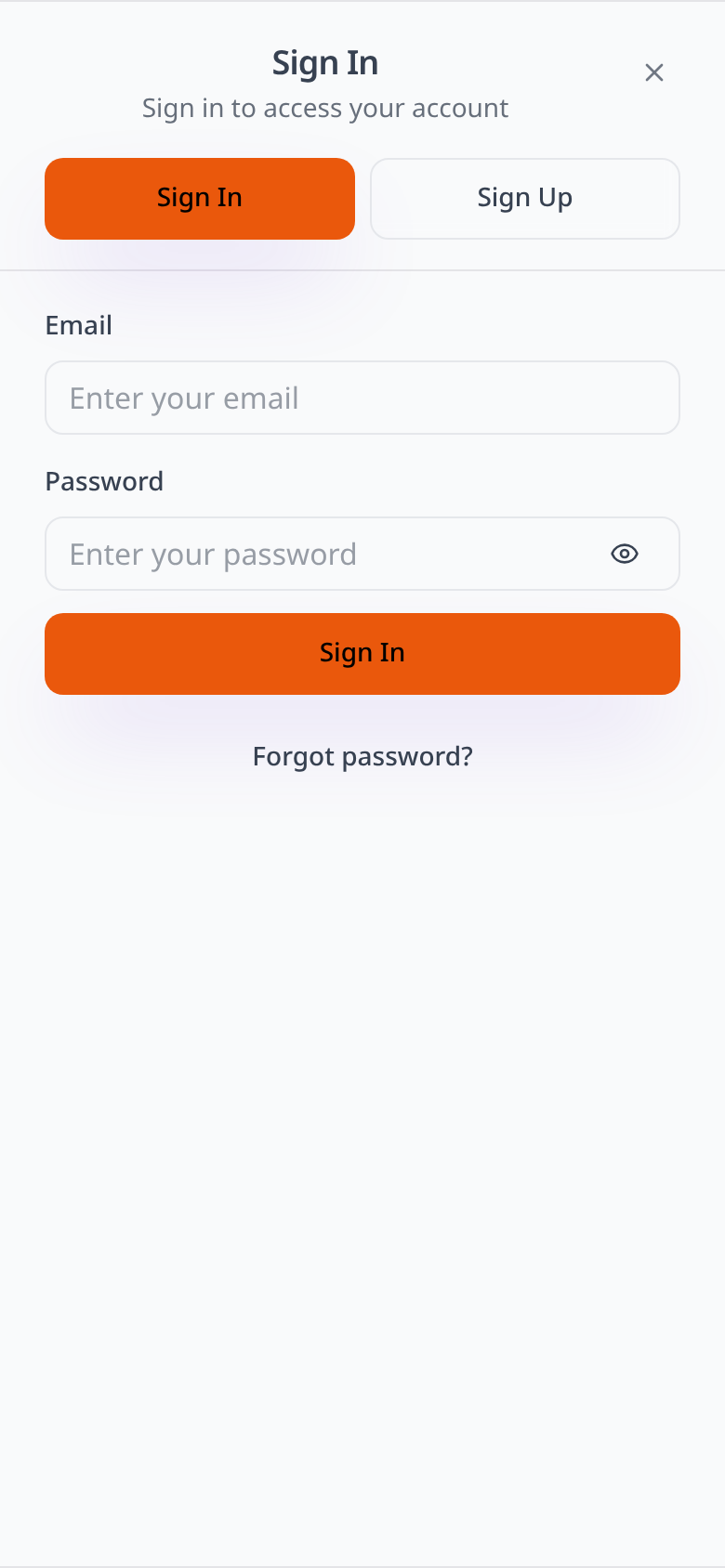
Use a customer account
Customers sign in or select Sign Up; their app account is separate from your editor login.
- 12
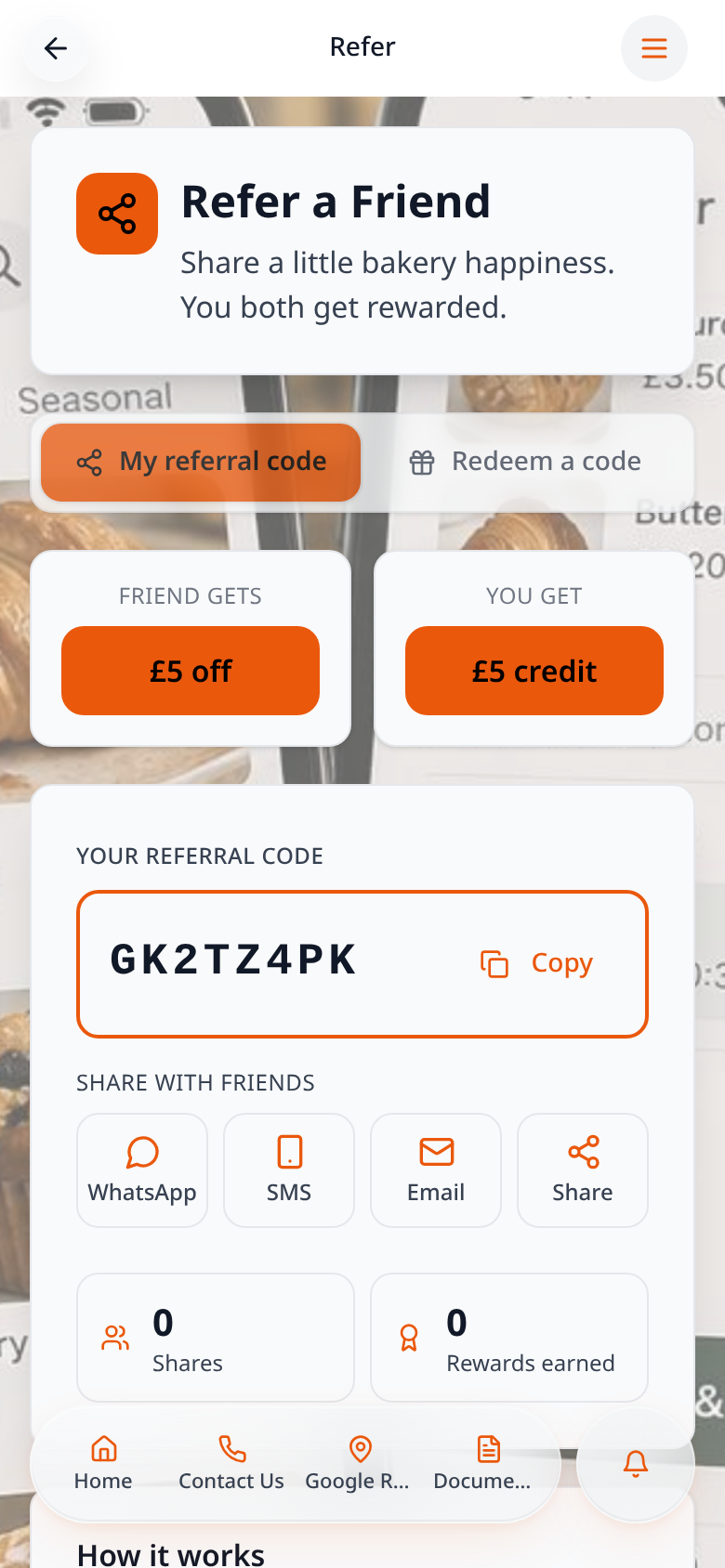
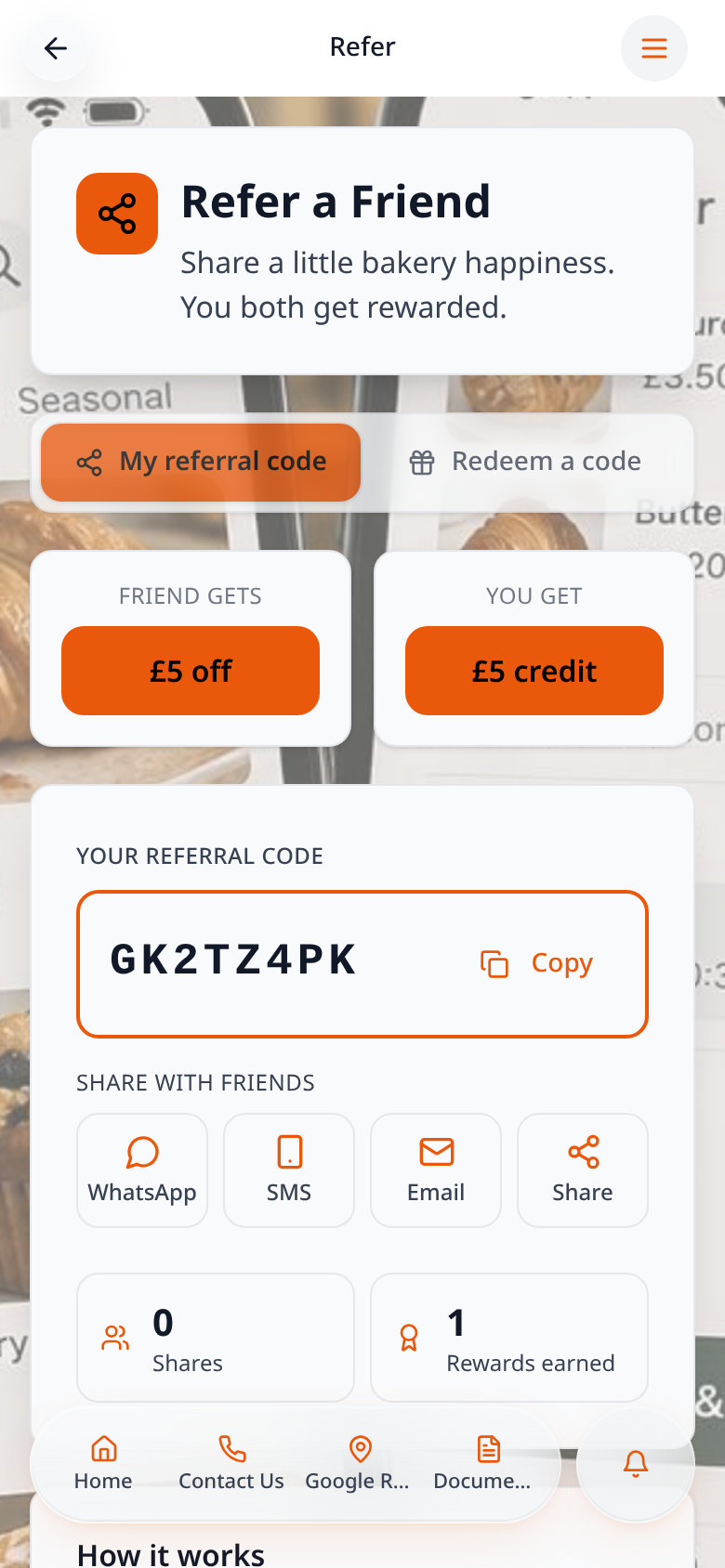
Generate and share a code
After signing in, tap Get my referral code, then copy it or choose a sharing option.
- 13
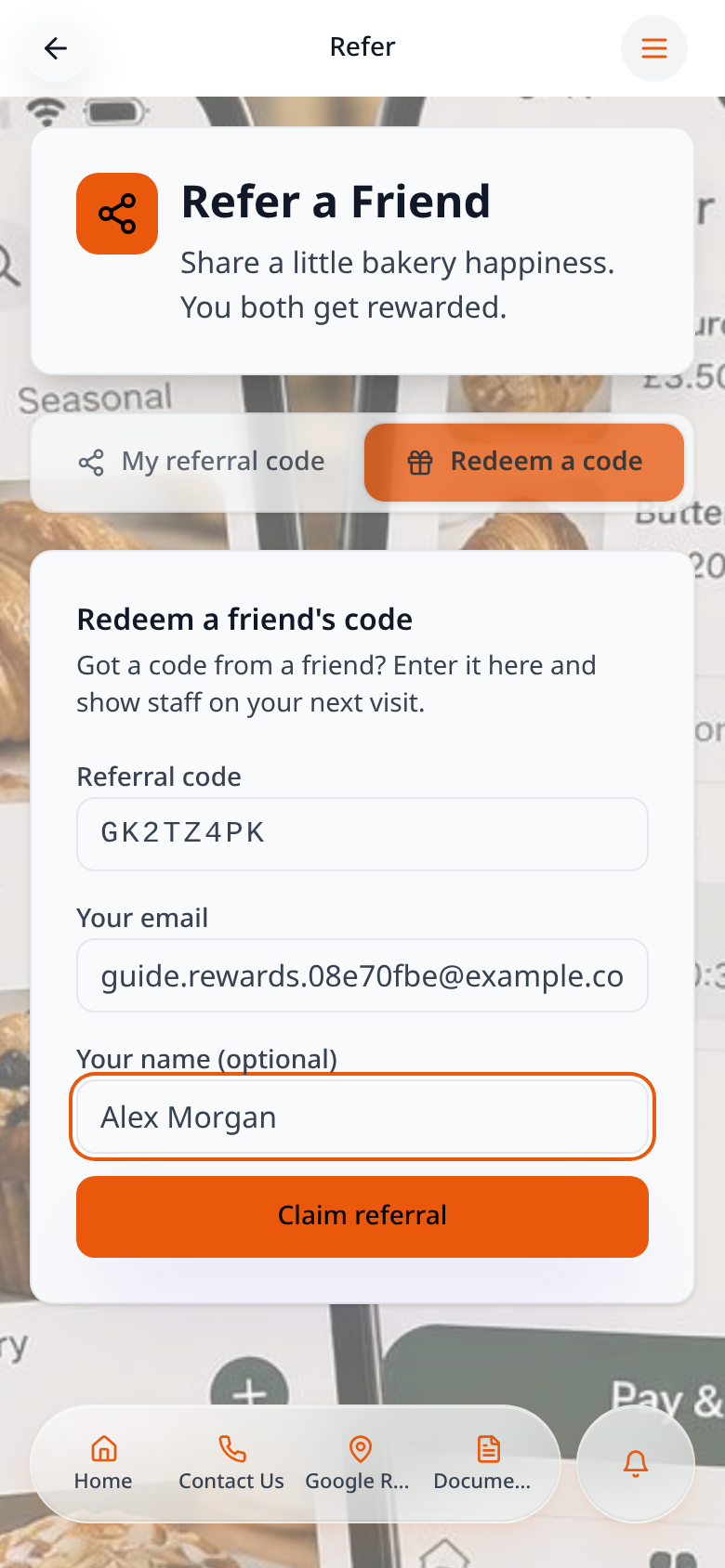
A friend claims the code
The friend signs in, opens Redeem a code and enters the code, email and optional name before tapping Claim referral.
- 14
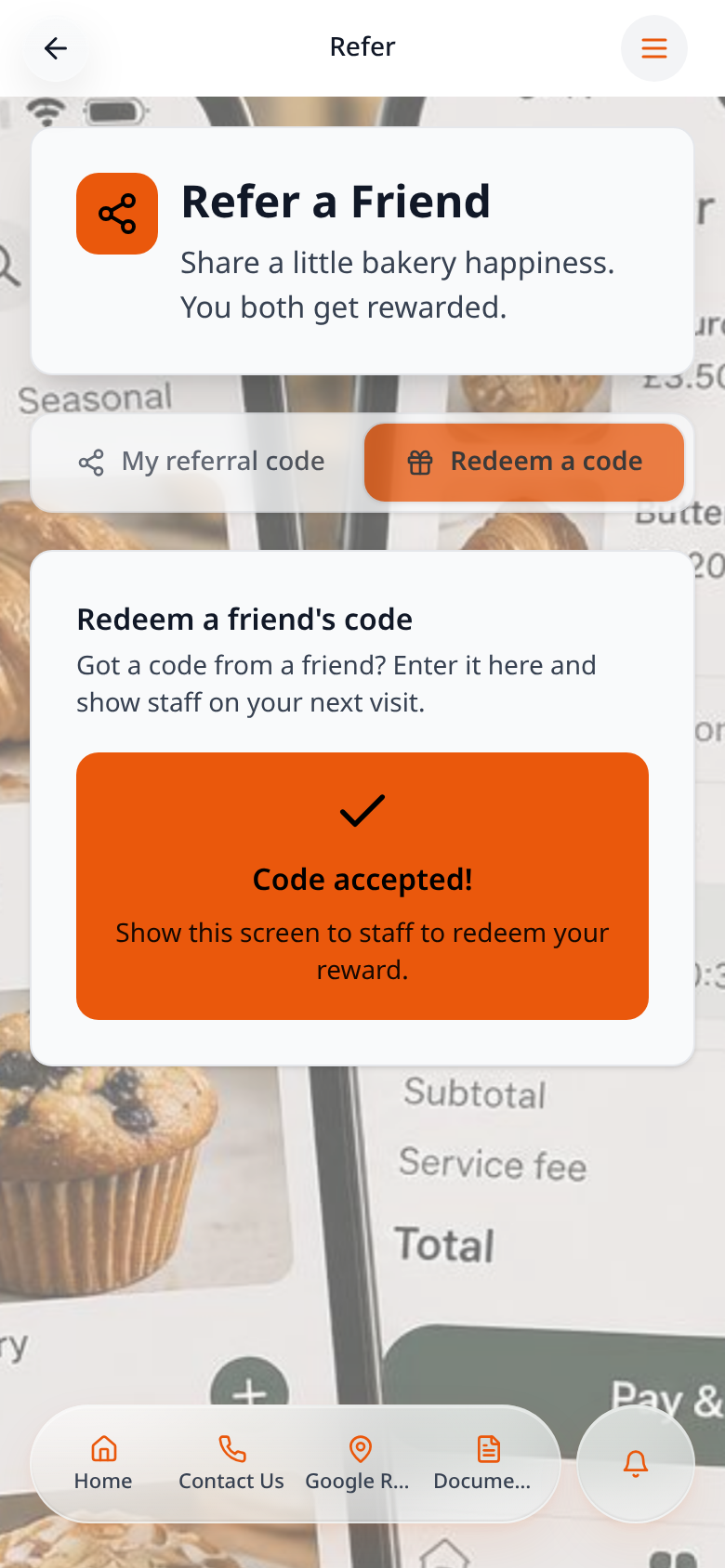
Show staff the accepted claim
The friend shows the Code accepted screen to staff on their visit.
- 15
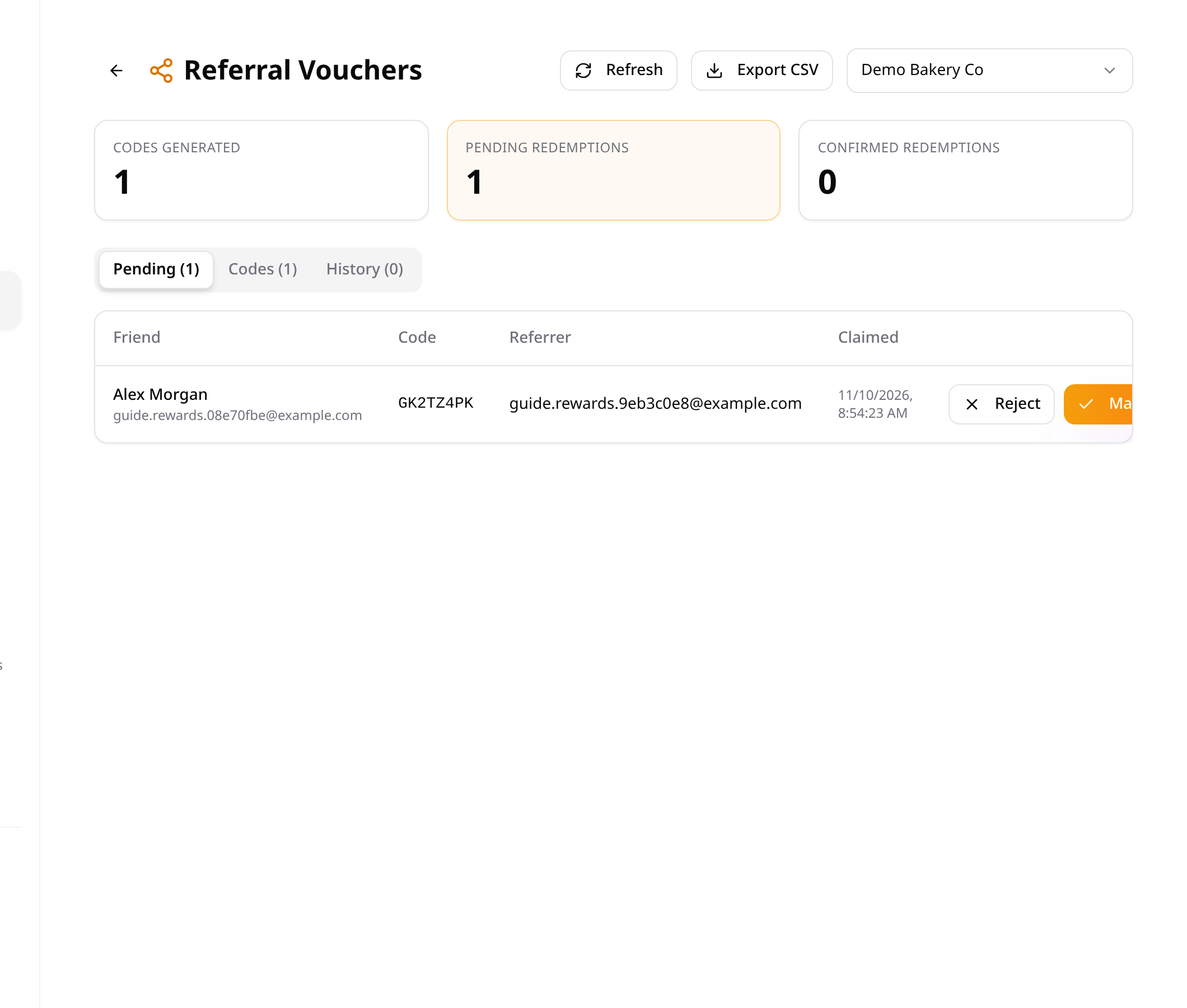
Confirm the visit
In Data Manager, open Referral Vouchers and tap Mark redeemed for the genuine visit, or Reject an invalid claim.
- 16
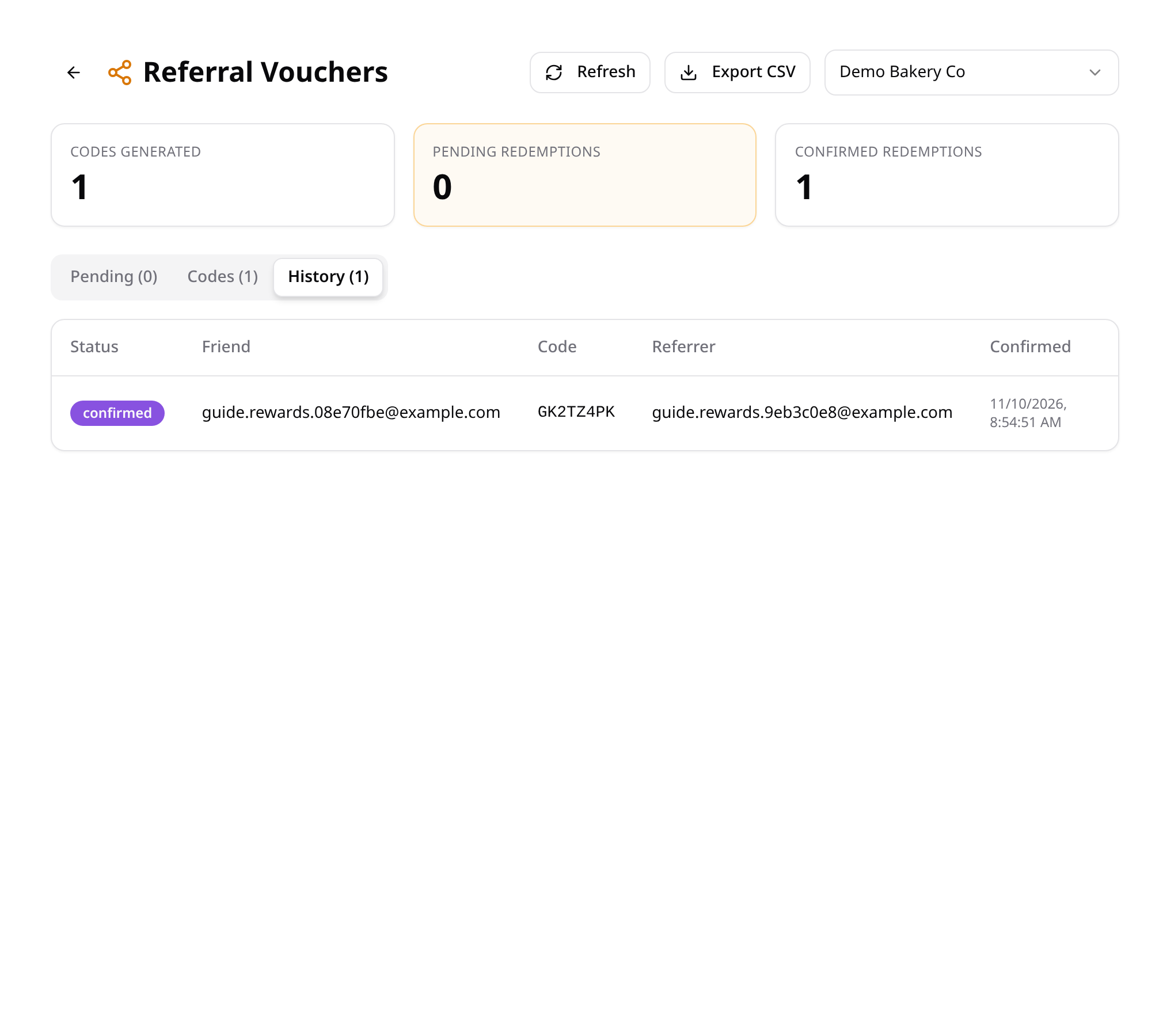
Check confirmed history
History shows confirmed claims; confirmation triggers the friend and referrer reward emails.
- 17
See the referrer’s reward count
The referrer’s page now shows the earned reward alongside their sharing code.
Referrals are confirmed by staff in store—not applied as an automatic checkout discount. Codes, pending claims and confirmed history are available in Data Manager.