Plan staff rotas with Shift Scheduler
Set up roles, create shifts in Data Manager and let staff see their shifts, swap them or pick up open ones in your app.
Step-by-step guide
Follow these steps, then download the PDF to keep.
- 1
Choose Shift Scheduler
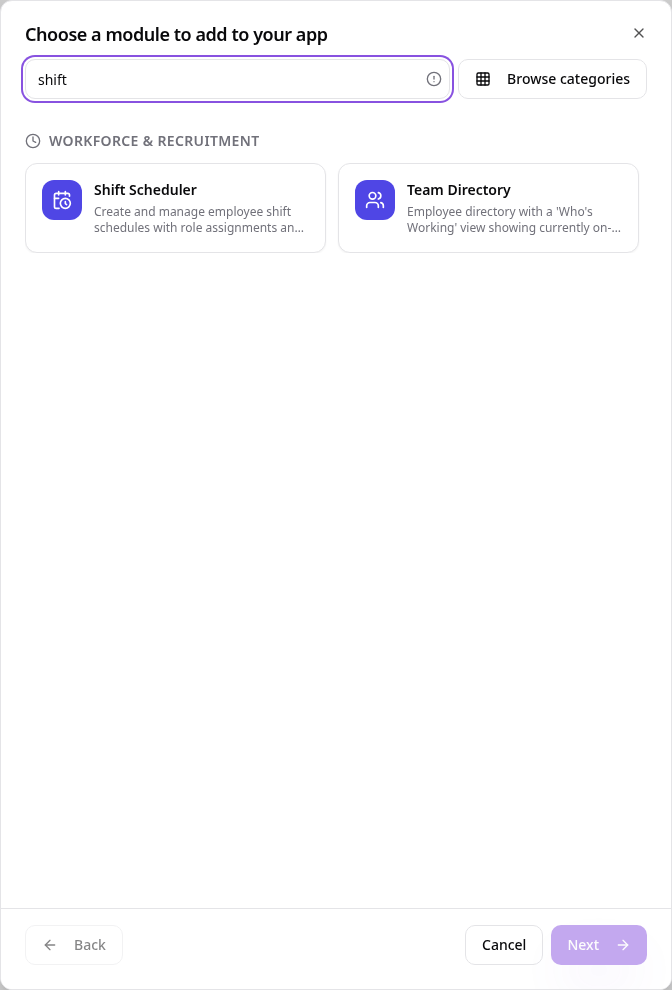
In Pages, tap Add Page or Function, search “shift” and tap Shift Scheduler.
- 2
Add your roles
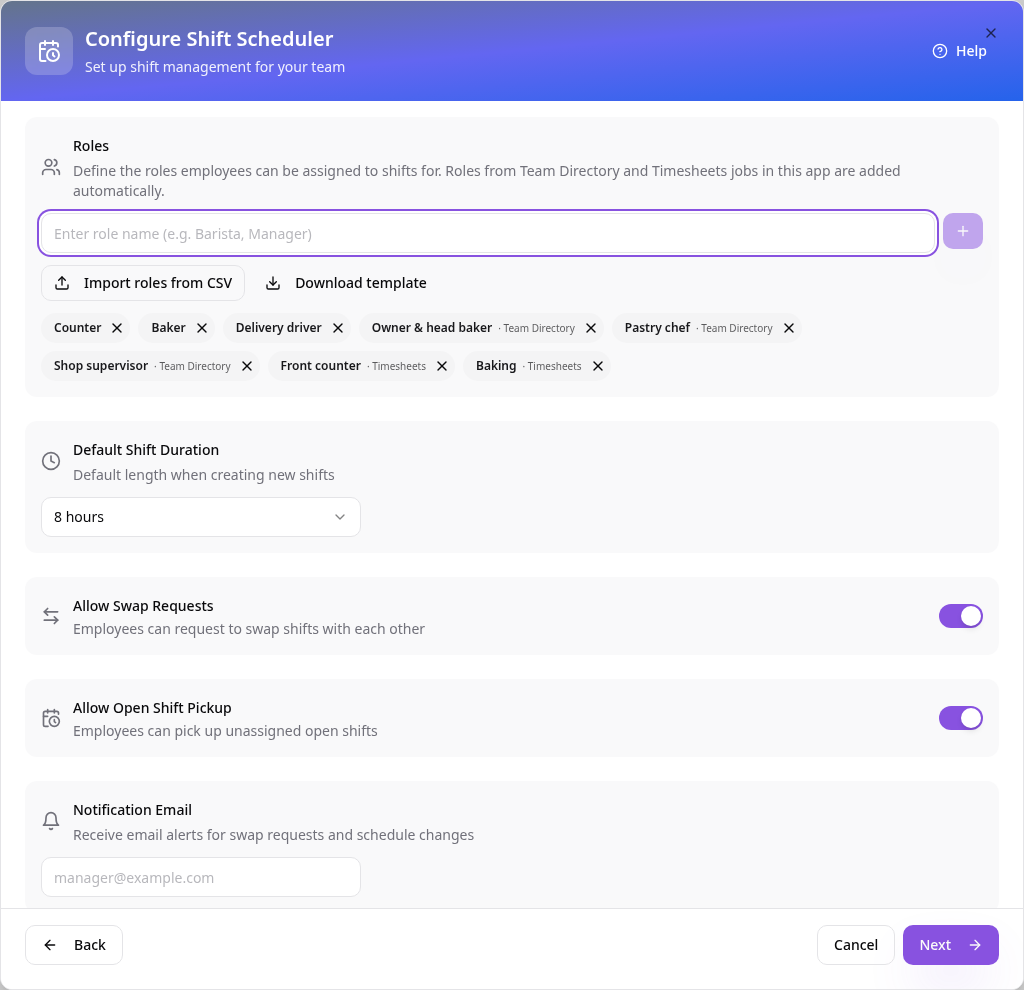
Type a role and press Enter, or import roles from a CSV (tap Download template for the format). Roles from Team Directory and Timesheets in the same app are added automatically.
- 3
Choose your options
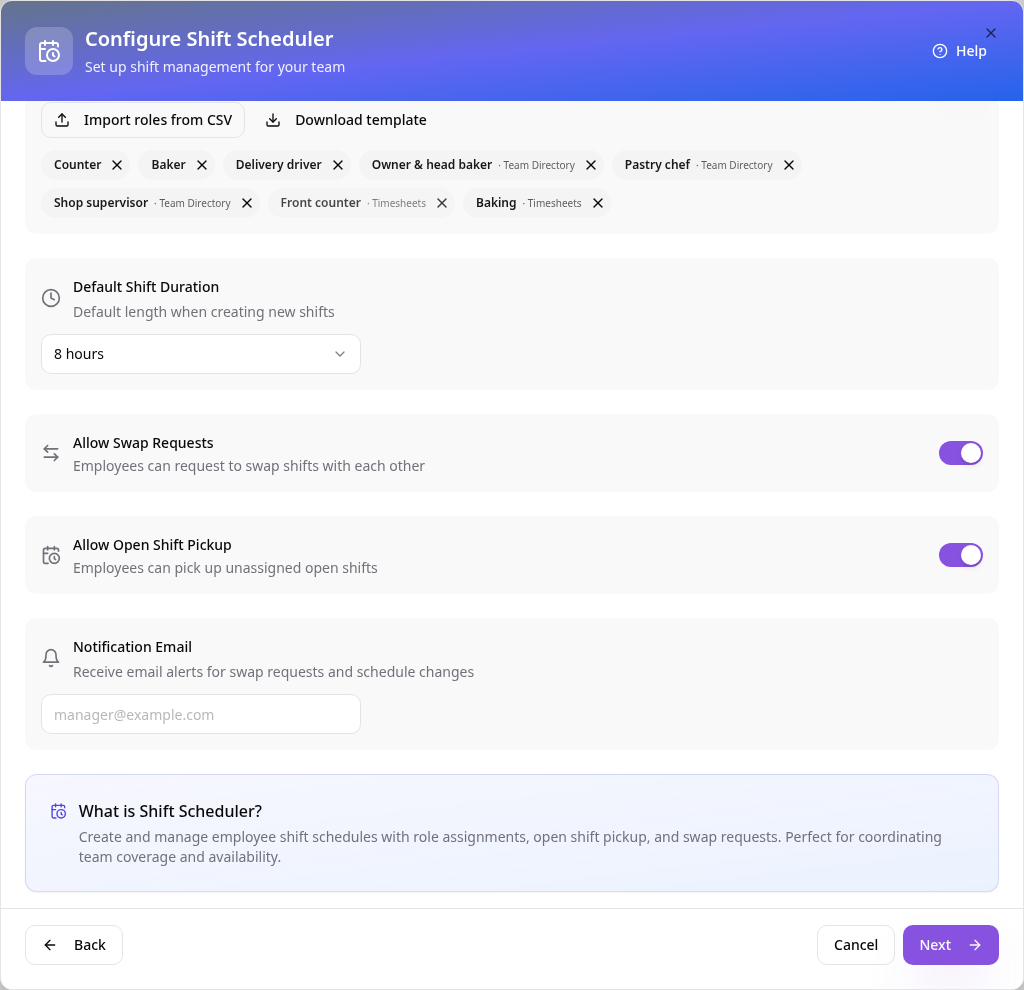
Set the default shift length, allow swap requests and open-shift pickup, and add an email for swap alerts.
- 4
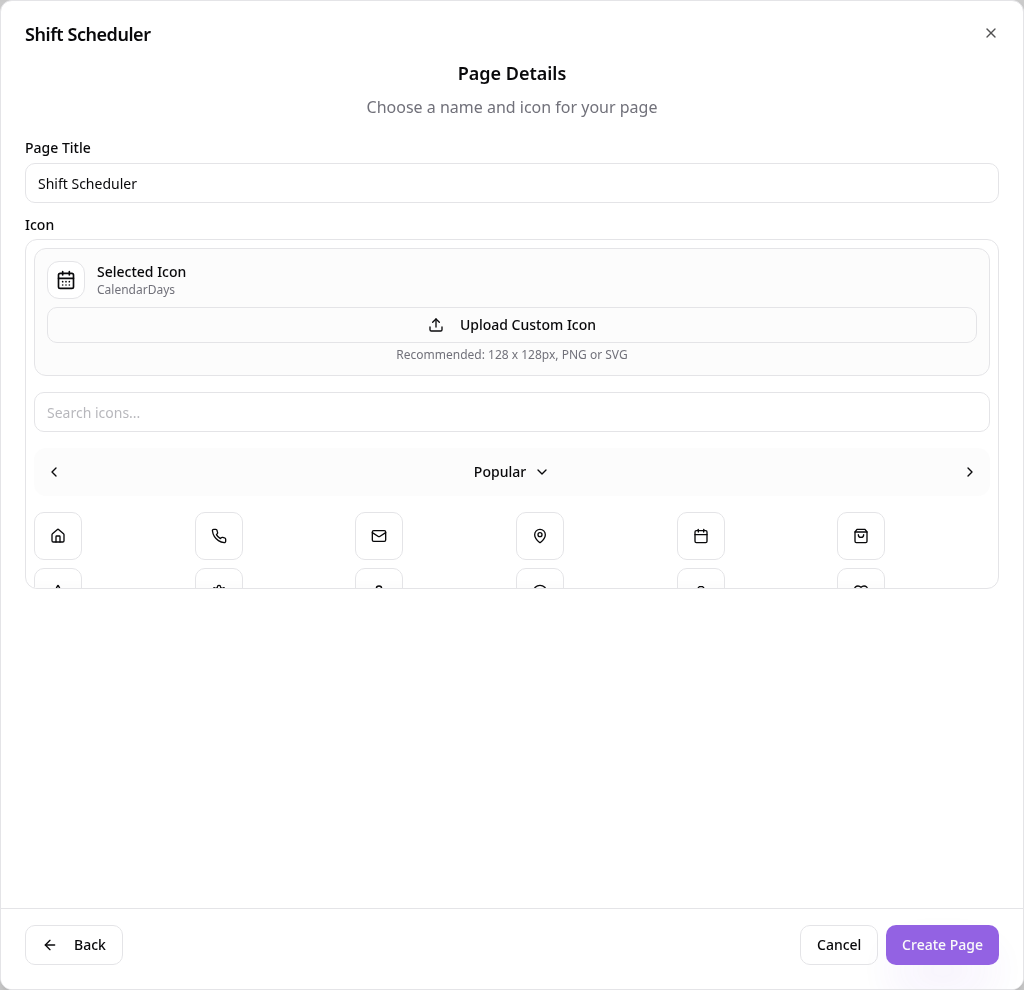
Name the page
Tap Next, choose a page name and icon, then tap Create Page.
- 5
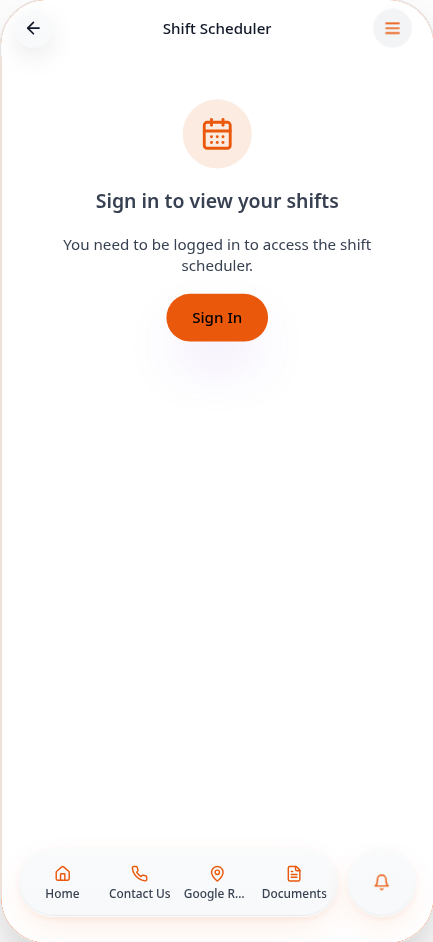
Staff sign in
Shifts are private, so staff sign in or create an account in your app. Once they sign up they can be given shifts.
- 6
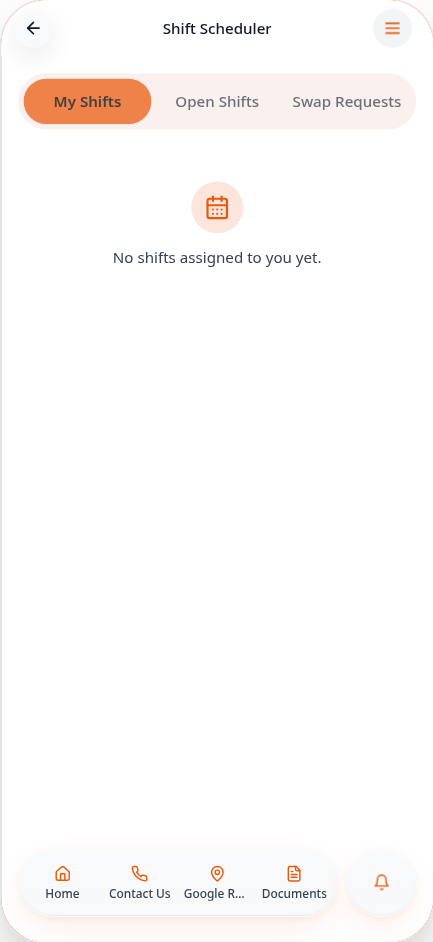
Ready for shifts
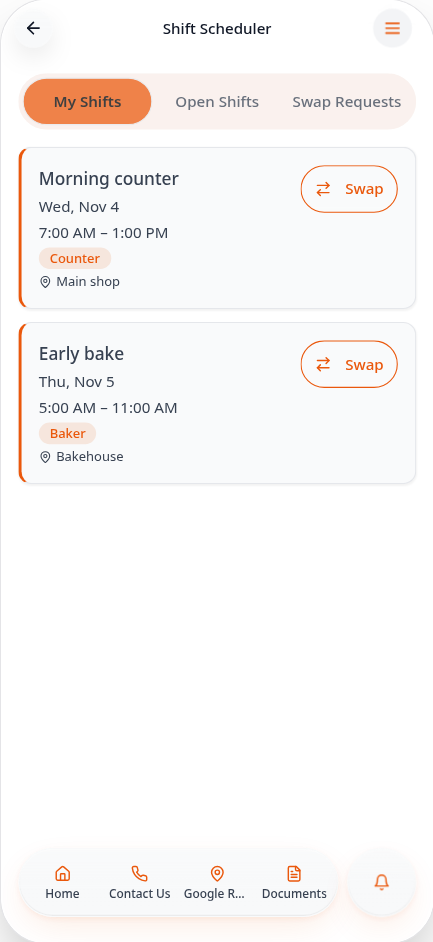
Signed-in staff see My Shifts, Open Shifts and Swap Requests.
- 7
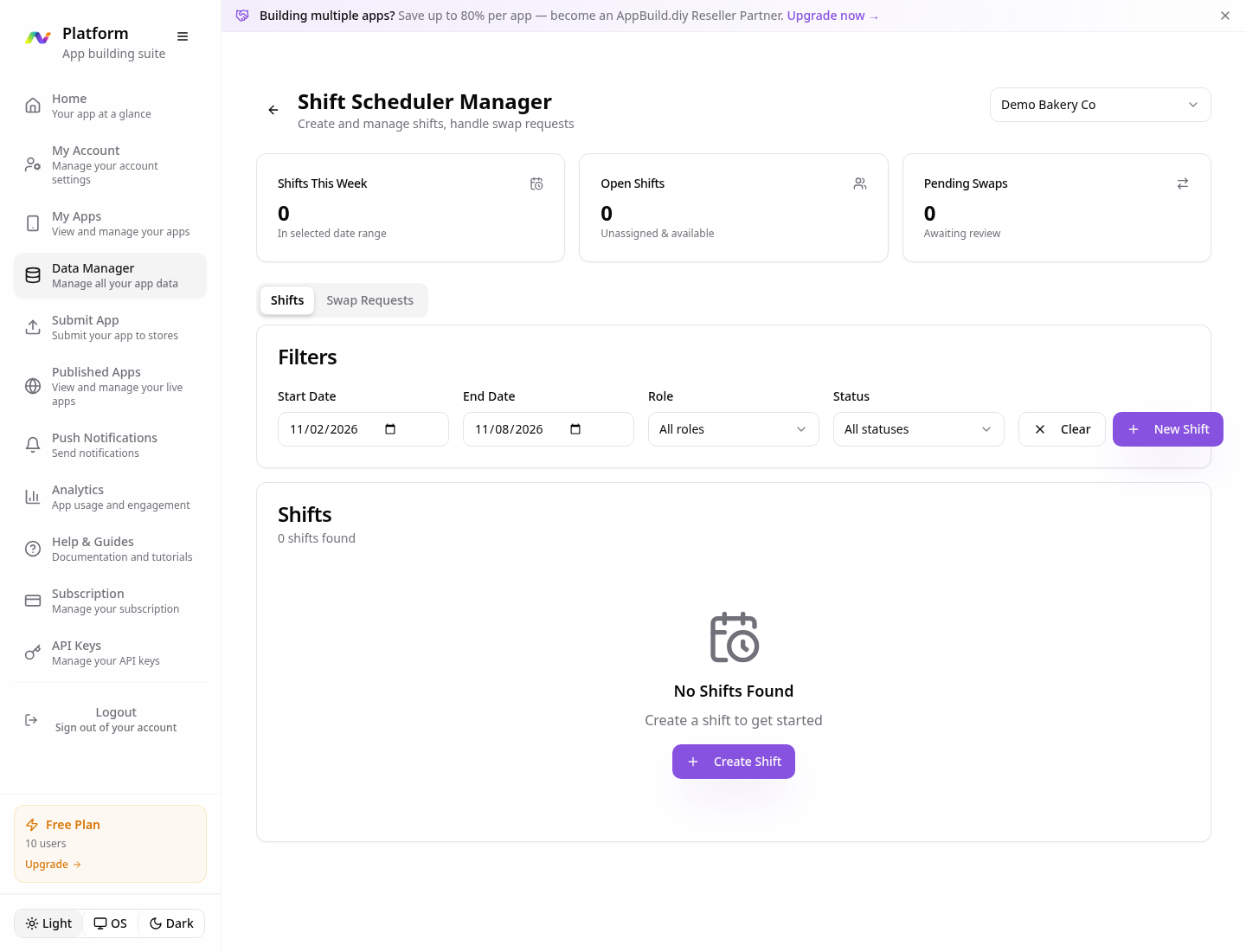
Open Data Manager
In Data Manager, open Shift Scheduler and tap Create Shift.
- 8
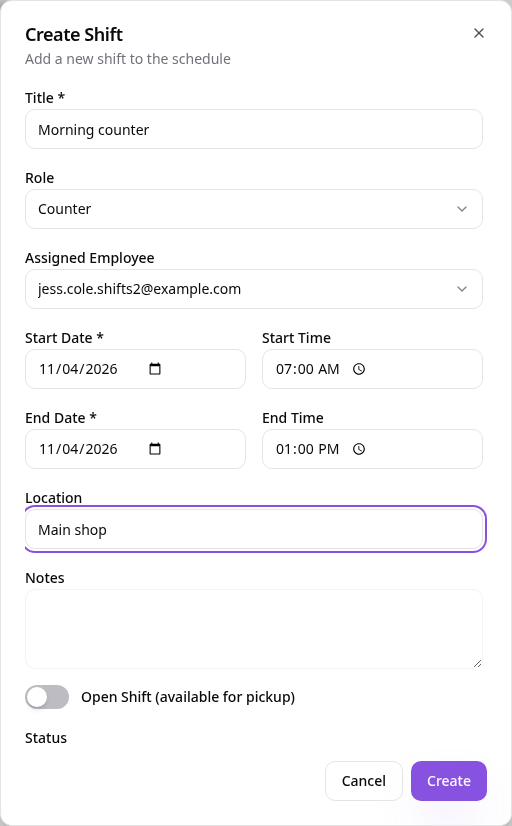
Create a shift
Add a title and role, choose the employee from your registered app users, then set the dates, times and location. Tap Create.
- 9
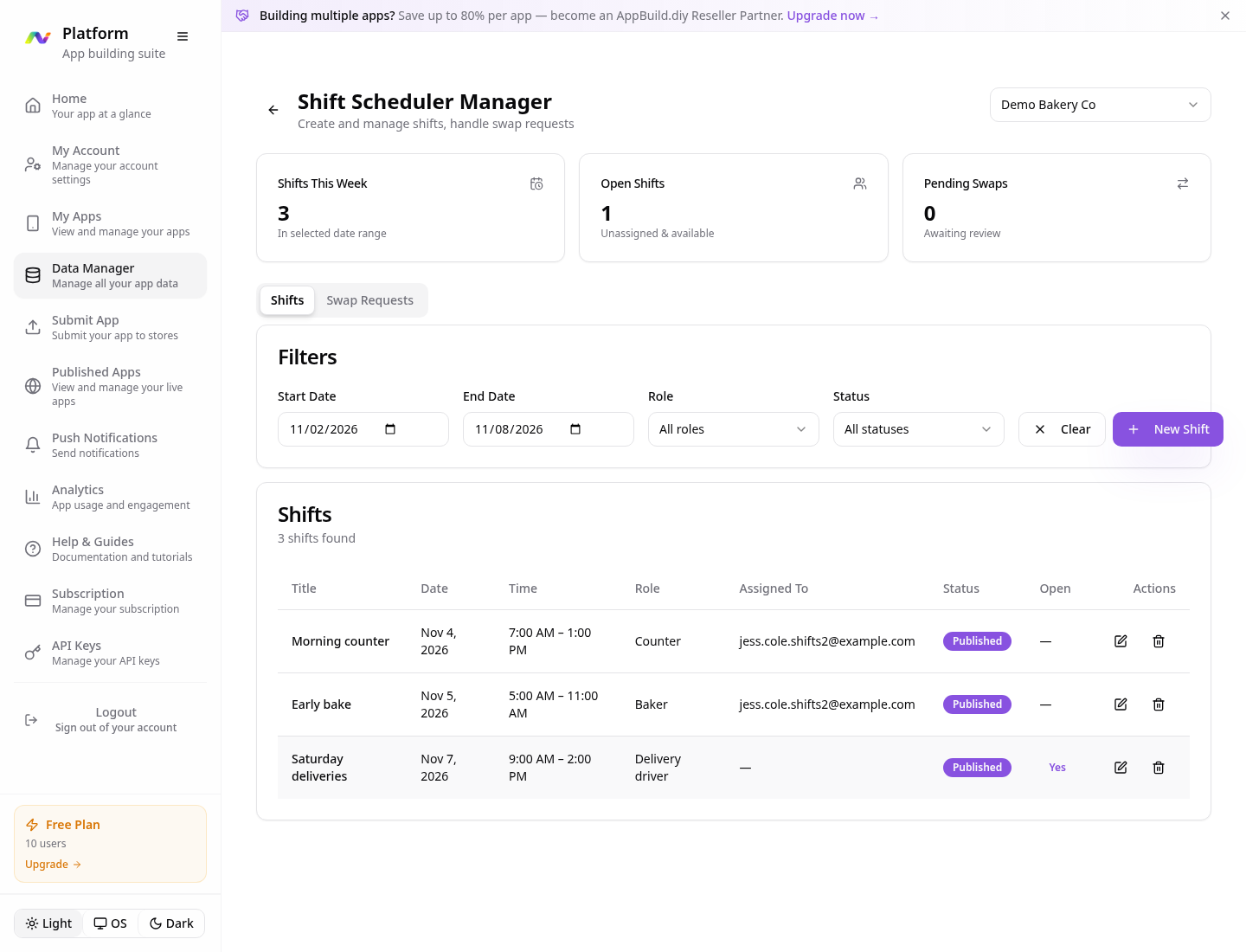
Build the rota
Add more shifts. Leave a shift unassigned and turn on Open Shift to let anyone pick it up.
- 10
Staff see their shifts
My Shifts lists each person's upcoming shifts. Tap Swap to ask to swap one.
- 11
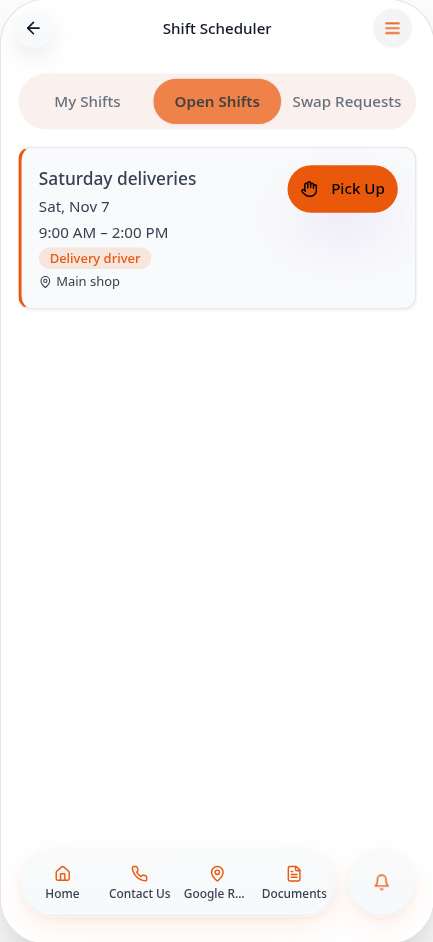
Pick up open shifts
Open Shifts shows unassigned shifts. Tap Pick Up to take one.
Manage shifts and approve swap requests any time in Data Manager → Shift Scheduler.