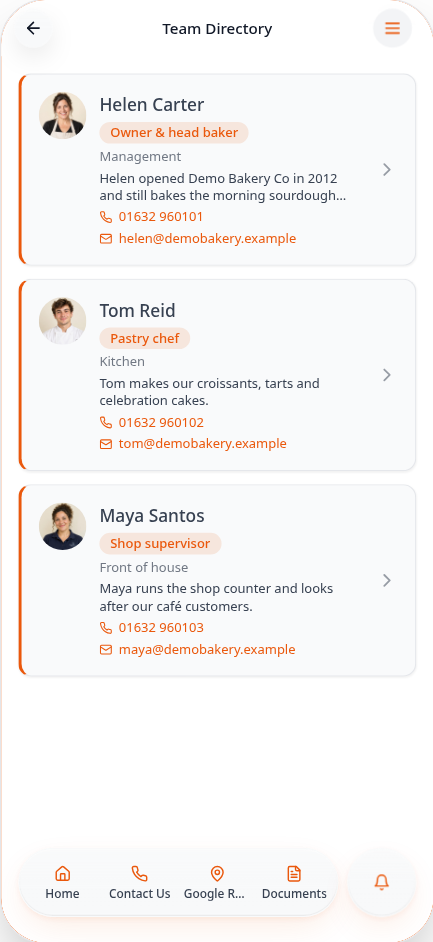
Show your people with Team Directory
Add team members with photos, roles and bios, and let customers tap through to each profile in your app.
Step-by-step guide
Follow these steps, then download the PDF to keep.
- 1
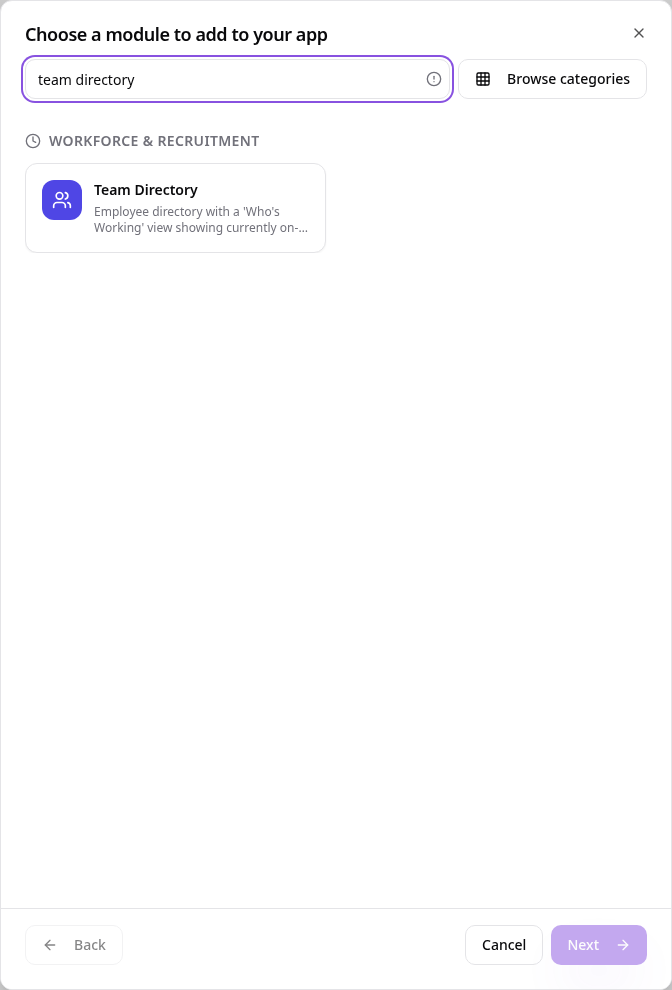
Choose Team Directory
In Pages, tap Add Page or Function, search “team directory” and tap Team Directory.
- 2
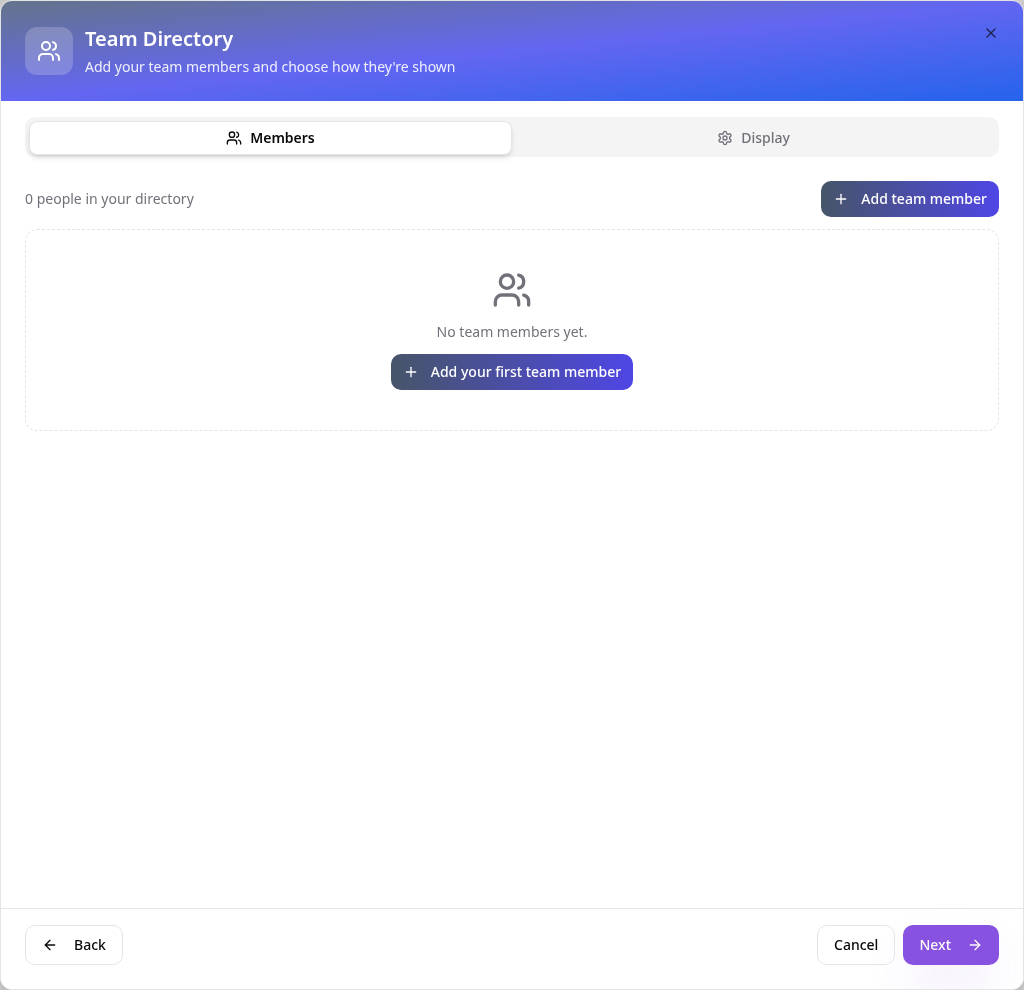
Add your first person
On the Members tab, tap Add your first team member.
- 3
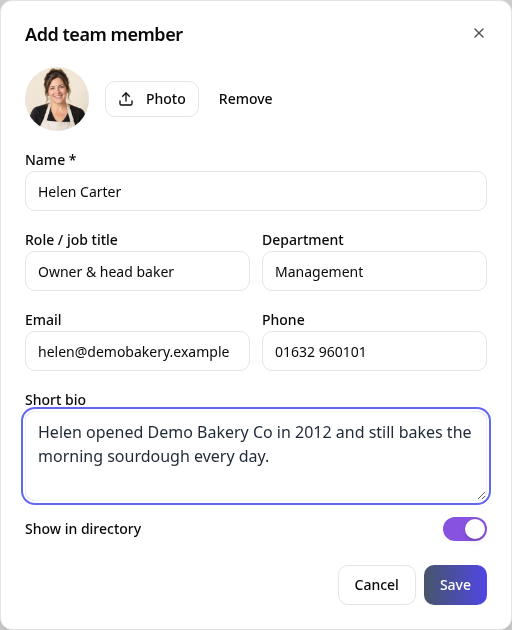
Fill in their details
Add a photo, name, role, department, email, phone and a short bio, then tap Save. Turn off Show in directory to hide someone without deleting them.
- 4
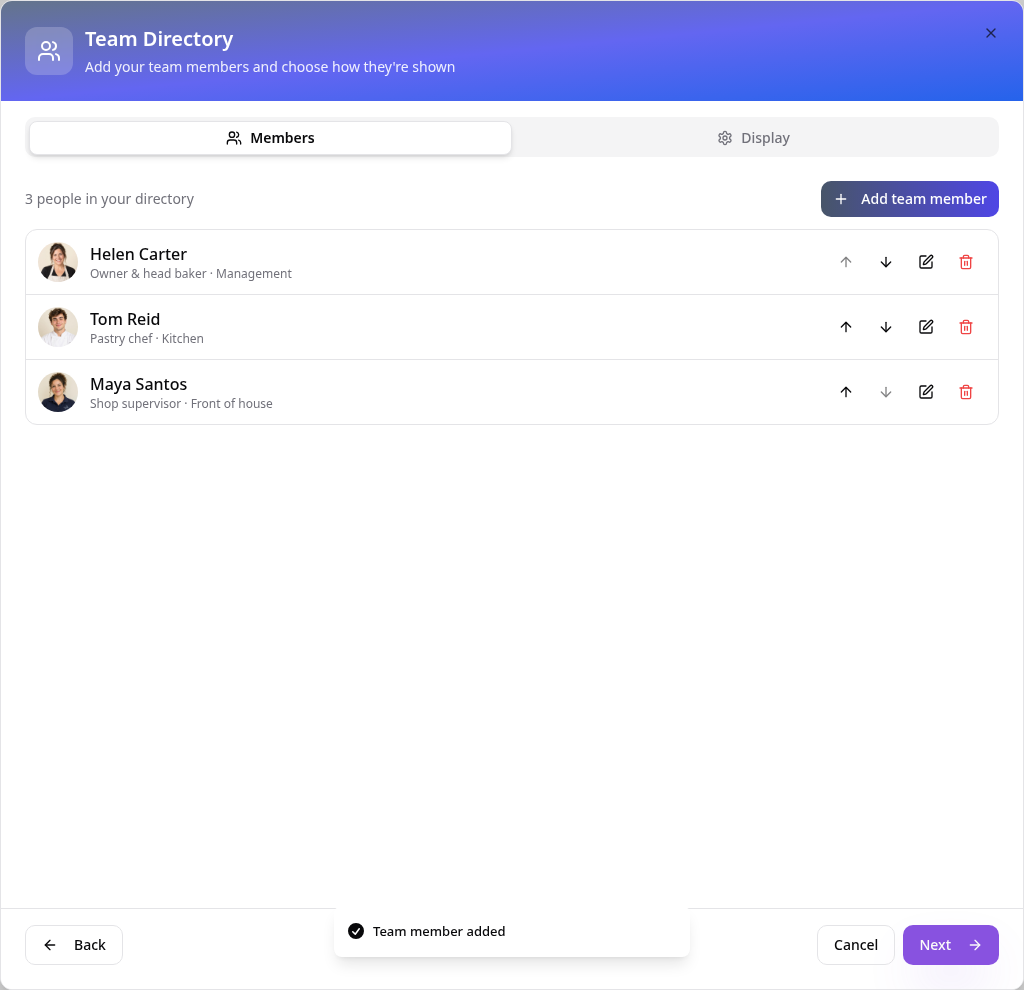
Build your team
Repeat for everyone. Use the arrows to change the order, the pencil to edit and the bin to remove.
- 5
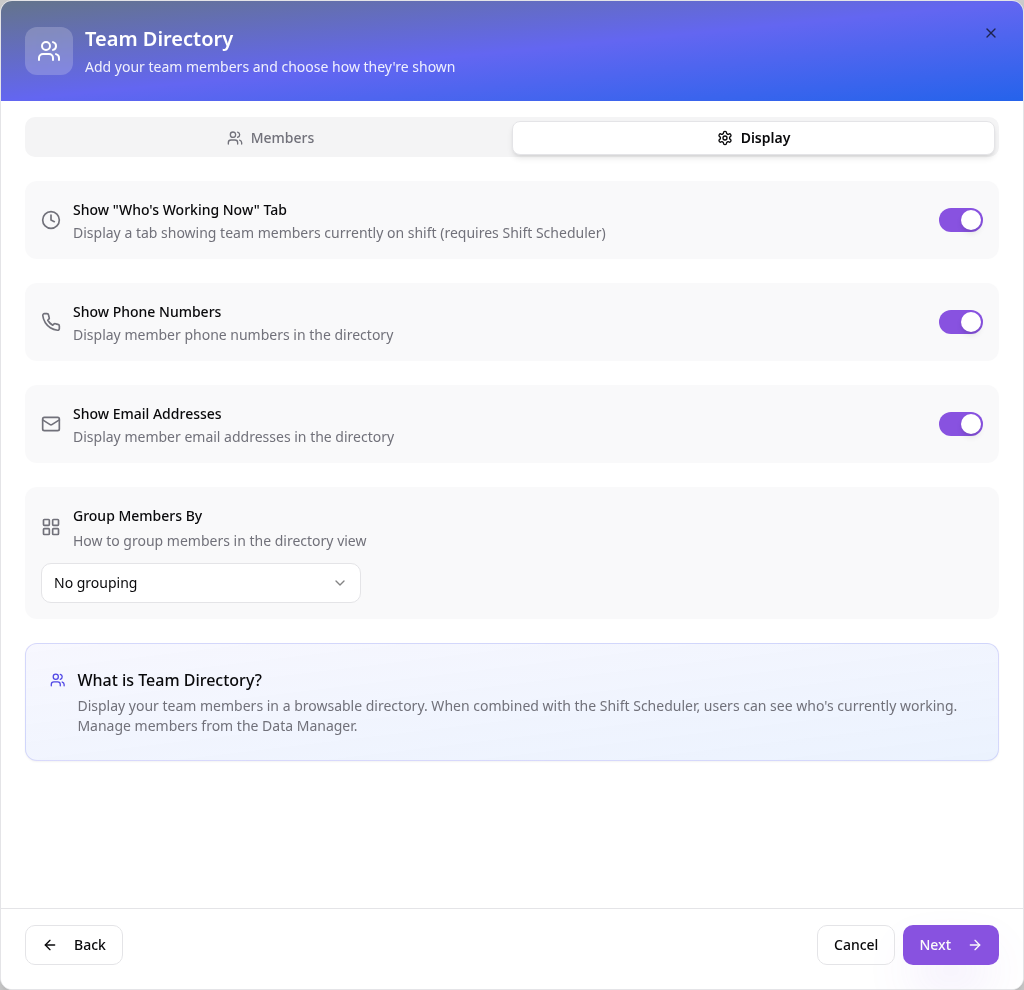
Choose what's shown
On Display, choose whether to show phone numbers and emails, and group people by department or role. Who's Working Now shows staff on shift when you also use Shift Scheduler.
- 6
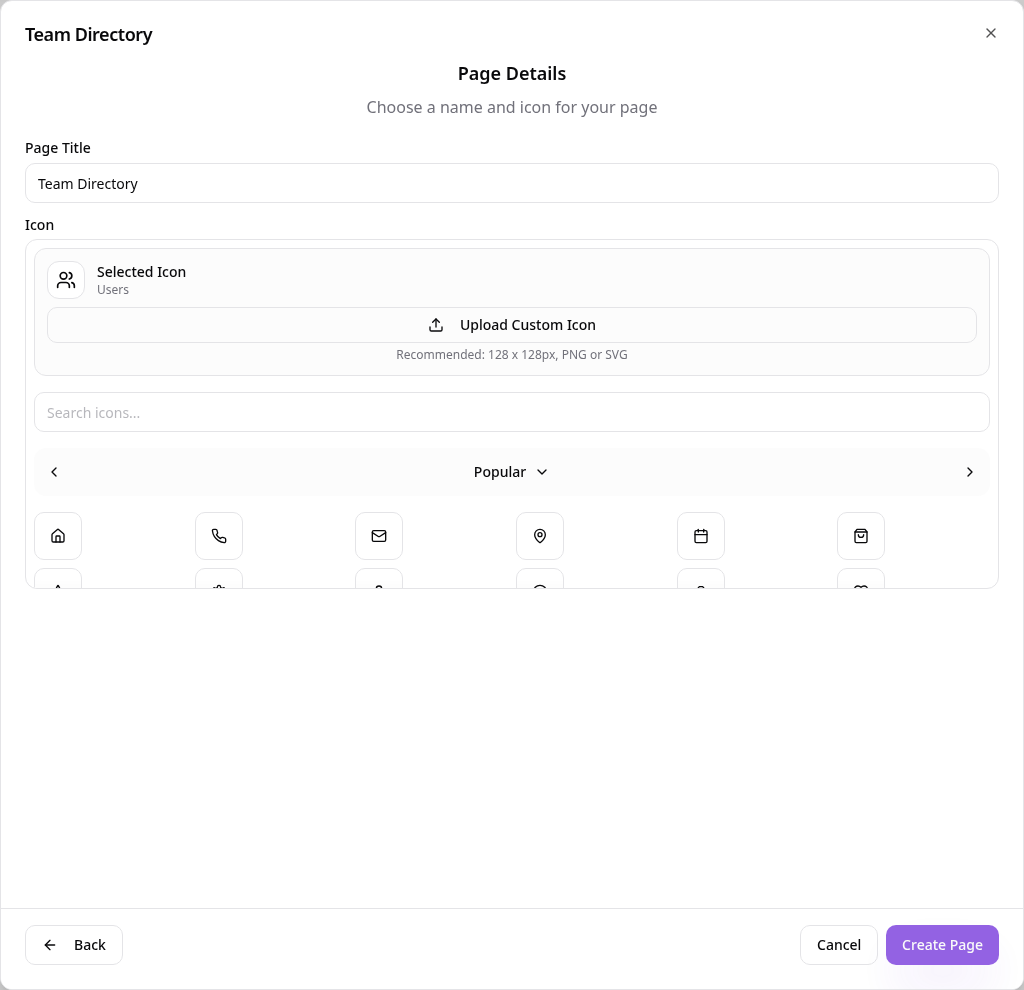
Name the page
Tap Next, choose a page name and icon, then tap Create Page.
- 7
See it in your app
Your team appears as cards with photo, role and contact links.
- 8
Open a profile
Tapping a card opens their full profile and bio. Tap the phone or email to get in touch.

Edit people any time from Edit Page Content. Changes show in your app straight away.