Add workout videos
Build an exercise library, combine moves into workouts and plan programs for your members.
Step-by-step guide
Follow these steps, then download the PDF to keep.
- 1
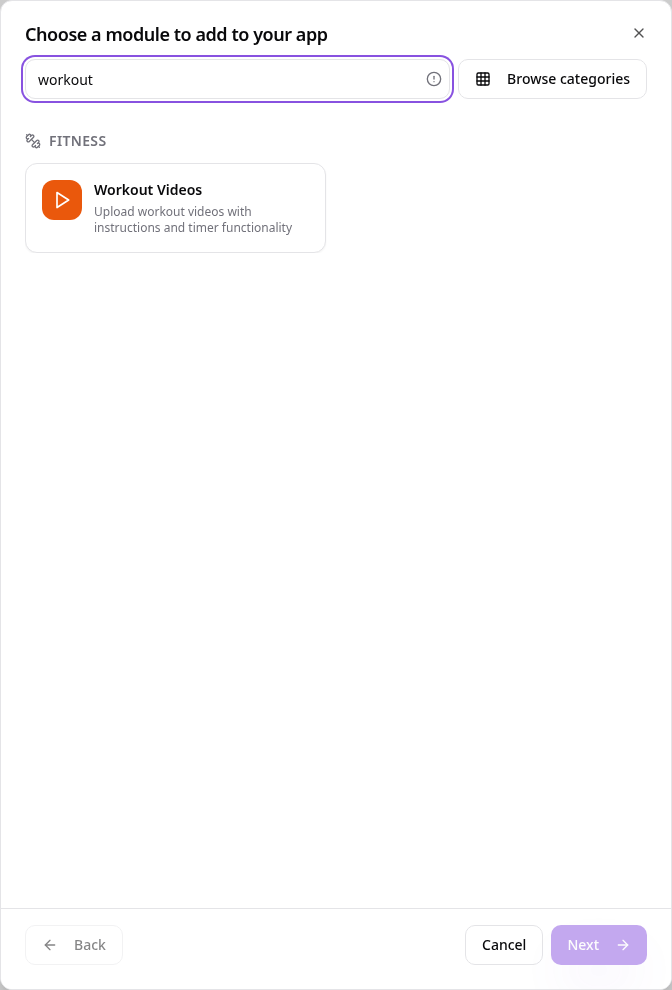
Choose Workout Videos
In Pages, tap Add Page or Function, search “workout” and tap Workout Videos.
- 2
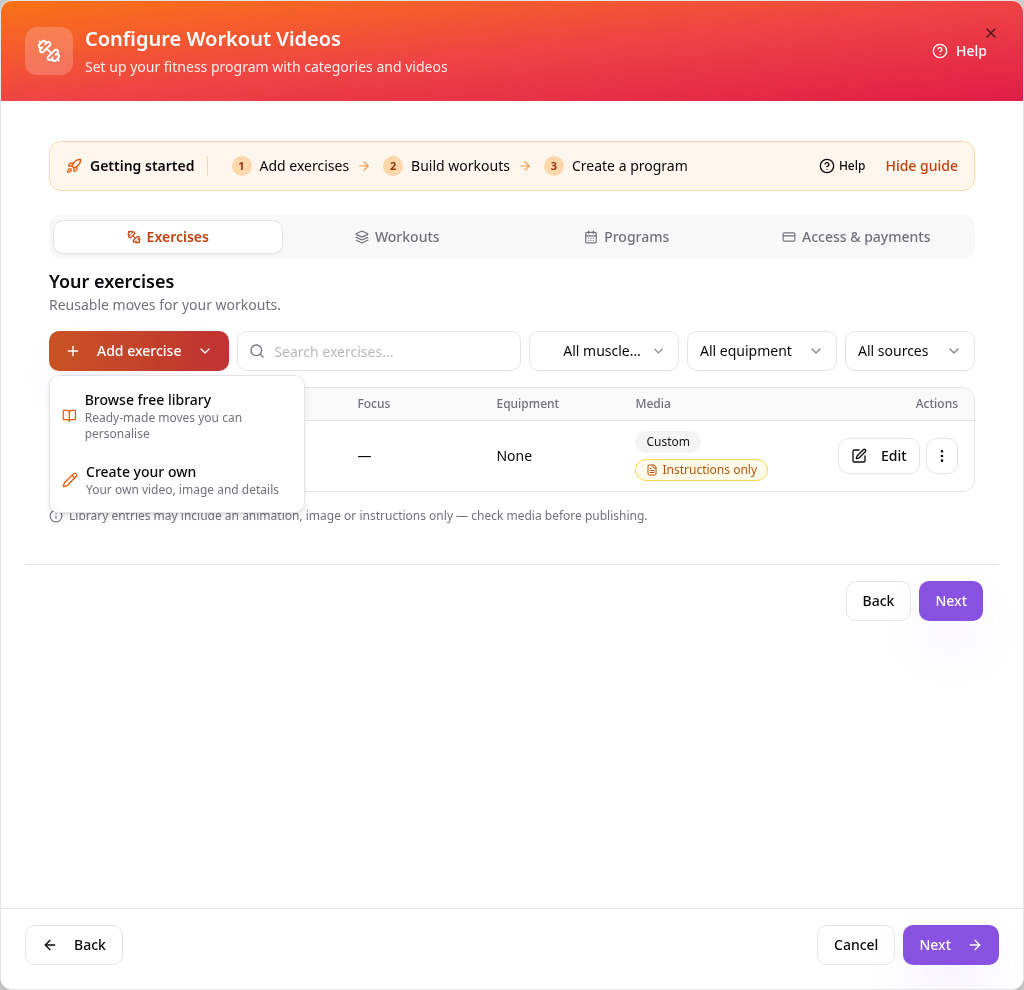
Add an exercise
On Exercises, tap Add exercise. Browse the free library or choose Create your own.
- 3
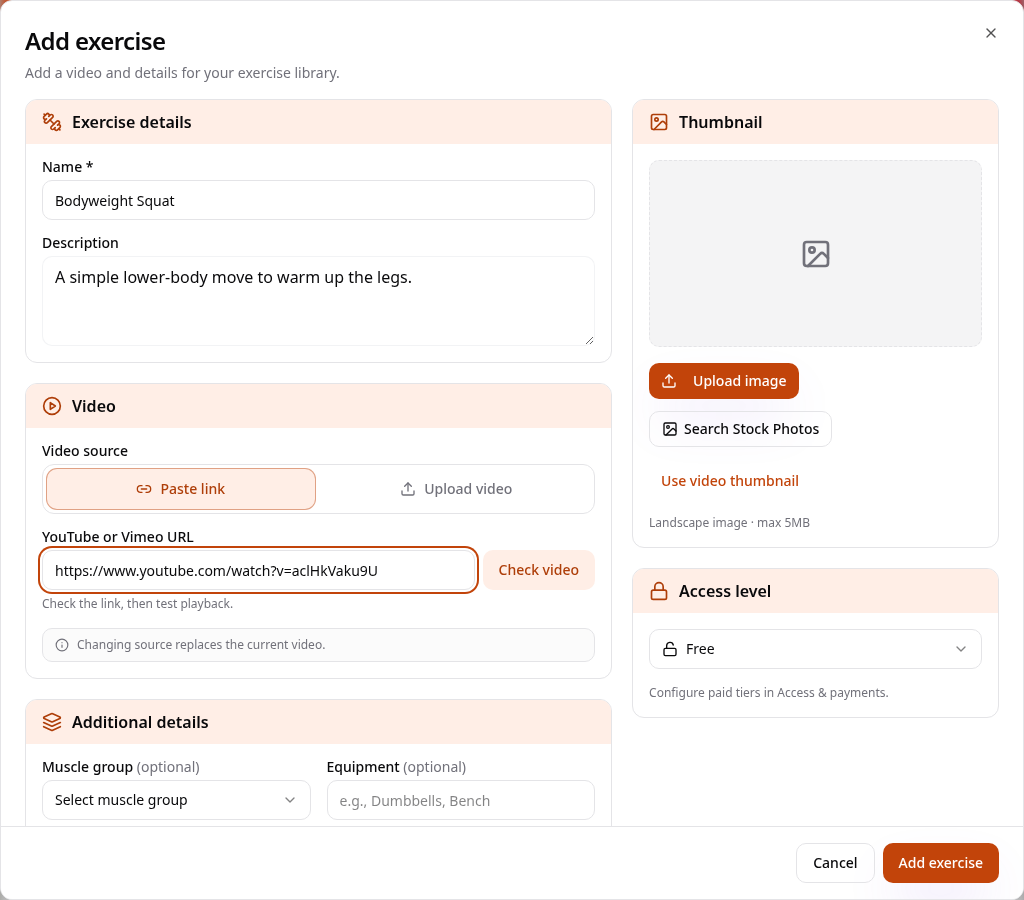
Add the details and video
Give the move a name and description, paste a YouTube or Vimeo link (or upload a video), then tap Add exercise.
- 4
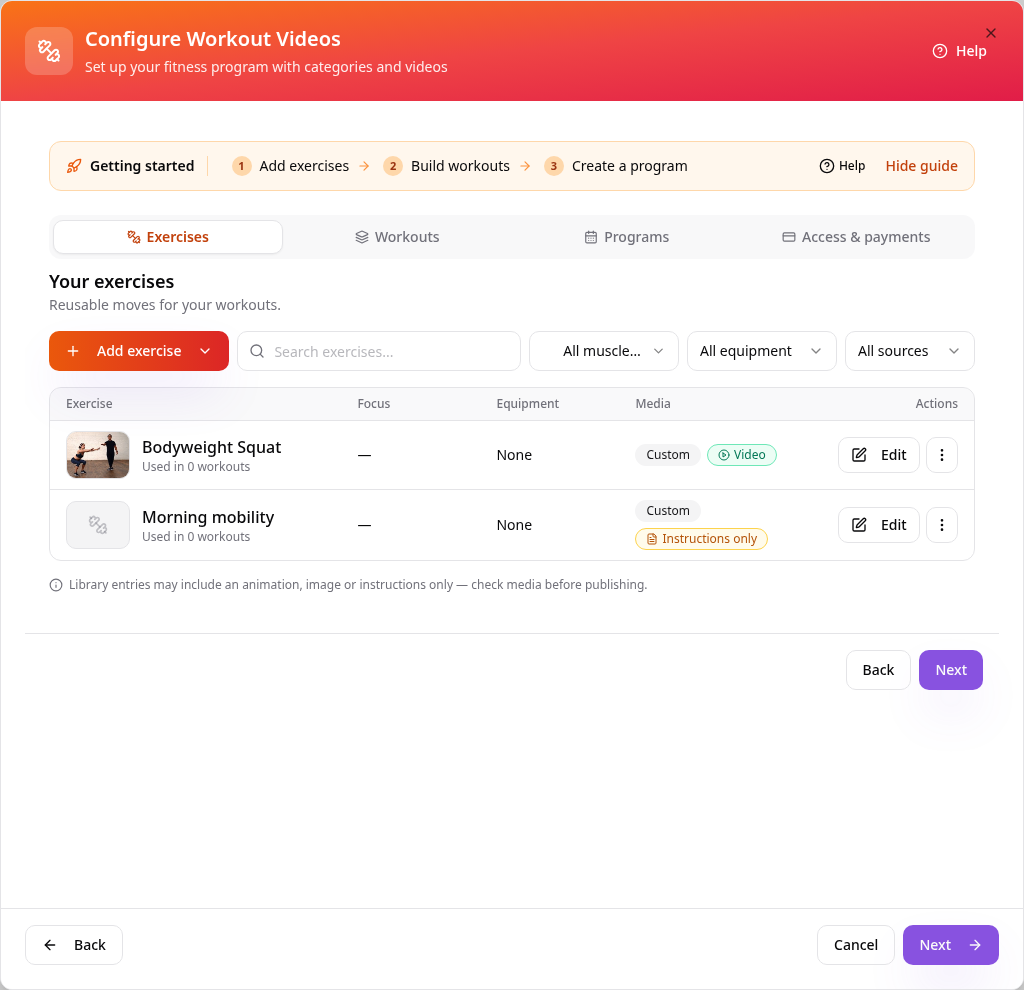
Your exercise library
Each move is listed with its media. Use Edit to change it at any time.
- 5
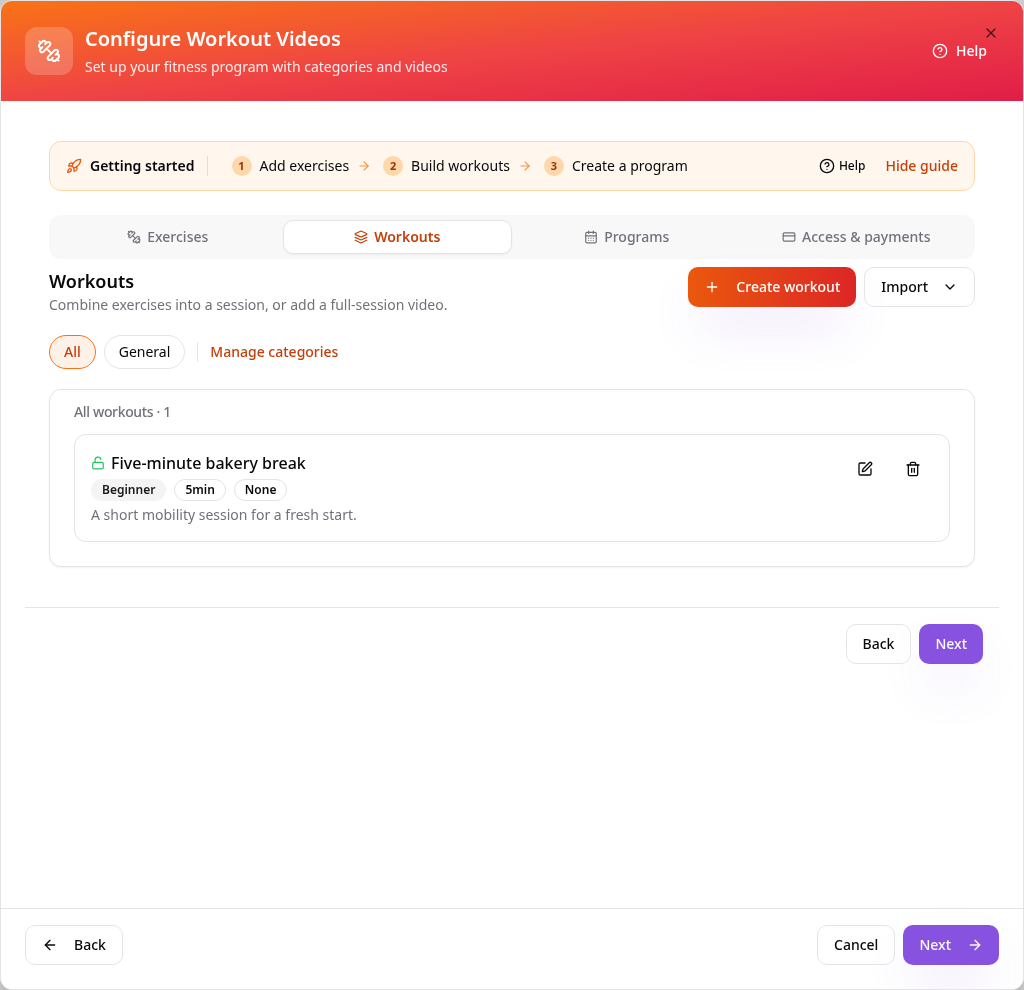
Build workouts
On Workouts, tap Create workout to combine exercises into a session, or import one.
- 6
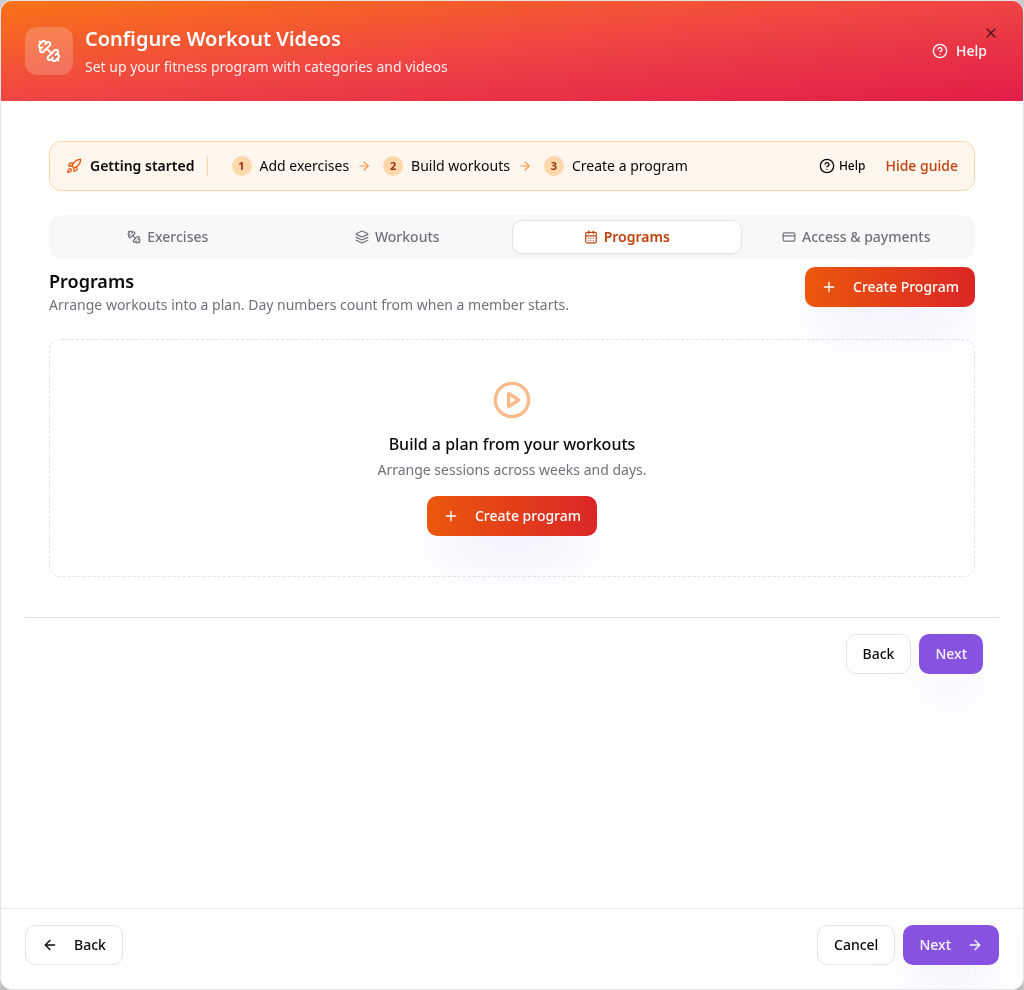
Create a program
On Programs, arrange workouts across days and weeks into a plan members can follow.
- 7
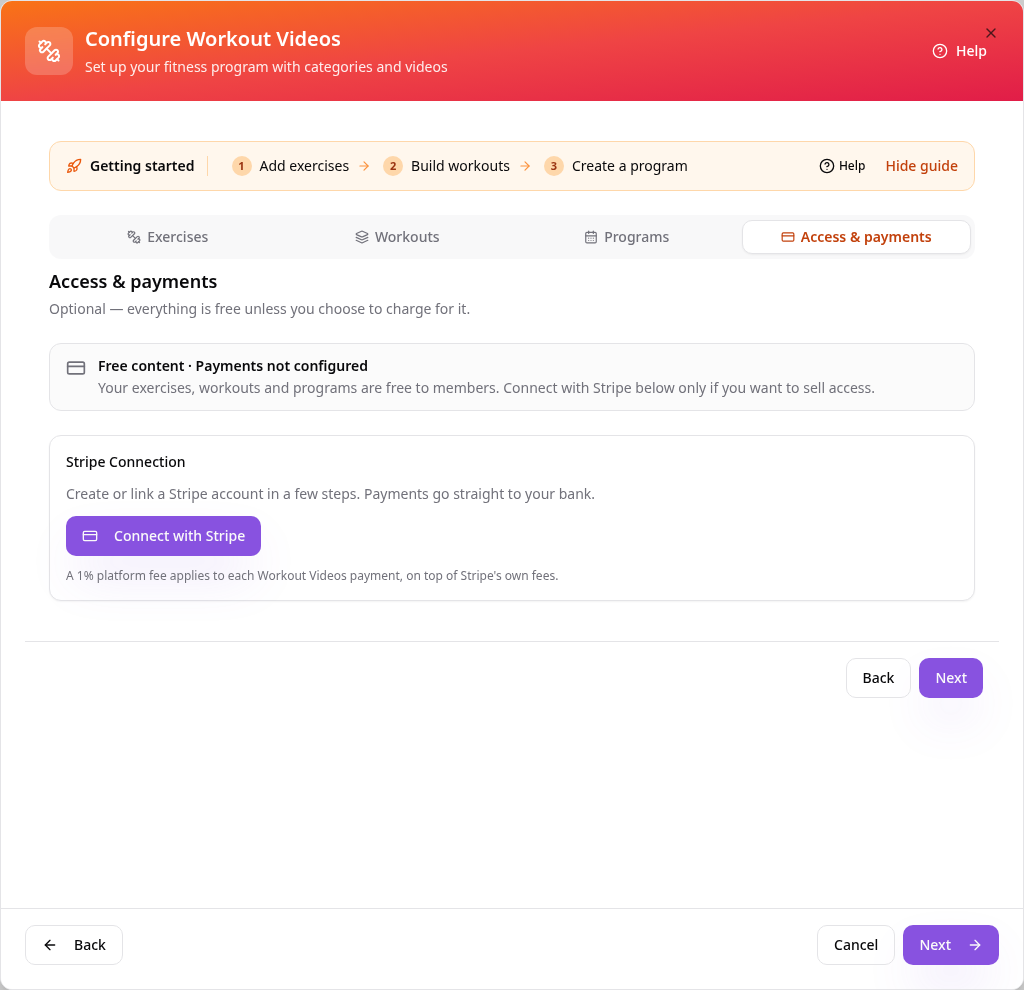
Free or paid
Everything is free unless you choose to charge. Connect with Stripe here to sell access.
- 8
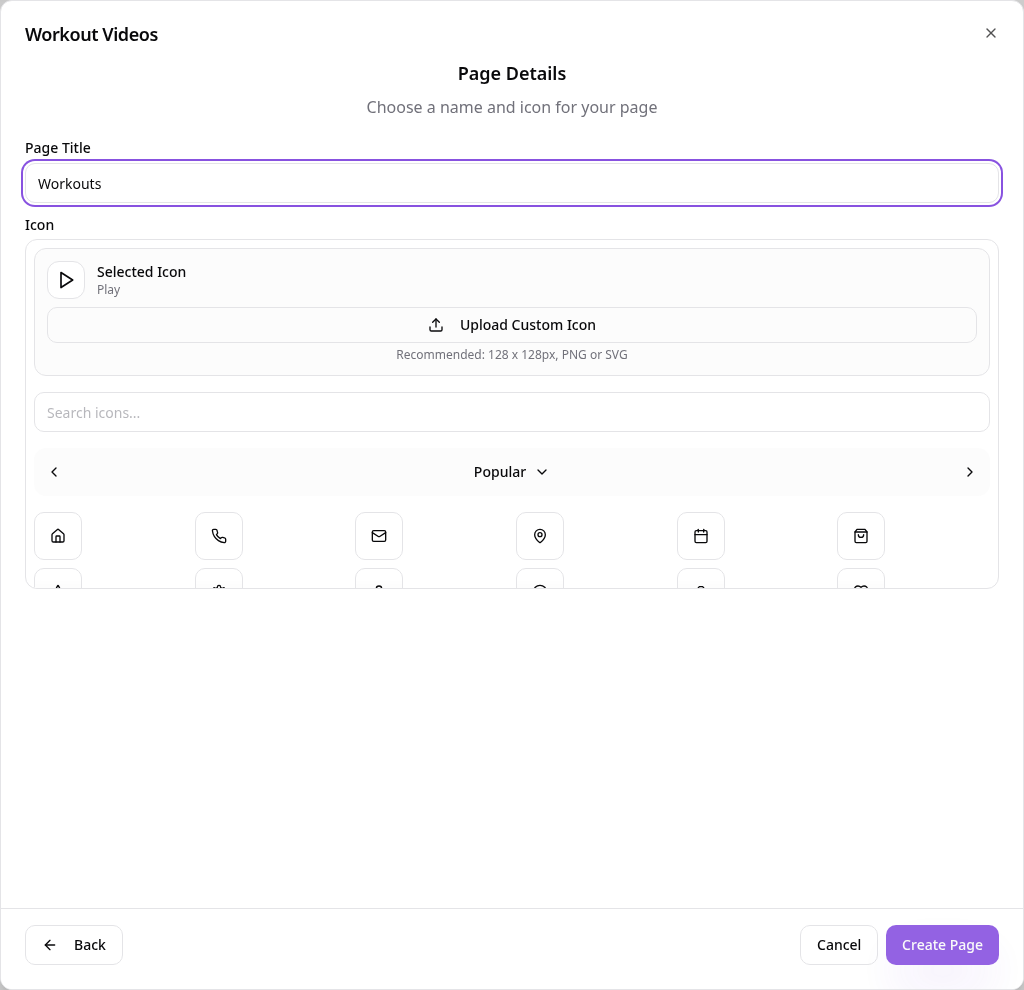
Name the page
Tap Next, choose a page title and icon, then tap Create Page.
- 9
See it in your app
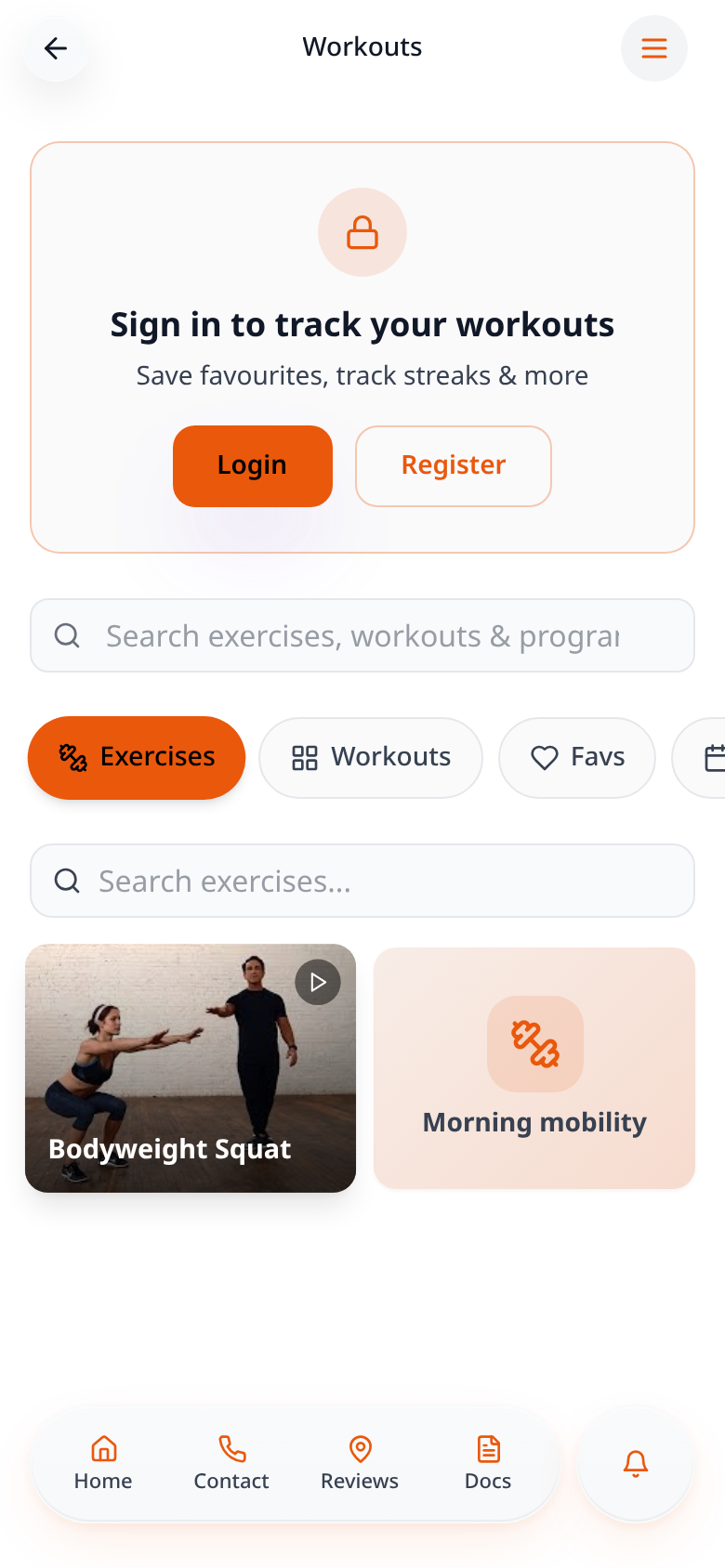
Members browse and search exercises and workouts, and sign in to save favourites and track streaks.
Workouts and Programs tabs appear in your app once they have content. Change anything later from Edit Page Content.